Re-post: creating McKinsey-style water fall charts in PowerPoint
Waterfall charts can X-ray a complicated story. Here is an explanation about the technicalities of creating one in PowerPoint, here is an example of an application.


Frequent updates about all things presentations since 2008. Subscribe to never miss a post.
Waterfall charts can X-ray a complicated story. Here is an explanation about the technicalities of creating one in PowerPoint, here is an example of an application.
When Frankensteining a deck (i.e., stitching a new presentation together from old slides), there is nothing more annoying then slide formats that go crazy when pasting in slides. Here is a trick to avoid this.
One of the best-kept secrets of PowerPoint is the selection pane, that allows you to remove overlapping objects from a slide temporarily to make it easier to edit layers. Details here in a previous post.
PowerPoint files can still contain information that you thought was long gone. Watch out with this, especially when sharing files with outsiders via email, or on content sharing platforms such as SlideShare.
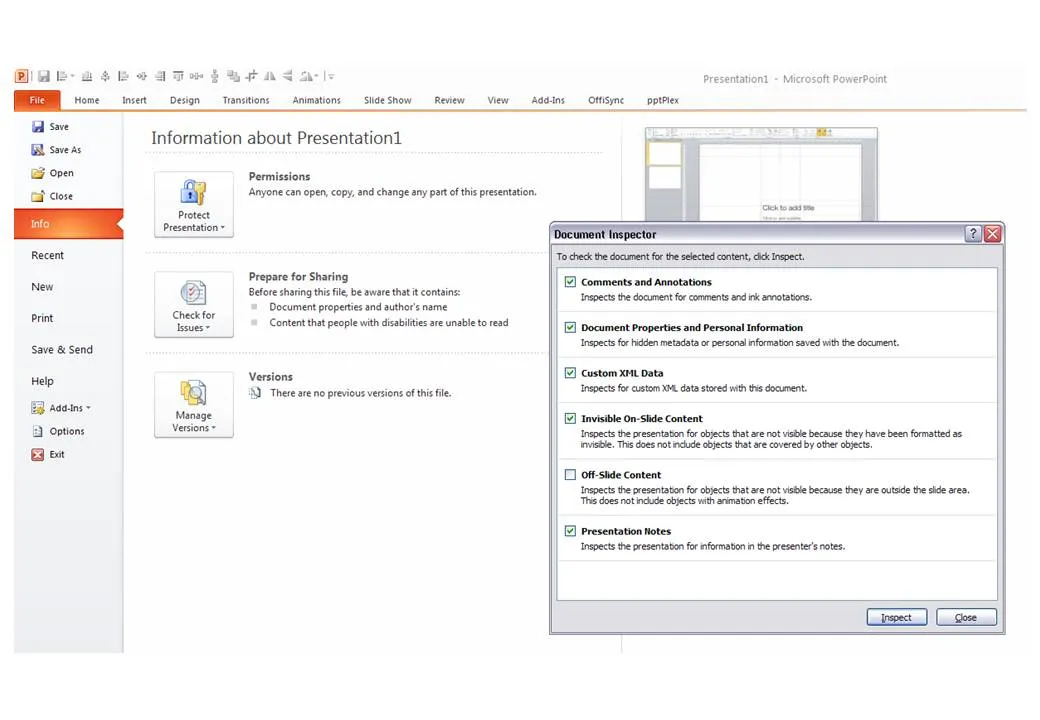
The easy solution is to convert PowerPoint files to PDF. If you want to stick to the PowerPoint format, here are some things to watch out for:
P.S. Image tags can be an unwanted piece of information in PDFs, here is how to get rid of them.
One the biggest hassle of PowerPoint 2003 was that when you resized a data chart, all the fonts got completely squeezed. Only PowerPoint pros new that you had to open the chart, and once it’s open in Microsoft Graph, you can resize the object without doing damage. Any other person (99.99% of the population) went for the squeeze.
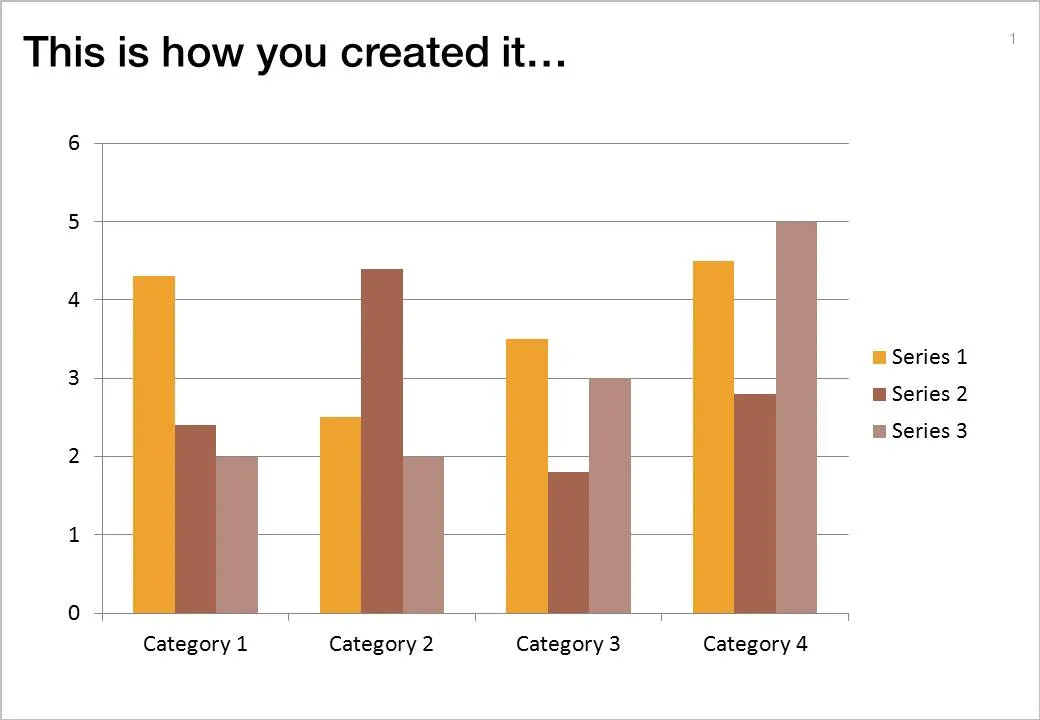
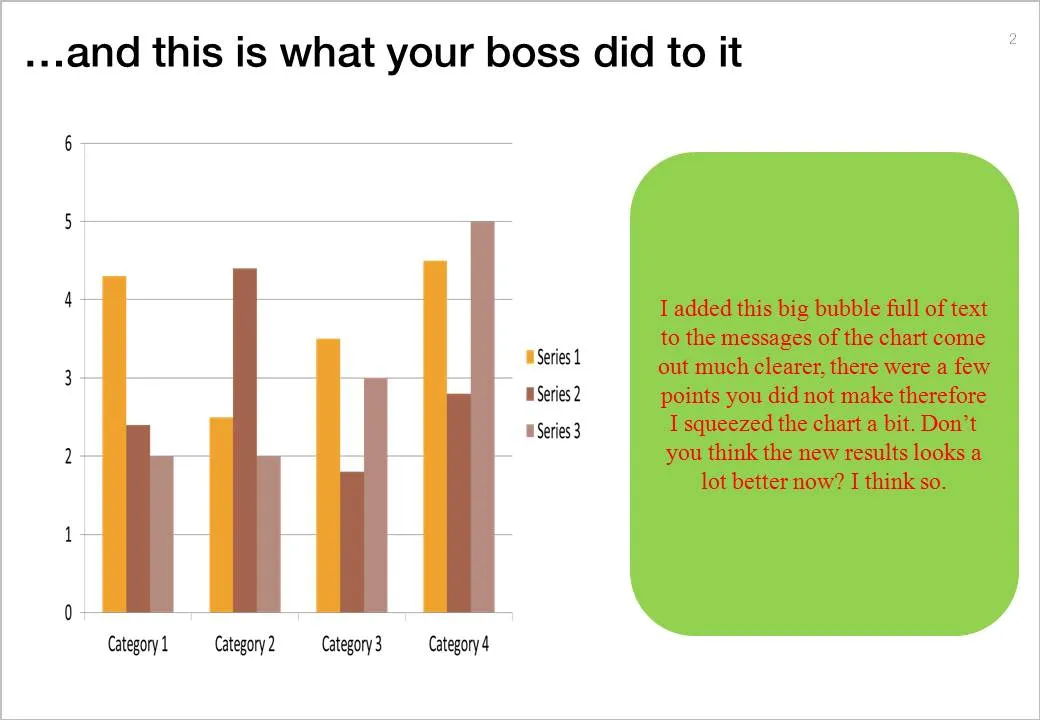
If there is one reason to upgrade to PowerPoint 2010 (2007 also solves this), this is it.
But here you are, the corporate IT department insists on keeping the company on Office 2003, and you just got your 45-page back from your boss who “edited things for clarity” and you’re on to present tomorrow morning 9:00.
This will save you:
OK, I did my first presentation in a 1-on-1 meeting using an iPad. It was a bit improvised, as I made a last minute decision to drop a paper copy for the new gadget. My experiences.
It still is a bit of a hassle to get your file presentable on an iPad. I installed the Keynote app, but this is an iPad-specific piece of software that does not import regular Keynote files and I have not (yet) designed presentations specifically for the iPad. So I went for PDF.
In order to get the file on the iPad I had to upload it to Google docs, and then I used the GoodReader app to get it down on the device.
PDF was a bit tricky too. The PDF I created on my Windows PC did not render well on the iPad (custom fonts were invisible). It turned out, that it did not show well on a Mac either. So: import the Windows PowerPoint file into PowerPoint 2008 on the Mac, have the Mac convert it to PDF.
The PDF conversion was not ideal. The Mac decided to give my slides a white frame, and keep the parts of the pictures that were outside the slide borders in the page render. So I went back into PowerPoint to delete these (compress pictures) and start the process again.
I presented outside and the bright Tel Aviv sun light was too strong for the display of the iPad, so it was a bit hard to see. I already use big fonts om my slides, but my advice when designing for an iPad: go even bigger. The presentation view you have at a coffee table is one of an audience member in the back of the presentation venue.
I have been working with PowerPoint 2010 for a few days now, here are some of my first impressions. I am discussing the upgrade from PowerPoint 2007 to 2010. (2003 users: see my earlier post on upgrading to 2007.)
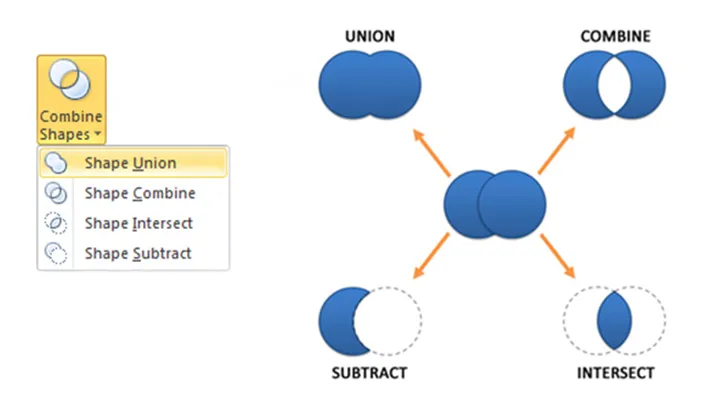
For heavy PowerPoint users, I recommend upgrading to PowerPoint 2010 not so much about the advertised “big” new features, but amount a number of minor changes that make a big difference. Here are a few that I have discovered so far:
Should 2003 users upgrade: definitely, 2007 users, probably only the heavy users. An (affiliate) link to everything Microsoft Office 2010 on Amazon.
Visual Bee is an Israeli startup that offers a plugin for PowerPoint that can improve slides automatically. At the click of a button it does 2 things:
The user can choose from a number of styles, that will be applied consistently through your document.
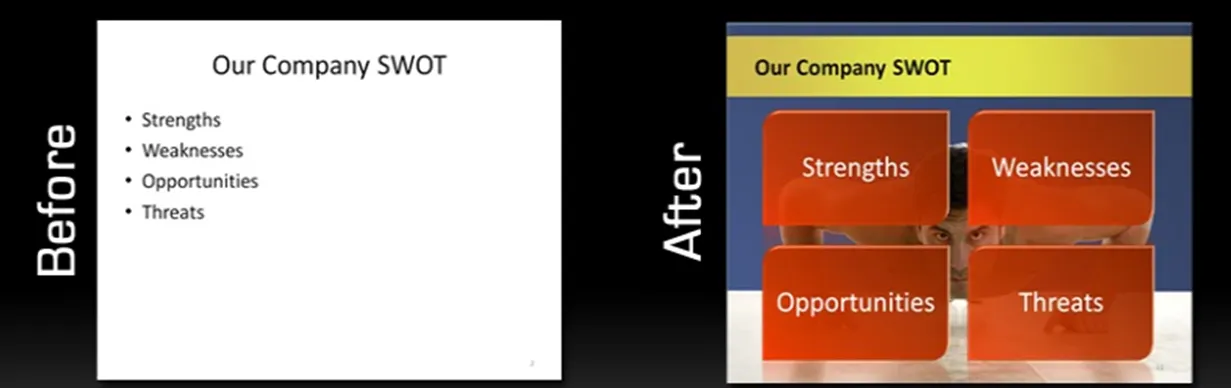
The style of the transformed slides is not exactly my personal favorite (“standard” stock images, lots of effects), but having said that, they do look a lot better than the original bullets. The best results are achieved if the original slide is actually already in pretty good shape. For example in the bullet slide above, the words have been cut to an absolute minimum. The tool will work less good when applied to dense slides.
As a professional designer, I would value a tool that automatically creates harmonious structures of 4, 5, 6, 7 objects. Fitting shapes around a pentagon is tricky.
For the non-professional designer, maybe the best thing that this tool does is to encourage you to improve the quality of the input slides: cutting text without worrying about the layout of the slide.
PowerPoint does not have the rich image clipping and cropping tools that PhotoShop has. To take the background out of an image, you can set its background color to transparent and hope that the image edge come out reasonably clean.
Jose Arriaga recently started blogging about presentations on PowerPoint Symphony. He discusses an original alternative method: drawing a shape similar to an image and then fill it with the source picture as a background. Full details in his post here.
I decided to upgrade to PowerPoint 2010 (affiliate link) not because of the features that are discussed in most reviews, what interests me is the ability to create customer complex shapes (adding, subtracting), something that until now only was possible in Adobe software. Although I would be interested in the video functionality as well (the complexity of video editing software prevented me from getting serious with motion graphics).
On a separate note, the world of office software is changing. I used to be a loyal buyer of the “Professional” edition since the early days. Not any more. Excel has become so powerful that I see no need for Access anymore (99% of my clients do not know how to deal with this software), and I still get Outlook bundled with my Excel and PowerPoint, although I will probably never open it now that I have moved completely to Google for email, calendar, and contacts. (Another reason not to take the Professional suite: Microsoft has abandoned their upgrade pricing scheme.)
I will post my experience with PowerPoint 2010 in future posts.