

Adobe Photoshop has professional tools to cut out objects from images. In many cases, setting a transparent color in PowerPoint will do.
In PowerPoint 2007:
- Select the image
- Go in the “Format” ribbon
- Click “Recolor” all the way to the left
- Choose “Set Transparent Color” at the bottom of the menu
- Click the color that you want to be transparent
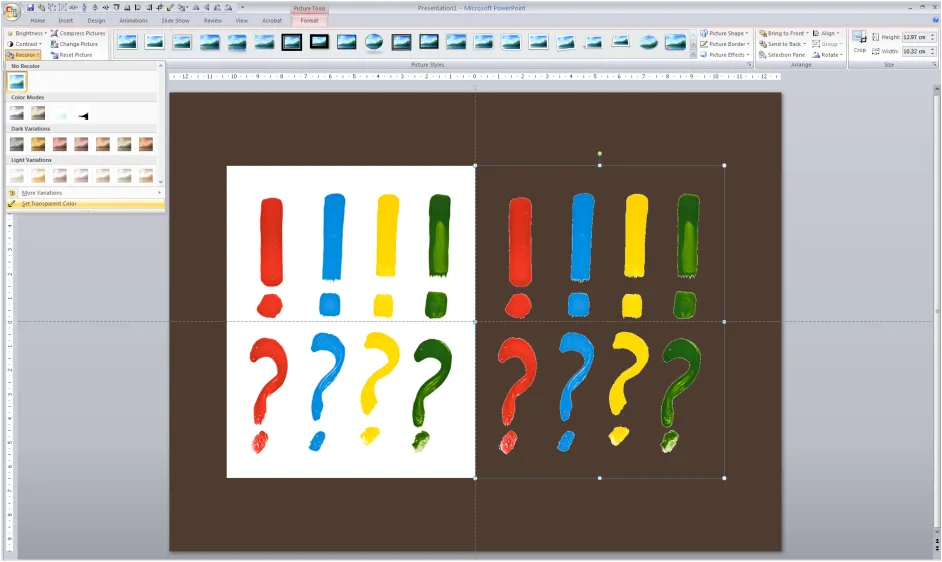
The cut out is not perfect and it works best with images with a sharp color contrast. I mostly use it when working with a stock image from iStockPhoto that is an isolated object on a white background. Making the white background transparent gives me more design freedom in PowerPoint.
2 comments
at least since PP'97!
Anyway, it is much better to insert a PNG with
a transparent background. It doesn't have those
"jaggie" borders.
MM