SlideMagic Blog

Frequent updates about all things presentations since 2008. Subscribe to never miss a post.

RSS
all posts

Category Software

·Design

A tool for exporting PPT images

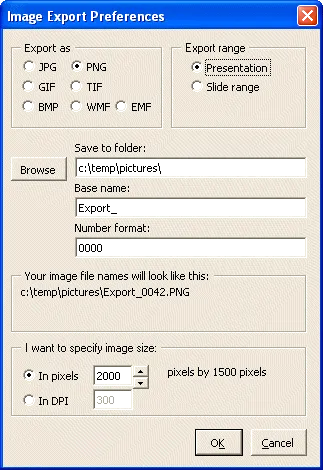
I find it easier to create visuals in PowerPoint than Adobe software. However, the image export functions in PowerPoint are not very sophisticated. It is hard to set resultion/DPI, choose format, set the exact image size, and/or control the naming of the exported files.

PPT ImageExport does all of this. The software creates an add-in in your ribbon. This is not a very sophisticated piece of software, but it has proven very useful for the design of my new company web site. A full license costs $30.

·Design

Review: Slideboxx, a PowerPoint search engine

I have been testing Slideboxx over the past day (Windows-only). Slideboxx is a tool that crawls all PowerPoint files on your computer (it counted more than 5,000 on mine…) and stores visual thumbnails and keywords of all the slides in a searchable database. You type in a keyword, you get instantly served icons of matching slides with options to refine your search, find similar slides, and even “frankenstein” (what?) a new presentation from old slides.

First of all, there is a real need for a tool like this. The legacy Windows filing system based on file names and application icons is useless for visual files such as PowerPoint slides. I am now using Gmail to track down presentations (“where is that file I sent to [x] a month ago?”) because a date, a keyword, and a person is a better clue to what I am looking for than a location on a hard disk.

There are more companies developing professional solutions to dig through data stored in enterprise networks, not just PowerPoint, but including spreadsheets, PDFs, databases, etc. BA Insight is one for example.

Back to Slideboxx. The software is easy to install, the interface is nice and clean, and the program is very powerful to dig up long-forgotten slides.

For someone with a lot of slides who makes presentations for one company, or related to one subject area, the tool makes a lot of sense, and could actually be a significant time saver.

For my 5,000+ files the search results are sometimes a bit too broad, I would love to have an option to narrow searches actually by a folder on a hard disk. Another approach would be to add generic presentation tags to all slides in a presentation. For example the company name on the front page of the deck, the name of the presenter, the subject of the presentation, the items of the agenda, each of these are relevant to all the slides in a presentation, while they might not be written down explicitly on each slide.


Continue reading →
·Design

PowerPoint/Office 2011 for Mac - mixed reviews?

I considered upgrading my Mac Microsoft Office software (including PowerPoint) to the new Office 2011 release but hesitated after this review by David Pogue of the New York Times, and a few negative reviews on Amazon that seemed genuine. Have any of you tried it?

·Design

Do fonts display correctly?

I have changed the fonts on this blog to Helvetica Neue, they look great on every computer/browser that I have tried even if you do not have these fonts installed on your computer. Every, except for one computer/browser combination: my own Chrome browser on my own desktop (IE works fine)… Please let me know if you are experiencing garbled fonts on this site.

·Design

Simple diagrams creates well, simple diagrams

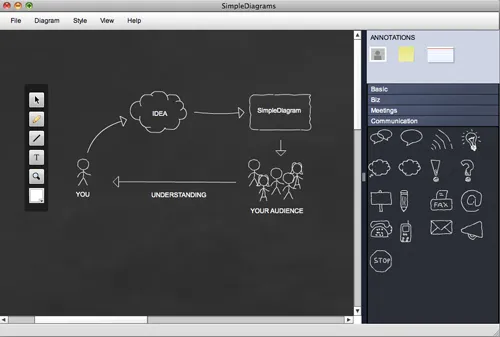
Simple diagrams (link) is a nice little tool to create simple sketches in the spirit of Dan Roam’s book “The back of the napkin” (review). You can either use it as a sketch tool to develop ideas, or as slides in your presentation. The extreme scenario would be to create an entire presentation out of these types of diagrams.

The program uses aggressive pop up messages to get you to use the full version. There are more subtle ways that will get to the same effect.

·Design

What's in my toolbar

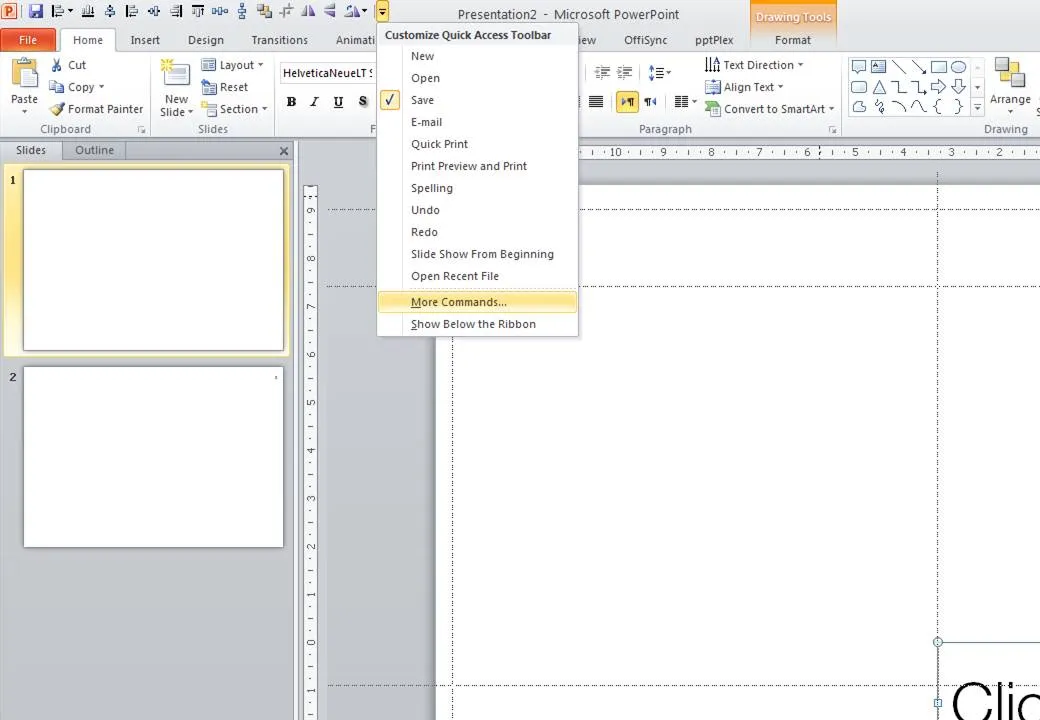
Unlike PowerPoint 2007, it is possible to customize the tool ribbon in PowerPoint 2010 (review). I still use my 2007 workaround in the 2010 version of PowerPoint though. The screen dump below shows those very important buttons that any PowerPoint designer should have always on hand (click for larger image).

  • Save
  • Left, bottom, middle, right, top align
  • Horizontal, vertical distribution
  • Send to back
  • Crop
  • Flip horizontal, vertical
  • Rotate
·Design

"nonlineair" presentation iPad app

Seth Godin made a wishlist of iPad app and readers of his blog created them. One them is nonlineair: “it lets you import a PDF or PPT file and then jump around. It’s not for building slides, it’s for navigating them, and even includes a way to drive an external monitor in a clever way.” It is available or $10 in the app store, $2 of which will go to the Acumen Fund. I still need to find time to review it.

·Design

Making cut outs using shape subtract in PowerPoint

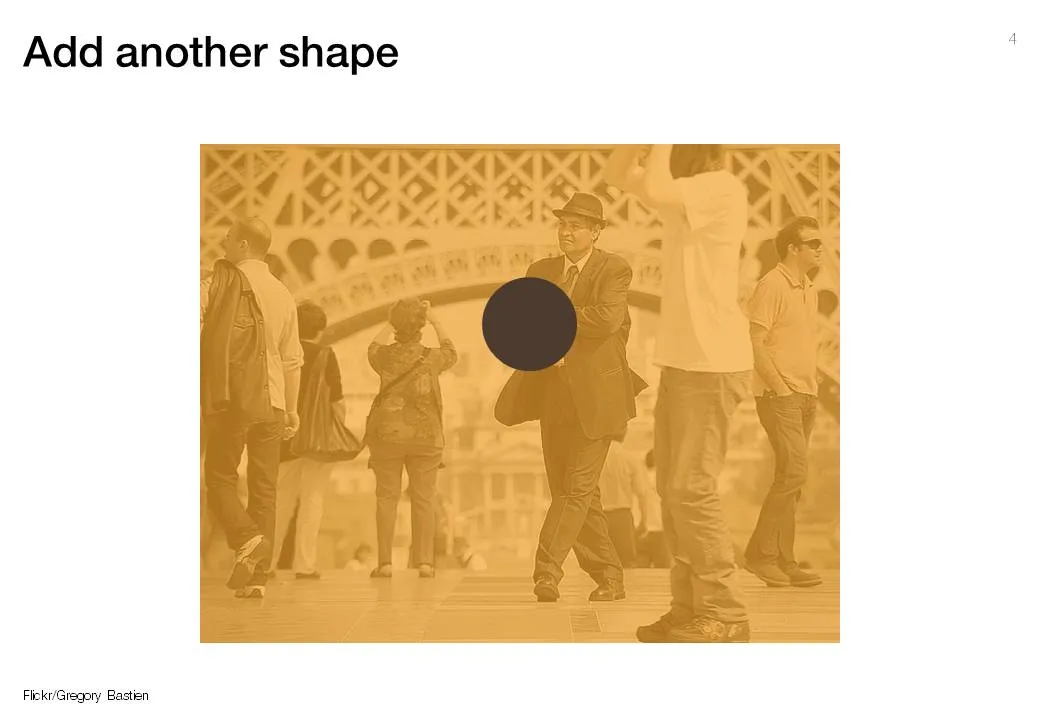
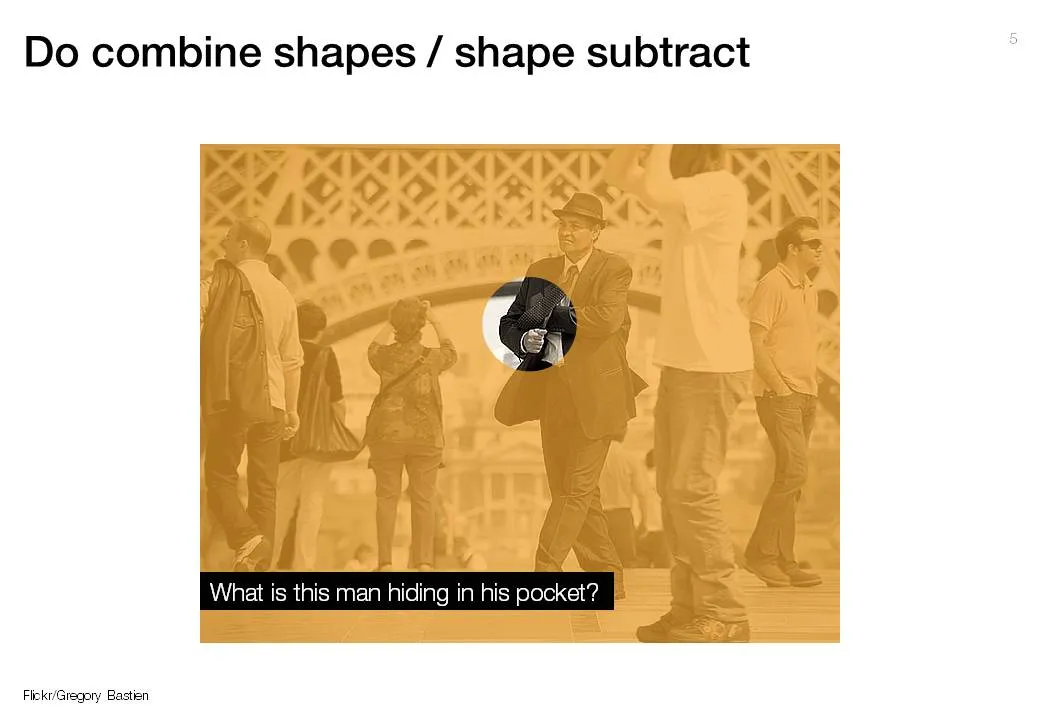
The new shape subtract feature in PowerPoint 2010 (review) enables you to make shape cutouts in a more elegant way than before (see the old approach here). A step-by-step guide using a great image by Gregory Bastien.

·Design

Using Adobe Illustator shapes in PowerPoint

PowerPoint 2010 has now incorporated some of the shape manipulation techniques that until now were the domain of Adobe Illustrator: union, combine, subtract, and intersect (read my earlier PowerPoint 2010 review here).

Until now, I never got into understanding Illustrator. Until now, because I (ironically) start to experiment with integrating more hand-drawn shapes into my presentations (I am even thinking of picking up my old highschool habit of drawing cartoons of people). Fonts are no issue (earlier post). The line/curve manipulations capabilities of Illustrator however are still far better than PowerPoint.

Here is how to move an Illustrator shape into PowerPoint, not just as an image, but as an editable vector object.

  1. In Illustrator export your shape in an EMF format
  2. In PowerPoint, select “insert picture” (a bit counter intuitive)
  3. Right-click the object and un-group it. Say “yes” to the question whether you want to convert it

Converting is this simple. Unfortunately, understanding Illustrator is not…

·Design

Re-post: aligning bullets in PowerPoint

If you are not running PowerPoint 2010 (review), then the 2nd line of a bullet point will always come out wrong. Here is how to fix it.