SlideMagic Blog

Frequent updates about all things presentations since 2008. Subscribe to never miss a post.

RSS
all posts

Category Shapes

·Design

Looooong shadows to add depth

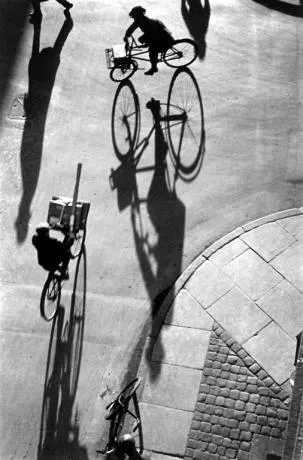
Long shadows can add great perspective to a slide. Lucky Luke needs them to show off his speed. Photographers like Heinrich Heidersberger have used them nicely in photo compositions (see the “Street Scene” image below)
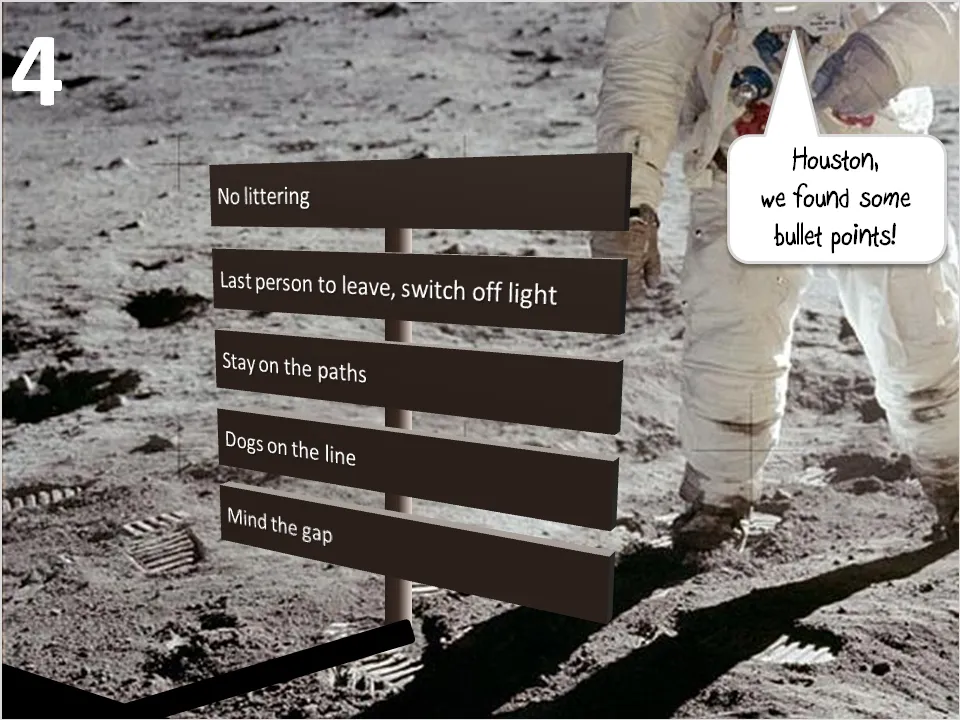
They are very easy to make in PowerPoint. I suggest forgetting about the built-in shadow functions of PowerPoint, they can be tricky control. Instead, draw your shadows using rectangular boxes. Below a chart that can be used as a setting to display the 3 (or so) key messages of a presentation on a final slide (excuse the bullet points):
·Concepts

Chart concept - Ahoy! Full steam ahead...

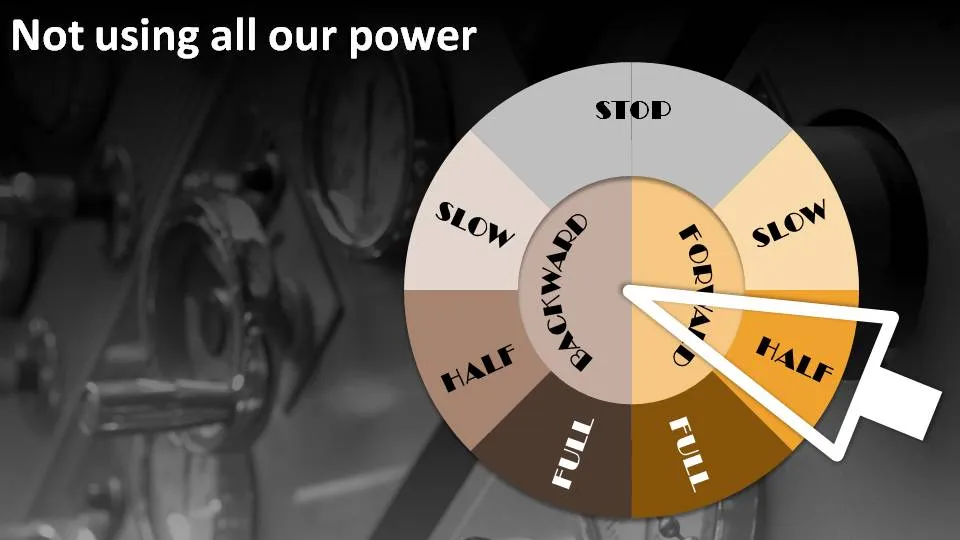
People are not using all the resources they have. Engines are running at half power. There is all this untapped potential out there. How to visualize this?

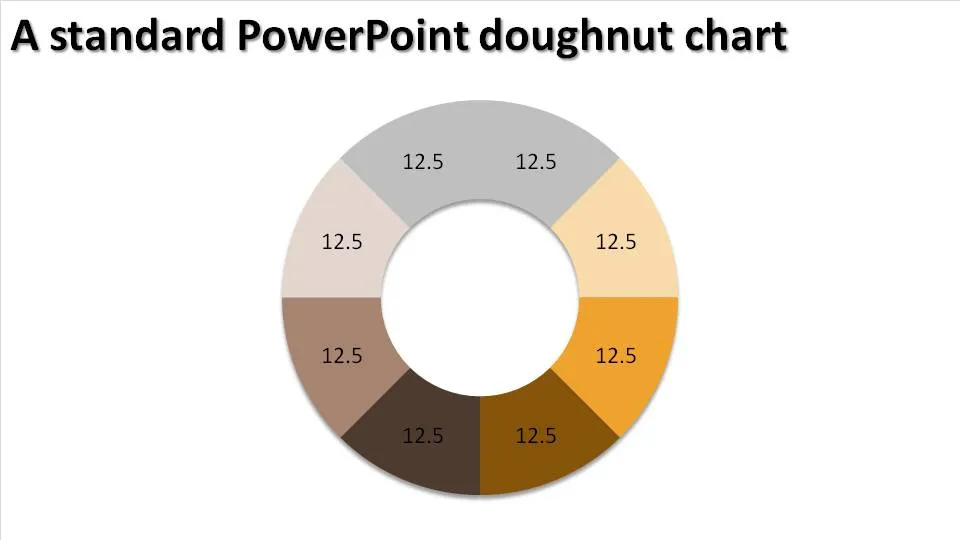
The engine room and a nice classical nautical engine control handle. You can use a standard PowerPoint “dougnut” chart (a pie chart but with a large hole in the middle) to create one.

Interesting, in the early days these handles would actually ring a bell in the engine room after which the people downstairs could adjust the power to the engine.

·Concepts

Chart concept - Fog! But I can see clearly now....

You have a great new business tool that makes everything and anything completely transparent instantly. How to put this in a PowerPoint slide? In comes the fog concept.

The secret:

  • Set a nice “Zen” image as the slide background (right-click the background, choose “Format Background” and select an image)
  • Create some clouds from the “Insert Shapes” menu. Give the clouds a gradient fill (“Format Shape”, “Fill”, “Gradient Fill”), set the gradient type to “Radial”, gradient stop 1 is 0% transparent white, stop 2 is 50% transparent
  • Draw a big rectangular shape (or any shape in fact) and - here comes the trick - set its fill to “Slide Background Fill”
·Concepts

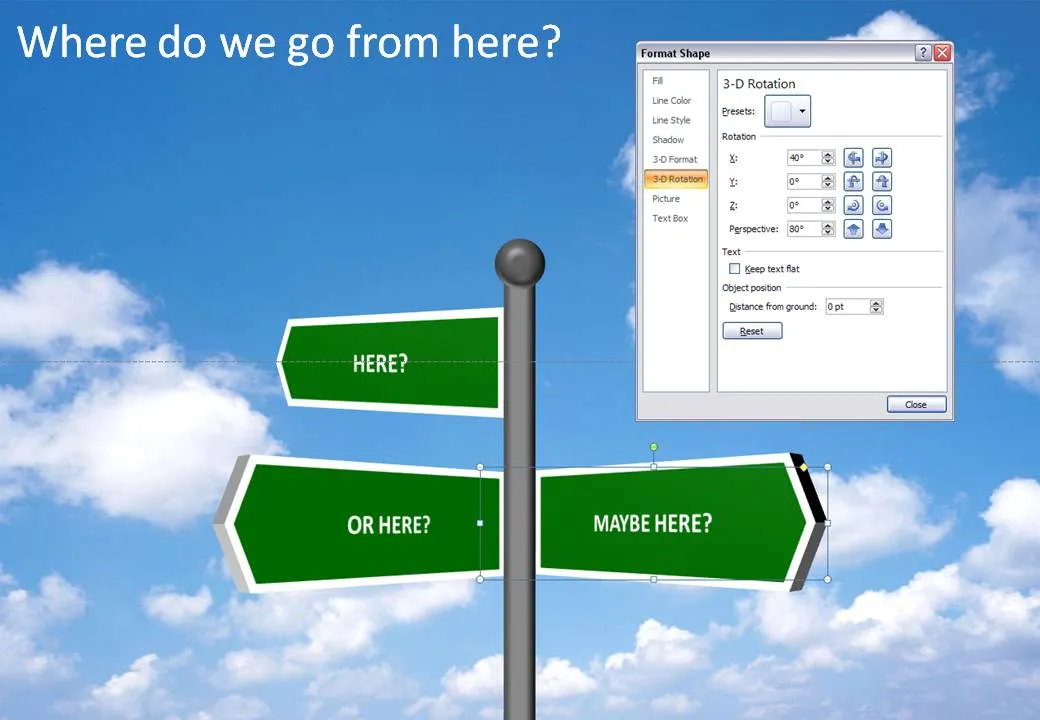
Chart concept - where do we go from here?

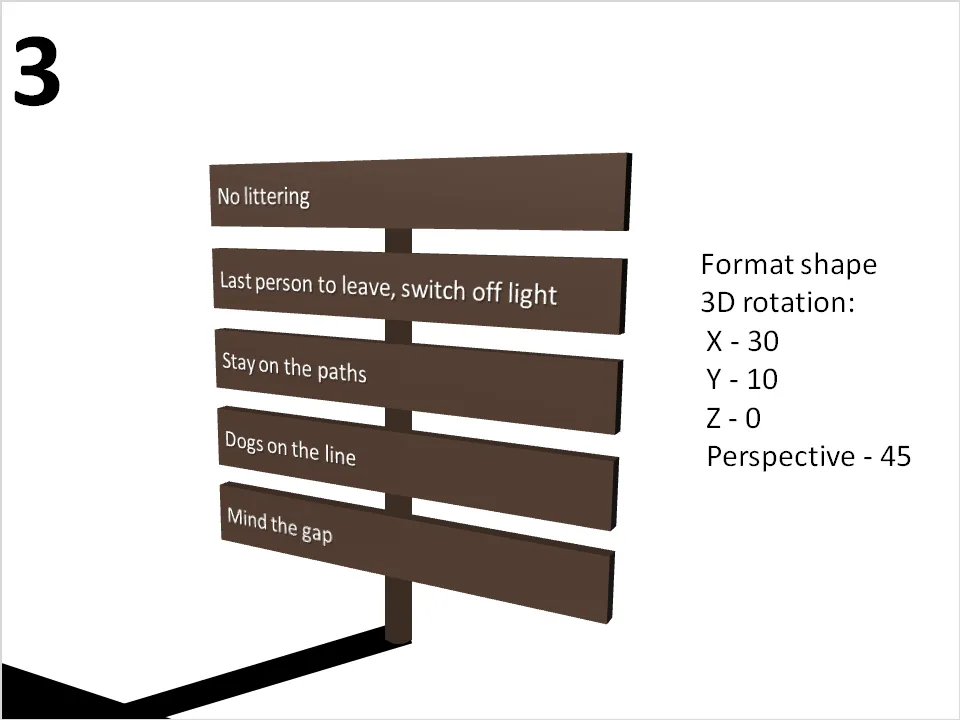
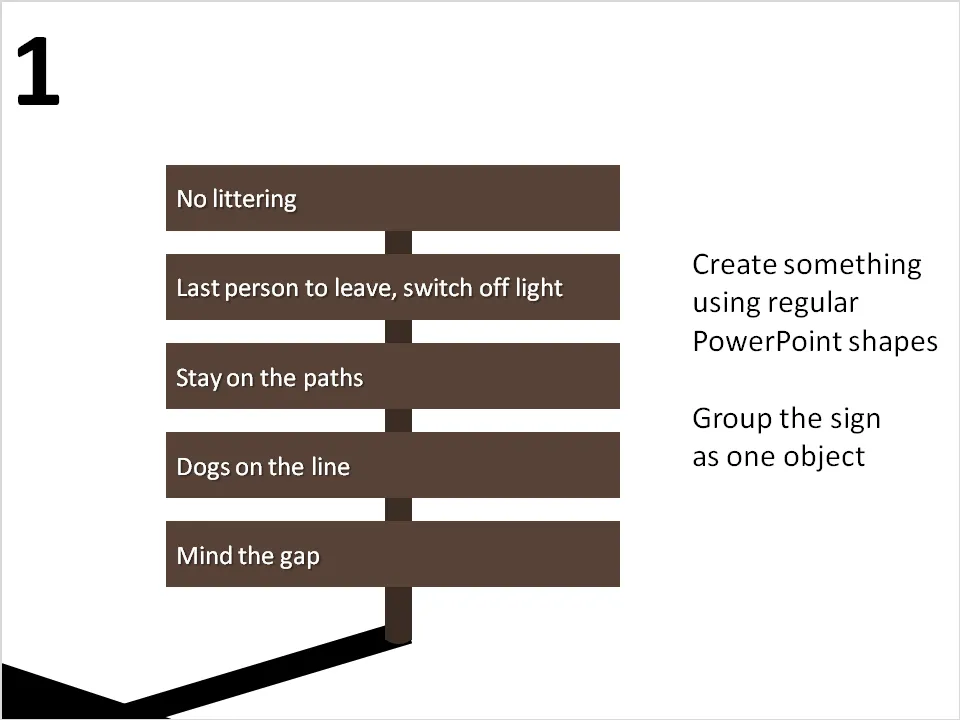
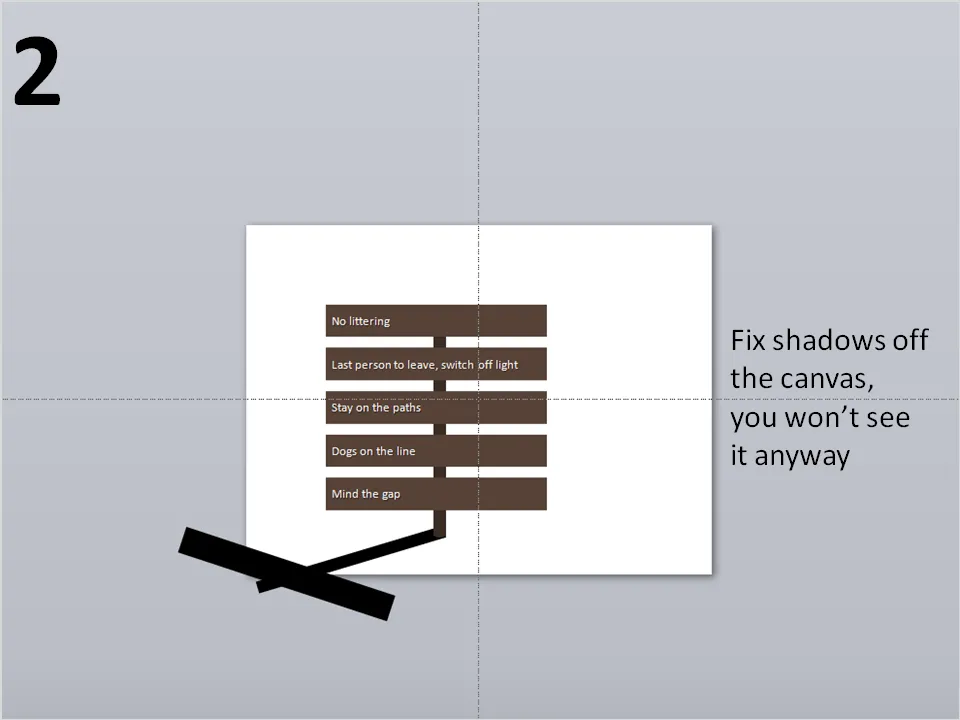
It is easy to make your own 3D road sign image, no need to buy a stock image, and you get the 3D text perfectly aligned. Click the image for a larger picture (with the settings in the “format shape” box).

·Design

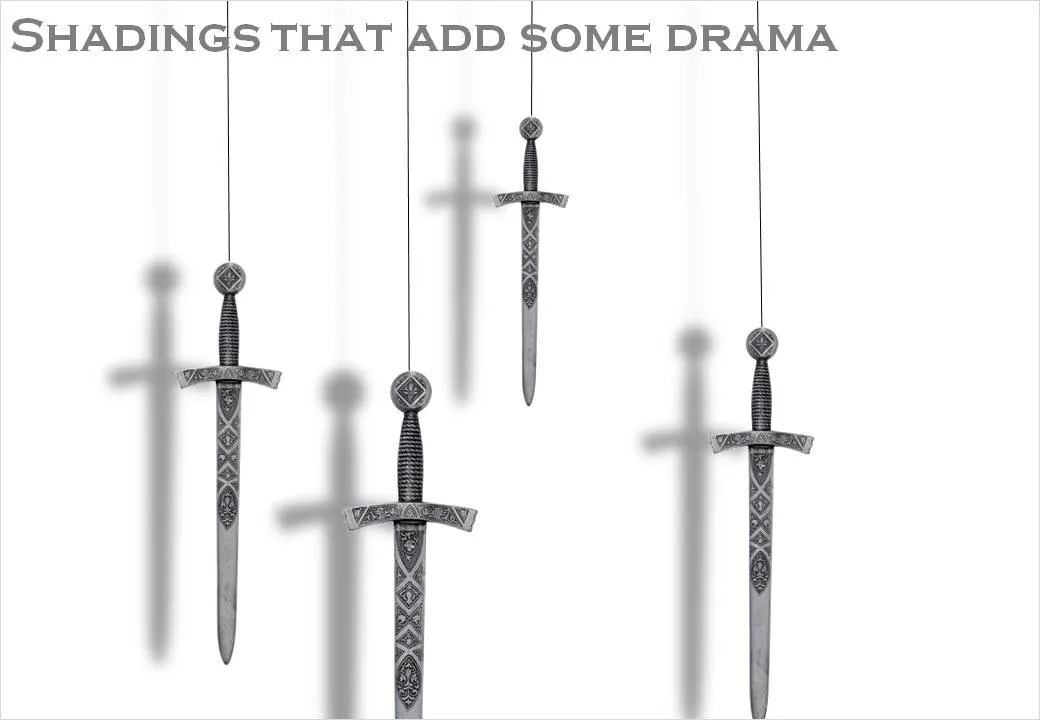
The Sword of Damocles - with a bit of shadow drama

I had to design some apocalyptic presentations lately (sign of the times) and the Sword of Damocles composition below gave me the opportunity to play around with PowerPoint shadows.

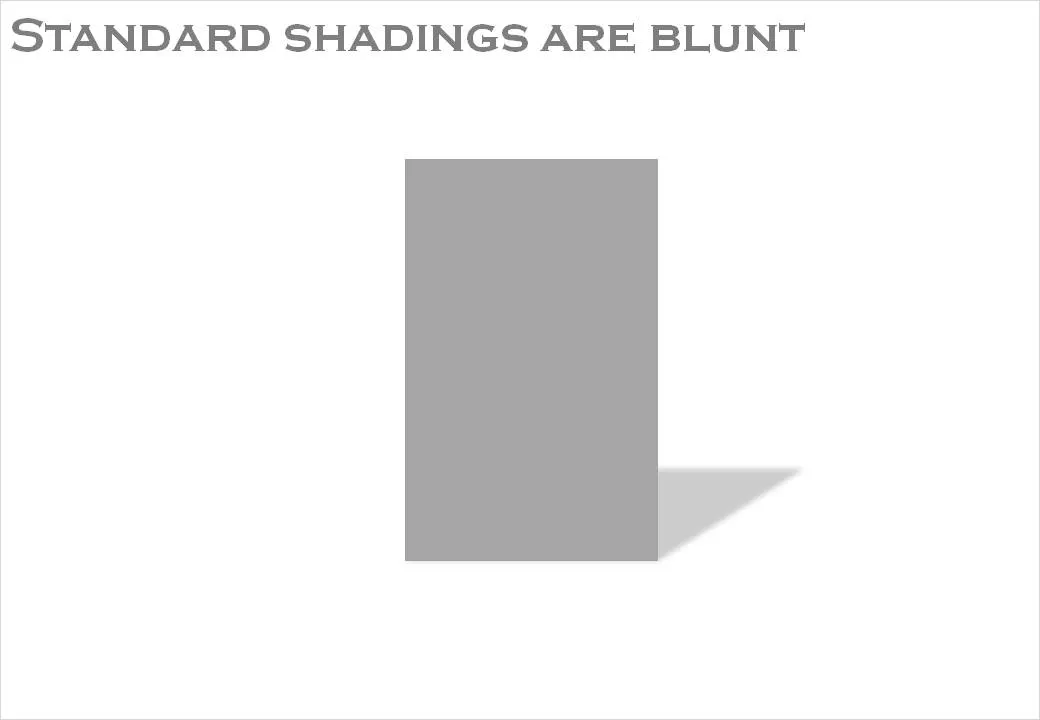
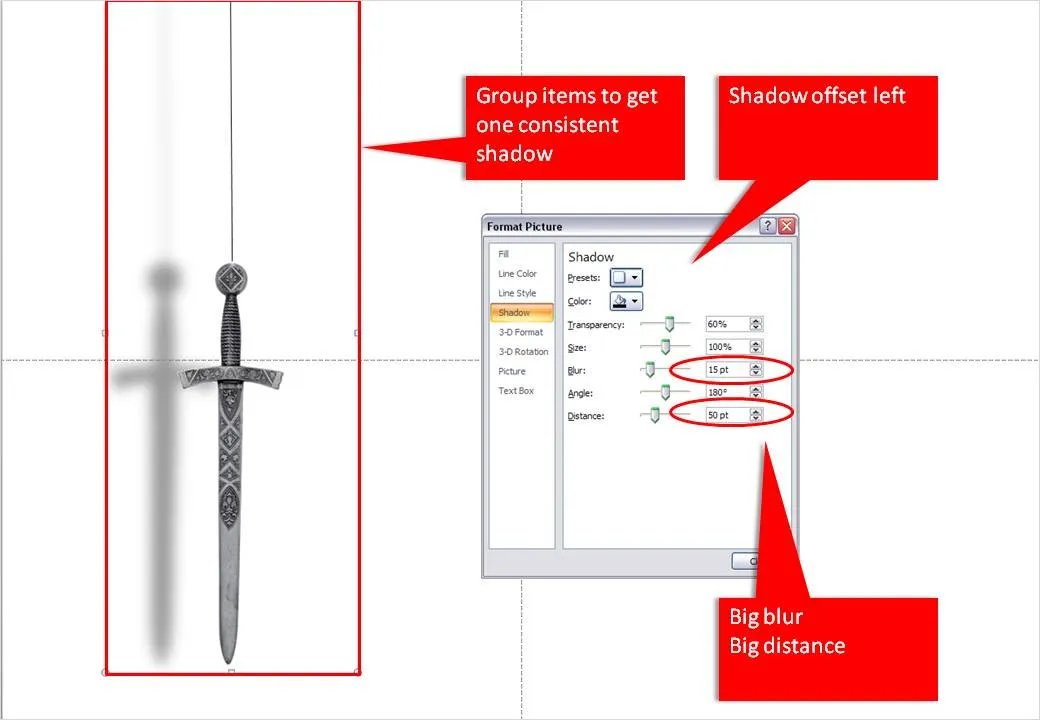
The standard shadings in PowerPoint are a bit blunt and boring. Go into the “format shape menu” and click the “shadow” box. Experiment with the settings to get something more interesting. Increasing the blur, and increasing the distance creates the illusion of a wall right behind the subject. Just what I needed.

When you apply shadings to compositions make sure to group all items together first to get one smooth shading of the entire shape instead of individual shadings for the individual components.

·Design

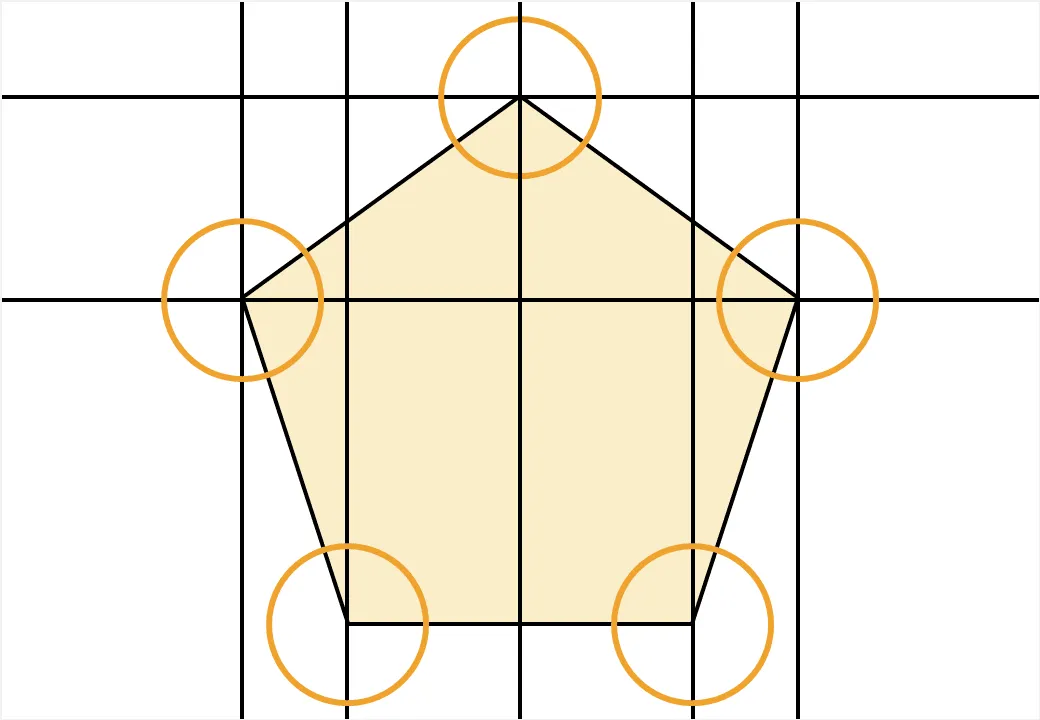
Use regular polygons to place objects on a slide

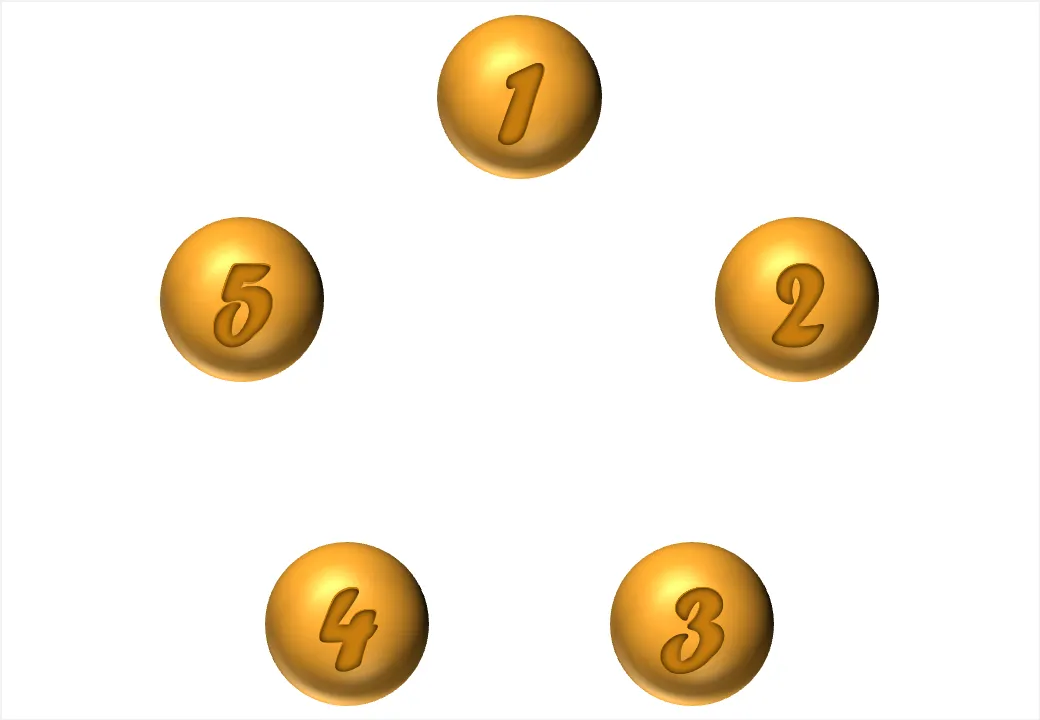
You can use geometrical concepts to get the perfect spacing of objects on your slide. Use the corners of regular polygons (all angles are the same, all sides have the same length) such as regular triangels (3), squares (4), regular pentagons (5) to position your objects with the aide of a few guides that you can remove later.

Note that you can draw regular polygons in PowerPoint by holding down the shift key to lock the aspect ratio of any shape you are drawing.

·Advertising

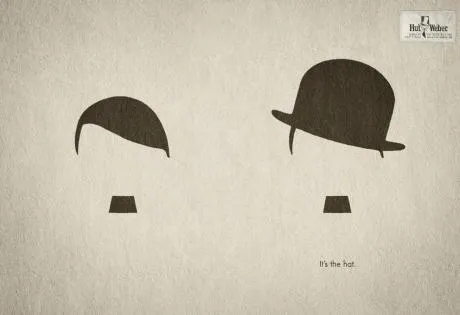
Everyone can draw - iconic graphics

Look around you and see how powerful simple graphical shapes can be. The ad below is an example (text below Chaplin: “It’s the hat.”).

A larger image can be found here on Ads of the World.

·Design

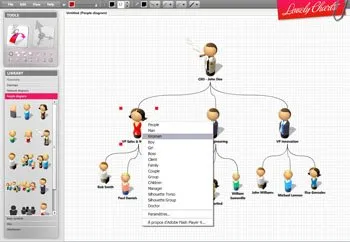
Lovely charts with Lovely Charts

Computer network diagrams are hard to make in PowerPoint. Finding the icons, positioning boxes, connecting them. The web application Lovely Charts might be a good solution. Also for flow diagrams, organization charts etc.

If you are in to designing network diagrams in PowerPoint, be sure to visit the Cisco icon library.

Via Armano

·Concepts

Stuck! - board games with simple PowerPoint shapes

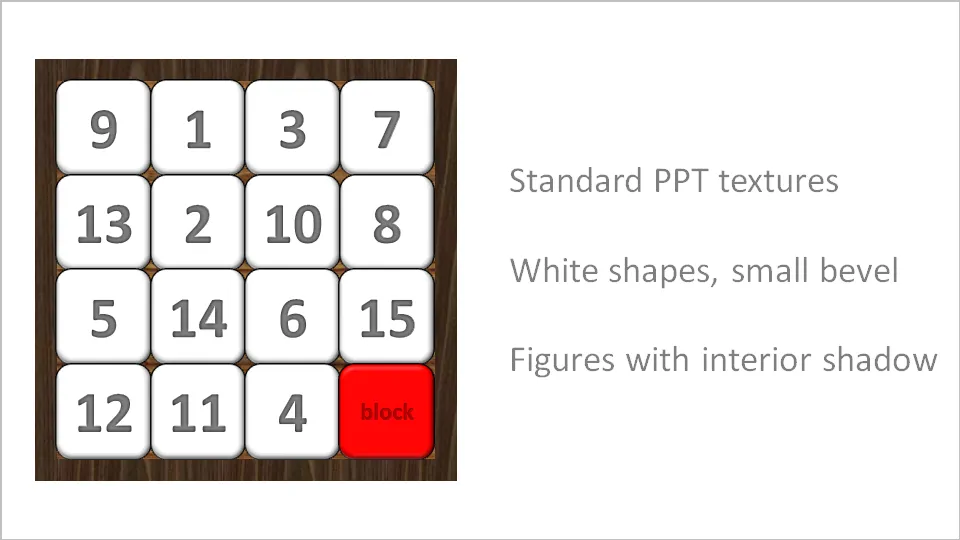
The basic PowerPoint shapes and textures can be used to re-create realistic looking board games. Here is a concept I used for a client that needed to show how its potential customers are being hindered to move around their IT infrastructure freely.

·3D

Drawing 3D boxes in PowerPoint

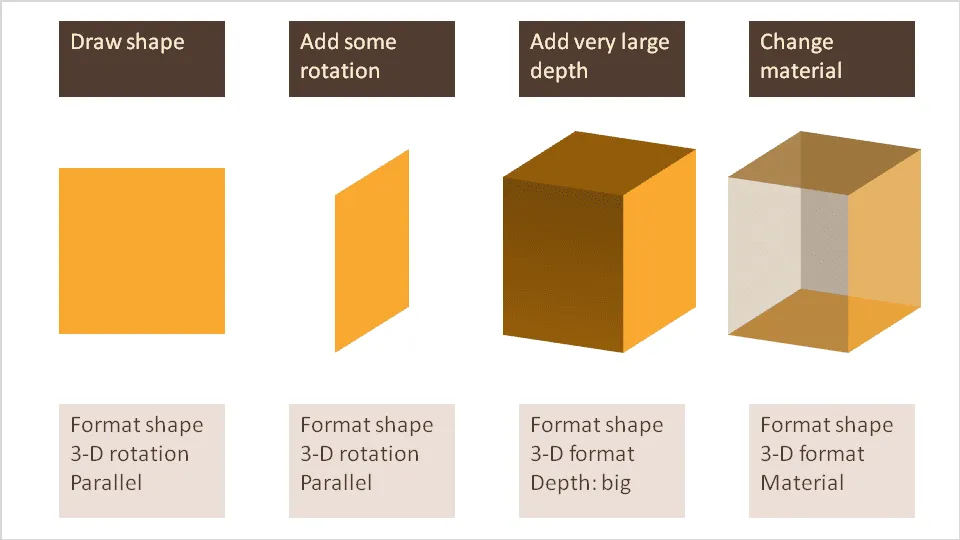
A while ago I discussed making translucent balls. Here is a similar trick for boxes that does not use the old PowerPoint shape with a simple cavalier perspective.