SlideMagic Blog

Frequent updates about all things presentations since 2008. Subscribe to never miss a post.

RSS
all posts

Category Shapes

·Design

How to bring some order to a cluttered PowerPoint map

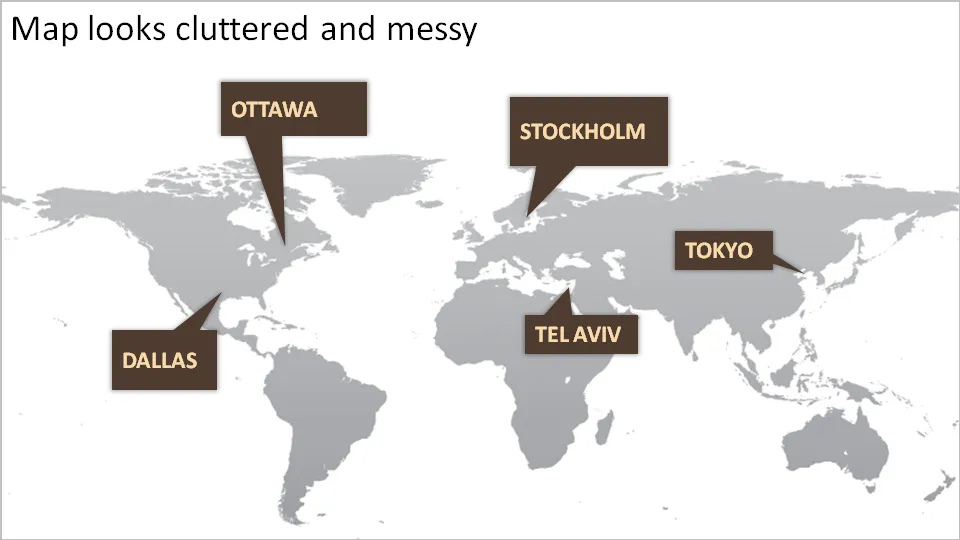
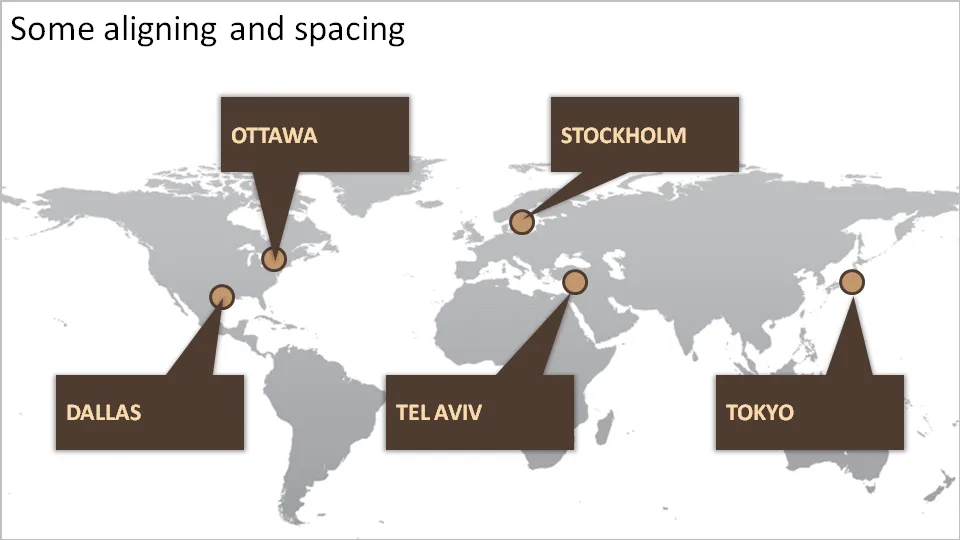
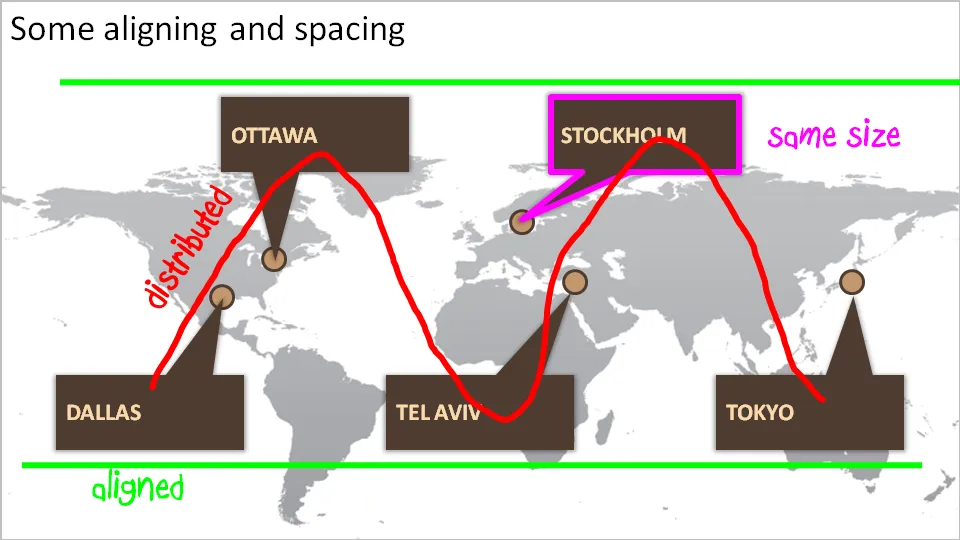
One of my clients is keen to show its new network of global support offices. Maps can look messy and random. Here are some simple things you can do to put things in order. We can not change the location of the planet’s cities, we have control over PowerPoint shapes…

·Design

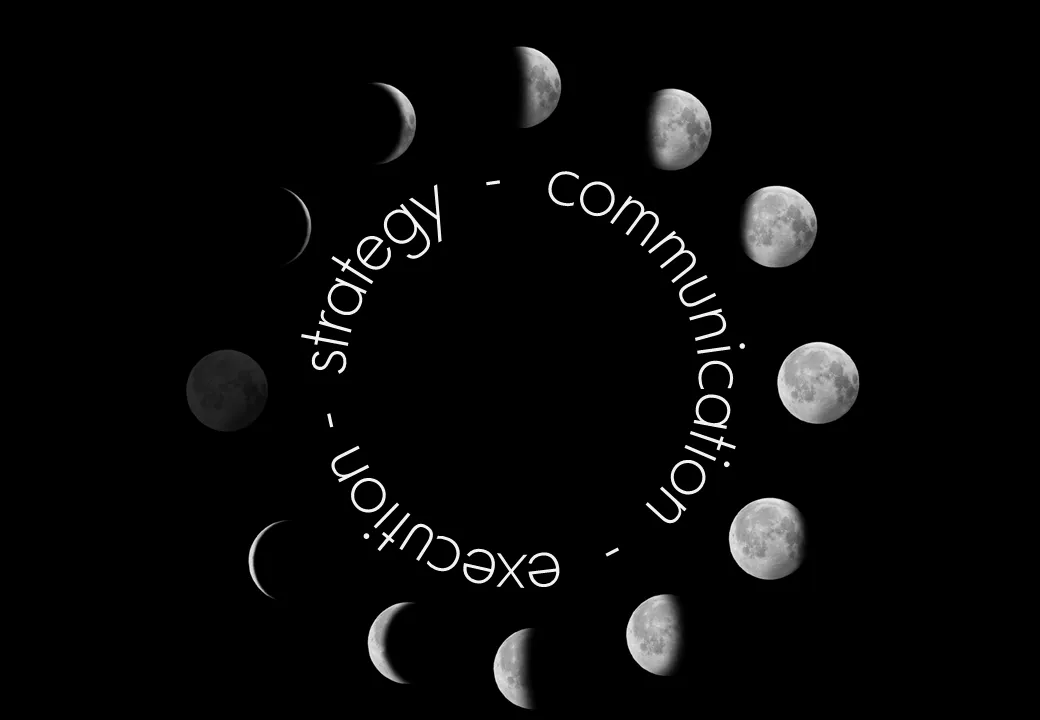
Putting PowerPoint text in a perfect circle

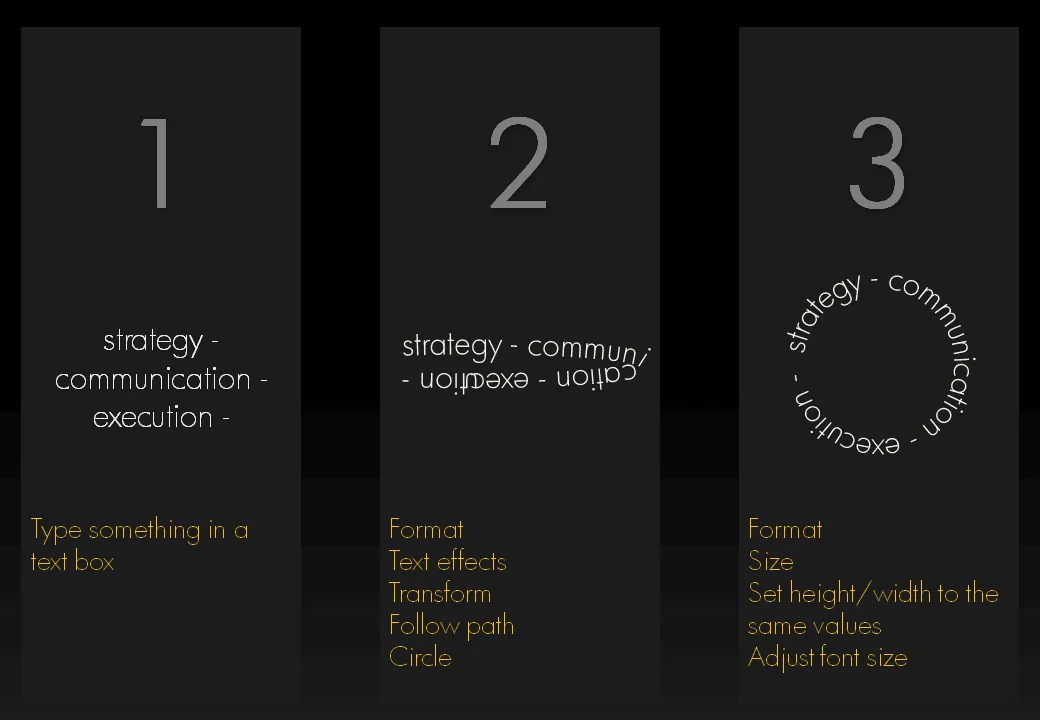
I am revamping my own introduction presentation and needed to align text according to a circle. Untill now, I used to improvise to fit text in a circle. There is a clean and simple way to do this. Click on the image for a bigger picture.

·3D

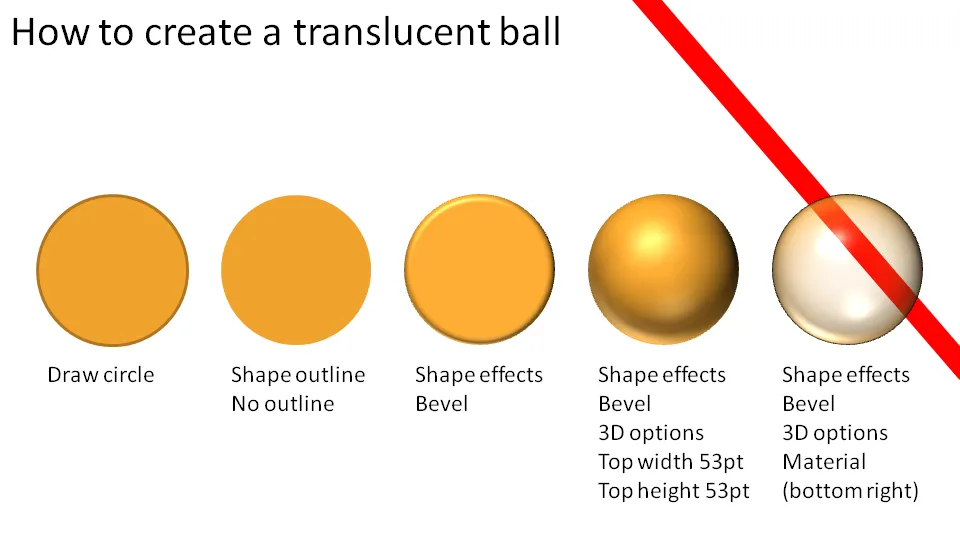
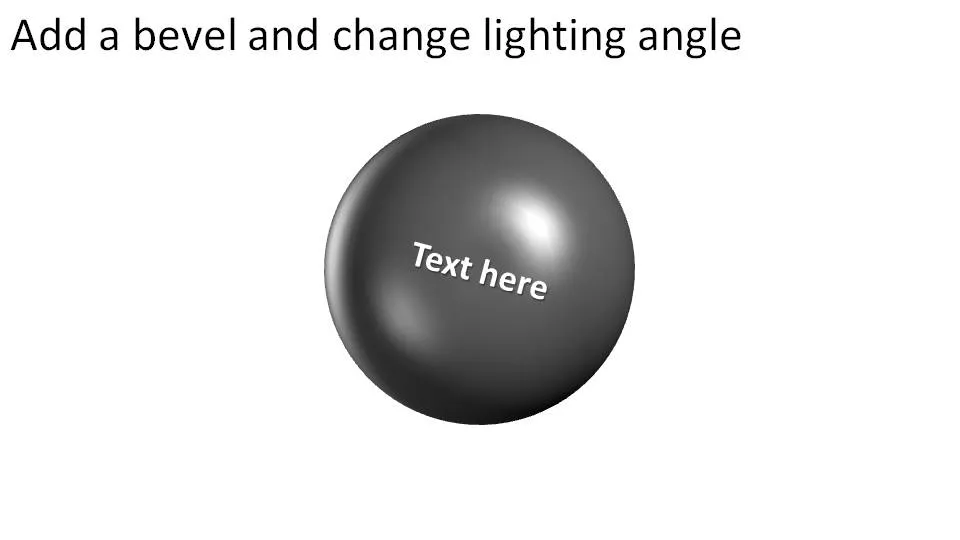
How to make a 3D translucent ball in PowerPoint

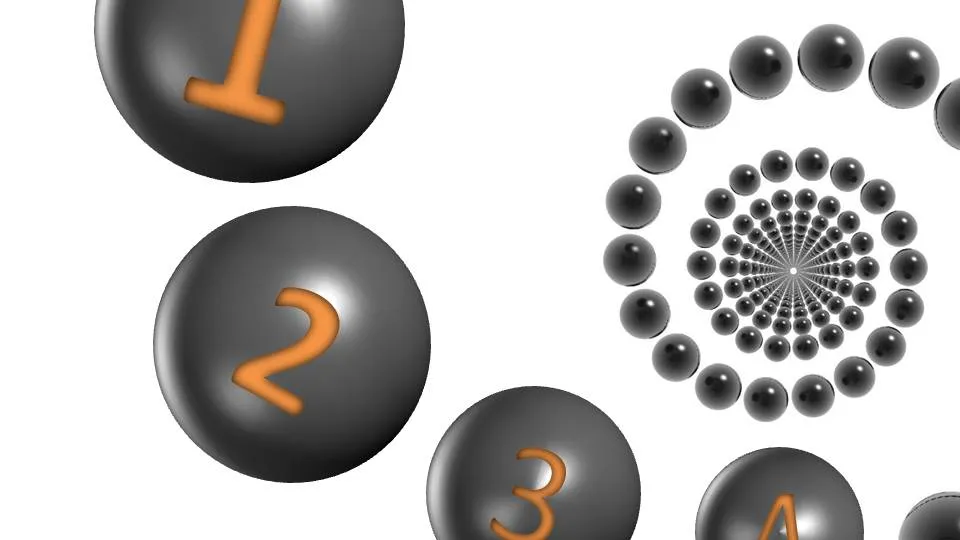
Here is how you make 3D balls used in these images, or these images. Click on the chart for a larger picture.

You should experiment with the “top height” and “top width” to find a value that best fits the size of the object you are working on.

·Design

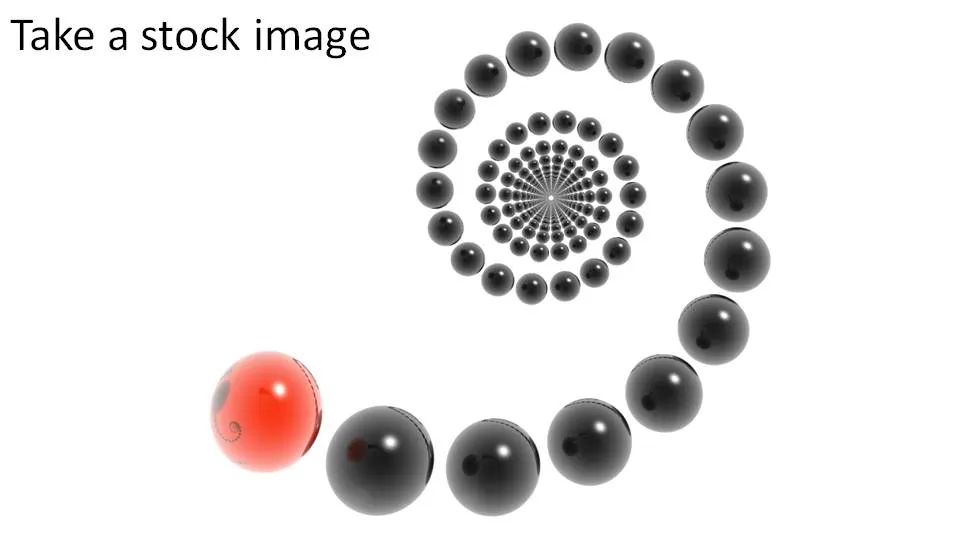
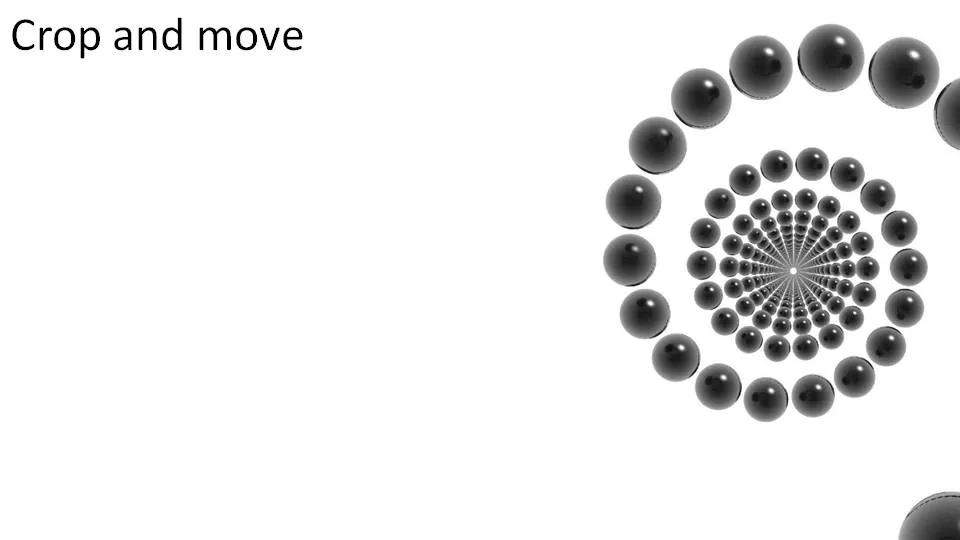
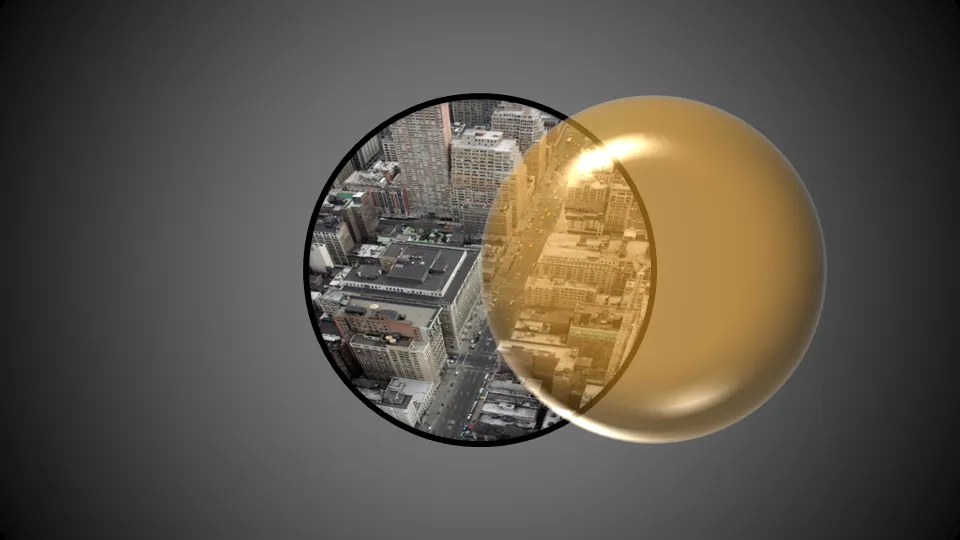
Exception: some conceptual stock images can be useful

I am not a big fan of conceptual stock images. Compositions you can do yourself. There are exceptions. See the example below.

·3D

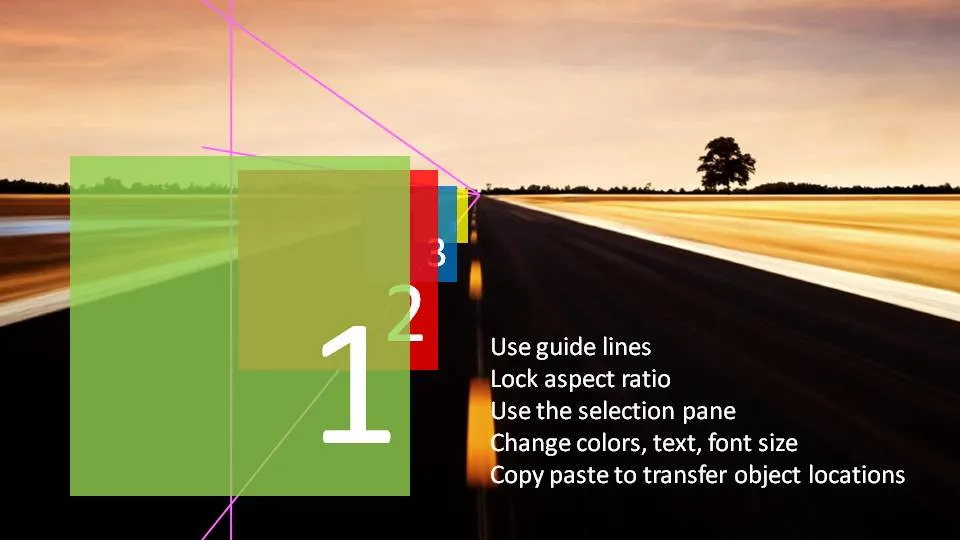
More 3D in PowerPoint - obstacle course!

I am continuing to experiment with 3D effects. Here is an alternative idea to visualize a number of obstacles on the road ahead. The last image (click it for a larger picture) contains some explanations on how I did it. If things are not clear feel free to as in the comments.

Does anyone know how to add a smooth moving animation to this, motion paths and re-sizing of objects do not go together?

(Apologies for the image quality as I converted to JPG instead of PNG to improve load times)

·Design

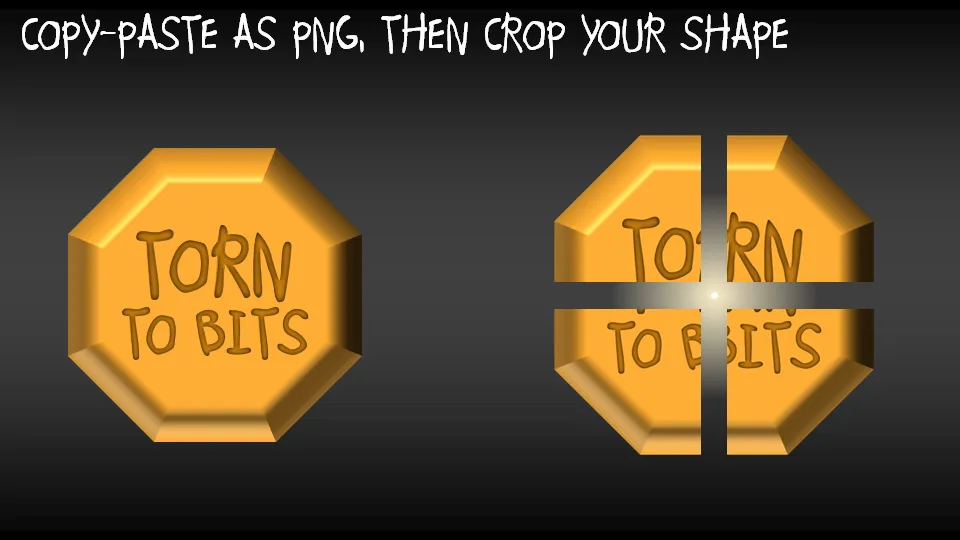
Chart concept - rip those PowerPoint shapes apart

A concept I often use to visualize things that are torn apart by opposing forces in PowerPoint presentations.

  • Copy a shape (with text)
  • Paste special as PNG (4 times, or even more)
  • Start cropping the copies

·Design

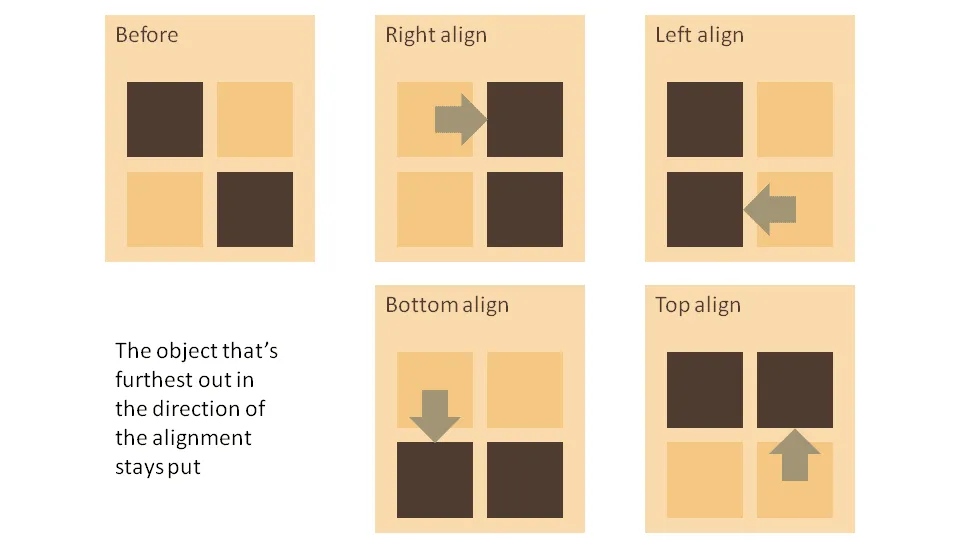
Which of the 2 objects will move when you align?

When you align 2 or more objects in PowerPoint, one will stay put while all the others move to line up. It is easy to predict which one will move. See the diagram below. Click on the image for a larger picture.

·Design

How to create Photoshop-style Image cut outs in PowerPoint

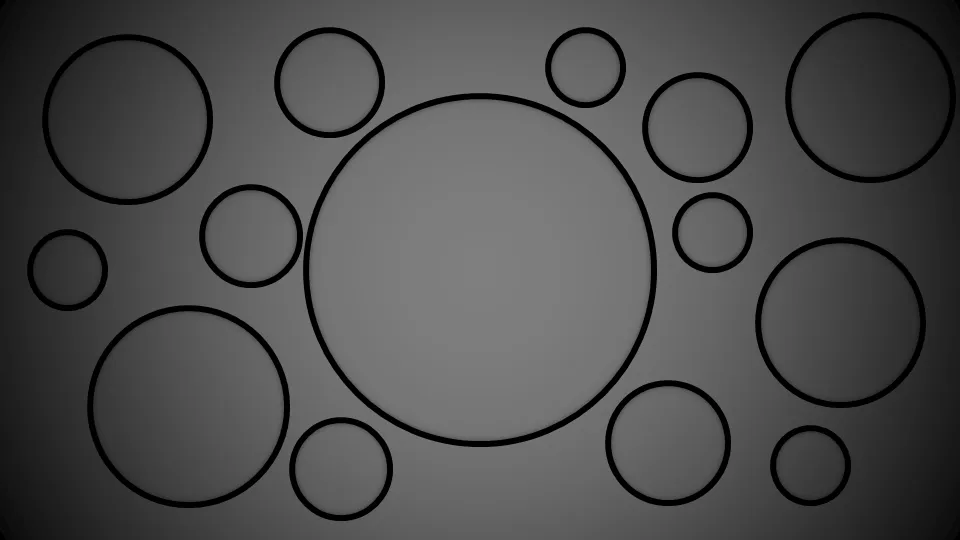
Photoshop has sophisticated tools for cutting our shapes from images. In PowerPoint you can reach similar effects by filling a shape with an image.

When selecting a fill for a shape, choose “picture or texture fill” instead of a color:

Alternatively, choose “slide background fill” to creat “holes” in your graphics.

·Design

"Everyone can draw" - clean and simple shapes in PowerPoint

“Everyone can paint” used to be the name of a Dutch toy set when I was a child.

With really basic drawing skills it is possible to make useful “iconic” charts. The umbrella below was used to highlight how a strategy has shielded one of my clients from the full effect of the 2008 economic meltdown.

Image no longer available

Look at shapes and see how they are decomposed in very simple elements: a few ellipses and some rectangles. On the right I gave them a different color to make them visible. Make sure that everything is neatly spaced out and symmetrical. The background image was purchased on iStockPhoto.

The key lesson: simple drawings do not have to look simplistic.

·Design

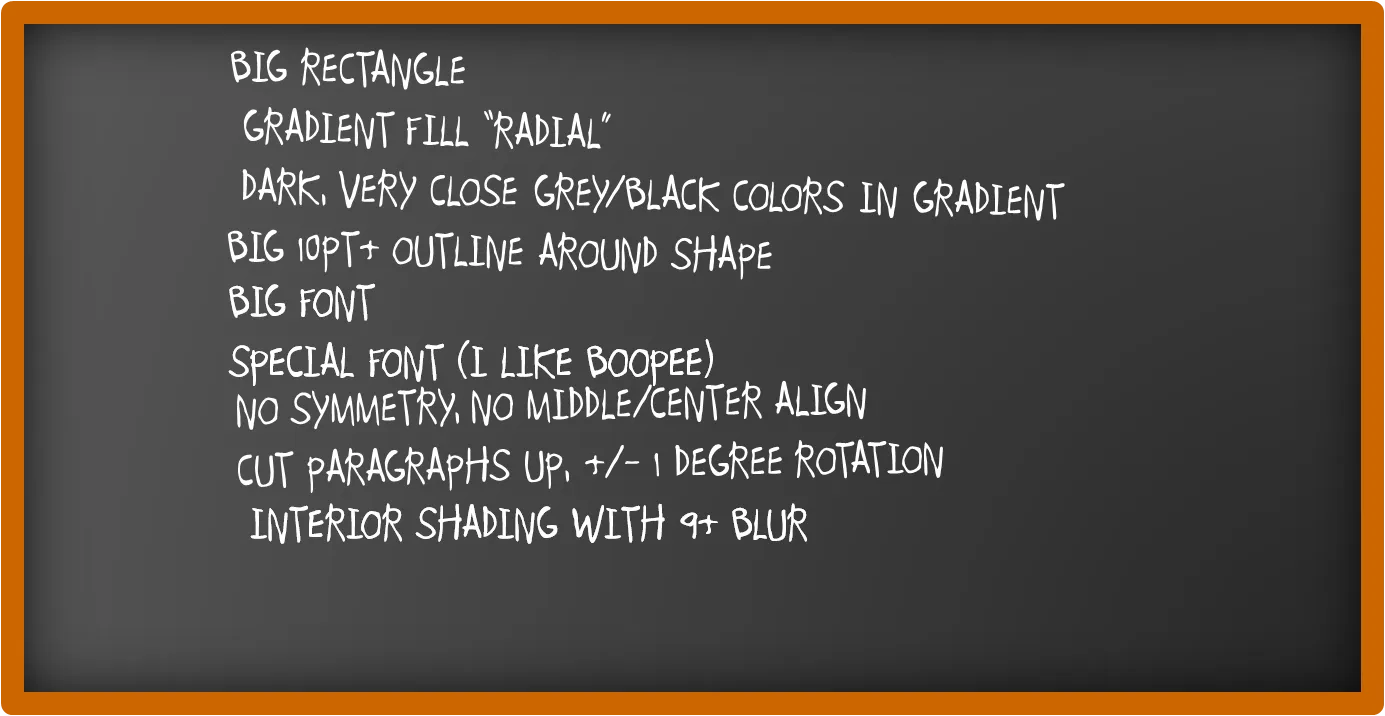
How to recreate a realistic looking chalk board in PowerPoint

After graffiti, now the less permanent graphics of the chalk board. I scribbled some suggestions on a black board below (click image for a larger picture):

Now that we are on the subject, check out my favorite Bart Simpson chalkboard generator as well.