

SlideMagic Blog

Frequent updates about all things presentations since 2008. Subscribe to never miss a post.

RSS
all posts

Category Software

·Gadgets

iPad "books"

Whenever there is an innovation in visual communication, people initially struggle how to use it best. Hand-written text scrolls did not have page numbers, spaces between words, or sentences. The first ads were either paintings or primitive, poorly designed pamphlets. Color and photography took some time to be used properly. It took 10 years or so after the arrival of PowerPoint before Garr Reynolds had his insight and write Presentation Zen, and he is still busy convincing the world to kill the bullet points as I am writing this.

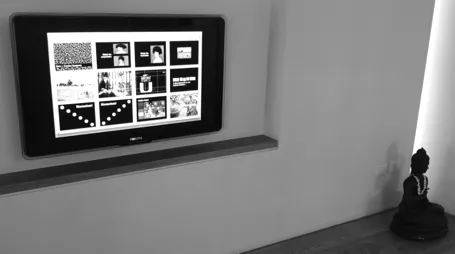
So here we have this iPad and the iBooks writing platform that enables anyone to create apps that incorporate touch and can be read away from the office chair. I have started to write an app on this platform myself and am constantly changing my approach. I started with the concept of a book in my mind (pages of text with images), but then discovered all this other things you can do: Prezi-like zooming diagrams, embedded slideshows, videos, Keynote presentations, questions. This is not a book writing tool, it is a software development tool. All these visual tools were available before on the web: zooming images, videos, data visualization. But somehow they never made it as the basis for the development of visual stories. I think the fact that an iPad can be used away from the office chair/screen will change that.

Nancy Duarte recently ported her book Resonate over to the iBook platform and the result is beautiful. And it gives some good examples of how new visual techniques are more than just making content prettier or more spectacular. Many of the effects in the Wired magazine iPad edition are just like poorly used animations in PowerPoint or Keynote: interesting, but they do not add to the story. When Nancy analyzes a speech by Ronald Reagan, it is just very useful to be able to watch the actual thing alongside.
Continue reading →
·Images

Snapseed image editing

Back in the early days, you had to use aperture, shutter time, and chemicals to create special effects in images. Then came Photoshop, and now we see a stream of apps written for touch-based mobile devices. The success of Instagram has taught the amateur how to apply simple filters with the touch of a finger.

I am starting to use these applications for professional presentations, usually not to recover a poorly shot image (most stock images are of excellent quality), but to harmonize images across a presentation with a certain look and feel that is consistent.

Photoshop is still great for removing backgrounds from images, and inserting a 2D image onto a 3D surface. However, its artistic filters are far too dramatic. And making quality adjustments is tricky. It requires a lot of skill to darken a background, lighten a foreground or vice versa. You had to familiarize yourself with alpha channels and the fundamental ways digital images are stored.

Tel Aviv this week, on filter steroids

My favorite app so far is Snapseed. Next to the dramatic filters that I do not use, it has a set of easy tools that give great control over an image. Ambience to change the balance between foreground and background, sharpening to make images crisper, structure to emphasize texture without destroying the edges of a subject, and best of all, the ability to adjust these effects to part of the image. I find it easier to use and more powerful than iPhoto.

Continue reading →
·PowerPoint

New Dropbox sharing

Sending big files as email attachments is increasingly cumbersome. Dropbox is an excellent alternative. It recently added a third option to share files with someone, it is my new favorit. Here are all 3 in a row:

  1. Shared folder. The recipient needs to install Dropbox (a barrier) and gets access to an entire directory on your computer. If she overwrites a file, your file gets changed too. This option is secure.
  2. Public folder links. You can send links to files in your public folder to other people. Anyone who has the link can access the file. If someone has your Dropbox user id, they could guess the name of a file, since the URLs are predictable. It is still hard, but not very secure. The recipient does not have to install Dropbox.
  3. Link sharing, the new one. It is now possible to get a sharing link for any file in Dropbox, not just the public folder. The link is garbled and very hard to guess. People can decide to view the file online (useful for mobile devices), or download it. The recipient cannot change the file, but if you do, the link points automatically to the latest version. If you want you can remove the link from Dropbox and other people can no longer access the file anymore. There is no need for the recipient to install Dropbox. Very useful.

The details are explained here.

·Gadgets

Mac screen to TV - wirelessly

I think that wireless video technology will transform home entertainment and the corporate conference room. In the latter, hopefully we might see the end of battles with laptops, cables, and projectors before we can get down to showing our presentation. It will take time before the last conference room is Airplay enabled, but I am keen to accelerate things.

It is already possible to Airplay iPhone and iPad screens on your Apple TV, but font issues still complicate the transfer of presentation files from computers to mobile devices. Currently, Airplay mirroring is not supported for Macs. The next version of Mac OSX will allow Airplay mirroring of Mac screens wirelessly to your Apple TV.

If you cannot wait, well, there is an app for that. Airparrot enables sending your Mac screen wirelessly to you Apple TV ($10). The app has many customization features, allowing you to adjust the performance/quality trade off and select which screens you want to transfer, or even which apps. You can switch off the cursor.

Still we are not yet living in the world of 1-click Airplaying of video. Television screens have a lower resolution than computer screens. So before using the app, you need to downgrade your Mac display to 1280x800, the closest to my Apple TV 1280x720 resolution. After that some fiddling with the screen remote to get the right aspect ratio. The resulting screen sharpness is OK, but not the pin-sharp feel you get from watching an HD movie. It is perfectly fine to play presentation slides (which are often 1024x768), but less than optimal for other applications.

Continue reading →
·Gadgets

5 ways to present on iPad

I am switching my own introduction presentation to iPad/iPhone, leaving my laptop home as a I go to meetings and instead bringing a small iOS to VGA converter cable with me (Airplaying the presentation to a big screen only works in my own office for the moment). I would recommend this to anyone who constantly needs to have her pitch/sales presentation ready to go.

As a result, I am trying all possible ways to view slides on my iPad. Only Keynote users have a perfect solution (Keynote), if you use other formats it is still compromising. In my case for example, I need PowerPoint to show example presentations that I designed a while ago. And a second complication is that I use a few custom fonts…

So here are your options, I use Dropbox to sync my files, it is still a lot more convenient than iCloud.

  1. Keynote to Keynote.  Straightforward and simple. Download in Dropbox, tick open in Keynote and you are all set. When you are in presenter mode, you get a preview of the next slide on your iPad, while the audience just sees the current slide on the projector. Only works with standard fonts that are installed on the iPad.
  2. PowerPoint to Keynote. This works surprisingly well (if you use standard fonts). Download the PowerPoint file in Dropbox, tap open in Keynote and you have a file which is 95% OK. However, I am a perfectionist, and the 5% needs to be right as well.
  3. SlideShark is iPad app specifically designed for presenting slides. You can upload PowerPoint files to their server, or tap a dropbox or email link and tell the iPad to open the file in SlideShark. The interface is nice, with the option to move randomly between slide tiles (which the audience cannot see) to break the lineair flow of a deck. SlideShark preserves animations in your slide. Using a special font requires a request to SlideShark technical support to install it in the data center. Unlike Keynote, SlideShark does not support the standard Apple fonts (such as Helvetica) SlideShark is not yet retina-optimized I think, the image looks slightly hazy on my screen, but I am sure an update will follow soon. The app has still some childhood diseases at the moment but it could be a clear winner in the future as the team there seems to working hard to make it work among larger competitors who are less focussed iPad presenting (i.e., Microsoft).
  4. PDF to Adobe Reader for iPad. Convert your PowerPoint file to PDF on your desktop, download it via Dropbox and select to open it in Adobe’s Reader app(free). Fonts come out perfectly. The display is crystal clear, and the Adobe Reader app for iPad has a good full screen mode (unlike other document readers). Obviously PDF does not support animations
  5. PowerPoint to Adobe CreatePDF for iPad. The Adobe CreatePDF app works reasonably well for me (I do not understand all the 1-star ratings on iTunes), but (and it is a big but), only if you use standard fonts (and are willing to invest $10) and your deck does not have animations.
Continue reading →
·Images

Searching Instagram images

Stock images sites are full of images that are not real (post from 2008). Images from Flickr with a creative commons license are a great alternative. But recently Instagram is taking over as a great source of images. The site searchinstagram.com allows you to search images on a desktop (Instagram is a mobile-only application). If you want to use an image in your presentation, you need to send the person who took it a message, because she owns all the rights to material posted on Intagram.

Instagram is the new Flickr.

·Data visualization

Fixing standard data charts

Standard data charts in PowerPoint and Excel look ugly. Here is how I usually fix them. A raw screencast with som uhs and ohs, I am still experimenting with the software to see whether I can make these videos more often.

·Art

Paper, an iPad drawing app

I would love to use hand drawn graphics in my presentation, but I never got to drawing and sketching on a computer. Any tools without a direct screen feedback loop (the mouse, drawing pads, and even the Wacom Inkling) simply do not work for me, and I think a screen like this are very expensive and generate additional clutter in my workspace.

The iPad could solve this, because it has a touch-sensitive screen. As a result, hundreds of drawing apps have popped up in the app store. Drawing apps are different from note take apps. The latter require wrist protection, a good way to organize notes. Drawing apps require brushes, color, pens. Like with writing apps, most drawing apps come loaded with features that just confuse me.

Hence, I was happy to discover Paper by 53, a minimalist drawing app (one of the readers pointed it out to me in a my recent review of iPad note taking apps). Paper just cut down the drawing tools to the bare essentials, and the result is actually good I think. The app is free, but this version comes with one drawing tool: the ink pencil, if you want to get a pencil, a marker, a pen and a paint brush (water colors) it will set you back $8 in in-app purchases.

The pencil is the tool I actually use most. There is a big drawing problem with the iPad screen: it is not pressure sensitive, and varying stroke width is the key feature what makes writing with an ink pen so great. Paper solved this with adjusting the stroke with depending on your speed as you move the pen over the screen. More confident, fast strokes, will appear bolder. (The pen tool works the other way around, moving it slowly creates heavy ink, moving it fast produces a thin line). I love the simple cartoon style sketches that this app produces, and I am looking out for a first client situation where I can try out a cartoon-style presentation (like the one below) for real.

Continue reading →
·Gadgets

Songza - music while working

If you work alone in a room (or are willing to use headphones) you can lighten up your design work with some nice music in the background. I have made a complete u-turn on this, starting off with requiring library-like silence to concentrate.

Not all music is suitable for work. Dominant lyrics, or tunes that stick in your head do not work. Music that is so slow that it puts you to sleep is also not ideal. Audio advertising make your office feel like a car repair shop. And the worst of all, repetition is annoying (“hey here is that same sone again for the fifth time”).

The repetition argument pretty much kills the traditional CD option, and even your personal iTunes library will be exhausted soon. Most of all, your personal music purchases of the past are unlikely to be suited for work music.

Internet streaming apps are the solution. Spotify is great, but it requires you to find the right (long) playlist that fits your work requirements. And that is difficult. Pandora is another solution. The genre or artist radio stations are good, but also here you run out of new music. After playing the cool jazz radio station for 2 days you start recognizing the songs.

So, the app I love is Songza. It has far less choice in terms of songs, but it has a treasure of playlists for any occasion you can think of, including work: acoustic, jazz, electronic. Unlike Pandora, the songs are curated by human experts rather than automatic algorithms.

Continue reading →
·Creativity

Paperless creativity - iPad calculators

I am continuing my experiment to create a completely paperless creative workflow to increase my mobility. Until now, I had to settle in my creative corner, have my pencils around, have my paper around, before I could get in the mood to do serious design work. I reviewed note taking apps here, now it is the turn of calculators.

Whenever I design a presentation, I almost always have a calculator open on my desk. I design all my data charts by hand, the old fashioned way, doing the final step completely analogue to make sure that resulting slide is really the very best to convey the specific message I want to get across. The calculator is used to calculate the % breakdowns, and to do the final check whether the whole thing adds up. Small calculation errors can distract the audience and undermine the credibility of your analytical work. (I she cannot get the numbers in the chart to add up, what about the underlying spreadsheets?)

So, over the past decades I have used the famous HP 12C as my sole calculator. First in hardware form, then as an app on my iPhone. Since spreadsheets arrived in the early 1990s, I have no need anymore for sophisticated NPV calculations on a calculator. I was simply used to the user interface of the machine, to such an extend that I replaced it for about EUR 100 with a new one a few years ago.

The iPhone HP 12C works, but is not perfectly convenient. I always fiddle with the landscape-only orientation, and the buttons are a bit too small to be convenient. So the iPad solves at the least the button size issue. Like note taking apps, there are an infinite amount of calculator apps available for the iPad (including the build in one).

Continue reading →