SlideMagic Blog

Frequent updates about all things presentations since 2008. Subscribe to never miss a post.

RSS
all posts

Category PowerPoint

·AI

Claude plug-in for PowerPoint

This has gone under the radar screen for me. The Claude plugin for PowerPoint is available for Claude Max, Team, and Enterprise users. It links to your existing Claude account (to burn tokens) and does exactly what you expect it to do. More information here.

·PowerPoint

This presentation tool is not a presentation tool

PowerPoint, Google Slides are presentation tools that most of the time are actually not used as presentation tools. Rather people use them as a visual collaboration tool. The organization chart that needs to go into the deck forces the issue: it is time to agree on where the boxes sit and which lines (dotted or straight) go between them. The tiny footnote is essential to agree the strategy for the North America entry strategy etc.

The visual character of these programs makes them more useful to do this than word processors. Online collaboration adds another option to manage multiple pens in one document. Comments give a system to manage todo lists.

SlideMagic on the other hand is a presentation tool.

Image credit: Jay Cross on Flickr

·Software

Taking out a point in a line graph in PowerPoint

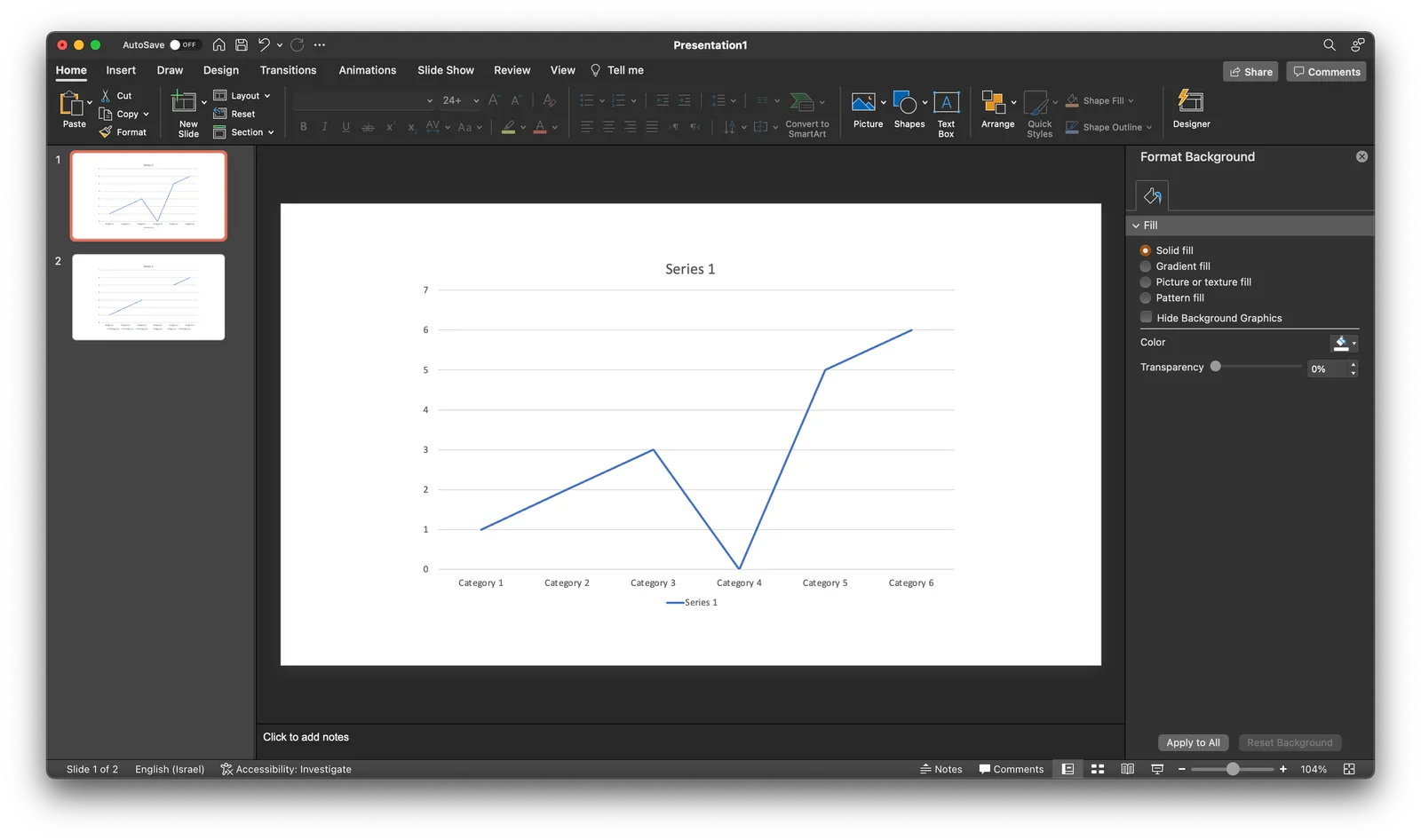
A PowerPoint post today, why not… Someone showed me a little trick to remove a point in a line graph. Useful when you have one year with missing data, and simply interpolating the value between the 2 neighbors would be bending the truth. Putting a zero leaves an odd line (see below).

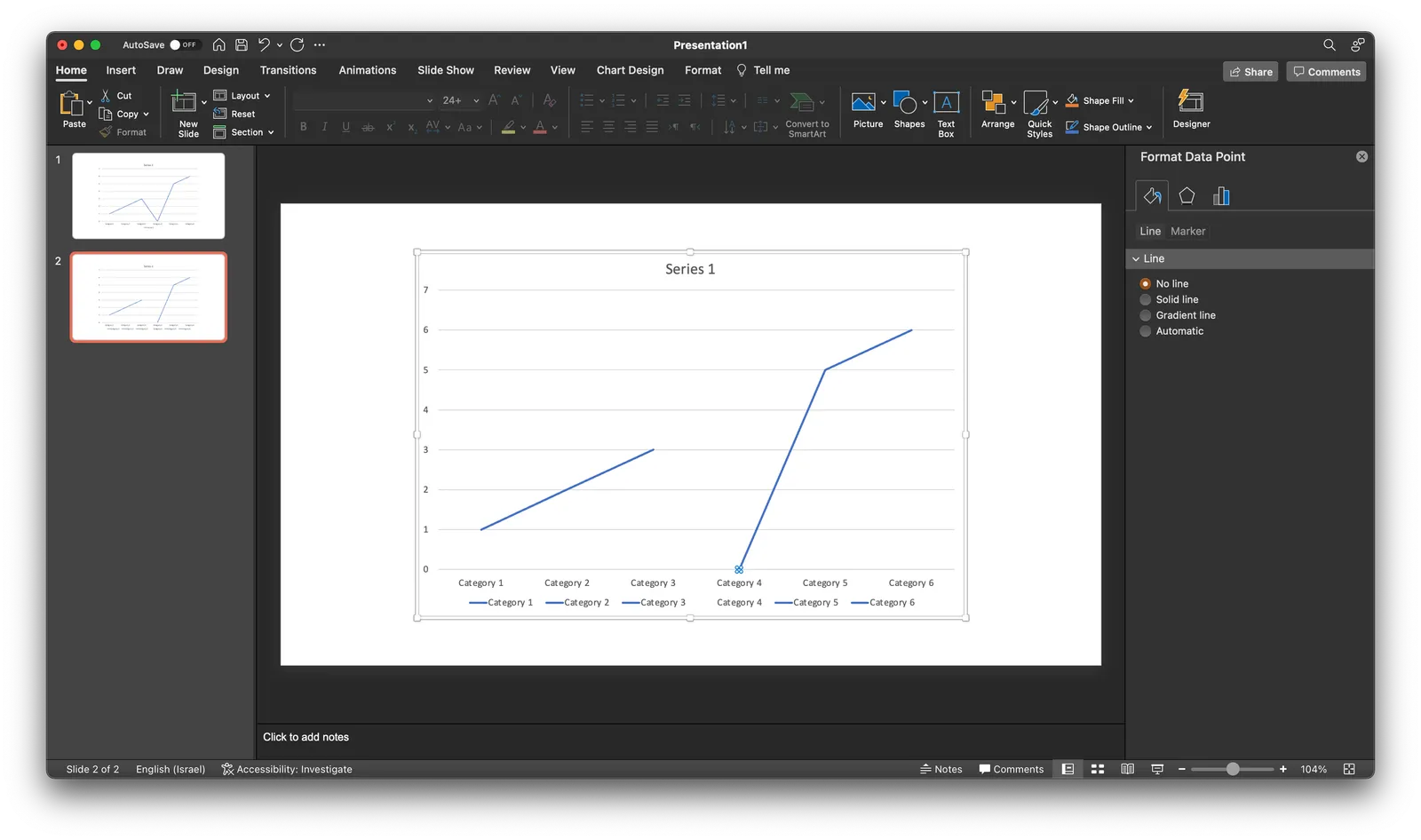
If you select the data point, (not the data series), and go into format data point and the paint bucket, you can set the line to “no line” (see below).

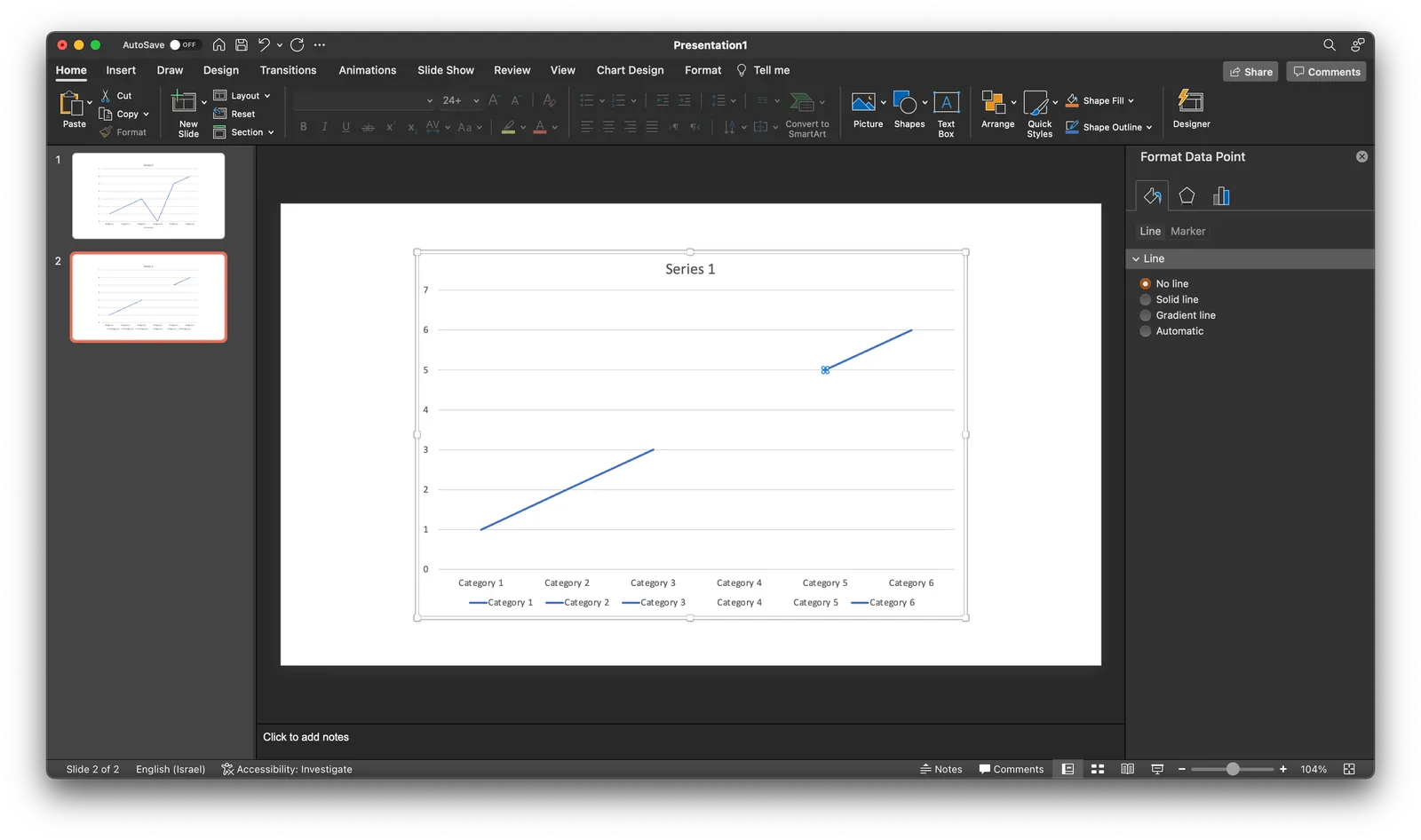
Repeat the process for the neighbor to the right (see below).

As a result, some weird things are happening to the data series labels though. Also, this standard PowerPont/Excel chart is far from presentable in your slide deck. An alternative approach in SlideMagic? Put in a column chart with a zero column value.

·Culture

PowerPoint cap in a coalition agreement

On page 41 of the coalition agreement of the new Israeli government, some restrictions are put on PowerPoint presentations:

  • 10 pages maximum
  • 36 point font minimum
  • 20 minutes maximum
  • Presentations are not a substitute for reading material

I think the last point is crucial: the presentation of your proposal and your working document with all the facts and backgrounds are two documents. Most people now write their working papers in PowerPoint and then are lazy by putting those slides on the screen. If you made something in presentation software PowerPoint, it does not automatically mean that the end product is a presentation.

I offered the government a special version of SlideMagic with minimum font size 36 and 10-slide page limit.

Source on Twitter.

·SlideMagic

Updates to the SlideMagic PowerPoint Add-in (alpha)

UPDATE: THE MICROSOFT OFFICE PLUGIN HAS BEEN DISCONTINUED (30 JUNE 2026)

Microsoft made some updates to its Office API (and SlideMagic made some changes to its server), and as a result, the SlideMagic PowerPoint add-in starts working a lot better.

The SlideMagic PowerPoint add-in is especially useful for users who download PowerPoint templates from the SlideMagic web site. Most of you are people who were subscribers to the legacy template store (RIP). Since PowerPoint conversions are a pro feature of SlideMagic, the add-in is only useful for pro subscribers.

What has changed?

  • The add-in now remembers your login details across PowerPoint files No need to constantly log in (again).
  • More importantly (thank you Microsoft), the SlideMagic add-in now adds slides straight into your existing PowerPoint presentation

The add-in is still an alpha phase, and things are tested for the moment in the online PowerPoint environment. I will submit it for another go for Microsoft approval to get it working with PowerPoint desktop versions as well.

Here is how to install the add-in:

  1. Download the file slidemagic.xml from this link
  2. Log in to your online Microsoft 365 account, click PowerPoint, and open a new presentation
  3. Select “insert”, then “add-ins”
  4. Select “my add-ins”, then “upload my add -in” in the top of the window (it is not available in the Microsoft store yet)
  5. Select the slidemagic.xml file you just download and upload it
  6. Go back to the '“home” ribbon

The add-in is installed. To use it:

Continue reading →
·PowerPoint

PowerPoint plug in update

An update on the development of the SlideMagic PowerPoint plugin. One of the main reasons my first submission to Microsoft was rejected is that the current version of the plugin does not run on PowerPoint 2013 and the Windows 7 operating system, largely because I pretty much ignored Internet Explorer as a browser option. Microsoft itself does not really support Windows 7 anymore. The other problem is that it is actually hard to debug a plugin for Office 2013, I tried actually buying a copy, but you cannot get it anymore… On top of that, it turns that you cannot run multiple versions of Office on one computer. The strange situation is now that in order to develop add-ins for the latest versions of Office, you actually need to do that on a super old machine. If there is anyone reading this who can help, please reach out.

But OK, challenge accepted. I will begin to ‘dumb down’ the server response to calls from within Office applications. I can test the rendering of the screens in Internet Explorer 11 (just installed it), and have to hope that rest works in Office 2013 without testing. Hopefully the second submission will get accepted.

The current version still works but requires some level of computers skills and courage to get it to work.

Image by Masaru Kamikura

·Software

Alpha testing: SlideMagic PowerPoint plugin

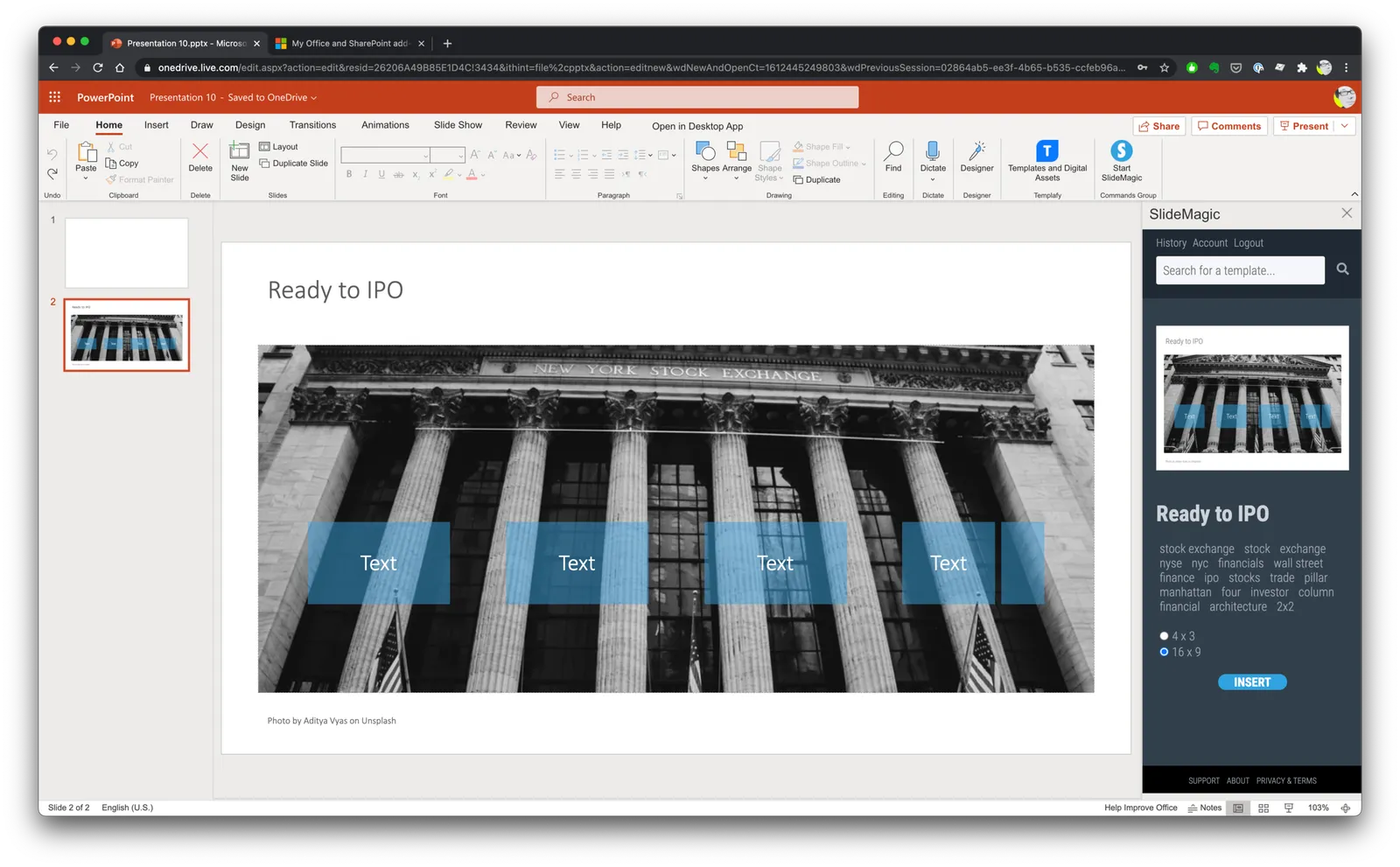
If you want, you can try out the SlideMagic plugin for PowerPoint. When installed, it opens a task pane on the rights side of your PowerPoint screen, you can log into SlideMagic, search for templates, which when downloaded appear in a new PowerPoint presentation. With a copy-paste or drag, you can add them to your presentation.

I am currently in the process of getting SlideMagic Ltd. approved as a Microsoft Partner to add it to the official Office app store. Microsoft is experiencing some capacity issues at the moment as the working-from-home-world is overloading its cloud servers.

To beta test the add-in in the mean time, you can do the following. This is a slightly advanced process, sorry.

  • Download the slidemagic.xml file here
  • On Mac follow these instructions (original on the Microsoft site). Copy the .xml file in this folder: /Users//Library/Containers/com.microsoft.Powerpoint/Data/Documents/wef (if you cannot see the Library folder in your Finder, select the ‘go’ dropdown in the Finder, then press the OPTION key and it should appear. Restart PowerPoint and a new icon “Start SlideMagic” should appear.
  • On Windows, the process looks a bit more tricky: see here.
  • The easiest is actually the online version of Office (instructions). Open PowerPoint in your browser, select Insert, select Add-ins, click manage my Add-ins, then upload my Add-in to upload the slidemagic.xml file.

This is all still work in progress.

·PowerPoint

How to add captions in PowerPoint, as you speak

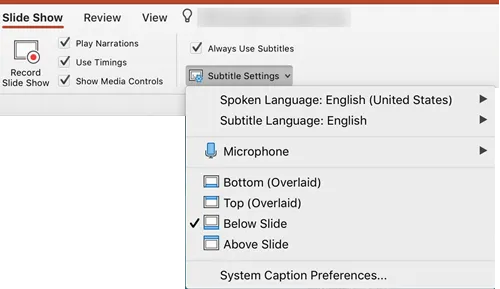
I did not realise PowerPoint could do this: put captions or subtitles on your slide live, while you speak into a microphone. Instructions how to get this work can be found here.

Photo by Immo Wegmann on Unsplash

·Layout

Against the light

In the early 1990s at McKinsey, presentation design was actually document production. Hand-written sheets of paper would be entered into a computer by full time graphics designers. Each word, each line, each graph. Then the whole thing would be printed and bound in books.

I remember the final quality check of the Amsterdam office manager: holding the pages against a strong light to see whether the titles, footers, page numbers, and margins of the slides lined up. You were in trouble if they didn’t.

Getting these basics right is very hard in today’s PowerPoint, If you copy and paste slides between masters, the alignment of objects will be off. If you change screen sizes (from narrow to wide screen and back), things go all over the place. Or, if you use/buy other people’s templates, they won’t fit well in your company’s slide layout. This is not PowerPoint’s fault, any software that needs to give total design freedom to its users will have this side effect.

I went through this the hard way myself, as I am making the slides of my “old” template store compatible with the new format of SlideMagic 2.0. Hundreds of slides that require small corrections to get things to line up properly.

With SlideMagic, professional designers might complain about the lack of flexibility in layouts, the rest of us will be extremely happy with how easy it is to tweak templates, screen sizes, and copy slides between presentations.

Photo by Bank Phrom on Unsplash

·PowerPoint

Accurately cropping images

Cropping an image accurately can be tricky, especially when PowerPoint is trying really hard to suggest possible cuts alongside snap lines it thinks are useful. My solution, drag the image to a huge size (without distorting its aspect ratio), crop, and shrink it down again.

Photo by Morgan Harris on Unsplash