SlideMagic Blog

Frequent updates about all things presentations since 2008. Subscribe to never miss a post.

RSS
all posts

Category Software

·Gadgets

Review: iPad note taking

Handwritten notes are very important in presentation design. I use 2 kinds:

  1. A very small note book with a beautiful leather cover to take meeting notes
  2. The back pages of old print out for slide design (I take more pages out than I add, the pile is shrinking fast)

For writing I use my favorite pencil: the Lamy 2000 (review).

Let’s look at application 1 first: meeting notes

Although I love my luxury micro note book, there is a big problem with analogue note taking: finding stuff. Since you write sequentially, and often use poor handwriting, it is hard to access notes that are part of a specific project (I can have more than 10 things going on at the same time).

Digital note taking on an iPad can solve this: simply create a note book for every project.

The key problem is the iPad-hand interface. Steve Jobs always was against using a styles, he correctly reminded us that we have 10 of them already. That is true for navigation, but not for writing large pieces of text (fast). The biggest problem is seeing what you do. Big fingers are getting in the way of your eyes, leading to illegible scribbles. And after a while you get tired of holding your finger straight. So there is no escaping from a style.

An iPad stylus needs to have a fat tip with a soft surface, mirroring the texture of a human finger. The resulting line can still be highly thin though, getting drawn at the center of impact of the soft tip. To show this effect, see fashion designer Karl Lagerfeld sketch drawings live on stage during the LeWeb 2011 conference in Paris last year (skip to 19:50).
Continue reading →
·PowerPoint

Video in a webinar?

The big problem in webinars and web meetings is the upload bandwidth. If you are running the presentation live from your computer, then the speed at which attendees can download your high-res images, video, or animations is the speed of your upload connection which in most cases will not be much more than 1Mbps. Download speeds are much higher (I have gone up to 50Mbps recently).

 The solution for this would be to upload the bandwidth-heavy content beforehand to a server, and only use your live upload connection for the audiotrack. Some web meeting solutions such as SalesCrunch (disclosure, a client) allow you to upload presentations beforehand. But video does not work (yet). Do any of you know a solution or a workaround that allows me to use video in a live webinar?

P.S. An earlier post about how I use an iPad to log in as a participant to monitor what my audience is seeing during a webinar.

·Keynote

Videos in PowerPoint / Keynote

Here is the easy way to embed a video in PowerPoint or Keynote:

  1. Simply drag the file into your slide, done.
  2. Resize the video so that it fits neatly on the slide.
  3. Play the video until you hit the scene that you want to use as your place holder image. Hit pause.
  4. In PowerPoint: choose format movie, poster frame, current frame.
  5. In Keynote: select the movie, go to the inspector, hit the far right Quicktime icon and slide the poster frame slider to the desired location.

There are more advanced control features available, but these basics should do for most users.

·Colors

PowerPoint for Mac color rendering

If you cannot get excited about color rendering in software, please skip this post.

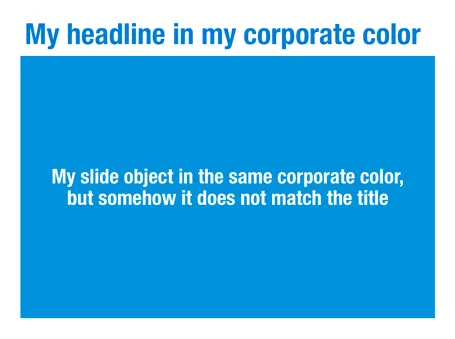
There is something weird in the color rendering of Microsoft PowerPoint 2011 for Mac. First, text and shapes get treated differently. If you make the text and the background the same color, the text will appear different. At first it looks like to be designed on purpose. But the adjusted color is actually a bit off on the hue spectrum, creating color clashes. See the example below.

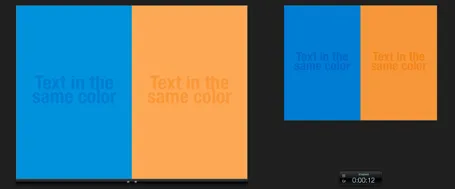
Maybe there is a problem inside the software though. Look at the screen shot below of a presentation in presenter mode. I copied 2 exactly the same slides and you can see that the preview of the second (identical) slide pulls the blue into same purple direction as the text in the previous example. There must be more than one color rendering engine inside PowerPoint.

PowerPoint 2010 for Windows does not suffer from this, and I hope that Microsoft will fix it in a subsequent update (even it was done on purpose). If I want my text to stand out on a background, I want to freedom to decide myself what colors to pick.

·Gadgets

Liberated from the email attachment

Clients that run conservative IT infrastructures (usually the larger enterprises) still have a cap of around 10MB on the size of an email attachment. As presentations contain more images, file sizes are getting increasingly larger. Over the past years I have been cropping and compressing to keep file sizes in check, but I think we have finally reached the time to get rid of the email attachment as the preferred way to send files across.

Solutions such as Dropbox provide a very convenient alternative to the email attachment, send a download link to a file, or sync a file both on your hard drive and the hard drive of your colleague.

Now that 10MB is no longer an issue, we can go to 100MB and beyond and this introduces incredible design freedom.

  1. Put images in at full HD resolution, keep the areas that you cropped out to change a slide design in the future, and have the option to produce very high-grade print material from your working document. There is no need anymore to do destructive compression to your source file. With new devices such as the new iPad with retina screen resolutions going to more than 2000 pixels this becomes essential. A 700 pixel image will look OK on a crappy VGA overhead projector, but will look fuzzy and unprofessional on a tablet
  2. Embed HD videos right into the presentation file. No more linking, saving files in the same directory and worrying about whether things work. Over the past months I have become convinced of the power of short 30 second videos in presentations. You could even start replacing background stills of a landscape with a looping video that show a gentle breeze going through the tree tops with some birds flying by.
Continue reading →
·Delivery

iPad: Keynote tipping point?

I am continuing my research in mobile presentation platforms, with very useful input from you guys.

Until now, the Keynote versus PowerPoint battle has been a feature debate. While Keynote has some better features in some instances, they are unlikely to be enough to switch people over who just invested years in getting to grips with one user interface.

Mobile devices might change that.

There are two types of presentation decks. The everyday presentation is a PowerPoint file that is used in corporates to make business decisions; it is not really meant for presentation, rather it is a more visual substitute for a word processor. The second one is the key company pitch, sales, or fund raising presentation. You use it all the time. You perfect it all the time with small changes. You use it in different settings, mostly for audiences outside the company.

I would argue that by now, it is better to have that crucial presentation in Keynote than in PowerPoint. Why? Mobile devices, and the integration of PowerPoint with iPads is non-existent, while by now Keynote has pretty decent mobile apps.

Pulling out a laptop in a coffee shop to go through a deck is unnatural. Flipping on your iPad is not. An iPad could also be a powerful replacement of the PC + clicker combination that we use for conference room, or even on-stage presentations.

One scenario. You sitting at the reception of a venture capitalist waiting to be picked up. On your iPhone you click through your slides to do a final mental rehearsal. Ah, a typo, a quick fix. You walk into the conference room and one of the VC partners is late. Instead of an on-screen presentation you tell your story verbally, while pointing at a key chart on your iPad when necessary. The second VC partner walks into the room, and immediately you Airplay the presentation onto the conference room screen. You quickly repeat the main points you made by picking off a few slides from your iPad (because of presenter mode, the audience does not see you browsing through tiles) and finish the discussion with the detailed financials, and the use of the funds that you are trying to raise.

Continue reading →
·Gadgets

iPad, Prezi, and remotes

The iPad could be the ultimate device for presenting on-stage, solving many problems I have blogged about before:

  • It can create a dual-screen view: the presenter sees a different screen than the audience (timer, next slide coming up etc.). Now only PowerPoint and Keynote support this with dual monitors. The iPad can create it instantly for any application, including Adobe Reader, enabling presenting from PDFs
  • It can create a non-lineair presentation interface (like Prezi). On your iPad are all the slides in thumbnail view, and you can pick them on the spot without disturbing the audience screen.

There is a real jungle out there of iPhone/iPad presentation apps and none of them get it right. None of them have the thumbnail slide mode, and no one has found a good way to work around the iPad’s font limitations (images instead of text?).

This last point is essential if the iPhone/iPad moves from being a remote control directing a computer to becoming the device that powers the project itself.

Has anyone found the ideal iPad presentation app?

·Gadgets

Trackpad only

A while ago I wrote this post comparing a Logitech Mouse, the Magic Mouse, and a track pad. Nine months later, I have switched complete to a track pad, which is not only much better for navigating the Mac Lion OSX, but I also find it highly accurate for drawing shapes and general slide design work.

The key thing that I had to learn was to move things around not by using the old PC method: click the track pad and hold it pressed down while moving your finger, but work with 2 fingers: one presses the track pad down, the other one moves the object. Once you get the hang of that, your movements are as precise as with a mouse.

My pile of obsolete hardware is getting bigger.

·PowerPoint

Need a simple planning tool

Business is going well and I am in need of a basic time planning tool. My work style has changed from one that is management consulting-like (1 project at a time, from start to finish), to a more erratic (creative?) work schedule. I take on many projects at the same time, ponder about creative approaches in parallel, and have become much, much faster in execution once I have the ideas for the killer slides in my head.

With all of this, it has become hard to get a good grip on my actual work load and give clients a realistic delivery date of a project. Most project planning tools available are designed for large projects executed by multi-person teams doing tasks that are defined in days and not hours. These tools also find it difficult to manage multi-tasking: one person who is working on more than one project at a time.

So, I wonder whether you have come across a tool that allows me to do the following:

  • Quickly add lots of short projects
  • Sync with a calendar to take into account holidays and other commitments
  • Put in hard deadlines for some projects, while leaving others open
  • Allow multi-tasking

I have been playing around with Omniplan and Clarizen, but these do not seem to do what I need.

·Images

Filter Forge

I said before that it is a shame that PowerPoint (or Keynote) do not have these powerful replicators that you can find in motion graphics software. Filter Forge is a nice piece of software that plugs into PhotoShop and extends the range of filters you have available for your images.

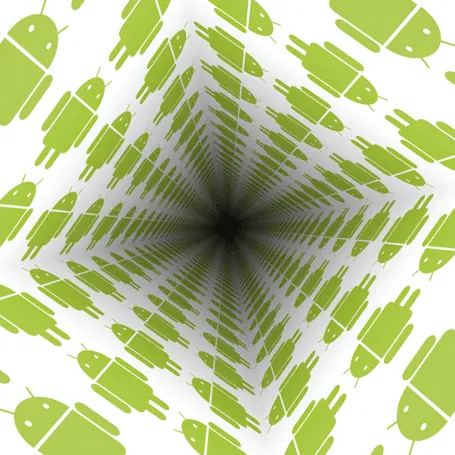
Here is an example image I created for a client that has software that works across all possible versions of the highly fragmented Android mobile operating system.

Filter Forge is a platform on which users can contribute their own filters, the result is an endless library of filters, including the perspective distortion above, instagram-style retro filters, and filters that turn your images into cartoons or impressionist paintings.

It is not cheap, I bought the professional edition which is priced at $399.