SlideMagic Blog

Frequent updates about all things presentations since 2008. Subscribe to never miss a post.

RSS
all posts

Category SlideMagic

·SlideMagic

(Careful) beta test for both Mac and Windows

I am ready to release a useable version of SlideMagic 2.0 to a very small group of users. There is an app for both Windows and Mac. If you are interested, you can sign up here: http://cloud.slidemagic.com/beta/apply, and I will let you know in the coming days (maybe week) if you made it to the very first beta test group.

In the not too distant future, there will be a broad/no application beta test program, but at the moment I am keeping things small to make sure I have the bandwidth to support early users.

Photo by Abbie Bernet on Unsplash

·SlideMagic

App update

It took me a few days after the holiday to get back into my own code again (scary how fast you forget things). But I am on a roll again. A major achievement for a 1990s computer scientist is that I got the SlideMagic server running: you can log in as a user to activate the pro features (probably spotless and instant PDF and PowerPoint conversion) and equally important, access to a much broader searchable layout database. The latter works now as well, the server responds with dynamically generated slide suggestions based on search keywords.

The next challenge will be to 1) expand the slide layout database, and make the search suggestions smarter, and 2) to make the user signup/login robust. For most developers, 2) is easy (this is coding 101) and 1) is hard (this requires 25 years of slide design experience). For me it is the other way around.

Photo by Markus Spiske on Unsplash

·SlideMagic

App update

I am posting a bit less frequent these days since all my posts originate directly from the work I do day to day, and presentation design work has pretty much dropped to zero at the moment…

So what is happening with SlideMagic 2.0? I pretty much completed the desktop app but still think it is not ready for public release as small bugs continue to pop up, and I keep on discovering tiny, but annoying usability issues for which I do not need the help of others to discover them. The feature set is frozen, but experience is super important for a presentation design app (the big issue with version 1.0).

Hunting tiny bugs is not the most inspiring things to do, so I split my day now between this, and the next challenge: creating a template “store” with a smart search engine that integrates tightly with the app (unlike the current Shopify site). Technically, this is a lot simpler than the complex desktop app that I created, but for me it is a bigger challenge as I need to dive into the world of server design, which did not really exist when I graduated in Computer Science in 1992.

The potential upside should be interesting though, as this is the final barrier for me to go all out in thinking about what technology can do to help make the creation of presentations easy. Again, I will start with the tinkering approach, slowly iterating towards a product that is useful (which involves backing out of a lot of dead end alleys.

Continue reading →
·Software

Designing with phone cameras in mind

A large portion of conference audiences now diligently snaps a photo of every slide that the keynote speaker presents. Some implications:

  • You can no longer hide secrets by quickly going to the next slide. A high resolution camera got all those quarterly sales numbers in that nano second the slide was one. If you don’t want things to end up in the public domain, don’t put it on a slide, not even small. Yes, that might mean investing an extra half hour recreating that graph from the budget document.
  • The opposite is also true. Slides have a second use, pondering over them after the big presentation. This means you could add more content than you normally would do for an in-person presentation. One way to do that is to use an “explanation box”, like this feature in the SlideMagic presentation app. The main slide and the explanation are clearly separated.
  • You could take it even further by designing slides explicitly for the photo: for example, a calculation how you got to a certain number. Show it, say what it is, invite a picture, and move on.

 The SlideMagic presentation software has an explanation panel that you can slide in and out.

The SlideMagic presentation software has an explanation panel that you can slide in and out.

·Software

A matter of speed

A few years ago when I started thinking about about the SlideMagic project I though it was all about the design. Just find a way for people to make beautiful charts and it will be a big hit.

I am close to completing version 2.0 of the SlideMagic app, and am now in a position I have never been in before: I can design the actual user experience of someone creating slides click by click, being free fom common software design platforms, standards, and practices. And here is the real magic. I make dozens of user interface decisions a day, what colours get copied, what things get highlighted, how font sizes are set, what box is selected after you did an action. Hundreds of small decisions add up to a big experience. You cannot pinpoint why it works, but it does somehow. It is all a matter of incredible attention to detail.

The pitch of SlideMagic is changing. It will all be about the speed at which you can design a pretty decent looking slide.

(Don’t tell this secret to anyone).

Photo by toine Garnier on Unsplash

·Software

Feature preview: matching slide and user interface colours

In SlideMagic 2.0, I have pushed the use of colours in the application user interface further. The look and feel of the application will be the opposite of the slides you are working on:

  • If the slides have a dark background colour, the application will be light
  • The accent colour of the application will be the opposite colour on the colour wheel from the colour .you are using in your slides.

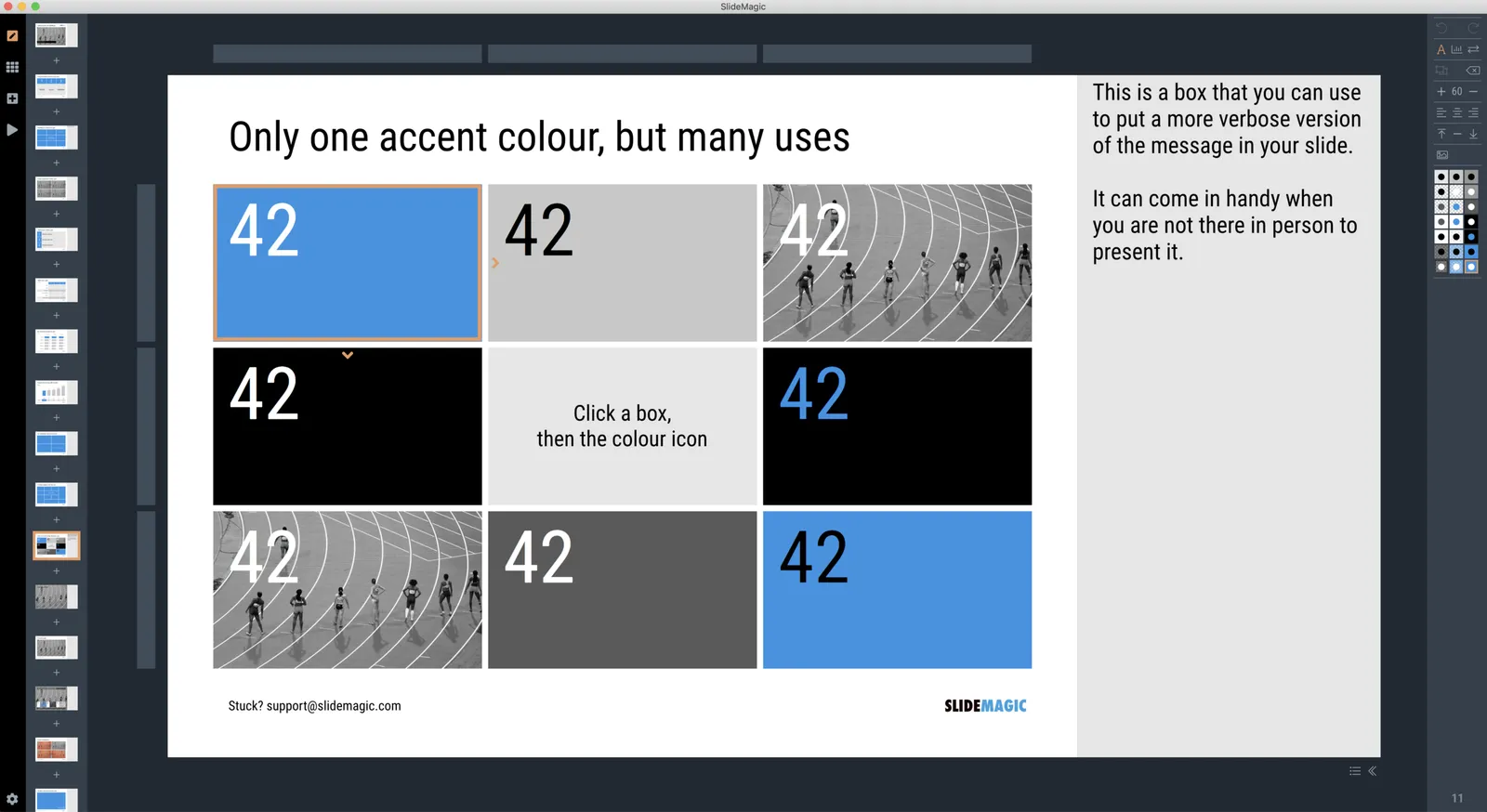
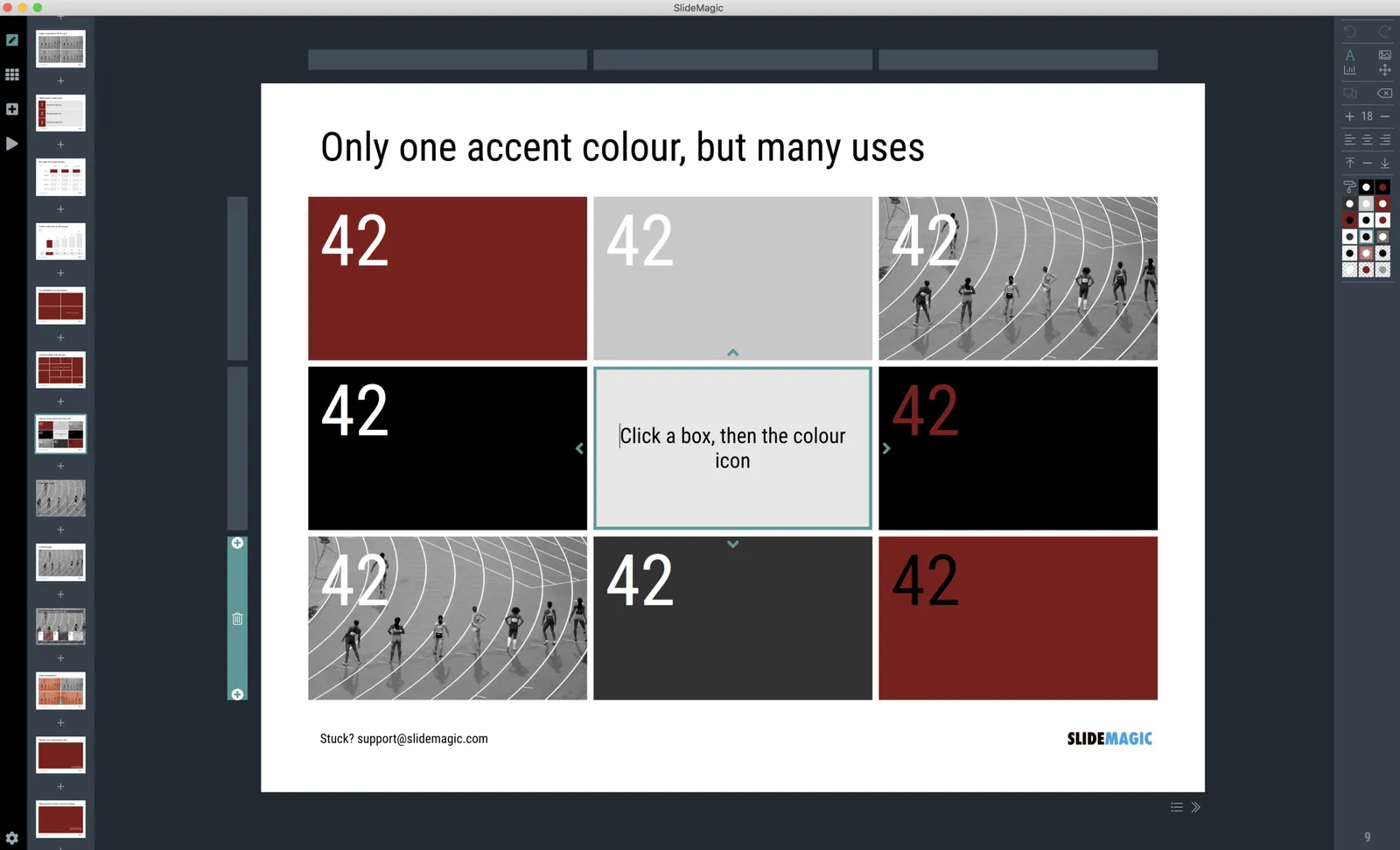
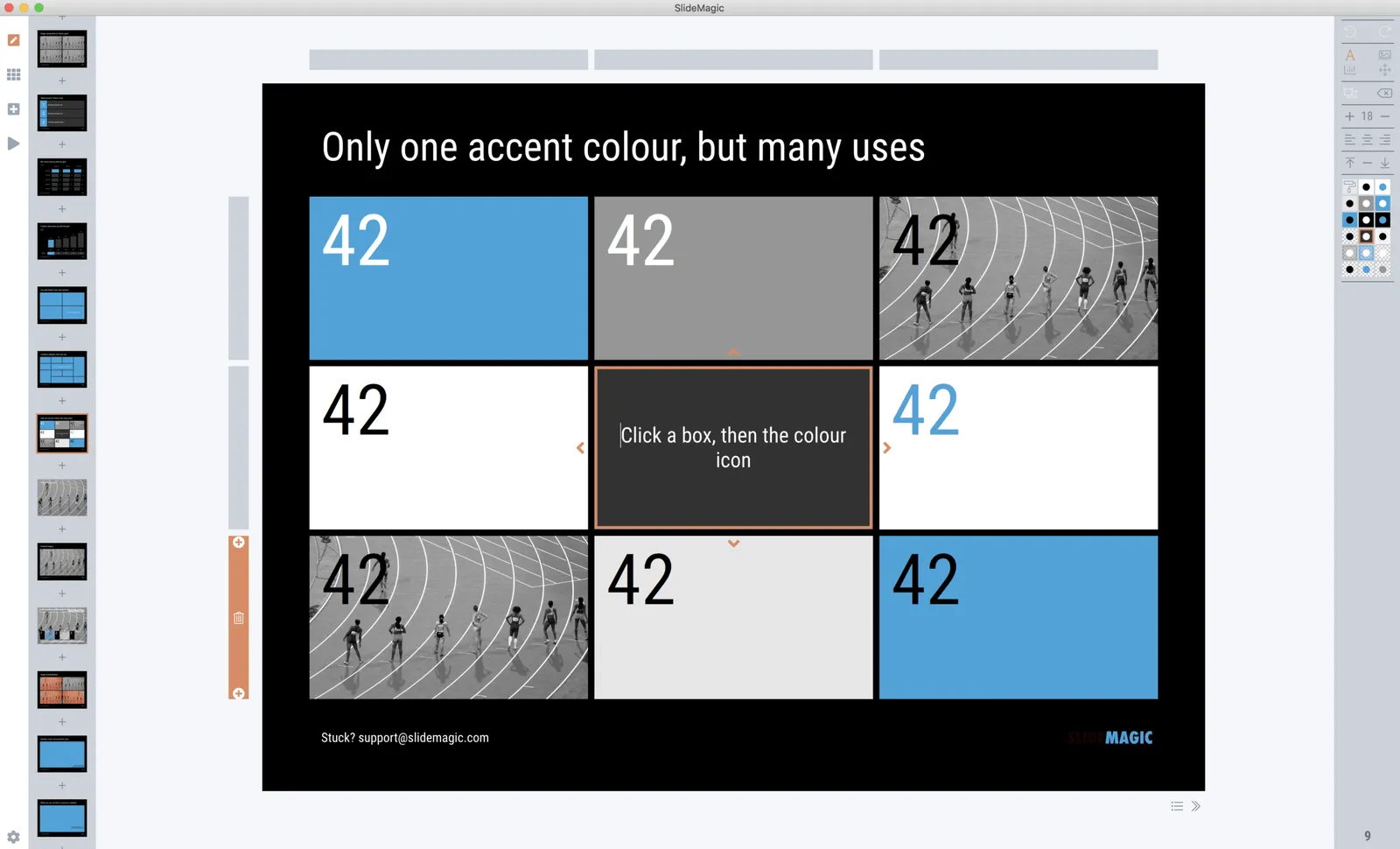
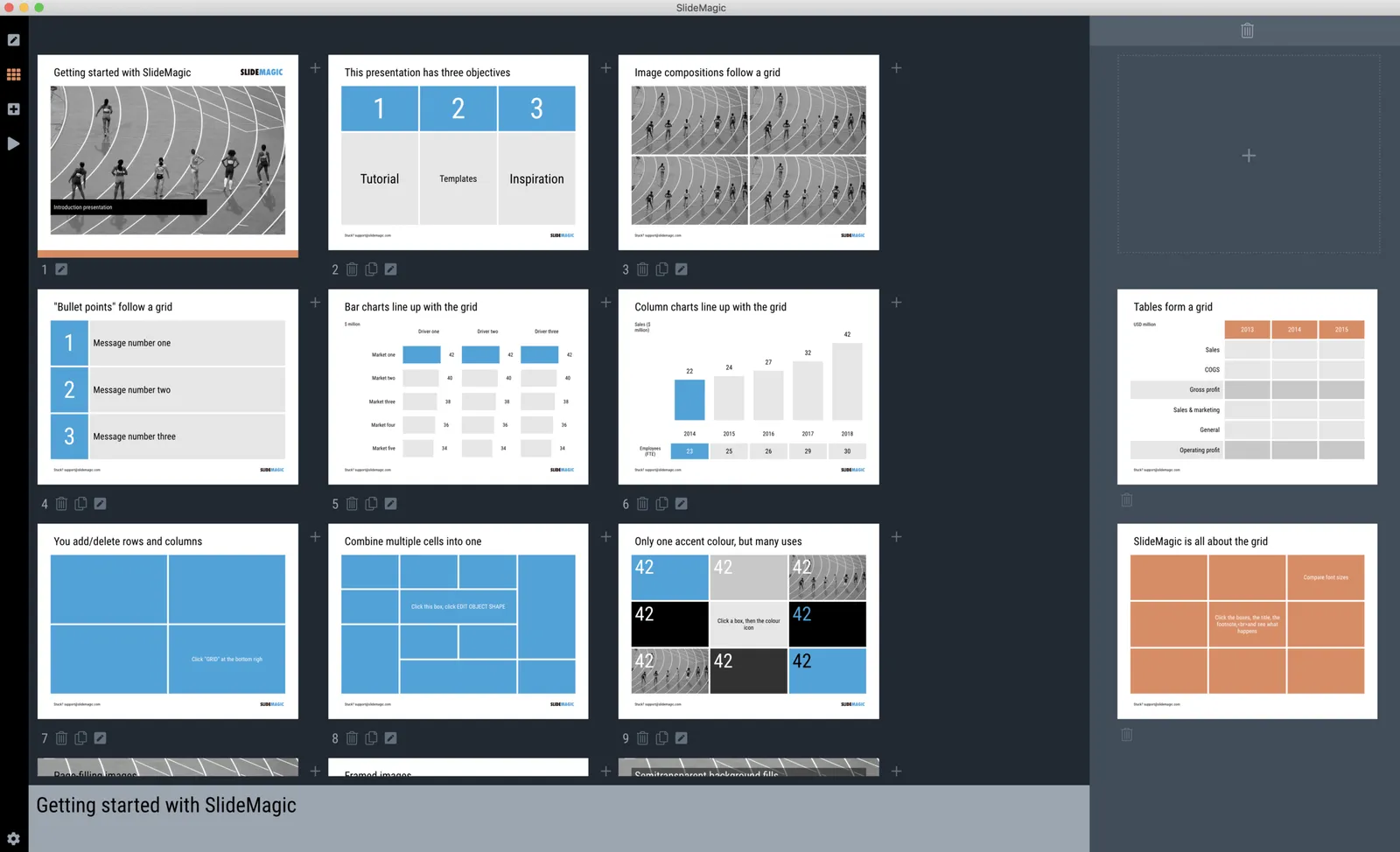
Here are some screen shots from the alpha version:

 Brown/red in the slides, green in the app

Brown/red in the slides, green in the app

 Switch the slide background to dark, the app turns light

Switch the slide background to dark, the app turns light

 Slides on the clipboard are in the template bank are presented in the opposite colour so you can differentiate easily between the slides that are already in your presentation, and the ones you could add.

Slides on the clipboard are in the template bank are presented in the opposite colour so you can differentiate easily between the slides that are already in your presentation, and the ones you could add.

·Templates

Starting to use the store myself

Recently, I have started to use the template store myself for the few bespoke design projects I still do for long standing clients (SlideMagic gave me a really attractive rate :-)). My hard drive is filled with 1000s of slides and still it is difficult to find a nice clean layout to use as a basis for slide number 1001.

Up until a few weeks ago, I started every slide pretty much from scratch, I have gotten pretty fast in setting up yet another 4x5 table grid. But even I can’t beat search the store for “table” and re-download that slide again and hit the ground running.

I am continue to monitor which slides people decide to buy, and which slides are downloaded by subscribers. Many subscribers download a lot of slides right after they made the purchase, and then don’t return for a couple of weeks. Initial downloads include slides that you can only use in very specific situations, like these sheep. They hardly ever download the same slide 2x. There could be 2 possible explanations:

  • Less likely: after that $99 annual subscription, you better make sure you get what you paid for, maybe the store will stop running somehow before the 12 months are up.
  • More likely: we have built up the habit of mining through old decks, and recycling slides into a new presentation.

As a designer who now uses its own store, I would encourage you to think Netflix, iStock, Spotify: your slides will always be there, and search is there to help you find the slide you need at the moment (and nothing else). Change your design process:

Continue reading →
·SlideMagic

Mysterious shipping charges

It is very hard to tell eCommerce platforms, Google shopping, tax authority and other sites that digital downloads do not require shipping of physical stuff. Deep down in the bowels of my system $20 shipping charges were still present for some countries. I think I cleaned everything up now. Let me know if you see any other irregularities. If it looks wrong to you, it probably is wrong.

Cover image by chuttersnap on Unsplash

·Data visualization

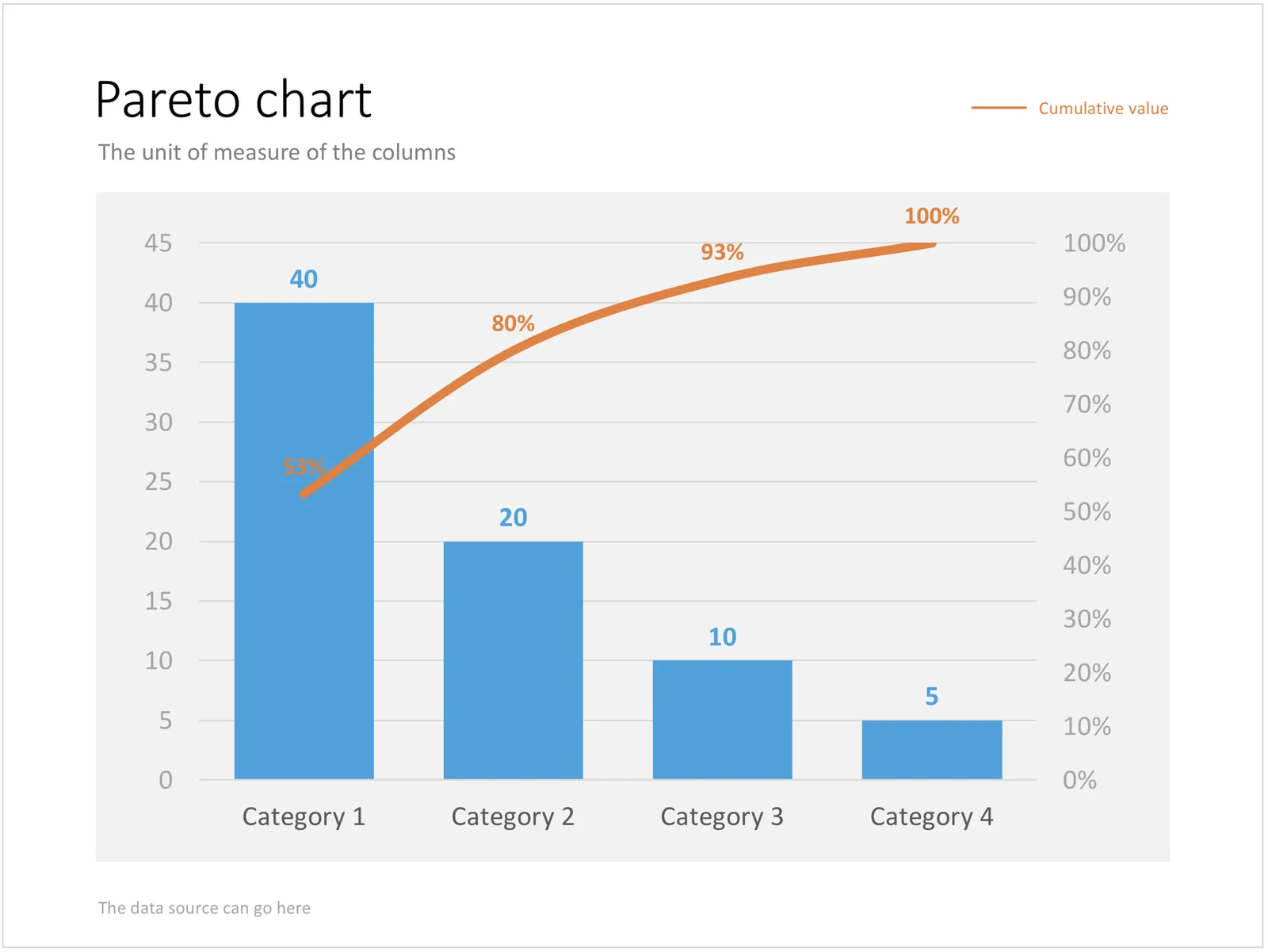
A Pareto chart

Recently, someone searched for a Pareto chart on my site. I must admit, I had to consult WikiPedia about this type of slide. A Pareto chart shows 2 data series, each with their own vertical axis; the first show the absolute frequency count of something, the second one the cumulative occurrence of the data series, adding up to hundred for the last entry. I have added the Pareto chart to the store.

·Concepts

Puzzle pieces in PowerPoint

Although you could consider them a presentation cliché, puzzles can work really well in a presentation:

  • Show how things fit beautifully
  • Show how your are missing (hopefully just one) critical piece
  • Show that you finally managed to plug that last gap

Puzzle shapes can also work great when you use them in combination with images. You can go back to this blog post about making Photoshop-like image cut outs in PowerPoint.

Stock image sites are flooded with millions of puzzle piece designs, but they are not very practical for the average PowerPoint designer (especially late at night working for tomorrow’s deadline). Almost all these puzzles pieces are vector objects or images that are impossible to edit in PowerPoint. Moreover, all these puzzle pieces have wildly irregular shapes that make them hard to fit in your slide composition that requires exactly nine of them.

ThisPowerPoint puzzle slide solves the problem for you. The pieces inside are fully editable PowerPoint shapes, you can change their colour, you can put text in them, you can reconfigure and piece them together as you see fit. Yo’u can download the finished slide by clicking the image (An Apple Keynote version is available as well).

You can try to create the pieces yourself if you want, I used simple square shapes and circles, either joining or subtracting the shapes. Circles and squares might not be the most realistic shapes, but they are very practical when have to piece things together. There is a little bit of math homework to do to determine which type of puzzle shapes you actually need, and which ones you can create by rotating existing pieces.