SlideMagic Blog

Frequent updates about all things presentations since 2008. Subscribe to never miss a post.

RSS
·Images

Midjourney-style images in SlideMagic

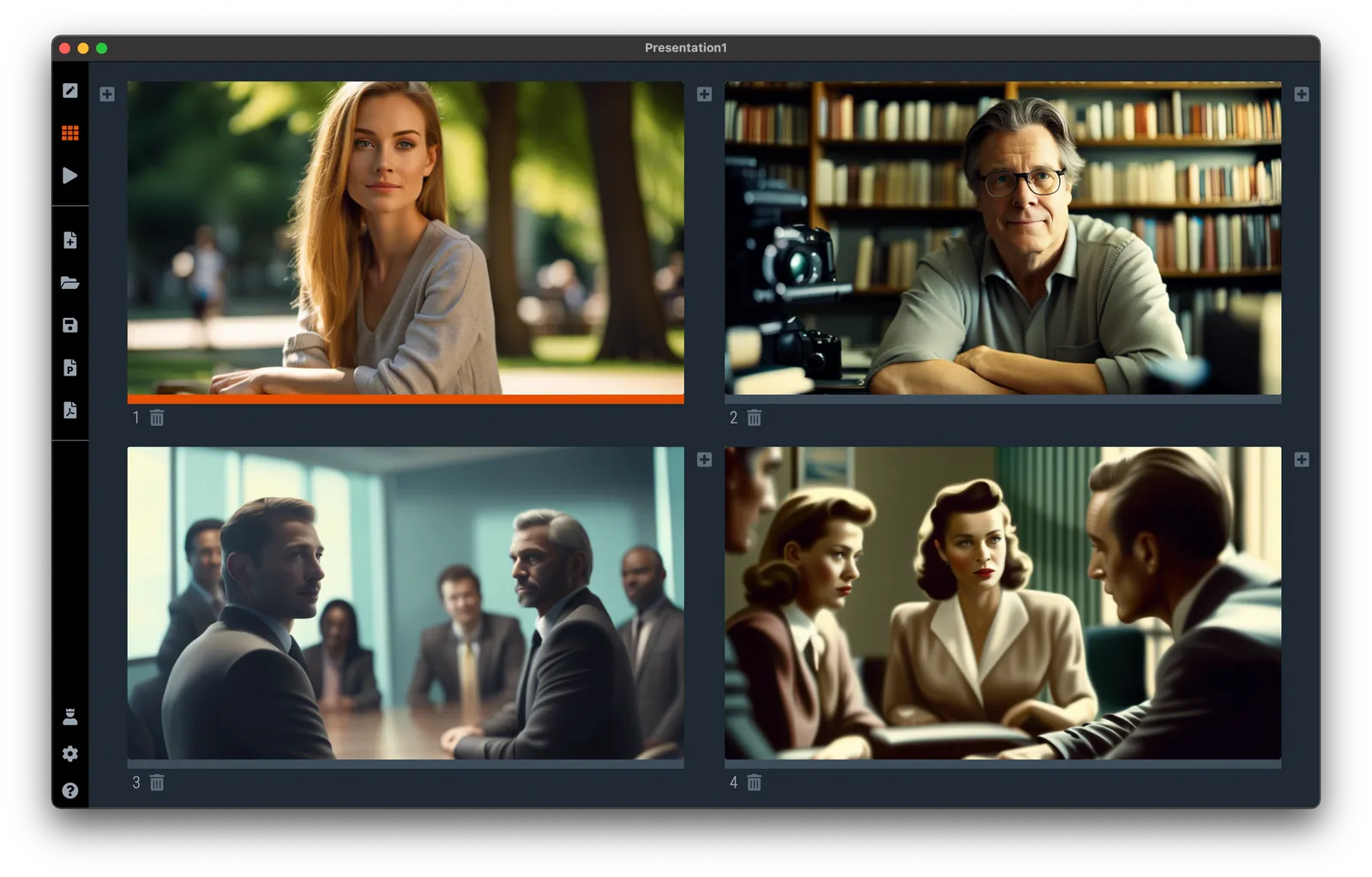
I swapped the DALL-E image generation engine for a different one, and the quality of the AI-generated images in SlideMagic has improved dramatically. Prompt and responses behave similarly to Midjourney. Below an example of a few quick prompts. (I on purpose forced the 1950s vibe on the last 2 images)

Make sure to have version 3.1.5 installed to see the new image engine. There is a cost associated with generating these images, hence this feature is only available to SlideMagic Pro subscribers. Other AI-related functions (slide and story line generation) are free for all users.

·Software

Working on a DALL-E replacement

A few months ago, I added a DALL-E AI-image generator to SlideMagic. AI-generated images can be great for presentations:

  • You can get very precise in defining what you want to see, much more so than browsing endless stock images search results that are not exactly right
  • You can make images look visually consistent across a presentation

The DALL-E engine is not accurate enough though. Especially when it comes to humans/faces. Midjourney is doing a far better job at this but is not (yet) providing 3rd party API access to its engine, the only way to get images out is via a web-based interface.

I am starting to look into deploying the same open source models that are actually the basis of Midjourney, directly into SlideMagic. You can see the results below and they look very promising. More to come.

 Image found with an automated prompt to a stock image site

Image found with an automated prompt to a stock image site

 Open-source AI-generated image

Open-source AI-generated image

 Very poor result from DALL-E

Very poor result from DALL-E

·Concepts

Work in progress...

See the image below. I am blending AI-generated slides and images, and things are not completely right yet…

AI-powered slide summaries

Another day, another SlideMatic AI feature.

SlideMagic has a collapsable slide side panel in which you can describe the story of your slide in case you are not present in person to present it to your audience. You can access side panel view from the “view” dropdown.

As of V3.1.3, SlideMagic can now suggested a slide summary automatically with the help of some AI. Simply click “(Re-)summarise at the right bottom of the slide to see the panel get populated. The quality of the results will depend on the amount of text in your slide. See an example below

Using this feature will switch the app to side panel view, you can go back to your preferred slide layout via the “view” dropdown menu.

·Layout

Automated content pages

I am continuing the gradual upgrading of the SlideMagic AI capabilities. Today, I added an automated content page to the automated story line generator. For each section in your presentation outline, you now get a slides with all sections, plus the current one highlighted. (See the screenshot below).

More updates and refinements to come

·Software

Automated table generator that compares items

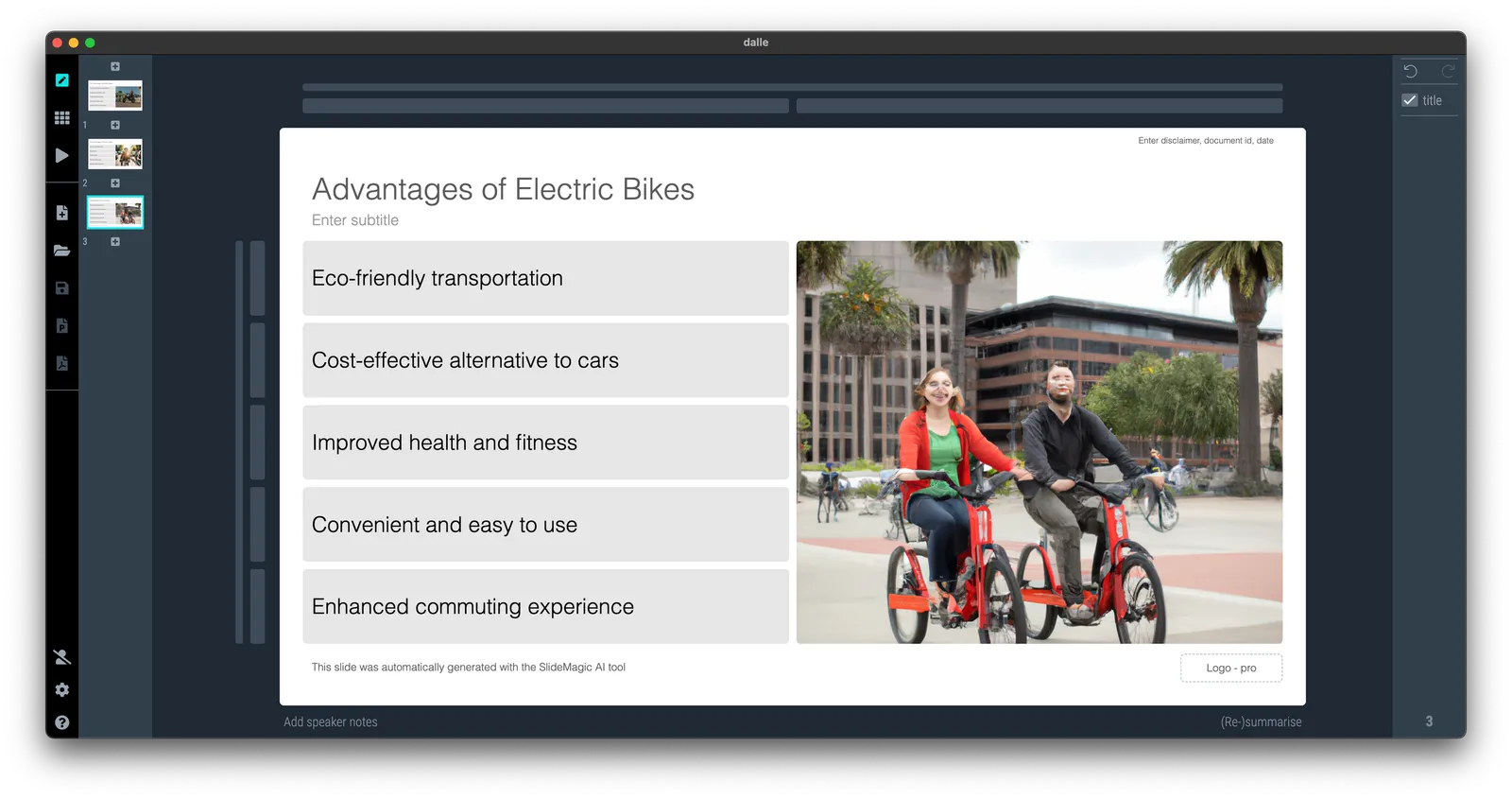
I added the second AI-powered slide generator to SlideMagic. It creates a simple feature comparison of the items you enter. So this time it is a single slide rather than an entire presentation layout. See the screenshots below.

It was an interesting learning process to figure out how to “tame” OpenAI and get it to produce consistent outputs and data formats that I can use in layouts. I still need to improve the adjustment of font sizes based on the density of the output. More and better generators to come.

You need to update the app to version 3.1.1. to see the new features (or higher, this was written in June 2023), if it did not happen automatically, simply re-install SlideMagic from the home page.

·SlideMagic

SlideMagic 3.0 with generative AI!

I just soft launched SlideMagic 3.0 that now has a direct backend integration to OpenAI’s ChatGPT (in addition to the AI-based image generator I put in earlier).

My objective was to get the basic engine running. So things are very simple at the moment. When you try to insert a slide, you will see a new option: “AI-generated slides”. Clicking the icon will lead you to a new form where you can input a prompt. Hit “submit” and be patient, and the app will generate a simple presentation layout with separator pages based on your prompt. See the screenshots below.

I am planning to release many, many more of these generators. More sophisticated story lines, chart template generators etc. now that the basics are in place. Next steps for me is more “prompt engineering” (SlideMagic adds a lot of content to the prompt you submit in the background), and expanding my chart generation engine to take in more human-like responses from ChatGPT and turn them into SlideMagic boxes.

The generative AI feature is free for all to use at the moment (as long as it does not hit my OpenAI account too hard), SlideMagic Pro users can export these AI-generated charts to PowerPoint.

·SlideMagic

SlideMagic and generative AI update

I am continuing to experiment with OpenAI to see how it can help us make presentation design easier. Generative AI feels a lot like the early days of the Internet in the end of the 1990s. People did not really see that “Internet” was not really a unified tool that could do wonders for business, but rather a description for hundreds of different applications and use cases that happen to rely on a web browser.

The same is true for generative AI now. I don’t think that I will come up with the ultimate AI-based presentation tool overnight that can read your thoughts and deliver the slides at the press of a button. Instead, I will try to release bite-size features that can make the life of a presentation designer easier.

And some of these might not even be very clever. Anyone can go to ChatGPT and get it to produce some presentation skeletons or summaries of text. But there are ways to make prompting of the engine better for presentations. You can save a lot of time by having a user interface straight into SlideMagic, and most importantly, it saves a lot of time when SlideMagic creates the slides for you (in .magic and/or .pptx). The latter has nothing to do with AI, but rather improving the slide generation engine that I already built.

Watch this space.

·Delivery

Demo story lines

A live demo of your product is risky in a short standup presentation. Lots of stuff can go wrong (internet connections, etc.) and you might end up spending valuable time on banal things like logging in and out. For short pitches, I would suggest to use screenshots, with the exact messages you want to convey. Point at your lap top with a running demo as evidence that there is indeed a product.

A proper demo of a product can be done in a follow up call. People have understood the basic idea, are interested, and now is the time to dive into the product. And strangely enough, in the era of Zoom product demos are a bit easier since everyone sits very close to a monitor.

Like presentations, it is not recommended to “wing” a product demo. You might end up forgetting to show critical features, hitting bugs, and presenting a rambling user flow. You want to impersonate consistent demo accounts that perform a sequence of actions in a logical way, instead of clicking around randomly to show features.

·Layout

Dashboards and reports

For periodical update meetings, you often can use the same presentation with just the numbers updated. When the audience is internal to the company, many will just use a spreadsheet printout rather than transferring the data to a presentation.

The result, a presentation that looks like, well, a spreadsheet.

  • There is more information presented than needed for the meeting
  • Numbers are highly precise and not rounded up
  • Fonts are tiny, as the spreadsheet tries to show everything on 1 page’s width
  • Colors and fonts are those of Excel, not the company
  • The last 2 rows of the table moved over to the next page
  • Etc.

If you need this report often, it is worth investing some time in setting up your spreadsheet properly.

  • Leave your “engine” untouched and create an entirely new work book that is your “presentation”
  • Get rid of spreadsheet gridlines and show the page cut offs so you get a clear view of the boundaries of your “slides”
  • Set colors and fonts the same way you would do in PowerPoint
  • Now build your slides page by page, by pulling in the data from the engine sheet, round numbers up as you go ( / 1000, show 1 decimal, etc.)
  • With these types of reports, you variability between slides will be in the column widths, not so much in the rows. To keep your “deck” all in one workbook, move horizontally, and add pages to the right rather than below
Continue reading →