SlideMagic Blog

Frequent updates about all things presentations since 2008. Subscribe to never miss a post.

RSS
·Images

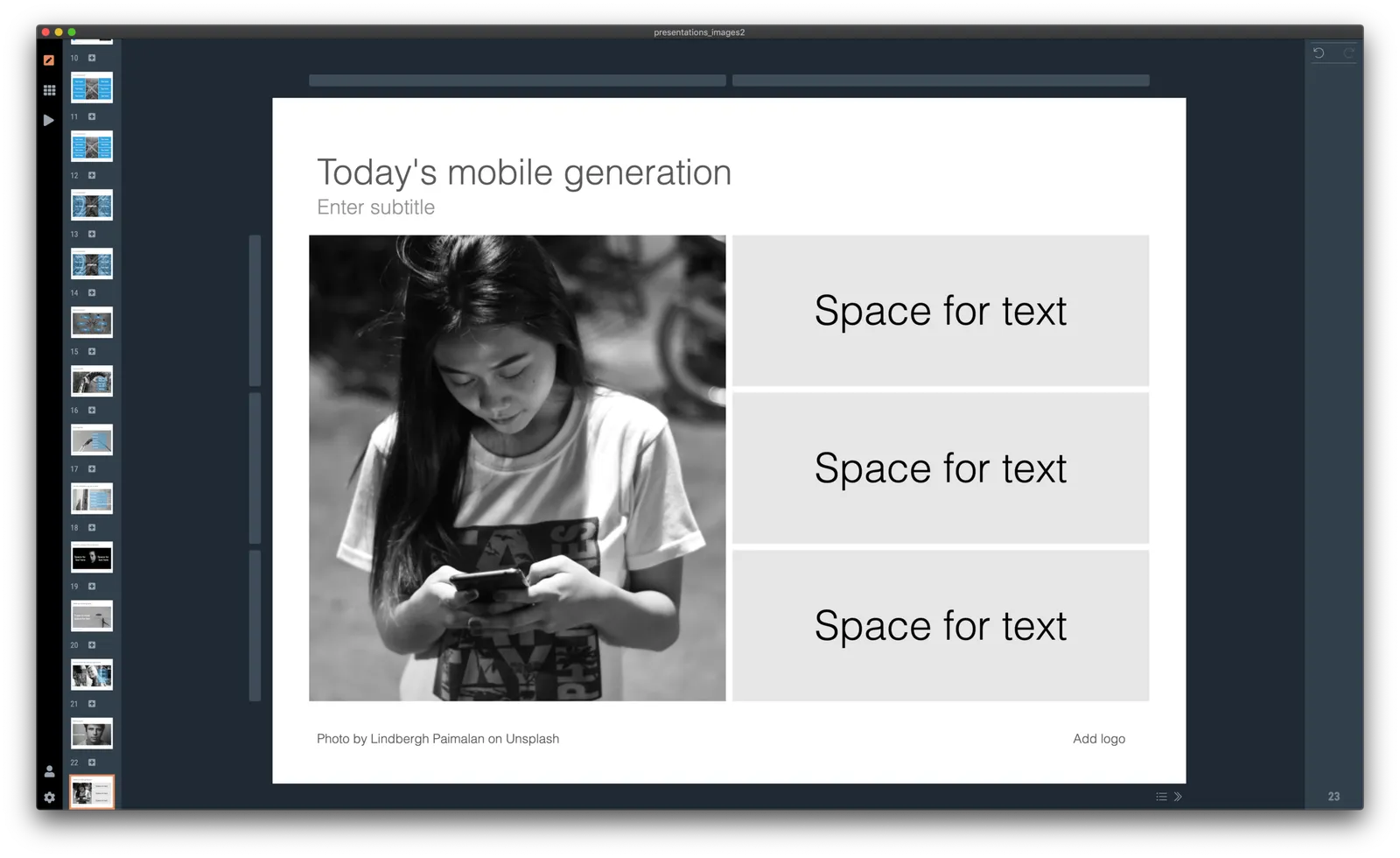
Finding the right portrait image

Today was another day of template building, I am reaching the point where the SlideMagic app starts to contain more slides than the SlideMagic template store that I host with Shopify.

I did some work on finding good portrait shots today. Although now there are many free photo sites around with abundant amount of images of people, it is still tricky to find the right photos to use in your presentation. Here are some of the filters I apply subconsciously as I go through hundreds and hundreds of images at high speed:

  • Too much stock photo: you know what I mean
  • Clothing mismatch: too fancy dress, very light outfit in a cold environment
  • Trying too hard to pose
  • Artistic shots of people who look unhappy, depressed, beautiful, but not for a business presentation
  • Shots of people who look unnaturally happy
  • A background that is too recognisable
  • A screen with a message that is too recognisable, grabs too much attention
  • Too pretty, cutesy
  • Weird posing
  • Trying too hard
  • Background mismatch (a church, the Sahara) while checking your phone
  • An outdated phone (this image was taken 15 years ago)
  • Background too busy to add text, other visual elements
  • The list goes on

Hopefully SlideMagic will save you the time I spent to find the right images.

P.S. For those who are interested in the cause of yesterday’s mystery bug that made items disappear in the small thumbnails on the left of the screen. Well, flipping an image (which I did on that particular slide) is a time consuming CPU operation, the computer starts it, but then goes on doing other things in parallel, one of which is scrolling the selected slide thumbnail in the visible part of the window (you see it sitting just at the bottom). The scroll stops the other slide rendering operations. And unlike pretty much anything in Javascript, there is no event to catch and manage this. A small 0.1s delay when needed solved the issue for now. That was 1 hour of yesterday’s day :-)

Continue reading →

More template slides

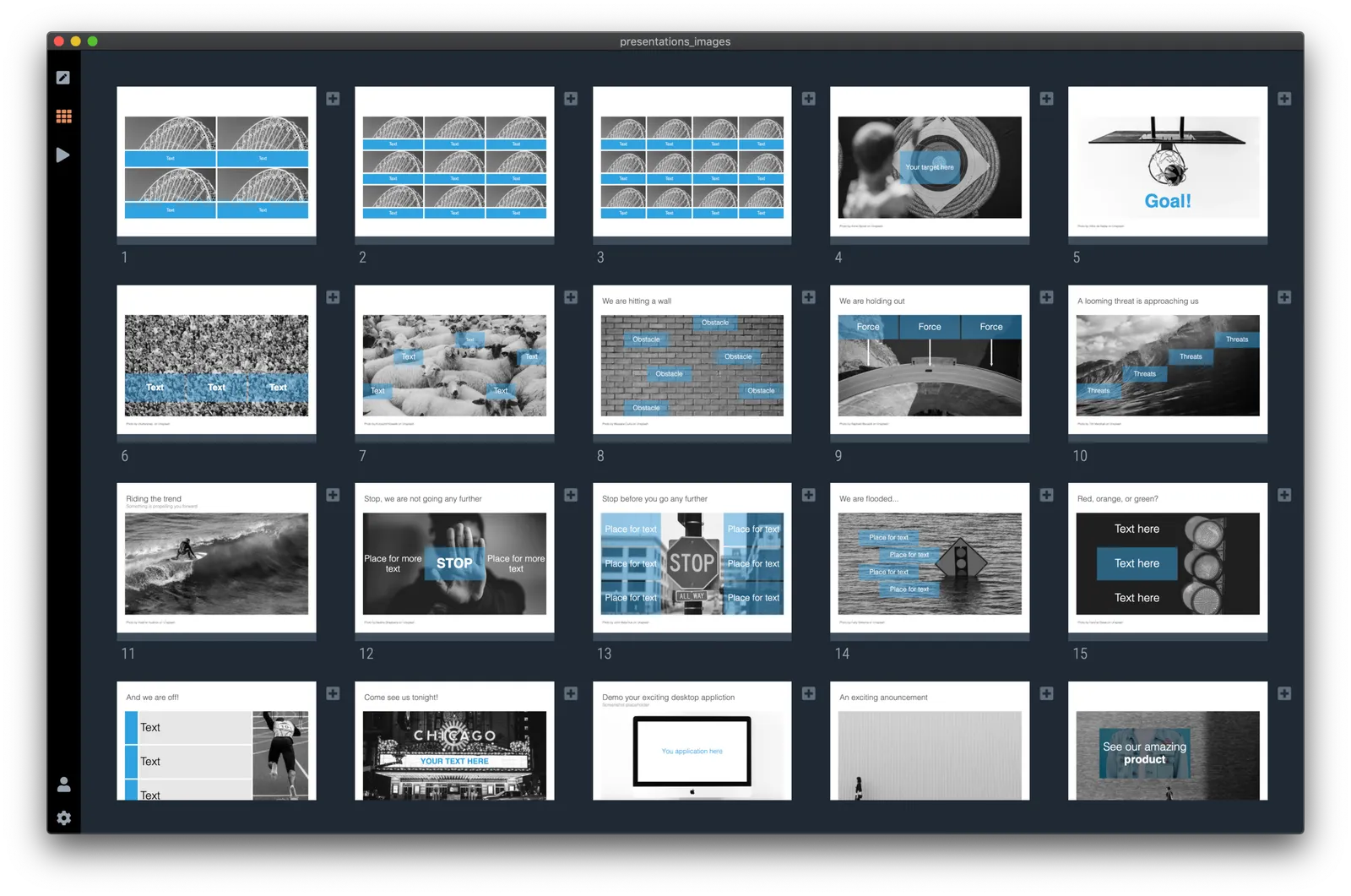
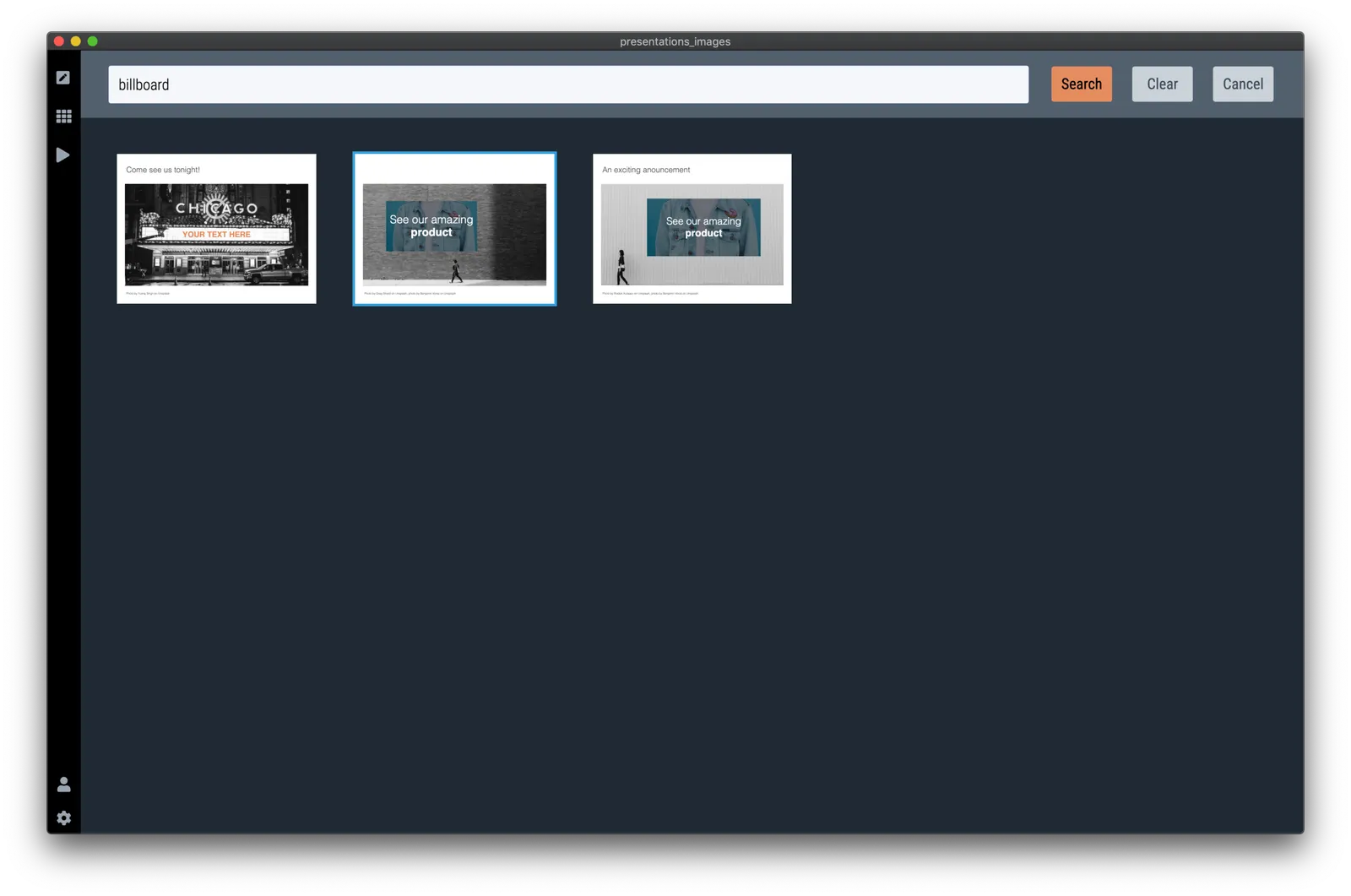
I am working hard on improving the template database at the moment. A re-write of the code on my server dramatically increased the speed at which I can add slides. It is fun to see it working: get a slide idea, quickly (hey, it is SlideMagic) create it, save, button, and boom: the slide shows up in search queries.

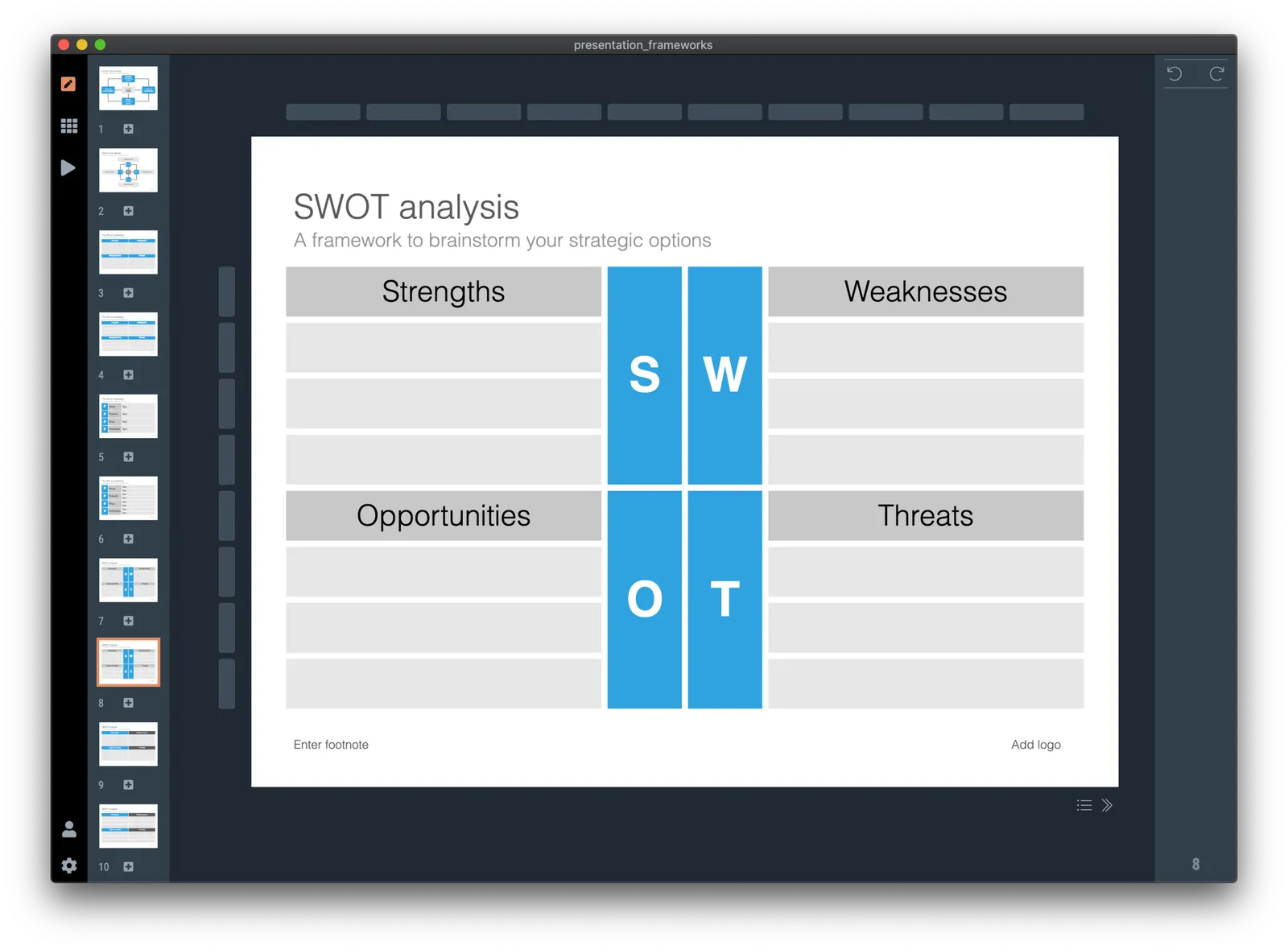
I am adding a lot of image slides at the moment, some of which are a bit cliche, but they should be part of any template database. The other effort goes into strategy consulting frameworks. Here I need to simplify many of them to make them fit into the SlideMagic philosophy. Some might say that they look too simplistic and less sophisticated. I would say that they are a lot easier to read, and a lot, lot, lot quicker to make.

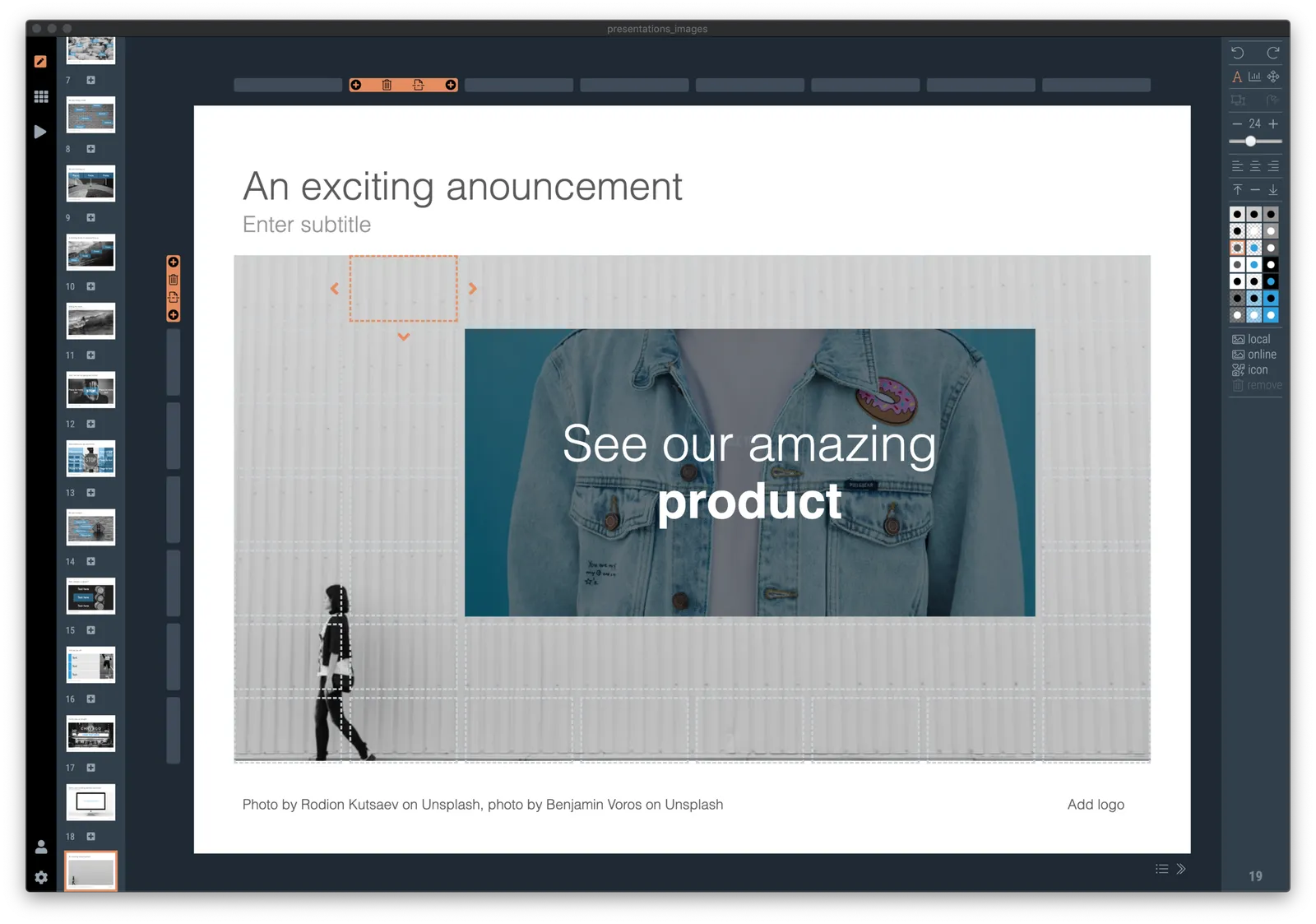
Careful readers can observe the small glitches :-) Why is on that one slide, is that billboard not rendering in story mode, but it does in edit mode, and the same billboard renders in story mode perfectly fine on another slide…

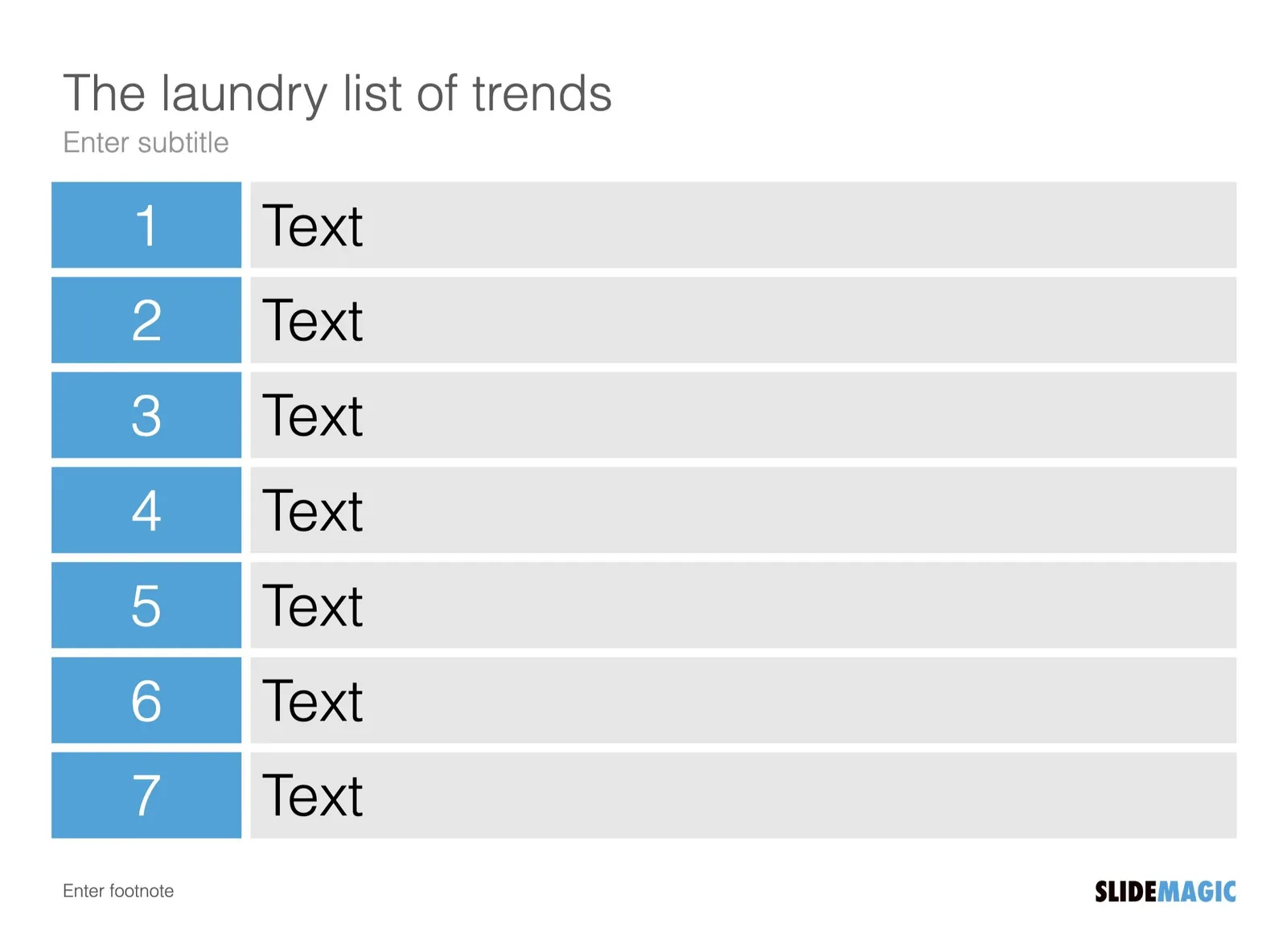
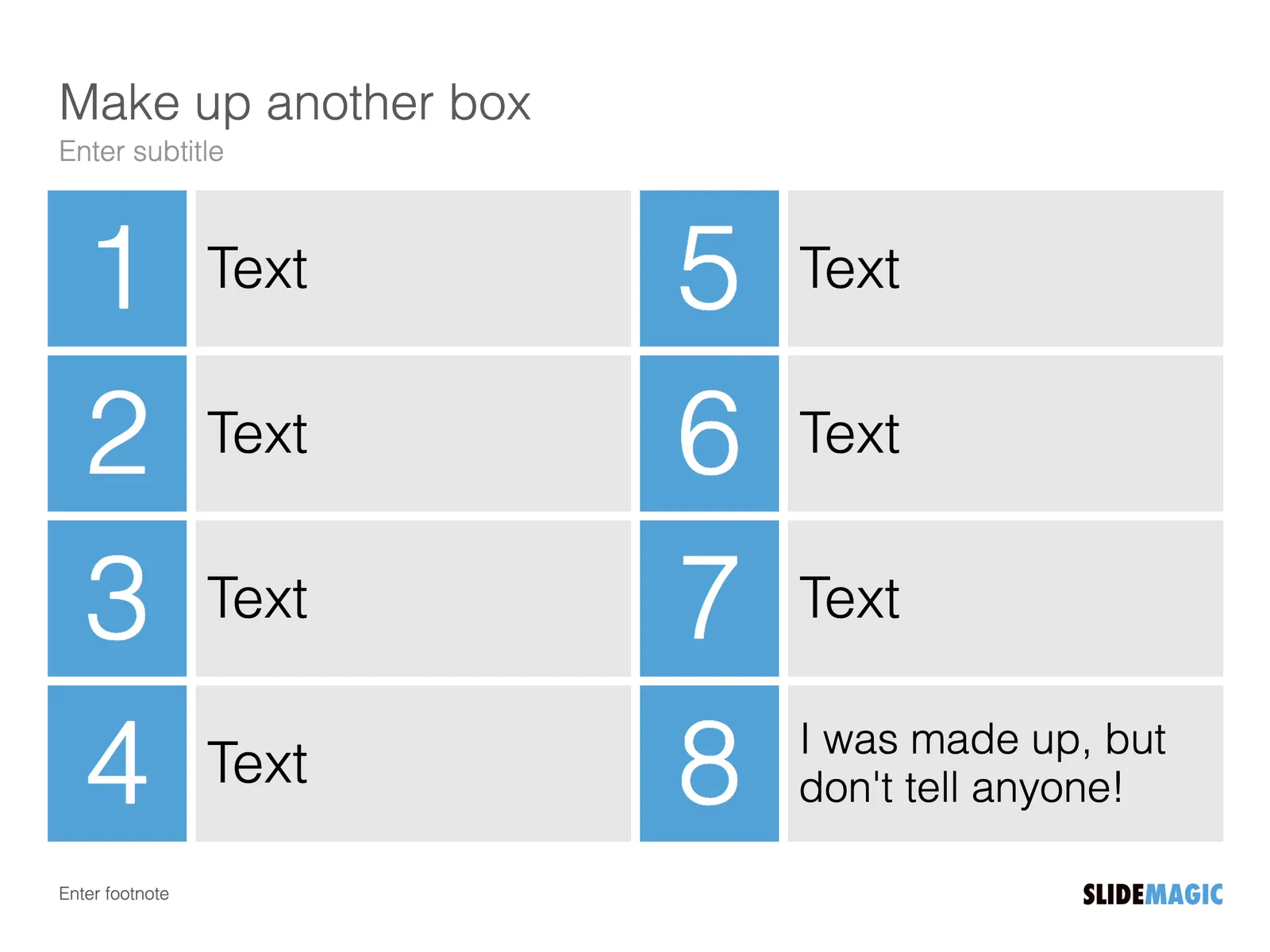
What to do with 7 boxes?

Any slide that has a prime number of boxes on it higher than 5 creates a layout challenge. One, three, or even five boxes can still work, but more, it becomes cluttered.

Yes, can lay out boxes according to mathematical shapes. A heptagon distributes everything evenly. But it is a pain to figure the exact spacing out, but the more important drawback is the amount of slide space you lose. Beautifully arranged shapes that nobody can read. That is the reason why in SlideMagic, I did not even bother to put these types of shapes in.

So what to do? A few suggestions.

  • Do you really need a slide with 7, 11, or 13 boxes? The best solution is to cut the thing up in 7 , 11, or 13 stand-alone slides that just make one point.

In some cases there might be no avoiding (for example when you negotiate a contract or some other deal that has 7 key agreement points).

  • The obvious solution is to keep things simple and straight: just list the bullets

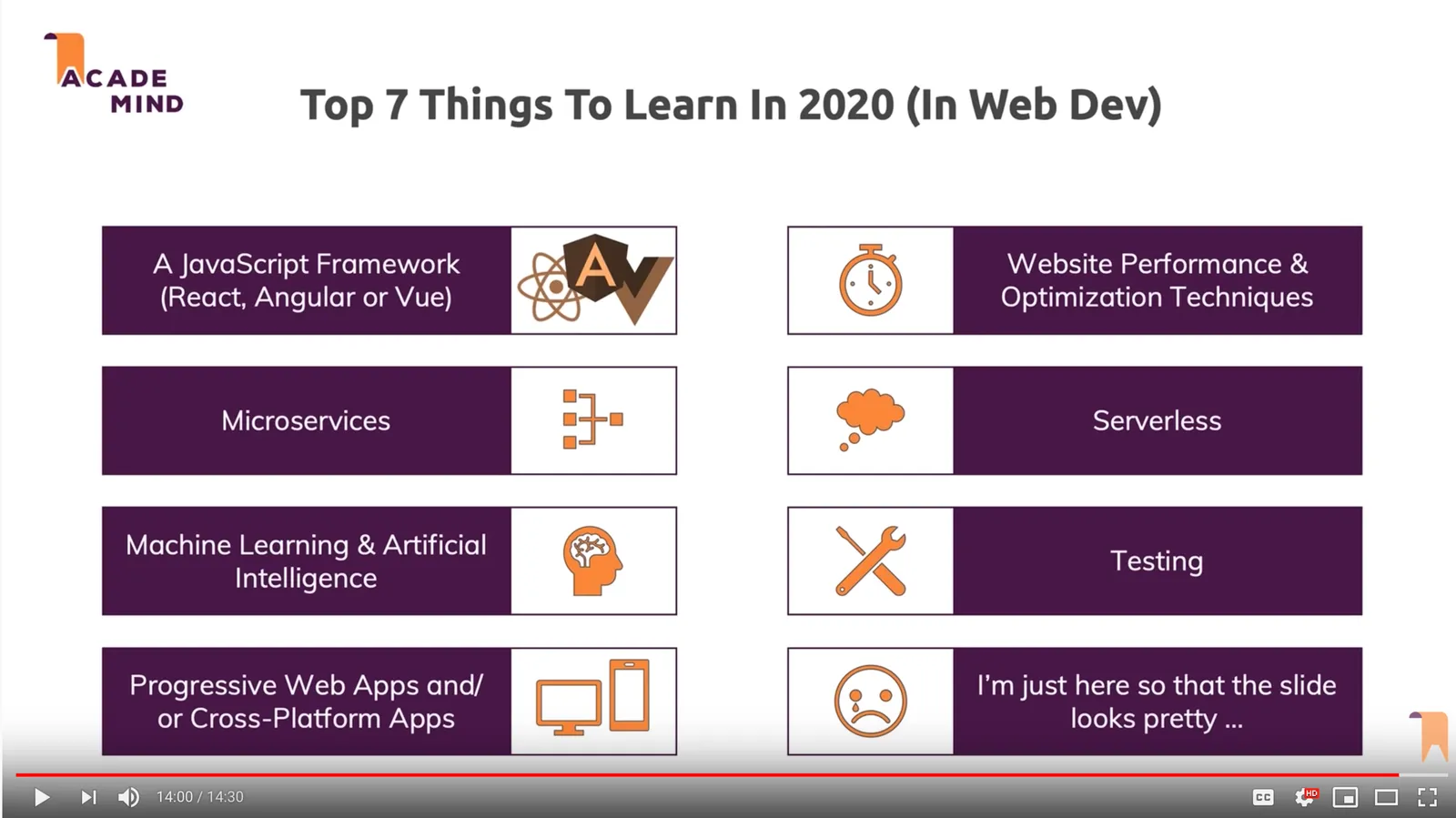
  • You can do what this YouTube instructor did: add an 8th box to make the slide symmetrical. It could work in most cases, I would not give the design decision away though, but find a meaningful extra point

  • You can use the bullet points as some sort of tracker, speak very briefly about it, then click through to the next slide that discusses the point in detail
Continue reading →
·Software

App update: V22

Earlier beta versions had a 2020 expiration date, I uploaded V22 to the server that should install automatically. This version also includes lots of performance improvements and bug fixes, including how the app responds to going back and forth in full screen mode, and right click context menus.

Photo by Jeremy Lapak on Unsplash

·Delivery

When you got your story really memorised

Some more learning from last week’s music performance. When you think you have something memorised, you actually still have a long way to go.

Here is the process I went through with a pretty simple song, still it took time:

  1. Hit the right chords when reading the chord letters on a piece of paper
  2. Hit the right chords when starting the song from scratch, without paper
  3. Consistently getting the chords inversions and finger positioning right (rather than making them up each time you remember to place a chord)
  4. Being able to do the above with random interruptions, without starting from the start: a mistake (by you or a band member), a quick start-stop to rehearse a certain piece
  5. Not thinking at all about chords anymore, just hitting the right thing based on the lyrics, music you hear around you.

When you wing a story on the fly, prompted by a slide that you see on the projector, you are at stage 1 when it comes to presentation preparation, and have 4 more steps to go.

Photo by Wes Hicks on Unsplash

·Delivery

Getting your focus before a presentation

This weekend and family and me joined a professional group of musicians to give a performance on stage. It was interesting to watch how the band leader made sure all of us delivered the best of our abilities, all which apply to the world of delivering presentations as well:

  • The confidence boost to the singer who wakes up with a sore throat the day of the performance: reminding her (based on decades of experience) that when the body has to perform, it will (and it did.
  • Spotting and eliminating small logistics hick ups that do not matter in a rehearsal but can kill the flow of a live performance. Have water available to clear dry throats, making sure nobody trips over cables, and pulls out cables of instruments, where do people stand and move, where do people go when they are not part of a song, how do transitions between songs happen.
  • And finally, a small rerun of the set lists in a quiet room. Just focusing on the list of songs (which you already know) for a second is like rerunning a 30 minute rehearsal in your head, the mind gets the right focus.

Image credit: @yulesh

·SlideMagic

Expanding the template database

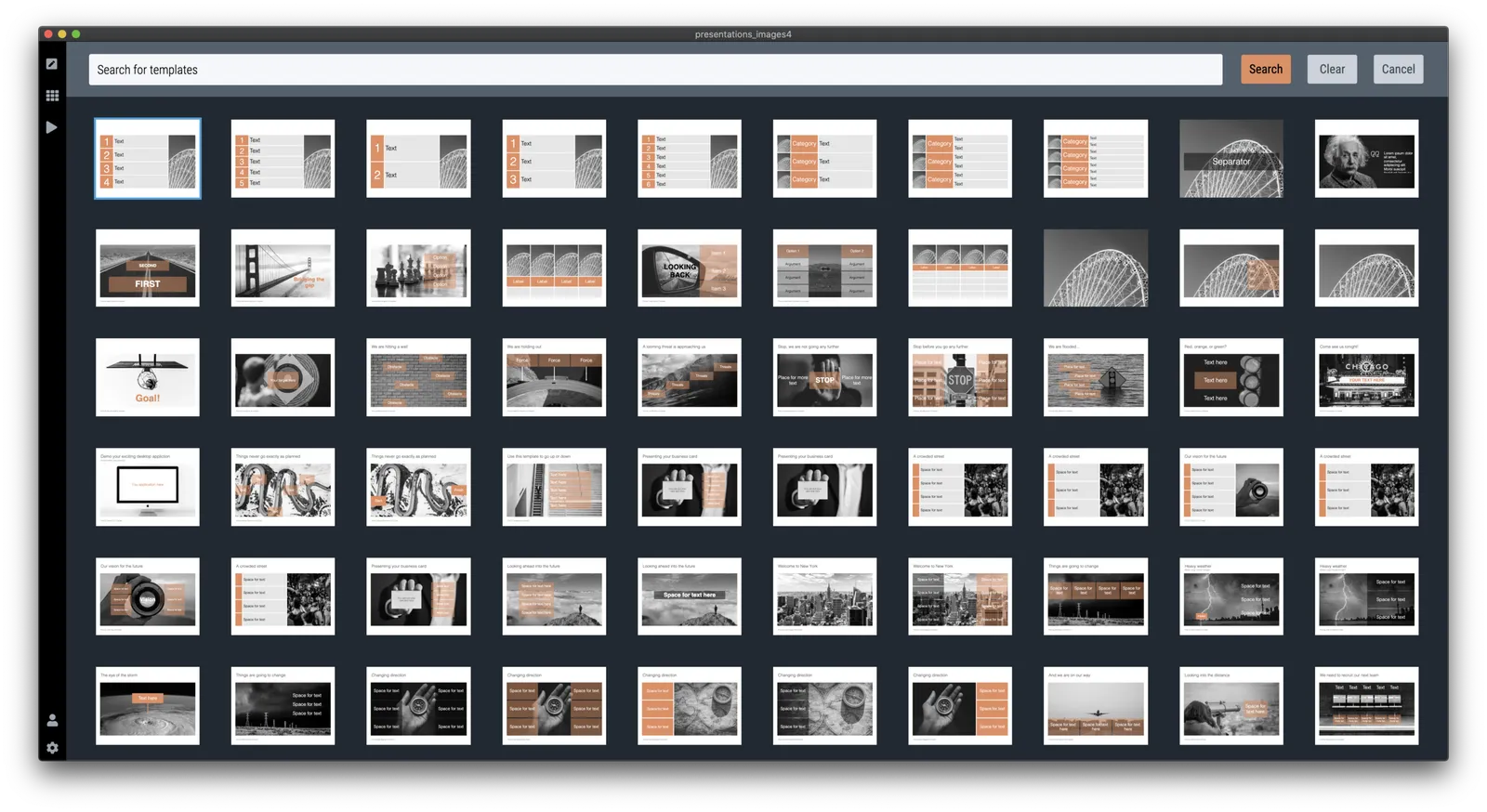
SlideMagic 2.0 has almost reached the point where I am happy with the features for a first release (icon and image search went in last week). Now it is time to focus attention again to what will make SlideMagic stand out: templates for presentations.

I have started to add slides with images to the template database, inspired by the slides that are for sale in the PowerPoint template store. This is also a good stress test to see how the app with big files full of images.

Work in progress, this will take a bit of time to get right.

Soon: non-blocking print, PDF/PPT conversion

Over the next coming days there will be another update to SlideMagic 2.0: CPU-intensive tasks such as converting a presentation to images, PDF or PowerPoint format, or preparing a file for the printer will no longer block the main process. I am getting the hang of managing dozens of different processes in parallel.

In version 1.0 in SlideMagic, we were dreading doing these intensive computations on our server, it would take a lot of processing power if the app were to scale (hence the imperfect solution of emailing back PowerPoint conversion a few hours later, far too late for the meeting you actually needed the slides in).

In version 2.0, this is no longer an issue, since SlideMagic uses the enduser machine to do the hard work. This fundamental architecture will enable me to scale up with less investment, but more importantly, a smooth user experience as everything happens instantly on your machine.

Photo by Alexander Popov on Unsplash

Soon: integrated images and icons in SlideMagic 2.0

I am working to integrate images and icons into SlideMagic 2.0. The workflow for both in current presentation design tools is seriously broken:

  • Search for an image
  • Save it on your hard drive
  • Find it on your hard drive
  • (If relevant : waiting to upload it again to your online tool)
  • Crop and change colour (especially challenging for SVG icons), can be very slow and cumbersome in online image editors
  • Get the image/icon to line up with the rest of your slides
  • Finding the link to the photographer you need to give credit to (if required)

All of this can soon happen directly in SlideMagic 2.0, which in turn can churn out a perfect conversion to PowerPoint if needed.

Printing is working

It was a painful process with lots of trial and error and wasted trees, but SlideMagic 2.0 beta users can print their presentations as of v2.19 without using the PDF conversion bypass. I am still working on improving the resolution without maxing out on memory, and fixing small formatting issues (exact centering of the slides), but the basics are there.

For those who are interested. In the beginning of my coding project I was cursing this parallel processing of lines of codes, no I actually start using it to my advantage by speeding things up. PowerPoint and PDF conversion will soon move to a background process.

Photo by James Pond on Unsplash