SlideMagic Blog

Frequent updates about all things presentations since 2008. Subscribe to never miss a post.

RSS

Crappy fonts, better recall?

Here is an interesting piece of research published in Harvard Business Review: if you make text hard to read, people remember it better. Backed up by hard data. The possible explanation: when you go slower and you are less confident about understanding something, you concentrate more.

I agree with one of the commenters in the article: if you have to understand something, this might work. But if you are up against an audience who has better things to do than reading your material (i.e., a potential customer), I think you better make sure your material is readable.

What do you think, do you agree?

Thank you to to Akash Bhatia.

·Gadgets

Mac screen to TV - wirelessly

I think that wireless video technology will transform home entertainment and the corporate conference room. In the latter, hopefully we might see the end of battles with laptops, cables, and projectors before we can get down to showing our presentation. It will take time before the last conference room is Airplay enabled, but I am keen to accelerate things.

It is already possible to Airplay iPhone and iPad screens on your Apple TV, but font issues still complicate the transfer of presentation files from computers to mobile devices. Currently, Airplay mirroring is not supported for Macs. The next version of Mac OSX will allow Airplay mirroring of Mac screens wirelessly to your Apple TV.

If you cannot wait, well, there is an app for that. Airparrot enables sending your Mac screen wirelessly to you Apple TV ($10). The app has many customization features, allowing you to adjust the performance/quality trade off and select which screens you want to transfer, or even which apps. You can switch off the cursor.
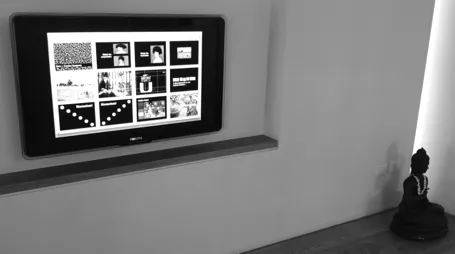
Still we are not yet living in the world of 1-click Airplaying of video. Television screens have a lower resolution than computer screens. So before using the app, you need to downgrade your Mac display to 1280x800, the closest to my Apple TV 1280x720 resolution. After that some fiddling with the screen remote to get the right aspect ratio. The resulting screen sharpness is OK, but not the pin-sharp feel you get from watching an HD movie. It is perfectly fine to play presentation slides (which are often 1024x768), but less than optimal for other applications.


Continue reading →
·Gadgets

5 ways to present on iPad

I am switching my own introduction presentation to iPad/iPhone, leaving my laptop home as a I go to meetings and instead bringing a small iOS to VGA converter cable with me (Airplaying the presentation to a big screen only works in my own office for the moment). I would recommend this to anyone who constantly needs to have her pitch/sales presentation ready to go.

As a result, I am trying all possible ways to view slides on my iPad. Only Keynote users have a perfect solution (Keynote), if you use other formats it is still compromising. In my case for example, I need PowerPoint to show example presentations that I designed a while ago. And a second complication is that I use a few custom fonts…

So here are your options, I use Dropbox to sync my files, it is still a lot more convenient than iCloud.

  1. Keynote to Keynote.  Straightforward and simple. Download in Dropbox, tick open in Keynote and you are all set. When you are in presenter mode, you get a preview of the next slide on your iPad, while the audience just sees the current slide on the projector. Only works with standard fonts that are installed on the iPad.
  2. PowerPoint to Keynote. This works surprisingly well (if you use standard fonts). Download the PowerPoint file in Dropbox, tap open in Keynote and you have a file which is 95% OK. However, I am a perfectionist, and the 5% needs to be right as well.
  3. SlideShark is iPad app specifically designed for presenting slides. You can upload PowerPoint files to their server, or tap a dropbox or email link and tell the iPad to open the file in SlideShark. The interface is nice, with the option to move randomly between slide tiles (which the audience cannot see) to break the lineair flow of a deck. SlideShark preserves animations in your slide. Using a special font requires a request to SlideShark technical support to install it in the data center. Unlike Keynote, SlideShark does not support the standard Apple fonts (such as Helvetica) SlideShark is not yet retina-optimized I think, the image looks slightly hazy on my screen, but I am sure an update will follow soon. The app has still some childhood diseases at the moment but it could be a clear winner in the future as the team there seems to working hard to make it work among larger competitors who are less focussed iPad presenting (i.e., Microsoft).
  4. PDF to Adobe Reader for iPad. Convert your PowerPoint file to PDF on your desktop, download it via Dropbox and select to open it in Adobe’s Reader app(free). Fonts come out perfectly. The display is crystal clear, and the Adobe Reader app for iPad has a good full screen mode (unlike other document readers). Obviously PDF does not support animations
  5. PowerPoint to Adobe CreatePDF for iPad. The Adobe CreatePDF app works reasonably well for me (I do not understand all the 1-star ratings on iTunes), but (and it is a big but), only if you use standard fonts (and are willing to invest $10) and your deck does not have animations.
Continue reading →

iPad sales app in practice?

I just got contacted by a journalist who is doing an article about the iPad as a sales tool, integrating the functions of a presentation platform and a catalogue/ordering system. I came up with iRep as an example. Do any of you know any other applications, and even better examples of companies that use this in the field?

·PowerPoint

Visualizing 6 million

Today is Holocaust Remembrance day in Israel and the country will come to a standstill for 2 minutes to think of those who lost their lives. Here is a small presentation I designed to try to put the number 6 million in perspective.

Remembering 6 million Holocaust victims

View more

PowerPoint

from

Idea Transplant

·Images

Searching Instagram images

Stock images sites are full of images that are not real (post from 2008). Images from Flickr with a creative commons license are a great alternative. But recently Instagram is taking over as a great source of images. The site searchinstagram.com allows you to search images on a desktop (Instagram is a mobile-only application). If you want to use an image in your presentation, you need to send the person who took it a message, because she owns all the rights to material posted on Intagram.

Instagram is the new Flickr.

·Data visualization

Fixing standard data charts

Standard data charts in PowerPoint and Excel look ugly. Here is how I usually fix them. A raw screencast with som uhs and ohs, I am still experimenting with the software to see whether I can make these videos more often.

·Advertising

Should you conform?

Early last century, there was a common practice in advertising: “This is what an ad should look like.”. Think about this when your boss tells you: “This is what a presentation should look like.” in response to your effort to do it in a different way.

For more of these wonderful vintage ads, visit vintageadbrowser.com

Office 14.2 for Mac available

Mac OSX Lion full screen view is now supported. I have not been using full screen view on my Mac much because Microsoft Office did not support it, so I could not switch over my entire workflow. I will give it another try now. Details of the update are here.

UPDATE: Full screen mode does not really work with multiple monitors… Well it works, but leaves the 2 other screens I have blank. So I will use full screen mode only when traveling with my laptop. Hopefully this gets fixed in a future Lion update.

Stop screaming

If you want to make a point, SCREAMING it in all caps, using aggressive colors and fill your message with explanation points will not make your argument more convincing**!!!**