SlideMagic Blog

Frequent updates about all things presentations since 2008. Subscribe to never miss a post.

RSS
all posts

Search results for “powerpoint mac windows”

·PowerPoint

Why suffer?

Often when I visit a client and we do some on-site slide edits together, I am surprised to see how people suffer from working in PowerPoint because of things that can easily be prevented:

  • Make sure you actually see what you do. Make your work area as big as possible, reduce the size of the slide note box to the minimum. If you have a docking station for your laptop, use it to hook up to the big monitor. Ask IT to help sort out a 2-screen configuration, where you can have presentation inputs (an older version with comments) can be on the small screen while you do your edits on the big screen (I went further and work on two 27" monitors, plus the 3rd  small screen of my laptop, one of the best investments I have ever made).
  • Write down actions that you use all the time (aligning objects, [un]grouping items, switch to slide sorter view and back, etc.) and spend 20 minutes Googling how to do them using short cuts. Read this old post about how to create the essential PowerPoint toolbar.
  • Use a proper mouse and not the IBM/Lenovo red dot
  • If your computer is slow, close down windows, applications, de-clutter your machine until you have only the files open that you actually need
  • Ask someone in IT to sort out the default settings in your PowerPoint template so that you do not have to look for fonts, colours, etc.
·Images

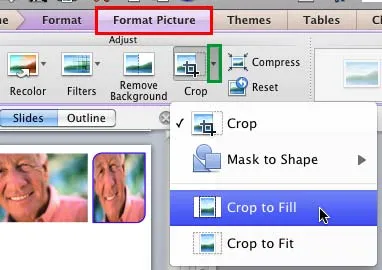
Crop to fill

It is never too late to learn something. After my post about fixing aspect ratios of image fills in PowerPoint, Geetesh Bajaj pointed out that there is a much smarter way to do this. Here are his posts for Mac and for Windows.

·PowerPoint

Office 365: not there yet

I signed up for a trial of Microsoft Office 365, the cloud-based version of Microsoft Office to see whether it could be a work-around to get the Windows version of PowerPoint to run on my Mac. (There are a few bits missing in the Mac-version of PowerPoint).

Not every Office user is the same. For the corporate user that needs access to files on any device, plus the ability to make some small edits to Office documents that are created on desktop applications, the Office 365 offering makes perfect sense.

But Office 365 is not ready yet to become a core design platform. I tested only PowerPoint, and ran the web app in Google Chrome on Mac OSX, please correct me if some of the limitations were due to hardware/software issues:

  • The availability shapes and functions in PowerPoint are extremely limited when compared to the desktop version. Now, I am all in favor of cutting PowerPoint features but here basic elements were left out (creating data charts  or cropping pictures for example)
  • Fonts are a big issue, if purchased custom fonts that are installed on my computer, but they are not present on Microsoft’s Office 365 server, so your presentations become garbled
  • The preview of slides are low-res and slightly blurry (I am using a 2500 pixel monitor), only when you click to edit an object does the full resolution kick in.

In a few years from now, Microsoft Office applications will run smoothly across devices and platforms, we need a little bit more patience.

·Keynote

A Microsoft strategy mistake

This Twitter conversation just unearthed another feature that is missing in the Mac OSX version of PowerPoint:

@ideatransplant Unfortunately no trim video options on PowerPoint:mac - Trim Video Clips bit.ly/MeJKHH — Geetesh Bajaj (@Geetesh) July 10, 2012

There are many more, see older posts about PowerPoint 2011 for Mac versus PowerPoint 2010 for Windows here.

I do not think the reason for this is a technical one, it should be possible to write the same software for both platforms. Hence, Microsoft must be thinking that by making PowerPoint 2010 for Windows just that tiny bit more feature rich, it will convince users to stay on the Mac platform.

I think this will be backfiring: Mac users will simply switch to Keynote. Microsoft should create an organizational separation between the Windows and Office business, the latter should consider the Mac a highly profitable platform for selling software.

·PowerPoint

Custom font U-turn

After a year of experimenting with custom fonts, I noticed that I am going back to Arial more and more in my presentation design, so my decks can be read on Windows, Mac, iPad, PDF, Dropbox, SlideShark, Keynote, PowerPoint on any device in any place. Well at least it forces me to make more effort to let my slides look good if I cannot rely on a pretty font…

·PowerPoint

Adobe Acrobat needs to get presenter view

Last week in New York, I used both Keynote and Adobe Acrobat for the first time on stage in a live presentation. Keynote worked great (it is designed to do just that). Presenting in Adobe Acrobat (PDF) was interesting.

I presented at a large conference (this one) where it is hard to switch hardware (I needed a Mac for Keynote) in the middle of the conference program without disrupting the experience of the audience (engineers walking back and forth, screens going on and off). Hence, I went for a PDF version of the deck. (An earlier post on why I think we are going to use PDF for presentations more and more)

With CMD-L you can put Adobe Acrobat in full screen mode, and it responds perfectly fine to the Logitech remote control I am using. The only adjustment you have to make is to make sure that any animated slide builds are spread out over multiple pages.

The one thing I am missing though is the ability to have presenter view in Adobe Acrobat: having a pre-view of the next slide displayed on the monitor that only the presenter can see. Adobe, are you listening? (An old post about PowerPoint presenter view)

To take this a bit further. The one thing that Apple can do to increase the penetration of Keynote is to develop a Windows application that can run Keynote presentations with animations. Editing is not necessary.

·Gadgets

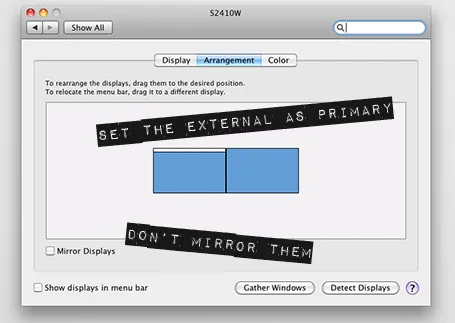
Using your laptop monitor as a 2nd monitor

Computer screens have gotten bigger and bigger, and I suspect that most users will use the extra screen real estate to keep multiple windows open on their desktop. One for email, one for Twitter, one for PowerPoint, one for Skype. Designers do not have this luxury to spread everything out in front of them, they need a big calm design environment with minimal distraction. My PowerPoint or Keynote screen is always set to the maximum.

I used to work with a laptop in clam shell mode in my office: the laptop is closed, and a big external monitor is used as a display. For copying and pasting, inserting Excel charts in PowerPoint, I was constantly moving windows around. Until yesterday, as I looked at the closed laptop screen.

So now I created a dual monitor screen set up. My slide design application is up full screen on the large monitor, and my laptop screen is used as a collection bin for all kind of bits. It has been a liberation. My 17" laptop actually is big enough for the little side apps that I am running in that screen. Great.

If you are on a Mac, here is how to do it:

·PowerPoint

VMware acquires SlideRocket

VMware acquired in-the-cloud PowerPoint alternative SlideRocket. Up until now, VMware focused on virtualization infrastructure, it’s software can be used to create multiple virtual computers on one hardware platform. Many of you might be running a Windows PC inside a Mac using this technology (VMware Fusion).

It is not completely clear what the strategic intent of VMware is. Will it try to go up one level from basic infrastructure and start offering cloud applications competing directly with Microsoft? Or does it want to use it for something else?

The big issue with alternatives to PowerPoint is the installed base of corporate users that over the years has learned how to work with it. But maybe the extra financial power of VMware enables SlideRocket to get a shot at doing to PowerPoint what Microsoft Word did to WordPerfect?

·PowerPoint

Microsoft Office 2011 Service Pack 1 (version 14.1)

Microsoft posted its first Office 2011 for Mac update yesterday, and as I can see now, it took care of the instability issues in PowerPoint 2011 that I have been complaining about (fingers crossed). Still, there is a long feature wish list for SP2 to bring it at par with the Windows version, of which custom font embedding sits at #1. See my earlier review of PowerPoint 2011 for Mac.

·Gadgets

1st experiment with the iPad as a 1-on-1 presentation tool

OK, I did my first presentation in a 1-on-1 meeting using an iPad. It was a bit improvised, as I made a last minute decision to drop a paper copy for the new gadget. My experiences.

  • It still is a bit of a hassle to get your file presentable on an iPad. I installed the Keynote app, but this is an iPad-specific piece of software that does not import regular Keynote files and I have not (yet) designed presentations specifically for the iPad. So I went for PDF.

  • In order to get the file on the iPad I had to upload it to Google docs, and then I used the GoodReader app to get it down on the device.

  • PDF was a bit tricky too. The PDF I created on my Windows PC did not render well on the iPad (custom fonts were invisible). It turned out, that it did not show well on a Mac either. So: import the Windows PowerPoint file into PowerPoint 2008 on the Mac, have the Mac convert it to PDF.

  • The PDF conversion was not ideal. The Mac decided to give my slides a white frame, and keep the parts of the pictures that were outside the slide borders in the page render. So I went back into PowerPoint to delete these (compress pictures) and start the process again.

  • I presented outside and the bright Tel Aviv sun light was too strong for the display of the iPad, so it was a bit hard to see. I already use big fonts om my slides, but my advice when designing for an iPad: go even bigger. The presentation view you have at a coffee table is one of an audience member in the back of the presentation venue.

Continue reading →