SlideMagic Blog

Frequent updates about all things presentations since 2008. Subscribe to never miss a post.

RSS
all posts

Search results for “powerpoint mac windows”

·PowerPoint

A review of PowerPoint 2010 (Windows) versus PowerPoint 2011 (Mac)

I have now spent a few days doing real presentation design client work on PowerPoint 2011 for Mac. This post brings together impressions published in earlier blog posts.

The bottom line is that the average user will not notice any differences between the 2 versions of PowerPoint. Some positives:

  1. The application has slightly more Mac fee to it
  2. I like the organized way fonts weights are grouped together.
  3. The integration with Aperture, a photo organizer is very good. If you buy images from iStockPhoto, somehow a lot of keywords are saved with the file. PowerPoint 2011 integrates seamlessly with Aperture, making the full library of images on your hard drive searchable by keyword.

The professional presentation designer however, will notice a few differences. PowerPoint 2010 can do a bit more than PowerPoint 2011:

  1. The selection pane, a great tool construct complex layered diagrams is missing. (An earlier post about the selection pane here)
  2. Toolbar customization could make PowerPoint 2011 crash. Especially, do not try to drag the straight arrow connector into your top toolbar. If your software has been corrupted, see this Microsoft post about how to fix things. [UPDATE, THE RELEASE OF SP 1 MIGHT HAVE SOLVED THIS ISSUE]
  3. Whenever you try to move or resize an object very close to the static guides, PowerPoint will decide to move the static guide, not the object, and staying on the subject of static guides: you cannot space the interval at which you want to set static guides.
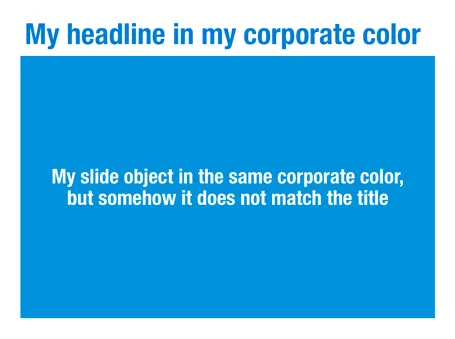
  4. Color rendering can be a bit off. When give the text and its background shape the same color, you can still read the text on the Mac, but not on the PC. PowerPoint for the Mac handles colors for shapes and text differently.
  5. PowerPoint for Mac cannot embed custom fonts (PowerPoint Ninja explains what this is)
  6. You cannot insert vector shapes in the Mac version of PowerPoint (see here why this is can be useful), so if you want to adjust the color of a vector diagram, you have to do it in Illustrator and import the illustration as a picture into PowerPoint.
Continue reading →
·PowerPoint

How to export PowerPoint slides as high res images on a Mac

I am working with PowerPoint 2016 for Mac

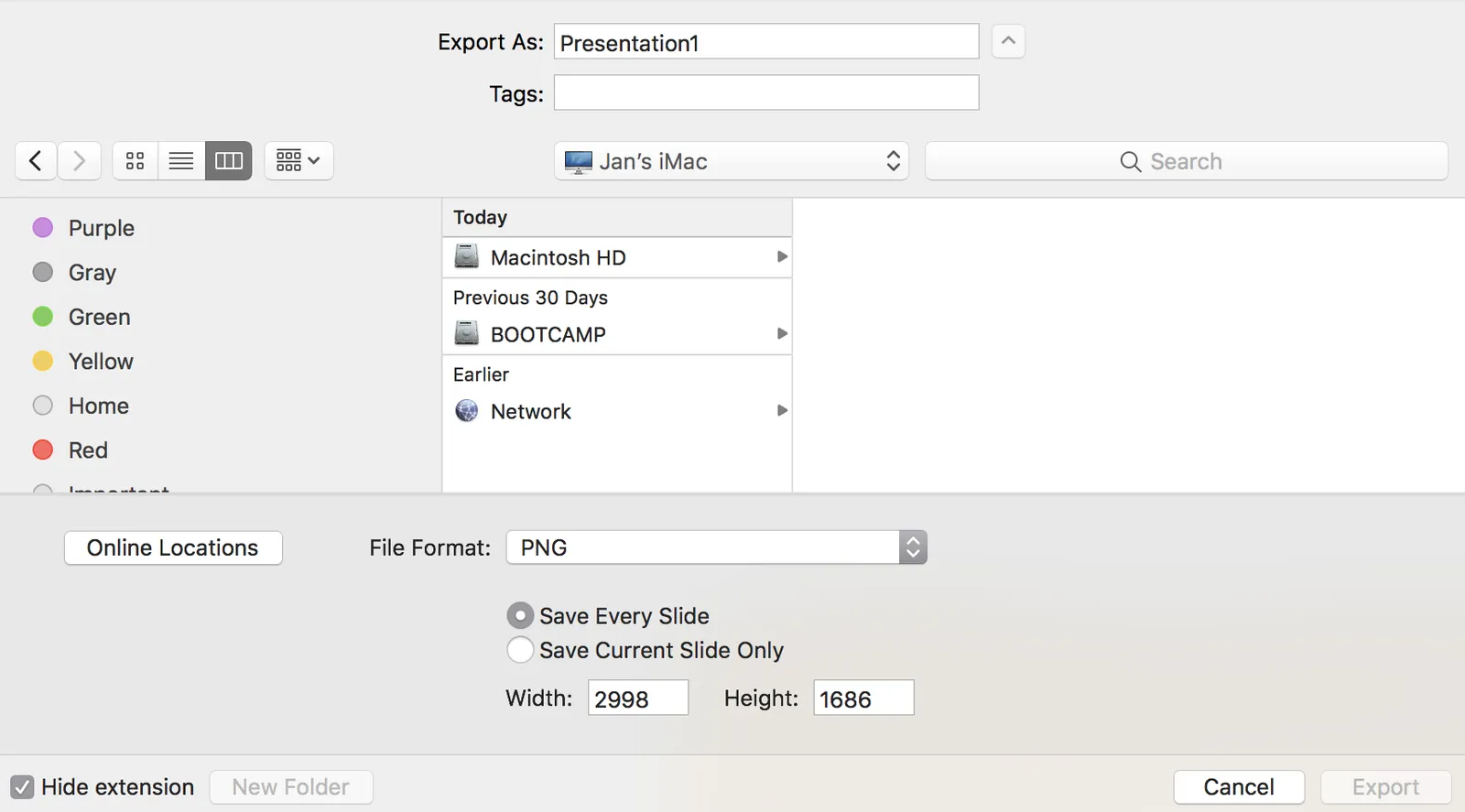
PowerPoint can export your presentation as a series of images. Go to file, export, select PNG, and you can select just one slide, or the entire presentation to be exported. In the latter scenario, images will be saved in a newly created directory.

Probably a left over from earlier PowerPoint versions, the resolution of these images has always been poor when using the standard settings. In previous versions of PowerPoint, you could somehow change DPI (dots per inch), but it did not affect the output. There are also ways to hack registry system variables (on a Windows machine, not a mac). The results have always been unpredictable.

In the most recent version of PowerPoint on mac, you are presentation with a menu in which you can enter the desired slide dimensions. This dialog behaves strangely when entering extreme values has height or width, flipping the orientation of the slides.

For some reason, I get decent pictures both in 4:3 and wide screen aspect ratios when setting the width to 2998, and the height is calculated to 1686. I have tried to understand why, but failed to do so far. It is probably not worth breaking your head over it, just use these numbers.

·Colors

PowerPoint for Mac color rendering

If you cannot get excited about color rendering in software, please skip this post.

There is something weird in the color rendering of Microsoft PowerPoint 2011 for Mac. First, text and shapes get treated differently. If you make the text and the background the same color, the text will appear different. At first it looks like to be designed on purpose. But the adjusted color is actually a bit off on the hue spectrum, creating color clashes. See the example below.

Maybe there is a problem inside the software though. Look at the screen shot below of a presentation in presenter mode. I copied 2 exactly the same slides and you can see that the preview of the second (identical) slide pulls the blue into same purple direction as the text in the previous example. There must be more than one color rendering engine inside PowerPoint.

PowerPoint 2010 for Windows does not suffer from this, and I hope that Microsoft will fix it in a subsequent update (even it was done on purpose). If I want my text to stand out on a background, I want to freedom to decide myself what colors to pick.

·Colors

Color management in PowerPoint 2011 for Mac

Slowly I am working around some of the shortcomings that PowerPoint 2011 for Mac has in comparison to PowerPoint 2010 for Windows, and get to enjoy some of the advantages of the Mac platform. One of them is color management.

Built-in to a Mac is a powerful color management picker:

  • With a magnifying glass, you can copy the color of any element on screen and add it as a color to your palette. For example, you can take the colors from your corporate logo to create a matching PowerPoint color scheme. In Windows, I had to rely on other applications (Photoshop, Paint) to do this.
  • Your color palettes are stored across applications, so you set them in PowerPoint, they are available in Photoshop, Keynote, and any other applications you are using.

See this extensive post on robinwood.com on how to use the Mac color picking tool. Thank you Andrew Marritt for pointing me to this.

·PowerPoint

PowerPoint 2011 for Mac review

I have been working for a few days with Microsoft Office for Mac 2011 now (affiliate link), having upgraded from the earlier version PowerPoint 2008. For me, the Mac is still a secondary machine, and testing this software is one of the key determinants whether I can move across all together to a Mac environment. All my clients use PC-based Microsoft Office software, so Keynote cannot replace office.

Initially I was a bit wary of Office 2011, having read some poor reviews on Amazon and by columnists such as David Pogue. Maybe it was because of this that I wrote this impulse post about stability issues of PowerPoint 2011.

I managed to solve the problem (after a lot of searching online). Somehow, PowerPoint 2011 can crash every time you enter slideshow mode after you have done some heavy toolbar customization. It happened to me a few times in a row. All fine, customize toolbars, crash, reset toolbars, all fine, customize toolbars, crash. At the moment I stopped the poker game (do I have the courage to add another toolbar customization or not, at the risk of having to reset all previous modifications?) at a level that I am happy with my current toolbars. So the issue remains.

For the rest, I must say that I actually like PowerPoint 2011. The differences with the PC version are minimal, someone with experience with PowerPoint on a PC can switch over instantly. The previous version (PowerPoint 2008) had a user interface that was different from the PC, and also lacked some functionality. Now there is a level playing field. (Well almost, for some reason you cannot change the spacing of the grid in PowerPoint 2011, making it hard to set a grid line exactly at 0 of your slide).

Continue reading →

Windows on a Mac - 2018

For my SlideMagic development efforts, I need to dive deep into the bowels of Microsoft’s .NET architecture and there was no other option but to install a Windows machine on my Mac. I am running a 2015 iMac and here are my observations of using this set up as a production environment:

  • In general

    • Windows 10 is great and at par with MacOS
    • PowerPoint 365 on Windows is better (has more feature and UI updates) than PowerPoint 365 on Mac which in turn is better than Keynote (2018)
    • The CTRL-C/V vs CMD-C/V is an absolute productivity disaster, after a few days of coding I am used to CTRL, which I then need to unlearn when working on a Mac (design, music) before I have to unlearn it again.
  • There are some glitches with running Windows 10 on my machine (presumably these do not happen when you buy a “proper” PC)

    • I had to do some pretty hard core registry entry hacking to get my mouse to behave properly (direction flipping), even after tweaks the sensitivity of the Apple Magic Mouse is too strong. Especially when resting your finger on the glass surface, this immediately triggers the wildest switches between slides in PowerPoint for example. I am considering investing in a Microsoft mouse in the hope that these are properly calibrated
    • The video graphics card is acting a bit strange here and there (this could be a problem of my specific iMac generation). In some cases, after the computer wakes from sleep, the mouse pointer is a blurry vertical line. Also, hardware acceleration has a tendency to mess up text in Google Chrome (switching acceleration of kills the user experience). As result, I am one of the 500 people in the world who run the Microsoft Edge browser, which is actually pretty good for consumer browsing, but less suited for coding. I Googled extensively to find solutions for these problems but always hit a dead end where someone discovered that these are actually graphics card drivers bugs that have not been fixed yet.
Continue reading →
·Concepts

Native waterfall charts in PowerPoint for Mac

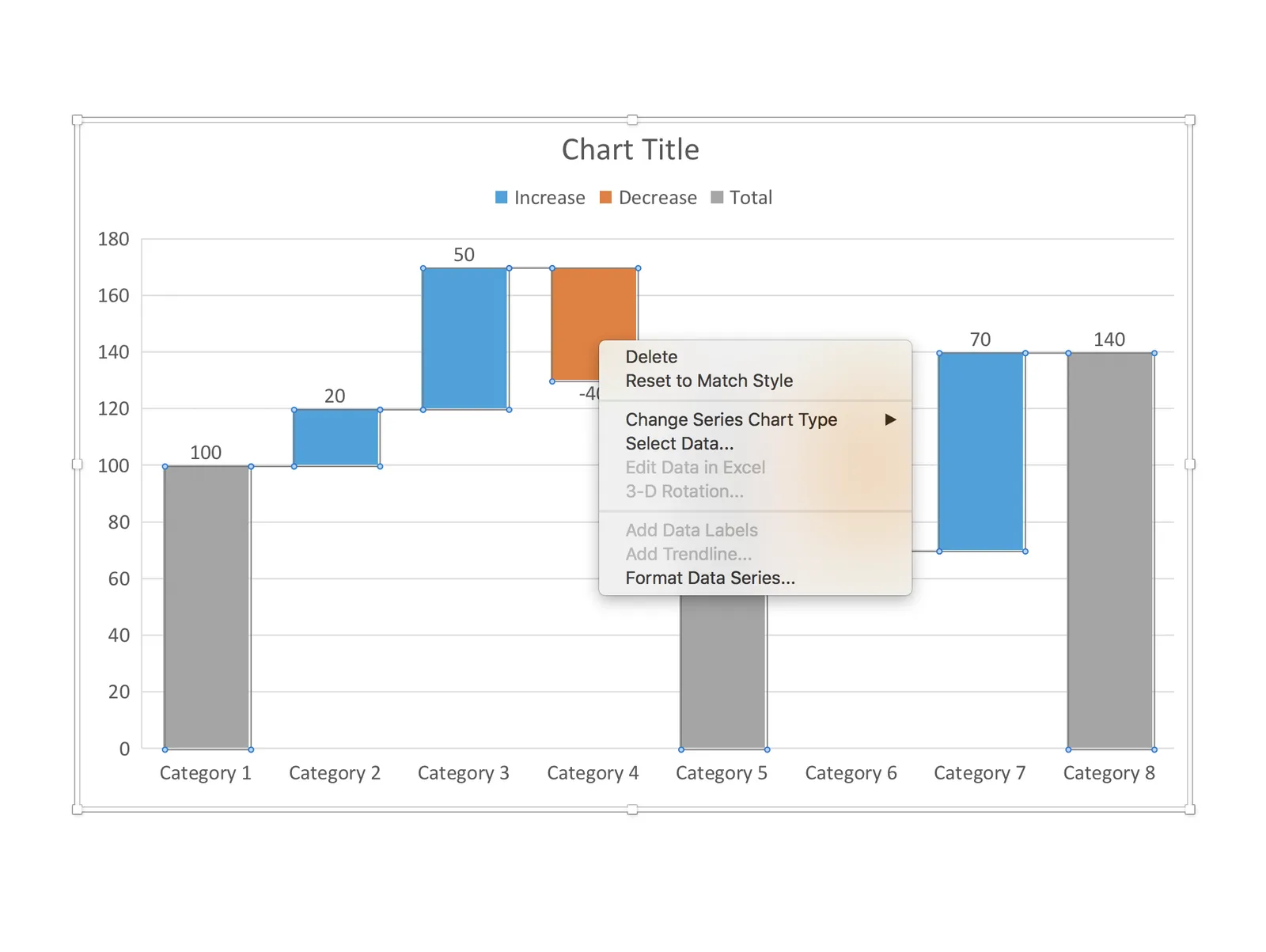
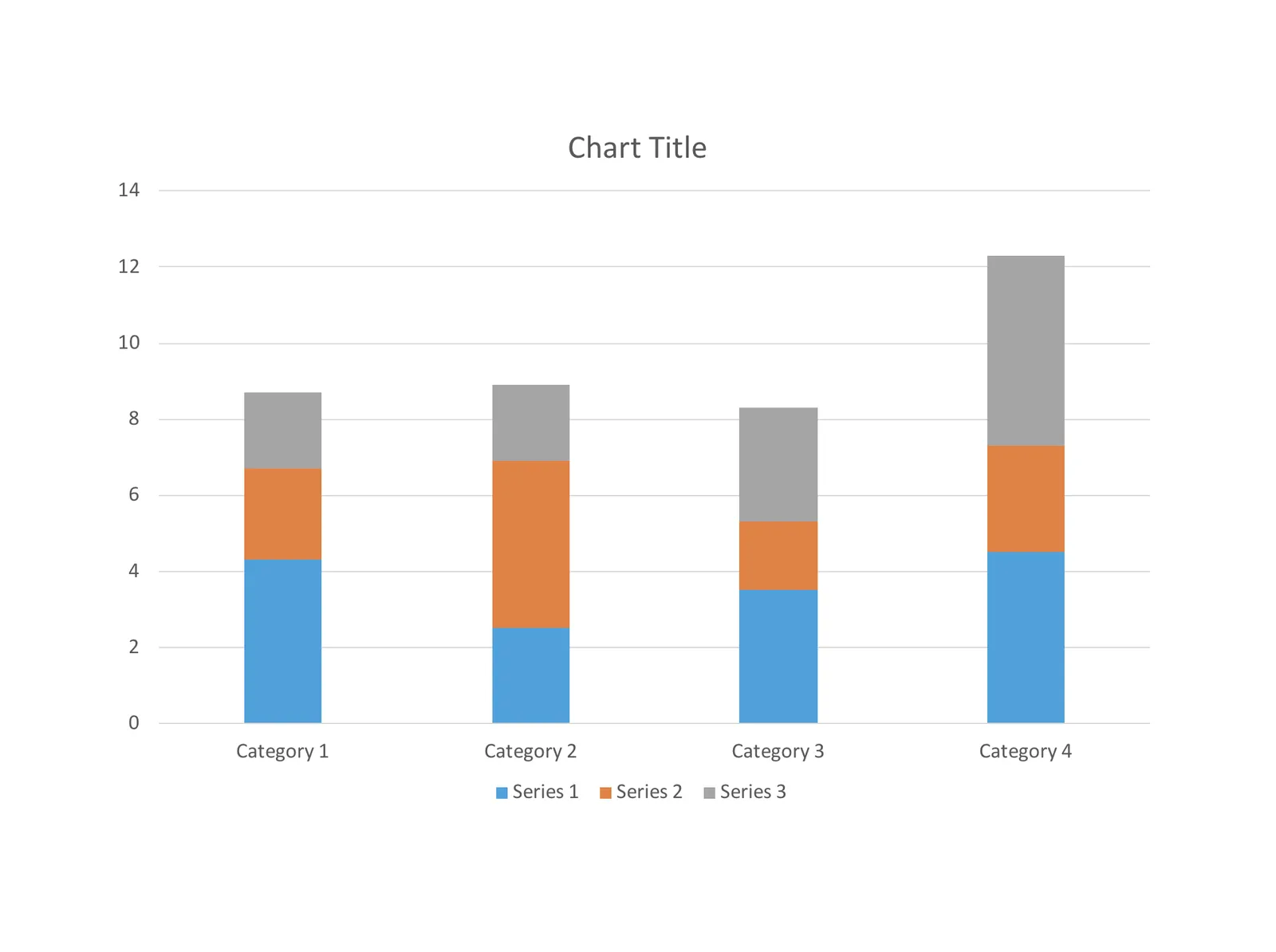
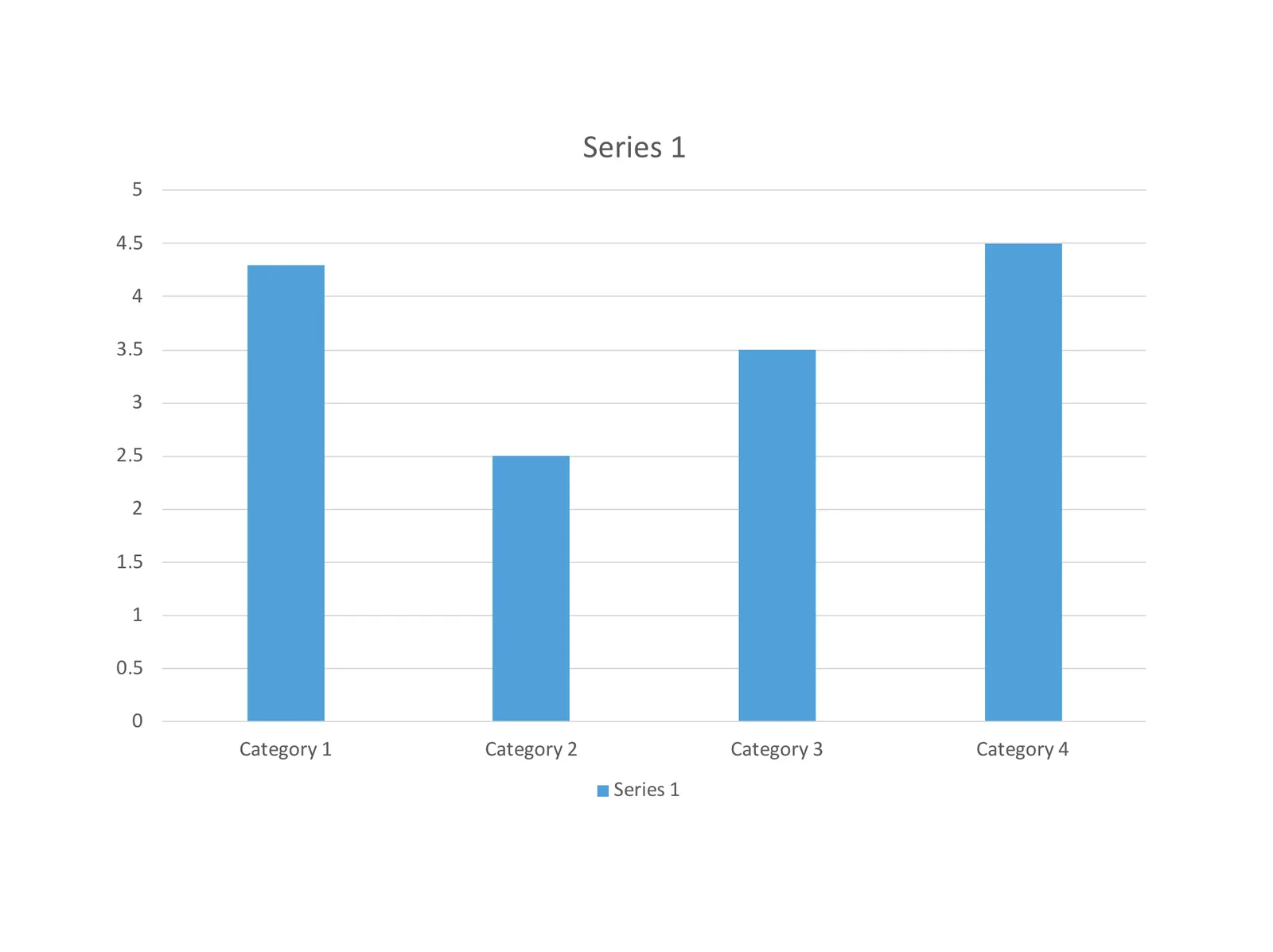
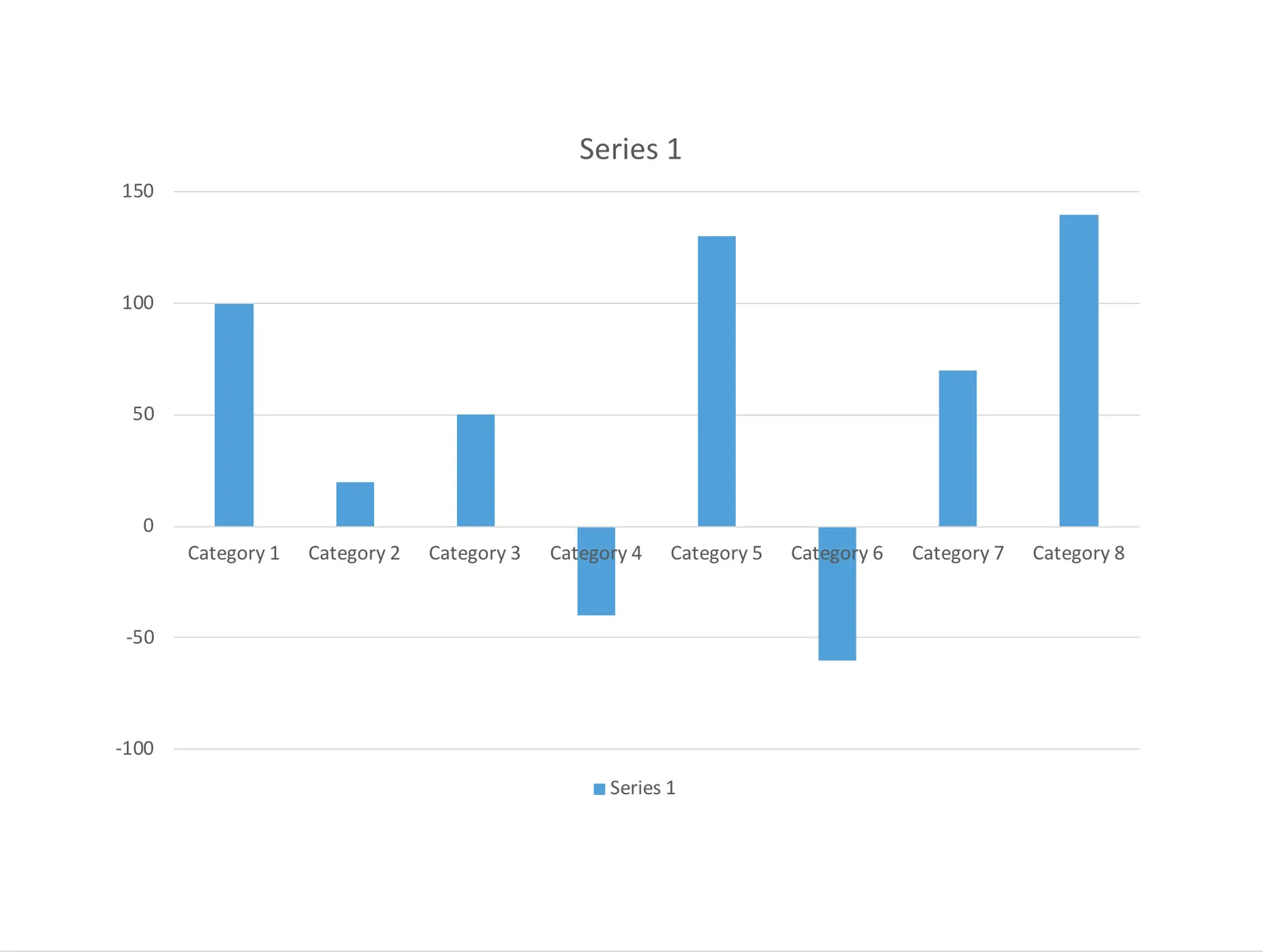
Waterfall charts have emerged in PowerPoint for Mac after a recent software update. This would be a major addition, since these types of charts are highly useful to summarise changes in data. I have shown in previous blog posts how it is possible to construct a waterfall chart starting from a regular stacked column chart, but it involves manual calculations and PowerPoint fiddling.

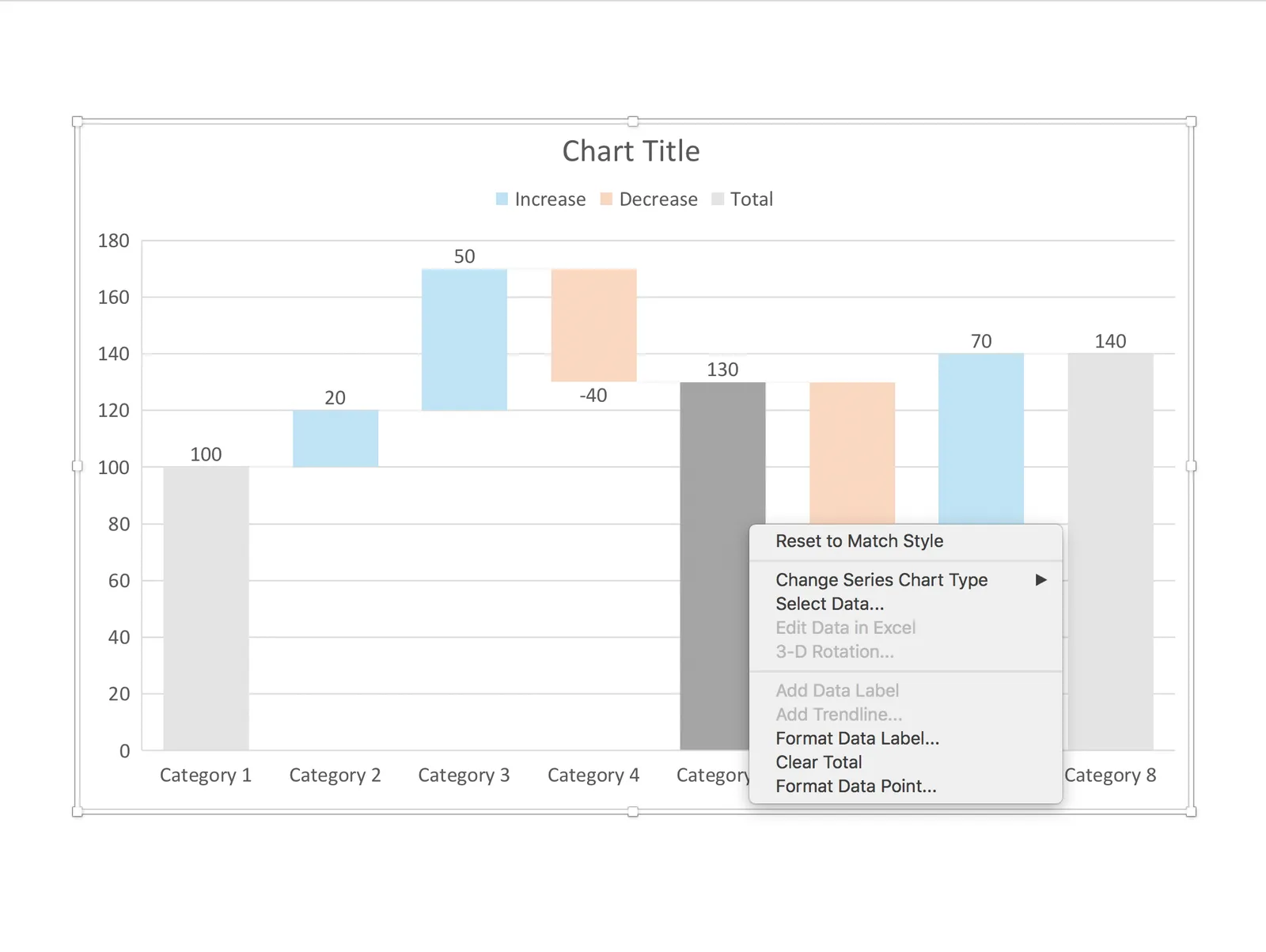
The new waterfall templates for PowerPoint for Mac are a step in the right direction, but things are not perfect (yet) though. For some reason, you cannot edit the data of the waterfall that gets inserted in PowerPoint, nor can you change the design of the chart. I figured out a work around:

 1. Data in the standard PowerPoint for Mac waterfall chart cannot be edited (

1. Data in the standard PowerPoint for Mac waterfall chart cannot be edited (“edit data in Excel” is grey out)

 2. The only adjustment you can make is selecting a cell, and then designating it to be a total column (or not)

2. The only adjustment you can make is selecting a cell, and then designating it to be a total column (or not)

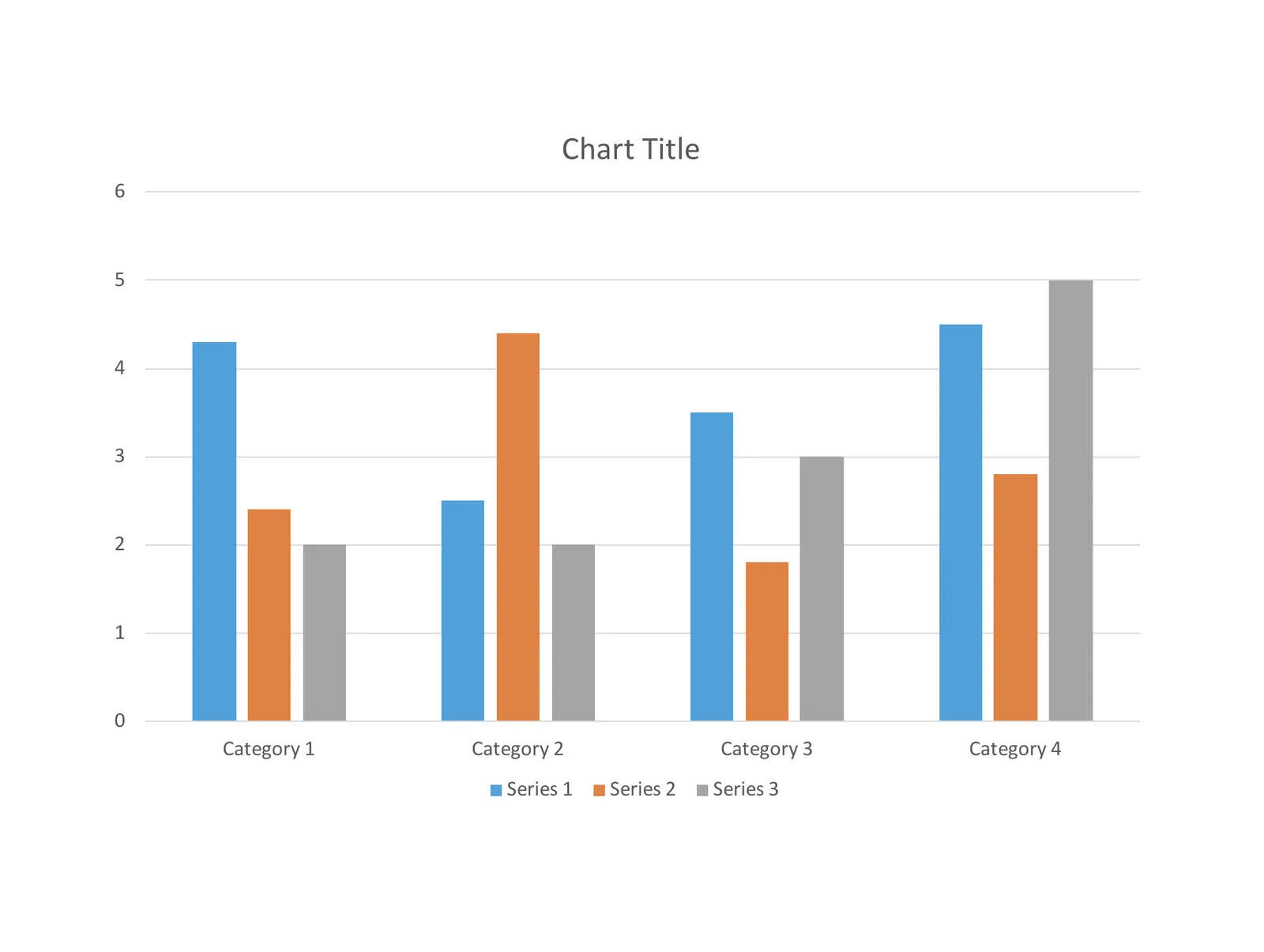
 3. Work around: add a regular column chart

3. Work around: add a regular column chart

 4. Make it a stacked column

4. Make it a stacked column

 5. Delete data all but one data series

5. Delete data all but one data series

 6. Add the data you need

Continue reading →
·Software

New PowerPoint 2016 for Mac can beat Keynote

The preview of the new Microsoft Office 2016 is out (finally) and I have installed it on my production machine letting it do all my presentation design work for clients. (You can download the Office 2016 preview here)

  • It looks beautiful. PowerPoint 2016 for Mac looks exactly the same as PowerPoint 2013 for Windows. A calm flat user interface. Working in a beautiful software environment always encourages you to create beautiful presentations.
  • The whole interface feels faster, snappier, and smoother, somehow. This is especially true for Excel. The current version of Excel for Mac has a highly annoying latency when entering data in cells.
  • Subtle changes to the default colours and fonts. Gone are the boring olive greens of the old PowerPoint colour scheme. Calibri light looks great on Retina displays. Gone are the default gradients and drop shadows. Gone are the tick marks in data charts.
  • The commenting infrastructure is nice for collaboration with other people
  • Full integration with OneDrive cloud storage (if Microsoft has guts they should add Dropbox as well, and maybe even Google Drive).
  • Now PowerPoint gives suggested snap lines to place objects, automatically distributing and aligning things on your screen.
  • The grid behaves more normal with a centimeter ruler. If you accidentally move a grid line (yes, this still happens) it is easy to move it back to the right position.
  • Now text and shape backgrounds have the exact same colour rendering, an annoying bug in PowerPoint 2011, where despite selecting the same RGB value, colours on text and shapes would render differently.
Continue reading →
·PowerPoint

PowerPoint plug in update

An update on the development of the SlideMagic PowerPoint plugin. One of the main reasons my first submission to Microsoft was rejected is that the current version of the plugin does not run on PowerPoint 2013 and the Windows 7 operating system, largely because I pretty much ignored Internet Explorer as a browser option. Microsoft itself does not really support Windows 7 anymore. The other problem is that it is actually hard to debug a plugin for Office 2013, I tried actually buying a copy, but you cannot get it anymore… On top of that, it turns that you cannot run multiple versions of Office on one computer. The strange situation is now that in order to develop add-ins for the latest versions of Office, you actually need to do that on a super old machine. If there is anyone reading this who can help, please reach out.

But OK, challenge accepted. I will begin to ‘dumb down’ the server response to calls from within Office applications. I can test the rendering of the screens in Internet Explorer 11 (just installed it), and have to hope that rest works in Office 2013 without testing. Hopefully the second submission will get accepted.

The current version still works but requires some level of computers skills and courage to get it to work.

Image by Masaru Kamikura

·Software

Alpha testing: SlideMagic PowerPoint plugin

If you want, you can try out the SlideMagic plugin for PowerPoint. When installed, it opens a task pane on the rights side of your PowerPoint screen, you can log into SlideMagic, search for templates, which when downloaded appear in a new PowerPoint presentation. With a copy-paste or drag, you can add them to your presentation.

I am currently in the process of getting SlideMagic Ltd. approved as a Microsoft Partner to add it to the official Office app store. Microsoft is experiencing some capacity issues at the moment as the working-from-home-world is overloading its cloud servers.

To beta test the add-in in the mean time, you can do the following. This is a slightly advanced process, sorry.

  • Download the slidemagic.xml file here
  • On Mac follow these instructions (original on the Microsoft site). Copy the .xml file in this folder: /Users//Library/Containers/com.microsoft.Powerpoint/Data/Documents/wef (if you cannot see the Library folder in your Finder, select the ‘go’ dropdown in the Finder, then press the OPTION key and it should appear. Restart PowerPoint and a new icon “Start SlideMagic” should appear.
  • On Windows, the process looks a bit more tricky: see here.
  • The easiest is actually the online version of Office (instructions). Open PowerPoint in your browser, select Insert, select Add-ins, click manage my Add-ins, then upload my Add-in to upload the slidemagic.xml file.

This is all still work in progress.