

PowerPoint has a smart little-known feature built in: presenter view. The screen on your laptop is different from the full-screen view the audience sees.
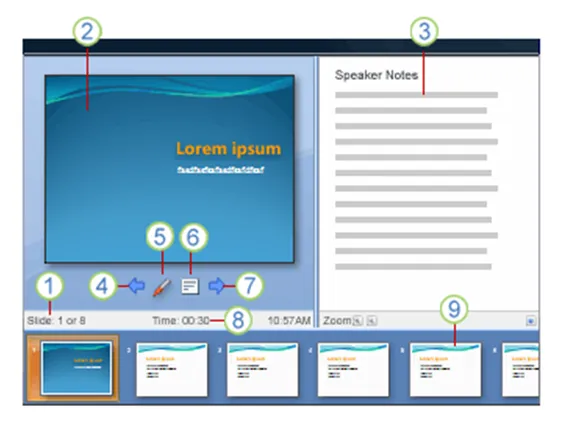
- Slide count
- Current slide
- Notes
- One slide back
- Marker
- Opens a menu (black screen, white screen, other functions)
- Next slide
- Presentation timer
- Slide sequence
In order for it to work, you need to setup your computer for 2 monitors (The primary monitor is your laptop, the second one the big projector) in windows control panel/display properties. After that, in the PowerPoint slideshow menu, set up slide show and go to the multiple monitors section.
UPDATE: From the comments below, John Goalby is pointing to his very detailed, free ebook on the subject of Presenter View.
4 comments
It goes into more depth than the Microsoft provided information.