SlideMagic Blog

Frequent updates about all things presentations since 2008. Subscribe to never miss a post.

RSS
all posts

Category Software

·Software

The new line drawing mode

I just deployed version 2.4.16 on the server that has the first version of the new line drawing engine of SlideMagic built in. This will be the replacement of the cumbersome ‘connector’ feature that was inherited from SlideMagic 1.0.

Any presentation app needs some sort of approach to drawing lines, especially to connect boxes in diagrams. Freehand drawing and line dragging goes straight against the philosophy of SlideMagic, which forces you to keep everything lined up, evenly spaced out on a grid.

The connectors solved this by micromanaging lines, you have designate a box to be a line box, and then meticulously set the line configuration inside it. The result is a line grid that perfectly scales up and down with your grid. But this can be a pain to maintain, especially if you are working in a very fine grid.

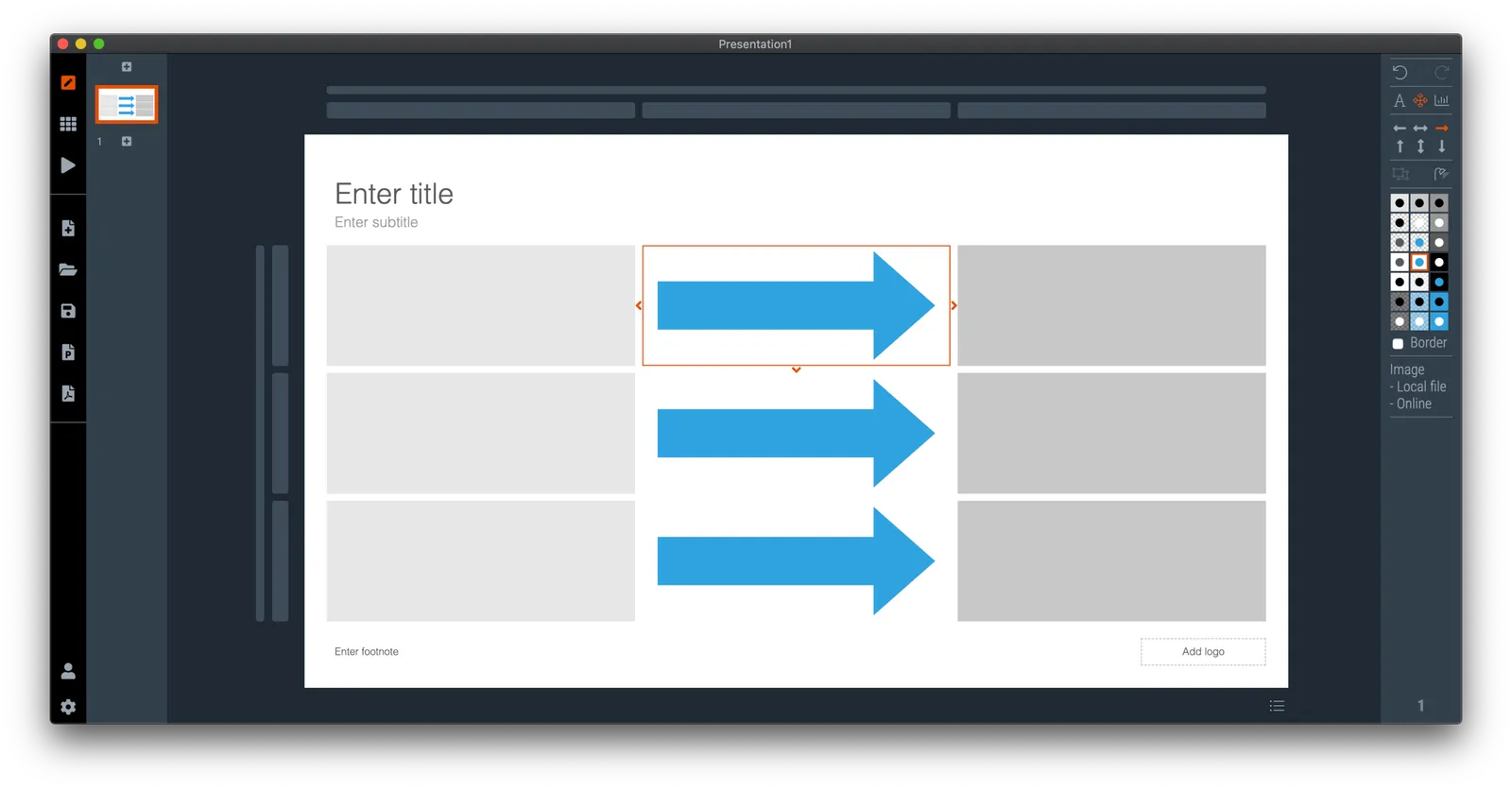
So I can came up with a compromise and added a separate line drawing layer to the ‘frame; of the slide, the background that sits behind the work area of the slide (i.e., not the title and the footnote). Selecting the frame will highlight a Manhattan-like grid of dots, between which you can draw any (straight) line or arrow you want, across the entire slide. This line patter will move with changes to the grid, but - and this is the concession - is not 100% tied to the boxes in your chart. But I think it is a price well worth paying, imperfections are easy to fix.

A side effect, it is now also easy to draw a fat border around a group of boxes if needed.

Continue reading →
·SlideMagic

Fixing the connectors

SlideMagic 2.0 is almost getting to a point where I can call it ‘feature complete’. Once reached, I will be spending most of my time on hardening the application to make it 100% enterprise-grade, before venturing into adding more capabilities.

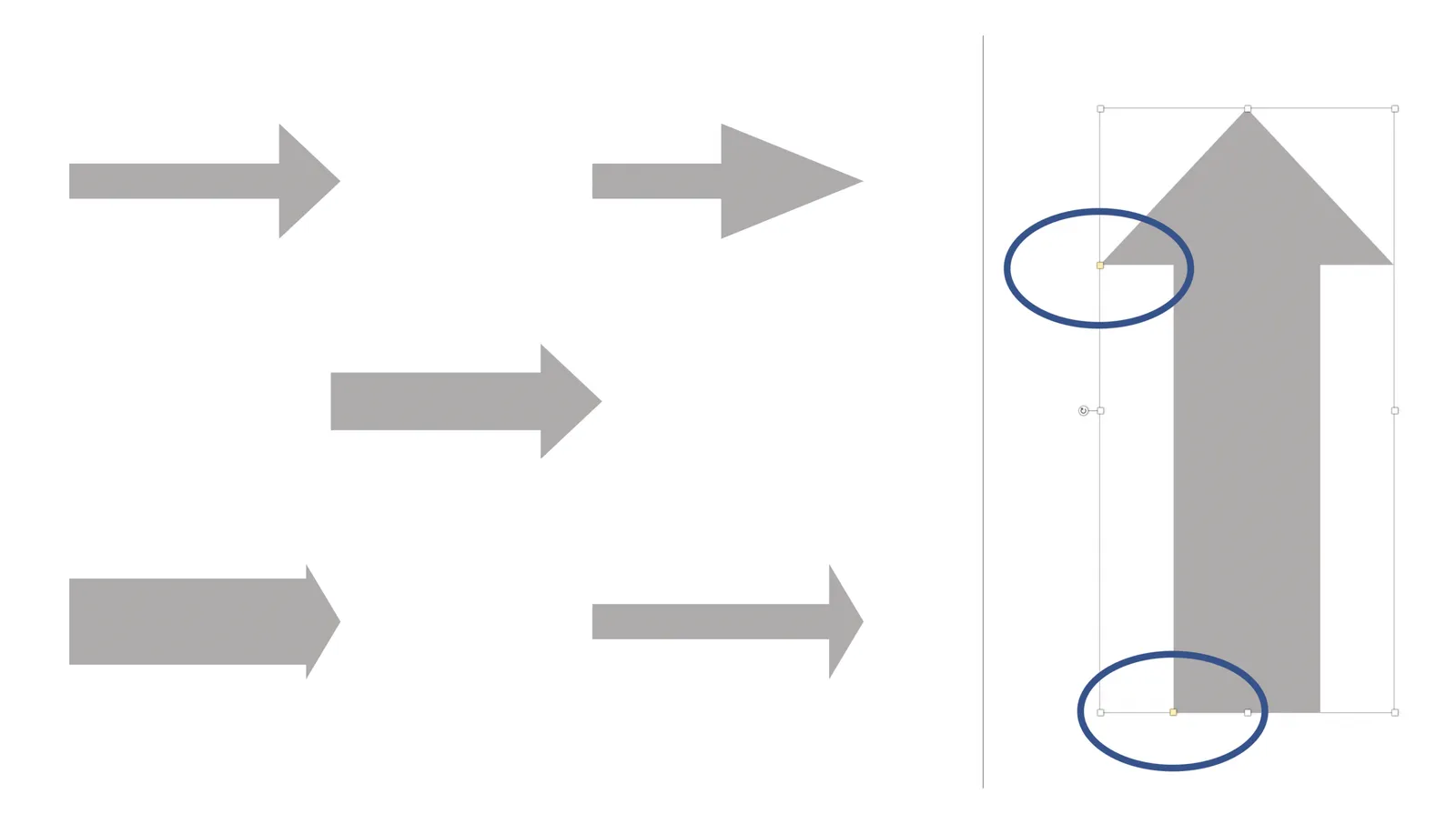
The last obstacle on the road are the ‘connectors’, a left over from the SlideMagic 1.0 UI that are not very intuitive to use. The connectors where meant to cover the 2 minimal line drawing elements that any presentation app needs to have:

  • The ability to connect boxes in diagrams (flow charts, org charts) with lines and arrows
  • The ability to create a visual flow in a slide with big arrows that show cause and effect

This is very tricky to accomplish in SlideMagic, as the app stubbornly insists on not requiring any freehand drawing or dragging that breaks the slide’s grid, and the current ‘connectors’ make that tension perfectly clear.

I think I might have come up with an elegant solution to this problem:

  1. Simplify the current ‘connectors’ and use them solely for fat/big cause effect arrows
  2. Add a simple grid based drawing capability for connecting boxes.

I got number 2 to work on my development machine, but it still requires a lot of work to make things intuitive, but the hardest part of the work has been cracked.

Luckily there is an advantage that SlideMagic does not have millions of users yet, we can still wiggle the software to get product/market fit, something almost all presentation design apps have failed to reach. Work in progress.

Continue reading →
·Design

Update

I have entered my usual summer blogger schedule (fewer posts) and am now working really hard to get SlideMagic 2.0 right. The feature list for SlideMagic 2.0 is now almost completely implemented. In software, there are always more things to add, but the product as it stands at the moment is starting to get very useful. Over the last 2 weeks I put in very big changes that might not look big from a user’s perspective, but required huge changes under the hood:

  • The new '“side title” layout (my preferred)
  • Slide search previews in your own preferred colour, layout, font style
  • Horizontal and vertical waterfall charts
  • Dynamically generated slides with a relevant image (i.e., unlimited slide in the template bank)
  • Better rendering of slides and images on higher resolution screens
  • Useful image compression in the background

The only big one that remains outstanding is a better way to make diagrams with lines and arrows, the connector solution is not perfect.

In the background I am now tweaking lots of user interface details: how borders fit around thumbs, mouse behaviour when hovering over things, an “endless scroll” is now working for image search, messages that warn you when things go wrong, or when your app is busy searching, making sure that thumbnails distribute nicely over the screen when zooming, minimising the times when the app needs to re-render a slide or image to make the workflow calmer, etc. etc.

I start to look at app design the way I look at slide design. Things need to be absolutely right, and even tiny deviations, irregularities, small mistakes, can really upset me, while most people won’t even notice them. This is what I think ultimately leads to good design, one by one, these details do not matter, I you add them all though, something works without you having an ability to point your finger at exactly why.

Continue reading →
·SlideMagic

Slide search results in your own colours

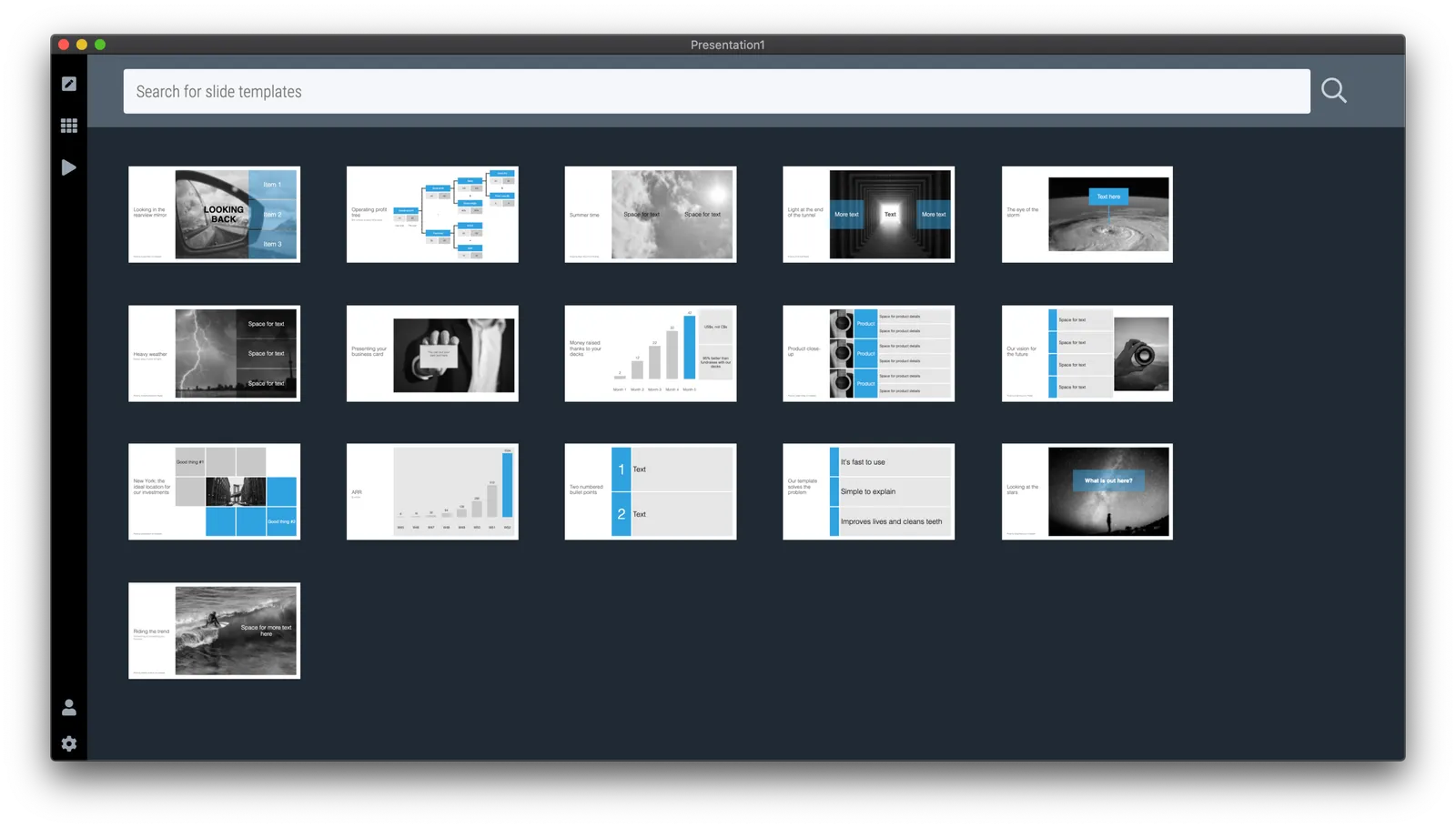
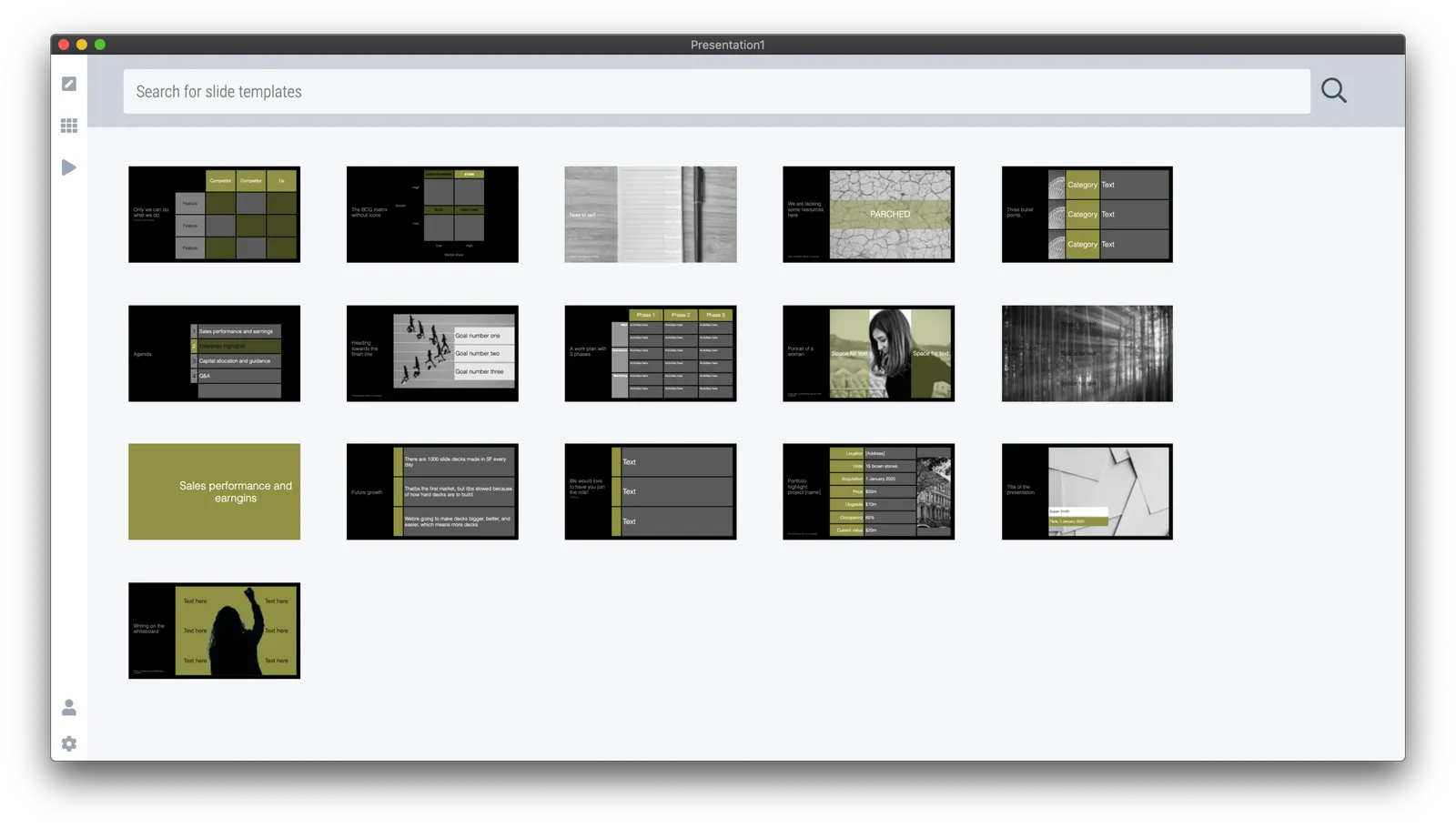
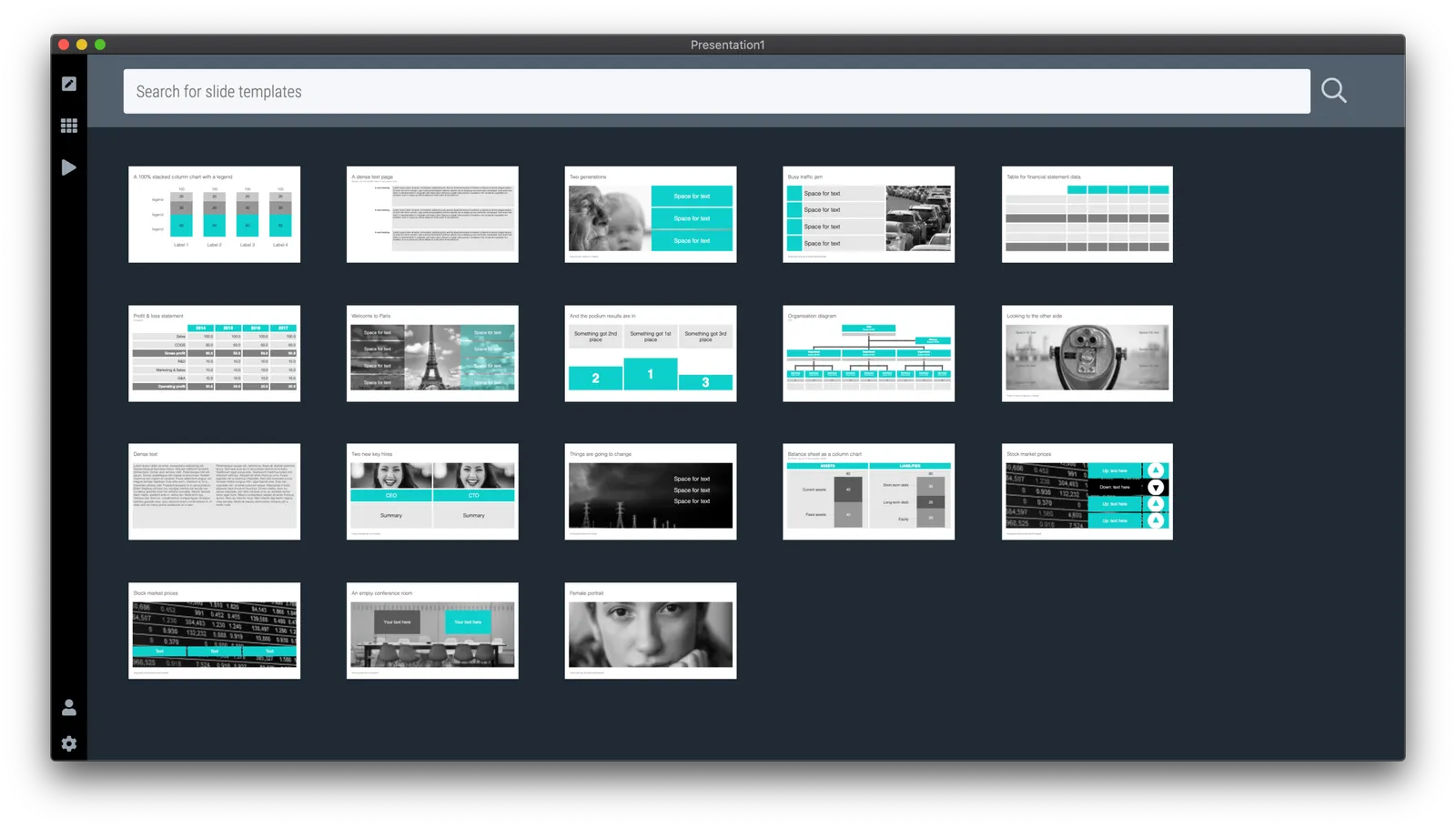
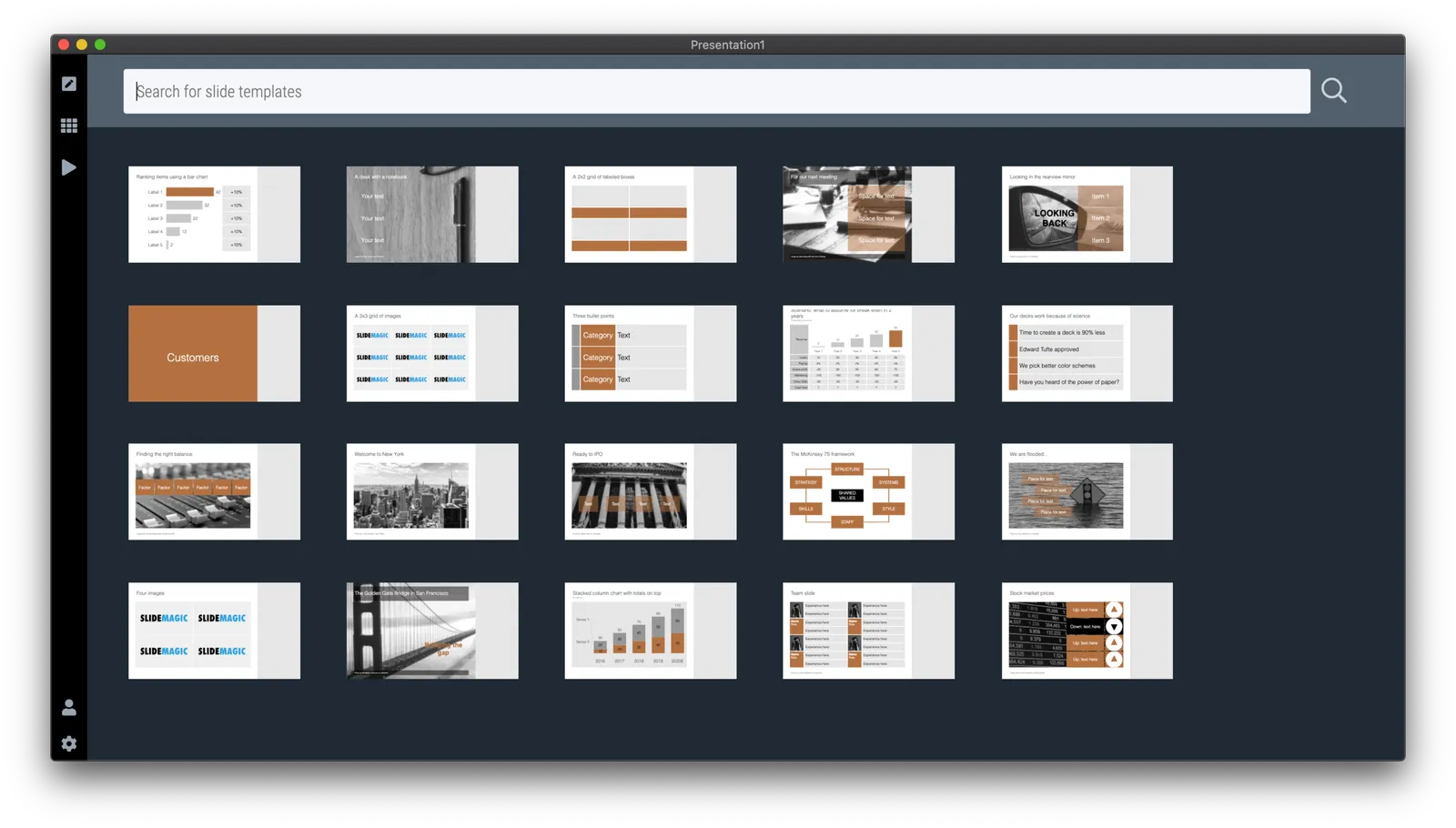
After updating to the latest version of SlideMagic, your slide search results will no longer appear in SlideMagic blue, 4x3 aspect, but in your own personal colour palette, and in your own preferred screen size.

Unlike most template banks, SlideMagic now generates slides on the fly the moment when you search for them, rather than serving pre-fab files. This opens interesting opportunities for future features :-). Work in progress.

·SlideMagic

"Operating system updates" for presentations

Every year Apple releases operating system upgrades for computers, tablets, and phones. Your apps and documents have the same content, but look slightly different. I am trying to push this concept to the world of presentations.

It has already happened (sort of). The slide-out panel to right changes the look and feel of your presentation without changing the content. Over time, I have made subtle changes to font sizes and layout proportions, which means that every SlideMagic presentation in the world will have a slightly different look. Switching to a dark slide background turn the colours of your presentation upside down (in a good way), far beyond just making the background black.

I will try to push this further, by adding more layout options , your slides will look entirely different, including the ones you made 6 months ago, but you can always switch back to another layout format.

Photo by Michael Held on Unsplash

·SlideMagic

What is new in V23

Some new features in version 2.3.23 of the SlideMagic desktop app:

  • Super-fast responses when resizing your main window, or reshuffling slides in the story view, even if they contain big images. If the app does not need to re-render an image, it won’t. Rescaling slides is now done by your computer’s graphics processor directly, rather than my bespoke code.
  • More clever image repositioning when you change the aspect rate of a shape by expanding and collapsing boxes. Still not perfect, but the app starts to do the right thing.
  • Changing the slide aspect or background has now been added to the “view” drop down menu, so you can switch back and forth really fast without having to go through the settings menu.
  • Subtle changes to the user interface, that makes the app look sharper on higher resolution displays.

The app will try to update itself in the background, or if you are impatient, go here to download the latest version immediately.

Photo by gdtography on Unsplash

·Images

Working on improved image cropping

Working with images is turning out to be one of the most powerful uses of SlideMagic. The built-in image search gives access to an endless flow of great images, and the grid makes it really easy to layout these photos in a beautiful and consistent way on a slide.

Aligning images has always been difficult in presentation software (it is only worse in word processors), and that bit is solved by the SlideMagic grid. Next up is image cropping. Most design tools use some sort of overlay that allows you to mask/reveal an image. Even as a professional designer, I still struggle with this.

In SlideMagic, you simply drag an image around in a box to decide what part of the photo you want to reveal. I am working on 2 improvements:

  • Showing the entire image in semi-opaque when you are editing/dragging it around to give you. a better orientation of what you are doing
  • Creating a way to keep the image focused on the most relevant part regardless of changes to aspect ratios or zoom levels of the photo. At the moment, I store to image positioning versions (one for 16x9 and one for 4x3), but in future releases I want to automate this

The challenge here is to offer something that works without turning SlideMagic into a complicated photo editor. Work in progress.

·Software

Some UI improvements

Version 2.3.18 went up with a few improvements including 2 noticeable ones:

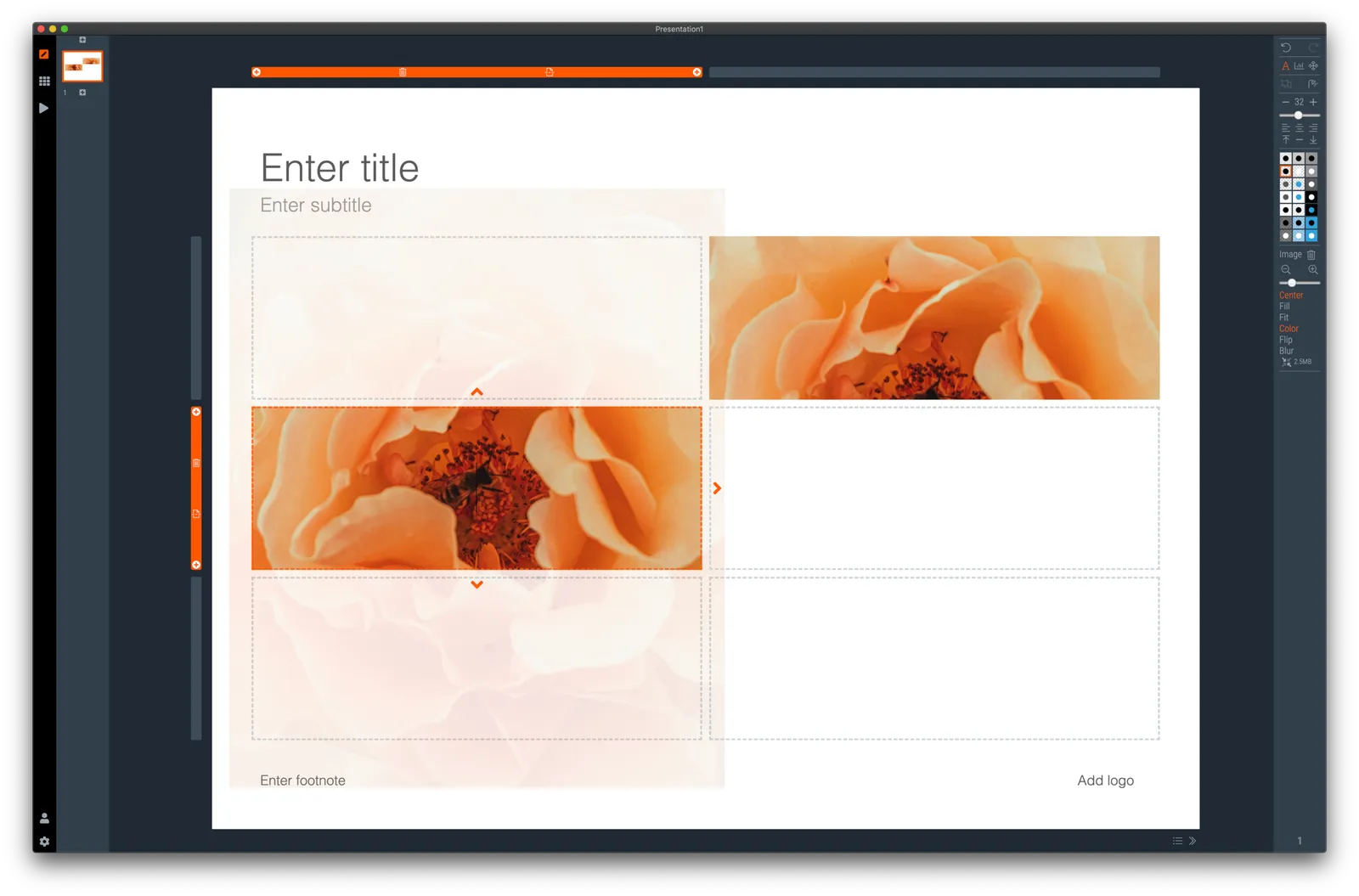
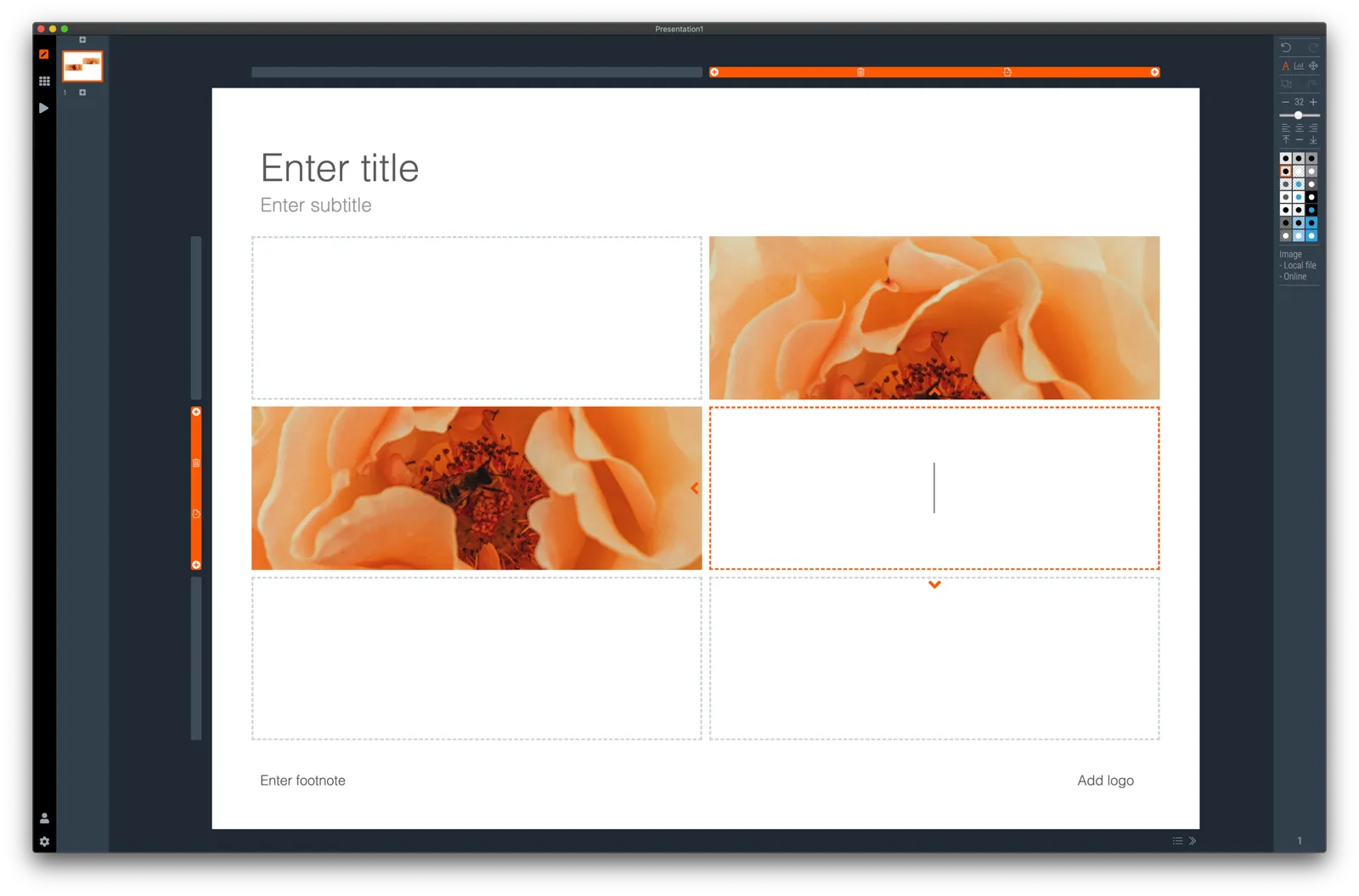
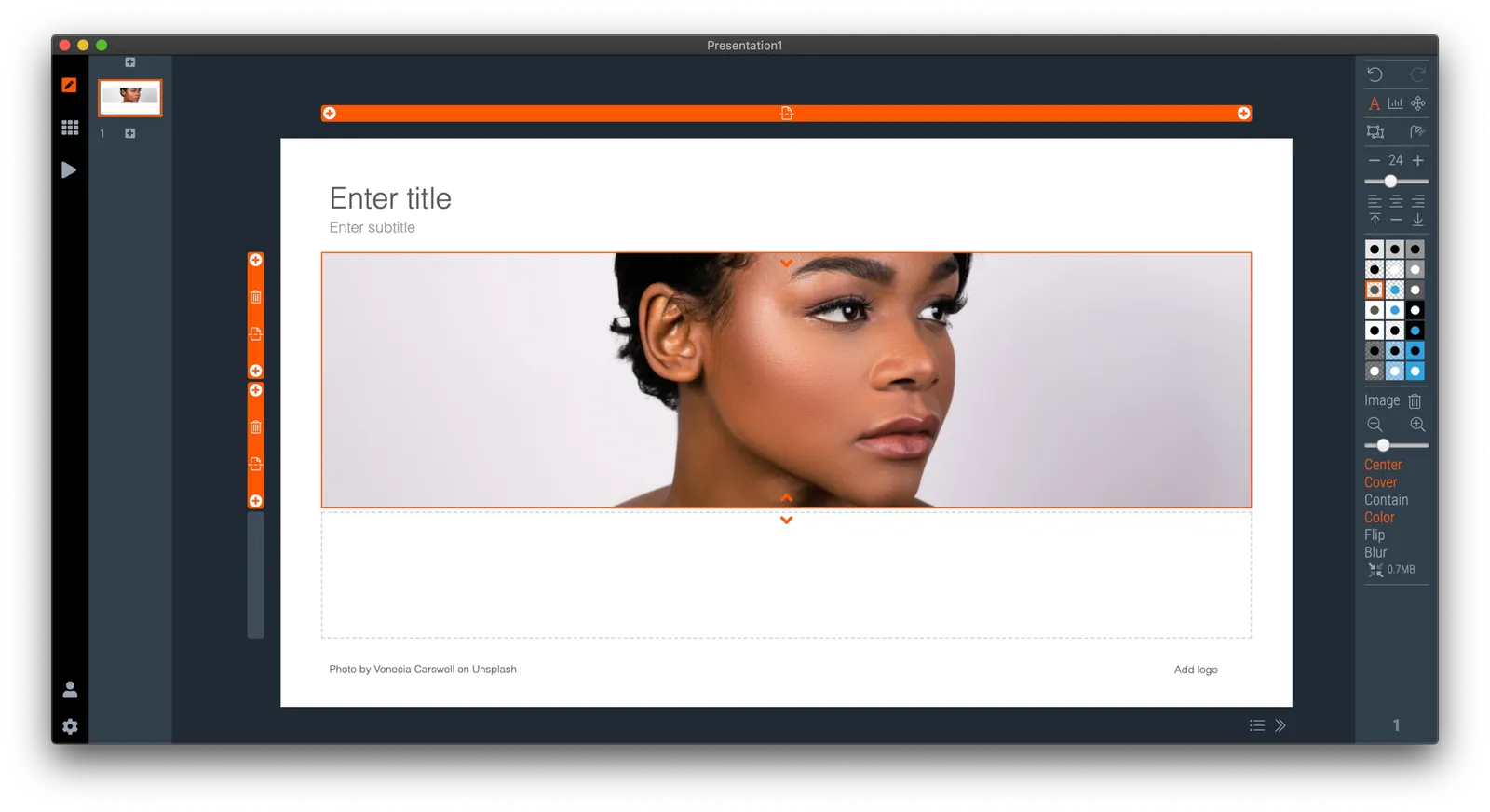
  • A much brighter app user interface colour. As you know, SlideMagic mirrors the colour you use in your presentation: if your presentation uses blue, the SlideMagic app accent colours (to show things you selected for example) will turn to its complement: orange. Up until v2.3.18, this was the exact colour opposite, creating problems for users with muted, very dark accent colours. In the latest version I forced up the brightness and saturation of the app accent colour so that it clearly stands out in all cases. Look how that orange is now popping out for my SlideMagic blue colour.
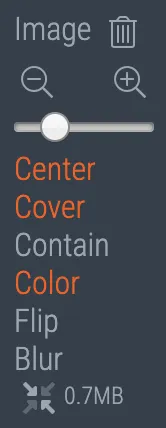
  • An improved image user interface, where the crop modes “center”, “contain”, and “cover” are now clearly highlighted. Also, SlideMagic now shows the mega bytes an image consumes as soon as you select it. Sometimes, a very large image is actually not that big in storage, but the opposite happens as well, that tiny image on your slide takes up 10MB of space and as a result you are compressing down the entire slide deck. Now it is easy to catch these memory eaters quickly and compress the image if needed. Compression no longer “flattens” the image effects (greyscale, blur, flip), so you can re and undo these on the compressed image as well.

Download the latest version of SlideMagic for Windows or Mac to try it out.

·Software

Preserve image positioning when switching between 4x3 and 16x9

SlideMagic swaps instantly between traditional and widescreen aspect ratios. The slide content stays nicely in the slide frame, everything stays aligned and you can revert instantly.

Because SlideMagic does not distort aspect ratios of images (no stretching or squeezing), the positioning of an image changes slightly if you switch between a narrow and a wide screen layout. This can be annoying for images where positioning is a big deal (compare the lined up eye lines of a series of portrait images versus a long-distance shot of a mountain range). If you switch aspects 5 minutes before your meeting, your presentation is misaligned. (This is obviously still a lot better than PowerPoint where everything would stretch and move to unpredictable places when picking a different screen format)

Well, SlideMagic fixed this last hitch as well. I just released V2.3.17 (download SlideMagic here for both Windows and Mac) which now keeps 2 sets of image size and crop frames, one for each slide aspect ratio. You switch back and forth, so will the image positioning. Make sure to double check each image once in both aspect ratios, and the settings will be saved together with the presentation.

For future releases I am studying more advanced image analysis, where I could automatically recognise a face in an image for example, and lock in the position of the eyes (maybe the first true “AI” application in SlideMagic).

·SlideMagic

Dynamic slides generated on the fly

Version 2.3.16 of the SlideMagic presentation app went up last night (download it here for either Mac or Windows). The major new feature in this release is the dynamic generation of slides (at least, the first steps).

There are different types of template search queries entered on the SlideMagic server. People look for a specific framework (e.g., ‘BCG matrix’), a specific layout (‘3 bullet points’), but then there is a whole lot of more descriptive queries to are a better match for an image search site (‘house’ , ‘diabetes’). While I could populate the database with hand-made slides for each of these terms, it is more efficient to let technology do the work for you.

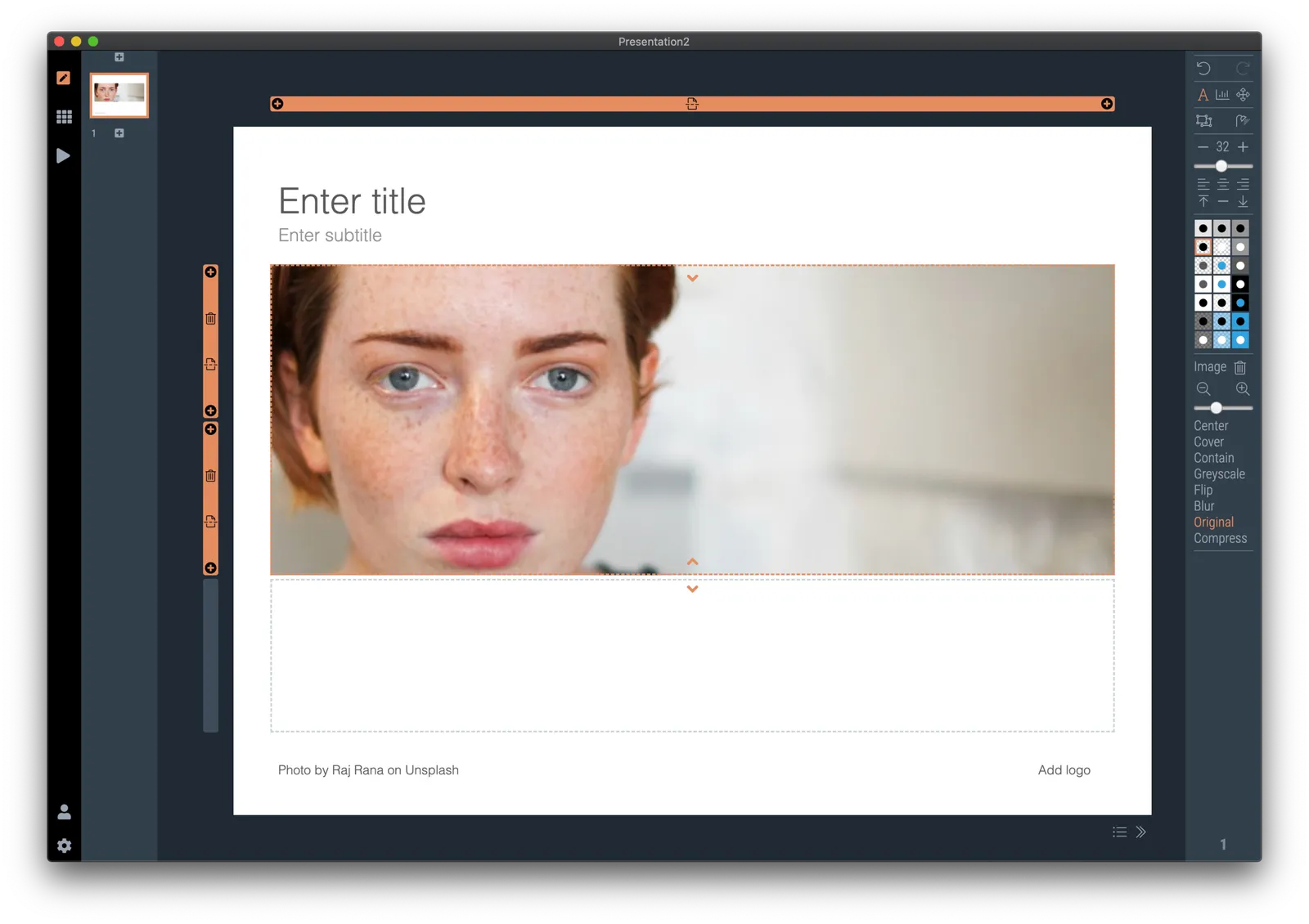
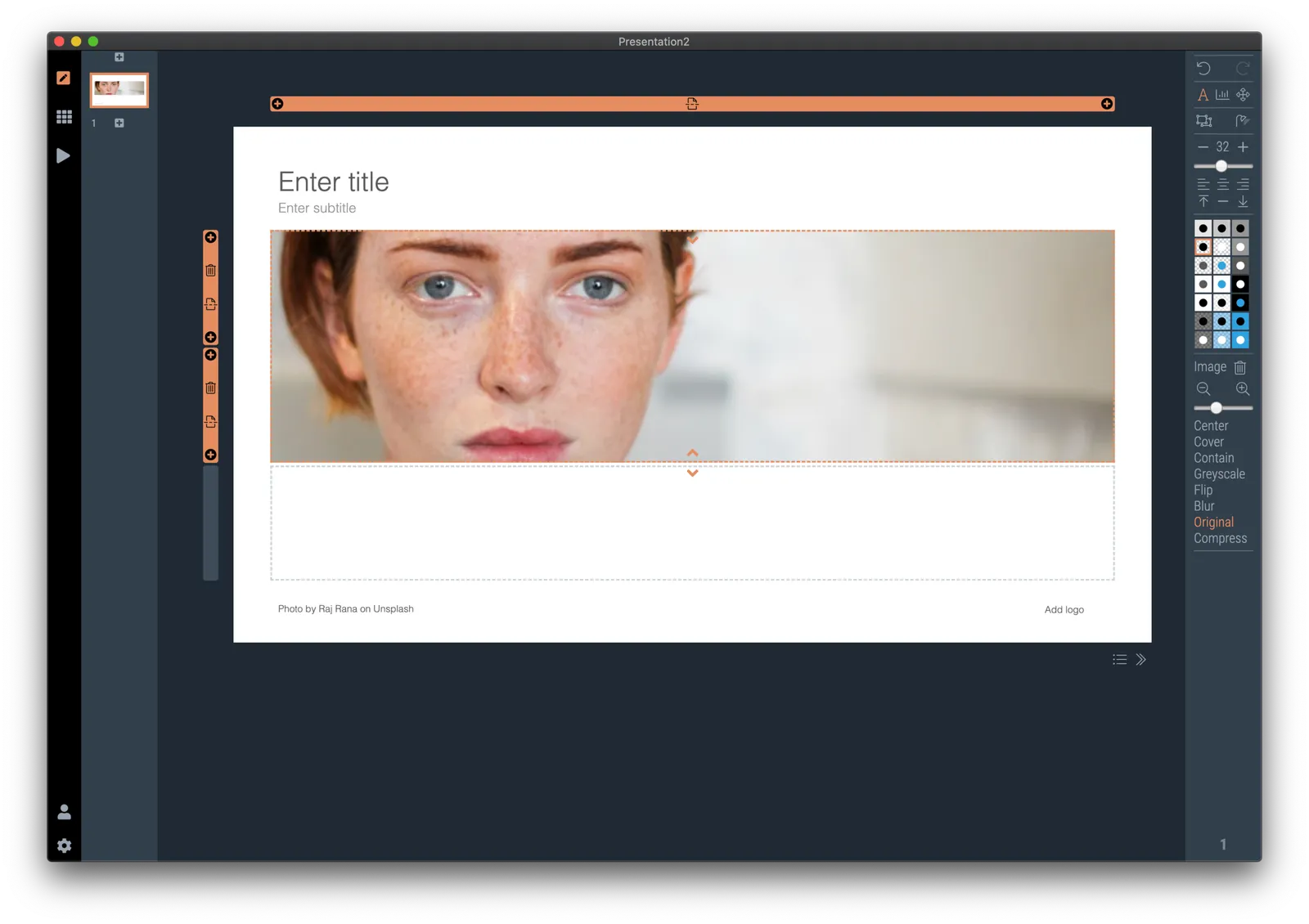
So at the moment, when the server gives up and returns a “no slides found” message, the user gets offered the option to run an image search instead with the same keywords. After picking an image, the SlideMagic app turns it into a framed slide with proper image credits that can form the basis for a new slide design. This slide is created on the fly, without the need to store templates on my server. So the number of slides that SlideMagic can produce now goes into the millions rather than hundreds.

The screen shots below give an overview of the flow as it stands at the moment:

Obviously a slide with a simple image is still pretty basic. I am looking into expanding this approach with colour matches, and more interestingly analysing images for white space, with suggested pre-population of text placeholders on the image.

Continue reading →