SlideMagic Blog

Frequent updates about all things presentations since 2008. Subscribe to never miss a post.

RSS
all posts

Category Software

·Software

Sending files up to 2 GB - yousendit adds Microsoft Office plugin

Big PowerPoint files are becoming an increasingly big problem. Yousendit is a convenient service that allows you to send very large files. You upload a file to the server, the recipient receives an email with a link to download it. FTP without the hassle.

Today, yousendit launched a plugin for Microsoft Office. It’s the same functionality that the web site offers, but now with a tighter integration into Excel, PowerPoint and Word.

Be aware of security issues though. If you use the standard transfer mode, anyone “guessing” the download URL can get to your file. Secure sending options are available but are not free of charge.

·Software

Balsamiq: visualizing software using a mockup - quickly

What a nice story on Read Write Web today. Someone quits his job, starts writing software, and has already made $100,000 in revenues in 5 months.

The idea behind Balsamiq is interesting: provide a tool that can quickly create a mock up of software or a web site. Not only useful to nail down a software specification among a group of engineers, but probably also handy when you want to communicate/visualize a very early startup idea to potential investors when you do not have a prototype or demo ready yet.

More background reading on demos: David Rose advises never, ever, to use a live demo in a pitch presentation, and an earlier post on presenting software interfaces in PowerPoint.

·Software

SlideRocket public launch - good enough to take PowerPoint into the cloud?

SlideRocket comes out of public beta today with some new features (TechCrunch post). Given increasingly heavy PowerPoint files (images, video), I think the only future solution for collaborative presentation design is an in-the-cloud model. Getting people to learn an new interface as an alternative to PowerPoint though is difficult. And, Google Docs, Microsoft’s Azure, are some pretty heavy competitors to beat…

·Delivery

Bad idea - live web pages in your PowerPoint presentation (LiveWeb)

A number of blogs posted about LiveWeb yesterday, a PowerPoint plugin that lets you open a fully functioning web browser inside your PowerPoint slide show. All links work and are active.

Any live demo in a presentation is very, very high risk. Live web browsing is no exception

  • You need to get an Internet connection to work in a strange environment. If finding power lead extension can be difficult, and setting up projectors is not obvious while the audience is settling down, going online is a challenge of a whole different magnitude

  • The momentum is gone. If you have 20 minutes to make your pitch, you cannot afford to break the carefully build up momentum in your presentation. Turning away from the audience, “Wait a minute, where is that link, it was there yesterday” will make your audience opens up their PDAs to check email.

  • Unpredictable content. A large banner ad for a gambling site. A breaking news story about stock markets tumbling. A sighting of Britney Spears. Distractions that will not help your story.

There are obviously situations where you need live web pages on a projector to work together as a group. In an informal setting, why not open up a regular browser? The only exception for a browser inside your PowerPoint might people that run training courses, either on Internet use, or on using internal corporate intranets.

P.S. Not sure what stirred the blogging activity yesterday, LiveWeb seems to have been around for some time.


·Software

Animoto - transform your PowerPoint presentation into a slow zooming video

Animoto is a sight that allows you to create a slow zooming animated video of any series of images. I tried it on my company’s introduction presentation using the overture of Mozart’s Figaro: I do not like the wild slide transitions, the pace of transition is too high, but the slow-zoom is highly appealing. I assume that in the professional edition you can control all these features. If not, then this tool is actually only useful for use with still images without text.

·Animations

Zuiprezi - non-linear presentation tool

New “in the cloud” presentation development tools seem to be popping up all the time now. Today, I came across Zuiprezi which allows you create a “non-linear” presentation on a large virtual canvas in which you can navigate and zoom your way around. Read a review on CNET, and/or watch the video below.

While I see the advantages of a dynamic presentation flow, I still think that in most presentation situations a tightly controlled story line works best, especially when time is scarce, for example in VC startup pitch presentations (25 minutes, that’s it). When there is more time, non-linear presentations could work. Especially when a group of people needs to discuss, brainstorm and analyze a complex subject (for example a spaghetti-style workplan for a big engineering project). UPDATE: Another interesting application for this technology might be to visualize complex system dynamics analysis in business. At McKinsey I used to use it (it was called “Business Dynamics” there) to map complex interactions between multiple drivers. This analysis can be very insightful to spot recurring loops (and hence how to accelerate or stop them), but delivers very messy diagrams. See one here. Related postings on my blog: PPTplex, a Microsoft tool for zooming inside PowerPoint

·Animations

Goldmail - rich presentations in email

TechCrunch writes about Goldmail today: tool that allows you to create Flash animation of a media-rich presentation (including voice-over) that can be embedded easily in an email.

UPDATE: Please read the elaborate clarification by Tom Holownia, VP Marketing of GoldMail, in the comments.

·Images

Using real faces in PPT (+ Microsoft AutoCollage)

I like using images of people in my PowerPoint presentations.

  • Faces create an emotional connection (especially on a title page that is open for a long time on the screen while the audience sits down)
  • Faces allow the visualization of a consumer segment, an image says more than a 1,000 words (college education, mid-income, Hispanic, woman, suburbia, etc.)

Things to think about when picking images:

  • Select images of “real people”, not “artificial” models, cliche images, or cheesy compositions of which there 1,000s on stock image sites (hand shakes, applause, “business person in suit”, call centre rep, etc.)
  • Images isolated on a white (or black) background often blend in most easily into your template
  • Often, I use a color overlay to take the natural image colors out and replace it with a color from my client’s color scheme.

I used a free trial of Microsoft Research AutoCollage 2008 to show some examples of images of “real people” I used (click on the image for a larger picture). All images were purchased from iStockPhoto.

(B.t.w., why is Microsoft trying to sell this product with many free collage utilities available on the web?)

·PowerPoint

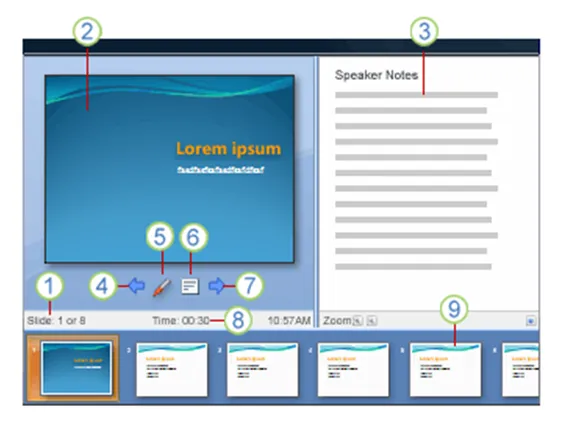
Presenter view - your screen's different from the audience's

PowerPoint has a smart little-known feature built in: presenter view. The screen on your laptop is different from the full-screen view the audience sees.

  1. Slide count
  2. Current slide
  3. Notes
  4. One slide back
  5. Marker
  6. Opens a menu (black screen, white screen, other functions)
  7. Next slide
  8. Presentation timer
  9. Slide sequence

In order for it to work, you need to setup your computer for 2 monitors (The primary monitor is your laptop, the second one the big projector) in windows control panel/display properties. After that, in the PowerPoint slideshow menu, set up slide show and go to the multiple monitors section.

UPDATE: From the comments below, John Goalby is pointing to his very detailed, free ebook on the subject of Presenter View.

·Sharing

Web tools to complement PowerPoint - I did not know about many of these

Paul Gibler just posted this article with a large set of web tools that can enhance PowerPoint.

Some of them I knew already, some of them are less interesting to me (I am not into video), but that leaves a whole lot of new tools to explore, such as PPT-editable maps and PPT file compressors.