SlideMagic Blog

Frequent updates about all things presentations since 2008. Subscribe to never miss a post.

RSS
all posts

Category Software

·Design

Maximizing screen real estate in PowerPoint

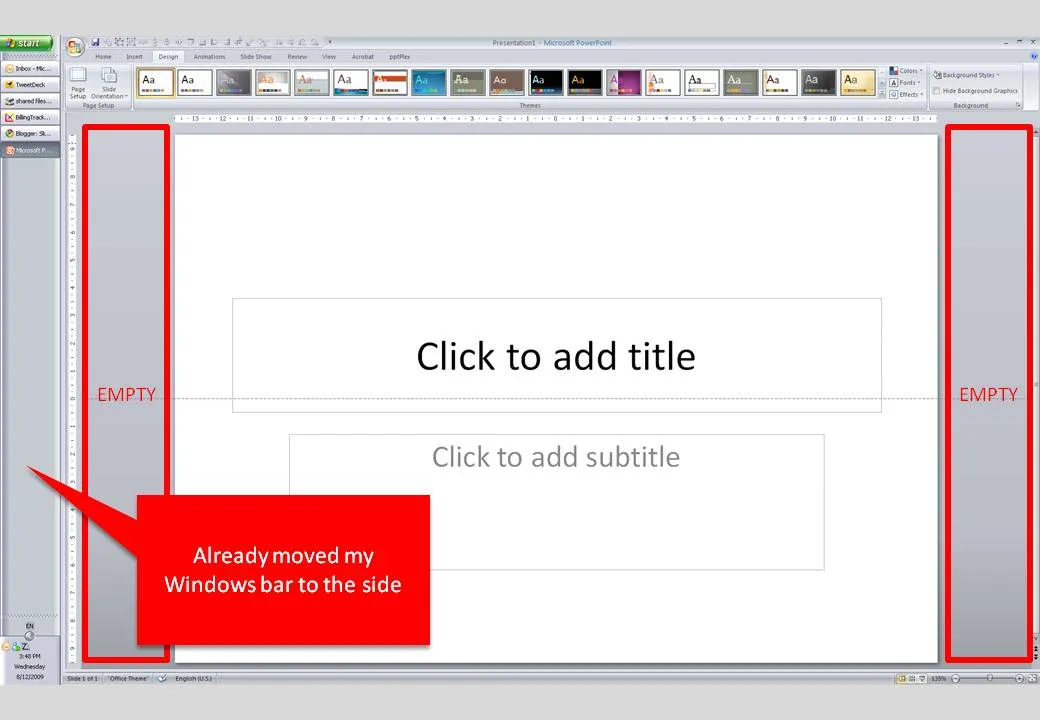
Many people have 16:9 computer monitors by now. Most of the time, we still design slides in 4:3 or A4/letter mode. As a result, a lot of space is available on the left and right of the PowerPoint slide in editing mode.

PowerPoint, like most software, is designed for the 4:3 screen by adding the ribbon and status bars at the top and the bottom of the screen. A lot of screen real estate is wasted. Adobe does a better job, tool bars are positioned to the left and to the right of the work area.

I already moved my Windows bar to the side. Is there a way to do the same thing with the PowerPoint ribbon? I don’t think so. A feature request for PowerPoint 2010.

·Design

Look - my first zooming Prezi creation

After a first review of Prezi and pptPlex I started to get into a more detail with Prezi. One of the applications of these zooming tools is to create an effect of a perpetually zooming canvas. (There is a series of children books that uses this effect brilliantly.)

You can see my Prezi creation here (put together very quickly). Zoom out with your mouse to get the full picture. All images were taken from iStockphoto.

·Design

Video-preview of PowerPoint 2010 - my thoughts

Robert Scoble posted a number of videos with previews of the upcoming Microsoft Office 2010 release. Here is the one about PowerPoint 2010 (speaking is Chris Bryant, product manager on the Office 2010 team): Here are the main points covered in this video (which does not mean that these are the major new features in PowerPoint 2010)

  1. More “cinematic” transitions. More spectacular slide transitions. I never use any form of slide transition, they distract the audience, or worst case: makes them laugh while you are presenting a very serious subject
  2. Animation painter. Copy and paste animation effects from one object to another, not essential
  3. Better video integration. I like this, I think that video will be used increasingly in presentations. Today, integrating rich media into your presentation is a high-risk activity that is likely to result in things going wrong (technically) in the middle of your presentation. PowerPoint 2010 allows you edit videos and sync them with animations
  4. Backstage view: an elaborate screen to control file protection, compression, etc.

Here is my (partial) wish list of features for a new PowerPoint release. Some of them are probably impossible to implement for the moment…

  • A powerful 3D engine to control where to put shapes on a surface, where to put light sources, pretty much like professional design programs like AutoCAD. The third dimension is only used to add some effects to a PowerPoint slide, it could be so much more. It would literally open a whole new design dimension to slide design
  • Fully integrated canvas zooming a la PowerPoint plex or Prezi, enabling you to work on one big interactive slide that you can zoom in and out of
  • A powerful animation control engine, not more flashy effects, but a clear sequence editor to move objects across a slide to exact locations, including a good solution to deal with and edit layers of overlapping objects.
  • Tight cloud integration. Files are getting bigger, collaboration changes. This video about PowerPoint 2010 did not address these “workflow” issues, but I think they are being addressed in the overal Microsoft Office 2010 release.
Continue reading →
·Design

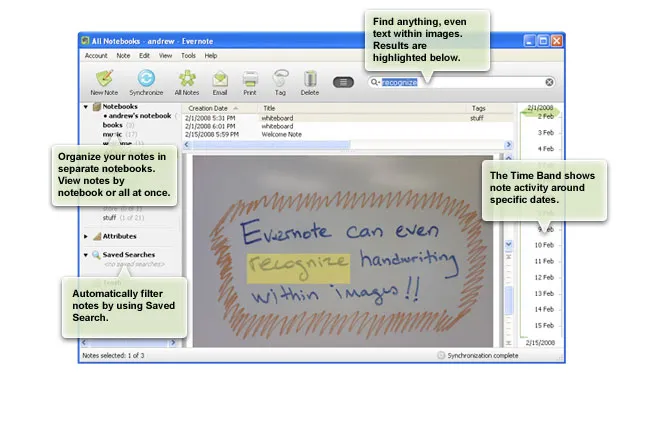
Evernote - your note pad always with you

Presentation design needs time. Squeezing out the last slides the night before the deadline will make your presentation look like, well, a document that was squeezed out the night before the deadline (most management consulting presentations). Give yourself lapse time to complete your presentation. A day of work spread out over a week gives much better results than sprinting from 18:00 to 02:00.

Most ideas come at times and places when you least expect it, and when you don’t always have a note book around. Evernote seems like a useful tool. Capture things on whatever device is convenient, but most importantly, archive it and make it searchable. This archiving is the most important feature I think. Finding notes, mobile phone images, yellow stickies, I lose most of them.

Maybe a special case of Fred Wilson’s “watch later” concept: stumbling on things when you do not have time to deal with it, putting it away somewhere for later access.

Via Lifehacker

·Design

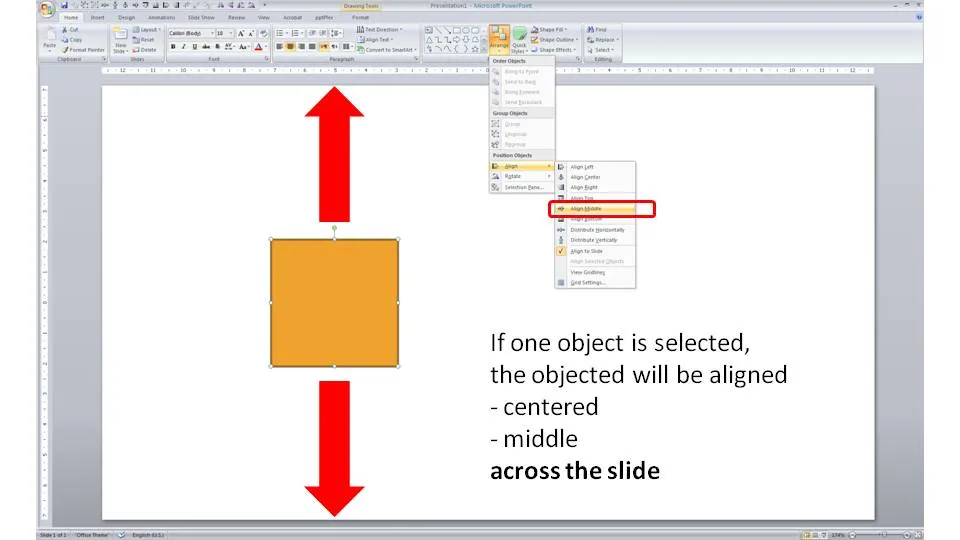
One click centering across the slide

Usually you use the align tool bar buttons (essential tool bar elements) to line up/center multiple objects. If you just select one object and hit a “Align Center” or “Align Middle” button, PowerPoint will center the object across the slide.

·Animations

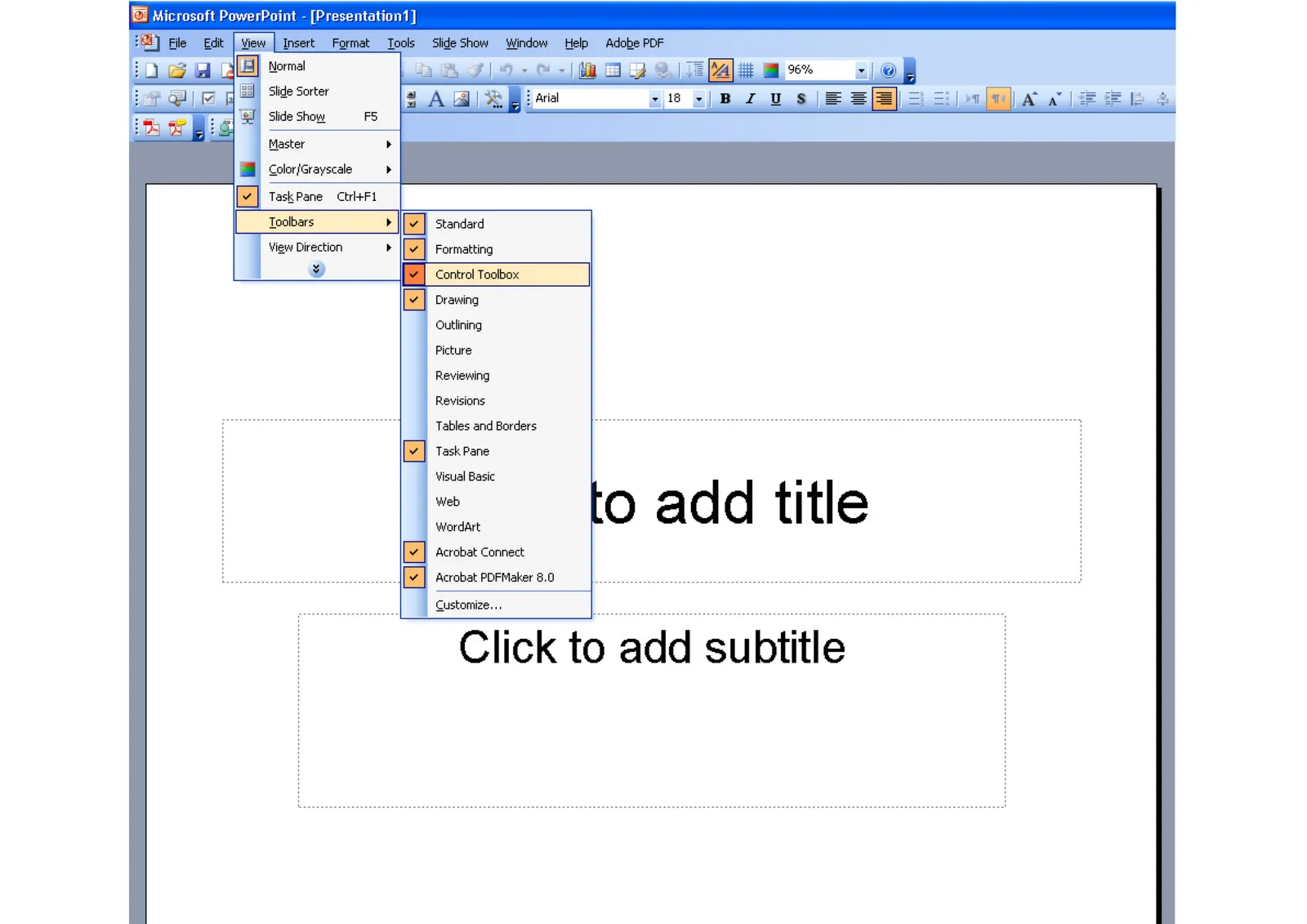
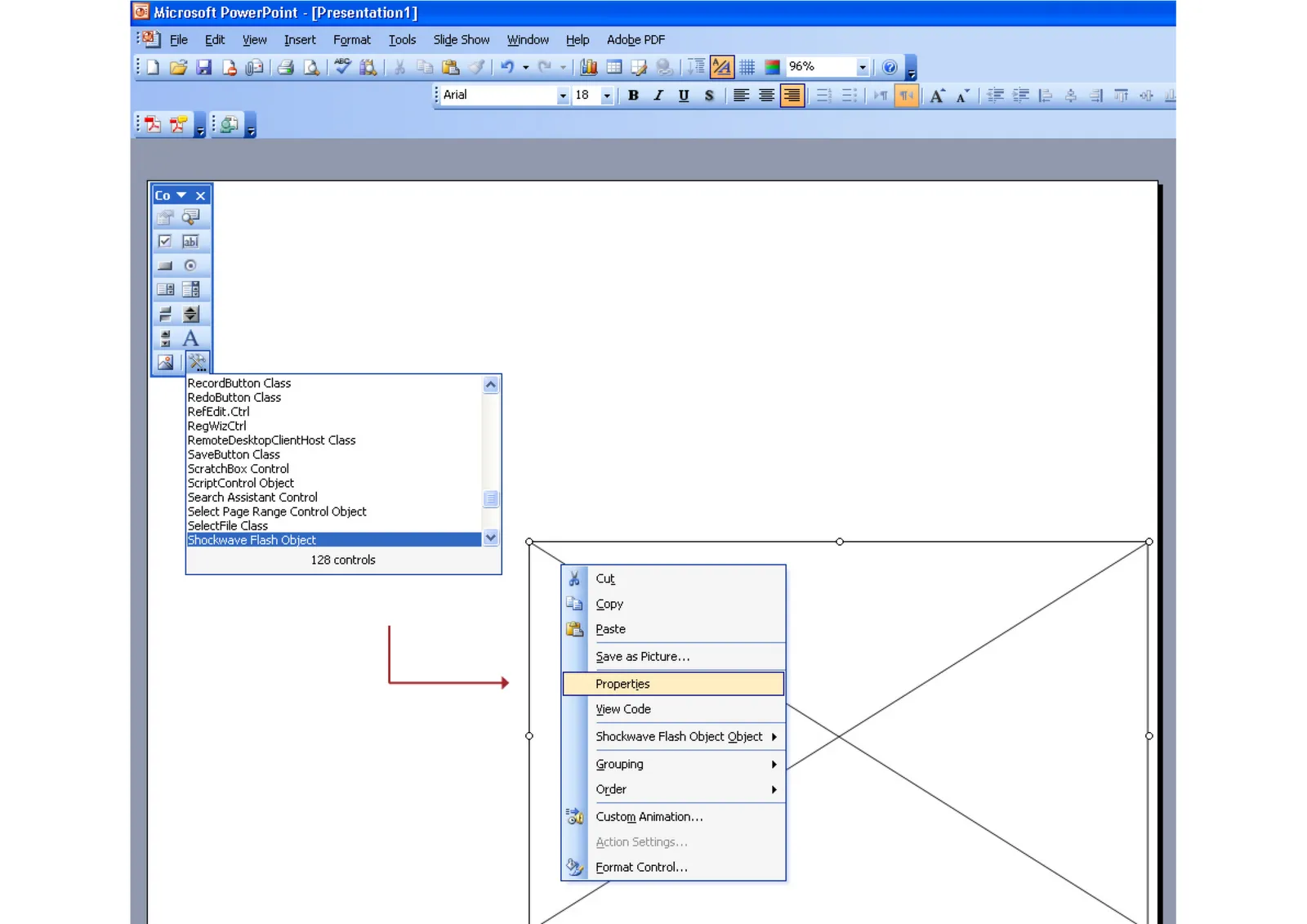
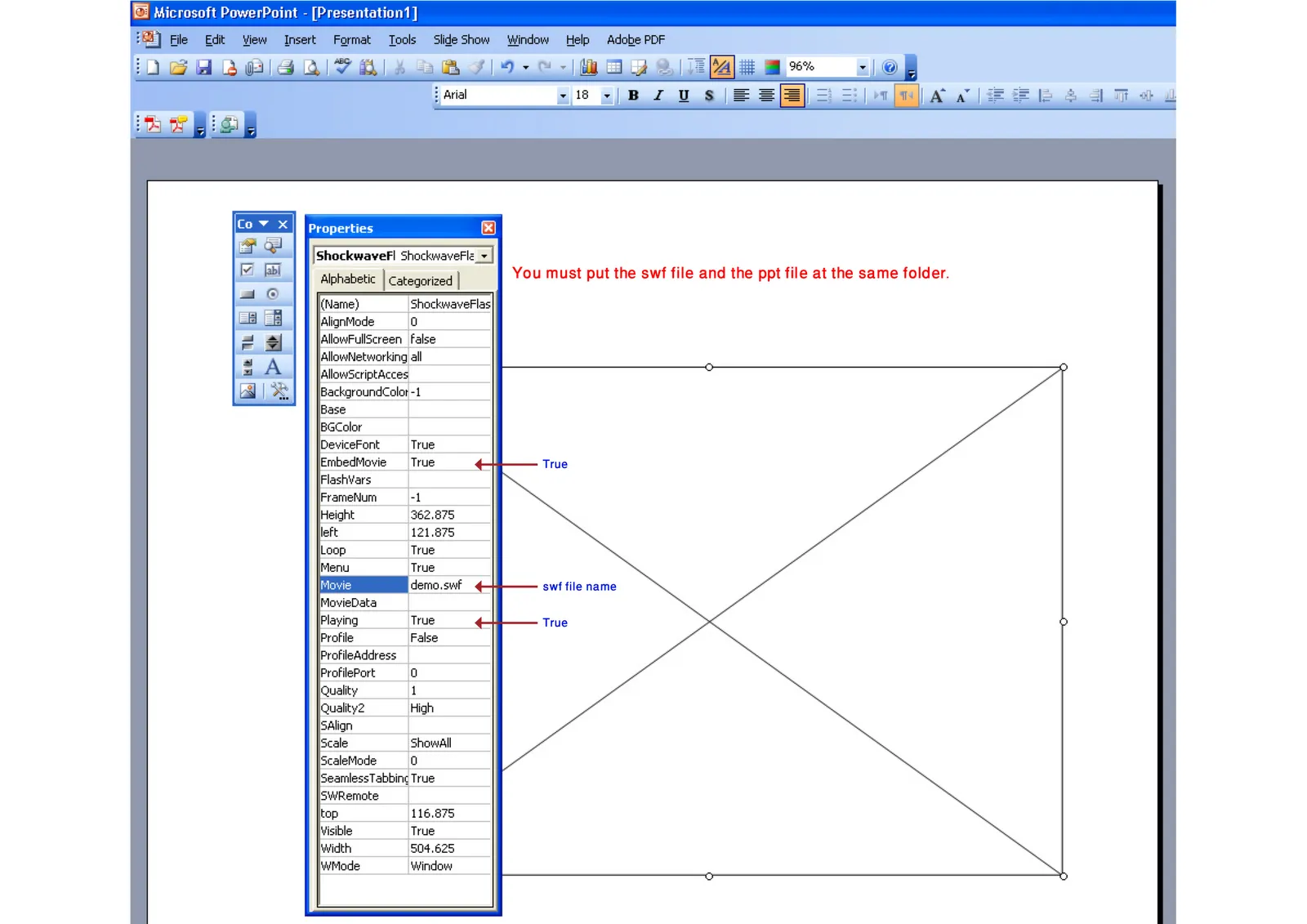
How into insert an Adobe Shockwave Flash animation into PowerPoint

Maybe because Flash files are not a Microsoft format, integrating them into PowerPoint is a bit tricky. Here is how to do it. Make sure that the .SWF file is in the same directory as the PowerPoint file. Click on the images for a larger picture.

When sending the presentation via email, it is best to ZIP the 2 files (PPTX and SWF) into one document. Still there is a high risk that the receiving party will not manage to see the Flash animation correctly. Do not use this for the critical slides in your deck. Thank you Karin Mazor for pointing this out to me.

·Design

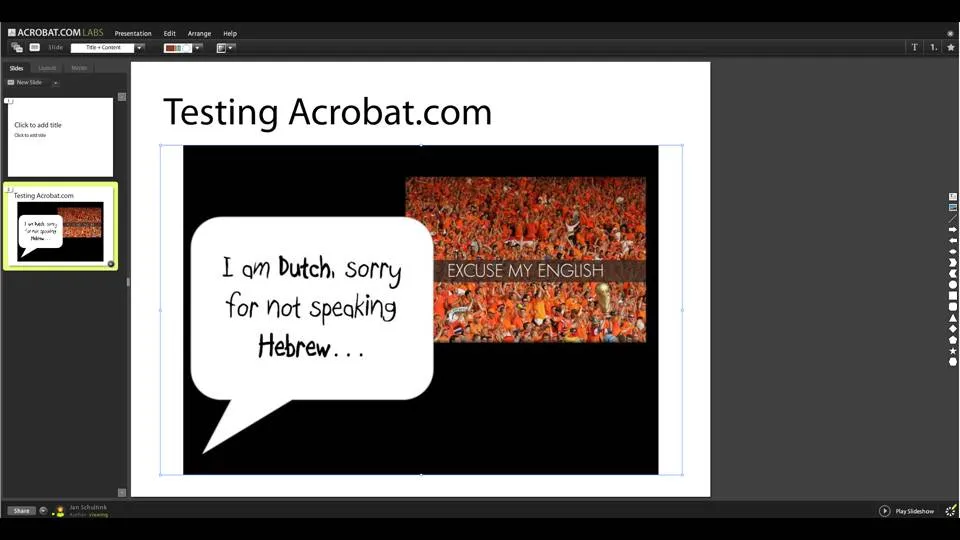
Testing acrobat.com in the cloud presentation tool

Acrobat.com is Adobe’s software-as-a-service initiative and it went live recently. The presentation tool is still in beta but can be tested here.

I am making a (small) u-turn on all these in the cloud office tools. A recent shift to part-Mac/part-PC working has showed me that (unlike spreadsheets and databases) the learning curve for working with a new presentation is actually not that high. Let’s whether either Adobe or Google docs can take on Microsoft’s dominant position in office software. I am less optimistic about the changes of completely new startups trying to do the same thing. Especially given that Microsoft will come with its own in-the-cloud offering with a user interface that is very similar to the desk top version.

·Design

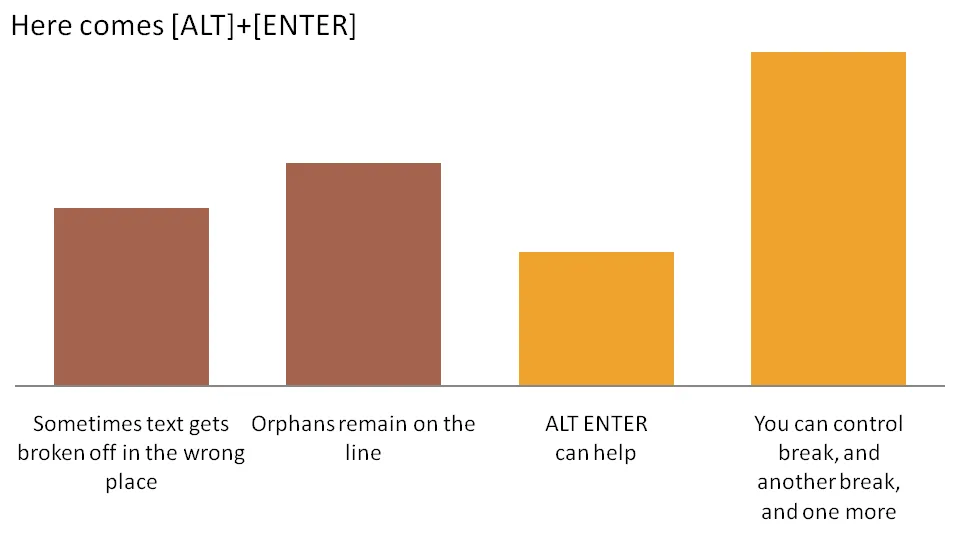
The joys of ALT ENTER

Pressing ALT ENTER in an Excel cell creates a soft page break, pushing the text down a line without “closing” the cell edit. You can use it to control line breaks in axis lables.

The other solution is to omit automated axis labels all together and put in your own standard PowerPoint text boxes under the bars in the chart.

·Design

Getting rid of image tags in PDF files

PDF is the preferred format for emailing out presentations:

  • Small file size
  • Clean presentation without the risk of an accidental edit

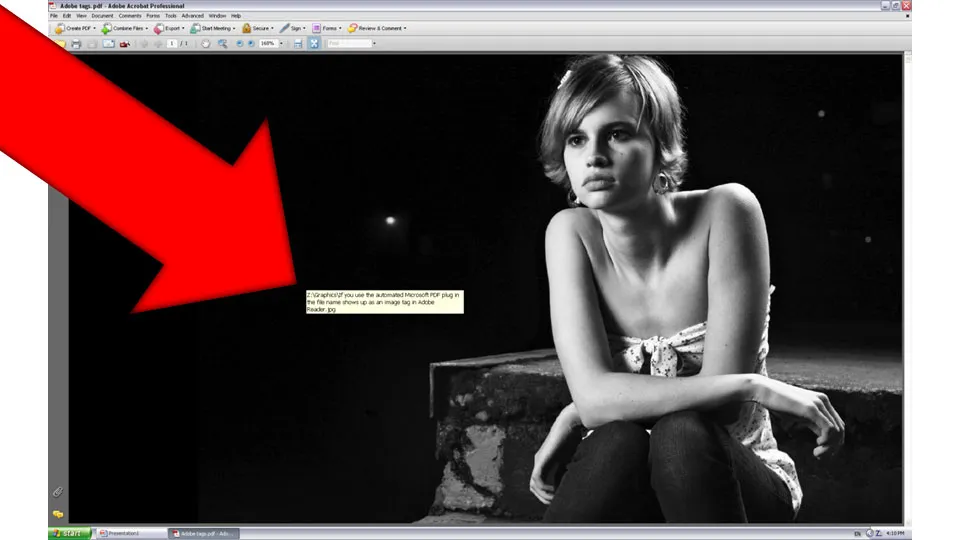
PDF conversions sometimes transfer the full file path and file name of an image in your presentation into a PDF image tag (see example below). Not very pretty.

To get rid of these image tags: Open the PDF file in Adobe Acrobat. [In version 8]: go to view, navigation panels, tags, click options, uncheck “Document is tagged PDF”, re-save the file and they’re gone.

·PowerPoint

How to speed up PowerPoint by switching off live preview

Live preview is the function that lets you see the result of an action (another color, another font, etc.) before you click it. Nice but a drain on performance. Here is how to get rid of it:

  • Go to the Office button (top left)
  • Select PowerPoint options
  • Uncheck the live preview box

(PowerPoint 2007)