SlideMagic Blog

Frequent updates about all things presentations since 2008. Subscribe to never miss a post.

RSS
all posts

Category Software

·Keynote

Dummy grid

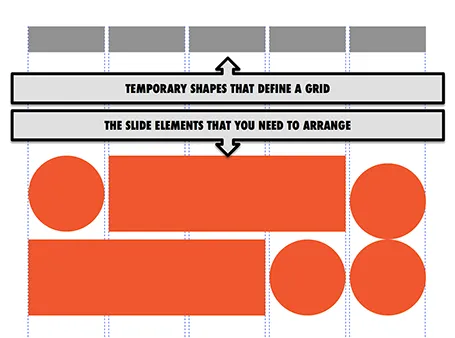
Drawing guides are a pain in PowerPoint (when you need to move an object close to the grid, you always end up moving the drawing guide line by accident). Also, grids can change from slide to slide.

My solution, quickly plop in some dummy shapes that define the grid for the slide you are working on. With snap to shape, you can create the slide layout you need, and get rid of the temporary shapes when you are done.

·Keynote

Native PPT on iPad

Parallels (best know for enabling virtual PCs to run on Macs) now offers a product that allows you to run any PC or Mac app (including PowerPoint and Keynote) on an iPad: Parallels Access.

How does it work? You need to install software on your PC or Mac that beams your application screen to your iPad. But Parallels Access is more than a simple remote access tool: adjustments have been made to add iPad-specific controls to PC or Mac apps (copy/paste, scrolling, etc.).

The service costs $80 per year, per machine you want to broadcast.

My take? I still think that the current iPad user interface is not suitable for intensive office work: you start missing a keyboard and a big screen when working for 8 to 10 hours per day. So I do not expect people to use this app when they are 5 meters away from their desk machine. Instead, it provides convenient access to crucial office applications when away from your desk (last minute changes in the taxi on the way to the sales pitch for example).

The pricing is also clearly aimed at the large corporate market. If you are interested in this type of solution, it might be worth to check out Splashtop.

·Keynote

Be annoying?

A question to you, to be answered from the point of view of 2 audiences: 1) you, people who are interested in presentation design and early adopters of new ideas, and 2) everyone else struggling with PowerPoint decks.

 I have the option in my upcoming presentation design app to eliminate features that contribute to bad slide designs. The result will be that you simply cannot do what you used to do for 20 years, and you will also have to say “no, not possible” to your boss who just asked you to do something to a slide.

Will this be a liberating experience, or will tired employees just switch back to PowerPoint at 23:15 in the evening to get the deck out for tomorrow morning 09:00 and still get some sleep?

·PowerPoint

PowerPoint toolbar buttons

As I am rebuilding my work machine, I googled my own blog to remind me what are the absolute essential toolbar buttons you should have available in PowerPoint and came across this old post. These are absolute time savers!

·Keynote

A hard drive crash in 2013

I had to swap my hard drive a few days ago and the experience was quite a different one from similar accidents that happened to me in the 1990s. What is different?

First of all, the total lack of panic. After I diagnosed the problem, I did not have to think long about hitting the delete hard drive button. All my data is in Dropbox.

A hard drive crash would have been an excuse to splurge on a new machine a decade ago. Then, there were dramatic performance degradations in just a few years as PC software become more powerful, especially because of the improved graphics. No such thing in 2013, software does not get more complicated, often the opposite is true as PC software is replaced by web applications.

I decided to rebuild my computer from scratch rather than recreating it from a Time Capsule backup. The machine got a little slow and cluttered full of applications that I tried once but never used again afterwards.

One decision: I did decide not to re-install my virtual Windows machine that I put on my machine the first day I bought my Mac to calm down my fears that the whole transition just might not work. PowerPoint 2013 for Windows is better than PowerPoint 2011 for Mac, but not enough to justify breaking my Mac file system workflow and colour picker, and to sacrifice disk and CPU performance to a huge virtual machine (Parallels).

Some things to remember with Dropbox. Move the default photo directory of your Mac inside Dropbox so you have your personal pictures backed up. (But then again, 99% of my personal pictures are actually sitting on my cell phone now, and the reason that it is very important to back up your phone, personal photos on your phone are more important than PowerPoint files on your PC). And secondly, move your Mac download folder into your Dropbox. Some software that you bought online do not allow for re-downloading the installation file (stupid).


Continue reading →
·Images

Screenshot = picture export

Exporting things as a picture can be cumbersome. File types, resolutions (PowerPoint for Mac is horrible), finding where the file was saved, etc. More and more, I use simple screenshots to the desktop as my picture exporting tool. With the added benefit that I can make find compositions in PowerPoint which I often find easier than booting up Photoshop.

·Design

Office for iOS - yawn

The column by David Pogue in the NYT says it all: the long-expected launch of Microsoft Office for iOS is a non-event.

As I am slowly progressing with the design of my own PowerPoint alternative, I start to realize that phones and tablets require a fundamental rethink of what a user actually wants to do in a presentation design/delivery context. I have not cracked it yet myself either but am trying hard to solve the problem by trying to disconnect my thinking completely from how desktop presentation design applications have been set up over the past 30 years.

·Gadgets

iPad without the new car smell

Immediately after the iPad launch, doing a presentation on the device was cool and innovative. Now that the new car smell has worn off, the iPad has become another common device in our IT setup (light, small, touch, crappy file system). What are the implications for presentation design?

  • More people do not carry their lap tops everywhere anymore. As a result, you might find yourself running a presentation from an iPad in a 1-on-1 meeting. Not because of it is cool, but because it is the only screen around.
  • Increasingly, people open email on mobile devices. Remember that a PPT file does not look great when opened on an iPad without the right apps. And it is unlikely that your boss, or potential customer, or potential investor has this software installed.

So what I end up doing is saving a animation-free PDF version of my important presentations (no font rendering issues) and keep them in Dropbox alongside the PPT master file. The iPad has become a workhorse.

·Keynote

Trying out Medium

Medium is a new publishing platform and I gave it a try with a first post on how bad design habits from the 1990s still cause dammage today (overhead transparencies, word processors).

Medium allows you to create collections and I started one about presentation design, pitching ideas, and public speaking under the name “Seeing is believing”. Feel free to contribute.

Although I like the clean design and focus on writing of Medium, it is too early for me to give up the good old Blogger platform, with many of you reading my posts via RSS and email updates.

·PowerPoint

DIY shapes

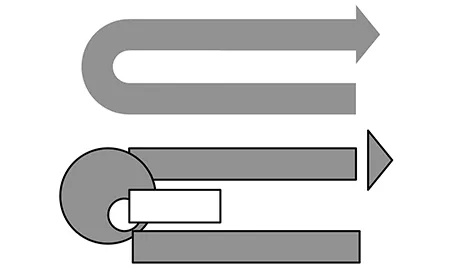
It is hard to get an arrow to point exactly right in PowerPoint. If the standard shapes fail, why not construct your own out of small individual bits. You can group the shape together, or create a new custom shape with one of the shape boolean functions (Windows instructions here, on a Mac: select 2 shapes, right click, go in the grouping menu).