SlideMagic Blog

Frequent updates about all things presentations since 2008. Subscribe to never miss a post.

RSS
all posts

Category SlideMagic

·PowerPoint

This presentation tool is not a presentation tool

PowerPoint, Google Slides are presentation tools that most of the time are actually not used as presentation tools. Rather people use them as a visual collaboration tool. The organization chart that needs to go into the deck forces the issue: it is time to agree on where the boxes sit and which lines (dotted or straight) go between them. The tiny footnote is essential to agree the strategy for the North America entry strategy etc.

The visual character of these programs makes them more useful to do this than word processors. Online collaboration adds another option to manage multiple pens in one document. Comments give a system to manage todo lists.

SlideMagic on the other hand is a presentation tool.

Image credit: Jay Cross on Flickr

·SlideMagic

PDF glitch fixed

There was a small glitch in SlideMagic’s PDF converter which has been fixed in version 2.7.2, updates should install automatically, if not, download a fresh version from www.slidemagic.com and you are good to go.

·SlideMagic

Working on integrating OpenAI

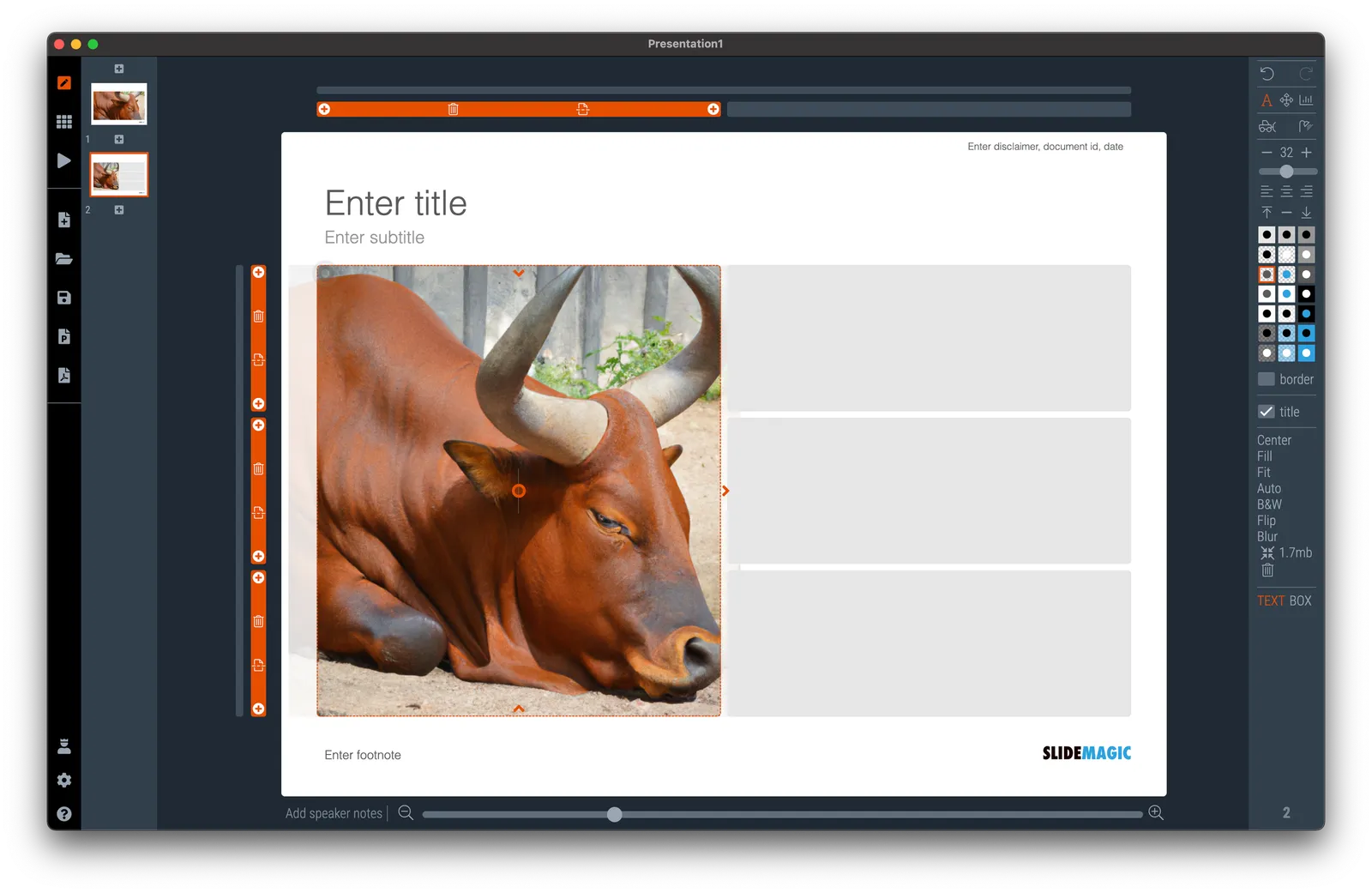
Soon, SlideMagic Pro users will be able to create images using AI (DALL.E) right from within SlideMagic. The prototype is working (see screenshot), I just need to tidy up things a bit before a release to the public.

·Layout

Football charts in SlideMagic

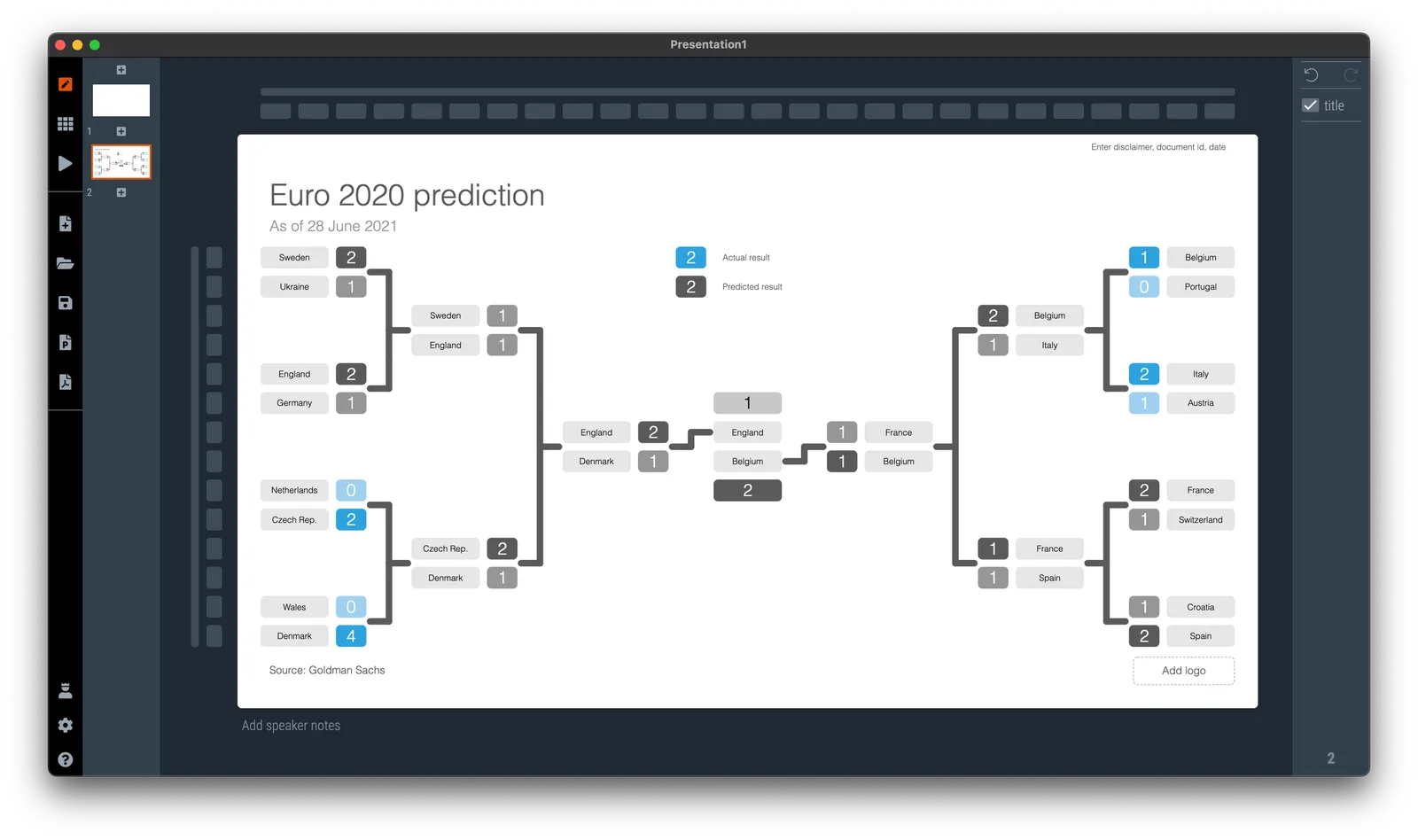
If you need to plot the progress of your team in the FIFA World Cup, SlideMagic is there to help you. There are a number of football charts in the library, including a tree where you can add teams in the knock out race to the final (see below).

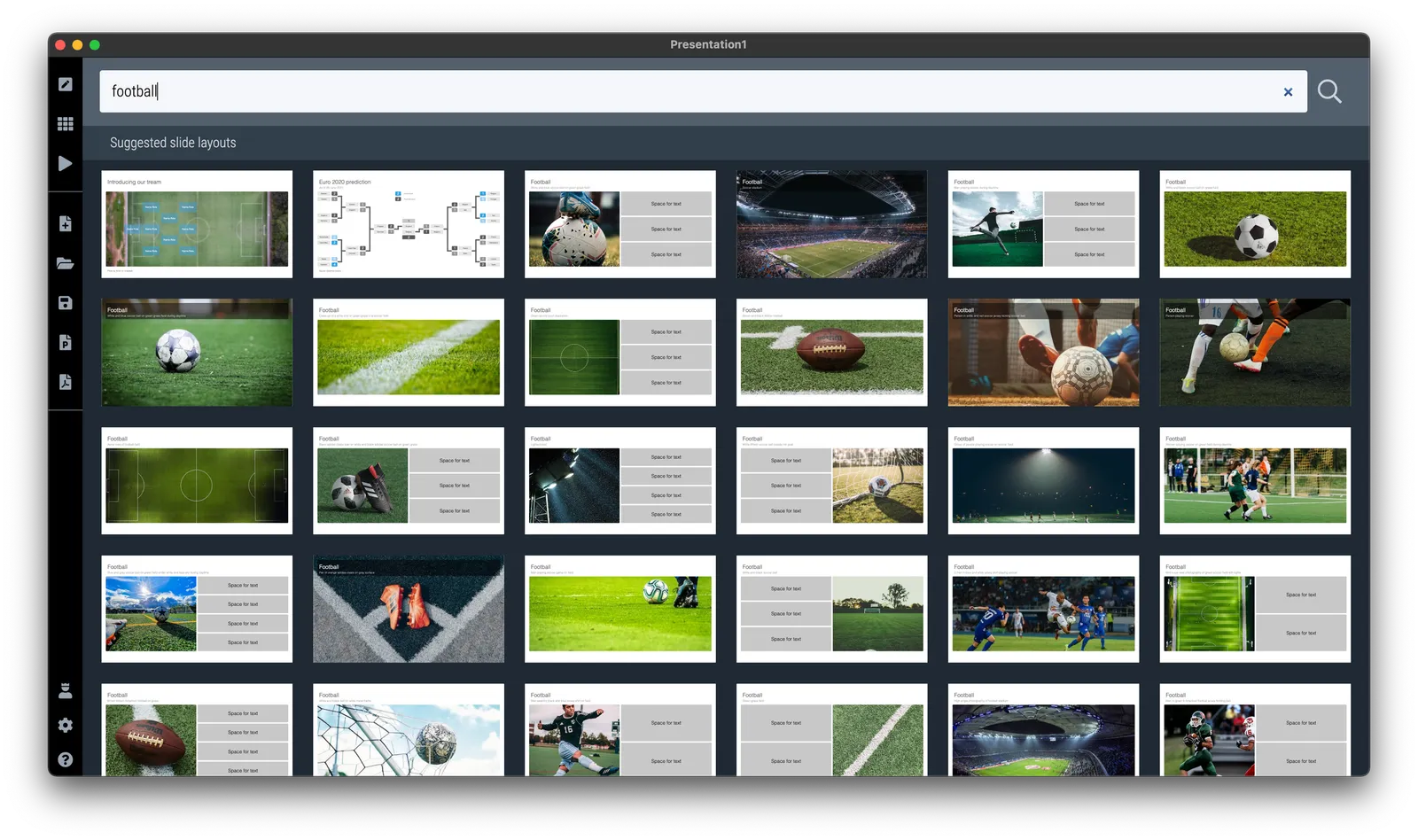
Simply search for football in the SlideMagic app and the charts will show up (see below).

SlideMagic Pro users can convert these slides to PowerPoint or PDF. Free student plan available

·Layout

Fixed slide titles

PowerPoint slide templates originate from the 1980s. “Slides” would mainly be data charts: graphs and tables to show information. At the top of these pages would be a descriptive title (Economic output in the EU), and the subtitle would give the unit of measurement ($ billion).

Slide templates evolved. Business school professors and management consultants invented frameworks, more conceptual slide layouts, and people started using presentation software to layout their entire story on the big screen, often in bullet points. Descriptive titles became messages.

In most cases the title stayed. Every slide always has a title at the top. But this layout does not always work. People started adding a big arrow, with another big message next to it to make sure that the audience gets the point (it is spelled out 2x on the slide).

Titles take up valuable screen real estate, especially on widescreen 16x9 layouts. They make the chart body space even longer, more stretched. A loooong sentence in small font across a 16x9 slide can be hard to read.

I have become more flexible when it comes to titles. Data charts still have them. But other slide layouts might have none, instead, just an image, or a big text box somewhere else on the page. Or a message that is actually a few paragraphs long, on the side of the slide.

In SlideMagic, you can instantly change the layout of slides, and switch the fixed title on or off. It is time to let go of the obligatory title. See the the examples below. (If you are reading this as an email blog update, you might have to click through to the original post to see).


Continue reading →
·SlideMagic

Graphical language

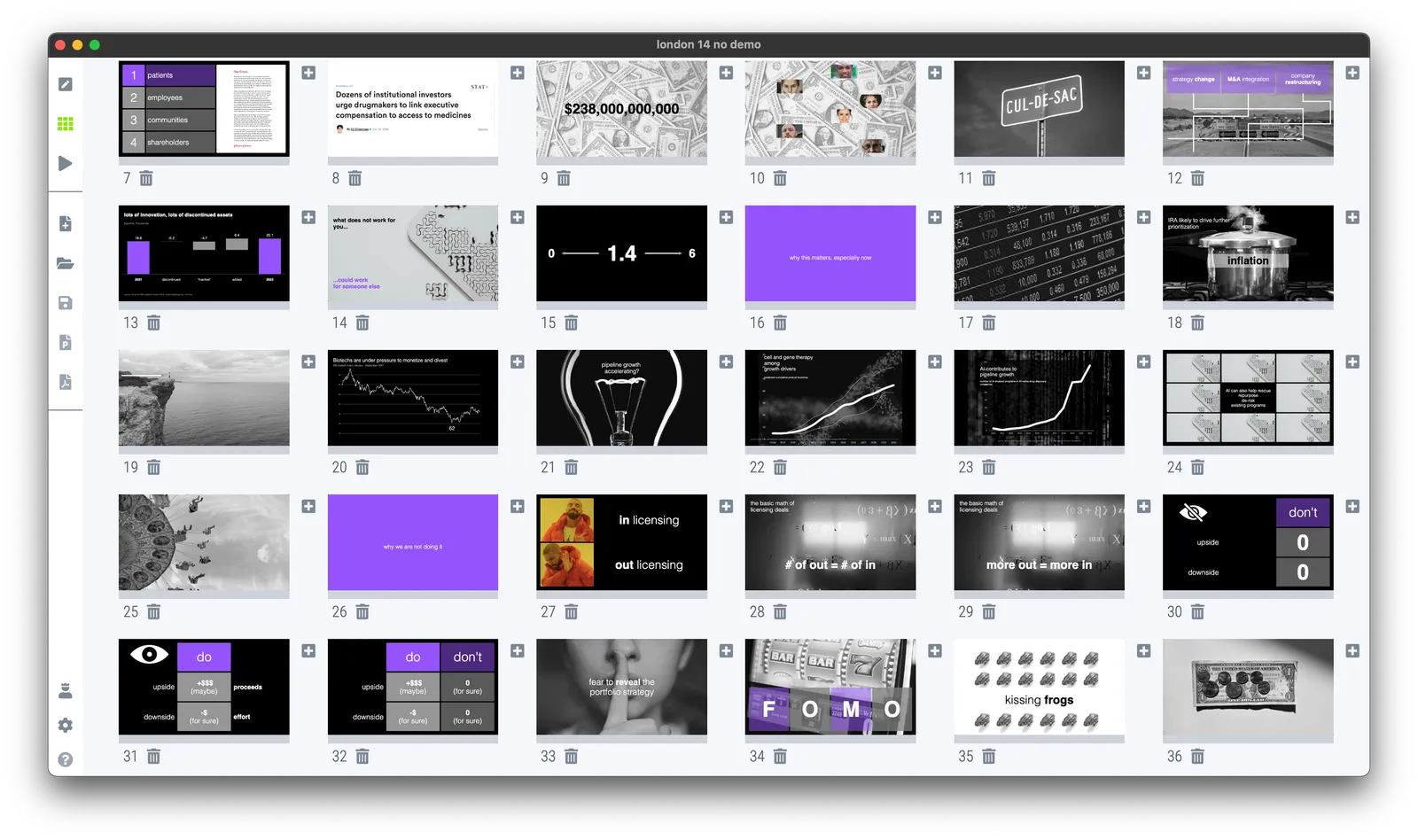
Make sure you maintain a consistent graphical language throughout your slides. Here is a thumbnail view of a section of a deck I used in recent meetings.

Here are the guidelines I used:

  • Dark background, white text, purple accent
  • Page-filling, black and white images
  • No capitals
  • Selectively bolding a word in a sentence
  • No slide titles in a fixed position

Every slide blends right in without, complicated graphics, and SlideMagic makes it really easy to apply this style.

·Software

Side panels in separator slides

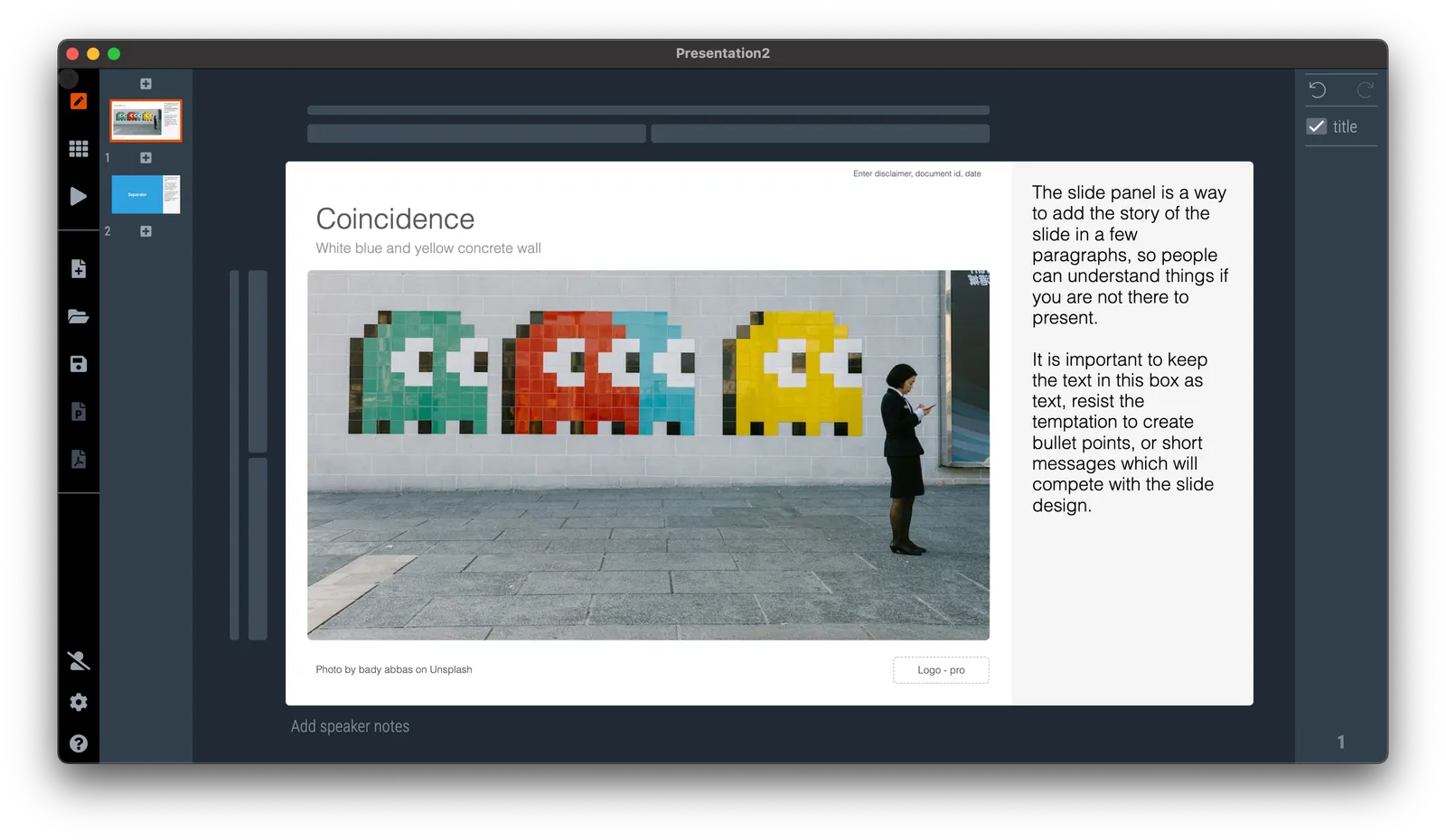
The slide panel is a way to add the story of the slide in a few paragraphs, so people can understand things if you are not there to present. It is important to keep the text in this box as text, resist the temptation to create bullet points, or short messages which will compete with the slide design.

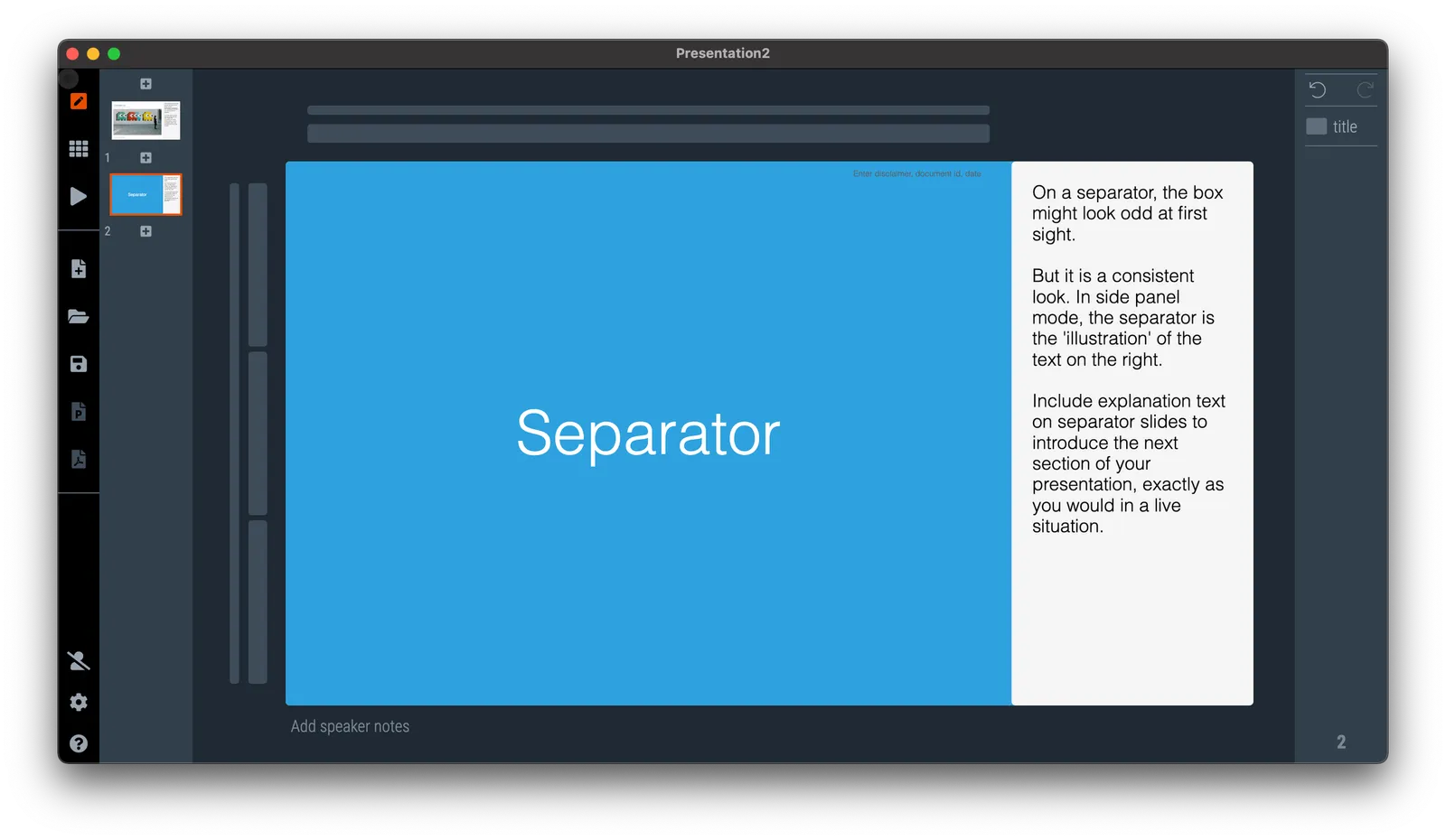
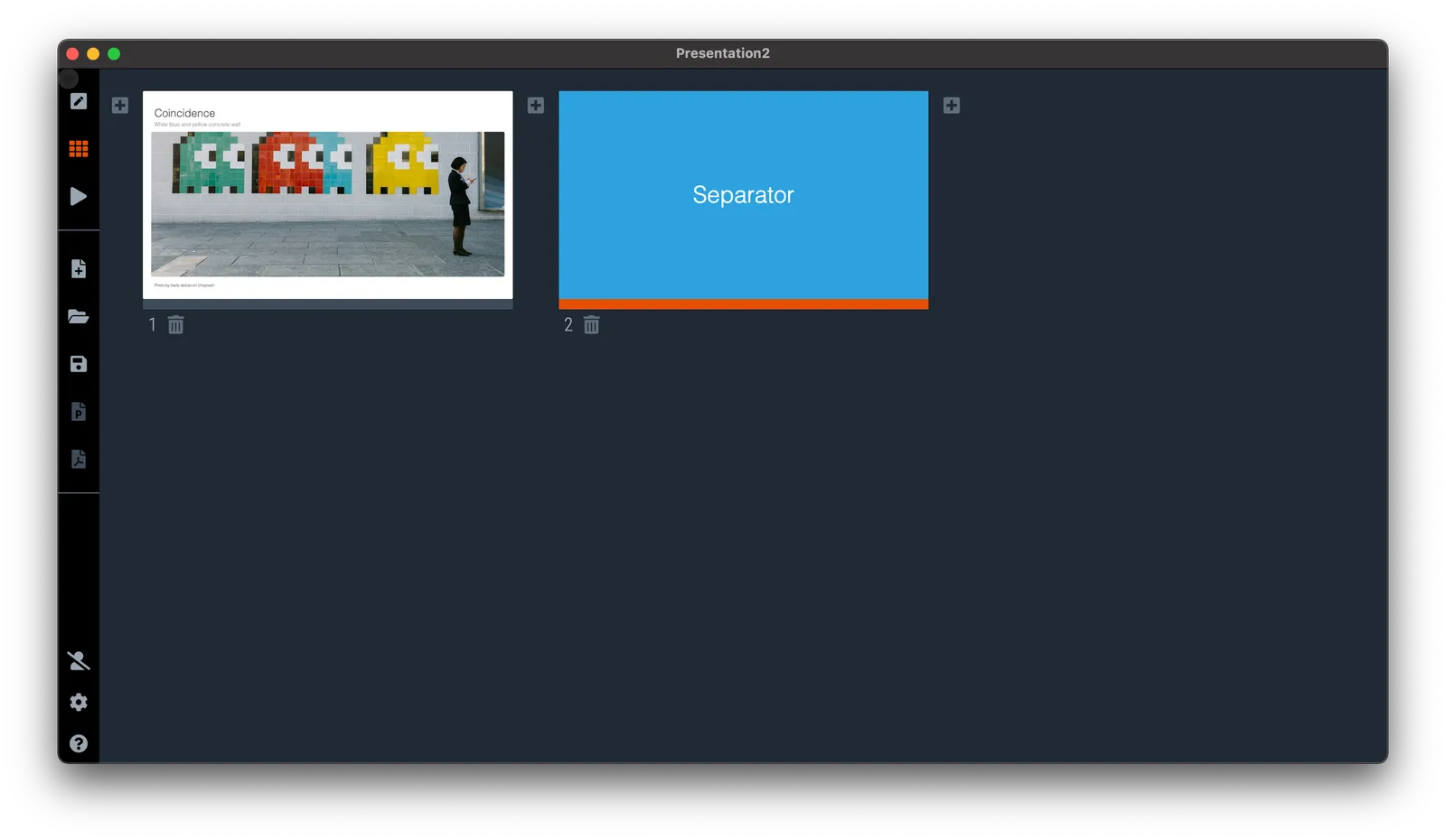
On a separator, the box might look odd at first sight. But it is a consistent look. In side panel mode, the separator is the ‘illustration’ of the text on the right. Include explanation text on separator slides to introduce the next section of your presentation, exactly as you would in a live situation.

See the example below:

If you switch to another view mode, the side panel will disappear, but the app keeps the text, so you can switch them back on at a later stage.

·Software

SlideMagic 2.6.41

A new version of SlideMagic is deployed, and should automatically install. This version includes security patches, and a slightly less strong background color difference between the main slide and the explanation box view.

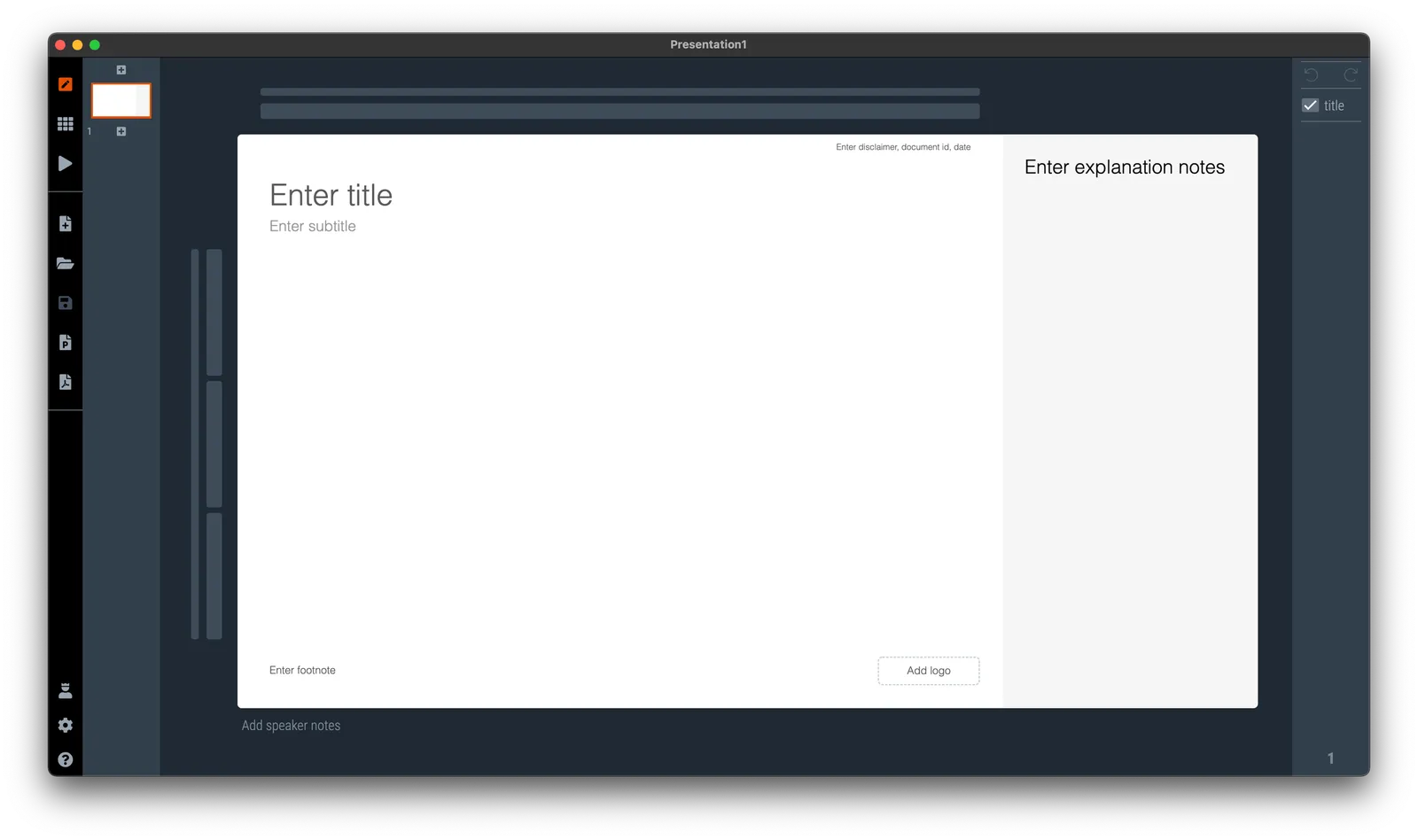
The explanation box is one of 4 views of SlideMagic:

  1. Narrow 4 x 3 aspect ratio
  2. Wide 16 x9 aspect ratio
  3. Title on the side
  4. Explanation box view, which creates space for an extra text box where you can enter a few paragraphs to explain a slide in case you send the deck without being present yourself.

The text in the side panel stays saved in the file even if you go to another view, so you can decide when you want to show it, and when to hide (for example in a live presentation).

·SlideMagic

Streamlined signup for the free student plan

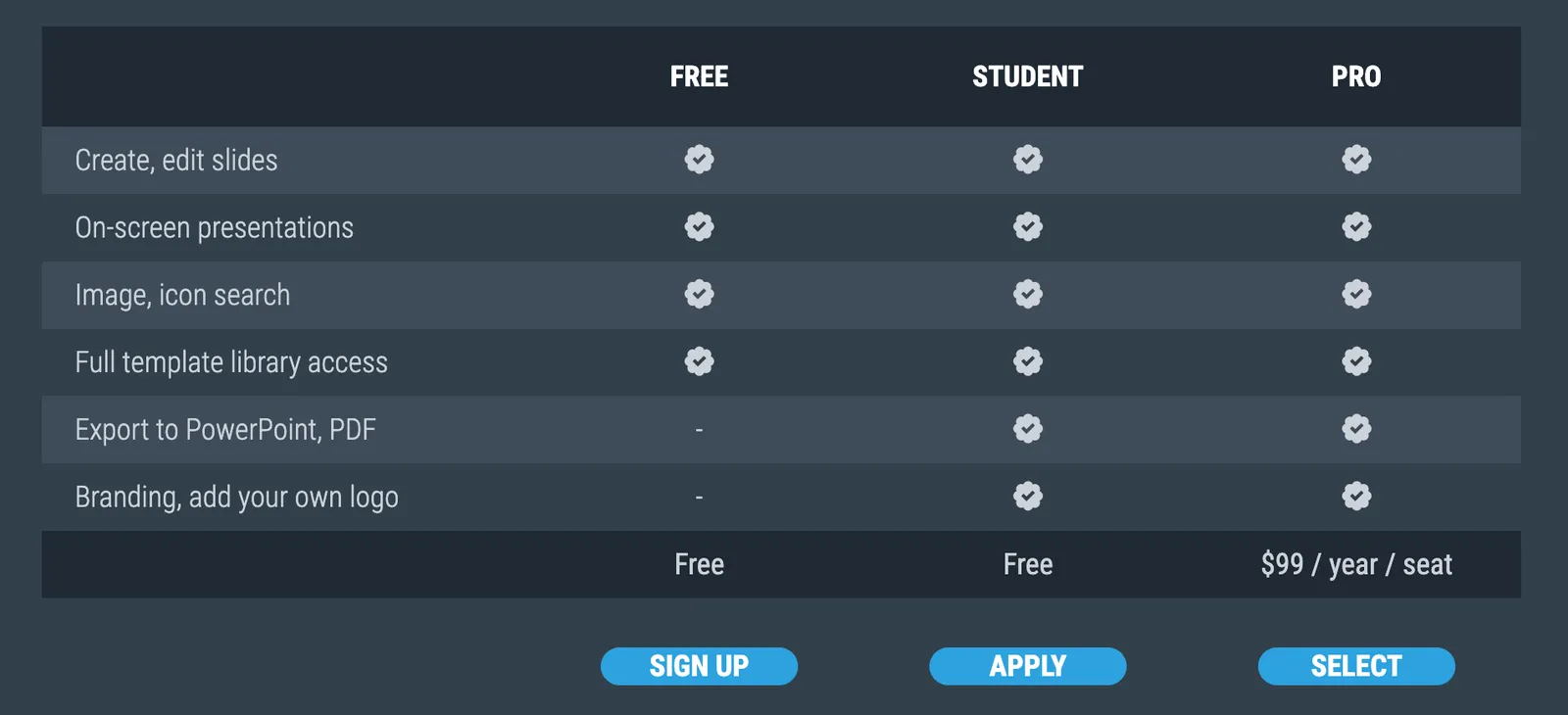
Students can get free access to SlideMagic Pro. The signup and validation process is no longer cumbersome, you can get started straight from the pricing page:

·SlideMagic

Automated student verification

Students are eligible for a completely free SlideMagic Pro subscription, and I have now automated the validation process for a number of markets:

  • Austria
  • Denmark
  • France
  • Italy
  • Germany
  • Spain
  • Sweden
  • The Netherlands
  • Turkey

After you have registered a free account with SlideMagic, you can visit this link to start the validation process. If your account is based in one of the above countries you get instant approval. Clicking the “I am a student” button will take you to the login page of the university or school you are currently studying at. After a successful login, your SlideMagic Pro subscription will automatically be switched on.

For other countries, we are still using a partly manual approval process.

All this was made possible through a partnership with InAcademia. If you run a web site that needs student validation it is worth checking them out.