SlideMagic Blog

Frequent updates about all things presentations since 2008. Subscribe to never miss a post.

RSS
all posts

Category Keynote

·Investor presentation

How to put video inside PDF

More and more of my presentations start to use video, and my preferred format for emailing/Dropboxing decks is PDF, so how do you insert a video in PDF? It is easy with Adobe Acrobat X:

  1. Save your presentation (PowerPoint or Keynote) as a PDF without the video
  2. Open the deck in Acrobat X and select tools at the top right
  3. Select multimedia, select video, and draw where your video should go with the cross hairs
  4. Select the video file, or insert a YouTube link (I went for the first option, the video size was below 10MB)
  5. Select advanced options, and select use poster image from file to pick the right cover
  6. Click done

The investment bankers of a recent client insisted on the traditional Executive Summary to send to potential investors. I used this video and a 3 column dense text layout to turn a boring bullet point list into a nice looking one page document meant for reading and watching.

Unfortunately, the video does not (yet) play on an iPad…

·Keynote

Subterranean Homesick Blues

What a brilliant presentation concept by Bob Dylan in this video of his song Subterranean Homesick Blues.

·Keynote

The table as a grid

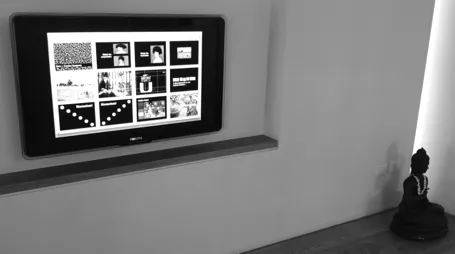
It can be a real pain to space out logos in a logo page nicely. My trick is to use a table with a really fine grey line between cells. It is easy to adjust the grid when you need to insert and/or delete columns and/or rows.

See here an earlier post on how to make great looking logo pages.

·Data visualization

Tables can look good

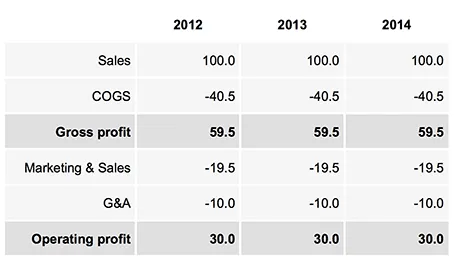
Sometimes, you do not need a data chart at all, and nicely formatted table with rounded numbers might just be the best option to visualize your data. This is especially true for financial statements with lots of information, or in situations where one chart contains a lot of numbers with completely different orders of magnitude. Some quick improvements you can make to make a table look good:

  • Space out rows and columns, the more of them are the same size, the calmer the table will look
  • Round up numbers to a reasonably precision, use a “,” to separate thousands Right-align numbers, make sure the decimal dot lines up
  • Right-align the first column with descriptive text, so it is as close as possible to the first column with numbers.
  • Use highly muted background colors, I usually pick the lightest grey that I can get, and draw the cell borders with a white line
  • If necessary reduce the font size, very big fonts with unnatural line breaks do not look very good in a table.
  • Enter data manually: yes typing in every single number by hand is often the only way to get the table to look exactly the way you want it to. Fifteen minutes that are well-spent

UPDATE: on request an example of a table layout I often use.

·Investor presentation

The real case study

Case studies in investor and sales presentations are most of the time hollow and fluffy quotes that were clearly the result of an email saying “Do you mind if I quote you saying that our solution is highly flexible and scalable?”.

Here are a few ways to make a case example real:

  • Focus on one specific benefit, if you try to put your entire story in the mouth of your customer, you need 30 slides, not one
  • Cut the fluff
  • Be very specific, and very detailed, quantify if you can.
  • Add an image of your client to make things more authentic.

Case studies can be more than a simple quote of text. If you want to show that your system can be installed within 6 weeks, why not show a bar chart of your last 10 customer installations, with the exact time it took to install the system?

Tell a real customer story.

·Gadgets

iPhone Keynote remote

I recently used my iPhone as a remote control to move between slides for an on-stage Keynote presentation.

This is one of 2 ways you can now use an iPhone/iPad to give a presentation. The first is to run the presentation in the device itself and connect it to a screen via an Apple TV (or a cable if you are sitting around a conference table). The second, is to use your iPhone/iPad to control a computer via WiFi or Bluetooth.

I used the latter. While it did work there are 3 glitches, one of which is a big one:

  1. Both your iPhone and your computer need to be hooked up to the same WiFi network, which requires some fiddling with technology. For some reason Bluetooth failed to connect the devices. So it is different from using a standard plug and play Logitech remote that works always in a second. Budget time to make it work.
  2. You move between slides by sliding the screen, which is a movement that is a bit hard to do with one hand. I would have preferred it when the volume + and - buttons would have been allocated to do this, like in the camera application.
  3. And here is the big one, your remote can get stuck in the middle of a presentation. It happened to me twice where I had to wait for some buffer to clear before I could move on to the next slide. Not good when you are standing in front of a big audience.
Continue reading →
·Data visualization

Breaking conventions

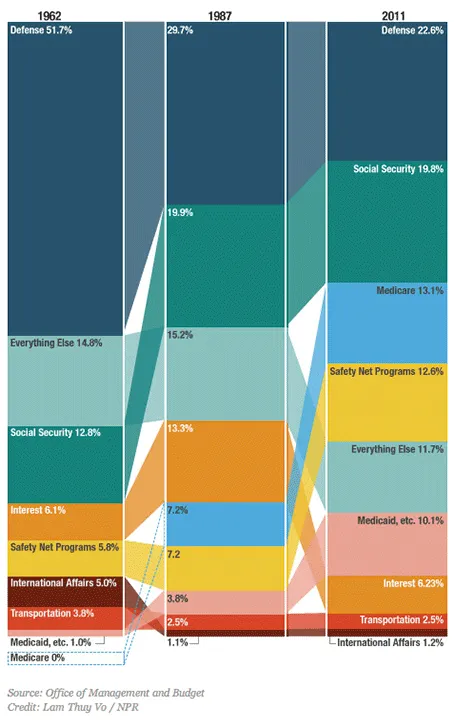
This column chart about government spending on NPR breaks a lot of conventions. Years at the top, no totals, data labels inside, not on the second column, repeated in the third, and it tries to visualize both the size of the values and the order in which they appear with the semi-transparent connections. For an on-screen presentation it is too much to digest, for careful on-screen reading it might be OK. What do you think?

·Gadgets

iPad "books"

Whenever there is an innovation in visual communication, people initially struggle how to use it best. Hand-written text scrolls did not have page numbers, spaces between words, or sentences. The first ads were either paintings or primitive, poorly designed pamphlets. Color and photography took some time to be used properly. It took 10 years or so after the arrival of PowerPoint before Garr Reynolds had his insight and write Presentation Zen, and he is still busy convincing the world to kill the bullet points as I am writing this.

So here we have this iPad and the iBooks writing platform that enables anyone to create apps that incorporate touch and can be read away from the office chair. I have started to write an app on this platform myself and am constantly changing my approach. I started with the concept of a book in my mind (pages of text with images), but then discovered all this other things you can do: Prezi-like zooming diagrams, embedded slideshows, videos, Keynote presentations, questions. This is not a book writing tool, it is a software development tool. All these visual tools were available before on the web: zooming images, videos, data visualization. But somehow they never made it as the basis for the development of visual stories. I think the fact that an iPad can be used away from the office chair/screen will change that.

Nancy Duarte recently ported her book Resonate over to the iBook platform and the result is beautiful. And it gives some good examples of how new visual techniques are more than just making content prettier or more spectacular. Many of the effects in the Wired magazine iPad edition are just like poorly used animations in PowerPoint or Keynote: interesting, but they do not add to the story. When Nancy analyzes a speech by Ronald Reagan, it is just very useful to be able to watch the actual thing alongside.

Continue reading →
·Gadgets

Mac screen to TV - wirelessly

I think that wireless video technology will transform home entertainment and the corporate conference room. In the latter, hopefully we might see the end of battles with laptops, cables, and projectors before we can get down to showing our presentation. It will take time before the last conference room is Airplay enabled, but I am keen to accelerate things.

It is already possible to Airplay iPhone and iPad screens on your Apple TV, but font issues still complicate the transfer of presentation files from computers to mobile devices. Currently, Airplay mirroring is not supported for Macs. The next version of Mac OSX will allow Airplay mirroring of Mac screens wirelessly to your Apple TV.

If you cannot wait, well, there is an app for that. Airparrot enables sending your Mac screen wirelessly to you Apple TV ($10). The app has many customization features, allowing you to adjust the performance/quality trade off and select which screens you want to transfer, or even which apps. You can switch off the cursor.

Still we are not yet living in the world of 1-click Airplaying of video. Television screens have a lower resolution than computer screens. So before using the app, you need to downgrade your Mac display to 1280x800, the closest to my Apple TV 1280x720 resolution. After that some fiddling with the screen remote to get the right aspect ratio. The resulting screen sharpness is OK, but not the pin-sharp feel you get from watching an HD movie. It is perfectly fine to play presentation slides (which are often 1024x768), but less than optimal for other applications.

Continue reading →
·Gadgets

5 ways to present on iPad

I am switching my own introduction presentation to iPad/iPhone, leaving my laptop home as a I go to meetings and instead bringing a small iOS to VGA converter cable with me (Airplaying the presentation to a big screen only works in my own office for the moment). I would recommend this to anyone who constantly needs to have her pitch/sales presentation ready to go.

As a result, I am trying all possible ways to view slides on my iPad. Only Keynote users have a perfect solution (Keynote), if you use other formats it is still compromising. In my case for example, I need PowerPoint to show example presentations that I designed a while ago. And a second complication is that I use a few custom fonts…

So here are your options, I use Dropbox to sync my files, it is still a lot more convenient than iCloud.

  1. Keynote to Keynote.  Straightforward and simple. Download in Dropbox, tick open in Keynote and you are all set. When you are in presenter mode, you get a preview of the next slide on your iPad, while the audience just sees the current slide on the projector. Only works with standard fonts that are installed on the iPad.
  2. PowerPoint to Keynote. This works surprisingly well (if you use standard fonts). Download the PowerPoint file in Dropbox, tap open in Keynote and you have a file which is 95% OK. However, I am a perfectionist, and the 5% needs to be right as well.
  3. SlideShark is iPad app specifically designed for presenting slides. You can upload PowerPoint files to their server, or tap a dropbox or email link and tell the iPad to open the file in SlideShark. The interface is nice, with the option to move randomly between slide tiles (which the audience cannot see) to break the lineair flow of a deck. SlideShark preserves animations in your slide. Using a special font requires a request to SlideShark technical support to install it in the data center. Unlike Keynote, SlideShark does not support the standard Apple fonts (such as Helvetica) SlideShark is not yet retina-optimized I think, the image looks slightly hazy on my screen, but I am sure an update will follow soon. The app has still some childhood diseases at the moment but it could be a clear winner in the future as the team there seems to working hard to make it work among larger competitors who are less focussed iPad presenting (i.e., Microsoft).
  4. PDF to Adobe Reader for iPad. Convert your PowerPoint file to PDF on your desktop, download it via Dropbox and select to open it in Adobe’s Reader app(free). Fonts come out perfectly. The display is crystal clear, and the Adobe Reader app for iPad has a good full screen mode (unlike other document readers). Obviously PDF does not support animations
  5. PowerPoint to Adobe CreatePDF for iPad. The Adobe CreatePDF app works reasonably well for me (I do not understand all the 1-star ratings on iTunes), but (and it is a big but), only if you use standard fonts (and are willing to invest $10) and your deck does not have animations.
Continue reading →