SlideMagic Blog

Frequent updates about all things presentations since 2008. Subscribe to never miss a post.

RSS
all posts

Category Images

·Images

Corporate title pages

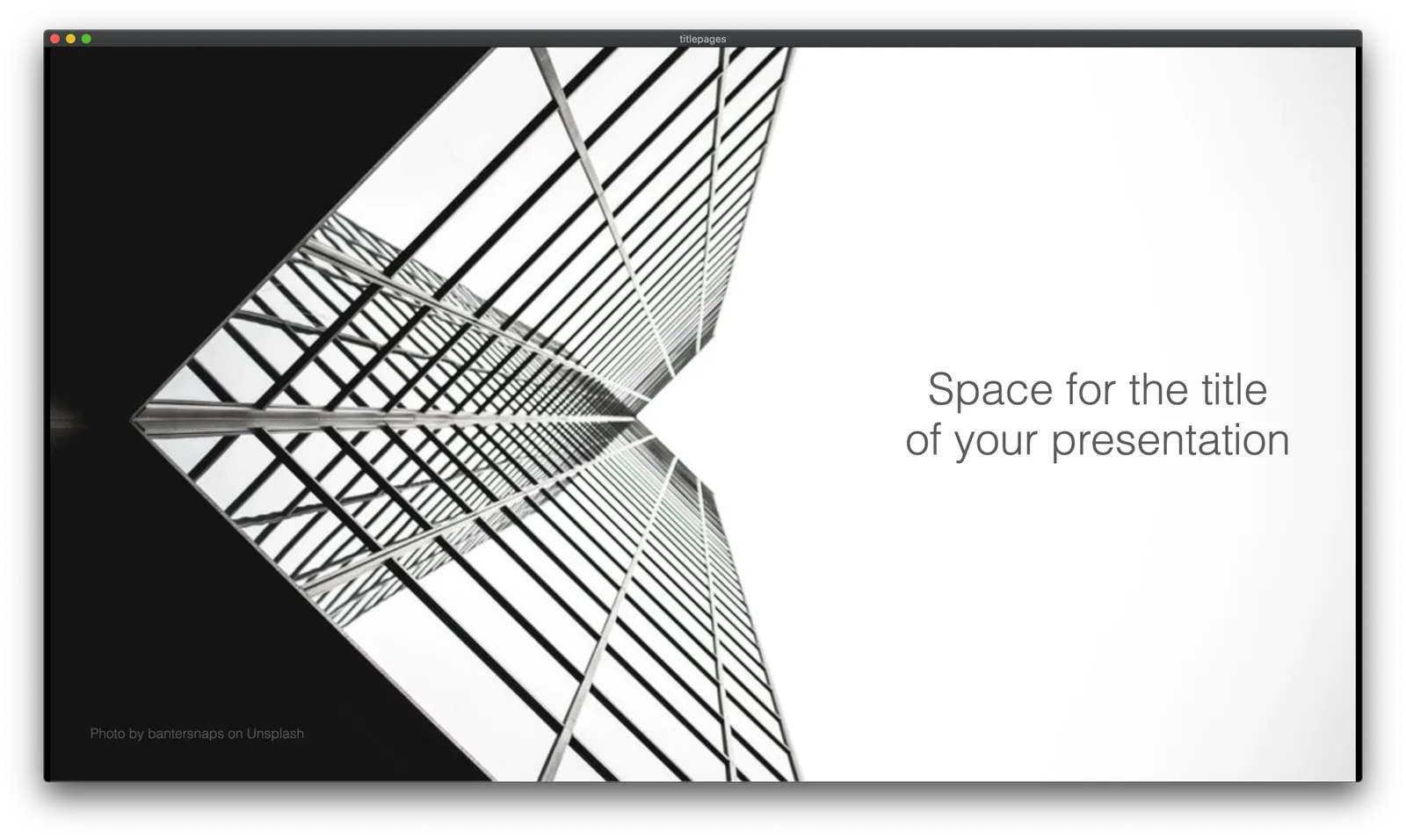
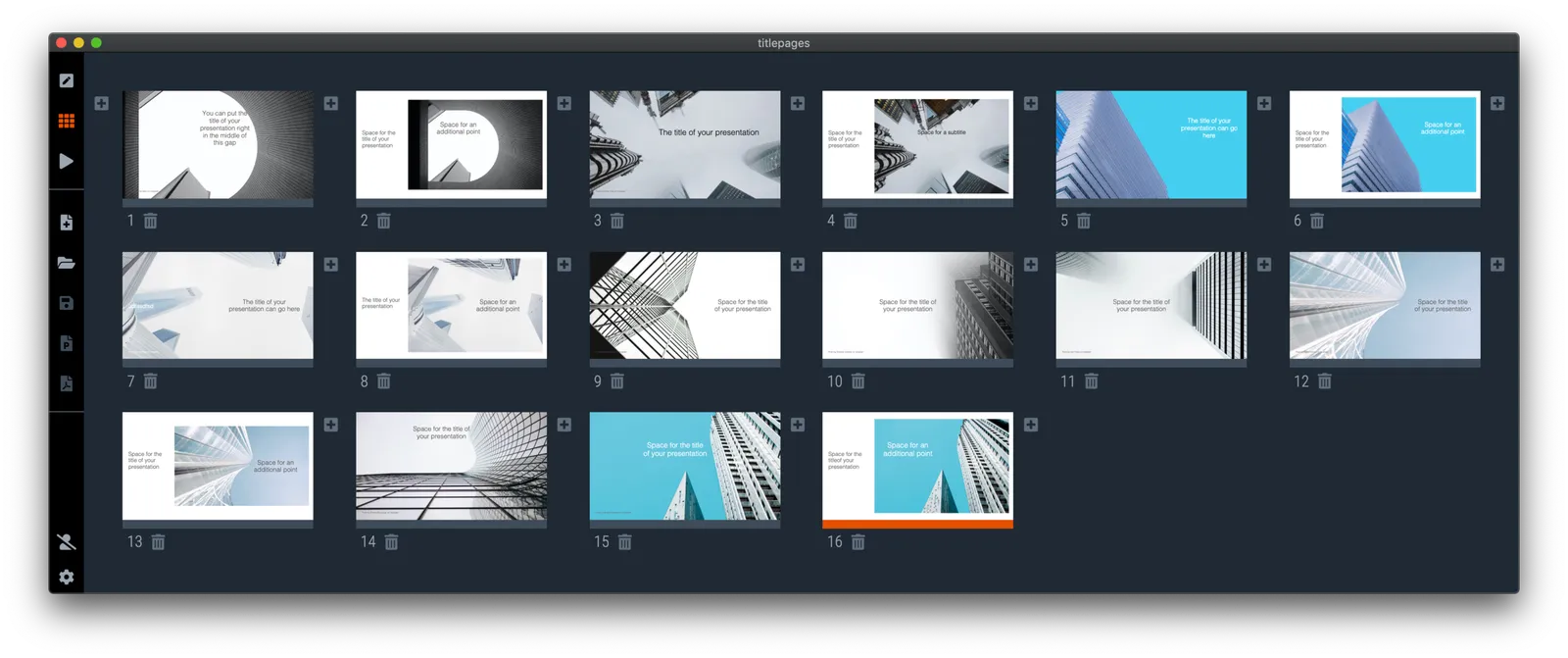
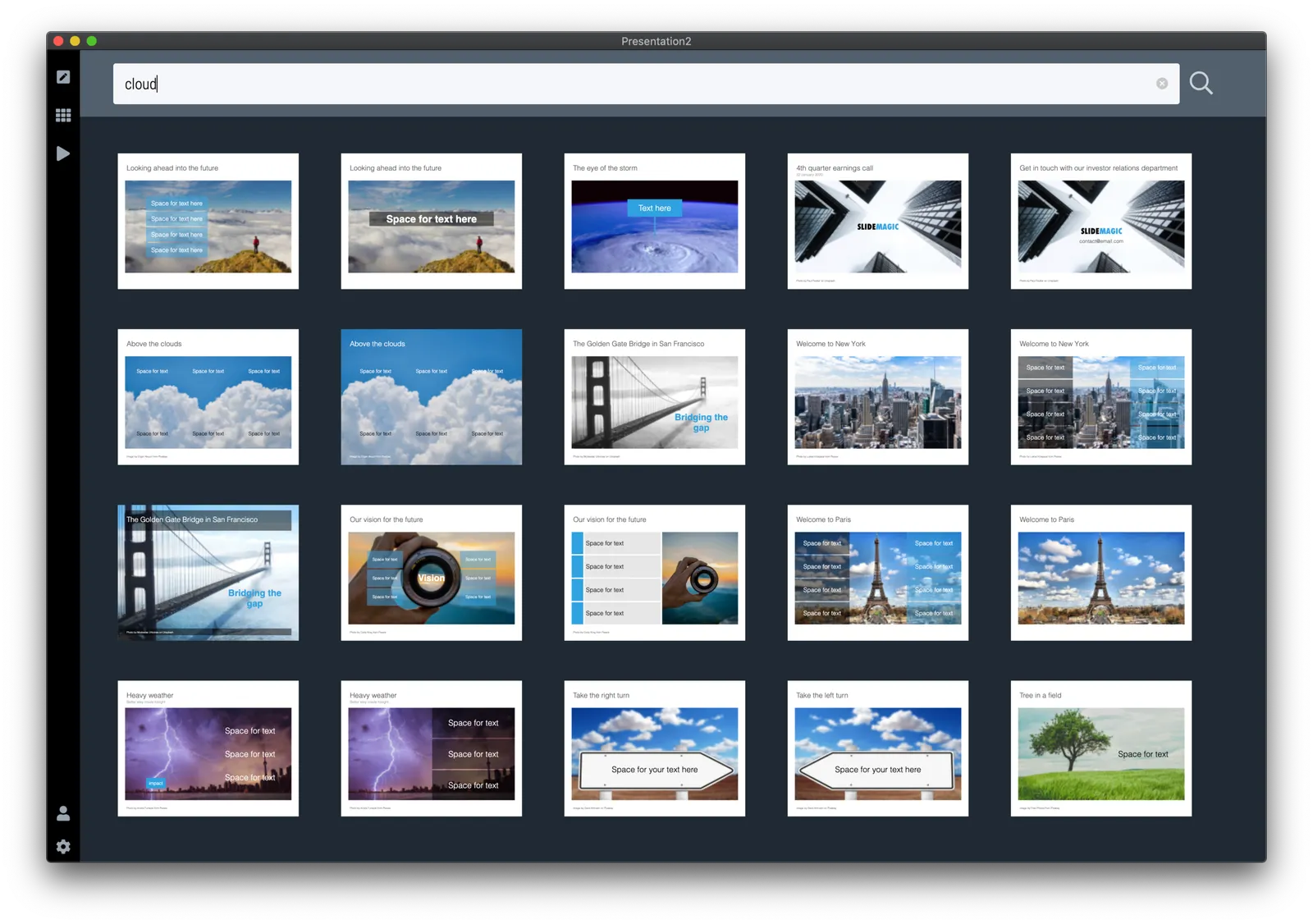
I added a number of new title pages to the SlideMagic slide template database: looking up in the downtown area of a city. The sky in the center of the image is a nice empty background for your text.

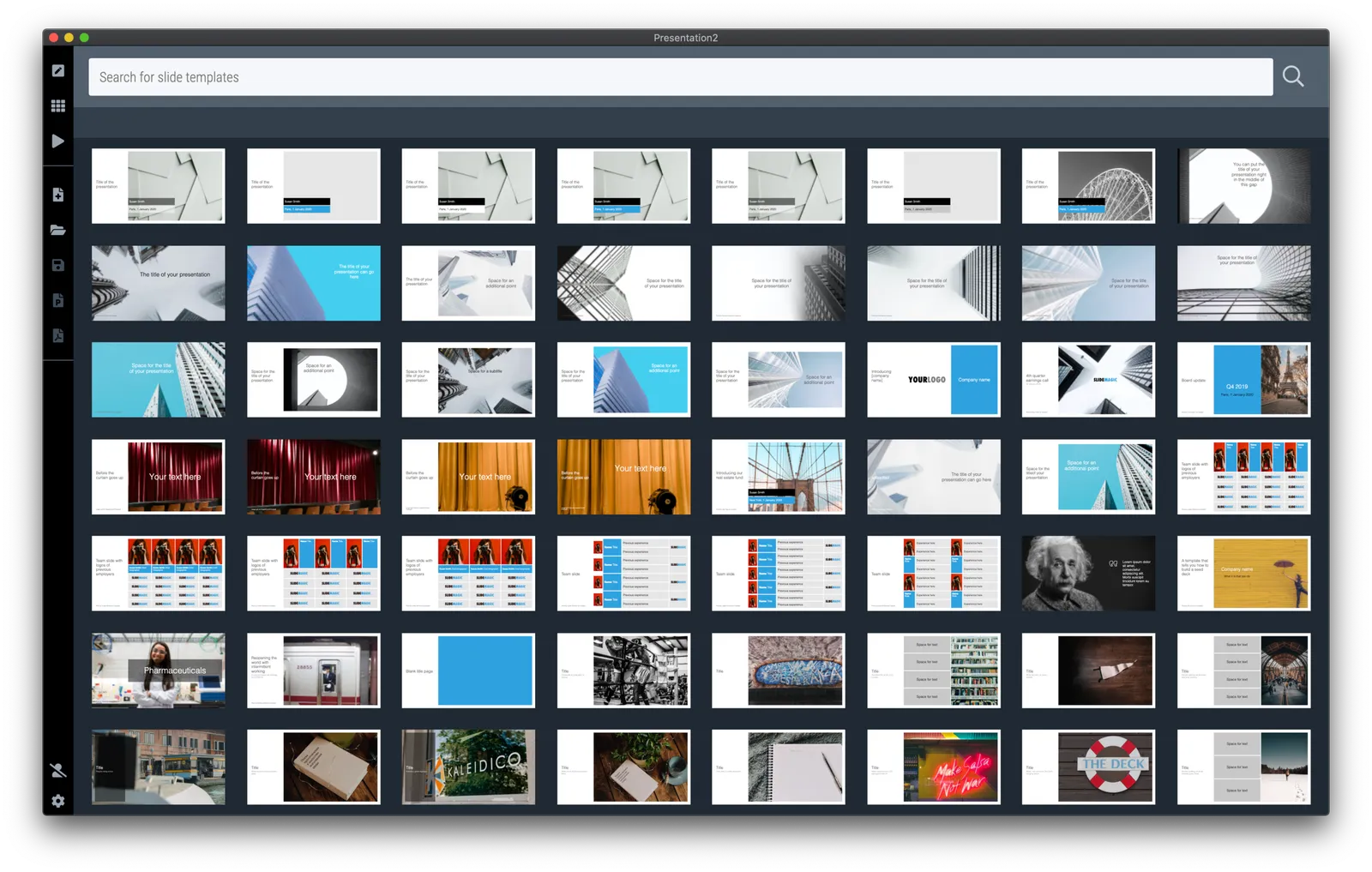
Typing “title” in the search bar of the SlideMagic desktop app now gives a lot of options to get you started with a title page for your presentation

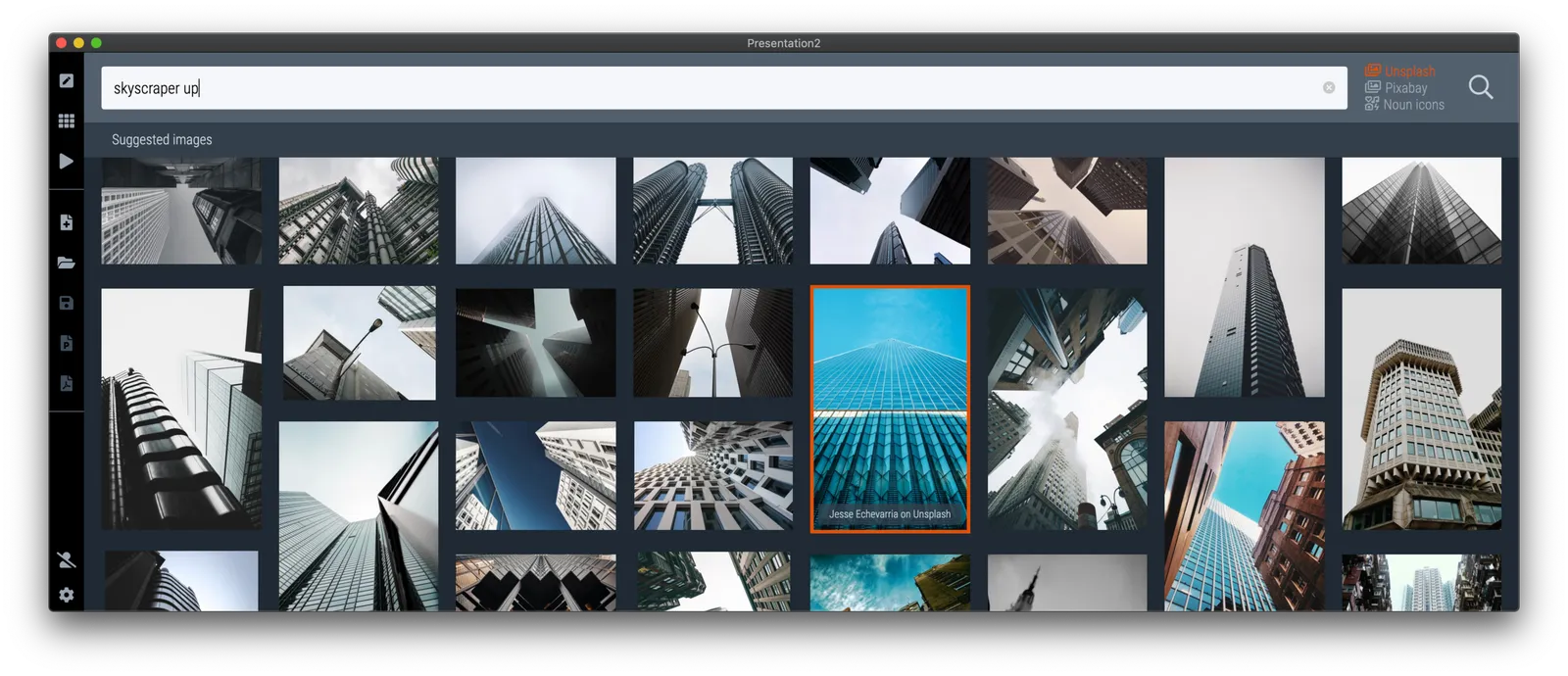
Pick one of these designs (or an empty slide), and use the image search feature to add the image that you prefer

·Images

Image cropping with a focal point

SlideMagic can switch back and forth between multiple layouts, and needs to handle rapid changes in the grid of a slide. As a result, aspect ratios of images get changed all the time, tripping up your carefully selected image composition. At the moment, the app is storing different crop and zoom levels for different aspect ratios, but that solution is not ideal. (You see how Squarespace gets it wrong with the banner image of this blog post).

I want to get to the point where a SlideMagic user can click a focal point of an image, after which the app will do the hard work of re-adjusting the crop automatically. Doing research, I see a lot of “AI” applications that can figure out what the focal point of an image should be, there seems to be nothing that deals with focal point-based cropping itself. The solutions I see, are ones where you can store multiple crops of the same image, after which the most appropriate one gets selected.

I started scribbling a manual algorithm to come up with reasonable compositions. Here are the first (manual but automateable) results applied to some cows on a beach in Africa, the first image is the original.


It works pretty well, on the the extremely horizontal one gets cropped too low, I would have shown a bit more sky on that one. Let’s see if we can get this to work, both in terms of the algorithm, and the user interface.


Continue reading →
·Colors

SlideMagic slide search results now in colour

Another day, another improvement

I stuck to showing images on slide search results in black and white because I would be sure that the photos would not clash with the accent colour for the slide users had picked (most users will swap SlideMagic blue for their own logo colour). That worked, but it came at a price: slide templates all looked a bit sad. This is not only due to the greyscale colours, but also because of the way the greyscale filter was applied: many colours were translated into too dark tints of grey I think.

This morning I re-rendered the entire slide database (the server is still a bit tired) and images in slide templates now show up in colour.

It is worth the trade-off I think. Of course it is possible to go back to a black and white image in the SlideMagic app, simple untick the ‘colour’ box and the image will show up as grey scale (you can always go back to colour if you want).

The colour option is only available for the slides that I added more recently, after I switched off the colour option when ‘flattening’ or compressing slides. Obviously new templates will all appear in colour, or I will set them explicitly to black and white when I feel that it serves the slide’s message better.

This addition of colour coincides nicely with the more mature SlideMagic product I think, slowly but certainly it comes out in its full shiny colours :-)

Continue reading →
·Images

The "corona crop" to change the appearance of crowd sizes

A recent tweet:

Why does the crowd look denser in the second image? When you make an extreme zoom in an image your brain loses the context in which the original photo was taken. Images are 2D, so no sense of depth here.

Lessons:

  • When news outlets publish images to show crowd sizes, see at what angle they are taken. Drone shots from above are the most reliable
  • If you need an image of a crowded street or other public place in your presentation, you can use this effect to your advantage. Download a very high resolution image with a flat camera angle, and apply a big zoom/crop.

Photo by chuttersnap on Unsplash

·Images

Working on improved image cropping

Working with images is turning out to be one of the most powerful uses of SlideMagic. The built-in image search gives access to an endless flow of great images, and the grid makes it really easy to layout these photos in a beautiful and consistent way on a slide.

Aligning images has always been difficult in presentation software (it is only worse in word processors), and that bit is solved by the SlideMagic grid. Next up is image cropping. Most design tools use some sort of overlay that allows you to mask/reveal an image. Even as a professional designer, I still struggle with this.

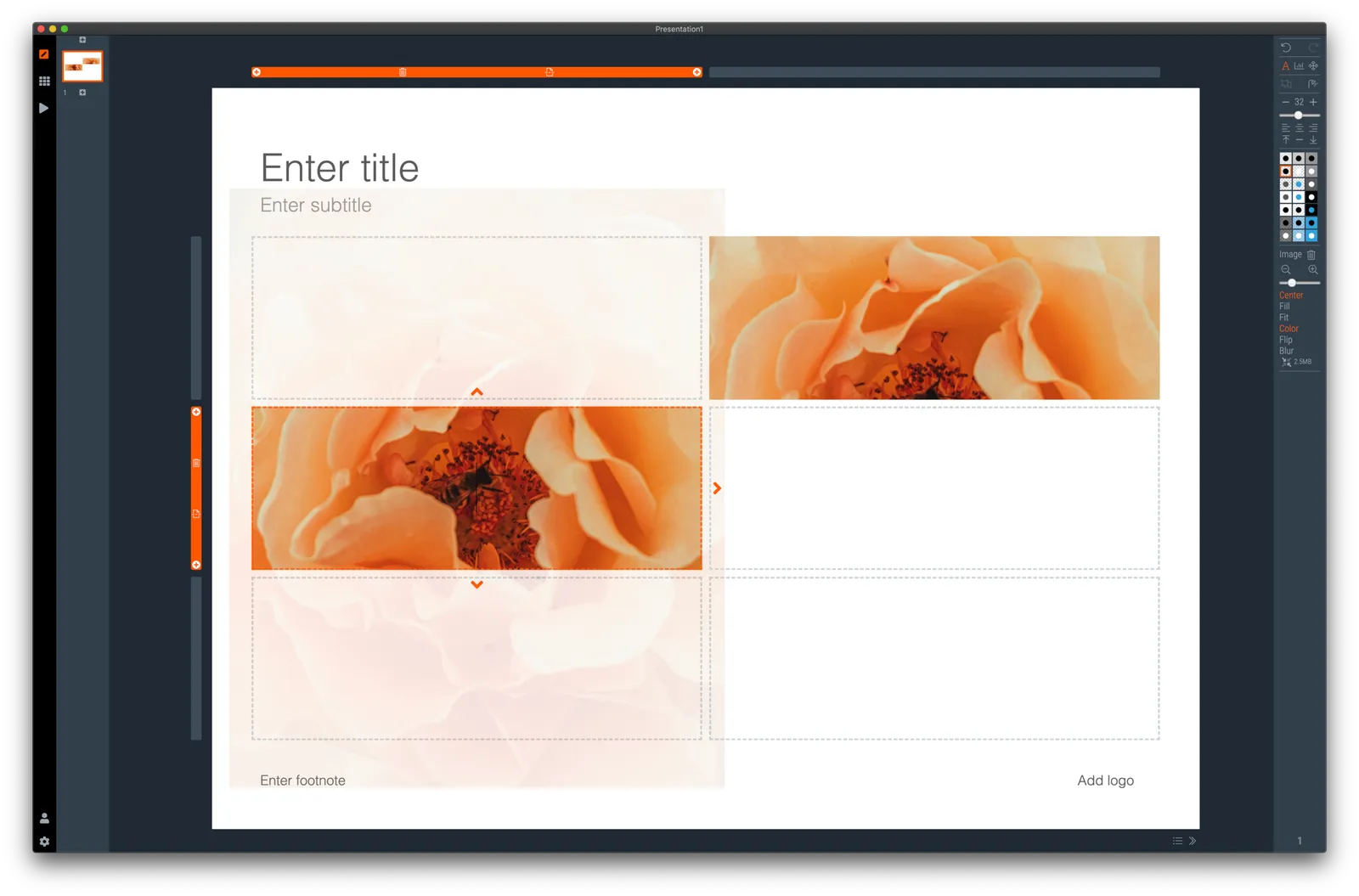
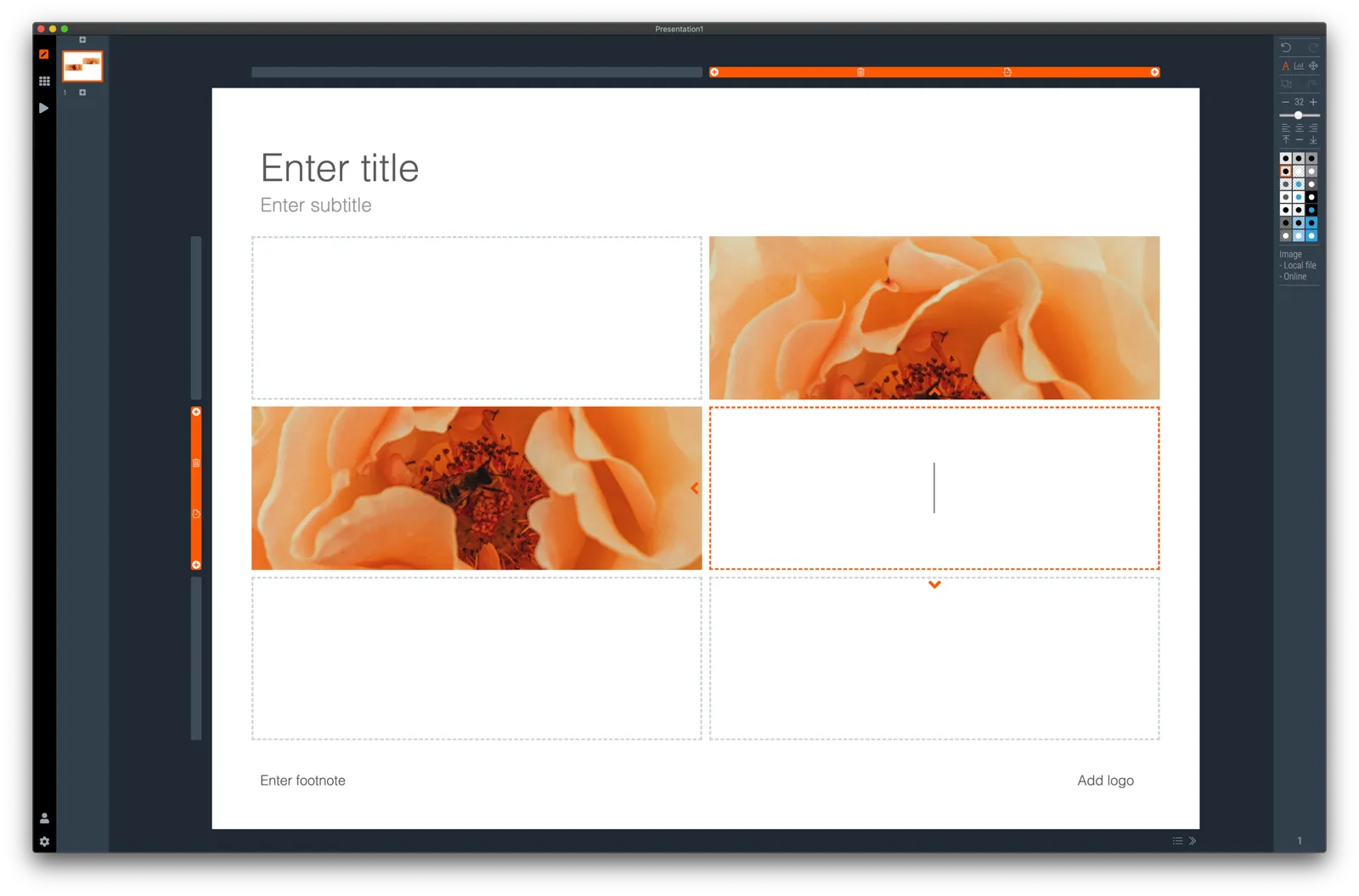
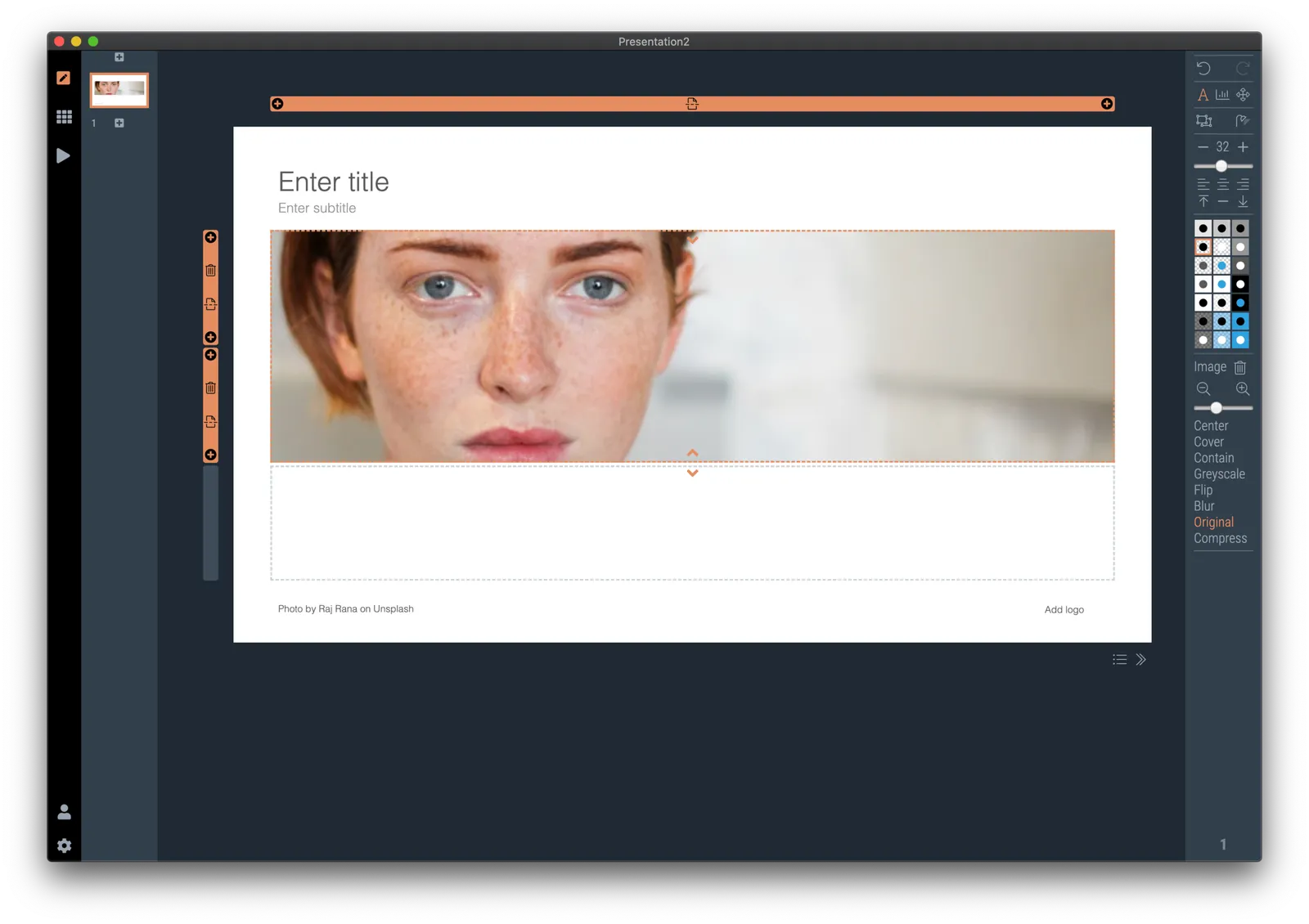
In SlideMagic, you simply drag an image around in a box to decide what part of the photo you want to reveal. I am working on 2 improvements:

  • Showing the entire image in semi-opaque when you are editing/dragging it around to give you. a better orientation of what you are doing
  • Creating a way to keep the image focused on the most relevant part regardless of changes to aspect ratios or zoom levels of the photo. At the moment, I store to image positioning versions (one for 16x9 and one for 4x3), but in future releases I want to automate this

The challenge here is to offer something that works without turning SlideMagic into a complicated photo editor. Work in progress.

·Software

Preserve image positioning when switching between 4x3 and 16x9

SlideMagic swaps instantly between traditional and widescreen aspect ratios. The slide content stays nicely in the slide frame, everything stays aligned and you can revert instantly.

Because SlideMagic does not distort aspect ratios of images (no stretching or squeezing), the positioning of an image changes slightly if you switch between a narrow and a wide screen layout. This can be annoying for images where positioning is a big deal (compare the lined up eye lines of a series of portrait images versus a long-distance shot of a mountain range). If you switch aspects 5 minutes before your meeting, your presentation is misaligned. (This is obviously still a lot better than PowerPoint where everything would stretch and move to unpredictable places when picking a different screen format)

Well, SlideMagic fixed this last hitch as well. I just released V2.3.17 (download SlideMagic here for both Windows and Mac) which now keeps 2 sets of image size and crop frames, one for each slide aspect ratio. You switch back and forth, so will the image positioning. Make sure to double check each image once in both aspect ratios, and the settings will be saved together with the presentation.

For future releases I am studying more advanced image analysis, where I could automatically recognise a face in an image for example, and lock in the position of the eyes (maybe the first true “AI” application in SlideMagic).

·Images

Even better image search

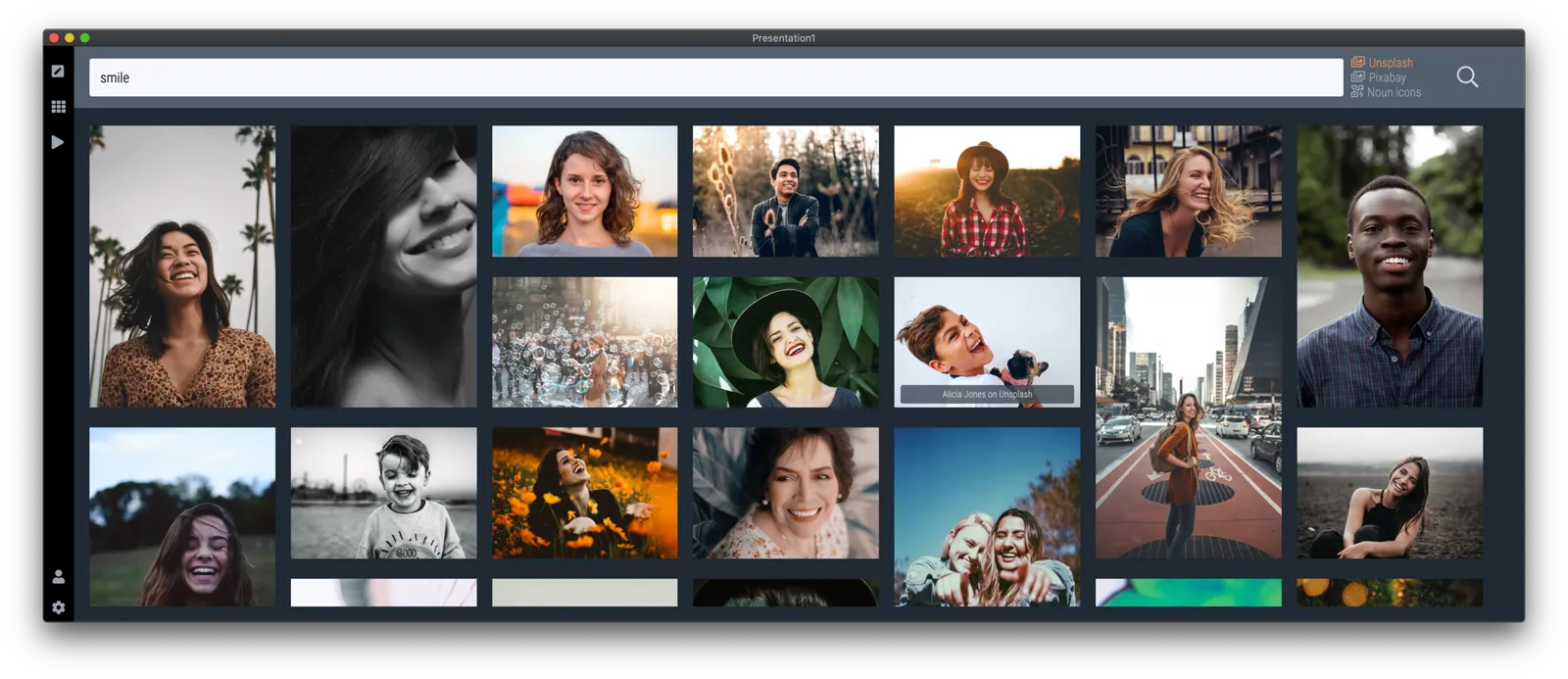
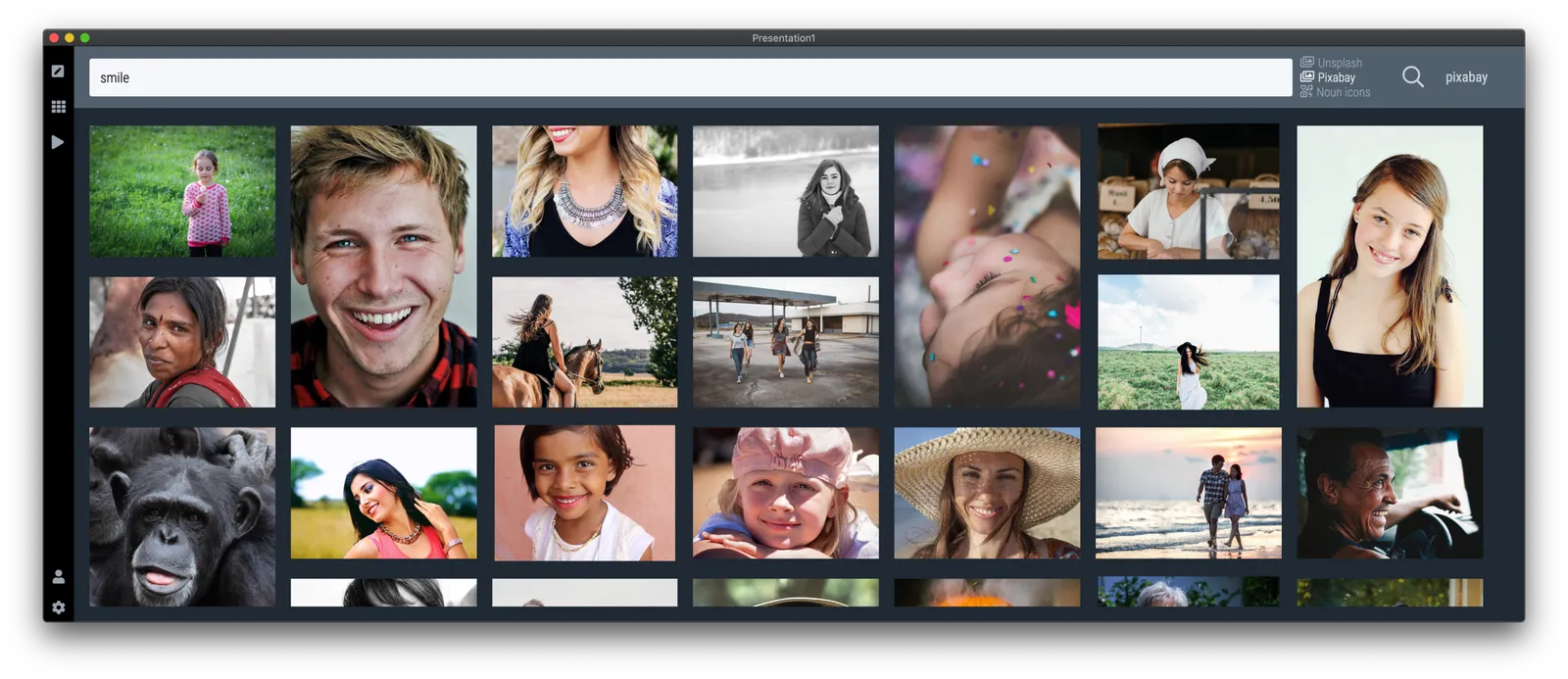
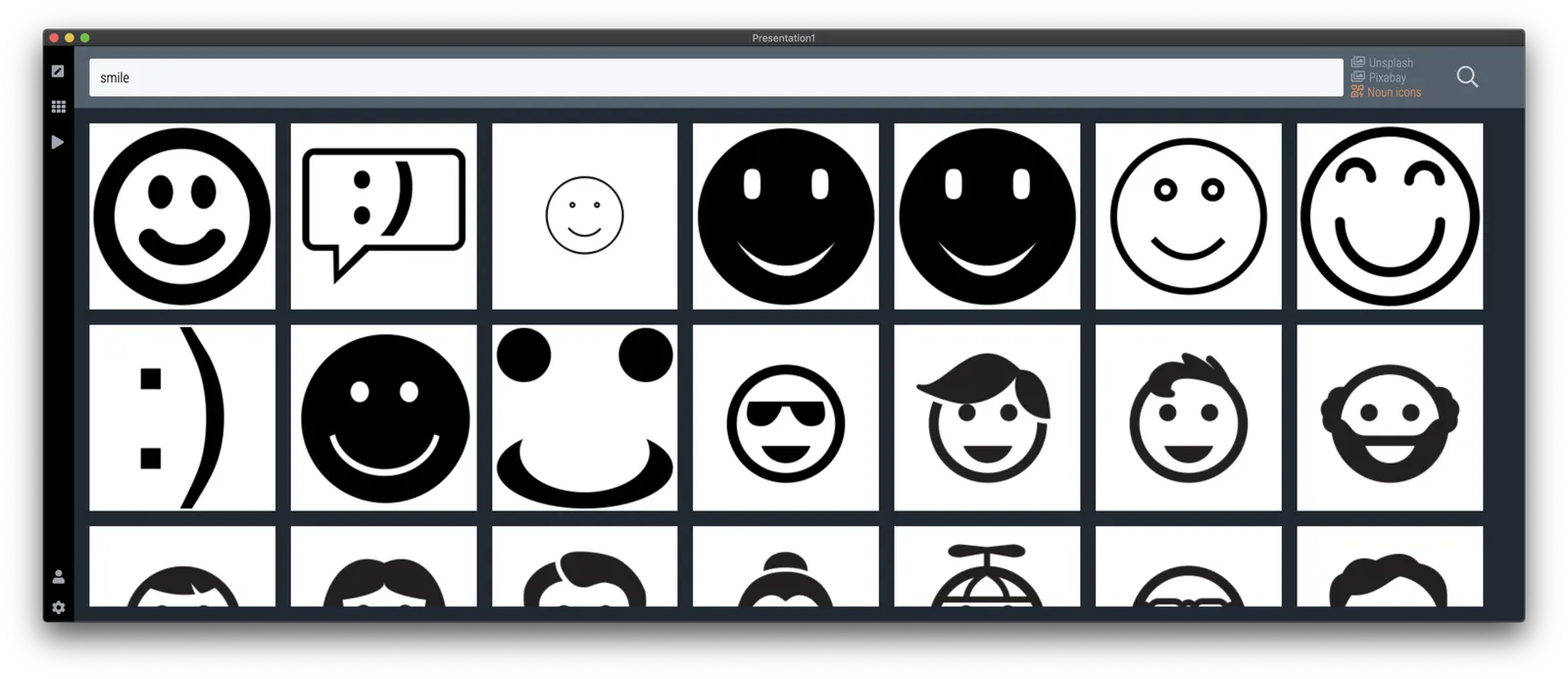
I made improvements to the image search interface in version 2.3.15. Removed clutter from the side bar, and you can now switch between Unsplash, Pixabay, and the Noun Project (icons) from the image search page. Search keywords are carried over to the other image provider. Existing users should see the update automatically on your machine or can download (like anyone else) here.

·Images

Unlimited access to Unsplash images

SlideMagic was approved by Unsplash for full access to the API, no more hourly rate limits for searching images. Thank you!

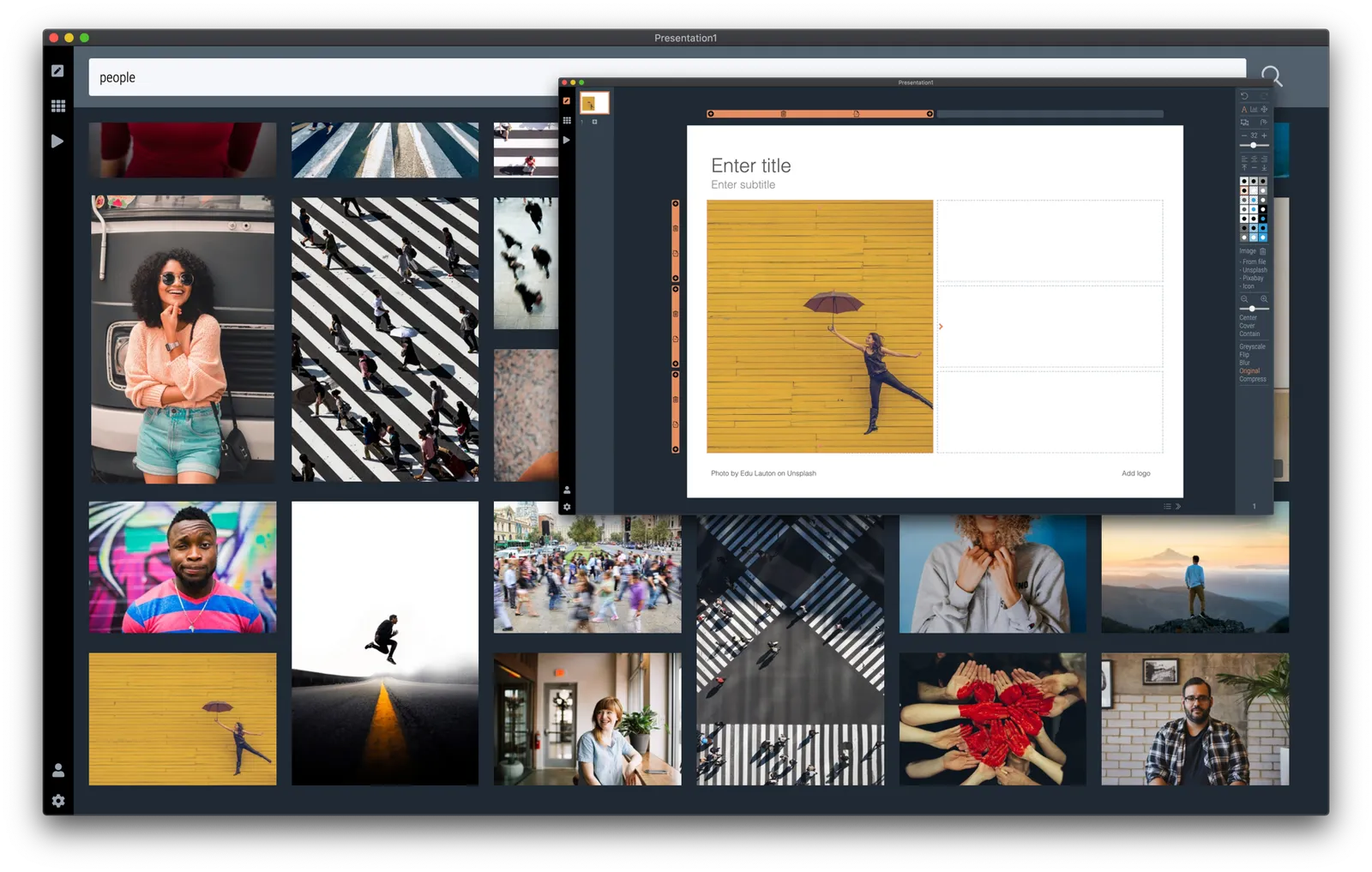
Version 2.3.9 of the SlideMagic desktop app also offers a more minimalist image search interface. The selected image gets put straight into your slide, in a proper grid so that it always lines up with the other elements on the page. In the app you can zoom in or out, and move the image (inside its container). The image credit also gets placed in the footnote of the slide (not required by Unsplash as it is a remixed image, but still nice to the photographer, the main obstacle for crediting images I think is not that people don’t want to, but it is a hassle to find the details and put them in your designs).

Hitting an empty search returns a set of random images (because I could :-)).

·SlideMagic

Integrated Pixabay image search

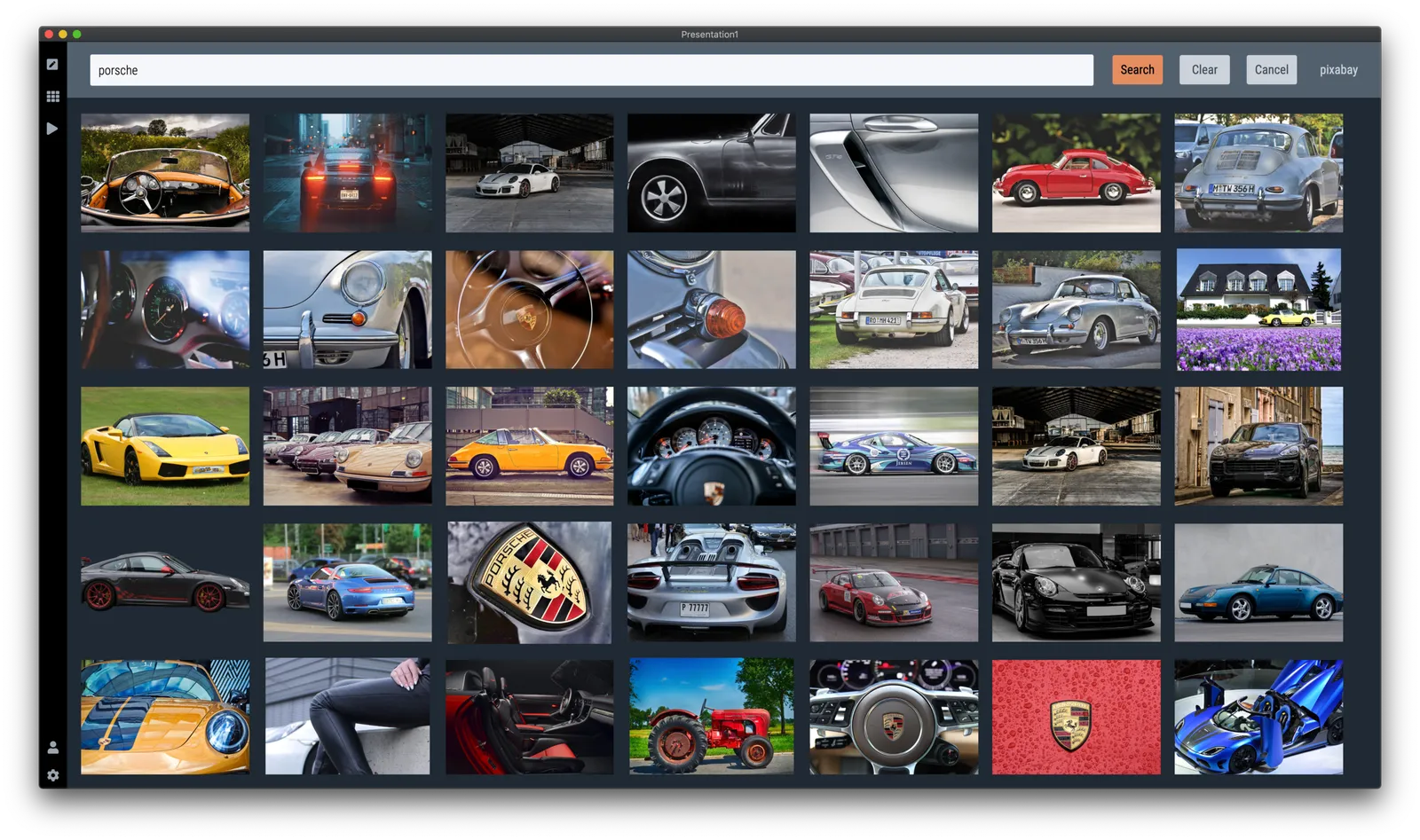
Pixabay offers a large database of free stock images. The site has become increasingly useful over the past years. In 2020, free images are now often better than paid stock photos, simply because the designer/photographer tries less hard to add effects and edits to the original photographs. (This is all written from the perspective of a corporate presentation designer, there are probably other people out there who value edited images).

Each free image site has its own profile. Unsplash has better aesthetics, more natural images. Pixabay has more functional images.

I have now added the ability to search Pixabay images in the desktop app. (Unsplash images, and the Noun Project icons were already present). All implementations are still beta features, as I finalise the approval for the API. (But I am confident I checked all the right boxes).

In-app image search is not just a “lazy” feature. It can greatly improve your presentation design workflow. Especially when it comes to copying, pasting, cropping and positioning images. In SlideMagic, this is just a few clicks. And, because of SldieMagic’s rigid slide grid, every image will always line up neatly with the other elements of your slide.

You can download the latest version of SlideMagic here (2.3.6). Integrated image search requires a pro subscription plan.

·Images

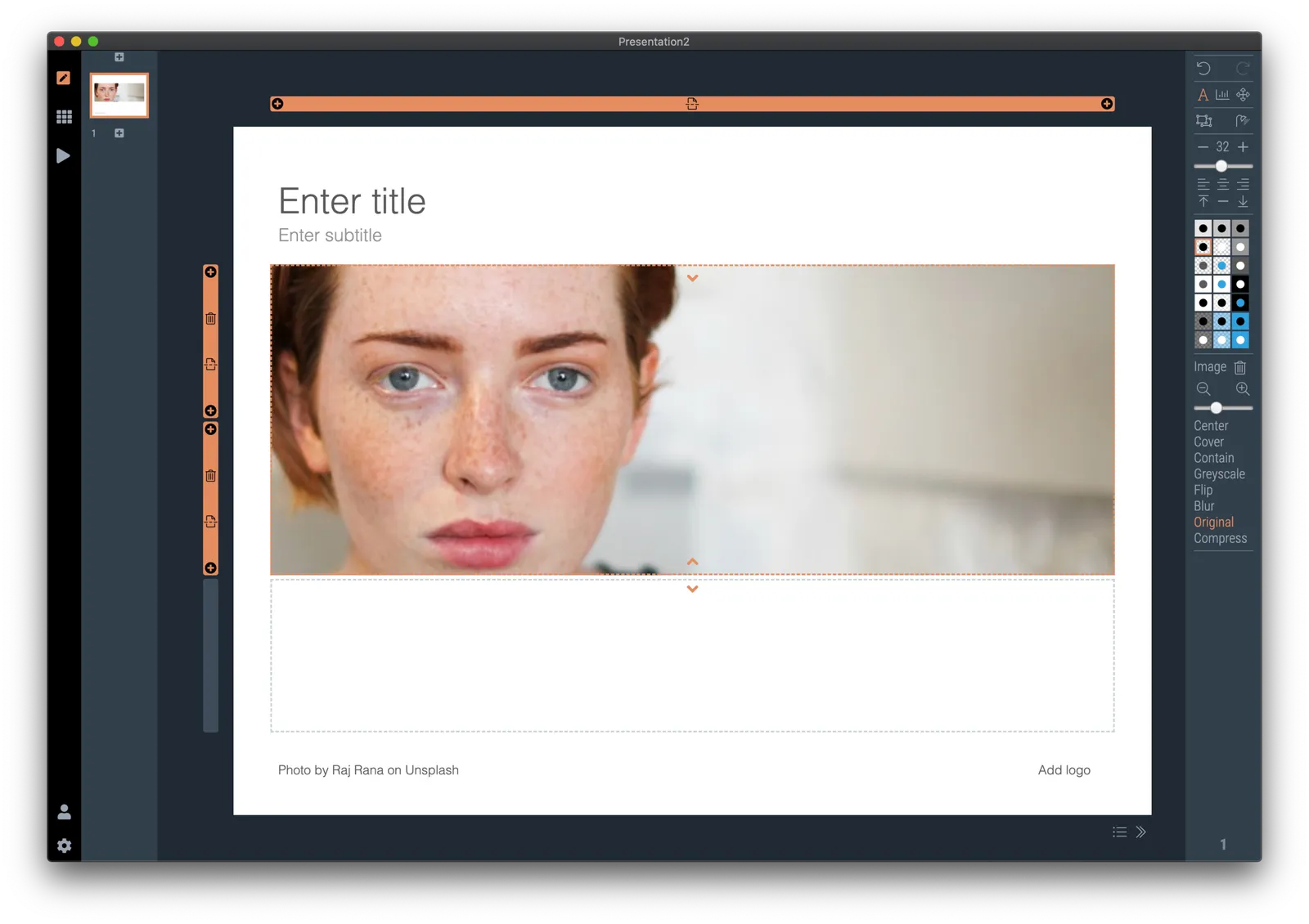
Finding the right portrait image

Today was another day of template building, I am reaching the point where the SlideMagic app starts to contain more slides than the SlideMagic template store that I host with Shopify.

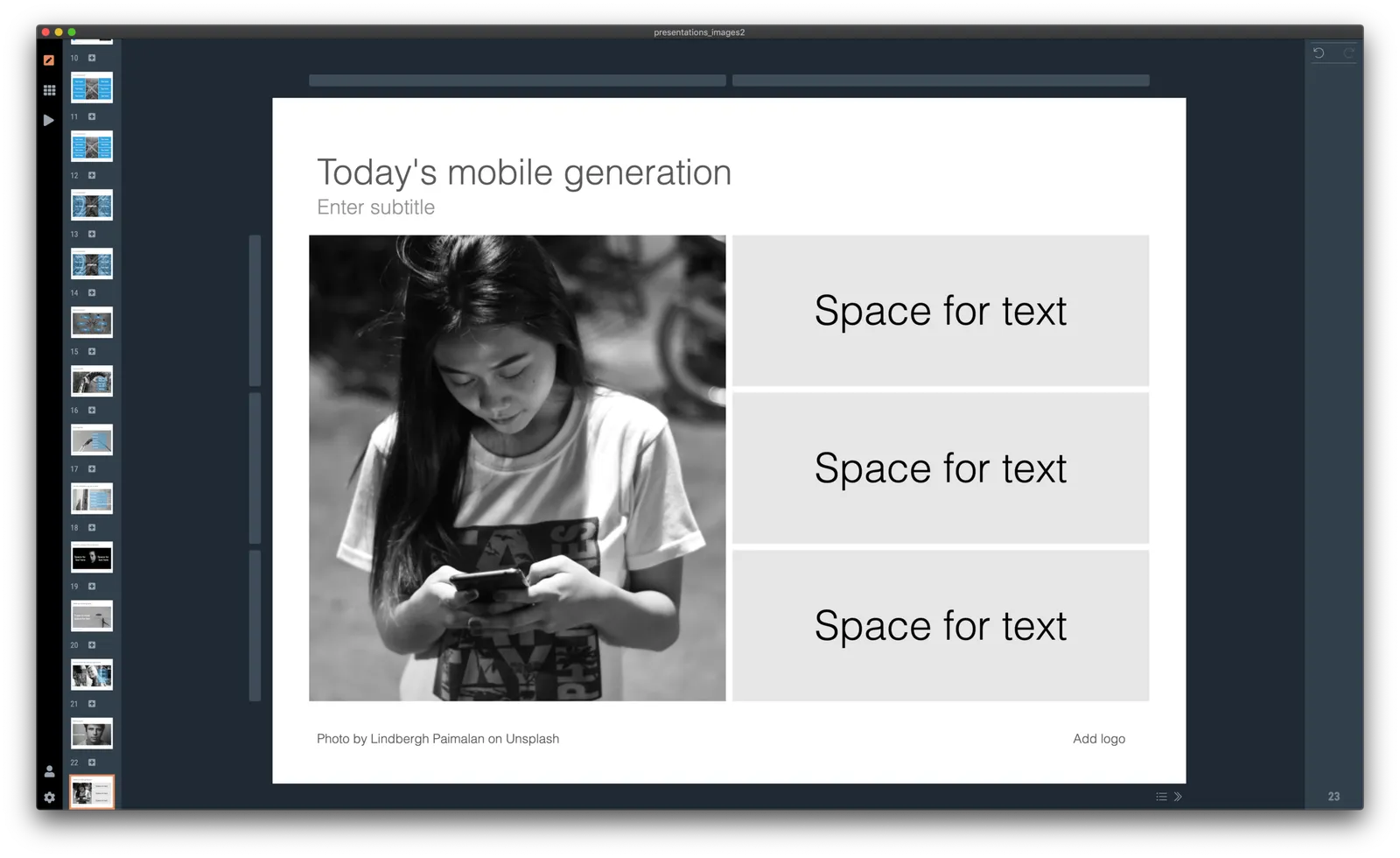
I did some work on finding good portrait shots today. Although now there are many free photo sites around with abundant amount of images of people, it is still tricky to find the right photos to use in your presentation. Here are some of the filters I apply subconsciously as I go through hundreds and hundreds of images at high speed:

  • Too much stock photo: you know what I mean
  • Clothing mismatch: too fancy dress, very light outfit in a cold environment
  • Trying too hard to pose
  • Artistic shots of people who look unhappy, depressed, beautiful, but not for a business presentation
  • Shots of people who look unnaturally happy
  • A background that is too recognisable
  • A screen with a message that is too recognisable, grabs too much attention
  • Too pretty, cutesy
  • Weird posing
  • Trying too hard
  • Background mismatch (a church, the Sahara) while checking your phone
  • An outdated phone (this image was taken 15 years ago)
  • Background too busy to add text, other visual elements
  • The list goes on

Hopefully SlideMagic will save you the time I spent to find the right images.

P.S. For those who are interested in the cause of yesterday’s mystery bug that made items disappear in the small thumbnails on the left of the screen. Well, flipping an image (which I did on that particular slide) is a time consuming CPU operation, the computer starts it, but then goes on doing other things in parallel, one of which is scrolling the selected slide thumbnail in the visible part of the window (you see it sitting just at the bottom). The scroll stops the other slide rendering operations. And unlike pretty much anything in Javascript, there is no event to catch and manage this. A small 0.1s delay when needed solved the issue for now. That was 1 hour of yesterday’s day :-)

Continue reading →