SlideMagic Blog

Frequent updates about all things presentations since 2008. Subscribe to never miss a post.

RSS
all posts

Category SlideMagic

·SlideMagic

"10 happy users"

This tweet sums up SlideMagic’s strategy at the moment:

Ten happy users who use the product for hours every day and pay for it. Presentations is a very tricky segment, and existing solutions (including those with lots and lots of installs) suffer from one of these problems:

  • Users don’t think making presentations with it is fun
  • Users don’t use it as their go-to presentation platform
  • Users don’t see the value to pay for it

The strategy of buying millions of users and then waiting for 0.5% who might end up as a user is expensive, risky, and probably leads to the wrong product.

Photo by engin akyurt on Unsplash

·SlideMagic

In-app tutorials

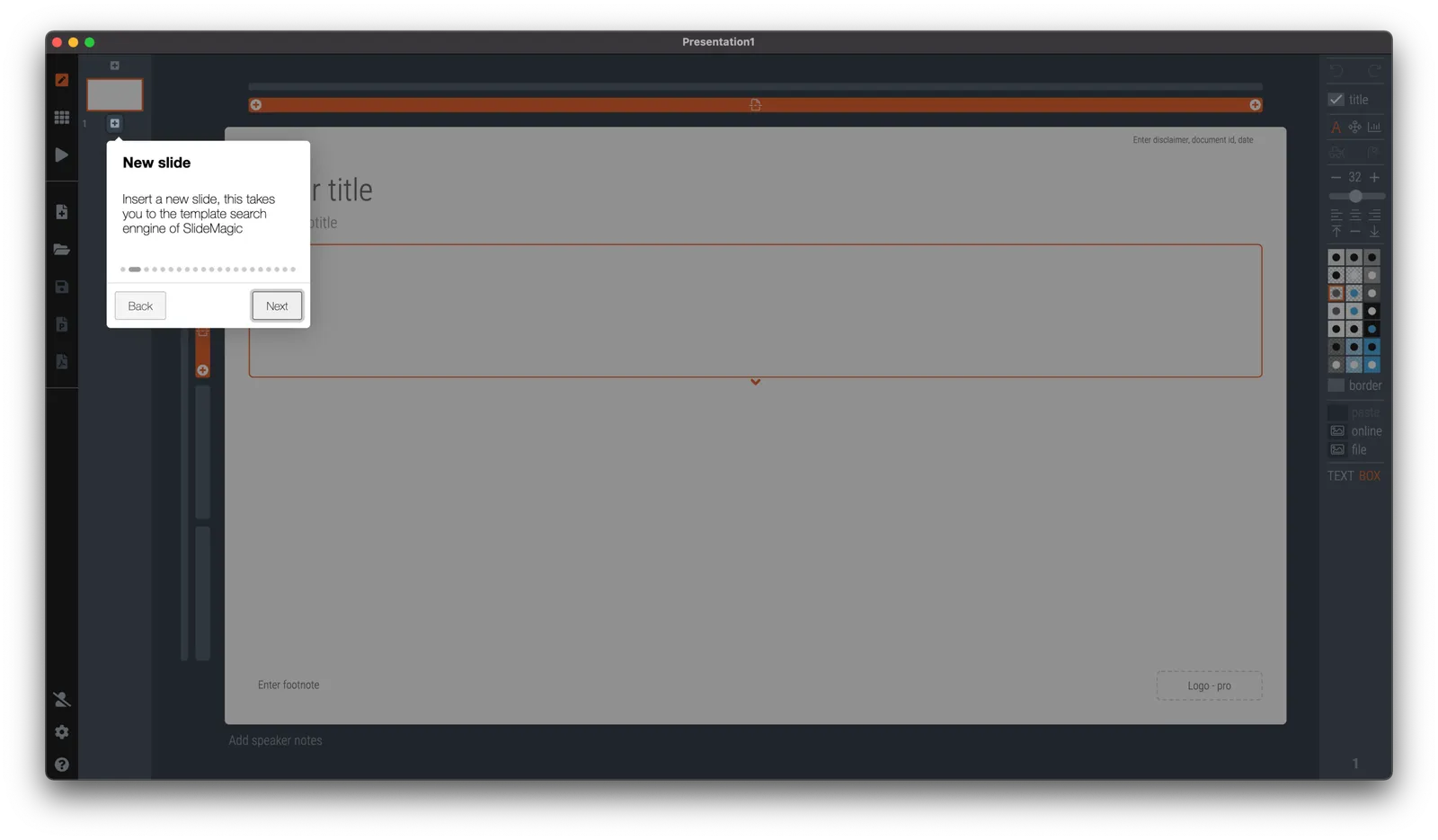
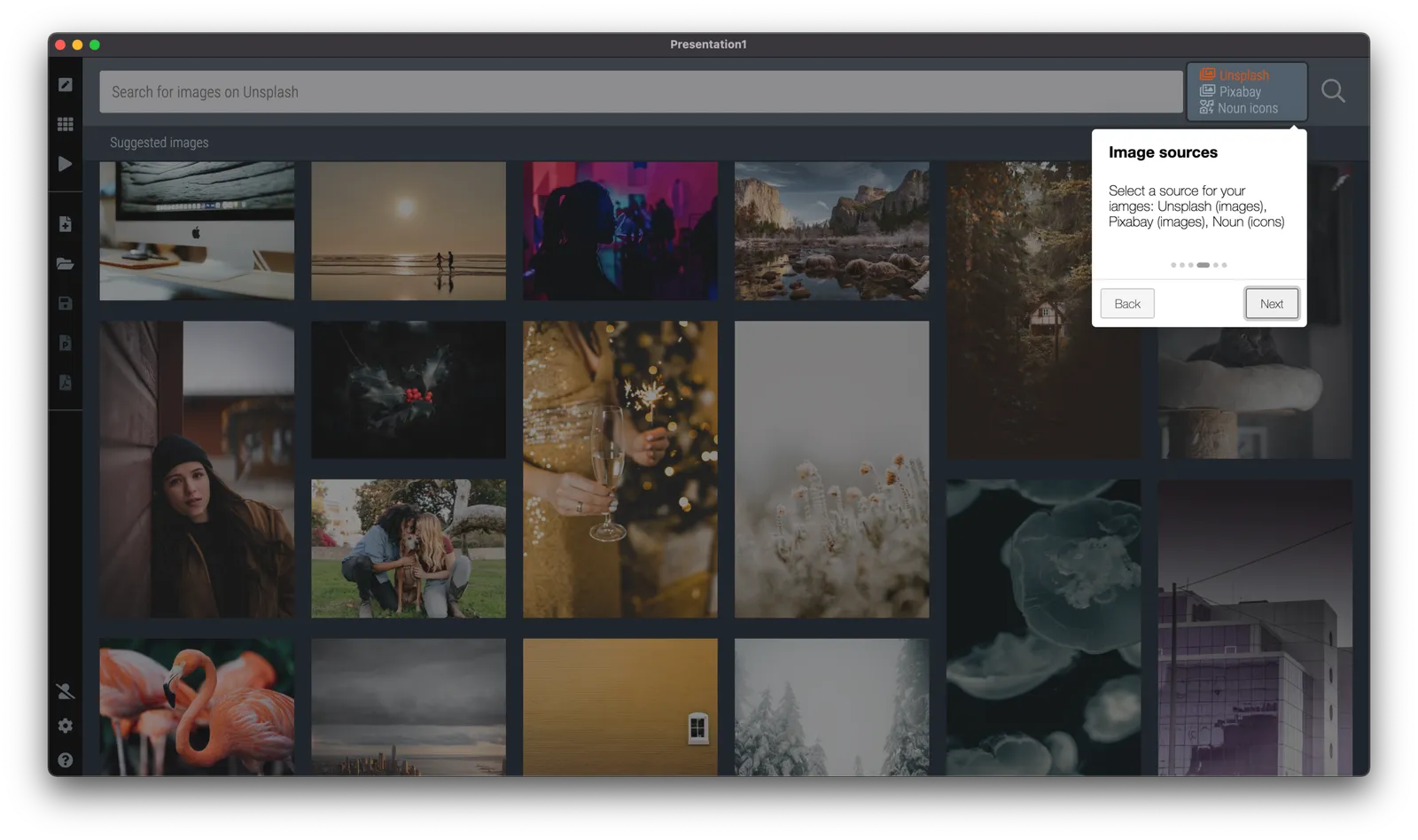
Since v2.6.18, SlideMagic has in-app onboarding tutorials. Click the ‘?’ icon in the bottom left of the app, and you will be taken around the features of the screen that is currently active. The slide edit screen also covers the general navigation inside the app. Next to the edit screen, there are page walkthroughs for the story, settings, presenter, image/icon search, and template search screens.

There is still some formatting to do, and the tutorial needs a more prominent position when you start SlideMagic for the very first time, but all in all, very useful I think. The real-time examples work much better than static tutorial pages, and now, the tutorial will always be up to date with the user interface (which is still changing now and then).

Photo by Zoltan Fekeshazi on Unsplash

·SlideMagic

SlideMagic analytics

Over the weekend I re-wrote the entire analytics engine of SlideMagic. (Apologies for the frequent app updates).

I had a whole bunch of tools installed, some of them dating bask a long time when I just started out with the blog. They were spitting out a lot of data that was never really used. Web analytics brings back memories of my time as a McKinsey consultant. The client having a massive and sophisticated business intelligence (“BI”) information system that could produce any breakdown of any segment at any time. Our work was to find what actually mattered, which often was a surprisingly simple chart.

If you are running a massive web site with billions of hits, then A/B testing the colour of buttons might make you money. You hire the web analytics consultant, let her do her work, and in the end your return on investment is a 0.005% uptake in conversion on a billion of clicks minus the cost of the data analysis project. The result is a massive amount of trackers that follow you across the internet.

SlideMagic no longer has them. I went back to basics, and put a very simple system in place, that gives me the information I need given the growth stage SlideMagic is in (making sure that the product works flawlessly). In the process I could also eliminate any possible information that could, if you really wanted to, identify a user. All is clean now, and I understand/control 100% what is actually going on with your data.

Continue reading →
·Software

A better way to edit speaker notes

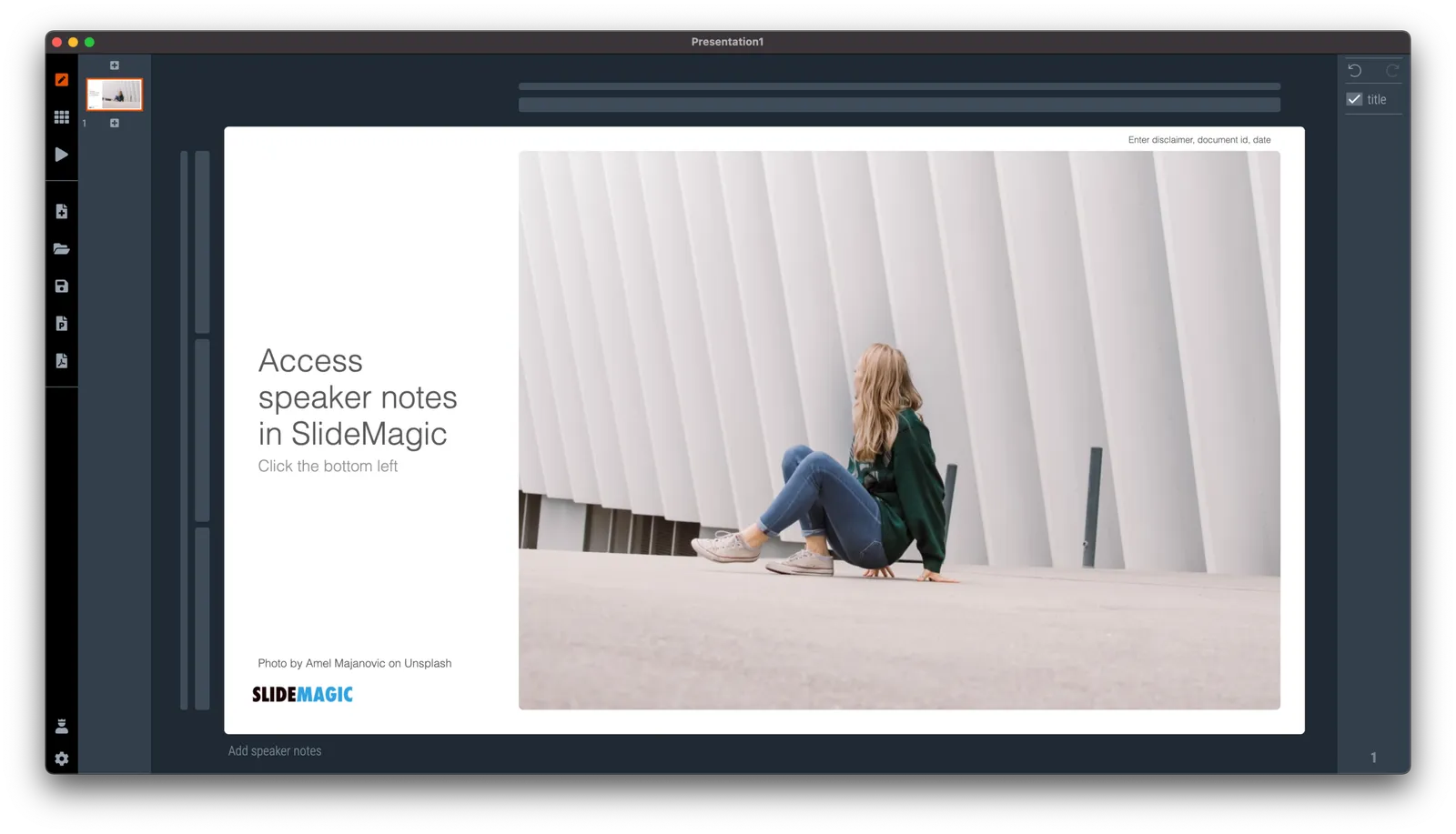
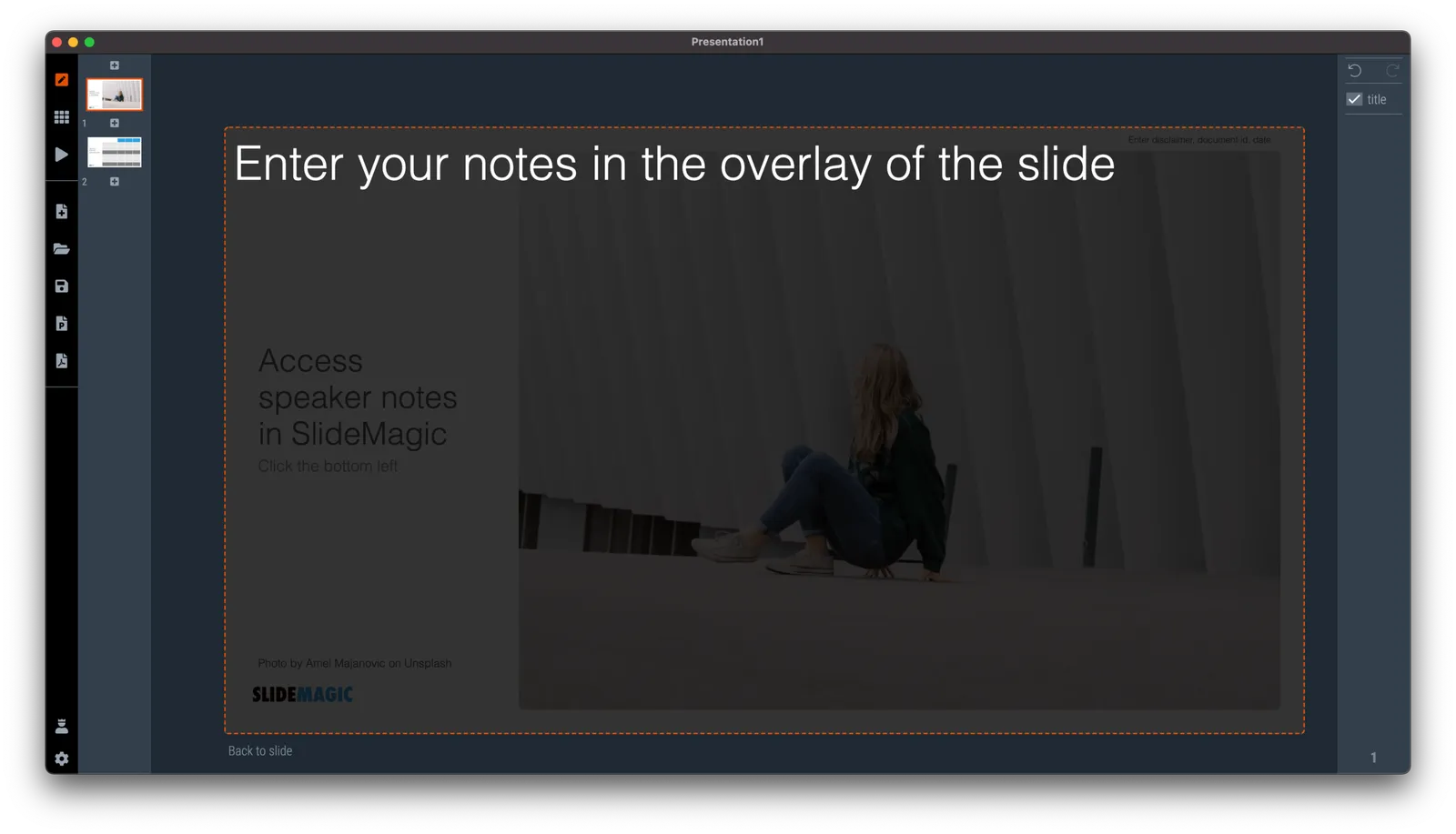
I made the user interface for speaker notes a bit clearer in version 2.6.12 of SlideMagic. The mysterious bullet point icon at the bottom of the slide has been replaced with a simple text link. Click and you will see a big and bold overlay over the slide where you can add your notes.

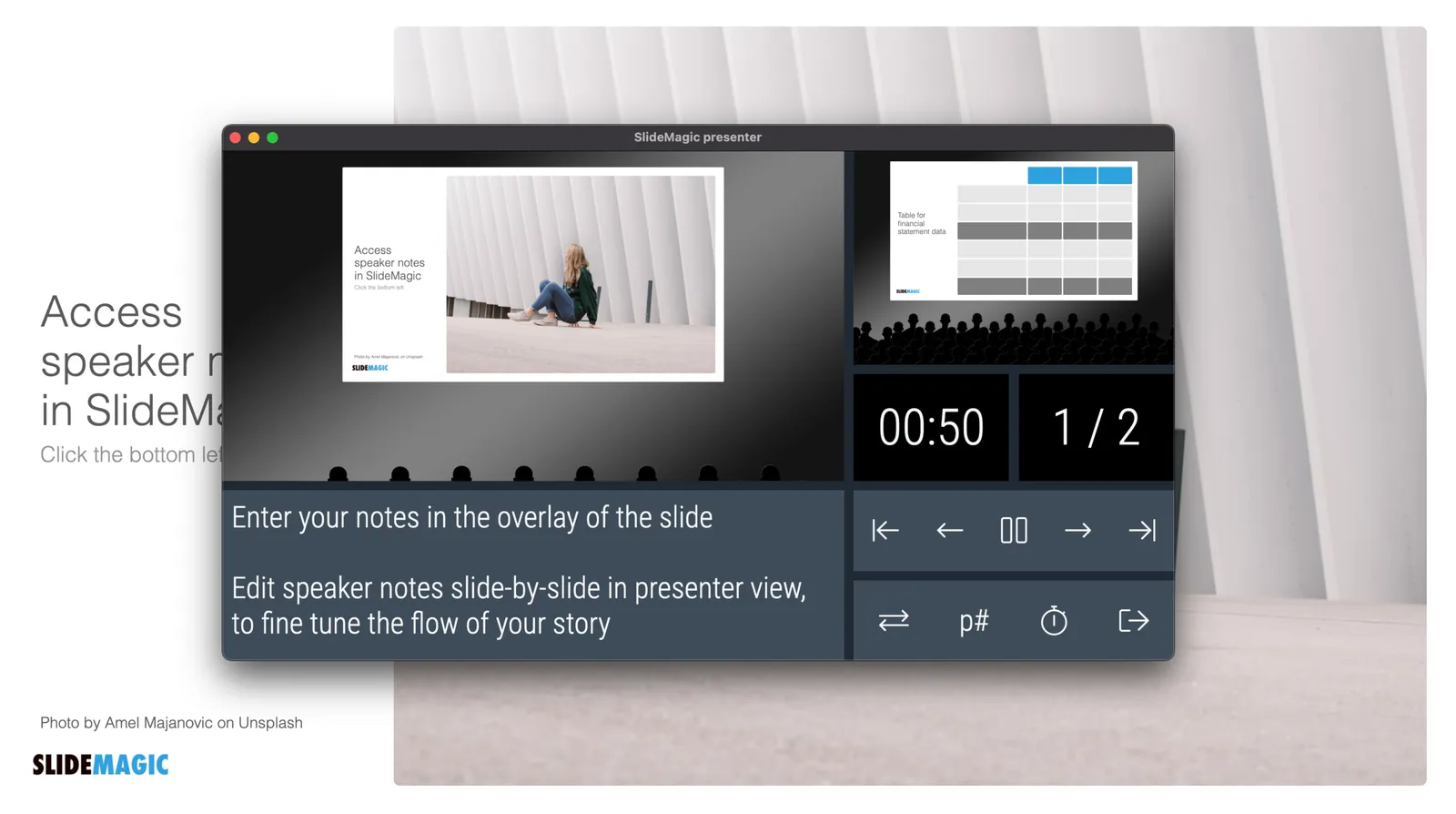
Speaker notes will show up in the presenter view window when you present the slides and are only visible to you the presenter, not to the audience. On a Zoom call, share the audience window to the video call participants, while you keep an eye on your private presenter view with important reminders of the points you want to make when presenting the slide.

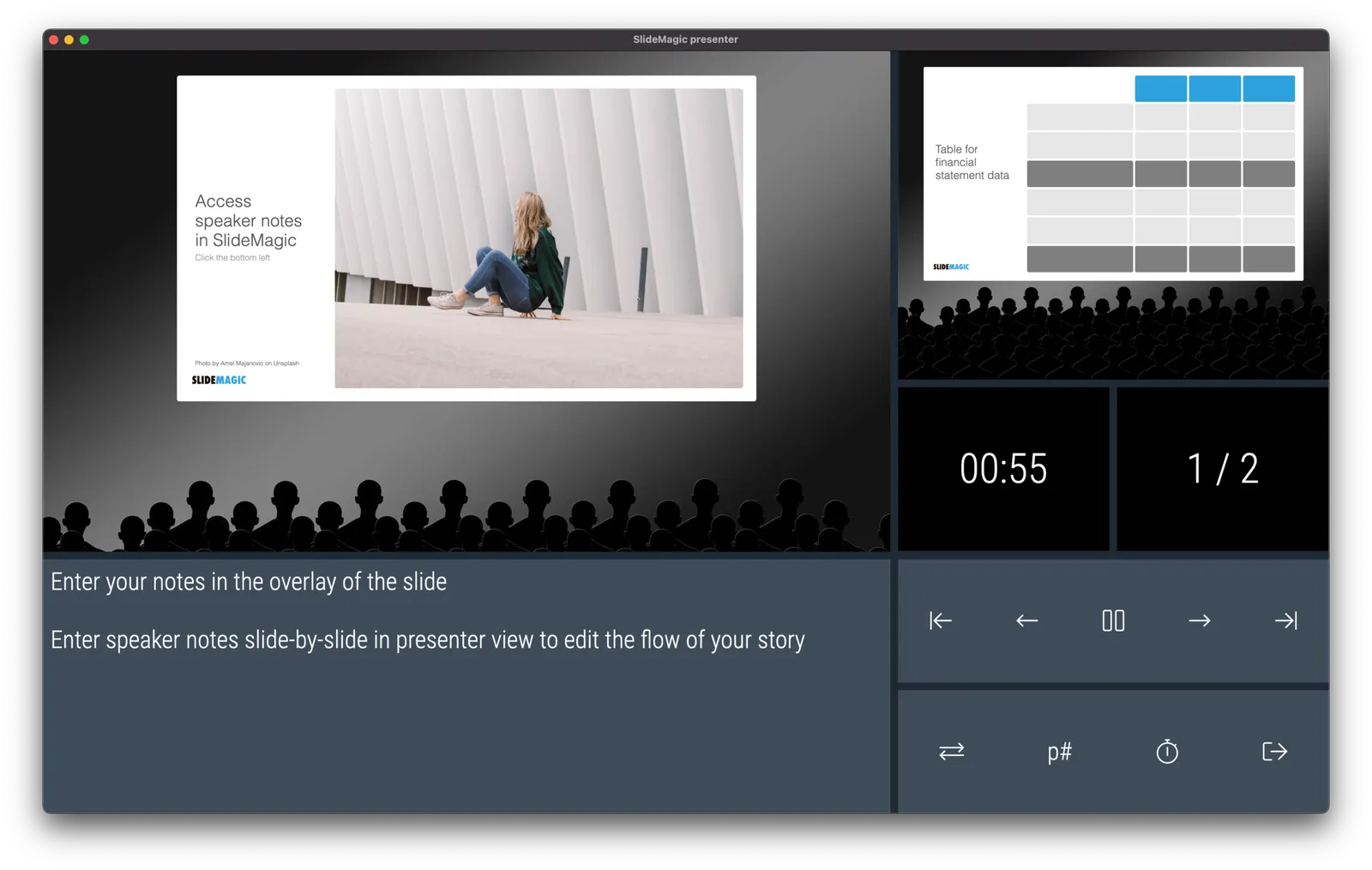
In SlideMagic, you can edit your speaker notes also in this presenter view window. This is not only great for last minute fixes of your story, but also gives you a platform to edit the flow of your story slide by slide. Increase the size of your presenter view window, and click through your presentation. You see a small thumb of your slide, an even smaller one of the next slide up, and a big text box to write down your points.

When you return to the normal view of the slide, you will see that the speaker note edit link has changed colour, to remind you that there are speaker notes in this slide. This is important when you share .magic files with other users, because they will be able to read those speaker notes as well. (This prevents you from sending “Better not share our 50% churn with investors in the first presentation with investors if they do not ask for it….” to well, an investor attending your first presentation)

Continue reading →
·Layout

A faster way to edit slides

I have made more improvements to the SlideMagic user interface. Is is now easier to select multiple cells, especially in fine grids.

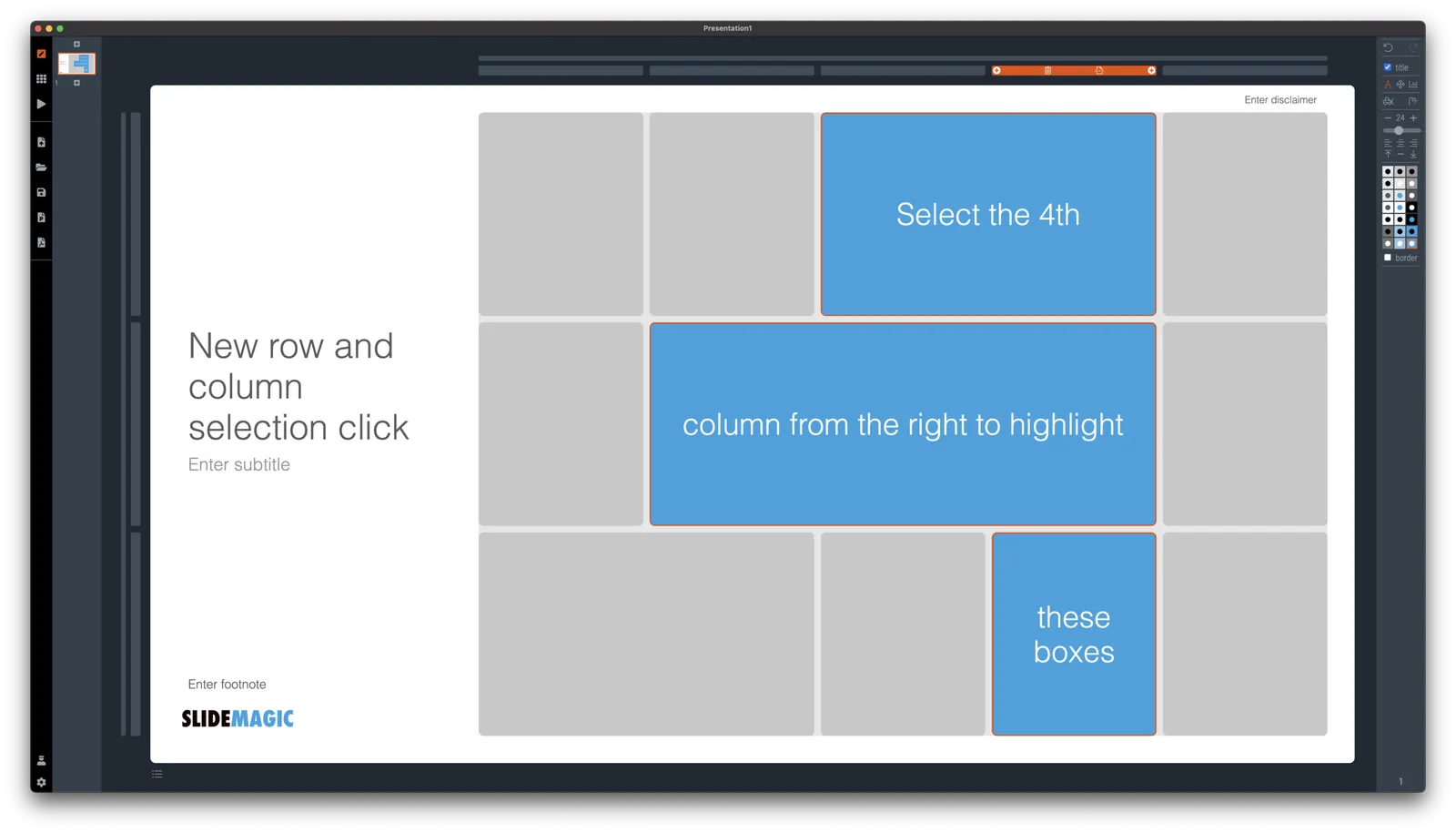
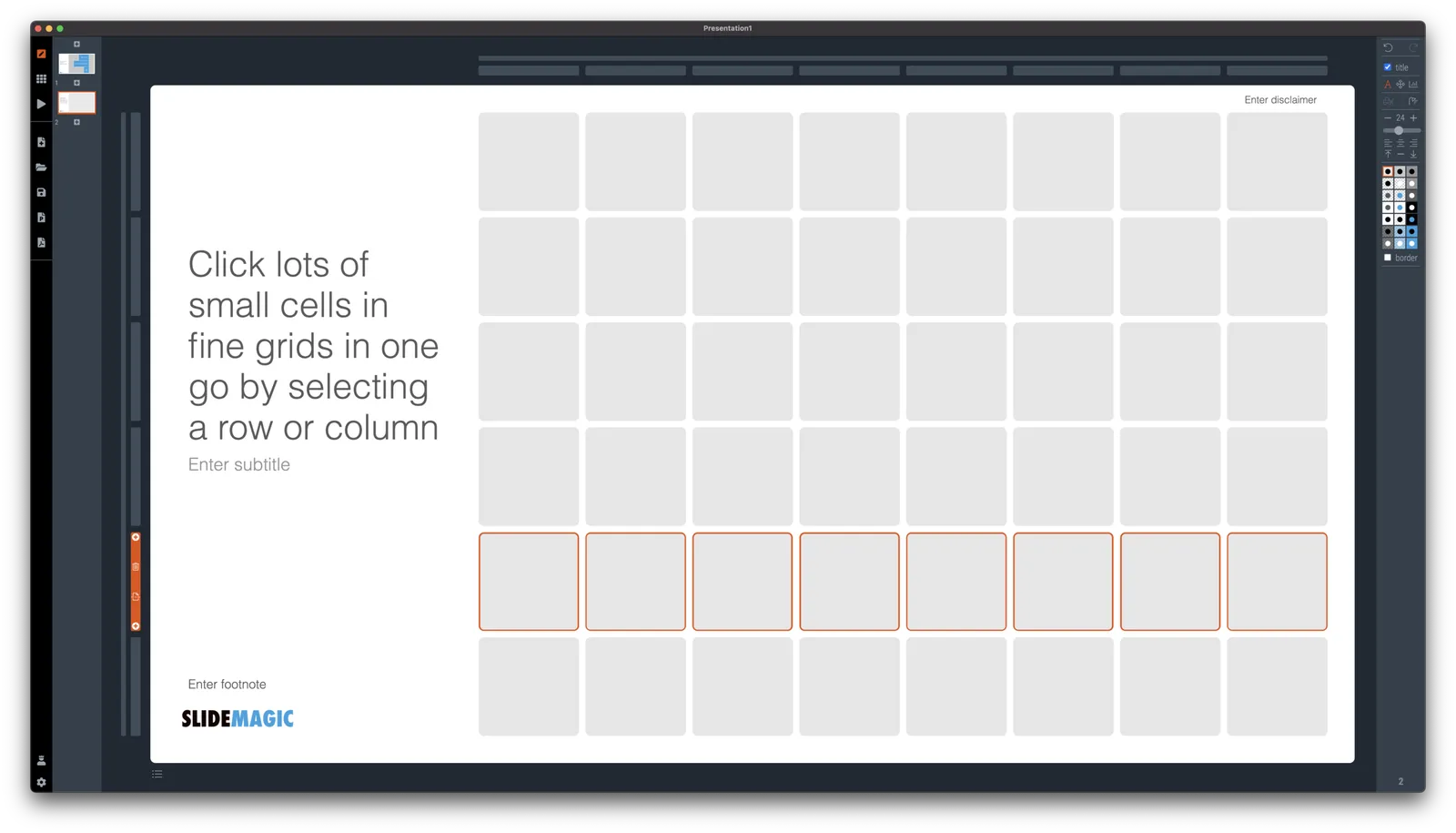
If you select a column marker at the top of the slide, all boxes in your slide that “touch|” the column will be become selected, and you can apply formatting to them in one go (for example, make them all blue).

The same applies for rows, click a row marker, and all relevant boxes in the row line up.

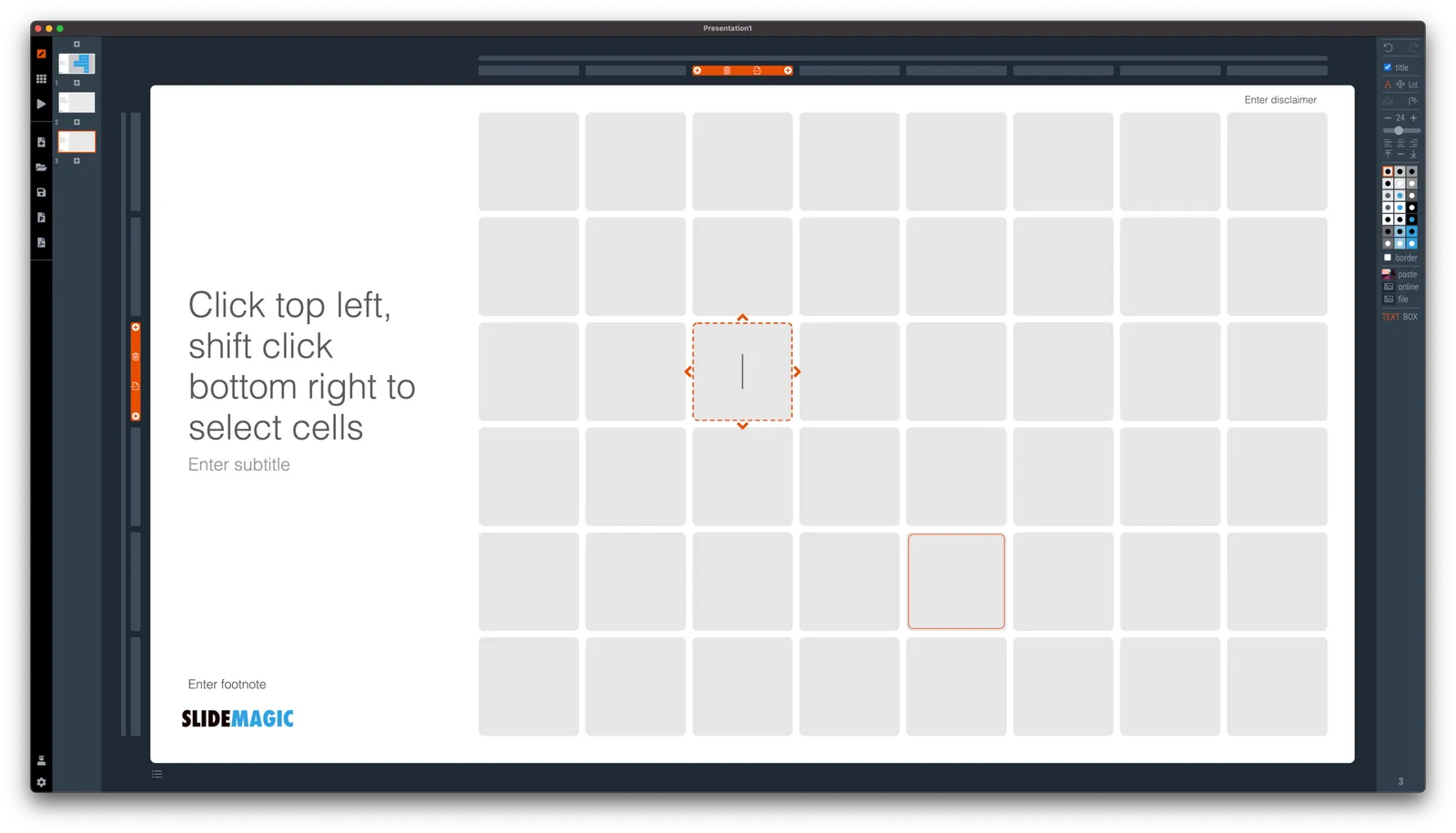
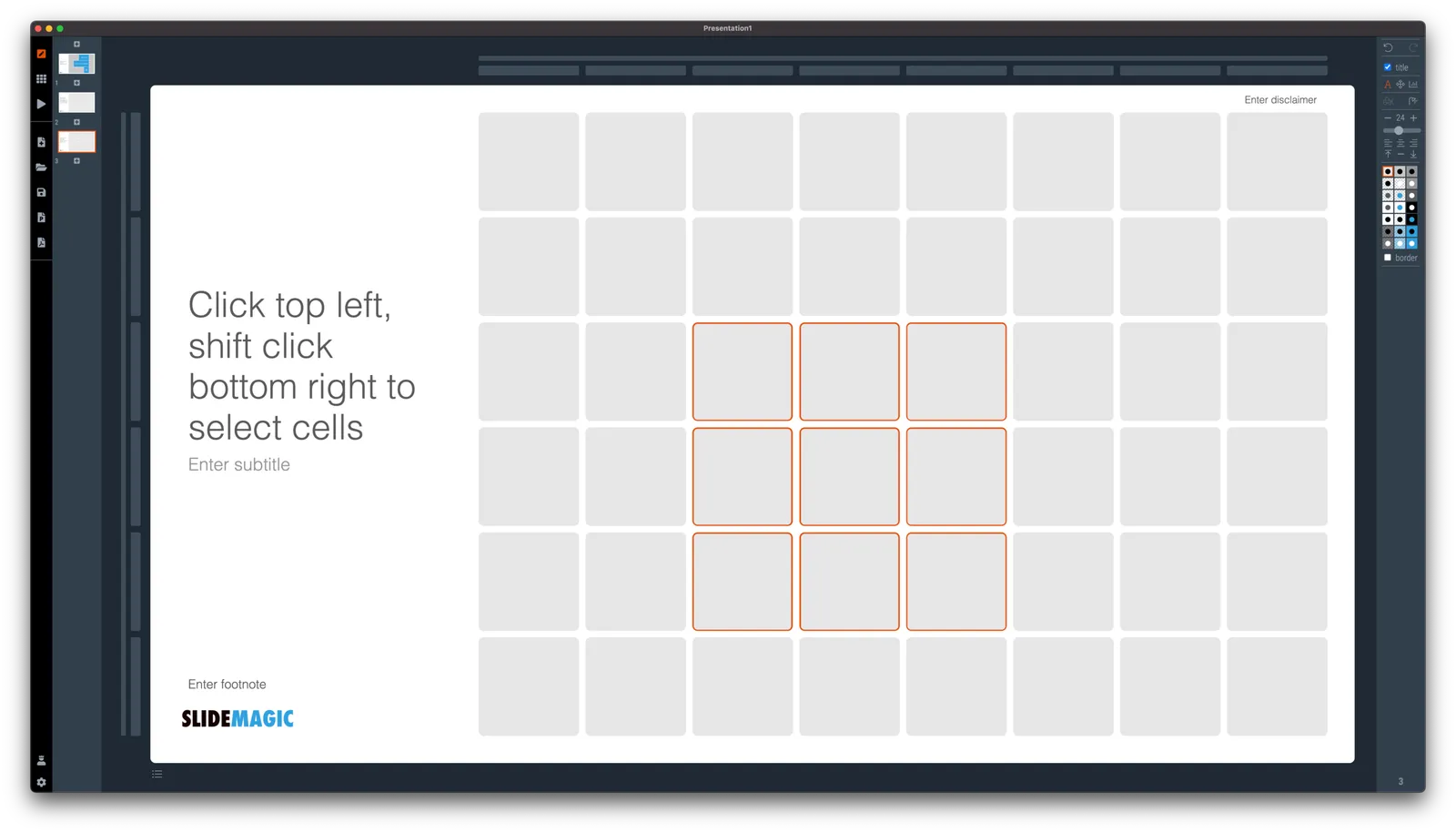
Finally, you can select whole areas of boxes by first clicking a top-left element, then clicking a bottom-right element, and SlideMagic will light up all the boxes that are in between. See the example below.

·SlideMagic

New 'no-title' layout

SlideMagic works with fixed positions for slide titles, subtitles, footnotes, and logos. Each slide looks organised, consistent, and the same.

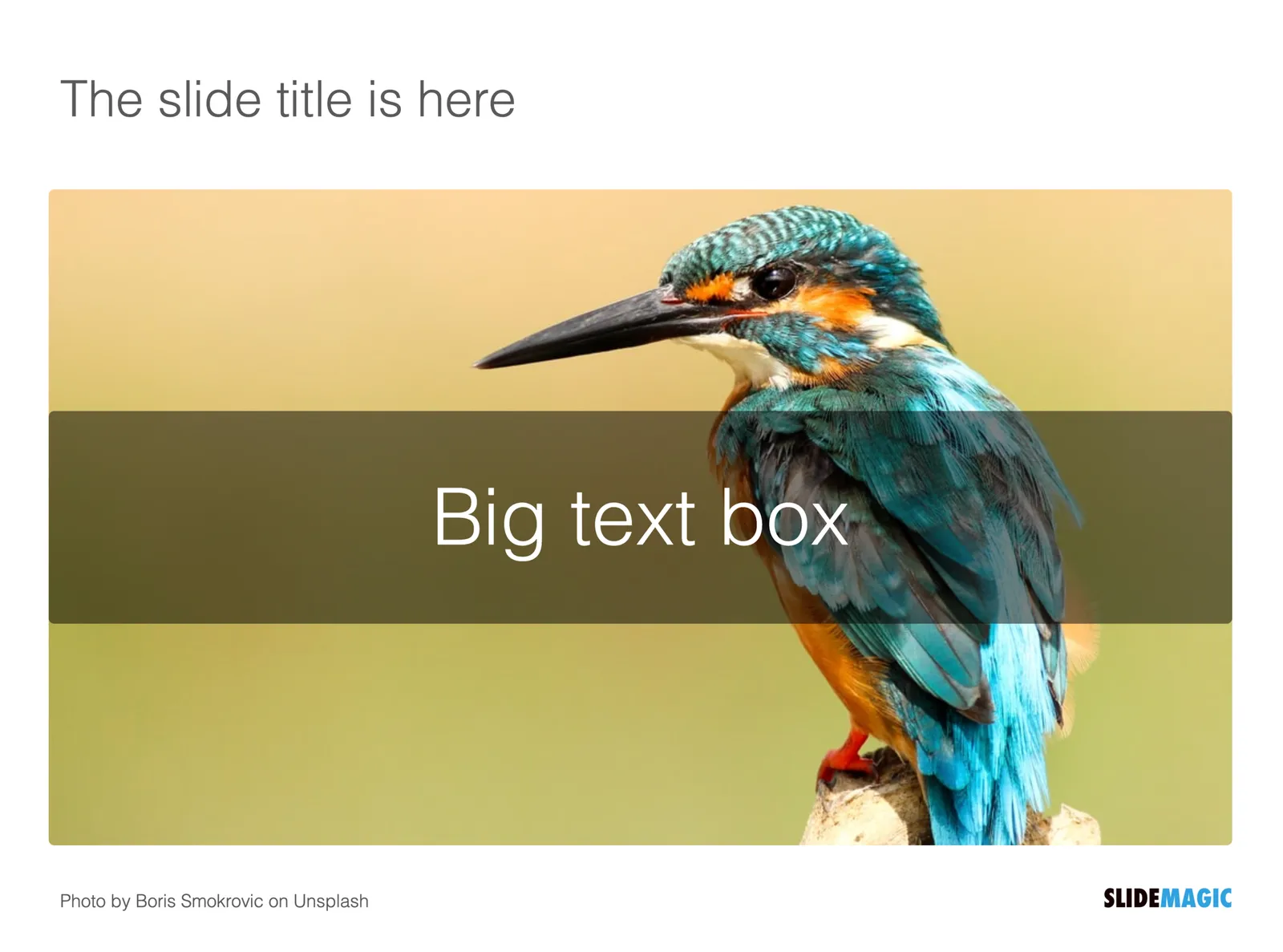
Some slides call out for a slightly differently layout. Tracker pages for example. A simple text box that sites right in the middle of the screen. Up until now, SlideMagic would push these text boxes a bit down or to the right because of the required space for the slide title.

With a very simple check mark, I now created the option to remove titles from the slide on a slide-by-slide basis. It is a tiny adjustment to the user interface that can improve the look of layouts significantly. I am still putting a high hurdle when it comes to complicating SlideMagic. This is definitely not a complication!

While the user interface adjustment is easy, behind the scenes, there is a lot going on. Removing the the titles from a slide requires recropping of all the images on a slide. With SlideMagic’s new automatic cropping algorithm, this has now become possible. Imagine doing this for a slide with 40 client logos in a regular presentation design software, after which you come to the conclusion that the slide looked better with a title: re-cutting, re-cropping, re-distributing 40 images again. In SlideMagic, this is a button click.

You can check out the new features as of version 2.6.9

Photo by Boris Smokrovic on Unsplash

·Investor presentation

Should you put 'confidential' on every slide of your presentation?

For years I tried to resist the pressure from lawyers to fill every slide with legal disclaimers. They do not look very pretty. But SlideMagic aims to be practical and as of version 2.6.8, you can do so, if you have to.

To make them still look OK:

  • I made the font really small, in all caps, so the disclaimer looks more like some sort of a document id
  • All disclaimers are exactly the same and at exactly the same place
  • The placement of the disclaimer changes based on what sort of aspect ratio / slide layout you are using

Should you put disclaimers? (Warning, I am not a lawyer). There are certain situations where you probably should. Certain confidentiality agreements state that information needs to be marked as being confidential to be covered by the agreement.

But, if there is no such agreement in place, I am not sure how much leverage you have if people are sharing pages despite all the scary warnings on the page. Also, if you are using slides with a big TED talk or product launch, the whole world can see them, making the disclaimers pretty useless.

Most investors do not sign NDAs, and you actually you want the junior VC to forward your pages to a partner in the firm. Assume that when you send your slides to investors, there can be leaks, so be careful what you put in there. In most cases the actual content of your super secret technology will not make the difference when it comes to evaluating your pitch deck in the early stages of the investment process.

Continue reading →
·SlideMagic

Making SlideMagic more Zoom-friendly

Up until now, playing a SlideMagic presentation would trigger a full screen view of your slide, plus second full screen window on the presenter machine (if available). Switching back and forth to full screen, swapping monitors can be a bit disorienting, and in the area of Zoom, it does not work well when you want to share your audience window, but not your presenter view.

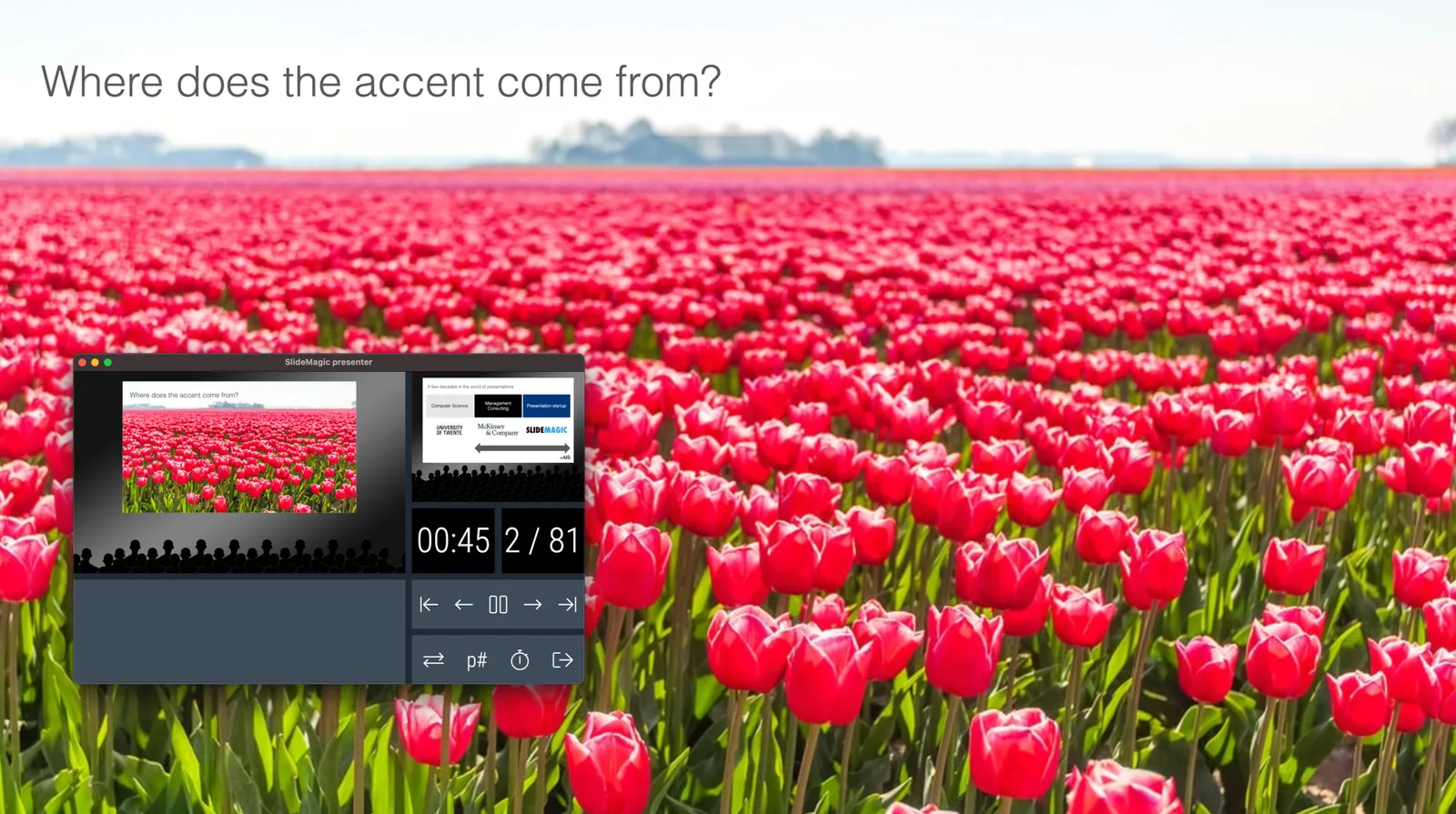
As of version 2.6.3, entering a presentation will now always trigger 2 windows (not in full screen): the slide and a smaller presenter view with timer, counter, and a thumb of the next slide coming up. You can re-rearrange them to monitors as you see fit, and go to full screen manually if needed.

This also ‘solves’ the issue of deciding which screen is the audience screen, and which one the presenter’s when many on screen projectors (not replaced very frequently) have lower screen resolutions than most computers.

·Layout

How to crop headshots in your presentation

The ideal design for a slide that shows your team is a group picture, all taken together. Unfortunately, these are almost impossible to produce. Teams change, and people are hardly ever in the same room (especially now with the virus).

The next best thing is a collage of headshots. Professional graphics designers have a specific approach to line these up properly:

  • Make sure that the eye line of all the head shots is more or less the same (at 25-33% of the image height
  • Make sure that the sizes of the heads are more or less the same

In PowerPoint and Keynote, this is an absolute pain to do. Getting different images to have the exact same size is tricky. Cropping images to position eye ines is tricky to do, and might undo part of the work that you did to get them to be all the same size.

In SlideMagic, things are easier, because it works with fixed shapes and smart cropping.

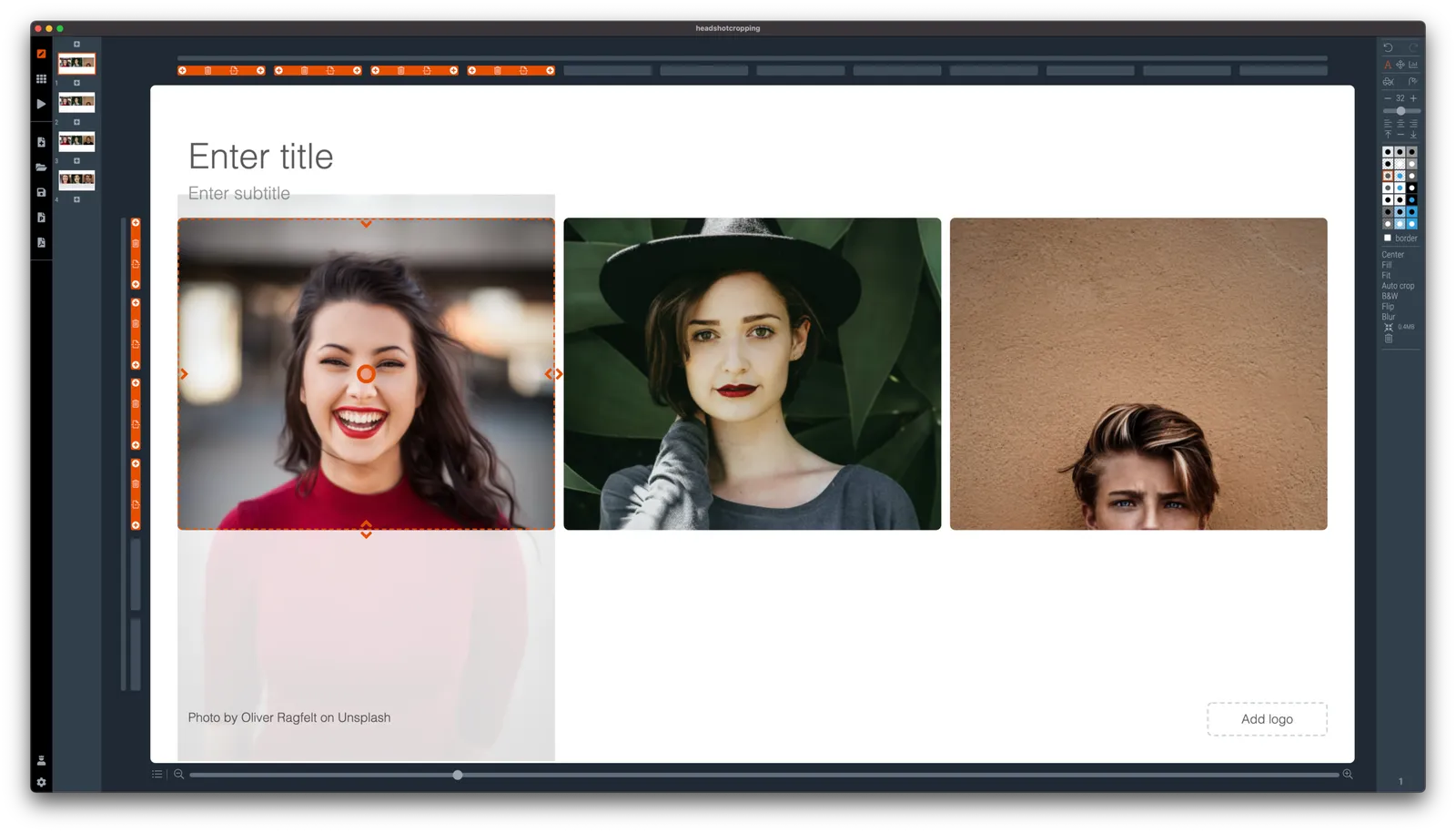
Below I plopped in 3 portrait images from the built-in image search engine of SlideMagic. In 2 of the 3 cases, the “AI” smart cropping algorithm did already a reasonable job, in the last case, totally not. But first things first, all images have the exact same size, and are spaced out absolutely perfect.

Next, we are going to drag the central dot at eye level for each of our team members and drag the images inside their boxes so the eye lines line up.

Continue reading →
·SlideMagic

New focal cropping now out of beta

I released version 2.6.1 as a regular SlideMagic app update, which includes the new focal cropping image rendering engine. I have been testing it extensively over the past few days and things are working smoothly.

If you are working on slide decks that you made a long time ago with SlideMagic, briefly check whether the image positioning is exactly as you intended it to be. (Including a possible logo image at the bottom right of the slide). An image that you thought was cropped “fill” or “fit” might just show a tiny gap around the borders. Hitting “fit” or “fill” again should solve the problem.