SlideMagic Blog

Frequent updates about all things presentations since 2008. Subscribe to never miss a post.

RSS
all posts

Category SlideMagic

·Templates

Explained: vaccine 90% effective, vaccinated still expected to be 50% of infected

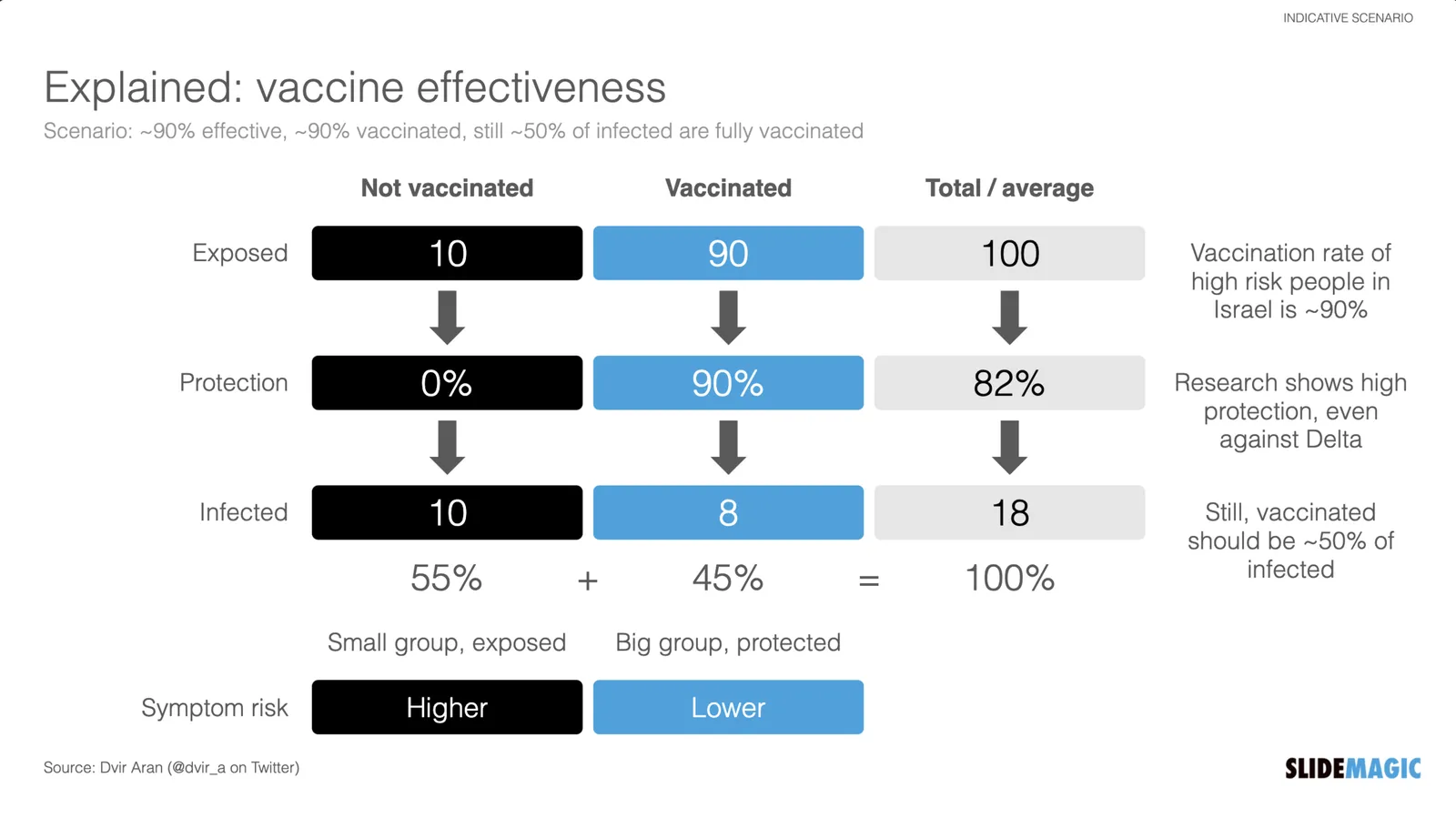
There is a lot of confusion here in vaccinated Tel Aviv, now that around 50% of people infected with COVID appear to be full vaccinated. Newspapers are heavily quoting the “64% i.s.o 90% for the Delta variant” which does not seem to be based on the correct calculation of vaccine effectiveness.

I used an explanation by Dvir Aran to make a slide that explains how it is expected that 50% of infected people are fully vaccinated, even with a 90% vaccine effectiveness.

The logic is as follows:

  • Take 100 people who are seriously exposed to the virus

  • Assume a 90% vaccination rate (the case for the at-risk population in Israel at the moment):

    • A small group is exposed: 10 people
    • A big group is protected 90 people
  • Assume a 90% vaccine effectiveness:

    • 10 out of 10 unvaccinated people will get infected
    • 8 out of the 90 vaccinated people will get infected
  • Of the total of 18 infected people, 8 will be fully vaccinated, so around 50/50

Of those 18, the majority of cases with symptoms and serious complications will be unvaccinated of course.

I have added this slide to the SlideMagic library, search for “COVID” and it will pop up, or download it here. Pro subscribers can convert this chart to PowerPoint, if you have to. (Students, you can claim a free membership!).

·SlideMagic

SlideMagic student program

We are working on new pricing plans, one of which is a free plan for students. Ahead of any formal announcements and websites, blog readers can already take advantage of this options. Email support at slidemagic dot com from your school/university email address (after you created a regular free account), and we will switch you on the new program for one academic year.

Photo by Good Free Photos on Unsplash

·Templates

"Life by SlideMagic"

My amazing wife Anat Naschitz has always supported me in developing SlideMagic behind the scenes. Going forward, she will become more visible to the outside word. Recently, she created a deck to demo SlideMagic to a potential client. We have added these slides and the entire deck to the SlideMagic template database, so they all should be available in the SlideMagic app for you to use in your own presentation, simply search for “anat” and the slides will pop up.

·SlideMagic

New email updates should work now

Yesterday I moved over all email addresses that opted in to a new email update platform. You should have received your regular email updates, just with a slightly different look (the design still needs work). If not, you can re-subscribe here, or reach out to me directly.

Photo by Carol Jeng on Unsplash
·SlideMagic

Pondering SlideMagic 3.0

Over the past month or so I have been slightly ‘distracted’. My wife (a life science investor) and I are working on an exciting new business that can change the way the pharma industry works (and cure a lot of patients in the process).

It is amazing to see how quickly I can now put things together compared to when I started the work on SlideMagic 2.0. Product development and prototyping is now really fun, as you can try out different things, make 180 degree design changes overnight without the need to re-brief large development teams.

This new confidence, combined with taking a step back from everyday development on SlideMagic is sparking some ideas that could ultimately turn into SlideMagic 3.0. Unlike 2.0, ideas are no longer held back with my ability to implement them, which is an interesting freedom to experience.

The gradual SlideMagic development process might not be a textbook startup case, but I believe this tinkering is the only way to get to a credible alternative presentation design tool. I am convinced that it will get there slowly, and then suddenly.

Photo by Allec Gomes on Unsplash

·SlideMagic

Limited time...

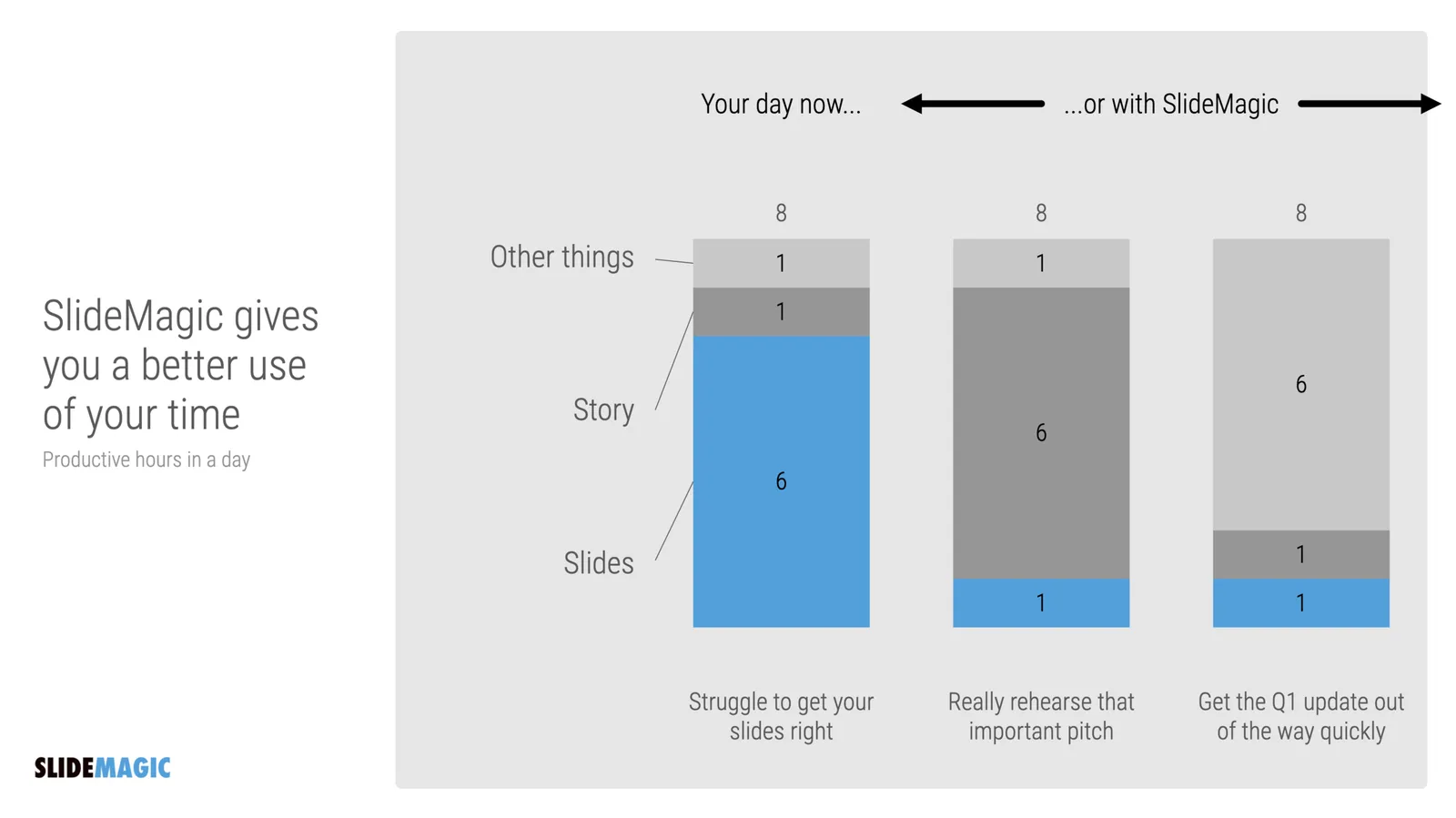
This chart lays out the philosophy behind SlideMagic: spend more time pitching, less time editing. There are only a limited number of productive hours in a day, it is a waste to spend them on slide design…

  • If you are preparing for an all-or-nothing pitch, you free up time to really, really rehearse your story.
  • If that quarterly report is sitting on the top of the to-do list and preventing your from doing other things, get it out of the way quickly.

P.S. I have add this slide to the database here, or search for ‘slidemagic’ in the desktop app to use it in your own presentation

·SlideMagic

Updates to the settings

As of version 2.6.27, the way settings are stored in SlideMagic. I rely on open source software and the previous engine I used to save settings on your machine was not maintained very well by its developer and started to cause more and more bugs over time.

If you are a pro subscriber, please log in again after you update. Also, you might have to re-enter your accent color to store it on your machine. Apologies for the inconvenience.

Photo by Rima Kruciene on Unsplash

·SlideMagic

Observations from a slide magician...

“Slide magician”, that is what you become right after using SlideMagic for a while?

Recently, I had to go back to PowerPoint for wireframing some new app screens (it is this “free hand” doodling that is made impossible by design in SlideMagic). Here are some of my impressions.

  • PowerPoint has gotten much more polished. I do not use PowerPoint that often anymore, and you see improvement in the details of the UI elements (I have developed an eye for app design now).
  • Some elements are a bit intrusive. I had to work hard to save my work on a local drive rather than the Azure cloud folder, and the “AI-powered” design ideas with bold pictures and graphics took some time to switch off.

The biggest change was in my head though and has nothing to do with PowerPoint. I have become so accustomed to making slides in the SlideMagic-style (boxes and grids), that I started trying to make these slides in PowerPoint as well. And here I noticed how hard that was.

Something interesting is happening. I start to ‘forget’ certain workflows in PowerPoint, things are getting a bit rusty, compared to 3 years ago when I would fly across the user interface with the help of my custom toolbars. Maybe that is the same starting position as most PowerPoint users who are not professional designers.

Photo by Almos Bechtold on Unsplash

·Typography

PowerPoint conversions back to Arial

I changed the font that SlideMagic uses for PowerPoint conversions from Calibri to Arial as of version 2.6.22.

The thought behind Calibri was that when converting slides to PowerPoint, I wanted to stick as close as possible to the box-standard Microsoft format as possible, and Calibri is the standard font for Microsoft Office applications. SlideMagic users “complained” that the PowerPoint conversions did not look very similar to the beautiful originals. So I made the change.

Helvetica (especially thin variants) looks more elegant but gives compatibility issues on Windows machines. Hence Arial it is….

Obviously when you convert your SlideMagic .magic files to PDF, you get the exact same look & feel as in the SlideMagic app. This is the workflow we should aim for. SlideMagic .magic files are the source code of your documents, PDF is how you share the result with external audiences.

Photo by Natalia Y on Unsplash

·SlideMagic

Updates to the SlideMagic PowerPoint Add-in (alpha)

UPDATE: THE MICROSOFT OFFICE PLUGIN HAS BEEN DISCONTINUED (30 JUNE 2026)

Microsoft made some updates to its Office API (and SlideMagic made some changes to its server), and as a result, the SlideMagic PowerPoint add-in starts working a lot better.

The SlideMagic PowerPoint add-in is especially useful for users who download PowerPoint templates from the SlideMagic web site. Most of you are people who were subscribers to the legacy template store (RIP). Since PowerPoint conversions are a pro feature of SlideMagic, the add-in is only useful for pro subscribers.

What has changed?

  • The add-in now remembers your login details across PowerPoint files No need to constantly log in (again).
  • More importantly (thank you Microsoft), the SlideMagic add-in now adds slides straight into your existing PowerPoint presentation

The add-in is still an alpha phase, and things are tested for the moment in the online PowerPoint environment. I will submit it for another go for Microsoft approval to get it working with PowerPoint desktop versions as well.

Here is how to install the add-in:

  1. Download the file slidemagic.xml from this link
  2. Log in to your online Microsoft 365 account, click PowerPoint, and open a new presentation
  3. Select “insert”, then “add-ins”
  4. Select “my add-ins”, then “upload my add -in” in the top of the window (it is not available in the Microsoft store yet)
  5. Select the slidemagic.xml file you just download and upload it
  6. Go back to the '“home” ribbon

The add-in is installed. To use it:

Continue reading →