SlideMagic Blog

Frequent updates about all things presentations since 2008. Subscribe to never miss a post.

RSS
all posts

Search results for “powerpoint 2011 bug”

·Colors

PPT 2011 for Mac color bug

Microsoft PowerPoint 2011 for Mac has an annoying bug: when you apply a colour to a font, it comes out slightly differently than when you apply the exact same colour to a shape. One: it looks bad on slides, two: it gives surprises when you open a PowerPoint file created on a Mac on a Windows machine (which does not have the same issue).

When I posted about this somewhere on a Microsoft forum I got the response that this was done on purpose; to make text readable against a coloured background. This does not make sense, if I want to make the text readable, I will put in a different colour myself, and definitely not the one that Microsoft is using. See below, the letter colour is a completely different type of blue than the background.

(Geek alert). There is a complicated way to get around it. Type some text, change it to the desired colour. Now select the desired text (not the entire sentence) and bold it: the right colour appears… But, as soon as you do anything else to your text box, the wrong colour gets put in. Annoying…


·PowerPoint

I think I found the cause of the Office 2011 toolbar bug

I was in the process of designing a beautiful chart on my new Mac when I got too confident and decided to modify the toolbars of PowerPoint 2011 and… lost all my work again (see my previous rant about this bug)

In sbort: if you customize your toolbar in PowerPoint 2011 for Mac, the program will crash as soon as you enter slideshow mode. Googling around reveals that many users have similar problems: corrupt toolbar files that cause crashing. I decided to dig a bit deeper and through a process of trial and error found that the offending customization button are the straight arrow ones that you find in the autoshape menu. The icon of these bars still have the old PowerPoint 2008 look, I think Microsoft forgot to update them.

They are probably not that many geeky PowerPoint users that would customize their toolbar with straight arrow connector buttons so it would have been hard to uncover the bug. :-)

I am forwarding this post to someone in Microsoft I know, but if there are any Microsoft MVPs reading this post, please pass it on and ask Microsoft to fix the bug.

The post that I originally planned to post will to have to wait a bit…

·PowerPoint

PowerPoint 2011 for Mac review

I have been working for a few days with Microsoft Office for Mac 2011 now (affiliate link), having upgraded from the earlier version PowerPoint 2008. For me, the Mac is still a secondary machine, and testing this software is one of the key determinants whether I can move across all together to a Mac environment. All my clients use PC-based Microsoft Office software, so Keynote cannot replace office.

Initially I was a bit wary of Office 2011, having read some poor reviews on Amazon and by columnists such as David Pogue. Maybe it was because of this that I wrote this impulse post about stability issues of PowerPoint 2011.

I managed to solve the problem (after a lot of searching online). Somehow, PowerPoint 2011 can crash every time you enter slideshow mode after you have done some heavy toolbar customization. It happened to me a few times in a row. All fine, customize toolbars, crash, reset toolbars, all fine, customize toolbars, crash. At the moment I stopped the poker game (do I have the courage to add another toolbar customization or not, at the risk of having to reset all previous modifications?) at a level that I am happy with my current toolbars. So the issue remains.

For the rest, I must say that I actually like PowerPoint 2011. The differences with the PC version are minimal, someone with experience with PowerPoint on a PC can switch over instantly. The previous version (PowerPoint 2008) had a user interface that was different from the PC, and also lacked some functionality. Now there is a level playing field. (Well almost, for some reason you cannot change the spacing of the grid in PowerPoint 2011, making it hard to set a grid line exactly at 0 of your slide).

Continue reading →
·PowerPoint

UPDATE: PowerPoint 2011 crashing when entering slideshow mode

UPDATE: To readers arriving here via Google: this is a post from February 2011. However, as I write this in January 2015, Microsoft PowerPoint 2011 for Mac again is crashing frequently. I recommend saving your work often. I corresponded via Twitter with the Microsoft support team and they pointed me to their general cleanup suggestions here (basically removing all your preferences).

Want to try out an alternative to PowerPoint? Request a beta invite for the new presentation design software SlideMagic here!

Here is the original post from 2011:

OK, more searching solved the issue, which can be found here: http://support.microsoft.com/kb/975723 My toolbar folders were corrupt.

Everything is working again without toolbar customization. But when I start modifying the toolbars again (I need a set of 20 buttons or so to be really fast an efficient in PowerPoint), the whole saga starts again. I will keep you posted about my experience with Microsoft PowerPoint 2011.

I have been battling with PowerPoint 2011 for the Mac for the past hour and it seems seriously flawed. When entering slideshow mode, it just crashes. Searching online for a solution reveals dozens of forum discussions about the same issue that are unresolved. Do not upgrade from Office 2008. Repeat, do not buy it, it is not stable yet! Usually I am an early adopter of software and can live with a few bugs here and there. Not being able to go into slideshow mode kills the purpose of PowerPoint, this is a serious flaw.

Continue reading →

PowerPoint 2016 for Mac bugs

I have written very positive reviews about PowerPoint 2016 for Mac, even calling it better than the latest version of Apple Keynote. But there a few annoying bugs inside. This blog is read by a lot PPT experts, so maybe one of you can help.

  • I encounter a persistent issue with setting theme colours. I tried to pick new ones and then save them as a new template, it refuses to do so. I go back to PowerPoint 2011 to set up new presentations.
  • Image compressions is now a crucial feature. In all my presentations I need to go down to 150 DPI to keep files below 10MB. But when I do compress images, often things go wrong. Especially with cropped photos. The image gets replaced by a big white box, with a miniature version of the original photo in the top left corner.
  • Many fonts have now more granular weight control: thin, light, regular, bold, black. This is great for design, but the good old “bold” button for a quick style edit does not work anymore for some reason.
  • Whenever I do copy-paste of a small item (a tiny arrow for example), an annoying dialogue box pops up, covering the entire object and making it impossible to move.
  • Still, PowerPoint crashes often, especially when working with data charts. (Here is a trick to recover your work)

Are these just me?

Image from WikiPedia

·PowerPoint

PPT for Mac colour bug workaround

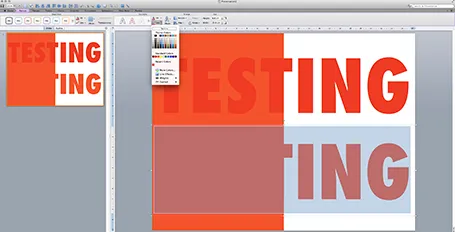
Microsoft PowerPoint 2011 for Mac renders colours of shapes and text differently, it has given me many headaches and inspired many blog posts over the years. So - finally - here is the simplest fix: create a thin outline in the same colour as the text around your characters, done!

The screen shot below shows how normally text get rendered differently even if you apply the same colour code to it (#!@$#@). Below that, the same text, with the same colour, but now with a tiny outline (same colour) around it. In the small preview window at the right you can see that the text and the shape have the same colour.You can see how I selected the text, and picked the line option from the format ribbon to do it.

Microsoft, please acknowledge this as a bug and not a feature (which you suggested in the past) and fix it in the next Office 2011 patch.

·Colors

Fix the PPT for Mac colour bug

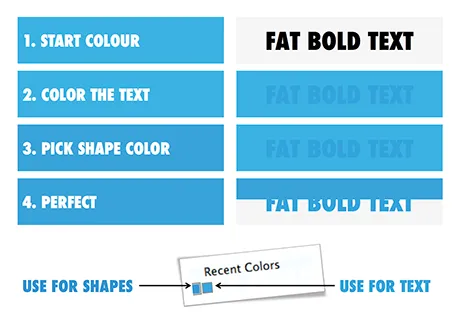
The colour rendering bug in Microsoft PowerPoint 2011 for Mac is highly annoying. Here is fiddly a trick to get around it. You basically need to goal-seek the text colour into something you like.

  1. Pick a colour you like, draw a shape and fill it with the colour
  2. Write some text in a big bold font and set it to the same colour: PowerPoint will render it incorrectly
  3. Here is the fiddly part: repeat steps 1-3 until you are happy with the TEXT COLOUR.
  4. Now, use the Apple colour picker to strip the colour of the text

Save your colour template with 1 accent colour for text, and one accent colour for shapes. In your drop down menu they will look different, on screen they will look the same.

Note 1: I tested the PowerPoint RGB colours as well in Photoshop and Illustrator, and it turns out that PowerPoint renders the shape colours incorrectly, the text is correct.

Note 2: There is a more analytical way to get your desired colour than simply trial and error. You can analyse the RGB codes of the background colour and the text colour. So, set the shape colour to something that you would like. Write down the RGB codes. Colour the text with that colour, and pick its colour with the colour picker. Write down the text RGB codes. Analyse the difference between the two colours and create a third colour by adding/subtracting the R, G, and B differences between the colours. This will be your text colour that renders the same as the desired shape colour. It all sounds more complicated than it is.

Continue reading →
·Software

New PowerPoint 2016 for Mac can beat Keynote

The preview of the new Microsoft Office 2016 is out (finally) and I have installed it on my production machine letting it do all my presentation design work for clients. (You can download the Office 2016 preview here)

  • It looks beautiful. PowerPoint 2016 for Mac looks exactly the same as PowerPoint 2013 for Windows. A calm flat user interface. Working in a beautiful software environment always encourages you to create beautiful presentations.
  • The whole interface feels faster, snappier, and smoother, somehow. This is especially true for Excel. The current version of Excel for Mac has a highly annoying latency when entering data in cells.
  • Subtle changes to the default colours and fonts. Gone are the boring olive greens of the old PowerPoint colour scheme. Calibri light looks great on Retina displays. Gone are the default gradients and drop shadows. Gone are the tick marks in data charts.
  • The commenting infrastructure is nice for collaboration with other people
  • Full integration with OneDrive cloud storage (if Microsoft has guts they should add Dropbox as well, and maybe even Google Drive).
  • Now PowerPoint gives suggested snap lines to place objects, automatically distributing and aligning things on your screen.
  • The grid behaves more normal with a centimeter ruler. If you accidentally move a grid line (yes, this still happens) it is easy to move it back to the right position.
  • Now text and shape backgrounds have the exact same colour rendering, an annoying bug in PowerPoint 2011, where despite selecting the same RGB value, colours on text and shapes would render differently.
Continue reading →
·Gadgets

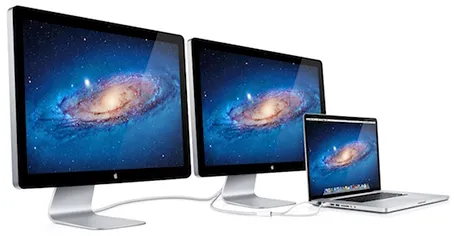
MacBook with 2 external screens

The new Apple 27" Thunderbolt display enables you to connect 2 giant external displays to a laptop, something that has not been possible until now without additional hardware.

Large screen real estate has its advantages. It is easier to design presentation slides when you have a large workspace in front of you. Extra space also enables you to open multiple windows, for example a PDF file with comments on the previous version of your presentation, or an Excel file with the data that need to go into your pie chart.

Now, 27" is a lot of space (2550x1440 pixels) and for most ordinary people, one screen will do. A presentation designer might actually need two (putting her in the same category as financial traders, air traffic controllers and social media addicts). I like to design on a clean and calm canvas. All the small windows with bits of information distract me. So I use that second screen as my messy desktop, literally pushing bits, pieces, and windows aside when I do not need them, preserving my pristine and uncluttered design environment in front of me.

Now some technical details. An Apple Thunderbolt screen can only be connected to a recent MacBook laptop that actually has a Thunderbolt port. But more importantly, the dual screen configuration only works on the most recent 15" and 17" MacBook pros, not on the 13" MacBook Pro, and not on the MacBook Air. (This might actually be an argument for getting a MacBook Pro over a MacBook Air) at the time of writing, October 2011).

Continue reading →