

Note: this blog post discusses PowerPoint 2016 for Mac.
PowerPoint 2016 is great, but it still crashes left right and centre, all the time. Autorecovery does not always work, and when you forgot to hit SAVE every 5 minutes in the heat of a presentation design project, you are stuck.
The good news: you can often recover data, even when PowerPoint thinks it is lost.
PowerPoint autosaves your files in the background, without your realising it. Make sure you have switched this on, you can set the save interval in PowerPoint settings:
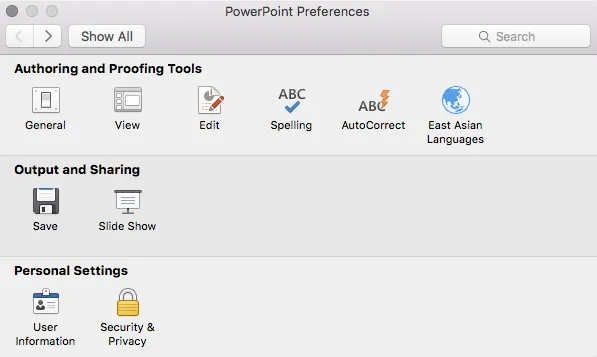

Normally after a crash, PowerPoint will automatically restart and present you with the last file that was auto saved. Normally… If not, try the following.
- In the Mac finder window, open the “Go” drop down, press ALT, to show the LIBRARY folder and click it.
- Once in Library, go to Containers > com.microsoft.Powerpoint > Data > Library > Preferences > AutoRecovery
- Have a look at the files there and spot a file with a “_autorecover” ending to its name, taking into account the time it was saved.
- Copy this file just to make sure
- Rename this copied file with the “.pptm” extension at the end. Ignore all warnings you are presented with.
- Double click the file and cross your fingers
There is no 100% guarantee this will work, but it is worth a try

One more tip: as soon as you see the small “spiral of death” spinning across the PowerPoint screen develop the instant reaction to take a screen shot of the application. If you are lucky and you grab the slide sorter window, you have captured a miniature icon of all your slides, which should save a lot of time recreating them. Worst case, you just got the thumbnails on the left of your screen that are in the regular slide editing window.
My presentation design tool SlideMagic is a PowerPoint alternative that does not work with files in the classical way. Things get saved into the cloud instantly. Feel free to try it out.
Art: Letters “Whaam” inspired by Roy Lichentstein
