SlideMagic Blog

Frequent updates about all things presentations since 2008. Subscribe to never miss a post.

RSS
all posts

Search results for “windows”

·PowerPoint

VMware acquires SlideRocket

VMware acquired in-the-cloud PowerPoint alternative SlideRocket. Up until now, VMware focused on virtualization infrastructure, it’s software can be used to create multiple virtual computers on one hardware platform. Many of you might be running a Windows PC inside a Mac using this technology (VMware Fusion).

It is not completely clear what the strategic intent of VMware is. Will it try to go up one level from basic infrastructure and start offering cloud applications competing directly with Microsoft? Or does it want to use it for something else?

The big issue with alternatives to PowerPoint is the installed base of corporate users that over the years has learned how to work with it. But maybe the extra financial power of VMware enables SlideRocket to get a shot at doing to PowerPoint what Microsoft Word did to WordPerfect?

·PowerPoint

Microsoft Office 2011 Service Pack 1 (version 14.1)

Microsoft posted its first Office 2011 for Mac update yesterday, and as I can see now, it took care of the instability issues in PowerPoint 2011 that I have been complaining about (fingers crossed). Still, there is a long feature wish list for SP2 to bring it at par with the Windows version, of which custom font embedding sits at #1. See my earlier review of PowerPoint 2011 for Mac.

·PowerPoint

My new Macbook Pro setup

So I replaced my computing infrastructure over the past week. Things are moving fast in the world of IT.

  • Laptop. A few years ago having decent graphical power still restricted you to using desktops. No longer. I have gone mobile. (Maybe motion graphics will make me regret it later). No I can use those little downtimes in between meetings to do actual useful work, rather than catching up on email or Twitter.
  • 17", I compared screen sizes and concluded that as a visual designer there is no avoiding the extra weight and size to get a decent size screen
  • Apple. Strangely enough it is actually the physical interfaces that convinced me. A nice machine to touch, nice keyboard, nice track pad. Something you spend the majority of your day on. Interestingly, a hardware decision, not a software one.
  • Cloud. It was surprisingly simple to move to a new environment when all your critical data resides in the cloud: email on gmail, files in dropbox (affiliate link), clients and invoices in Freshbooks (affiliate link), contacts in Batchbook. Everything is in sync on my new machine, and the legacy infrastructure that I continue to use as backup. 1Password synced via Dropbox to keep track of all the accounts
  • Virtual Windows/OSX blur. None of my clients use Keynote, and PowerPoint on Mac is simply not good enough (see a comparison between PowerPoint 2010 for Windows and PowerPoint 2011 for Mac). So in comes Windows, but I totally do not notice it. I use Parallels to create a virtual machine, and my Windows applications run in a Window as if I am working on a Mac. All data is shared and file management happens via OSX. It requires beefing up the hardware though. I put in 8GB of memory, of which I allocate 5GB to the Windows machine. The big customer segment for Parallels is actually hardcore gamers who want to port their favorite graphics-intensive games to the Mac. As a result, performance of a Windows virtual machine is actually very good. There is only a slight delay when you switch over.
  • Adobe alternatives. Adobe software is incredibly complicated and bloated. I need basic photo editing capabilities to resize images for the web and take out backgrounds out of images. Pixelmator is a beautiful Mac app that can do all these things (and much more) in a beautiful user interface. The same with Illustrator, I need it to edit stock vector diagrams nothing more. I could not find an alternative for Mac yet and as a result kept my old Windows CS3 installed (I see no need to upgrade). It is interesting to see that I started to look at user interfaces to decide my software, not so much the features anymore (same story as in hardware).
  • Legacy software. Some of my clients (mostly the large ones) are still running PowerPoint 2003. Hence I actually installed it in parallel to my production software PowerPoint 2010. (It took some time to dig up those old CDs).
·Images

Images from Chernobyl

The current crisis at Japan’s nuclear plants triggered this morning’s NYT article about Chernobyl, which will need to wait for another 300 years before it can be inhabited by humans again.

The confusion and uncertainty experienced by the people in Japan must be similar to the surreal experience I went through here in Israel while unpacking government-issued gas masks and constructing a biological/chemical shelter in one of our bed rooms just before the 2nd Iraq war in 2003. I remember taping the windows during live TV coverage of Tony Blair’s speech in the House of Commons advocating military action.

This photo set on Flickr by Tim Suess is both scary and beautiful at the same time.

·PowerPoint

PowerPoint 2011 for Mac review

I have been working for a few days with Microsoft Office for Mac 2011 now (affiliate link), having upgraded from the earlier version PowerPoint 2008. For me, the Mac is still a secondary machine, and testing this software is one of the key determinants whether I can move across all together to a Mac environment. All my clients use PC-based Microsoft Office software, so Keynote cannot replace office.

Initially I was a bit wary of Office 2011, having read some poor reviews on Amazon and by columnists such as David Pogue. Maybe it was because of this that I wrote this impulse post about stability issues of PowerPoint 2011.

I managed to solve the problem (after a lot of searching online). Somehow, PowerPoint 2011 can crash every time you enter slideshow mode after you have done some heavy toolbar customization. It happened to me a few times in a row. All fine, customize toolbars, crash, reset toolbars, all fine, customize toolbars, crash. At the moment I stopped the poker game (do I have the courage to add another toolbar customization or not, at the risk of having to reset all previous modifications?) at a level that I am happy with my current toolbars. So the issue remains.

For the rest, I must say that I actually like PowerPoint 2011. The differences with the PC version are minimal, someone with experience with PowerPoint on a PC can switch over instantly. The previous version (PowerPoint 2008) had a user interface that was different from the PC, and also lacked some functionality. Now there is a level playing field. (Well almost, for some reason you cannot change the spacing of the grid in PowerPoint 2011, making it hard to set a grid line exactly at 0 of your slide).

Continue reading →
·Design

Dropbox beats YouSendIt / Google Docs / Office Live

PowerPoint designers are struggling with big file sizes that consume storage and make it hard to email documents. I have discussed solutions such as YouSendIt and Google Docs before (here). Recently, I switched to Dropbox:

  • Seamless integration with all my devices (desktop, laptop, mobile phone, tablet)
  • Seamless integration with these devices’ operating system (you do not notice it is there)
  • Two solutions in one: 1) sharing big files 2) always access to your own files
  • Nice extra 3) a service that keeps history of your files so you can roll back a version in case a file got corrupted or you made a horrible design mistake.
  • Minimalist design interface

The Dropbox pitch to venture capitalists from 2007 pretty much still holds.

YouSendIt requires sign in all the time, and all the advertising and branding does not look very professional. Google Docs is still hard to integrate with Microsoft Office. Office Live does not integrate fully with the Windows operating system. It also suffers from feature overload: I do not always want to create a full virtual team room with calenders and contact lists, just sharing files is enough.

If you sign up with this link for your free 2GB account, you get 250MB of bonus space (disclosure: and I get another 500MB). You see, they know how to market as well. The regular link is here.

The last word probably has not been said about this subject, I wonder whether the conclusion still will be the same in January 2012.

·Books

U-turning on custom fonts

I used to recommend to stick to standard Windows fonts in order to avoid compatibility issues when presenting on other computers than your own. I am changing my mind, the risk of technical issues is still there, but the benefits of custom fonts is much greater.

Standard PC fonts (Times roman, Calibri, Arial, etc.) just do not look good. In dense body text, this is not such a big deal. But as PowerPoint slides get fewer and fewer text, their design start to look more like a poster with big headlines. And in posters, typography is a huge deal.

This post on the PowerPoint Ninja blog explains how to overcome compatibility issues by embedding your custom font inside the presentation. When you send it to someone else, she will see the correct font.

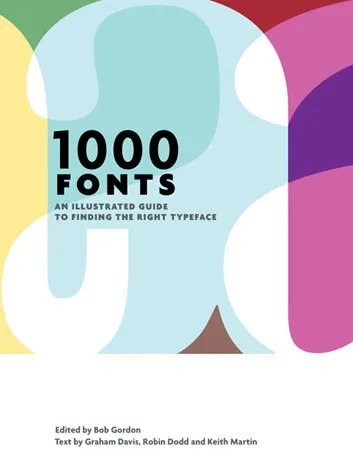
You can find your inspiration for fonts on one of the many fonts web sites, paying close attention to the small prints in books (they often mention which font was used) or through books like this one that I picked up in a Tel Aviv book store: 1000 Fonts (affiliate link).

·Design

Review: Slideboxx, a PowerPoint search engine

I have been testing Slideboxx over the past day (Windows-only). Slideboxx is a tool that crawls all PowerPoint files on your computer (it counted more than 5,000 on mine…) and stores visual thumbnails and keywords of all the slides in a searchable database. You type in a keyword, you get instantly served icons of matching slides with options to refine your search, find similar slides, and even “frankenstein” (what?) a new presentation from old slides.

First of all, there is a real need for a tool like this. The legacy Windows filing system based on file names and application icons is useless for visual files such as PowerPoint slides. I am now using Gmail to track down presentations (“where is that file I sent to [x] a month ago?”) because a date, a keyword, and a person is a better clue to what I am looking for than a location on a hard disk.

There are more companies developing professional solutions to dig through data stored in enterprise networks, not just PowerPoint, but including spreadsheets, PDFs, databases, etc. BA Insight is one for example.

Back to Slideboxx. The software is easy to install, the interface is nice and clean, and the program is very powerful to dig up long-forgotten slides.

For someone with a lot of slides who makes presentations for one company, or related to one subject area, the tool makes a lot of sense, and could actually be a significant time saver.

For my 5,000+ files the search results are sometimes a bit too broad, I would love to have an option to narrow searches actually by a folder on a hard disk. Another approach would be to add generic presentation tags to all slides in a presentation. For example the company name on the front page of the deck, the name of the presenter, the subject of the presentation, the items of the agenda, each of these are relevant to all the slides in a presentation, while they might not be written down explicitly on each slide.


Continue reading →
·Design

Clutter-free web site screen dumps

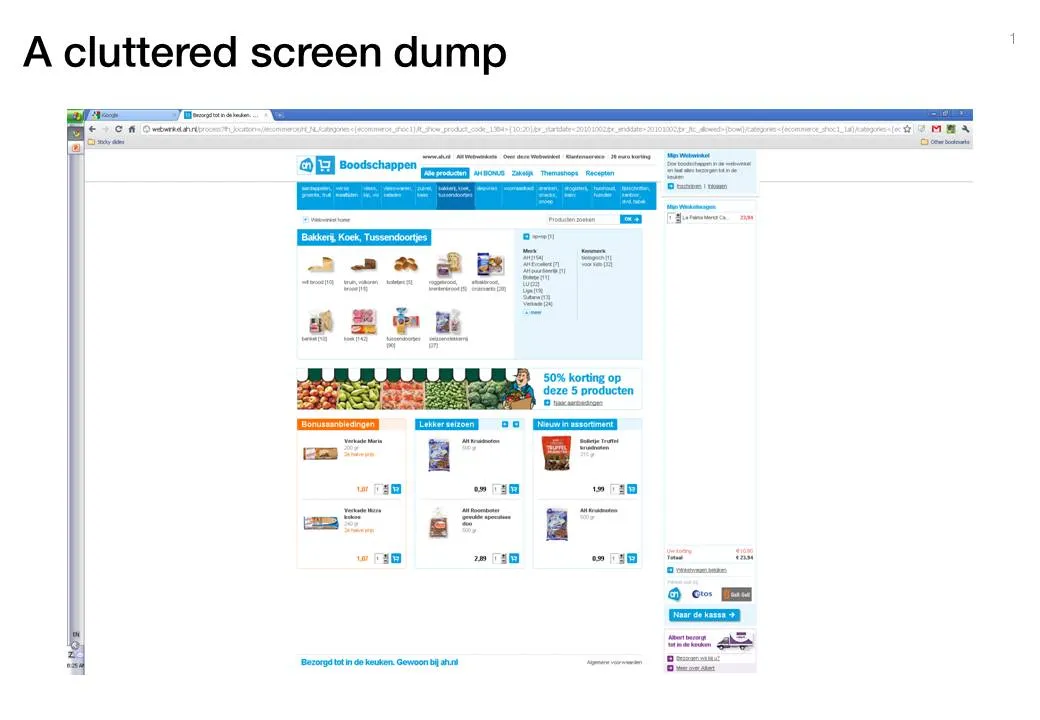
Screen dumps are often used in VC pitch presentations; either to showcase the company itself, or to give examples of competitors in the market. These screen shots are often filled with excess visual details:

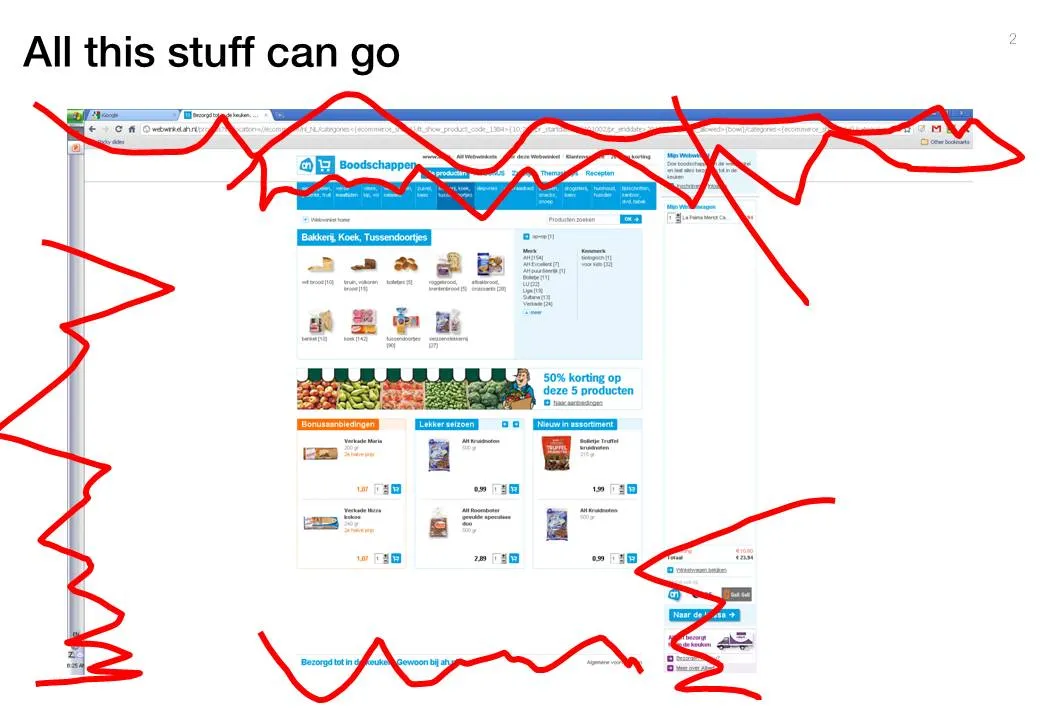
  • The Windows title and scroll bars (sometimes with personal information such as instant messaging windows or the names of other web sites that are open on the screen)
  • The menu navigation structure, login windows, banner ads that surround the core web site.

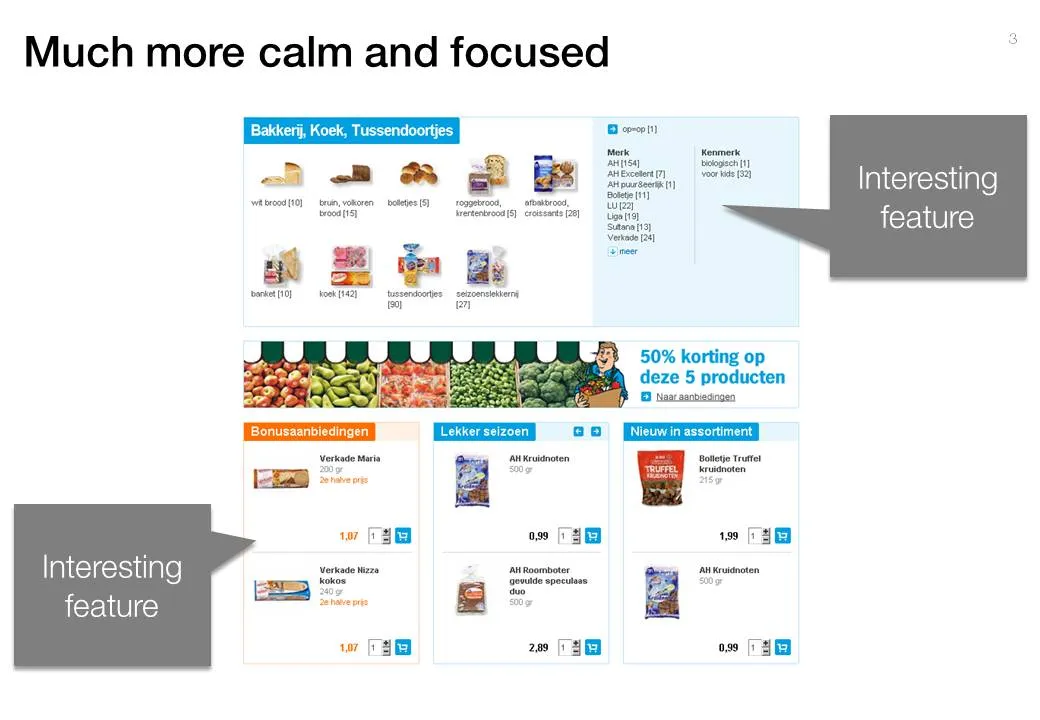
Cut this clutter to create a much calmer slide that allows you to focus on what feature/aspect you would like to highlight.

·Design

Using Adobe Illustator shapes in PowerPoint

PowerPoint 2010 has now incorporated some of the shape manipulation techniques that until now were the domain of Adobe Illustrator: union, combine, subtract, and intersect (read my earlier PowerPoint 2010 review here).

Until now, I never got into understanding Illustrator. Until now, because I (ironically) start to experiment with integrating more hand-drawn shapes into my presentations (I am even thinking of picking up my old highschool habit of drawing cartoons of people). Fonts are no issue (earlier post). The line/curve manipulations capabilities of Illustrator however are still far better than PowerPoint.

Here is how to move an Illustrator shape into PowerPoint, not just as an image, but as an editable vector object.

  1. In Illustrator export your shape in an EMF format
  2. In PowerPoint, select “insert picture” (a bit counter intuitive)
  3. Right-click the object and un-group it. Say “yes” to the question whether you want to convert it

Converting is this simple. Unfortunately, understanding Illustrator is not…