

Blog post

Graffiti and crossing things out with a red paint brush in PowerPoint

December 19, 2008 · by Jan Schultink
← all posts

Crossing things out in an immaculate PowerPoint slide with a rough, red paint brush can make a point strongly: “with our technology you can skip buying that new server”

I use a simple PowerPoint 2007 “glow” to get a graffiti-style effect. In the image below, I selected the “Boopee” font (standard in PowerPoint 2007) to which I applied a red glow and a gradient text fill (bright red, with a darker red). The background image was purchased on iStockPhoto. Let me know in the comments if you need more detailed instructions.
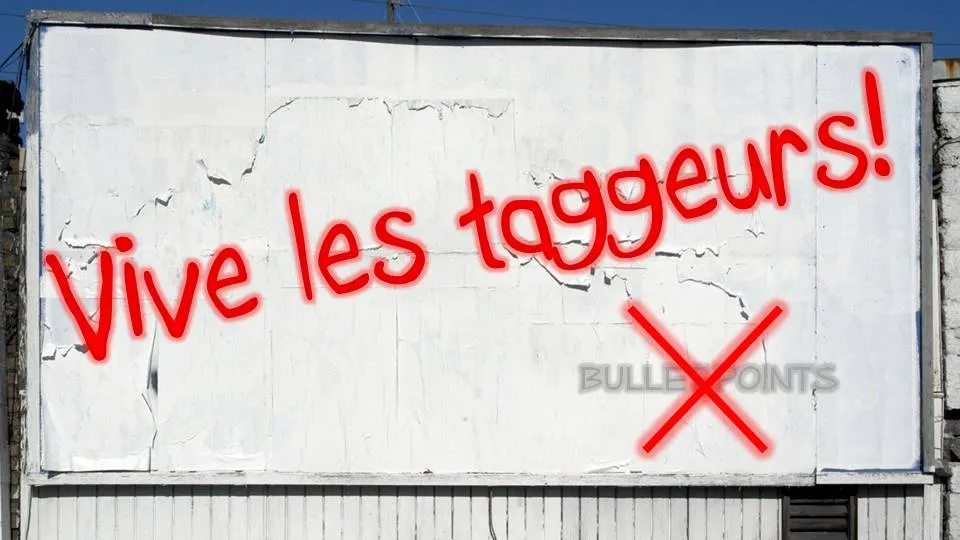
The French are just so good in inventing words: “taggeur” for graffiti artist (or vandal). Brilliant.

Be sure to avoid setting yourself up for disaster when using non-standard fonts in a PowerPoint presentation.

DesignPowerPointPresentation designPresentationTypography

About this blog

Notes on all things presentations — design, storytelling, and AI workflows.

Subscribe now to never miss a post.

RSS

About SlideMagic

A platform for business presentations.

A free student plan is available.

8 comments

Jan Schultink2010-09-24 06:01:26
Hmm. It works with Office 2007...
tears n reflections2010-09-24 06:42:01
BTW great blog..I like ur tips and tricks...Only one bit of criticism...where are the sample files :(
Alessandra2008-12-20 15:09:00
Jan,
are you sure this font is standard in PPT 2007?

Alessandra
Jan Schultink2008-12-20 15:30:00
@Alessandra, I did not add any special fonts to my computer and it worked for me? You cannot find it on your system?
tears n reflections2010-09-24 06:40:23
@ jan..Maybe this happened..
We never know but it sure aint there in my 2007 and 2007 office applications..
Jan Schultink2010-09-24 06:57:41
Thx. Yes, I should put those up.
tears n reflections2010-09-24 04:19:26
@ Jan...I can not see the font preinstalled as well....
tears n reflections2010-09-24 04:20:05
@ Jan I can not find the fonts too in my comp..