SlideMagic Blog

Frequent updates about all things presentations since 2008. Subscribe to never miss a post.

RSS
all posts

Search results for “windows”

·PowerPoint

DIY shapes

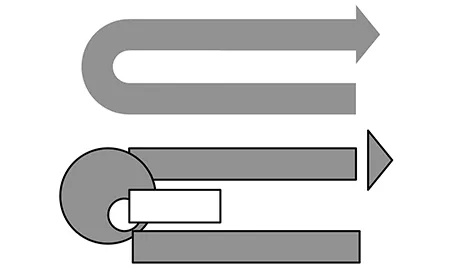
It is hard to get an arrow to point exactly right in PowerPoint. If the standard shapes fail, why not construct your own out of small individual bits. You can group the shape together, or create a new custom shape with one of the shape boolean functions (Windows instructions here, on a Mac: select 2 shapes, right click, go in the grouping menu).

·PowerPoint

Why suffer?

Often when I visit a client and we do some on-site slide edits together, I am surprised to see how people suffer from working in PowerPoint because of things that can easily be prevented:

  • Make sure you actually see what you do. Make your work area as big as possible, reduce the size of the slide note box to the minimum. If you have a docking station for your laptop, use it to hook up to the big monitor. Ask IT to help sort out a 2-screen configuration, where you can have presentation inputs (an older version with comments) can be on the small screen while you do your edits on the big screen (I went further and work on two 27" monitors, plus the 3rd  small screen of my laptop, one of the best investments I have ever made).
  • Write down actions that you use all the time (aligning objects, [un]grouping items, switch to slide sorter view and back, etc.) and spend 20 minutes Googling how to do them using short cuts. Read this old post about how to create the essential PowerPoint toolbar.
  • Use a proper mouse and not the IBM/Lenovo red dot
  • If your computer is slow, close down windows, applications, de-clutter your machine until you have only the files open that you actually need
  • Ask someone in IT to sort out the default settings in your PowerPoint template so that you do not have to look for fonts, colours, etc.
·Keynote

Keynote annoyances

I have now clocked a significant amount of hours designing slides in Apple Keynote. I love the program, but there are still a few annoyances that cannot be solved by adjusting your slide template or configuring other settings. Hopefully Apple will fix this in a new release (it has been a while):

  1. Selecting what you click, not what you cover with your selection triangle
  2. Make it easier to fill shapes quickly rather than having to go back to the inspector. I am always struggling with color windows and inspector settings
  3. Enable custom toolbars, especially with options to center and align things. Yes, the smart drawing guides are useful, but not useful enough.
·Images

Crop to fill

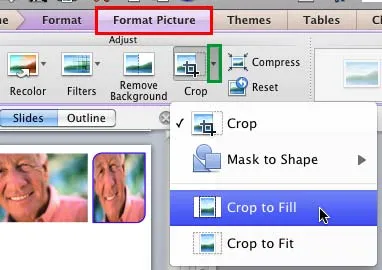
It is never too late to learn something. After my post about fixing aspect ratios of image fills in PowerPoint, Geetesh Bajaj pointed out that there is a much smarter way to do this. Here are his posts for Mac and for Windows.

·Delivery

Crappy VGA projectors

Screens on computers and mobile devices are getting better in 12 month cycles. I design presentations on 2 giant 27" displays that show a lot of detail and reveal the most subtle color shade differences.

Then you put your presentation on a conference room overhead projector that has been sitting there since 2002… The screen resolution is so small that it takes you 5 minutes to find your application windows, and when you finally get to show the slides in presentation mode you will notice that white and light grey is the same color, and that almost black grey is actually bright grey, and that orange means pink.

Test run your designs for the crappy conference room projector.

·Keynote

Saving time with files

An annoying part of my workflow is clicking through file hierarchies to open and save documents and images. I do not understand why it took me around 20 years to figure out to pin the folders of the current projects I am working on to left of my file open menu. On the Mac, you simple dag a folder onto the side bar (you can do something similar in Windows as well).

·PowerPoint

Office 365: not there yet

I signed up for a trial of Microsoft Office 365, the cloud-based version of Microsoft Office to see whether it could be a work-around to get the Windows version of PowerPoint to run on my Mac. (There are a few bits missing in the Mac-version of PowerPoint).

Not every Office user is the same. For the corporate user that needs access to files on any device, plus the ability to make some small edits to Office documents that are created on desktop applications, the Office 365 offering makes perfect sense.

But Office 365 is not ready yet to become a core design platform. I tested only PowerPoint, and ran the web app in Google Chrome on Mac OSX, please correct me if some of the limitations were due to hardware/software issues:

  • The availability shapes and functions in PowerPoint are extremely limited when compared to the desktop version. Now, I am all in favor of cutting PowerPoint features but here basic elements were left out (creating data charts  or cropping pictures for example)
  • Fonts are a big issue, if purchased custom fonts that are installed on my computer, but they are not present on Microsoft’s Office 365 server, so your presentations become garbled
  • The preview of slides are low-res and slightly blurry (I am using a 2500 pixel monitor), only when you click to edit an object does the full resolution kick in.

In a few years from now, Microsoft Office applications will run smoothly across devices and platforms, we need a little bit more patience.

·Keynote

A Microsoft strategy mistake

This Twitter conversation just unearthed another feature that is missing in the Mac OSX version of PowerPoint:

@ideatransplant Unfortunately no trim video options on PowerPoint:mac - Trim Video Clips bit.ly/MeJKHH — Geetesh Bajaj (@Geetesh) July 10, 2012

There are many more, see older posts about PowerPoint 2011 for Mac versus PowerPoint 2010 for Windows here.

I do not think the reason for this is a technical one, it should be possible to write the same software for both platforms. Hence, Microsoft must be thinking that by making PowerPoint 2010 for Windows just that tiny bit more feature rich, it will convince users to stay on the Mac platform.

I think this will be backfiring: Mac users will simply switch to Keynote. Microsoft should create an organizational separation between the Windows and Office business, the latter should consider the Mac a highly profitable platform for selling software.

·Animations

Creating cartoons with PowToon

PowToon aims to enable you to create cartoon-style, animated presentation and video clips without professional illustration and motion graphics software. I test drove the beta version.

When you look at many cartoon-style videos you see that they are actually not that complicated from a graphics point of view. Usually they involve a number of scenes (slides), they use static characters, basic entrance, exit, and emphasize animations and sometimes a cute hand that puts items on the slide, all accompanied by some simple music.
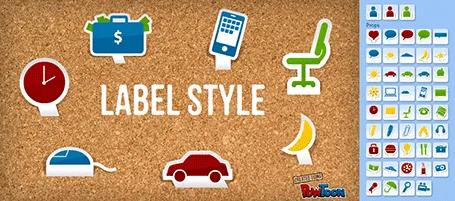
And this is what PowToon does. The edit interface looks Windows blue, it allows you to place items in a slide and specify the animations. In theory, PowerPoint or Keynote can do the same things, but it requires a deep understanding of the software, plus a library of characters.

There is definitely a market for a tool like PowToon. I do not envision these type of animations to be used in a stand-up presentation, but rather they could be useful to create demo videos on web pages, or presentations for emailing to prospects.

The basics of PowToon work great. I spent 10 minutes to stitch together this video based on a pre-defined template. PowToon is still in beta, and there are a number of features that I would recommend the team to incorporate:

  • Invest in the object library, and make them look less clip-arty (the picto character has some resemblance to the 1990s screen bean), this could also be a good revenue model: premium illustrations
  • Create the ability to export the presentation as a movie and embed them in a regular PowerPoint or Keynote file, this will make adoption in corporate environments a lot easier.
  • Make it easy to embed presentation videos in sites (I am sure the team is working on this)
  • Find a way to let the hand draw shapes and write text, so everyone will be able to make animations in the style of RSA Animate.

Continue reading →
·Gadgets

Content creation on iPad

I have been experimenting a lot with using my iPad as a laptop replacement. It boils down to getting used to a new user interface: designing slides in Keynote works fine, and even building a spreadsheet in Numbers might be more intuitive on a touch interface, it is easier to navigate around cells. Strangely enough picking up a regular pen and paper feels a bit weird the first second after all that digital handwriting.

There is a very big issue though, an issue that was solved on the PC in the mid 1990s: multiple application windows. Quickly getting the data out of a PDF, running a side calculation in a spreadsheet, browsing through your images before putting them in a deck is simply not possible yet.

Here are some features that should be baked into a future tablet operating system:

  • Touch-friendly application switching that does not create the cluttered window mess of regular computers
  • A universal file format so you do not have to worry about in which application to open what
  • A new clever archiving system that is not (only) dependent on file names and directories, maybe find files based on the time you were working on them, based on the people you cooperated with.

Maybe the successor to Microsoft Office is not a new series of software, but a standard file format that covers text, graphics, and calculations on top of which everyone can build applications.