

SlideMagic Blog

Frequent updates about all things presentations since 2008. Subscribe to never miss a post.

RSS
all posts

Category Software

·Keynote

New PPT for Mac now 1 year later

In a recent blog post, Microsoft announced a new version of Outlook (the email client for Mac), but at the same time pushes back the launch of a new Mac version of its Office suite (Excel, Word, and of course PowerPoint) by a year to the second half of 2015:

Historically we have released a new version of Office for Mac approximately six to eight months after Office for Windows. However, following the release of Office 365 we made the conscious decision to prioritize mobile first and cloud first scenarios for an increasing number of people who are getting things done on-the-go more frequently. This meant delivering and continuing to improve Office on a variety phones (iPhone, Windows Phone, and Android) and tablets (iPad and Windows)—brought together by the cloud (OneDrive) to help people stay better organized and get things done with greater efficiency at work, school, home and everywhere between. Continuing our commitment to our valued Mac customers, we are pleased to disclose the roadmap for the next version of Office for Mac—including Word for Mac, Excel for Mac, PowerPoint for Mac and OneNote for Mac.

In the first half of 2015 we will release a public beta for the next version of Office for Mac, and in the second half of 2015 we will make the final release available. Office 365 commercial and consumer subscribers will get the next version at no additional cost, and we will release a perpetual license of Office for Mac in the same timeframe.
Continue reading →
·Keynote

App update

Many people are asking me for beta invites for my PowerPoint killer presentation design app. Here is where things stand at the moment. A handful people have been testing the app so far which provided feedback on a few glitches to iron out. The core engine (the concept behind the app) works great (big sigh of relief), there are now some things about workflow flow that needs fixing, so that you can move around faster in the app. Rather than widening the user base who will give me the same feedback, I will fix the obvious issues first.

A self-funded side project, patience please…

·Keynote

Presentation startups

Searching Product Hunt for keyword “presentation” gives a treasure full of presentation startup ideas.

·Layout

The basics

Here is a checklist of basic PowerPoint design skills. If you master these, you are all set to designing great business presentations:

  • Program your company colours in the theme
  • Set default shapes and lines to fit your company colours
  • Delete all slides in a template master until you have just the title page and an empty page left
  • Know how to add text to boxes
  • Know how to make compositions of text boxes (including aligning and distributing them)
  • Know how to crop images (instead of stretching them)
  • Know how to make basic bar and column charts in your company colours

No need to learn anything more…

·Keynote

Apple Keynote is broken

I really try to like the latest version (6, October 2013) of Apple Keynote, but a year later, I still cannot. The user interface in the latest release has been cleaned up (gone is the cramped inspector window), and initially I thought I would overcome the initial confusion where functions are. I did not.

Basic stuff like centring text, changing background colours, fonts, font colours, all require me to think, which submenu to pick: style, text, or arrange? A flowing, fast user interface is not always a logically laid out one. Functions do not always have be grouped together based on whether they are related or not. In software, features should (partially) be grouped based on frequency of use.

Then there is the “Sorry, iCloud Drive isn’t compatible with OS X Mavericks” error message I get everytime I open Keynote. After Googling I now understand that I need to wait for the release of OS X Yosemite and that I upgraded my iCloud too early, still…

Never change a winning team.

·Images

Print posters

Sometimes I get questions from clients who want to print a physical copy of a slide in a very large format to use in conference boots. That usually does not work. PowerPoint slides have a low resolution to manage file size. Even recreating the slide with a super high resolution version of the image will not work. The solution: recreate the slide in Adobe Illustrator or Photoshop…

·Keynote

Converting PDF to PowerPoint

Until now, I did not notice this feature in the latest Adobe Acrobat XI: c**onverting PDF files to PowerPoint.** I tried it on a PDF file that had the look and feel of a typical PowerPoint presentation (boxes with big text) and the results were surprisingly good. Here and there, a slide needed a small manual correction (semitransparents, etc.), but hey, it worked. As expected, data charts do not come out in vanilla Excel format.

Now, I guess that if you want to convert a file that does not have a typical PowerPoint look and feel, your results will be less good, but that is not the point, is it?

How would you use it? I think very few would use the tool to be able to present a PDF file in a PowerPoint environment. The CMD-L option in Acrobat gives a beautiful full screen view of your PDF slides. But the tool could be handy to strip out images quickly from a PDF file.

Adobe Acrobat XI is a premium product, the free Adobe Acrobat Reader will not pull off this trick.

·Delivery

PowerPoint on iPad

I have now stopped dragging along a laptop to client meetings. The thing is (relatively) heavy, requires a bag, and being the guy with the lap top in a meeting always put you in an inferior social position somehow. The PowerPoint for iPad app has improved a lot. You no longer have to go through the tedious process of downloading a file from Dropbox, remembering your 365 password, uploading the file to the 365 cloud drive, and downloading the file again. Still potential font rendering issues (even with standard fonts that might drop to the next line), still makes me use the combination of PDF files and iBooks. It renders nicely and the iBooks folder/collection solution is good enough to keep things organised. A lighting-to-ancient-VGA-projector convertor enables you to present on a big screen.

·Data visualization

Readability

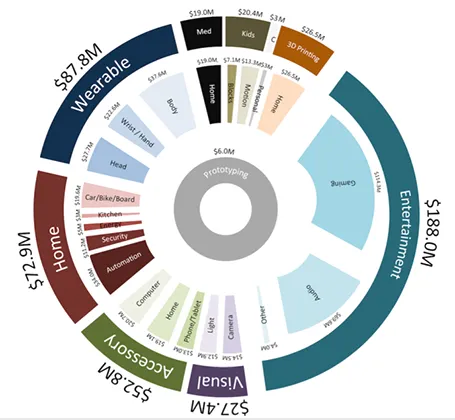
Here is a data chart that was published in TechCrunch, it shows a breakdown of crowdfunding-sourced investments in hardware.

The scattered pie chart looks nice, but is not easy to read:

  • A lot of data and many label are positioned upside down
  • The $ and M signs clutter up space
  • A lot of text is too small

Also, PowerPoint is not very well equipped to make charts like this. You see how the exploded pie points do not line up perfectly, and how the text is not curved right.

To make it readable, I would go for 2 stacked columns, one for the total categories, one for the sub categories. Put horizontal labels to the left of the totals, and to the right of the subcategory column. Use colours to link totals and subcategories together (like it is done in the above pie).

If you wanted to go fro an exploding pie as indicated above, do not explode the pieces in PowerPoint, but rather use extremely fat white lines around the elements of a regular pie to get a more organised diagram.

·Keynote

We need video!

Before investing a lot of time and money in designing a video to complement your presentation, take a step back and think why you want it, then brief the designer accordingly. Some uses of video are more useful than others:

  1. A spectacular, wow, stunning, noisy, beat drumming, flying effects filled, splash opening that leaves the audience shuddering in their chairs
  2. Customer testimonials and/or other interviews of people that are hard to bring to the presentation room
  3. An explanation/demonstration to show how your product works, is used in practice
  4. A high-paced, scripted story
  5. A funny, cute cartoon to support your message
  6. A complex animation that is hard to execute in PowerPoint or Keynote
  7. A narrated slide sequence that you can send to people you being present to explain it