SlideMagic Blog

Frequent updates about all things presentations since 2008. Subscribe to never miss a post.

RSS
all posts

Category SlideMagic

·Software

Convert SlideMagic presentations to PowerPoint

Many people have asked for this feature. I might have found a partially automated solution for this. Partially means, slides are converted automatically, but the overall workflow is still manual.

Before I start investing a lot of resources (time and money) in developing a fully automated solution, I want to test demand. Soon, I will be adding a “PowerPoint” button to SlideMagic, but in the interim, you can email to (ppt at slidemagic dot com) an editable link of your presentation (generate it via the SHARE menu in SlideMagic) and we will send you back a PowerPoint file.

It is important to send the link using the SHARE function, nobody but you can open the links in your browser for privacy/security reasons.

Make sure that you have the Roboto Condensed font installed on your machine. It is a free font provided by Google

  1. Exit PowerPoint
  2. Go to the Roboto Condensed download page
  3. Tick the 400 and 700 boxes
  4. Download using the “arrow down” icon at the top right
  5. Double click the downloaded files to install the fonts
  6. Re-open PowerPoint

Roboto Condensed cannot be installed on iOS devices. If you want to edit your converted SlideMagic presentation in PowerPoint for iOS consider replacing the Roboto Condensed font for Helvetica Neue Condensed. Here is how to swap fonts across an entire presentation on a Mac. But hey, SlideMagic runs pretty well in Safari on iPad, no need to convert to PowerPoint for this.

Some disclaimers:

  • It is a partially manual solution, please be patient, delivery can be instant or take some time.
  • A human will open your presentation, we are nice people and unlikely to read it all in detail and/or post things on the Internet though. Still some corporate compliance regulations might have an issue with this
  • There might be glitches in the quality of the conversion, if so, we would like to hear about them.
Continue reading →
·SlideMagic

Multiple weak signals make a strong one

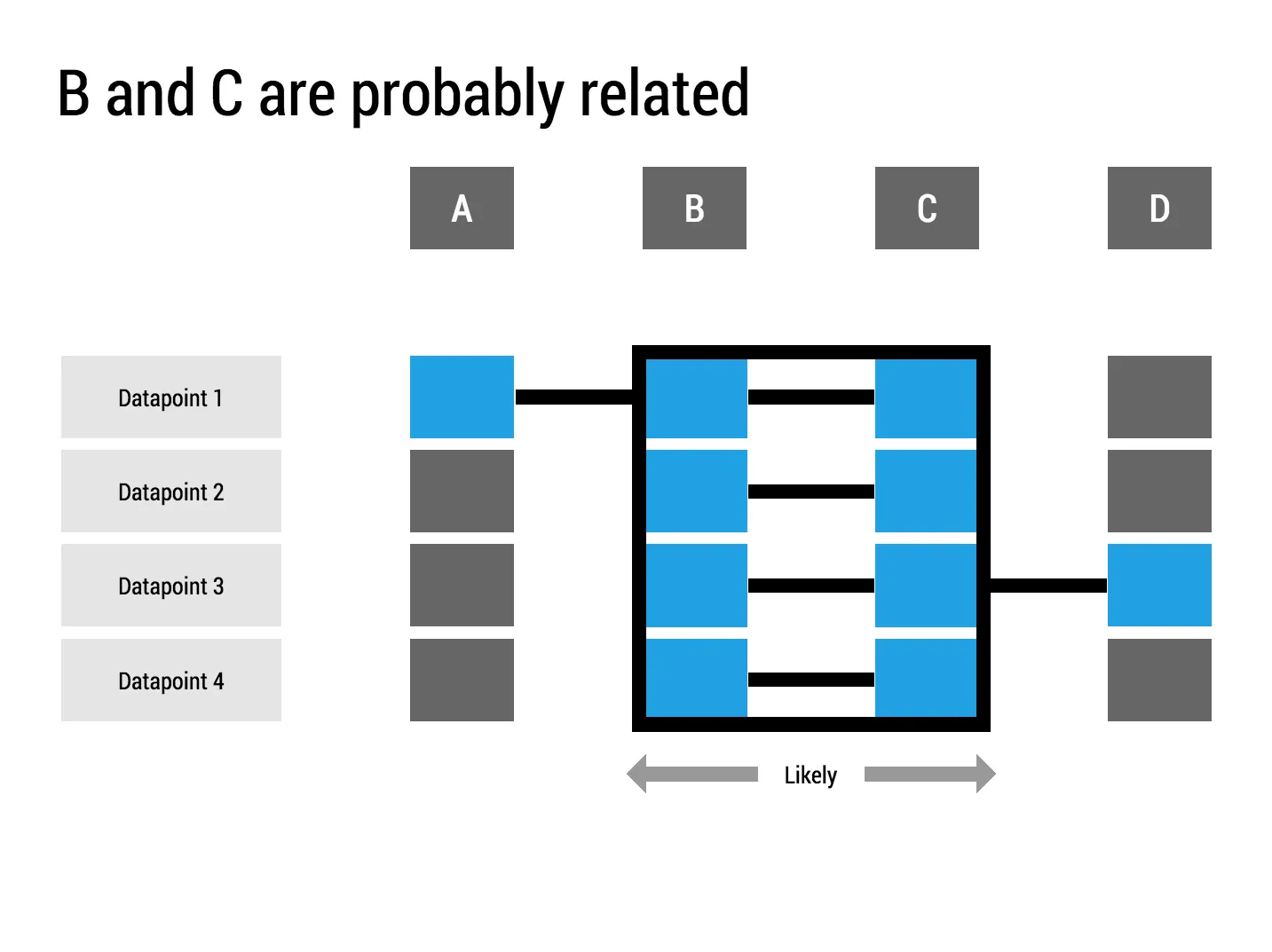
I played around with the new “connectors” in my presentation app SlideMagic and used them to create a chart that visualises how multiple weak signals can come together into a strong one. I have added this chart to the SlideMagic template with charts that I discussed on the blog, you can clone it to your SlideMagic account here.

·Hardware

Presentations on mobile devices - taking stock

Five years after the iPad launch let’s take a step back and see what is actually happening in the world of presentation software and the use of mobile devices. My observations are based on the people I see around me everyday: startup employees (mostly mid 30s to 40s) and staff in big corporates (a bit older).

  • Designing. Apple has made a big inroad in terms of hardware, but it is still PowerPoint that runs on a laptop machine that is the preferred set up to create slides. I have not encountered anyone who uses a mobile device to do this. Apple Keynote is pretty much still a niche application.
  • Frankensteining / finding stuff. Cloud-based file systems can be confusing to use. I still do not understand exactly what happens when Keynote on iPad tells me it is converting a regular Keynote file. In practice, the file system that everyone is using is… the email inbox and sent box. People with gmail can find stuff faster than Outlook users.
  • Viewing. Yes, more and more, people use their mobile devices to view a presentation. And it is not the iPad, a tablet, it is the mobile phone, where people squint to see what is in the slides. These are investors looking at a pitch deck, these are managers/superiors proving input on a slide. Think about it, this might be a more important audience for your slides than the ones sitting in conference room.
  • Emergency edits. Still laptop, although a tablet could work here, few people use it in a corporate setting.
  • Coffee chat, 1 on 1. Mostly laptop, I see fewer iPad/tablets than I saw 1-2 years ago.
  • Conference room. Laptop. The crappy VGA projector is being replaced by crappy LCD screens. Presentations that look beautiful on your retina display, look absolutely horrible on an LCD screen with poor resolution and overly bright settings. (Test, test, test). Advanced meeting rooms now allow you to airplay your presentations into the screen. People use their laptops to do this, not their mobile devices.
  • Big keynote. Conference laptop with a memory stick plugged in.
Continue reading →
·SlideMagic

SlideMagic on iPad

I have never been a big believer in focussed and productive presentation design on tablets, but presenting documents (mostly in 1-on-1 meetings) and making last minutes edits are important on mobile devices.

We are not making tablets a design priority, but have deployed some changes to the code that makes SlideMagic run pretty smoothly on an iPad (iPhone is still not optimal). Try it out and report back any bugs. Android tablet users, let me know what happens (I have not tried things out there yet).

With the large iPad Pro coming out later this year, there could be a brighter future for SlideMagic on iPad given the very simple menu structure we use.

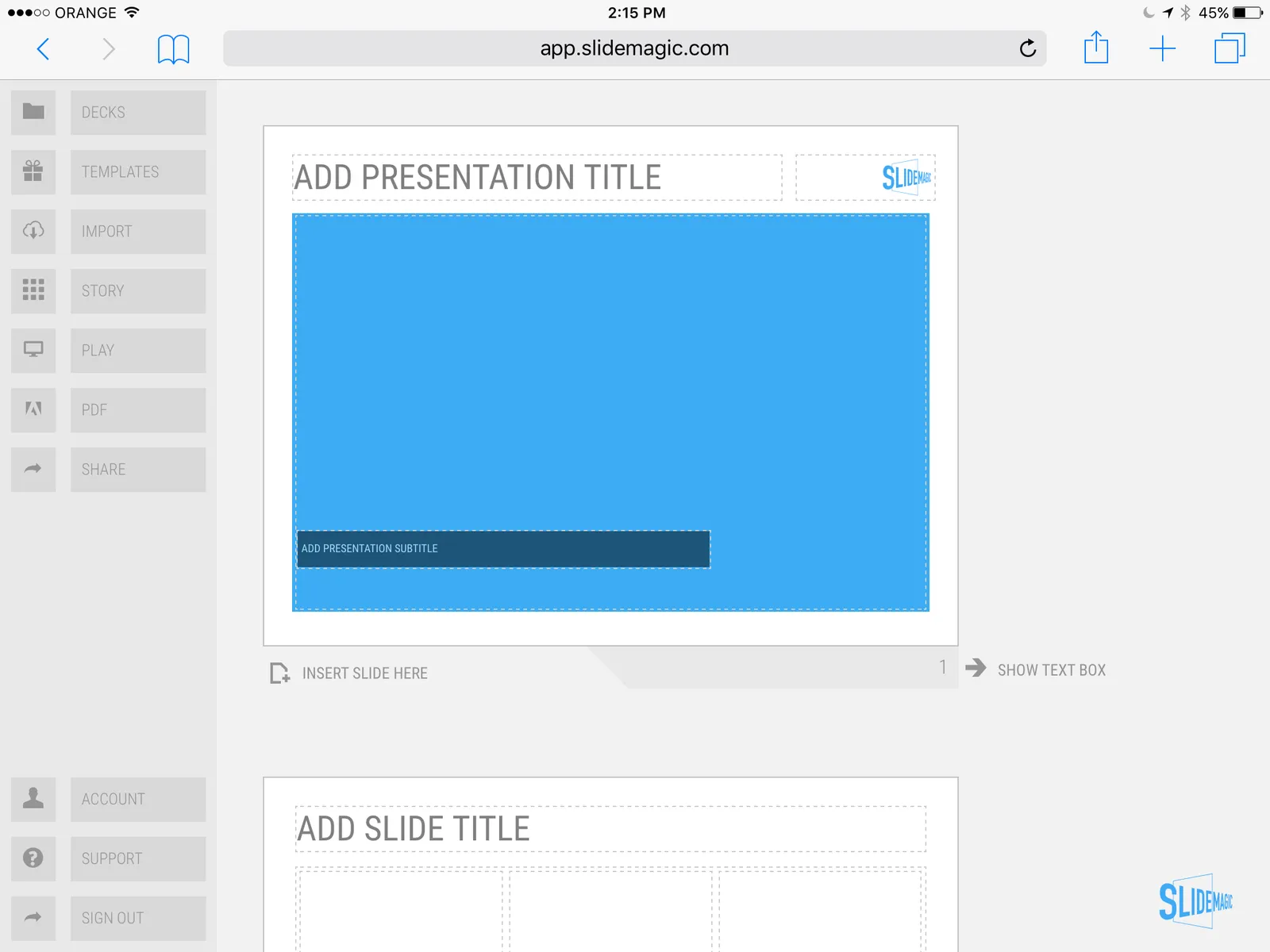
 Screen shot of SlideMagic on my iPad Mini 2

Screen shot of SlideMagic on my iPad Mini 2

·SlideMagic

Thoughts on user interfaces

As I am making progress with my presentation design app SlideMagic, I spend a lot of time thinking about user interfaces (UI) for office applications.

Part of the reason that it is so hard to wean people of Microsoft Office applications is that they have gotten used to the mouse/click/dropdown user interface. Spreadsheets, word processors (who uses them still?) and presentation design software all basically have that same UI.

The drop down UI started out pretty simple. File, edit, help menus. Over the years ribbons and tool bars have complicated things. Most people now use a fraction of the functionality that is available to them. As soon as a program does not have that familiar dropdown UI, people are in trouble. I had a hard time understanding the new Adobe Acrobat UI. It is beautifully simple, but it takes time to figure out how to do very basic operations (zooming in and out, combining multiple files into one, rotating mixed up pages of a scan).
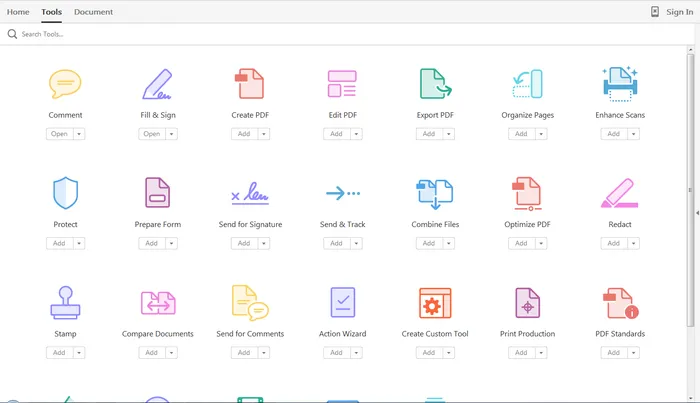
Over the past years, user have gotten to know a second UI: the mobile device. The solution for office apps is super simple functionality that draws heavily on icons, UI elements that we have learned from mobile devices.

See how it can work in SlideMagic.

·SlideMagic

Facebook is a bad way to read this blog

If you are following this blog through facebook, there is a big change that you will have missed many posts. Since I am investing my funds in SlideMagic features and not yet in marketing, I cannot afford to buy facebook ads. The best way to follow the blog is via a good old RSS or email subscription. You can add yourself to the list here: subscribe.

That email list is purely for blog updates, only people who opted in for SlideMagic product updates after registering for the app might get the occasional product update email.

Art: Vincent van Gogh, Postman Joseph Roulin, 1889

·SlideMagic

SlideMagic versus PowerPoint

Some interesting feedback from SlideMagic beta testers:

  • I promised some SlideMagic beta testers to convert the presentation to PowerPoint in the end (there is not yet an automated feature that does that), and it is encouraging to see that these users are postponing that conversion again and again.
  • For some clients I quickly re-do a short presentation in SlideMagic. Client response: the SlideMagic one looks better, why can’t you do that in PowerPoint? Answer 1): SlideMagic uses a pretty font, not Arial, and 2) the corporate PowerPoint template has a slightly less elegant composition of the slide (position of titles, margins etc.)
  • Some clients want the templates that ship with SlideMagic in PowerPoint. After sending them, there are issues with modifying the template in PowerPoint, adjustments that take a second in SlideMagic
  • Some users ask where you can upload PowerPoint slides to convert them instantly to SlideMagic, that will not be possible I am afraid.

Most users are hesitant to switch because 1) it requires changing 20 years of presentation design habits, and 2) yes I admit, SlideMagic had a few bugs that need sorting out. As we make progress with the app, that second excuse becomes less relevant. SlideMagic is slowly reaching the production release.

If you have not tried SlideMagic, you should, Try it here.

Art: Gulliver Exhibited to the Brobdingnag Farmer (painting by Richard Redgrave)

·Layout

Columns versus rows and other table design issues

When making a table, what to put in columns, what to put in rows? There is no absolute rule here, but this is what I consider when deciding (some of these can contradict each other).

  • It easier to fit lots of rows then lots of columns.
  • Long labels go in rows
  • Year on year trend: years go in columns
  • Feature/competitor comparison: features in the rows

The most important things is that you never should assume that the layout in which the source data was presented to you is the best way to put that table on a slide. Next to swapping rows and columns consider:

  • Shortening column labels
  • Re-sorting rows and columns so that check marks / similar table content is grouped together
  • Group together multiple rows, or multiple columns if their content is the same as the neighbour
  • Cut text as much as you can in table cells. Side comments and sentences can go in the footnote
  • Design a table at 2 levels: Level 1 (using colouring of cells) to communicate the pattern/conclusion, level 2 (using text) the explanation of the colouring for when people read the slides after the presentation
  • Harmonise column widths and row heights to get a grid pattern that is as calm as possible
  • Avoid boxes/outline lines, rather work with light grey boxes

Users of my presentation design app SlideMagic do not have to worry about a lot of these things, the app will do it form them.

Continue reading →
·Software

New SlideMagic video tutorials

I am in the process of creating a library of video tutorials for SlideMagic. Here are the first three, you can expand them to full screen size for more detail.

From the 3x3 grid to a basic slide composition

How to clone a template

How to import individual slides from another presentation/template

Art: William Merritt Chase, A Friendly Call, 1895.

·Layout

Adding structure to text

Sentences or titles never have the same length, so putting them on a page without some form of framing makes the whole slide look unbalanced. My solution: a light grey background  creates a box that gives structure to the text. You can also use images to reinforce the slide’s grid layout. Many people use an outline, a frame around text for the same purpose. I think a light box fill looks a lot better.

The light grey box is one of the key structuring elements in my presentation design app SlideMagic. Traditional presentation design software is not very well set up to changing grids of text boxes and images. Try doing it in PowerPoint, then try to do the same thing in SlideMagic.

Art: Piet Mondriaan, Broadway Boogie Woogie, 1942