SlideMagic Blog

Frequent updates about all things presentations since 2008. Subscribe to never miss a post.

RSS
all posts

Category PowerPoint

·PowerPoint

Little known PowerPoint feature - format painter

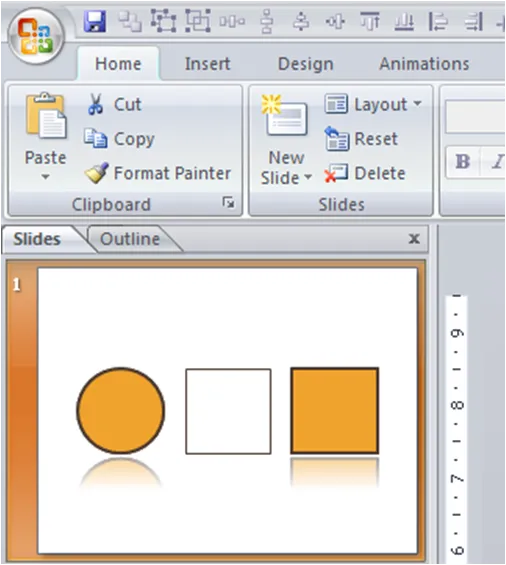
The format painter in PowerPoint can be really useful. It transfers the exact formating of one object to another.

  • Click an object with the desired format
  • Click “format painter” (left in the home ribbon)
  • Click the 2nd object
  • Done!
·PowerPoint

Merging PowerPoint presentations without mixing up formats

Merging different PowerPoint presentations usually creates format chaos. The slides that are inserted are automatically re-formated in the style of the mother presentation. Especially if you want to make a collage of different presentations with a completely different look and feel, this is a disaster. Simply “ctrl-c / ctrl-v” slides across does not work. One solution is to PDF both presentations, then merge them in Adobe Acrobat. But there is a solution inside PowerPoint as well.

Apple:

  1. In the insert menu, select “slides from”
  2. Select “other presentation”
  3. Here is the trick: click “select slides to insert” rather than “select all slides”
  4. Click insert, wait a few seconds
  5. A window will open from which you can select slides, at the bottom you should click the box “keep design of original slides”

PC (PowerPoint 2007)

  1. In the home ribbon, click “new slide”
  2. Click “reuse slides”
  3. Browse for the file to be inserted
  4. Click the “keep source formating” box

UPDATE: hey, a solution for PowerPoint 2003 as well (thank you BusinessToolsBlog)!

UPDATE: PowerPoint Join seems to be an automated tool developed by Sobolsoft that links PowerPoint presentations together. I have not tried it though.

·PowerPoint

Presenter view - your screen's different from the audience's

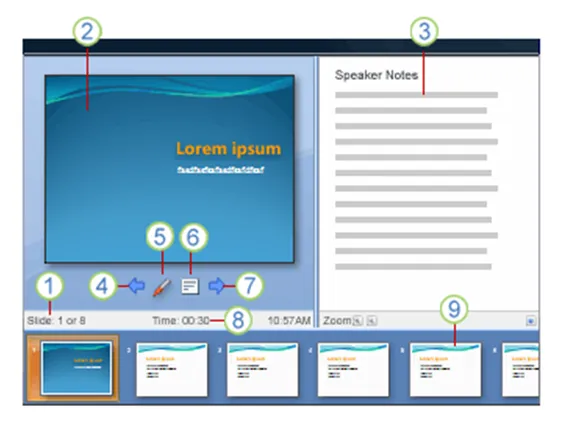
PowerPoint has a smart little-known feature built in: presenter view. The screen on your laptop is different from the full-screen view the audience sees.

  1. Slide count
  2. Current slide
  3. Notes
  4. One slide back
  5. Marker
  6. Opens a menu (black screen, white screen, other functions)
  7. Next slide
  8. Presentation timer
  9. Slide sequence

In order for it to work, you need to setup your computer for 2 monitors (The primary monitor is your laptop, the second one the big projector) in windows control panel/display properties. After that, in the PowerPoint slideshow menu, set up slide show and go to the multiple monitors section.

UPDATE: From the comments below, John Goalby is pointing to his very detailed, free ebook on the subject of Presenter View.

·PowerPoint

Focus on you - (b)lack or (w)hite PPT screen mid-presentation

Two useful PowerPoint keys depending on whether you use a dark or light background:

  • Pressing “B” during a slideshow turns the screen black
  • Pressing “W” makes it white

With one button, you bring back all the attention of the audience to you, and you can deliver an important message without slide support.

UPDATE: Bert Decker pointed me to one of his blog posts in which he suggests deliberartely injecting black (or white maybe) slides into a presentation. After you press “B” to black out a slide in a live presentation, you have to make it appear again to continue with your story. Inserting black slides in the presentation does not require to bring the audience back to a point you already made.

·PowerPoint

Help, I just moved my PPT drawing guide by accident!

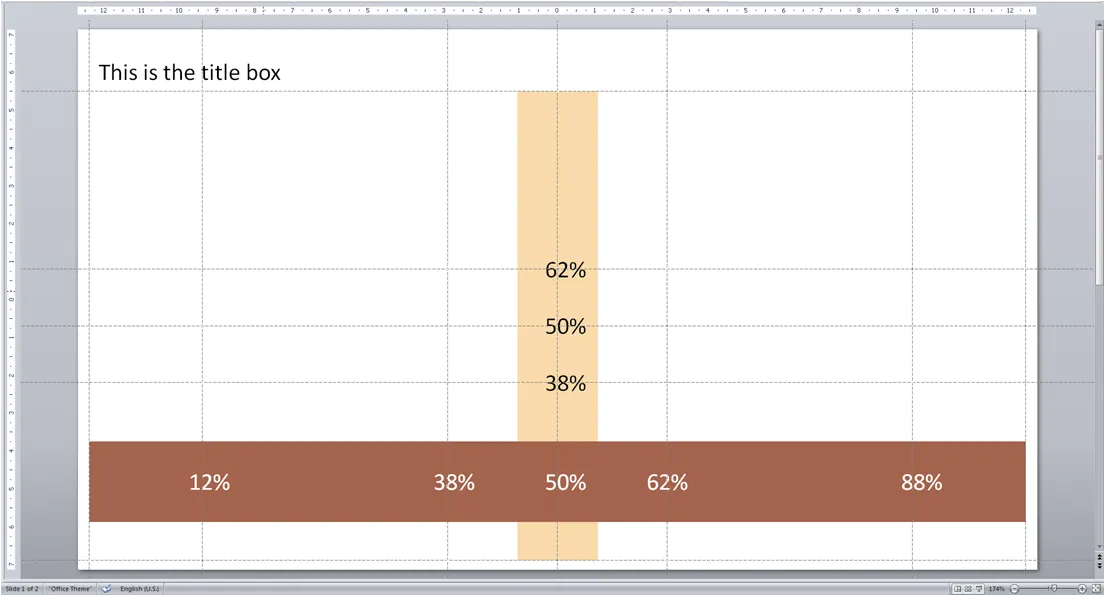
Drawing guides are very useful to keep your pages consistent. I always put ones in such a way that I get a grid similar to the rule of 3:

  • Left and right, bottom
  • Top, under the title line
  • Middle (not at 0, but in the middle between top and bottom guide)
  • Two vertical, at 61.8% of the page width (golden proportion)
  • Two horizontal, also at the magic 61.8%

Below an illustration of a typical gird I would use for a 16:9 wide-screen presentation.

The big issue with drawing guides is when you accidentally move them: how to put them back in the right place?

  • To display drawing guides go to home/drawing/arrange/allign/grid settings and tick the box
  • Now use the same menu to set the grid spacing to a round number, for example 0.1 cm, instead of “8 grids per cm” which will give you a spacing of 0.125 cm, making it very difficult to bring a guide line back in its original position.
  • You can drag/move grid lines around
  • To create a new one: press CTRL, click an existing guide, and drag it to the new location
  • To delete a line move it off the page
  • Write down the grid positions on a piece of paper, with a nice, round, grid spacing number it is easy to move guides back to their original position if moved by accident
·Animations

Multi-layered slides: the selection pane

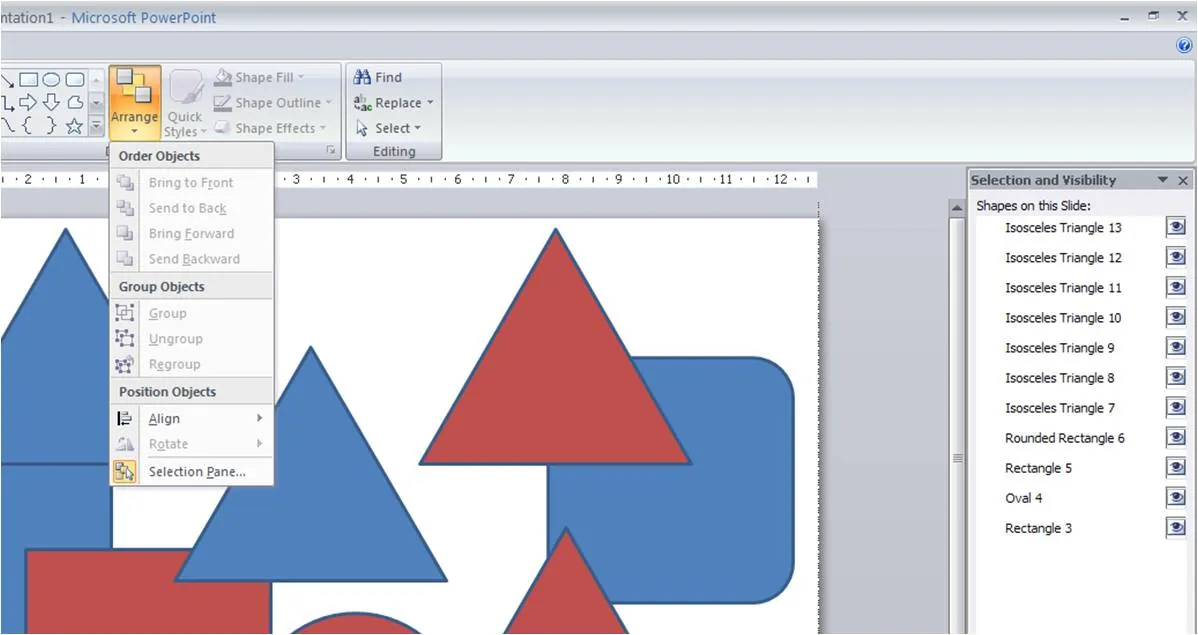
It can become almost impossible to edit complex animated slides that have layers and layers of objects on them. My solution used to be to spread the chart out over multiple pages.

Recently, the selection pane tool in PowerPoint 2007 was pointed out to me. You can find it hidden away under the arrange menu. Click on the image for more detail. Life has just become easier. Thank you Glen Turpin.

·Design

How to align bullet points in PowerPoint

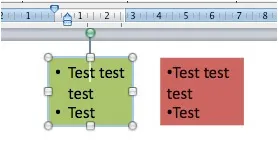
One of the PowerPoint annoyances is that bullet point paragraphs are not aligned properly when overflowing to the next line. It’s easy to fix.

Display the ruler (view menu), select the text, and move the little markers, leaving the top one to the left, and the bottom one at the desired indent. (See the image to the right).

That bullet points are NOT the main design concept to make PowerPoint presentations is clear, but a completely separate subject.
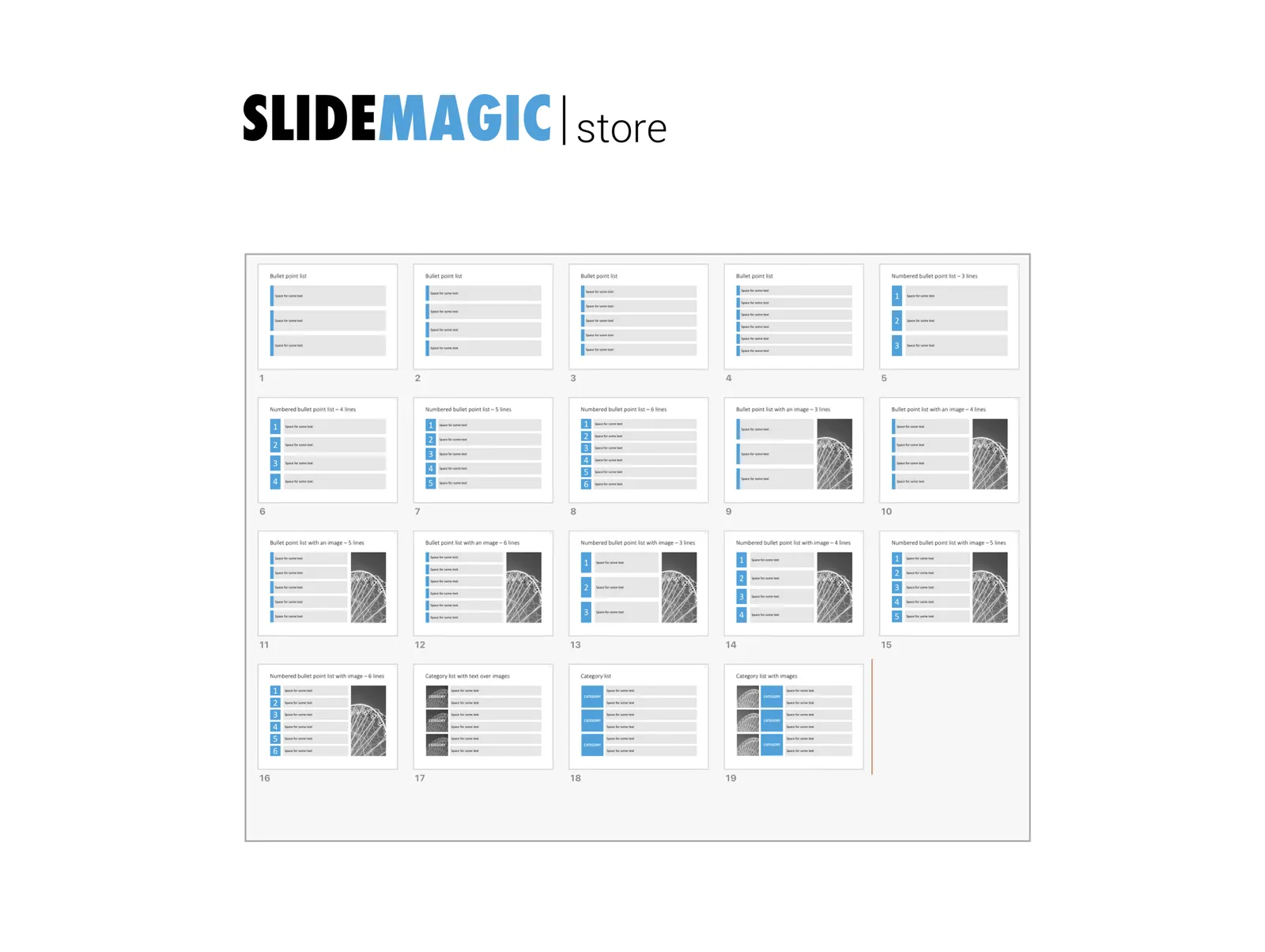
UPDATE February 2018. Another way to align bullet points in PowerPoint, is to use boxes with a very light background. This background shape gives the page a grid-like structure, compensating for differences in the length of text in a bullet point. Even if some bullet points stretch over 2 lines, and others consist of a few words, the page still looks evenly distributed.

I have added some examples of this layout style to the SlideMagic template store.

·PowerPoint

pptPlex - tool for zooming inside PowerPoint

Microsoft has released a new tool for PowerPoint: pptPlex. It allows you to zoom in and out of PowerPoint slides during a presentation. I will experiment with it more over time, but an initial application that comes up already in my mind is to start designing a presentation around just 1 huge map, or time line, and take your audience through various sections of it over the course of a presentation. Kawasaki’s 10/20/30 rule suddenly becomes 1/30/6… (1 slide, 20 minutes, font 6). An example video below: Thank you TechCrunch for leading me to this.

·PowerPoint

Critical PowerPoint patch this Tuesday 12 August

See the latest Microsoft Security Bulletin.

·PowerPoint

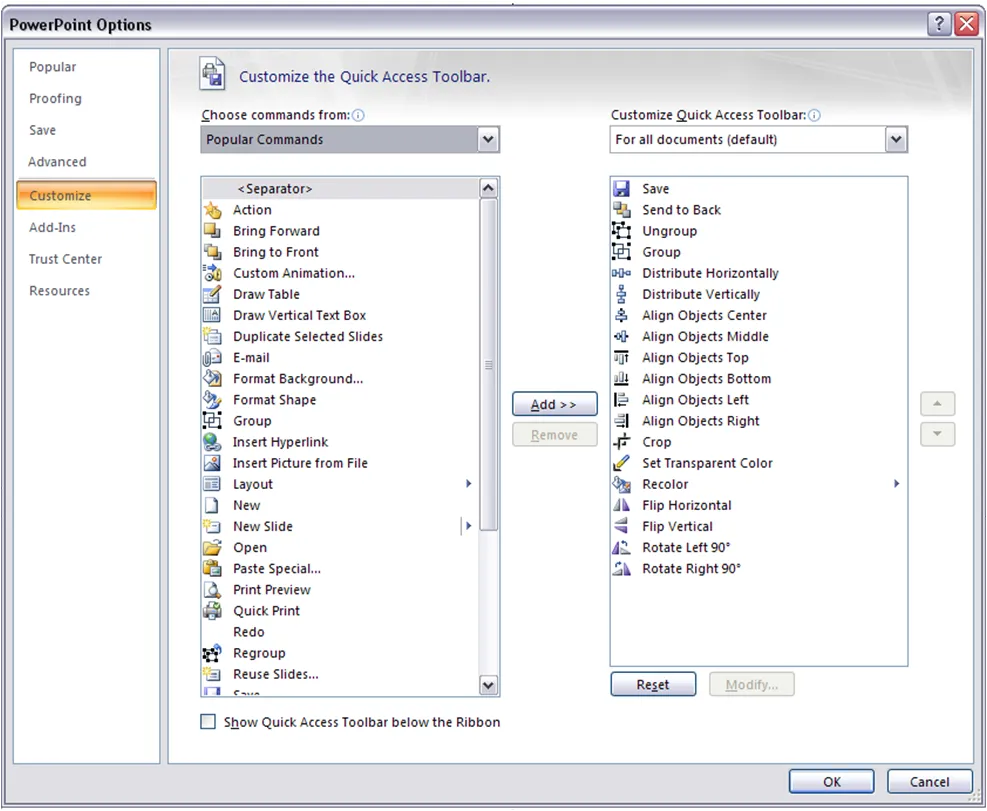
The 19 buttons you need in your PowerPoint toolbar

The PowerPoint 2007 ribbon is nice, but for certain commands that you need to access all the time I miss the good old PowerPoint 2003 toolbar. The quick access toolbar in the very top of the PPT window is your solution. Click the little triangle right to the last command to customize it.

Here are the 19 buttons that I use all the time:

  • Save
  • Send to back
  • Group and ungroup
  • Distribute horizontally, vertically
  • Allign center, middle, top, bottom, left, right
  • Crop
  • Set transparent color
  • Recolor (images)
  • Flip horizontal, vertical
  • Rotate 90 degrees left, right