SlideMagic Blog

Frequent updates about all things presentations since 2008. Subscribe to never miss a post.

RSS
all posts

Category Images

·Software

Two more AI generators

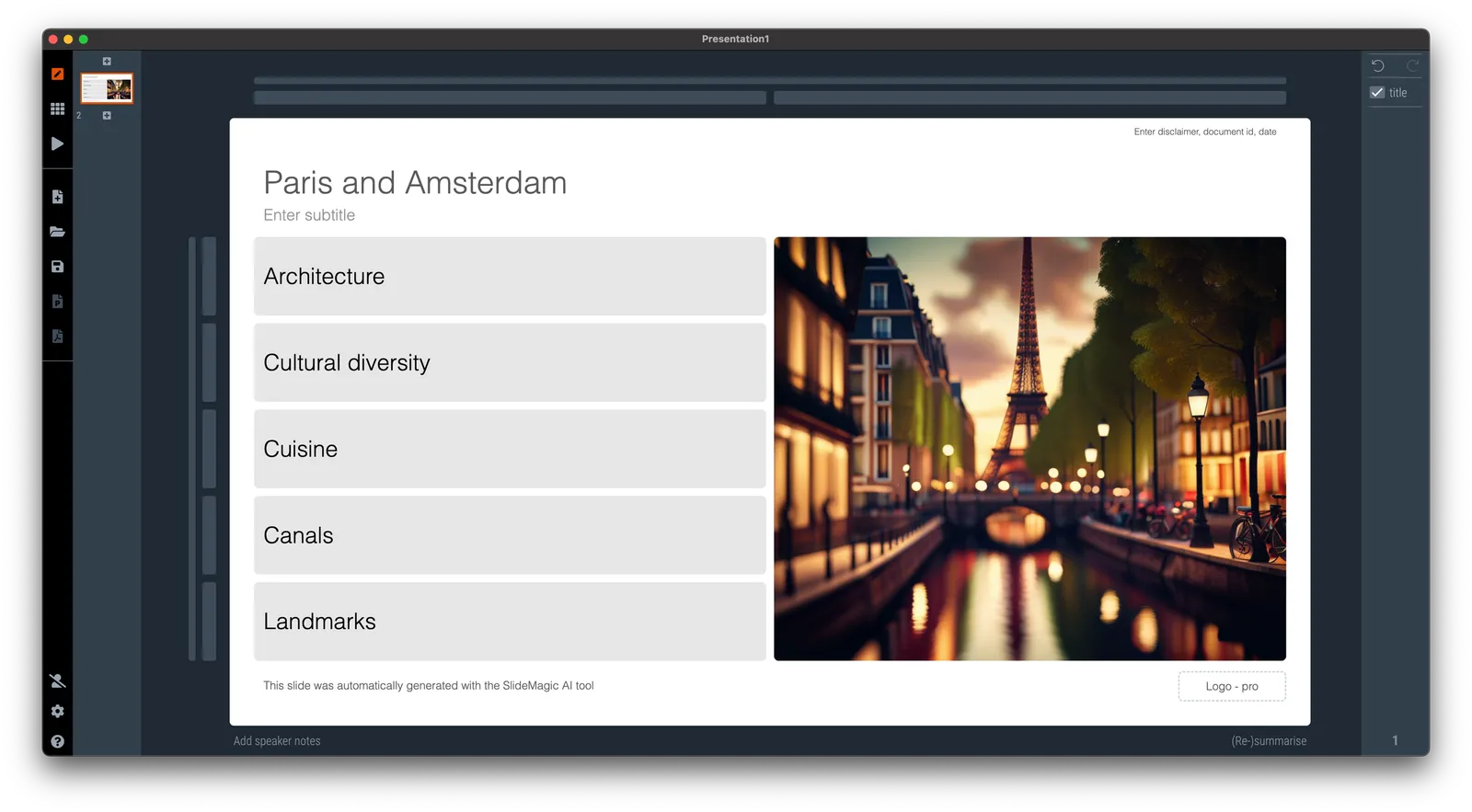
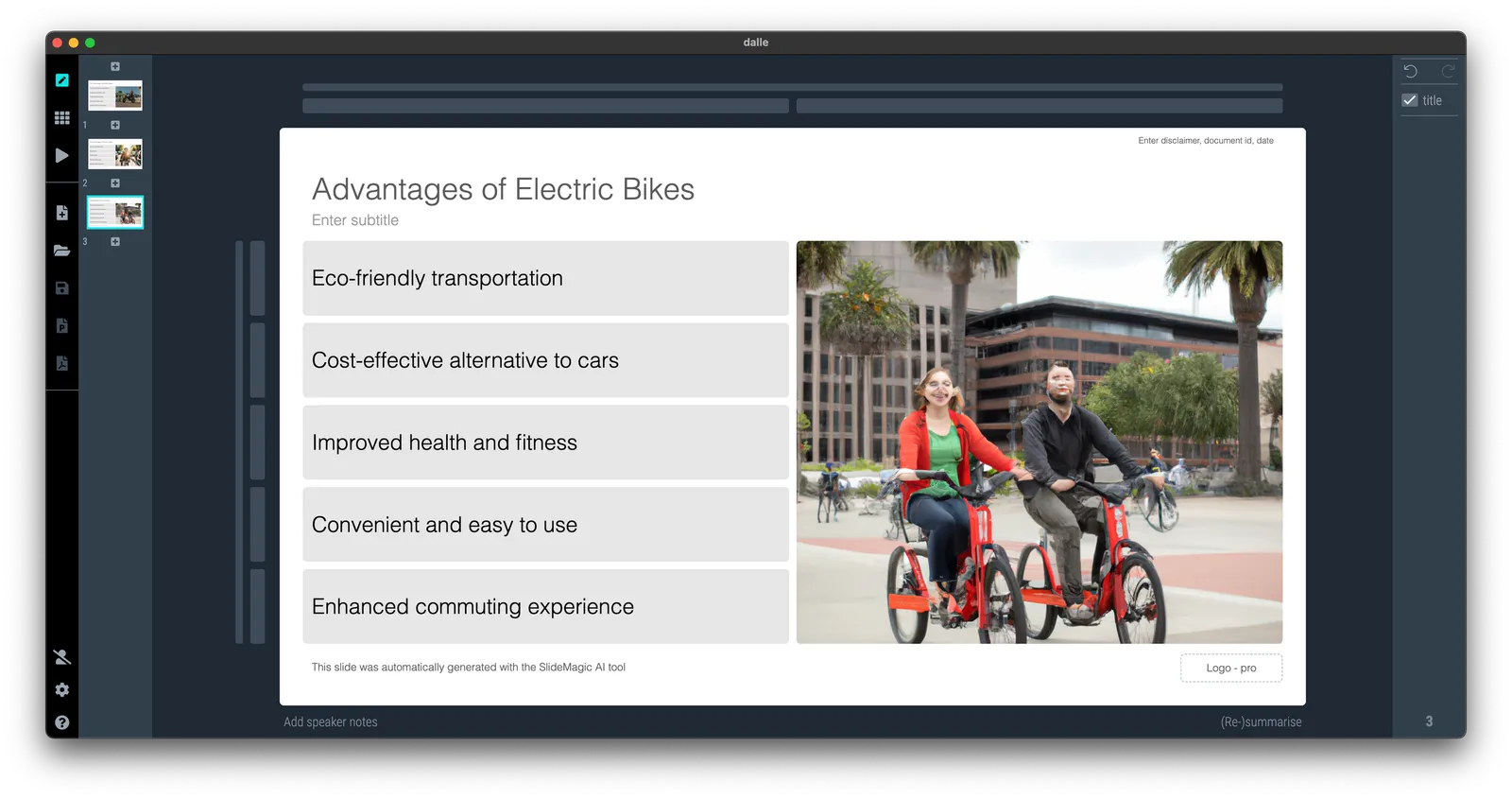
I added 2 additional AI generators to SlideMagic, the produce a slide with some text and an image based on your prompt. One generator pulls the image from Unsplash, the other creates it from scratch. There is no update to your SlideMagic app needed to see the extra image generators.

See an example below:

·Images

Midjourney-style images in SlideMagic

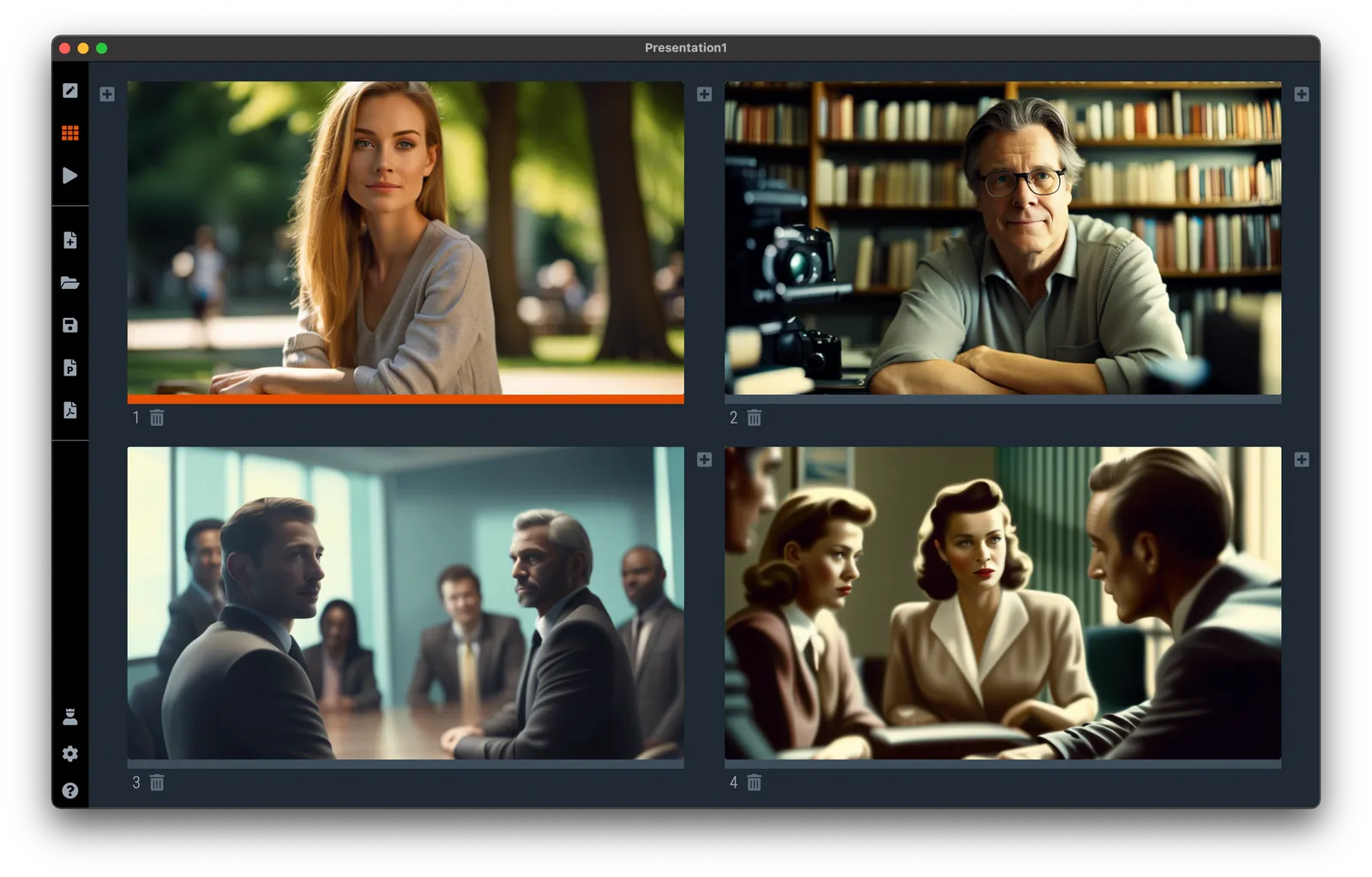
I swapped the DALL-E image generation engine for a different one, and the quality of the AI-generated images in SlideMagic has improved dramatically. Prompt and responses behave similarly to Midjourney. Below an example of a few quick prompts. (I on purpose forced the 1950s vibe on the last 2 images)

Make sure to have version 3.1.5 installed to see the new image engine. There is a cost associated with generating these images, hence this feature is only available to SlideMagic Pro subscribers. Other AI-related functions (slide and story line generation) are free for all users.

·Software

Working on a DALL-E replacement

A few months ago, I added a DALL-E AI-image generator to SlideMagic. AI-generated images can be great for presentations:

  • You can get very precise in defining what you want to see, much more so than browsing endless stock images search results that are not exactly right
  • You can make images look visually consistent across a presentation

The DALL-E engine is not accurate enough though. Especially when it comes to humans/faces. Midjourney is doing a far better job at this but is not (yet) providing 3rd party API access to its engine, the only way to get images out is via a web-based interface.

I am starting to look into deploying the same open source models that are actually the basis of Midjourney, directly into SlideMagic. You can see the results below and they look very promising. More to come.
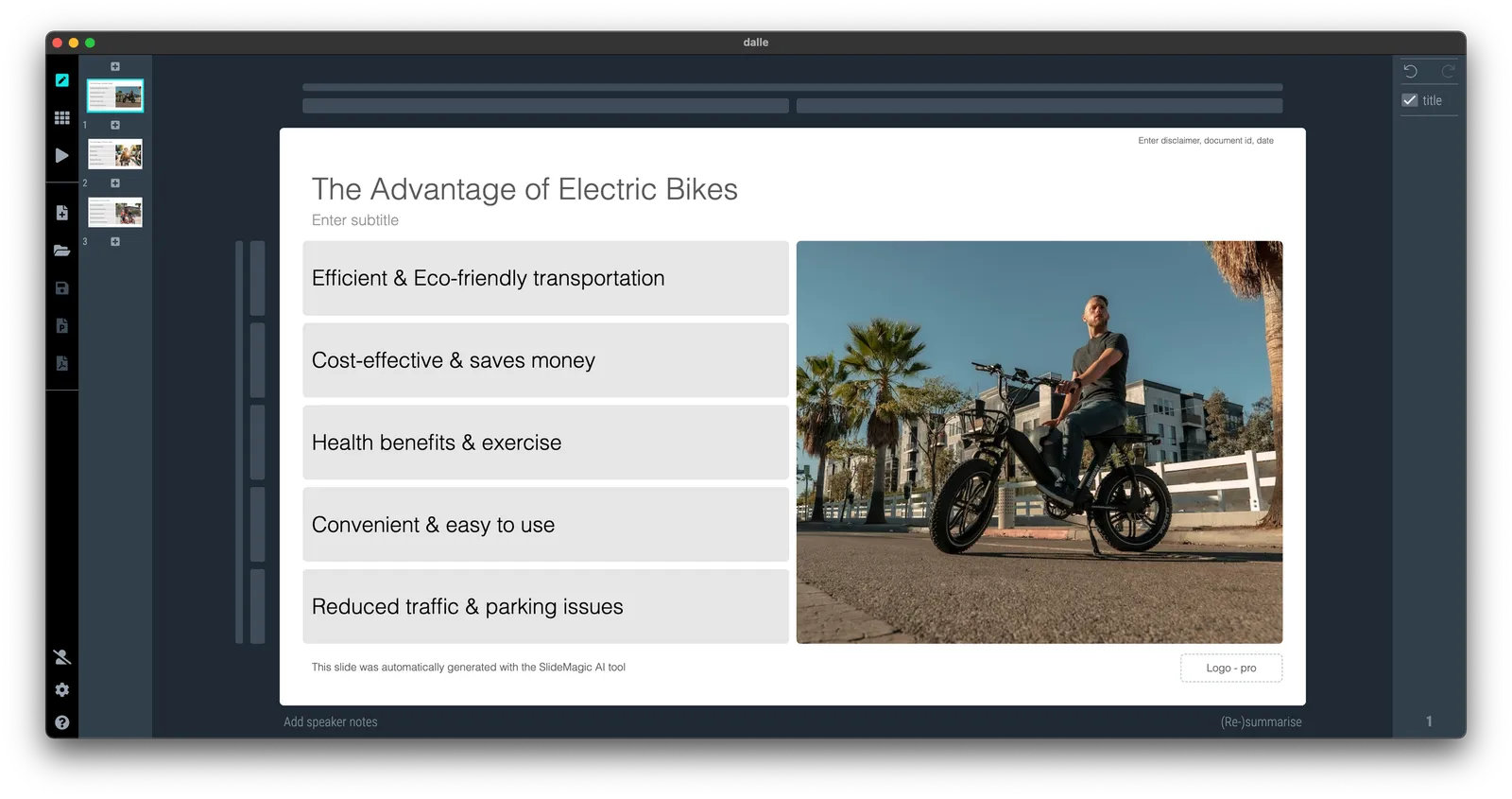
 Image found with an automated prompt to a stock image site
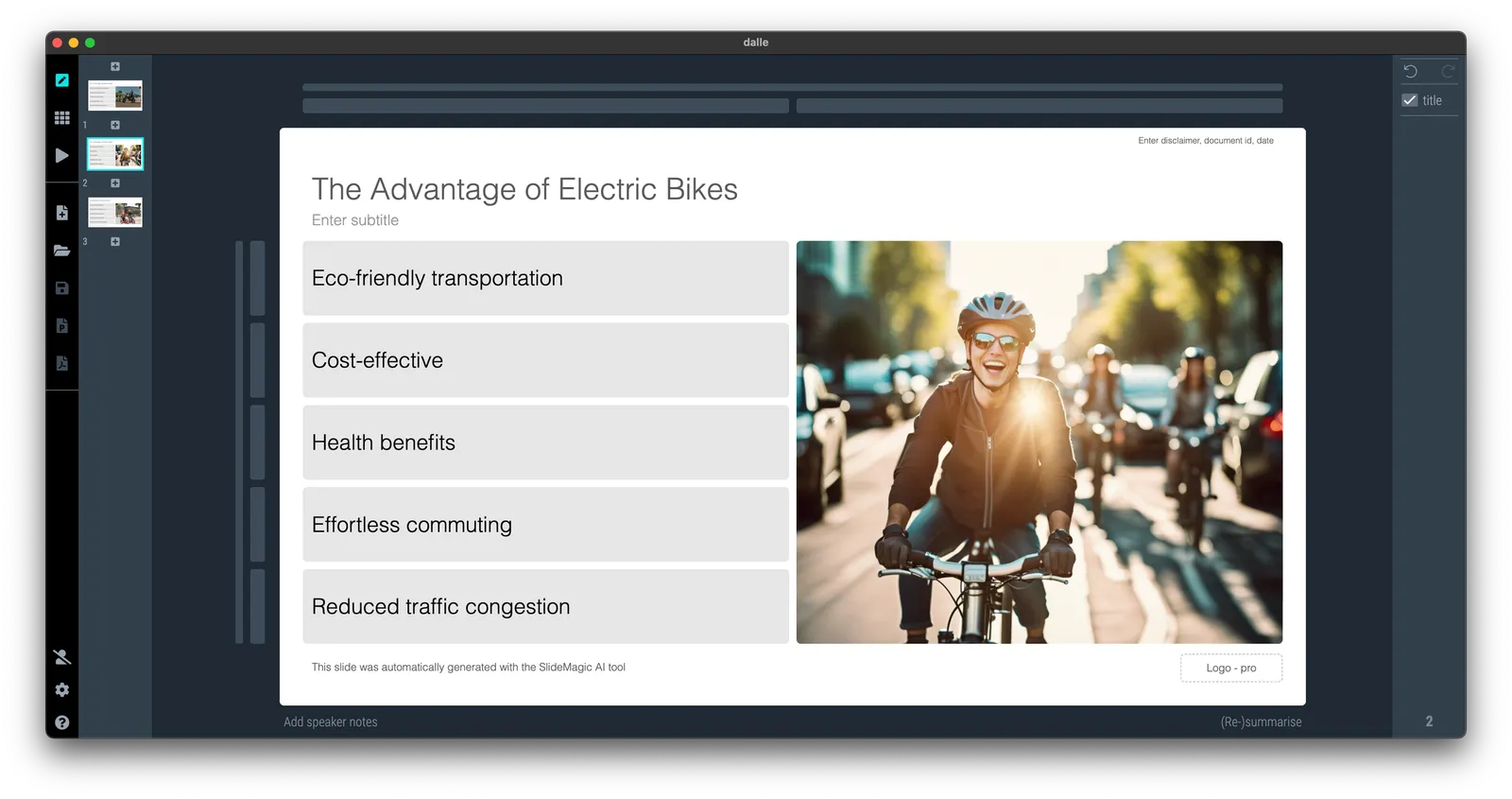
Image found with an automated prompt to a stock image site

 Open-source AI-generated image
Open-source AI-generated image

 Very poor result from DALL-E

Very poor result from DALL-E
·Images

Image consistency with AI

A good presentation has images that are consistent in style throughout the deck. Same color palate, same mood, same type of characters. This was very hard to achieve unless you make drastic design decisions: vintage black and white only, pop art cartoons only, impressionist paintings only (remember Ideatransplant ?), or cheesy stock images only.

AI can bring a solution here. Invest time in developing a standard prompt that generates the desired setting for your photo, then apply that same prompt consistently with small variations to get your snaps.

Databases of image prompts are starting to pop up (see a list here, writing this in May 2023) and this trend might well be the beginning of the end of stock image sites and even model agencies.

·Images

More logo cropping

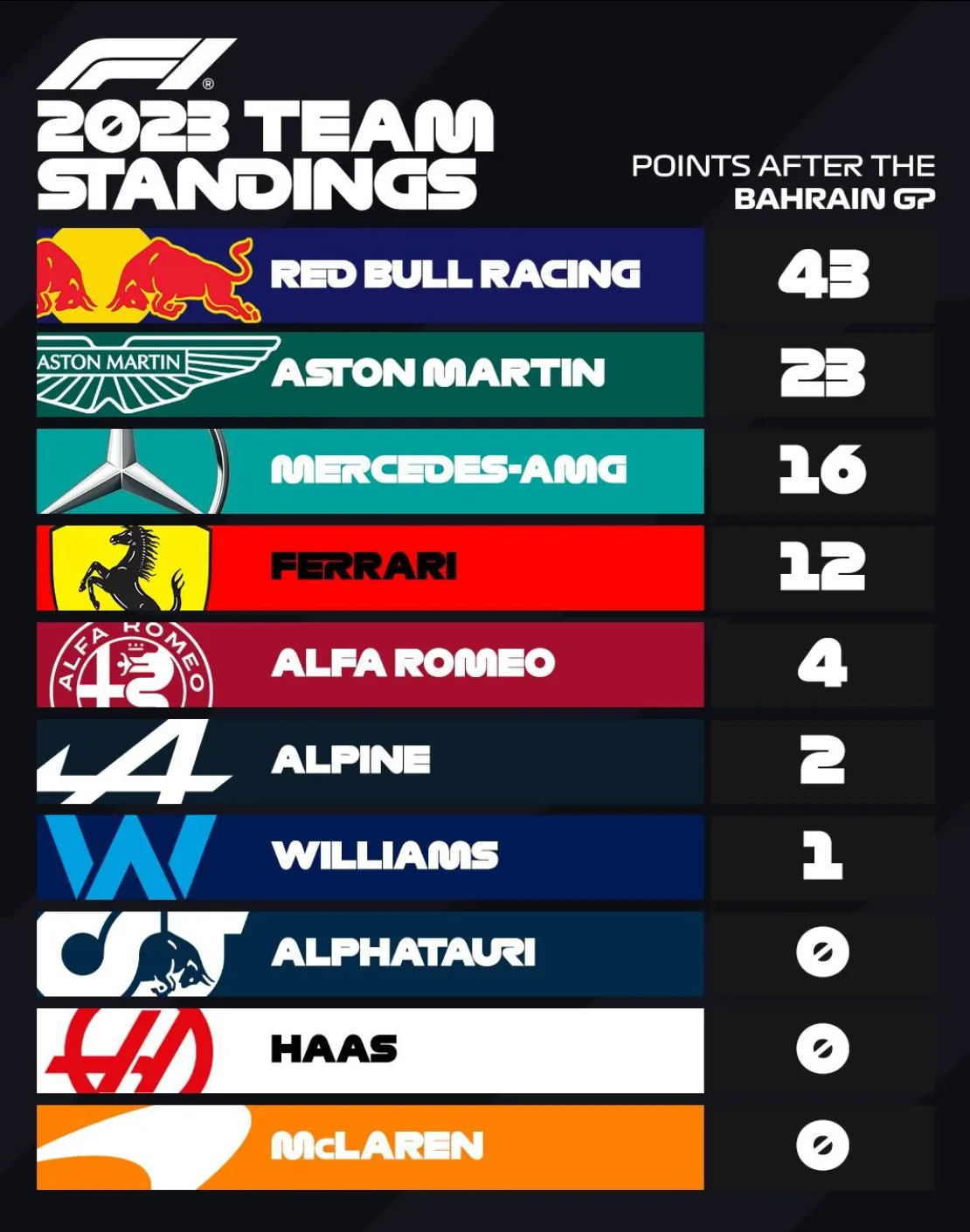
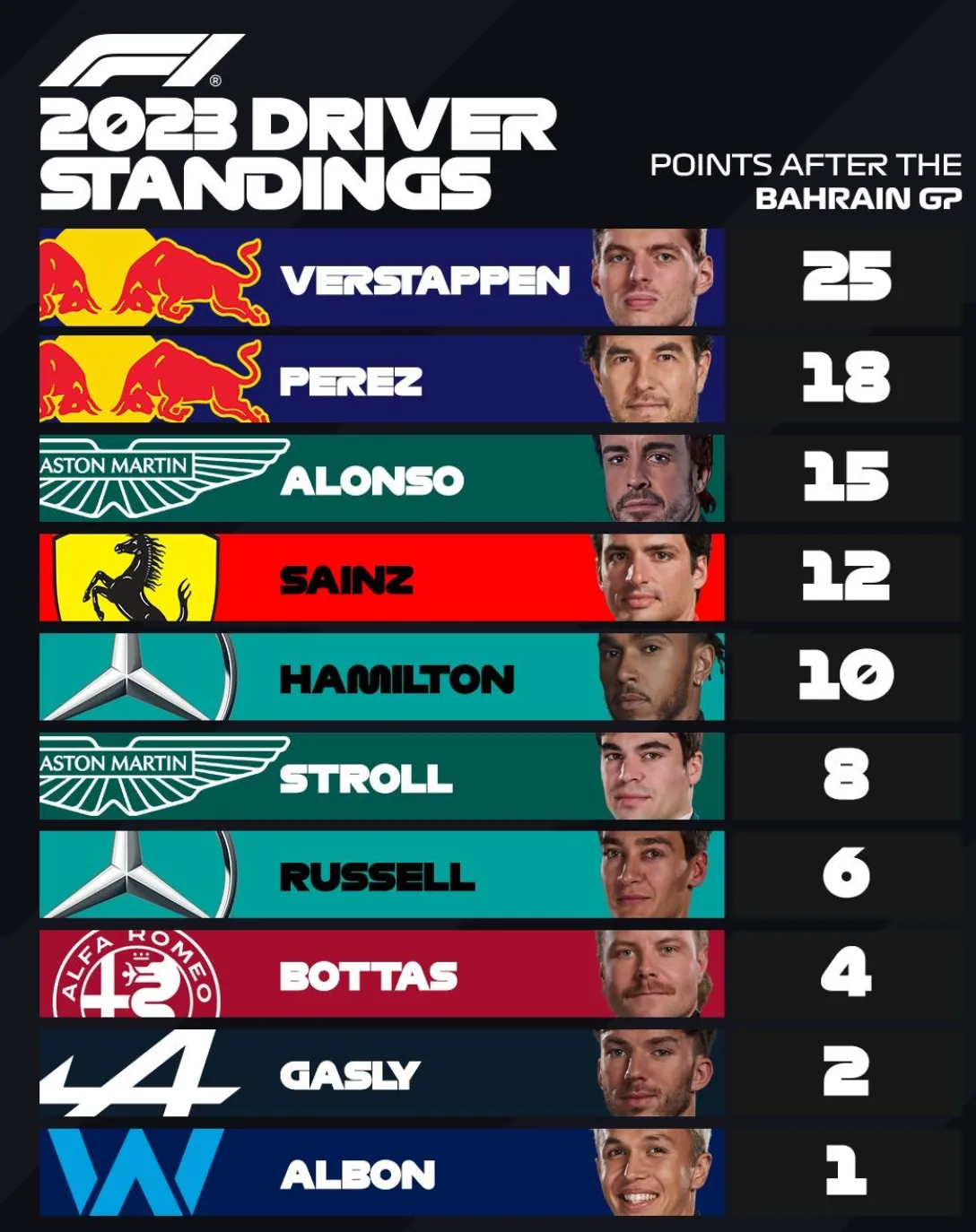
The F1 graphics designer has the same problem that we presentation designers face: how to deal with logos that have completely different aspect ratios. Very long ones vanish in a square tile, square and round ones don’t look good in a wide rectangular box.

Their solution: let go of the requirement that the entire logo should be visible. Carefully crop out parts of the logo while making sure that it can still be recognized and read. All this is supported by borrowing the dominant color of the logo in the text box.

·Images

Useful OpenAI images

Most people use AI image generators to create something funny (a cat riding an elephant) or something artsy (a formula 1 car in the style of Van Gogh). This is not the primary motivation why I included OpenAI image generation in SlideMagic.

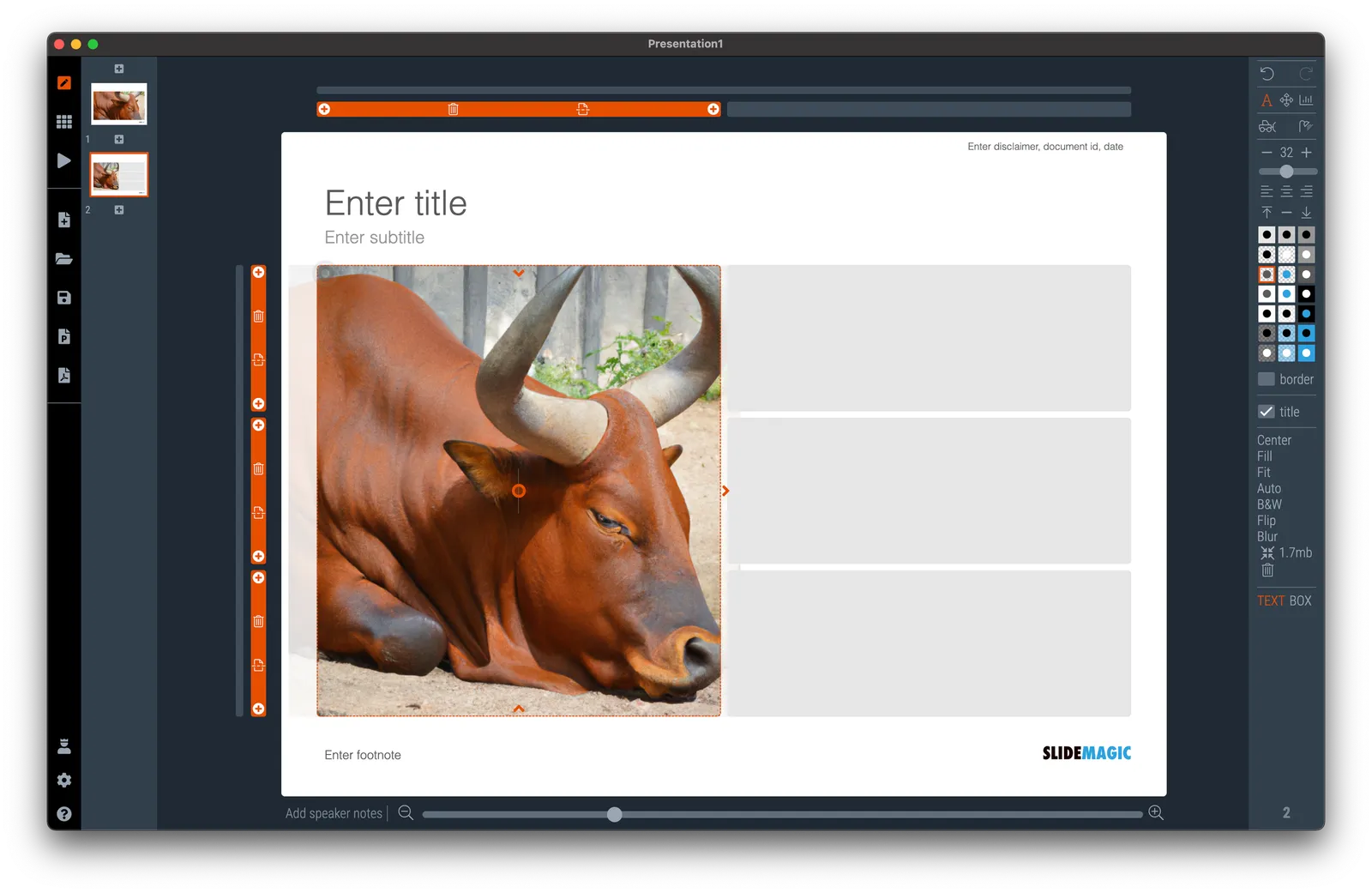
Image generators can be useful already in presentations, especially for image concepts that are relatively straightforward, but hard to find on stock image sites. The example that came along yesterday with an image of a ‘sleeping bull’ for a economics-related presentation. Perfect for OpenAI, see the result below.

·Layout

Aligning logos in presentations

Getting logos to line up properly is one of the hardest things in slide design. I have not been able to come up with a set of rules to do it, every time I need to eye ball things to see whether things somehow look right. Below is an example from the 9xchange web site:

There are a number of (conflicting) inputs:

  • The middle of the image file
  • The typographical baseline of the text
  • The middle of the non-text part of the logo
  • Tag lines above or below the brand name

Always fine tune logo pages because any automated adjustment will for sure not get it right.

·Images

Showing screen shots in a pitch deck

In most cases, it is not worth the time and effort in a short presentation to take the audience through a demo or a series of screenshots of your application. At this stage in the pitch process, understanding the exact flow of your application is not critical.

What can matter though is the simple question of whether you have a decent product or prototype or not. The role of a screen shot here is not to show the exact detail of your app, but more a proof point.

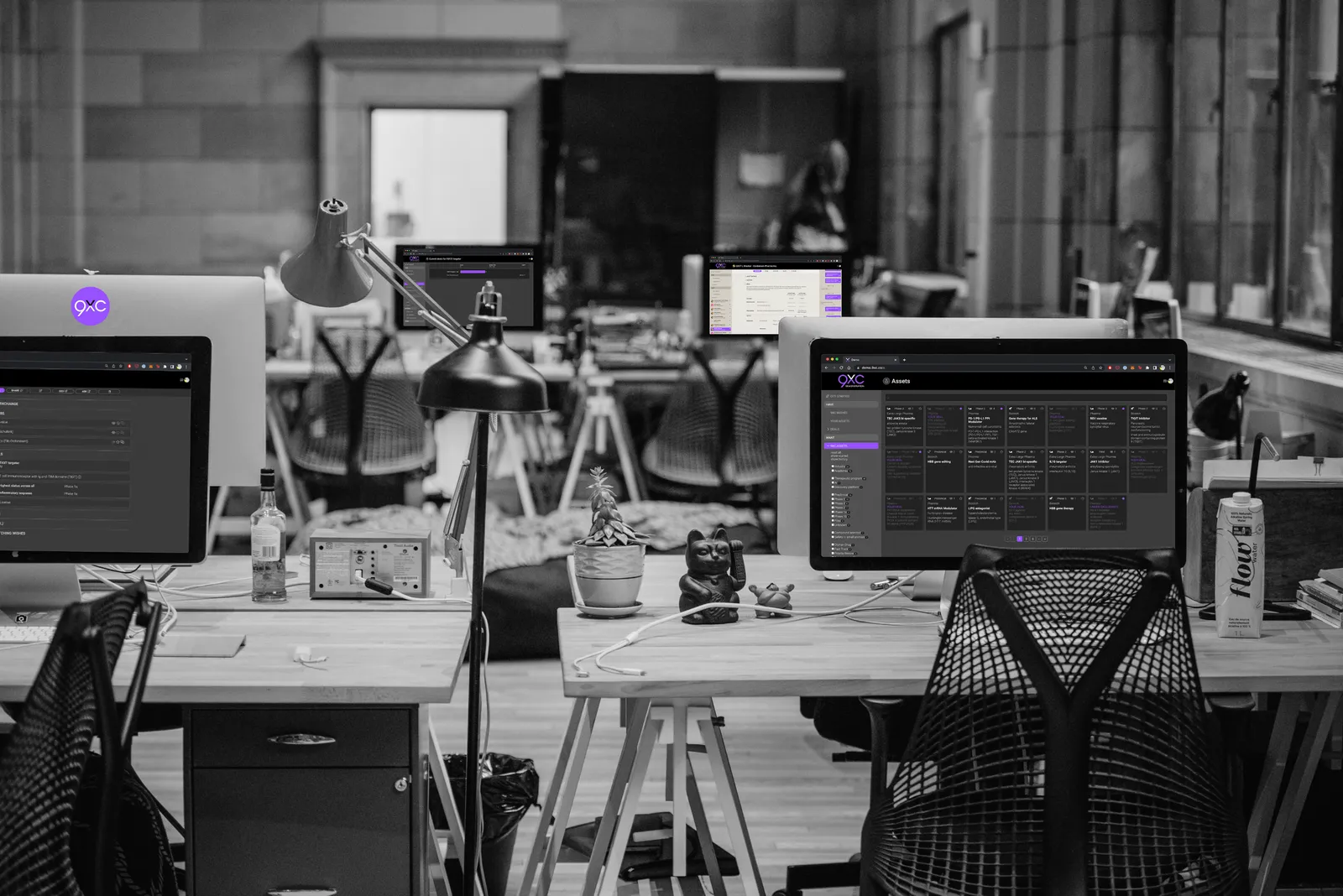
One way to make this point is to use an office background with some screens, and paste a number of screens on the monitors. That’s what I did in a recent deck for my other venture 9xchange. I made the office background black and white, to make the screens pop a bit more.

(Look how I managed to Photoshop the screen shot behind the standing desk light)

·Images

Google Maps and shadows

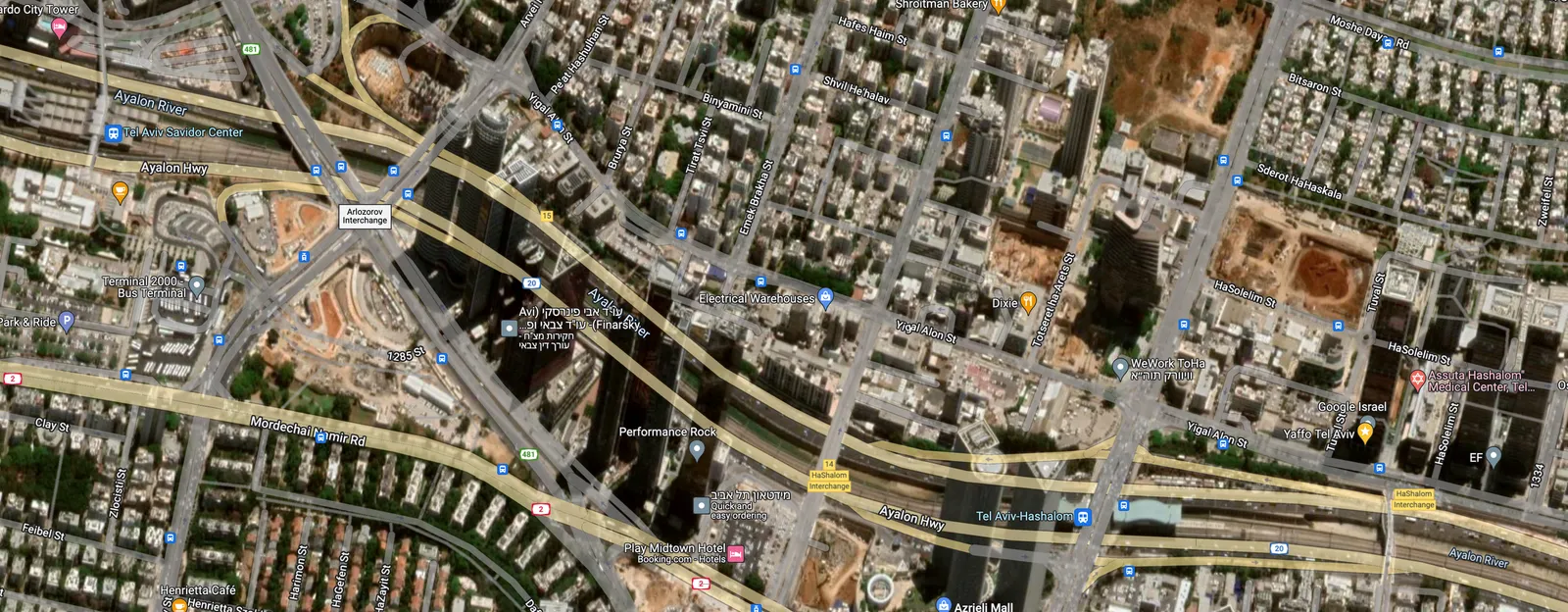
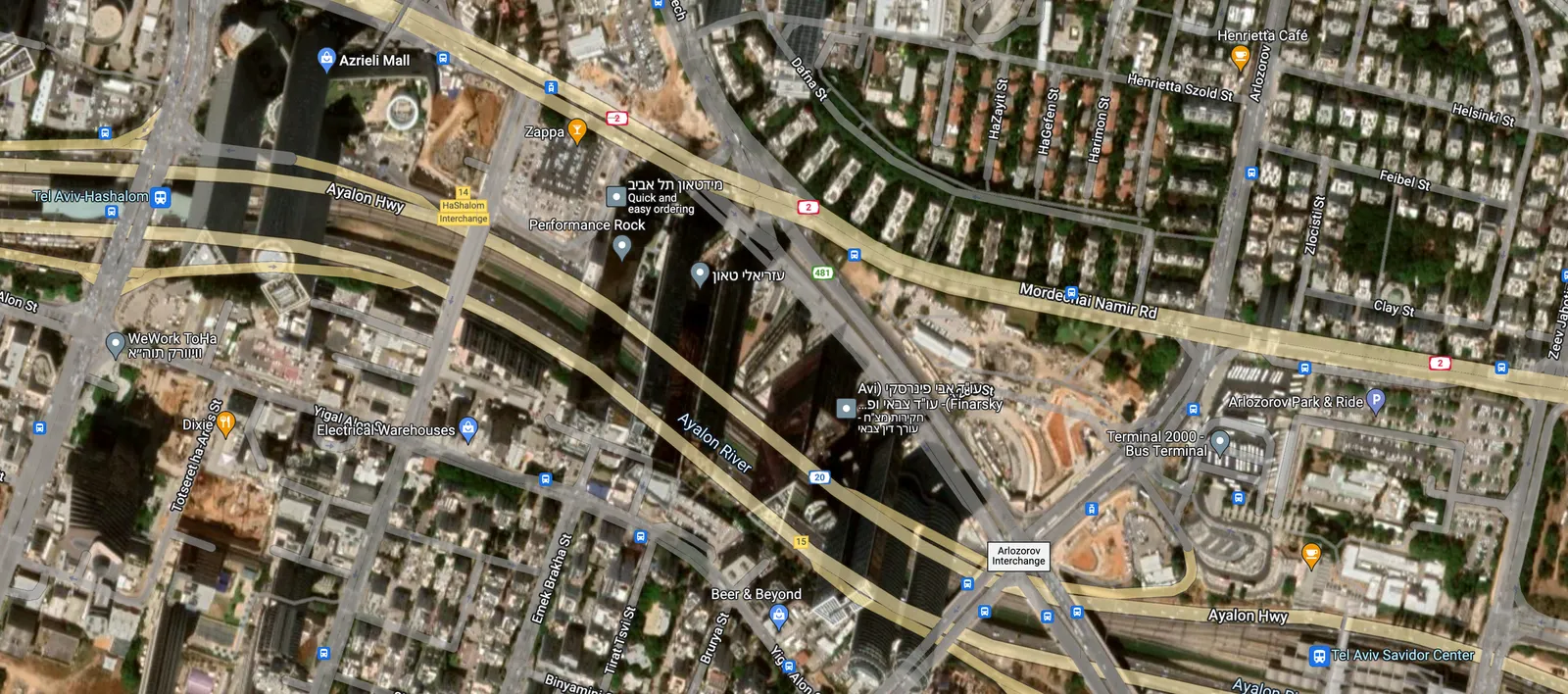
When using images from Google Maps, pay attention to the direction of the sun light and shadows the moment the picture was taken. Only 1 of the four possible orientations is the right one, and this is by no way the default north up. Example below. These are 2 pictures of the same are, and you can clearly see that one just does not feel right.

·Images

Leading the eye

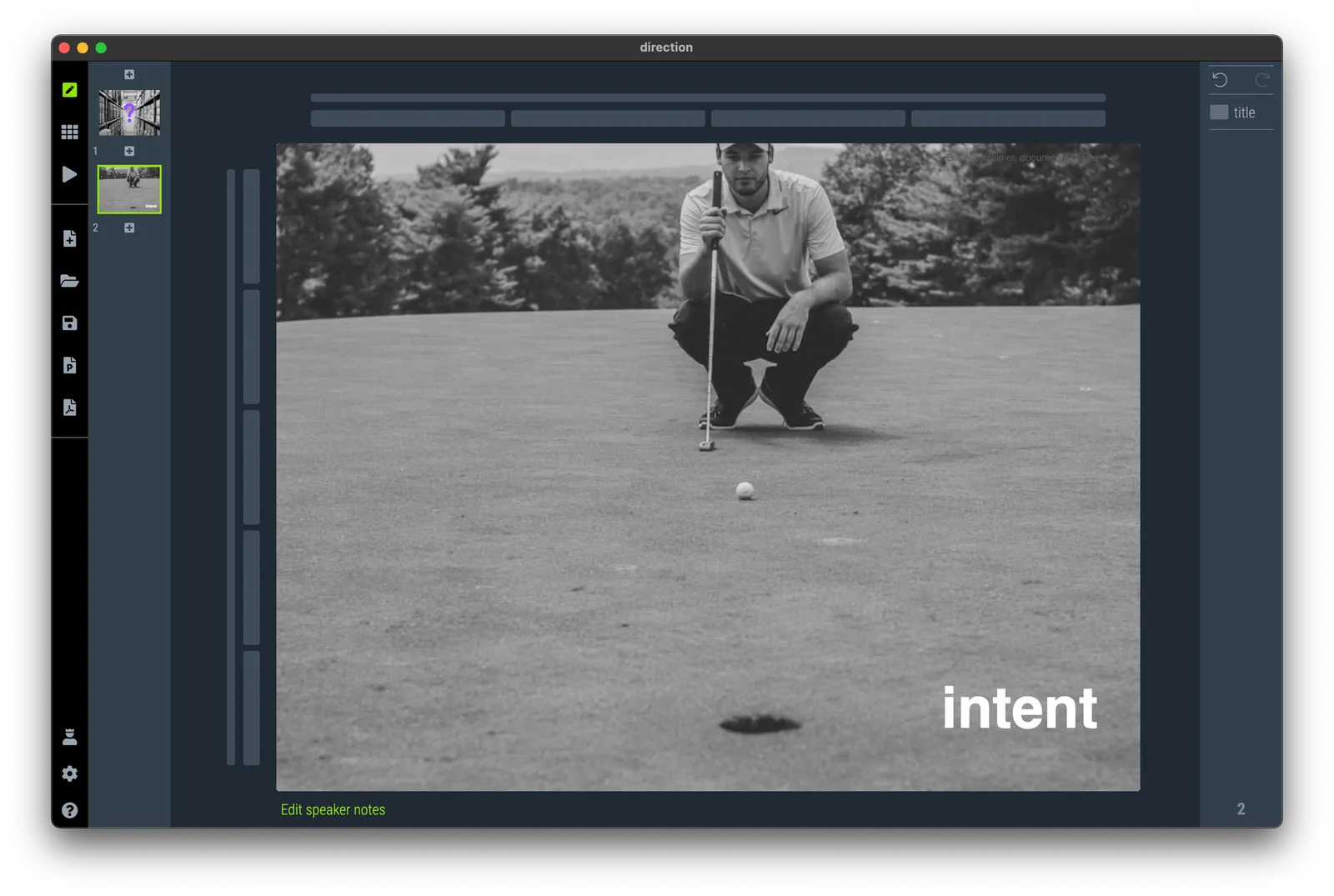
When looking for images, pay attention to how they can lead the eye of the audience. Below are 2 examples of images that draw the eye to a certain spot. (RSS email readers might have to open the link to the blog post to see the images).

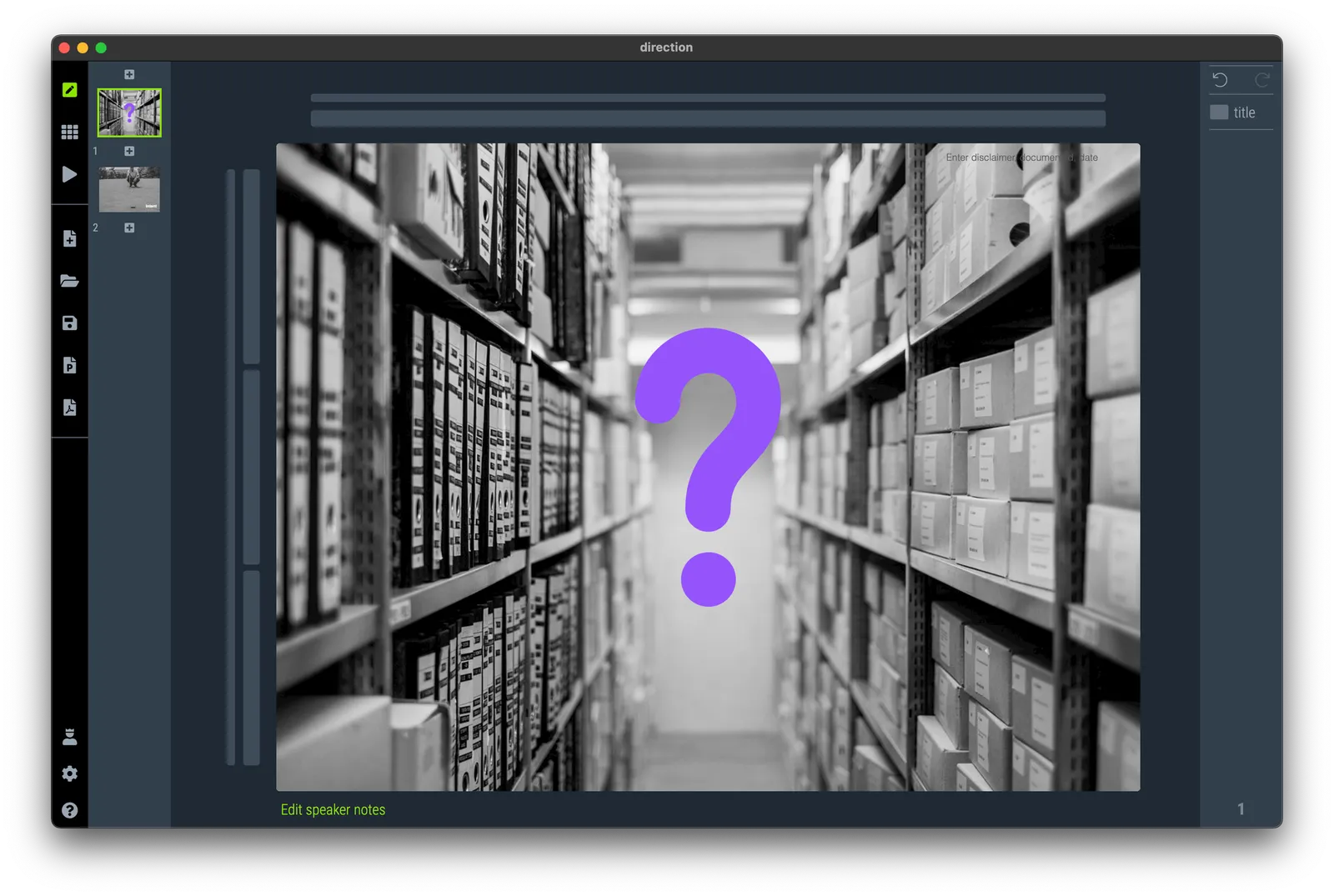
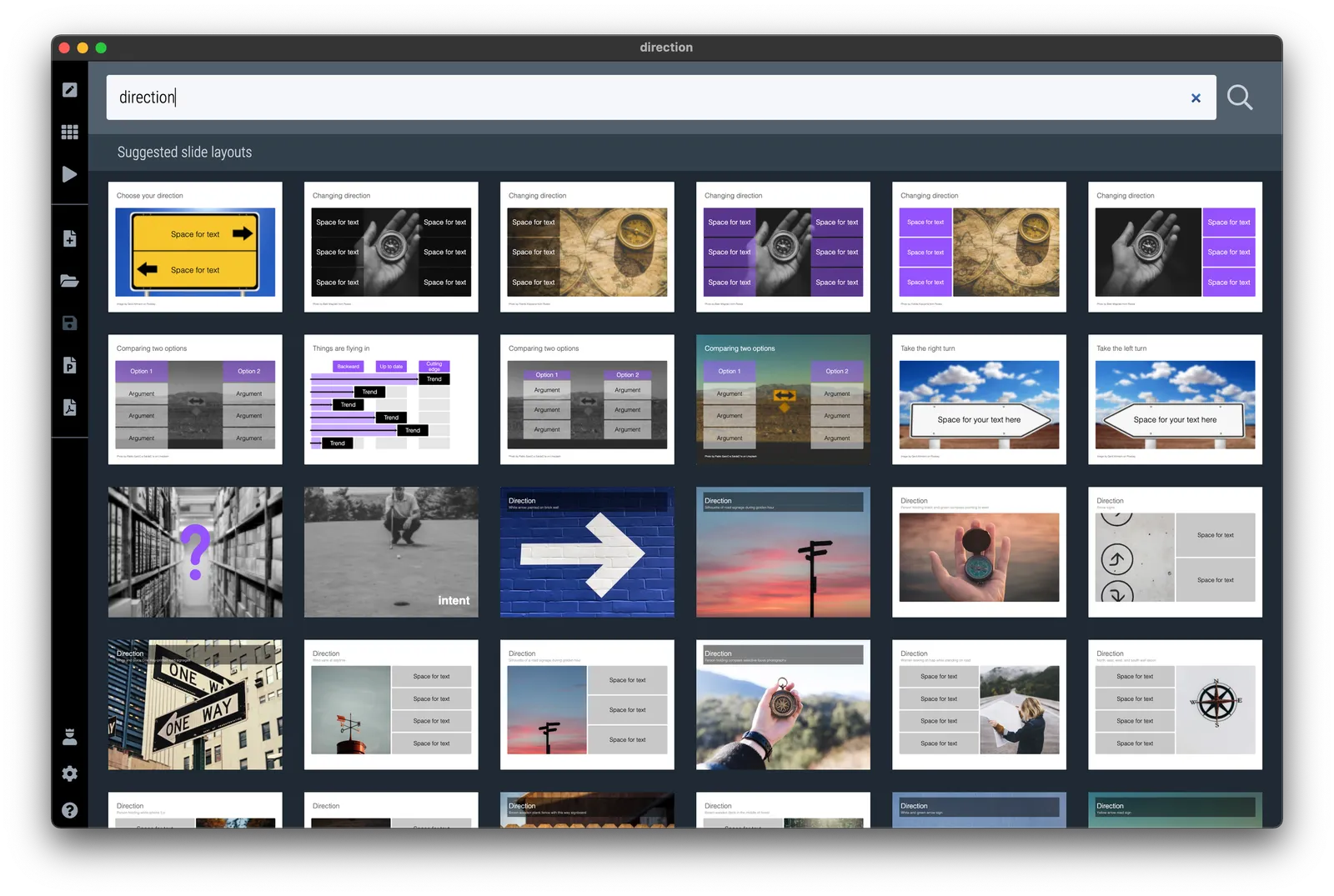
I have added the images to the SlideMagic slide library so you can use them in your own presentations. (Search for example for “direction” and they will show up, see the example image below).

Pro users can convert these slides to PowerPoint or PDF