SlideMagic Blog

Frequent updates about all things presentations since 2008. Subscribe to never miss a post.

RSS
all posts

Category Images

·Concepts

Joking about your own cliche slide

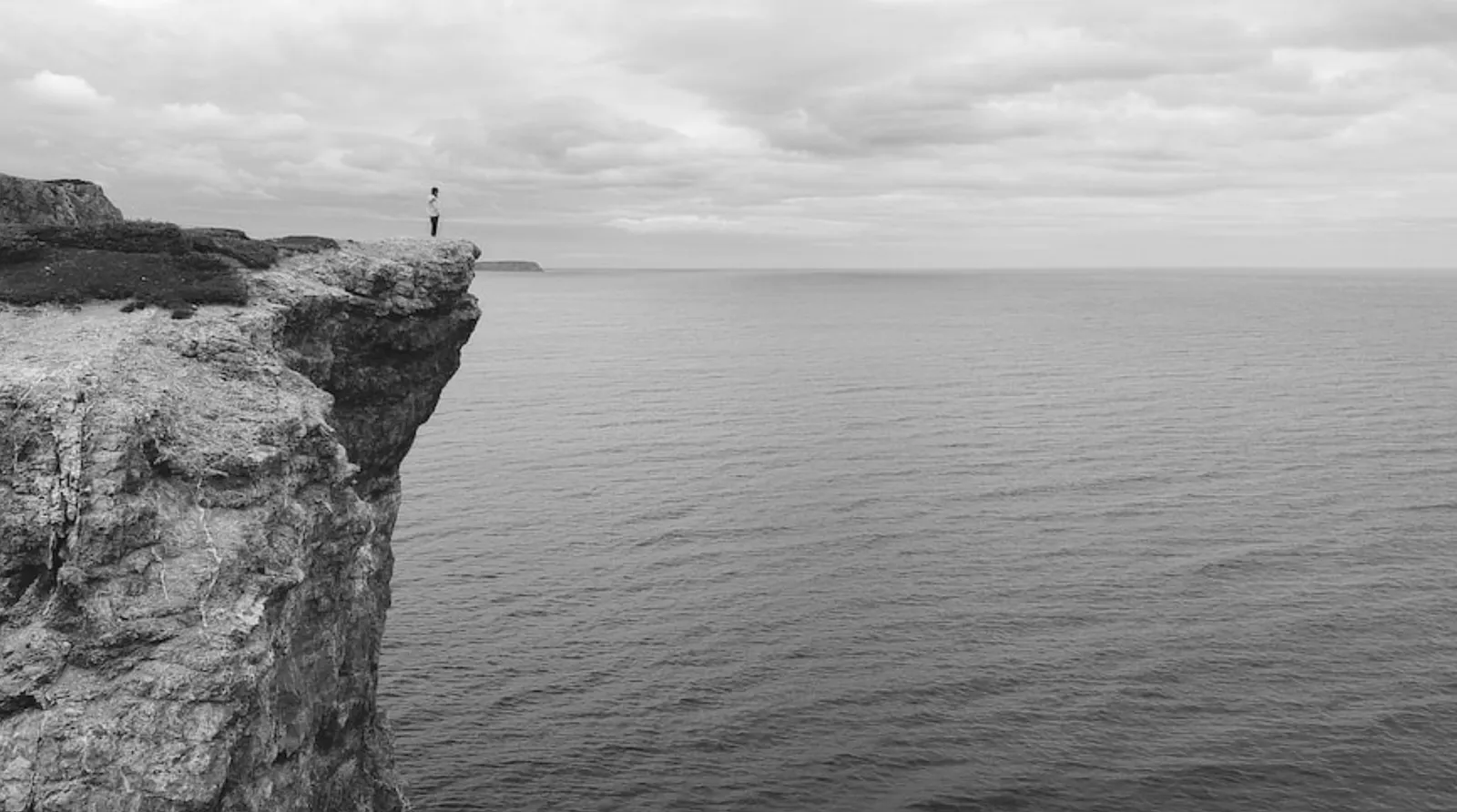
It happens to the best of us. Using a cliche chart. In a recent presentation, I had to refer to the so called “patent cliff”, a number of very big selling drugs will come off patent and become vulnerable to low cost generic alternatives. Everyone in the audience knows what it is.

I put an empty image (see below) of a cliff without any data or text, and literally apologized for the cliche visual. A 1 second reminder and *** click *** I could continue with the story

I have added this image to the SlideMagic slide library, search for “cliff” in the SlideMagic app and you can use this slide in your own presentation.

·Concepts

Related images

A well-chosen image creates a “visual shortcut”. While you explain your idea, the visual of the image gets stored in your brain alongside your story. Seeing the image again, immediately makes the whole idea pop up again, including its more complex nuances.

You can use this in presentations. Obviously on one slide. But it can also be very effective to use similar (or the same) image to make a connection between multiple slides. You introduce a concept early on (let’s say a problem) and when you get back at it later (with the solution), a related image can quickly pull back up the original story.

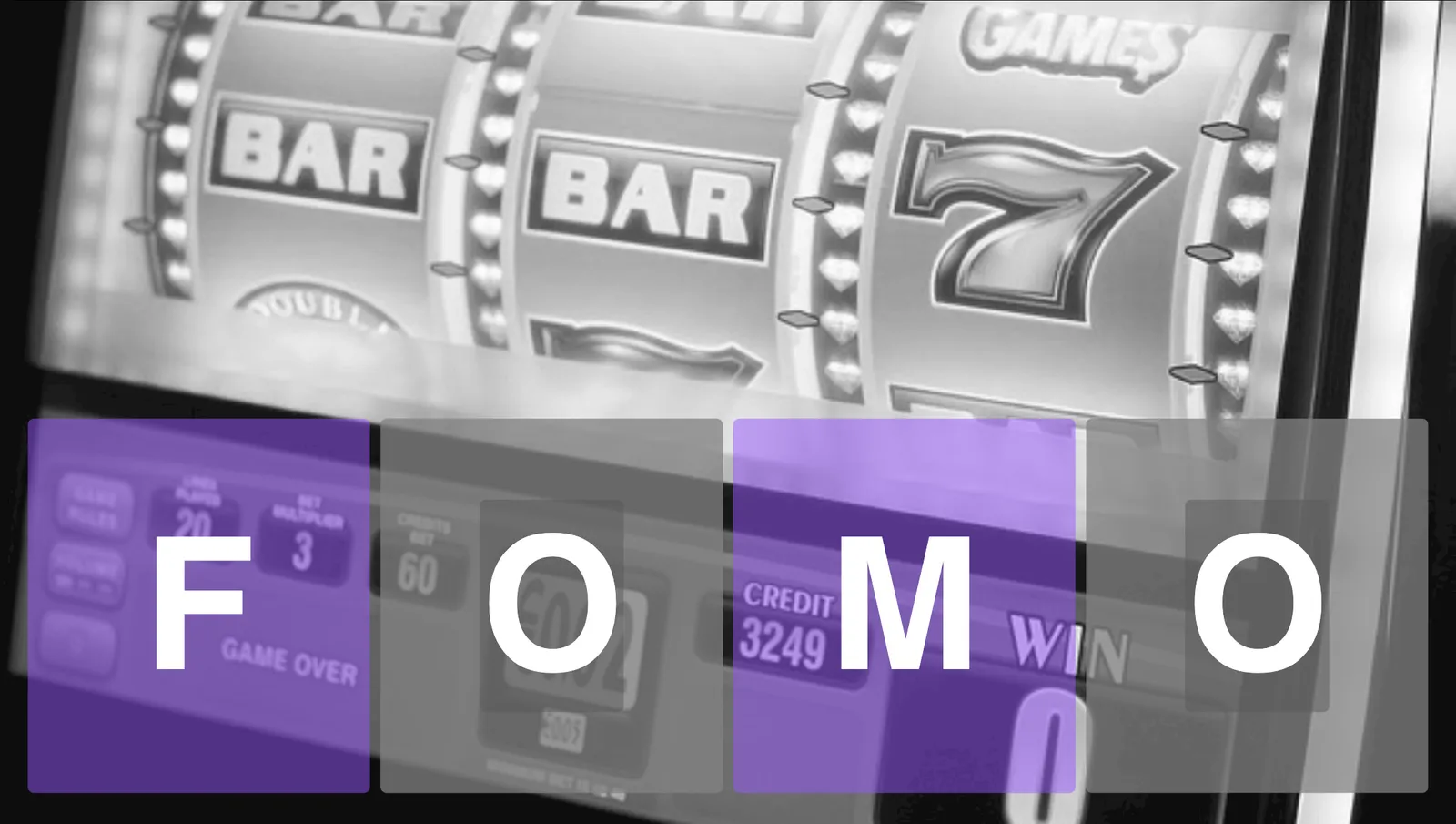
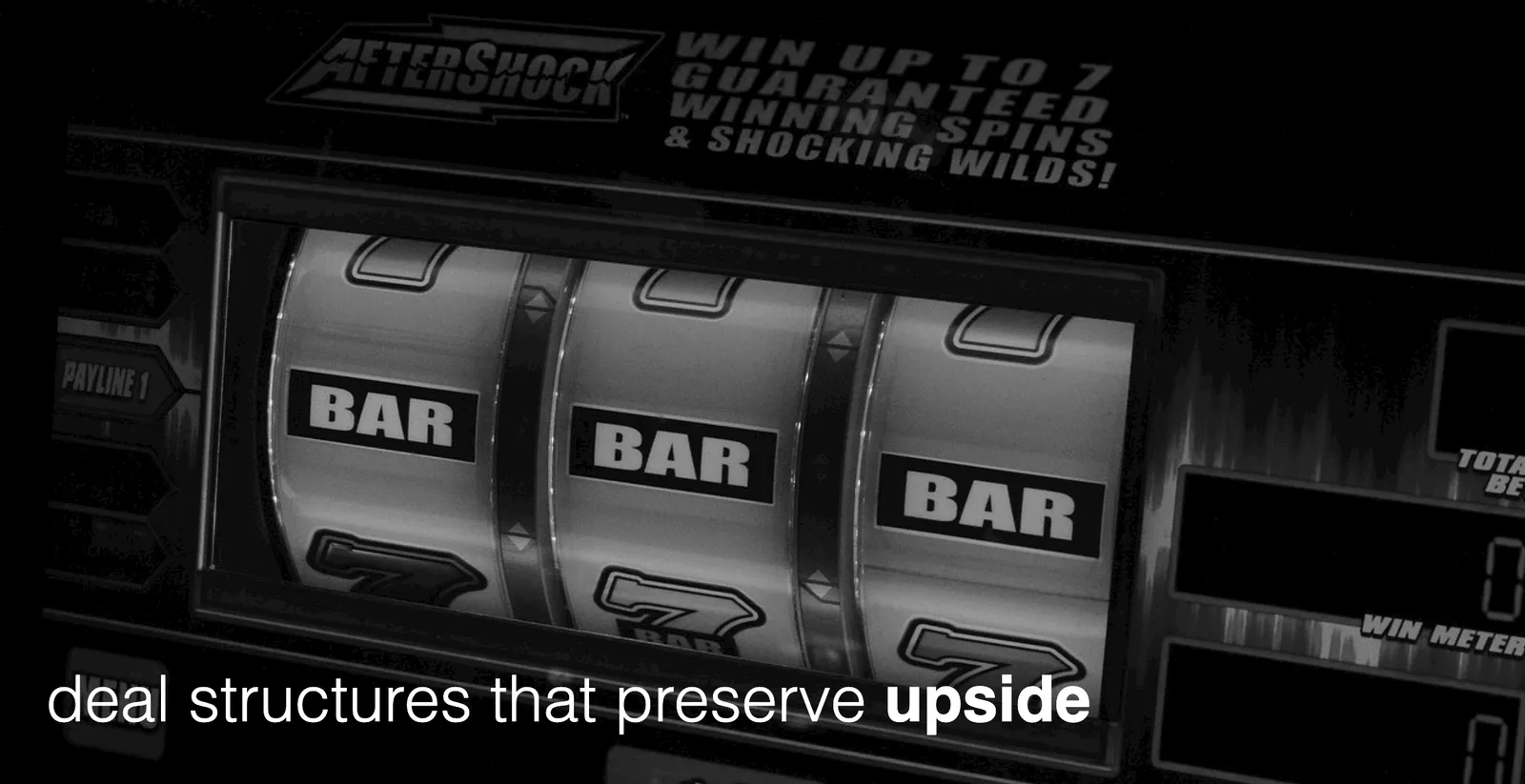
As an example, two slides I used in a recent presentation. The first image introduces the concept of FOMO (fear of missing out), in this case of a business that becomes wildly successful after you spun it out. The second image relates back to the slot machine / lottery concept.
If you are reading this blog post via an email update, you might have to open the link to the blog post to see the images. My email service can only take a limited amount of images from the blog feed (I am working to fix this).

I have added these slides to the SlideMagic template library, for example search for “gamble” in the SlideMagic app and the slides will pop up for you to use in your own presentation. Pro users can covert the slides to PDF and/or PowerPoint.


·Images

Placeholders for images with copy right in SlideMagic

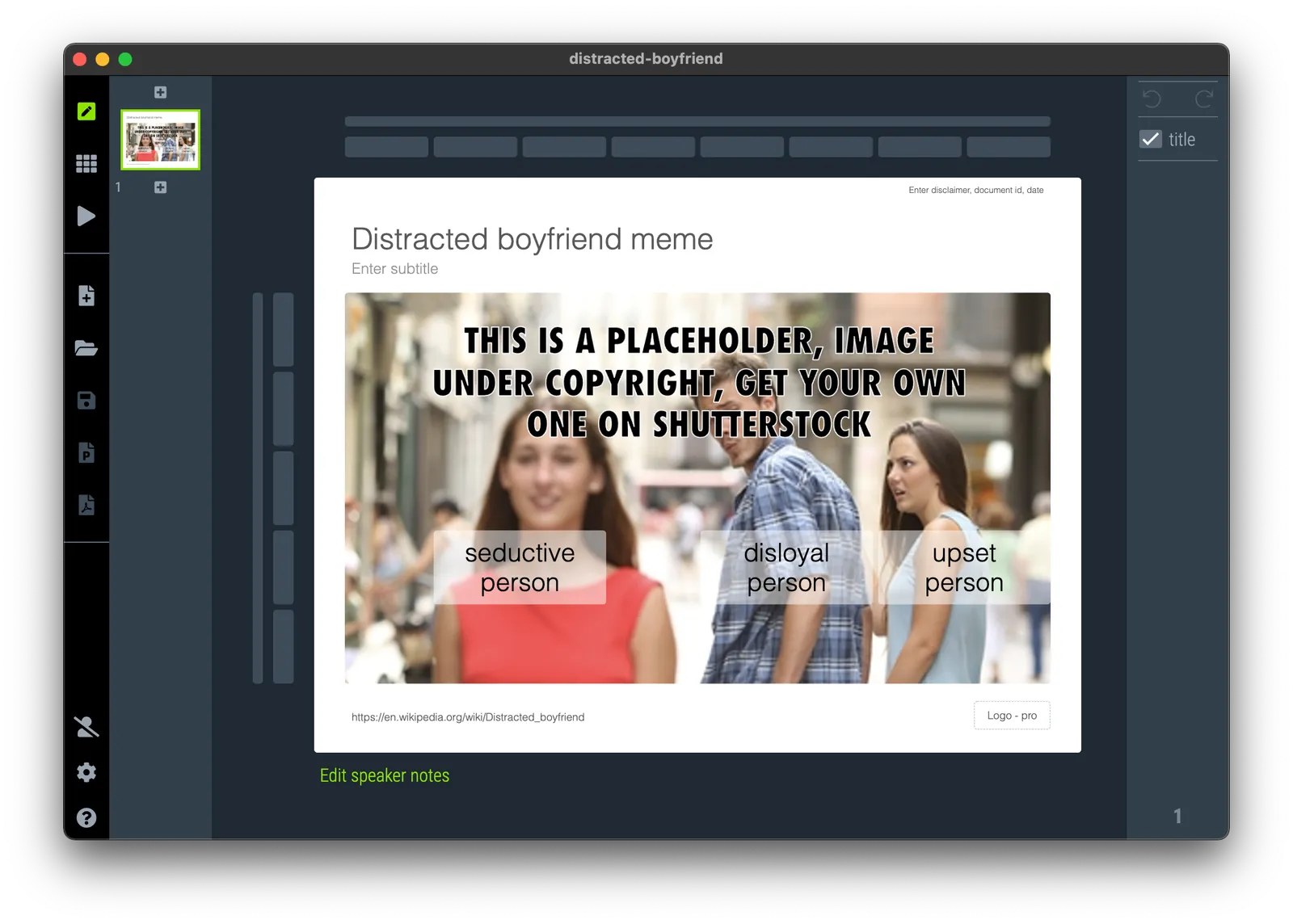
All the images and icons that are available in SlideMagic are royalty free, without copy right. For some memes that I have been adding recently, there are copyright issues. To solve it, I added a giant water mark over the image so you can replace it with your own. This placeholder is useful thought to get the positioning of boxes right.

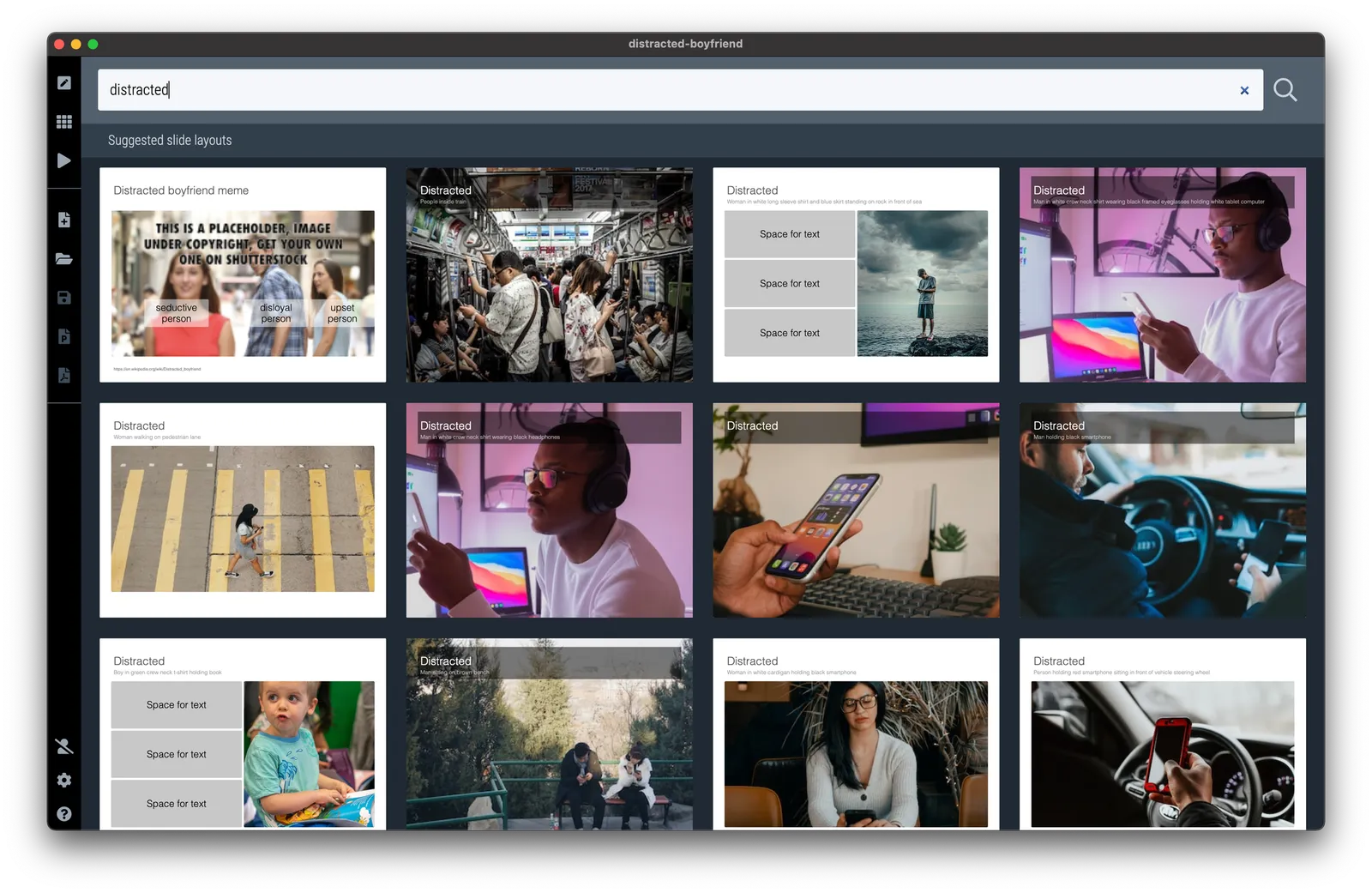
You can download the slide template for the distracted boyfriend meme online, but it is even simpler to search for “distracted” and get a number of layout suggestions directly in the app.

SlideMagic Pro users (free for students) can convert slides in the SlideMagic app to PowerPoint.

·Images

AI image generators

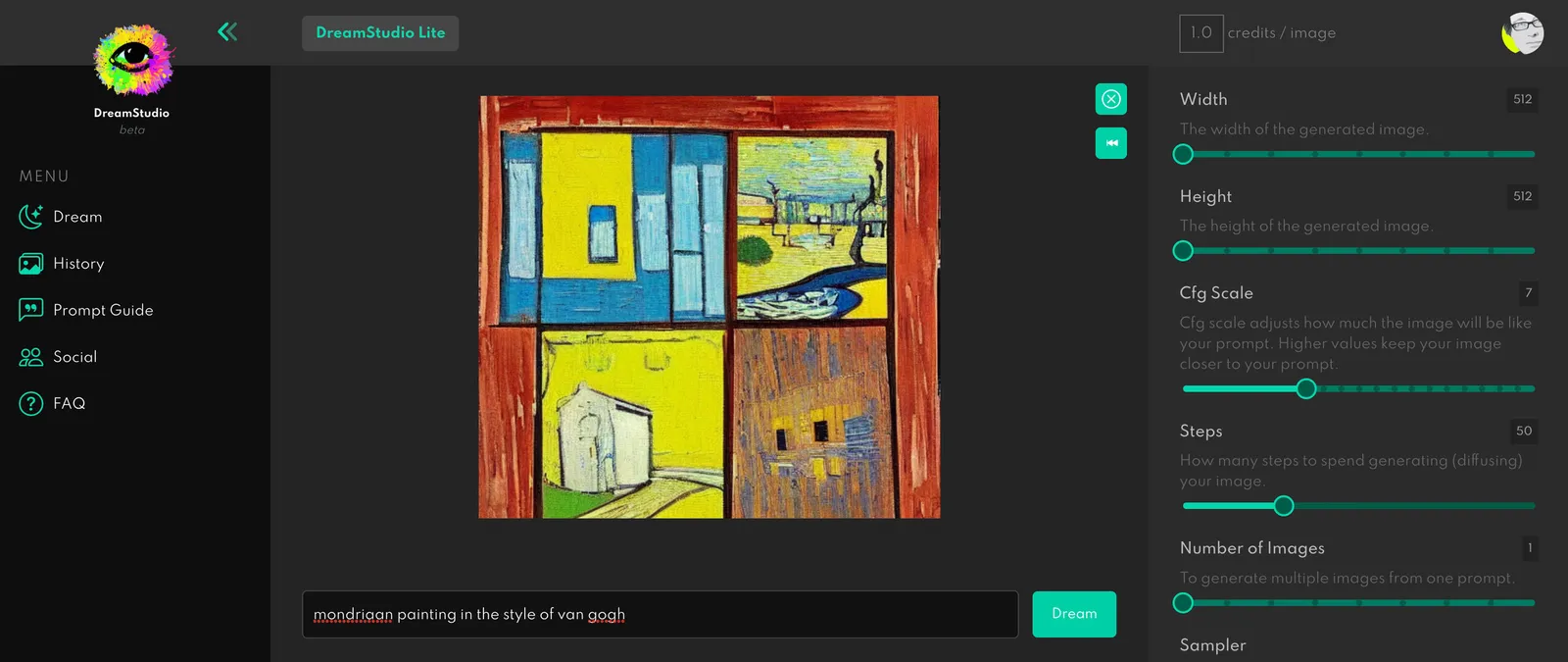
Dream Studio uses machine learning to create images based on sentences and keywords a user enters. Unlike searching for an image based on a keyword in a big data base with tagged pictures, Dream Studio would generate pixels from scratch. Some results are stunning, others have surprising errors (faces that are not finished for example).

You can also mix and match art styles (the image below is a mix up of Mondriaan and Van Gogh).

At the moment these type of services are a gimmick. People try a few creations, share them, and move on. But in a few years from now, this might be the way image “databases” work. No need for that database anymore as photographs are created on the fly,

(Another similar service is DALL-E, but it has a waiting list)

·Images

Google Lens for images in your browser

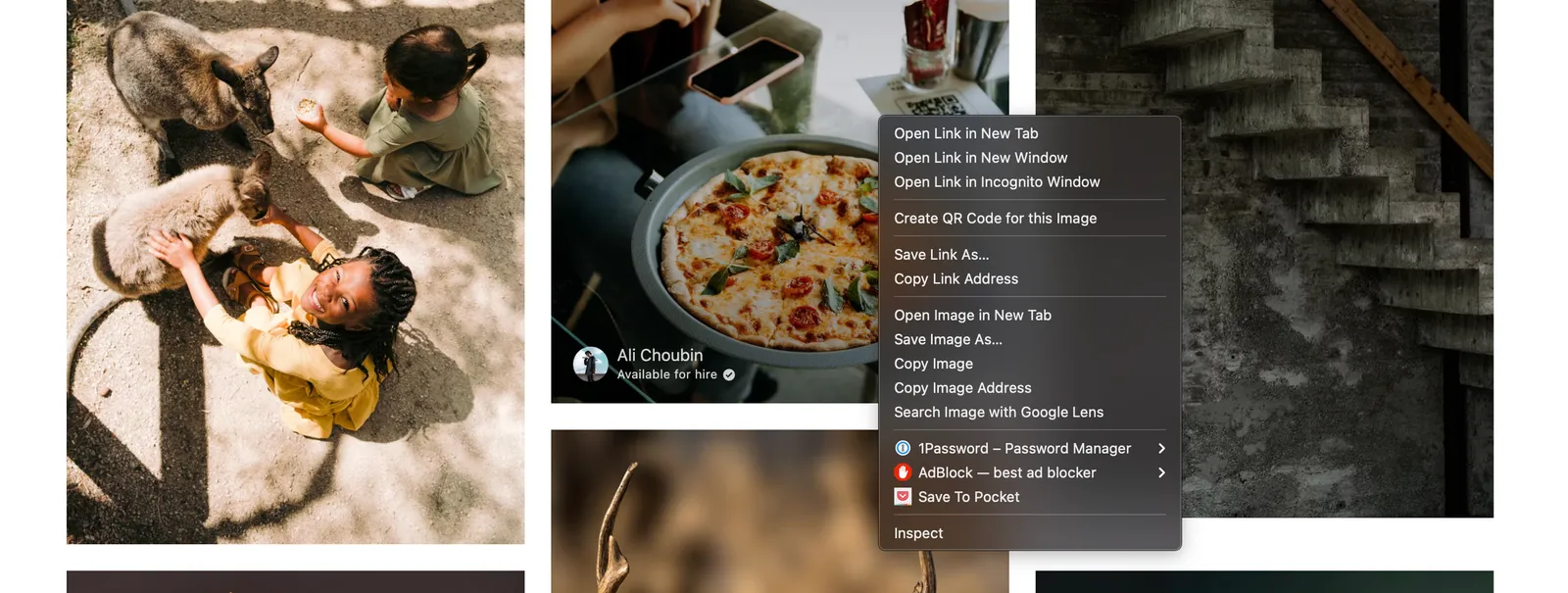
When you right click an image in Google Chrome, you now get an extra option to search the image with Google Lens, which generates similar images, find places where the same image is used (often including the original source), translations etc.

·Images

Landscape photos

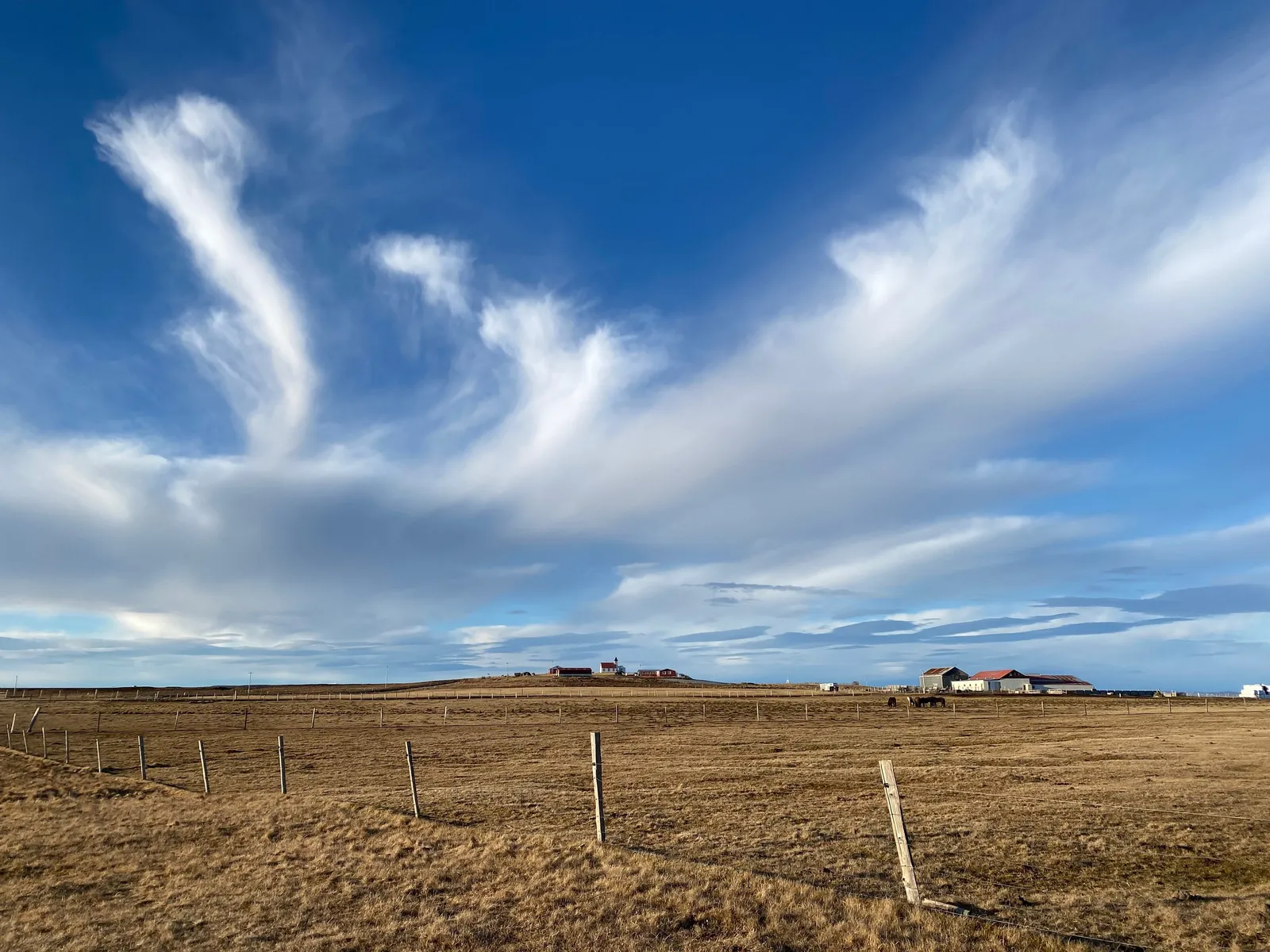
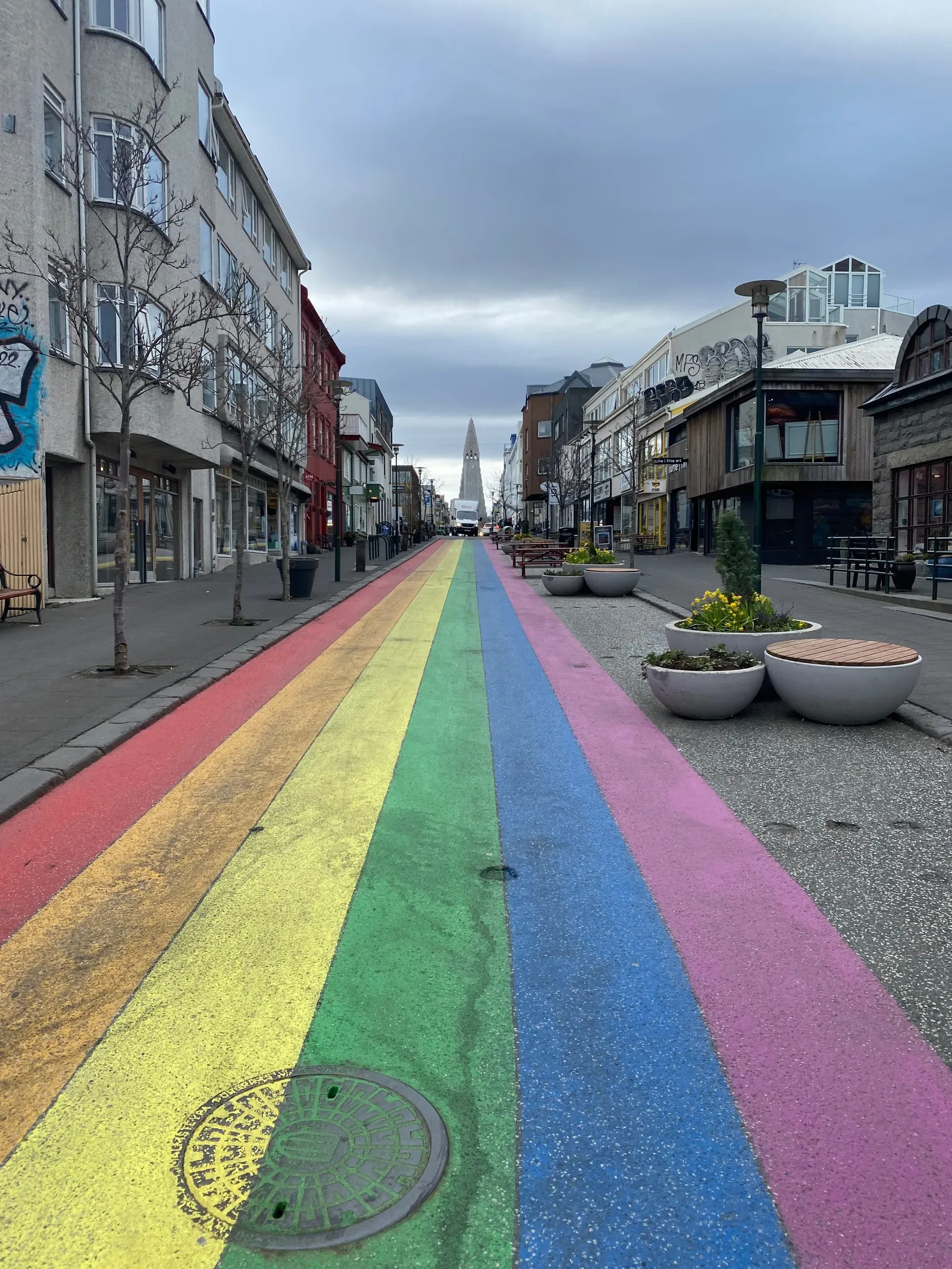
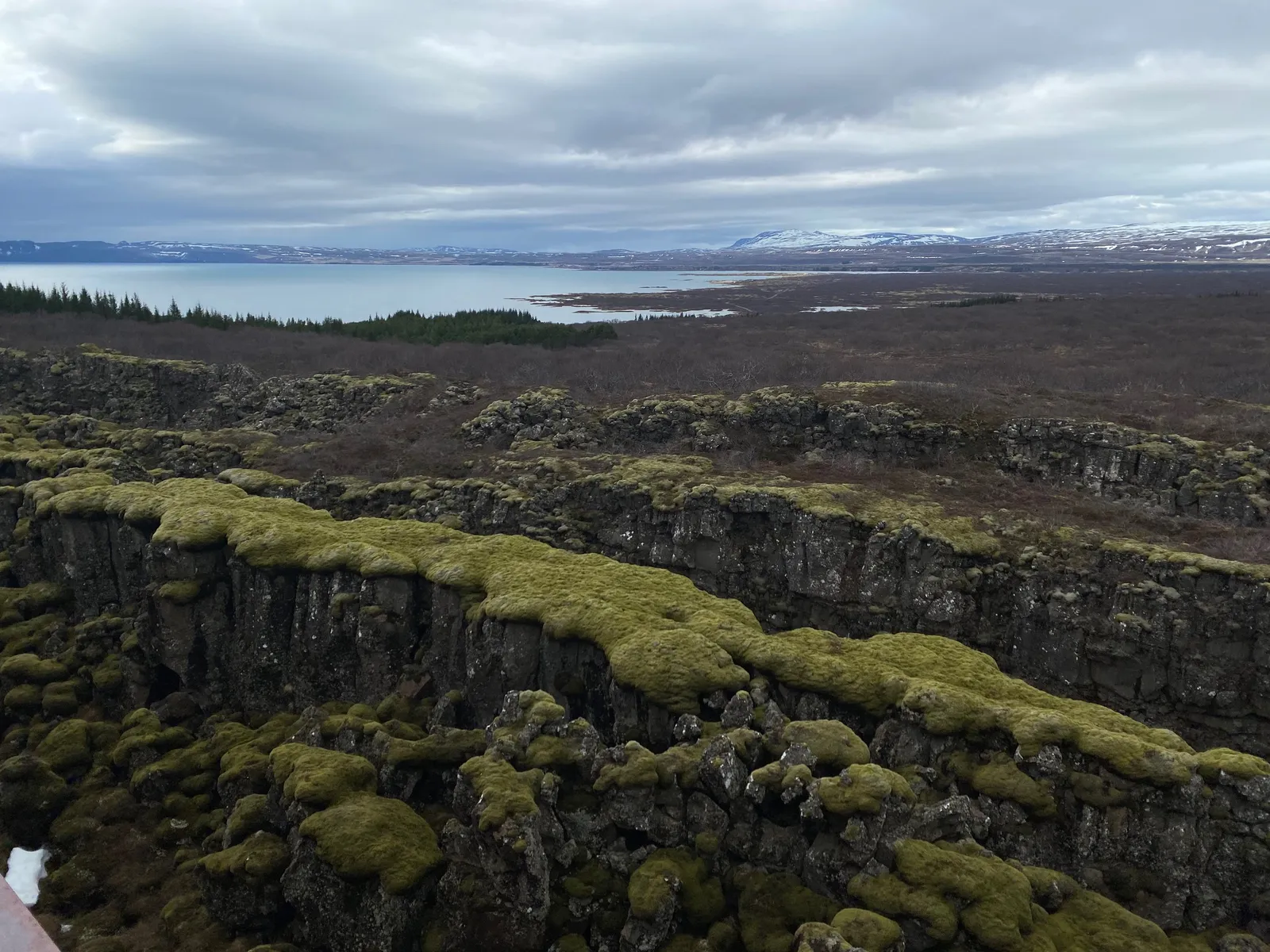
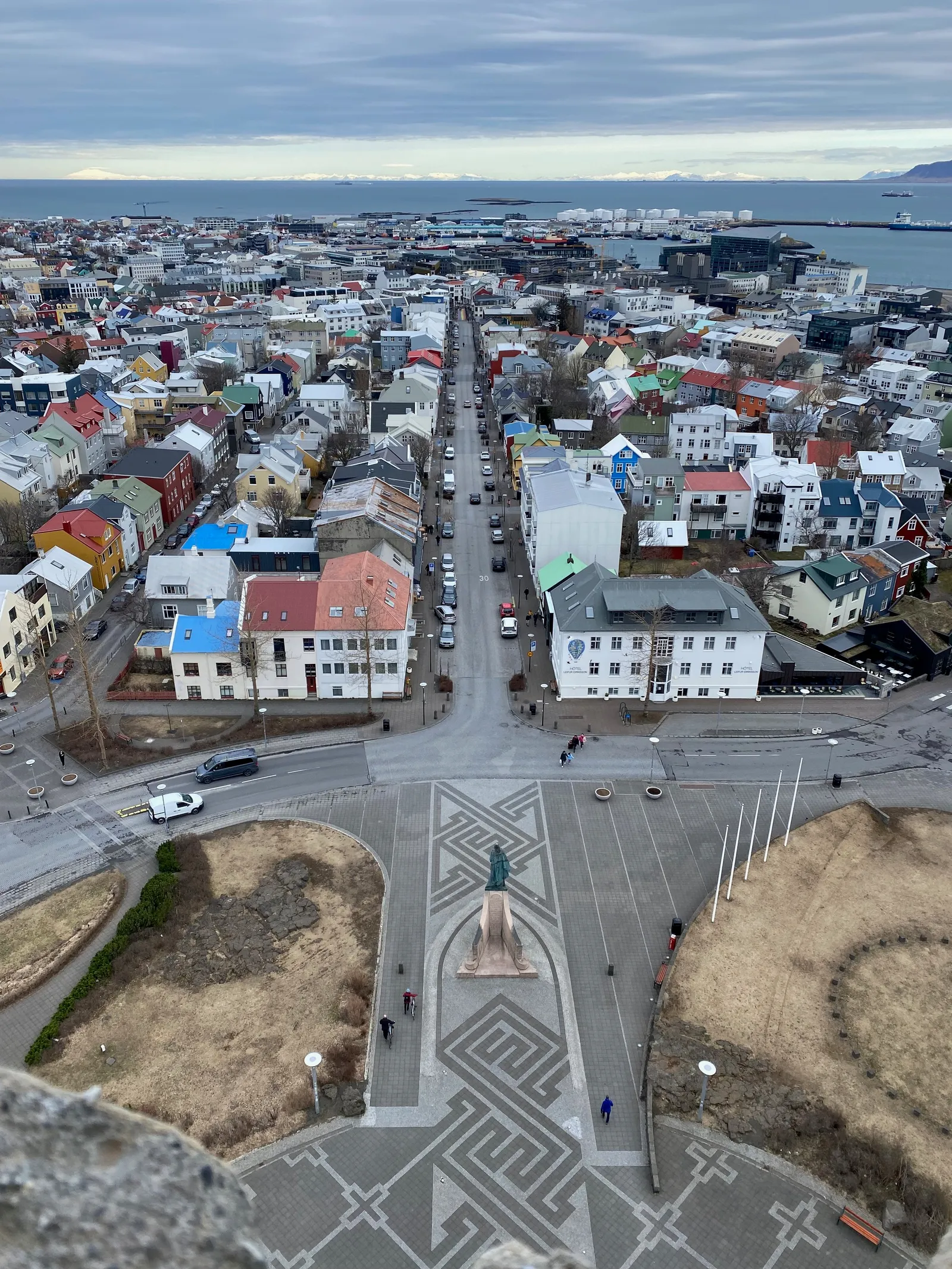
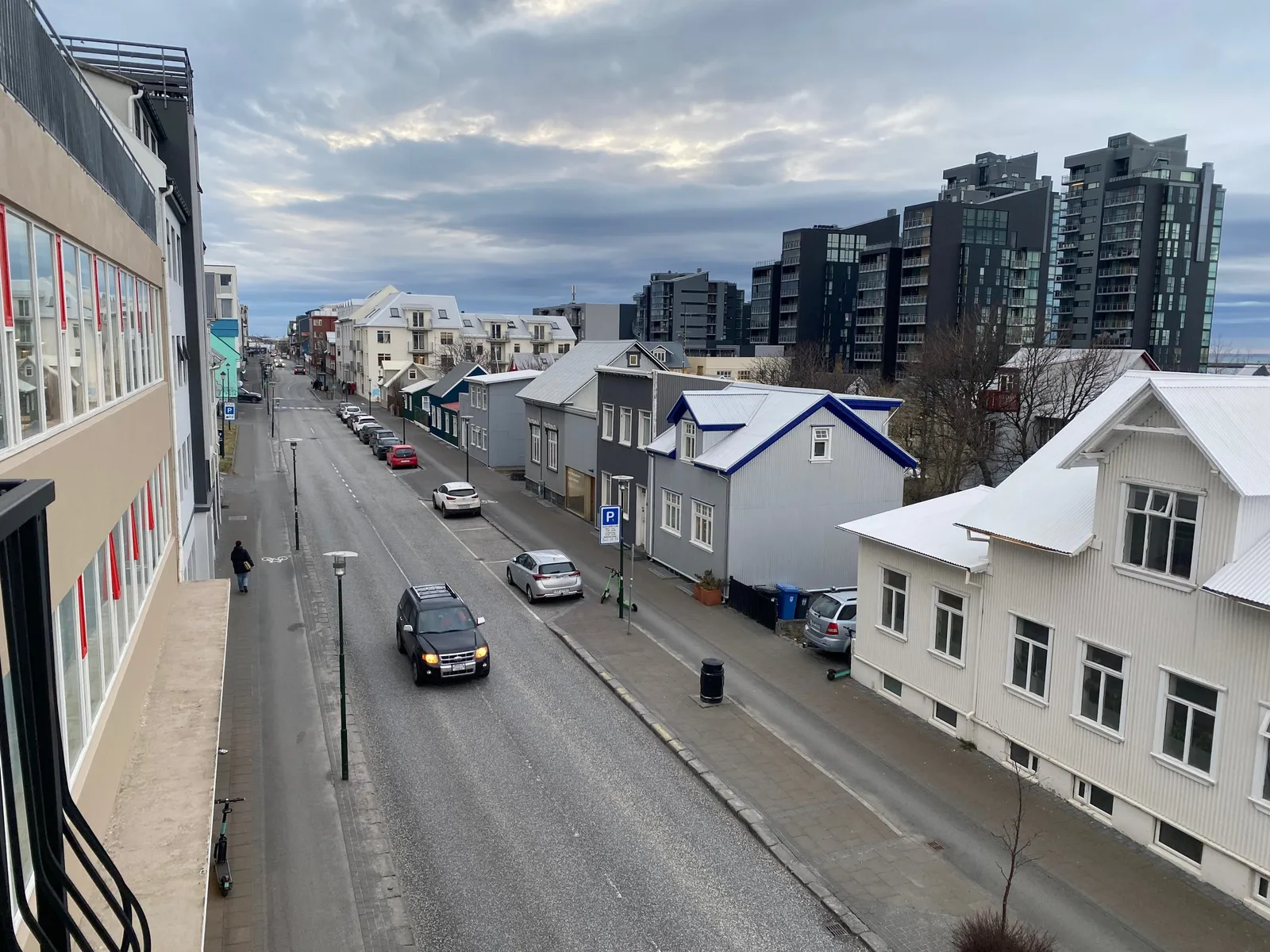
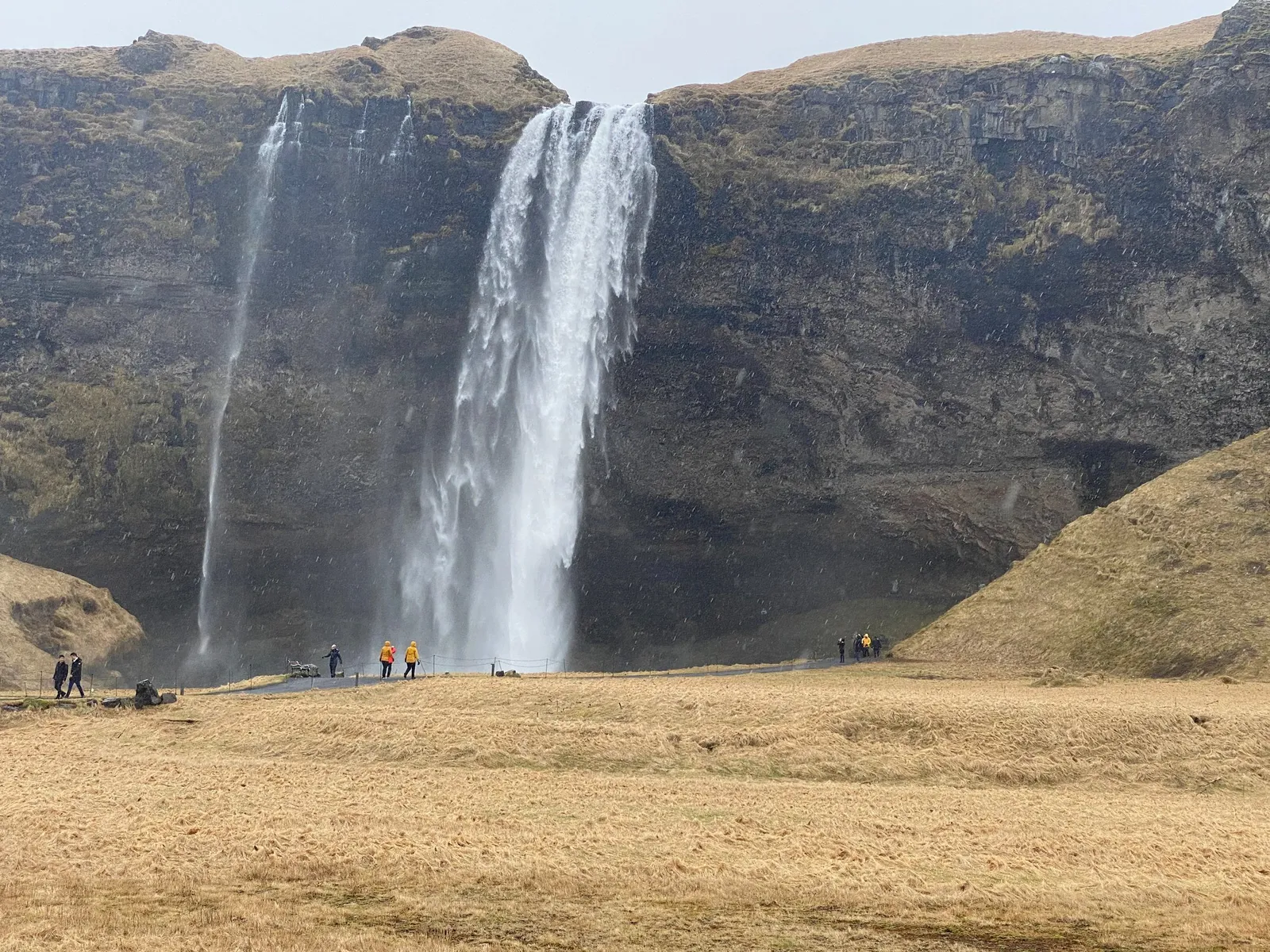
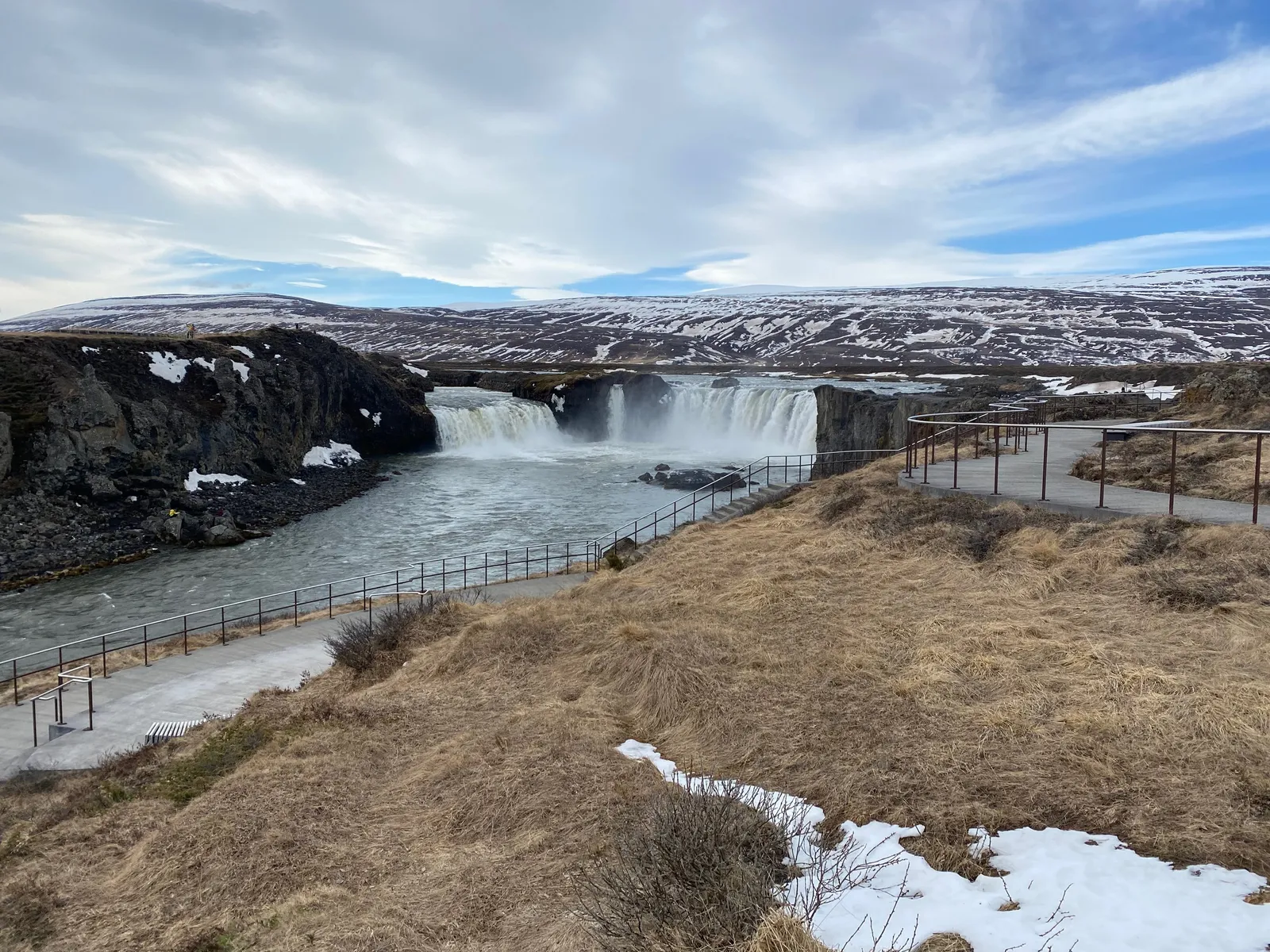
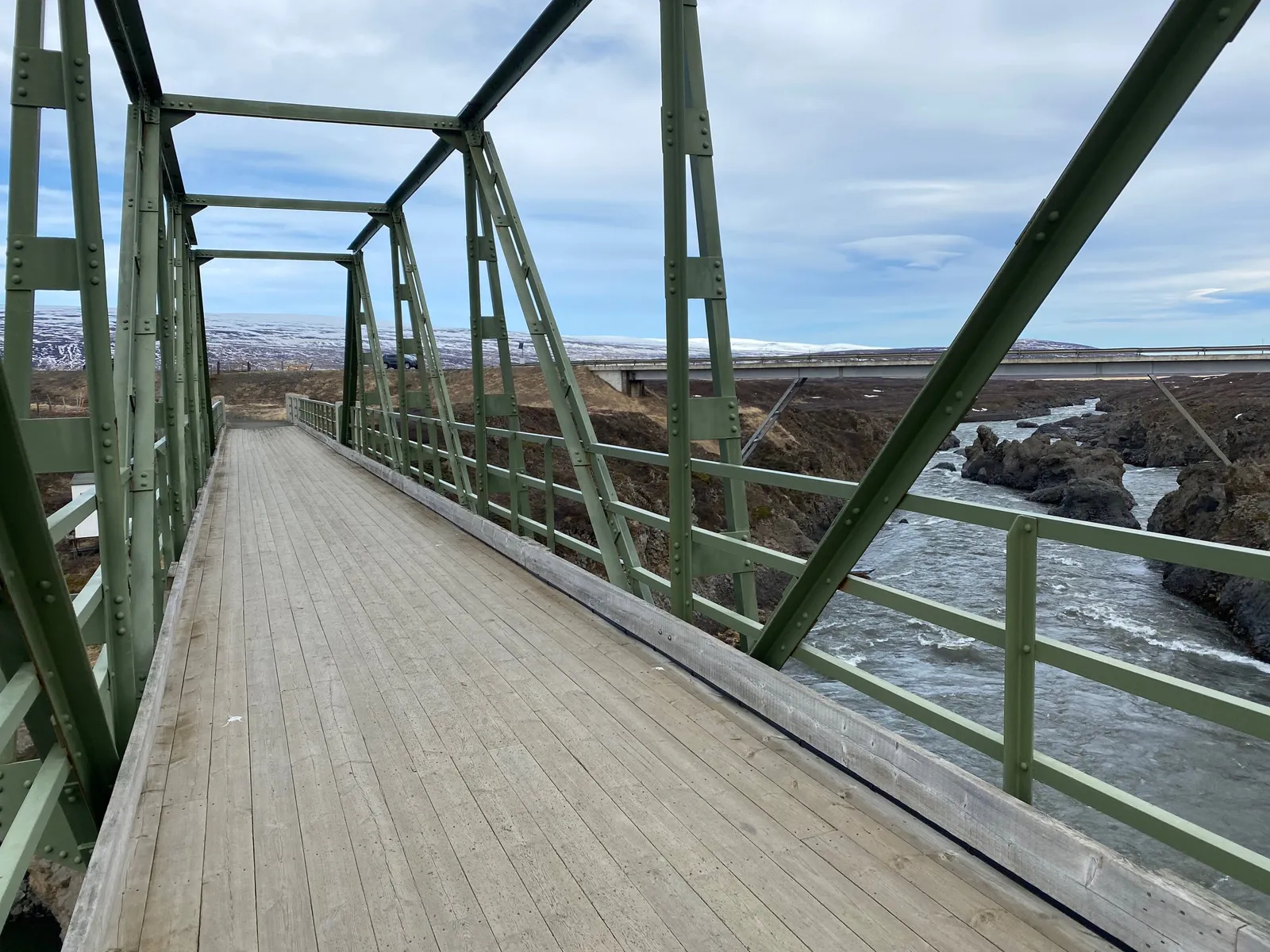
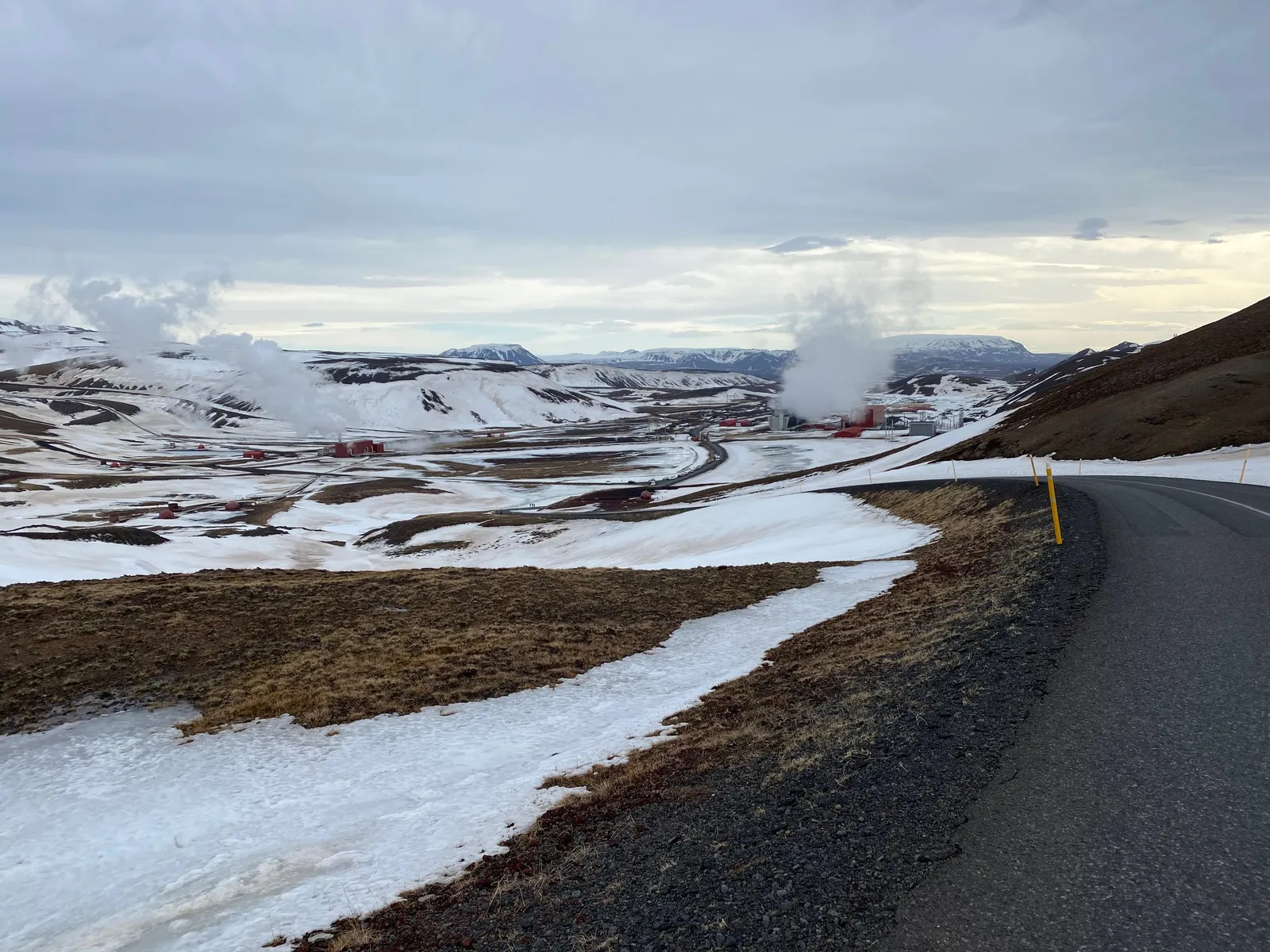
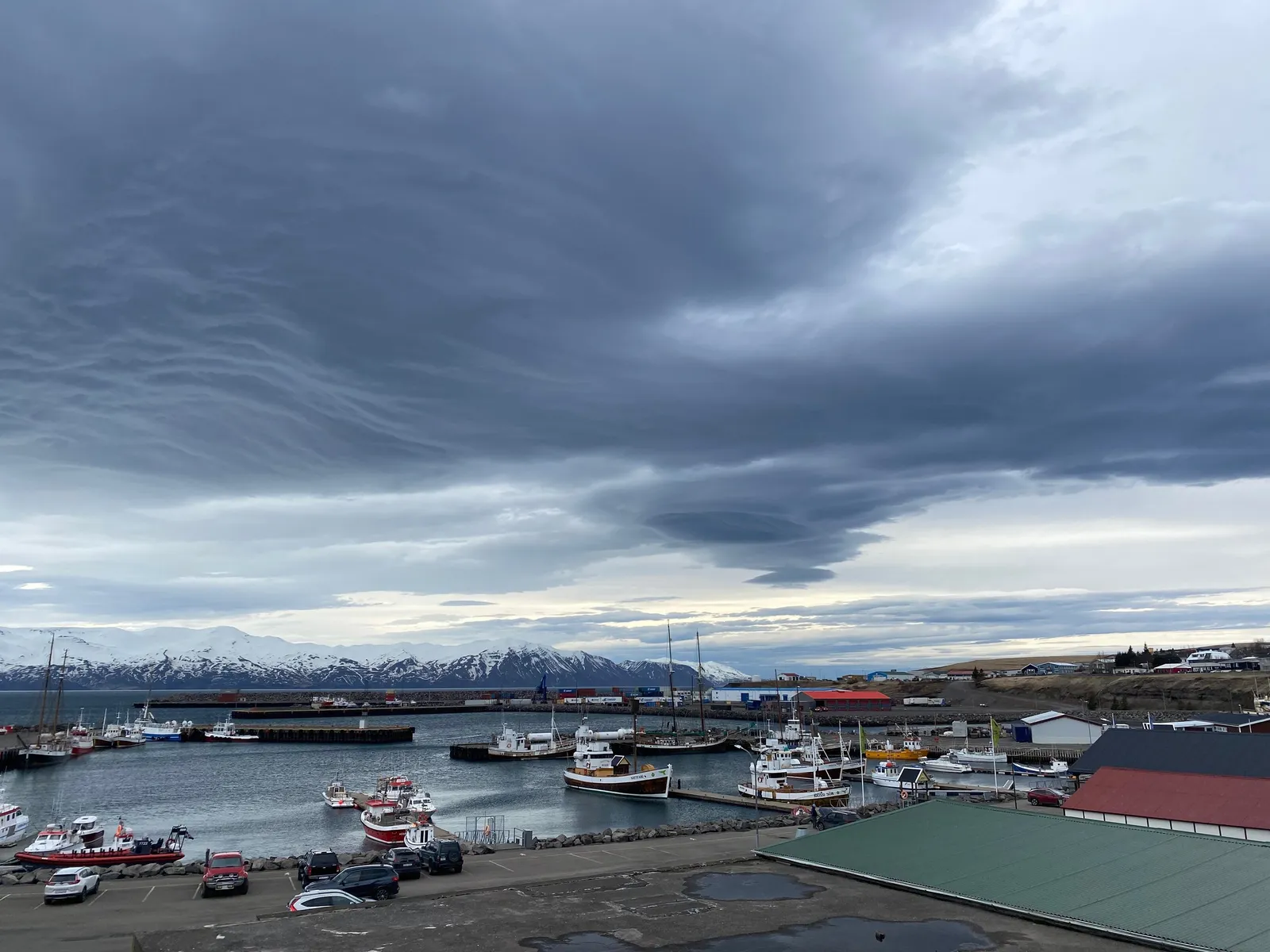
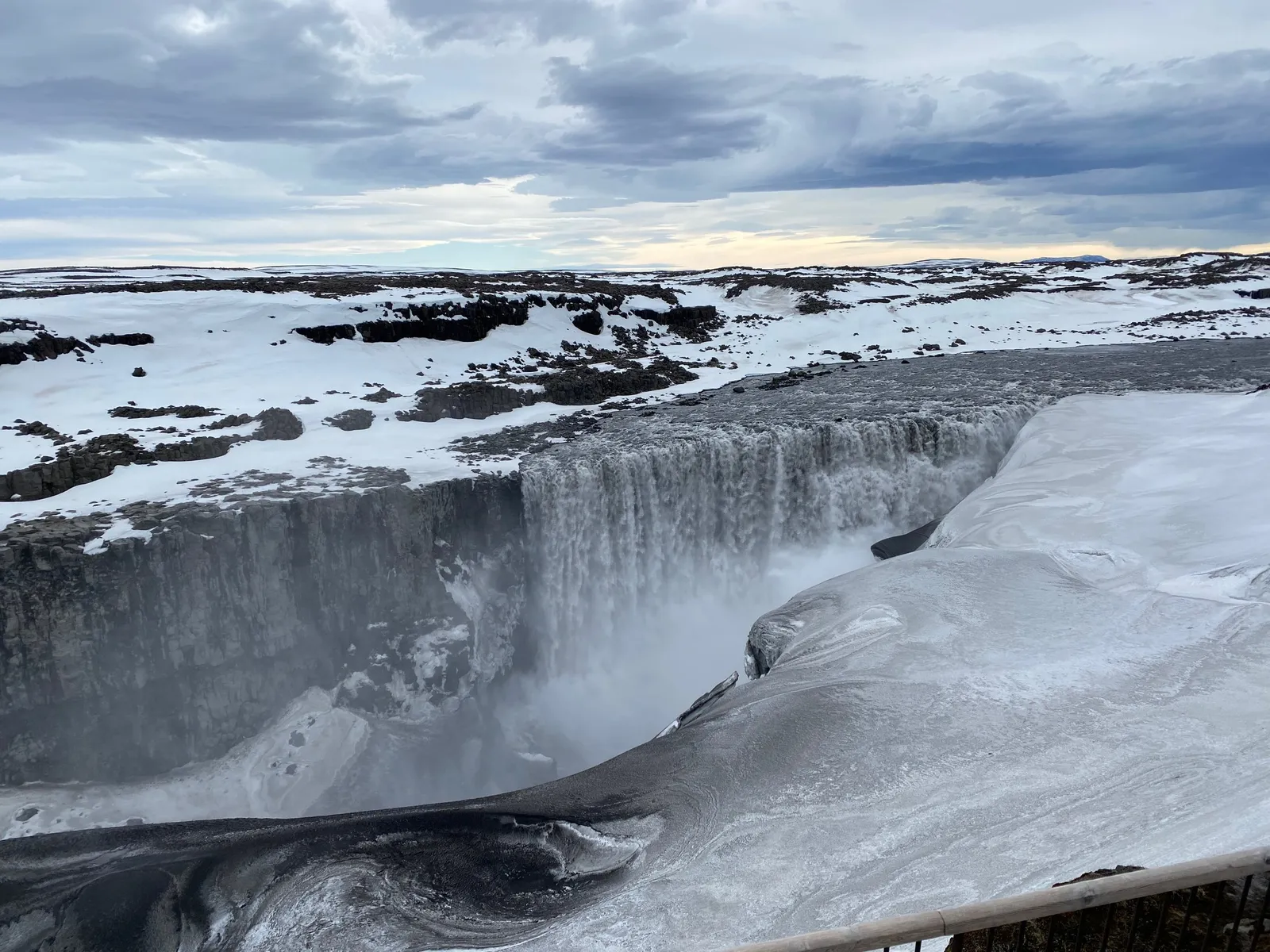
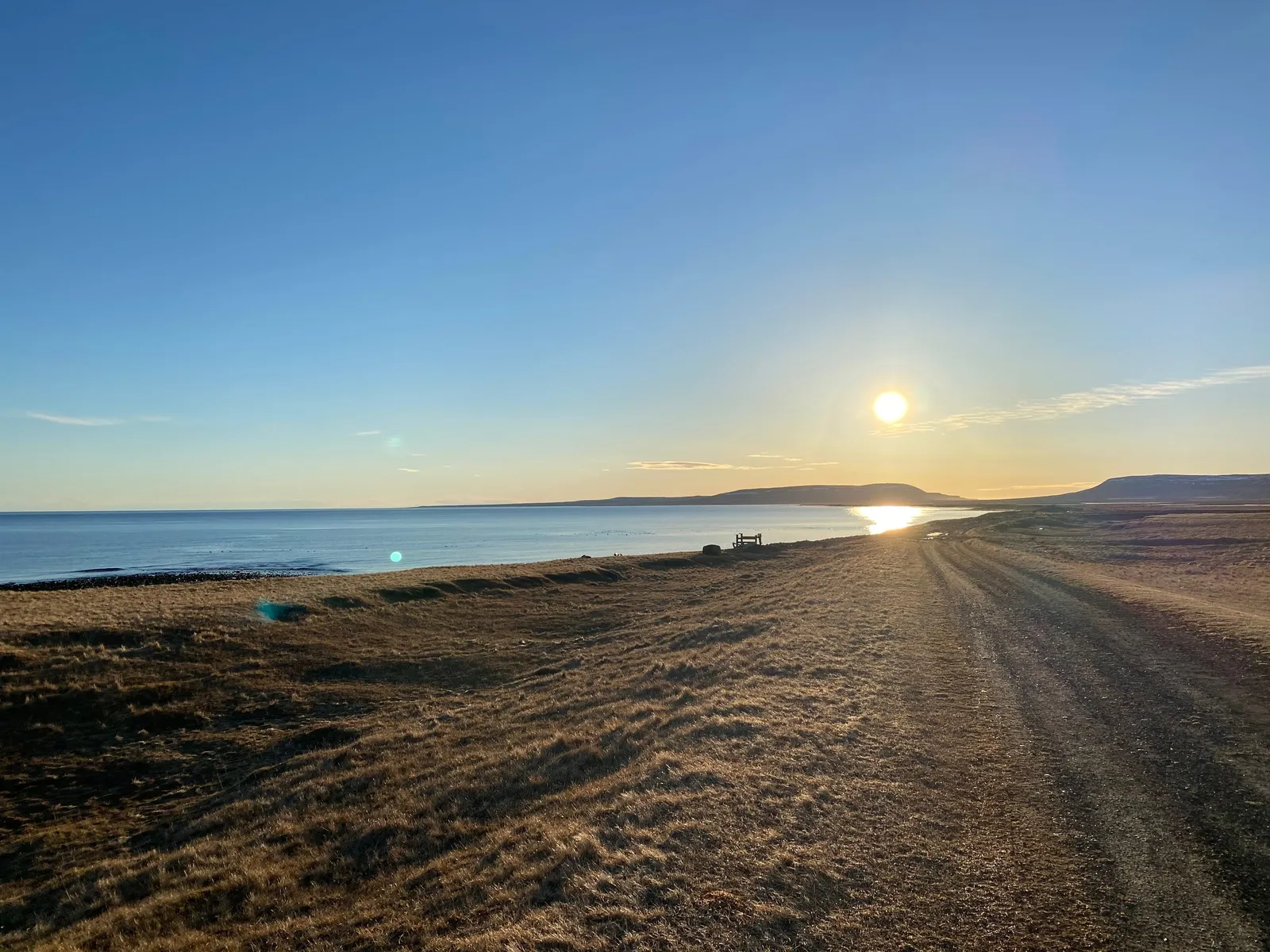
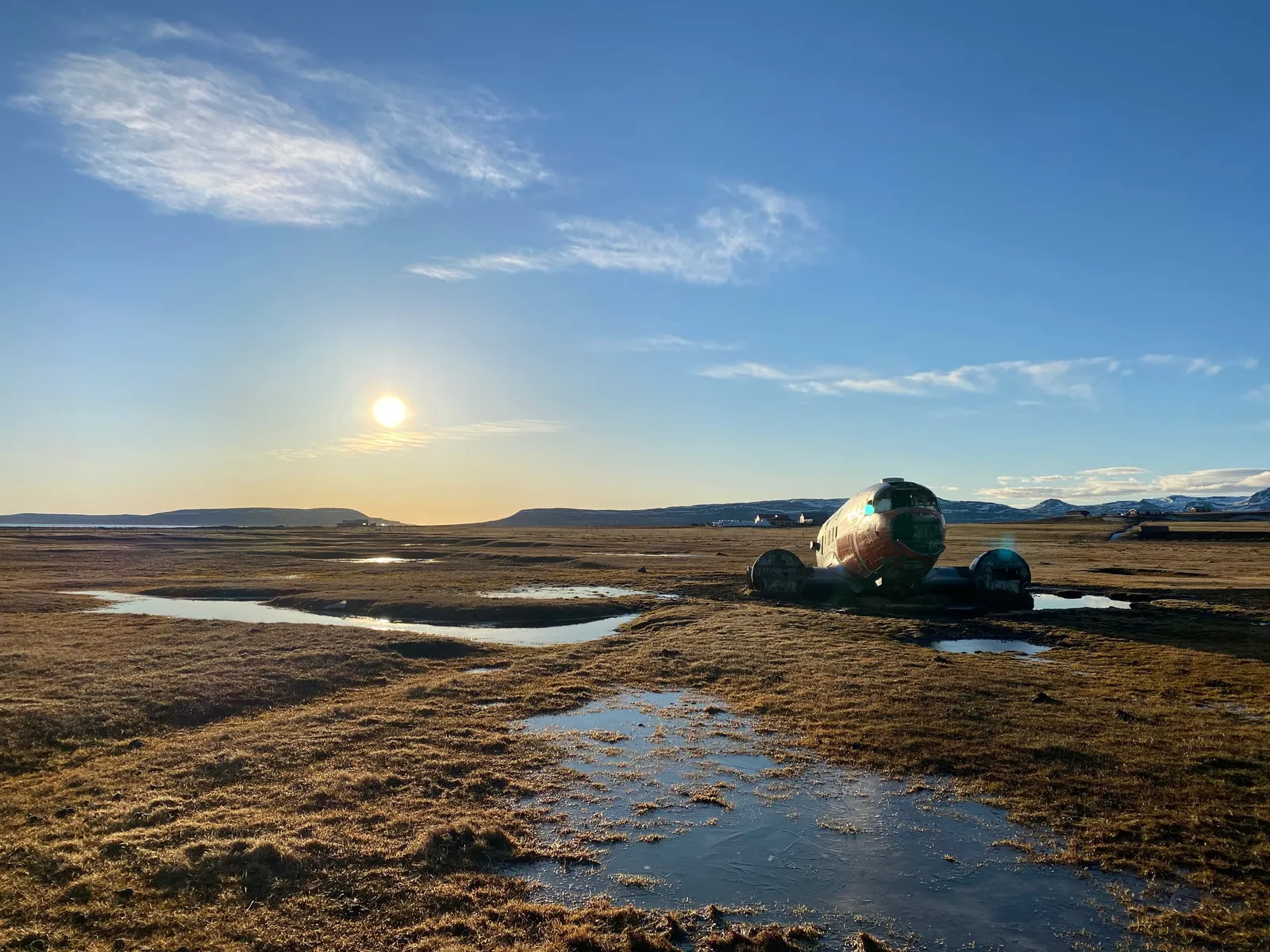
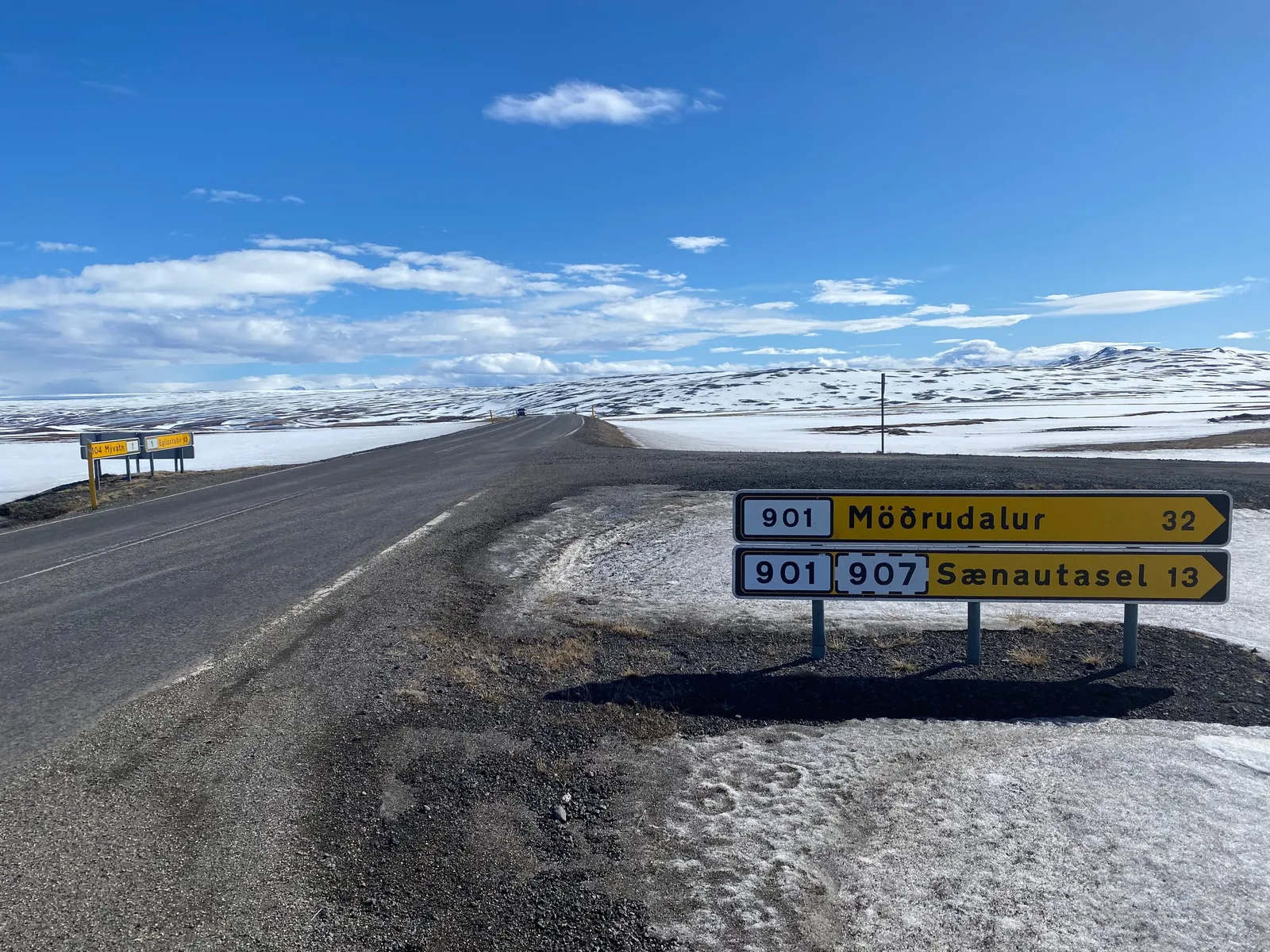
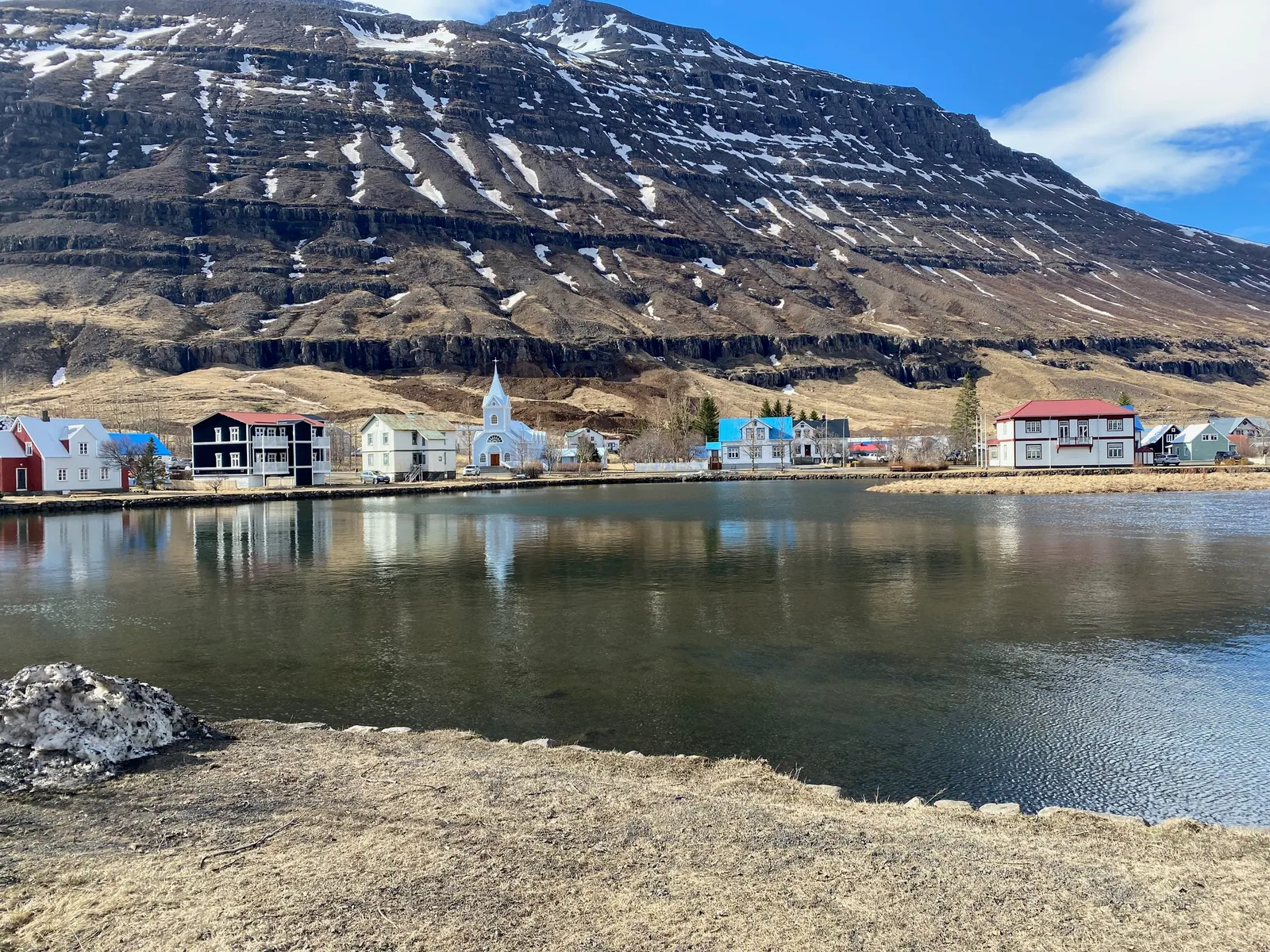
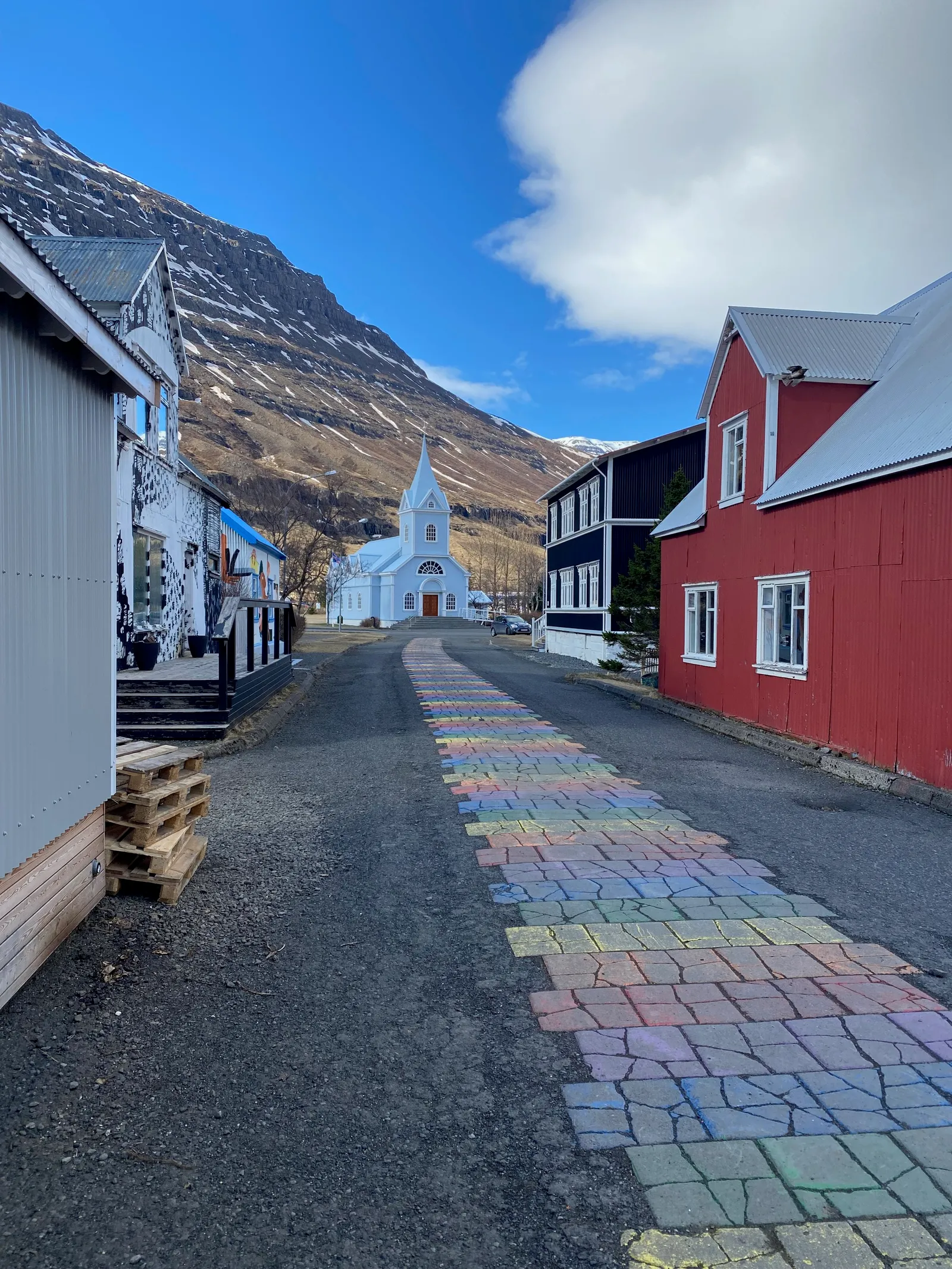
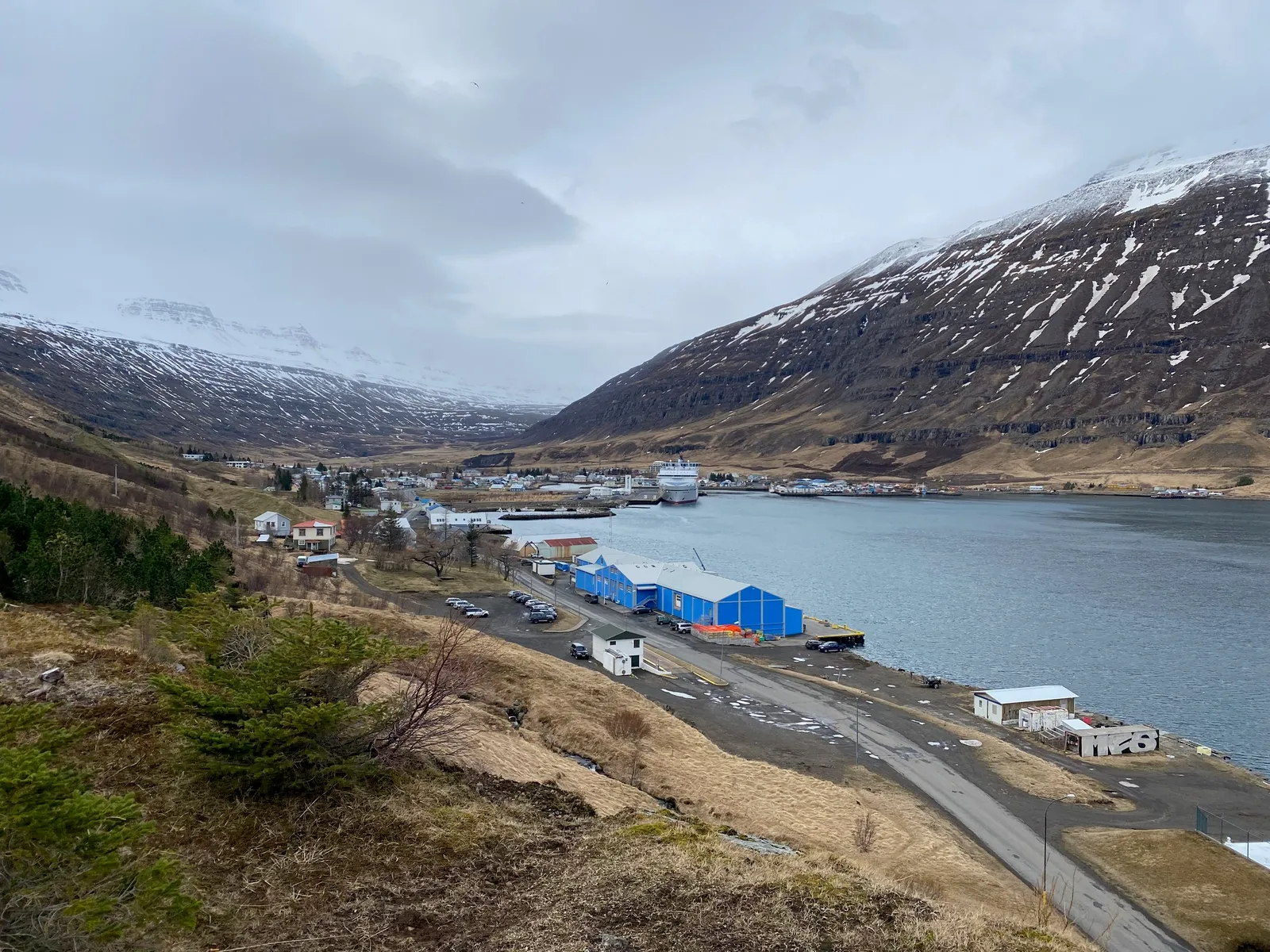
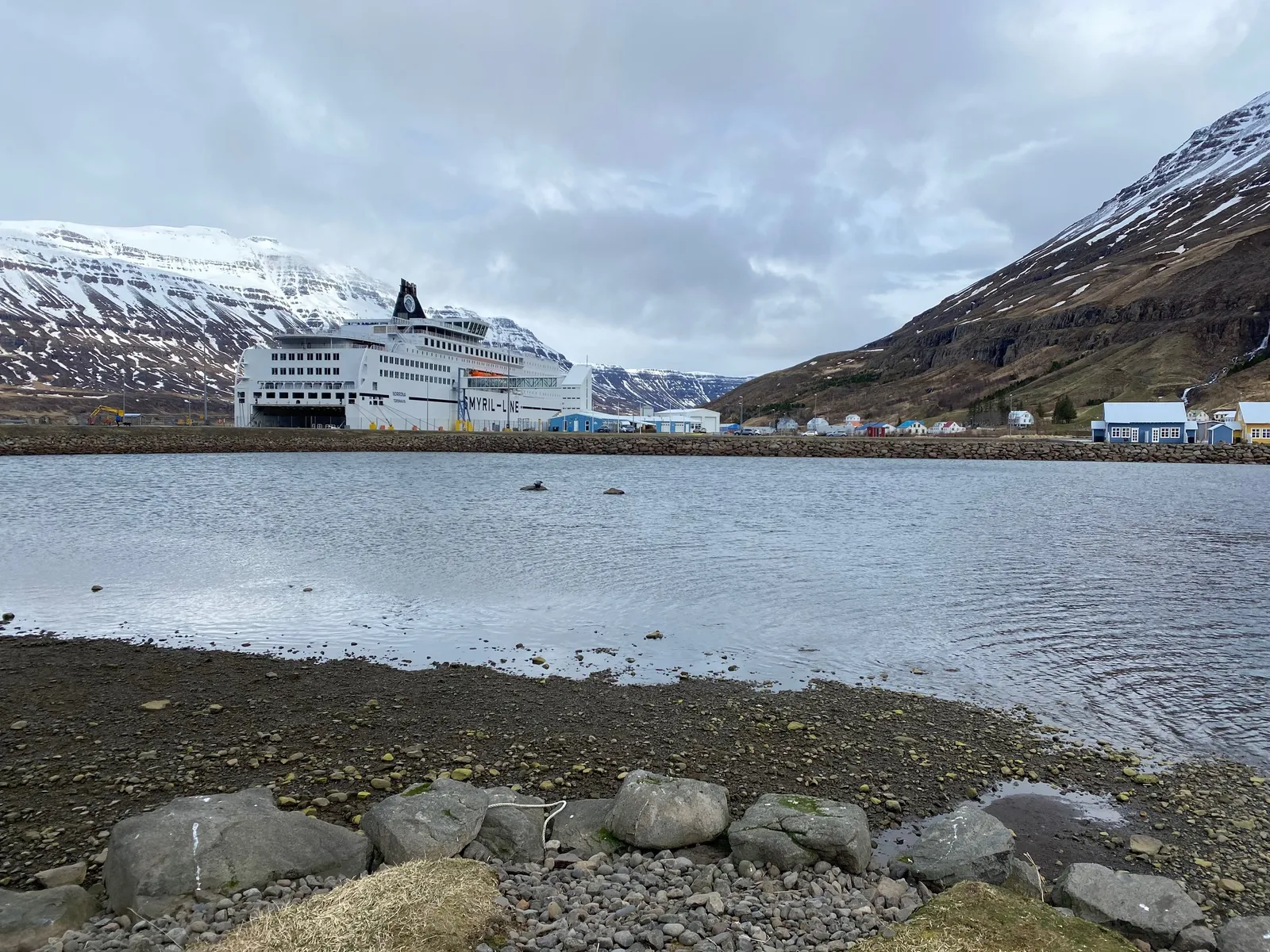
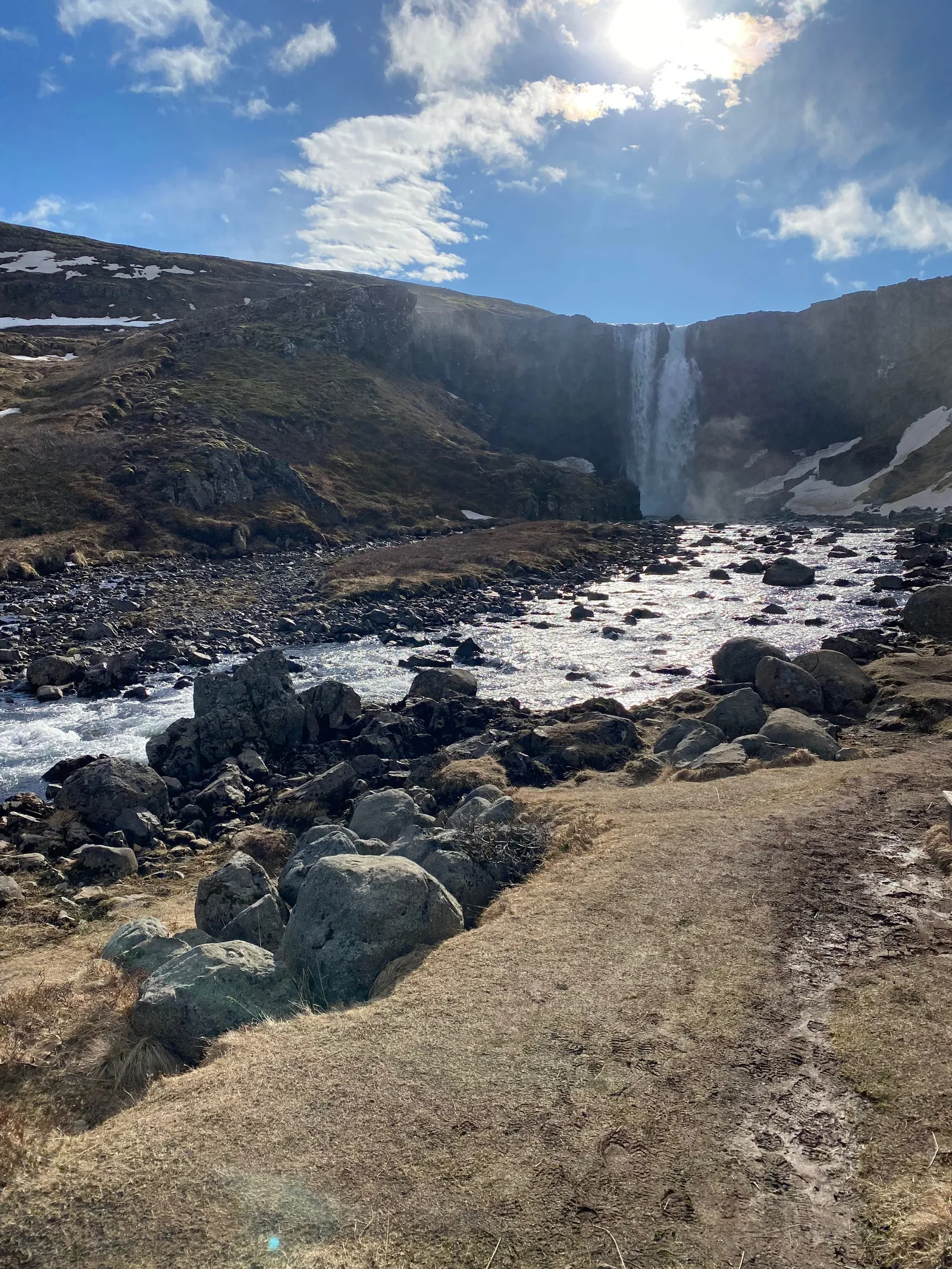
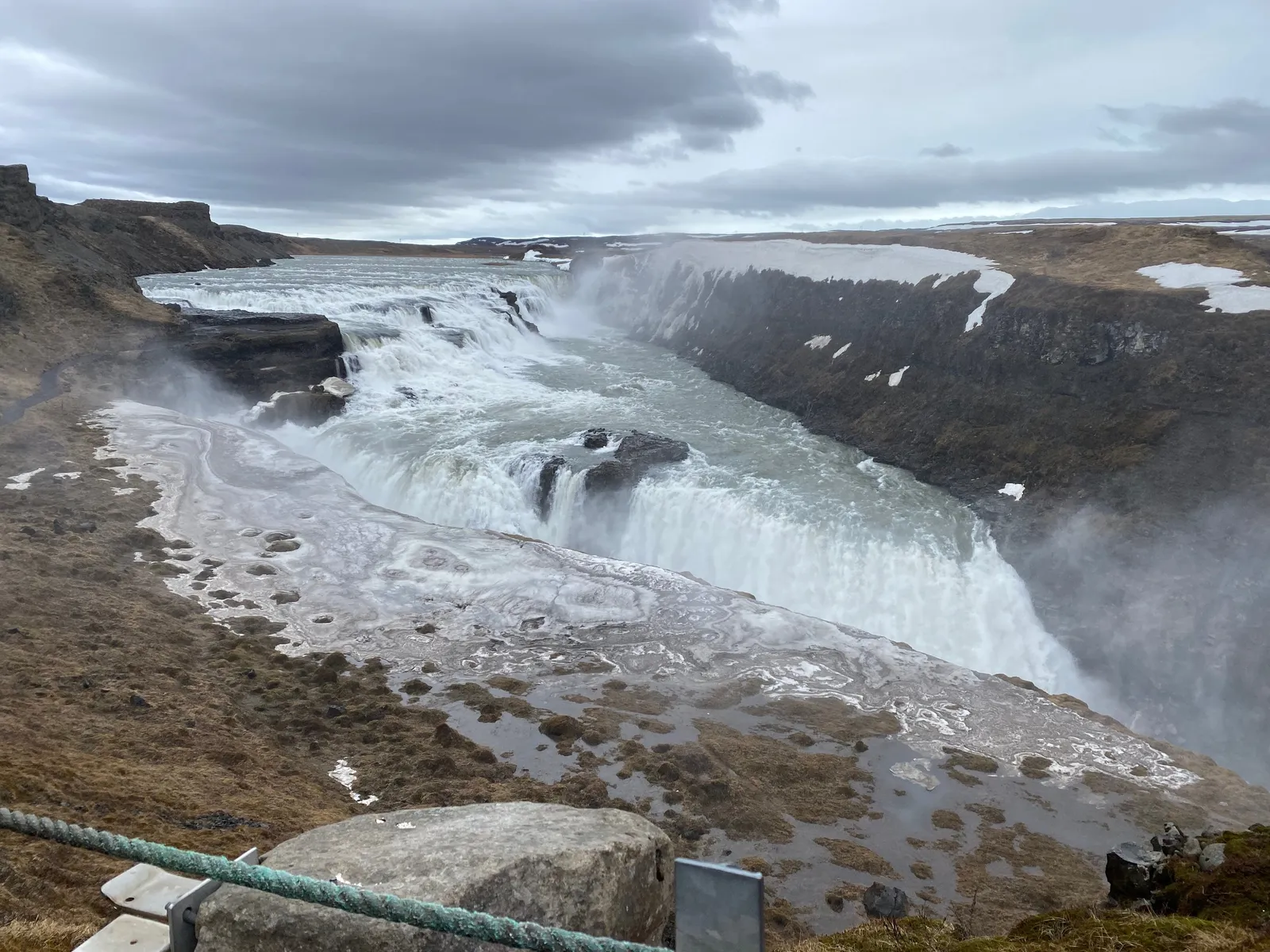
I just returned from a wonderful spring holiday in Iceland (this explains the silence on the blog here). Below is a quick subset of the images I took with my phone (the ones without family members).

These are the raw shots, without cropping or any colour/light adjustment. What is my approach to making these landscape shots:

  • I actually do not overthink my photographs: just snap to catch the moment
  • I hardly ever use the zoom function on my phone. If needed, I can always crop images later to get a zoom effect. Live zooming reduces the image quality and makes the image more sensitive to an unsteady hand / shaking.
  • I tend to look for lines (roads, rock formations, etc.) to force some sort of eye movement in the images
  • Where possible, I try to catch a small element in the foreground to create a sense of depth. (Often a family member taking the same photo, pictures of family taking pictures is one of my favorite themes)
  • Painters already discovered this, often the sky is one of the most interesting visual elements. Try dropping the horizon in one of your shots.
  • Most photos are taken at eye height. Create unexpected perspectives by lowering or lifting your camera
  • Pay attention to the sides of your image. Adding a tiny bit of a wall or other structure in your shot can make the image feel “closed” or “trapped”, leaving it out gives a much more open feel.
Continue reading →
·Images

Take the meme celebrities out of your decks

The current meme culture has created a number of stock photo heros that people may now recognize in the street. Cliche stock photos are bad, meme celebrities are worse. Time to double check your sales decks and web sites. Some of your older colleagues might not be aware of these yet…

  iStockPhoto

iStockPhoto

Here is the background on the Hide the Pain Harold meme

  iStockPhoto

iStockPhoto

Here is the background story about the Distracted Boyfriend Meme

·Images

Backgrounds

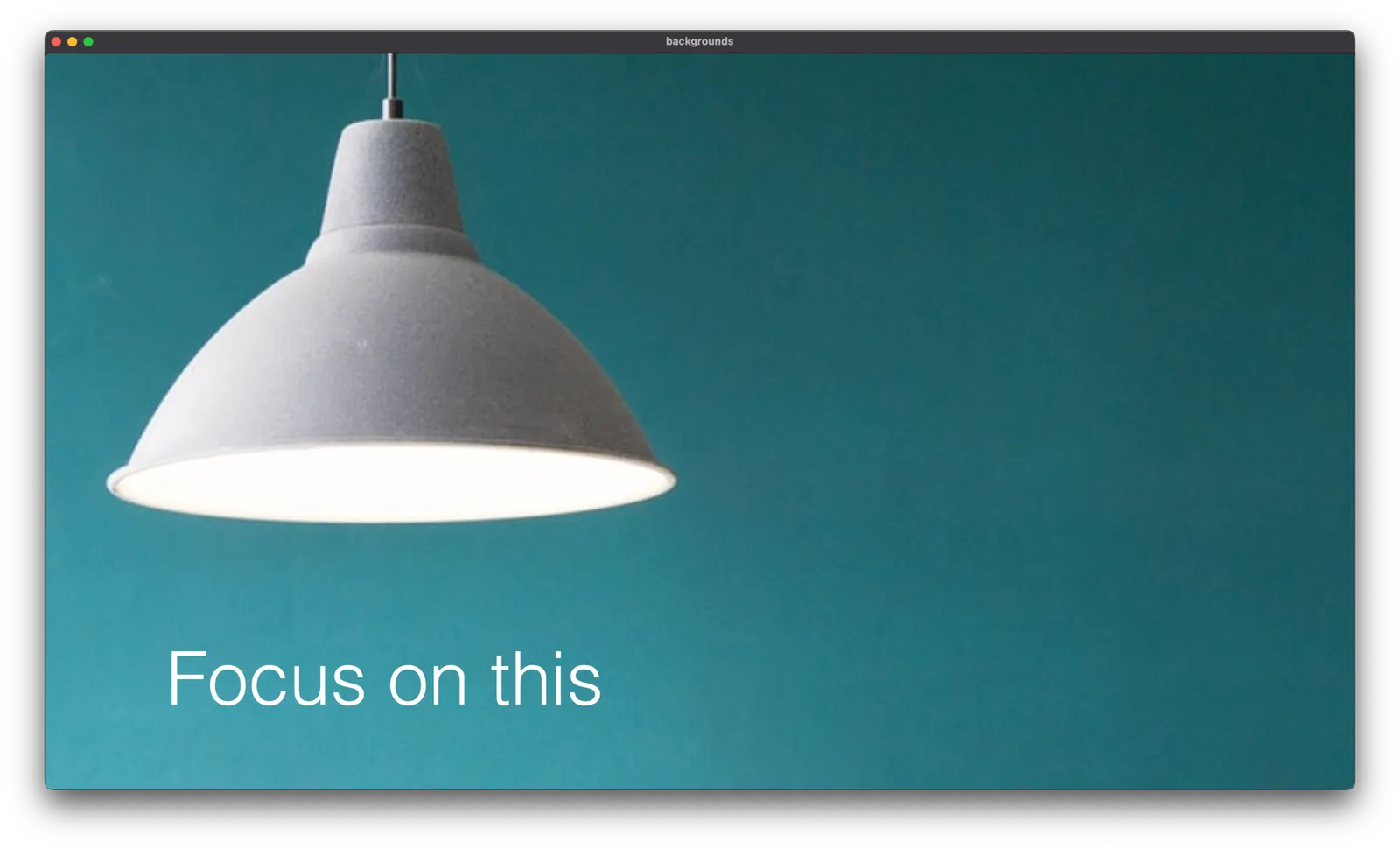
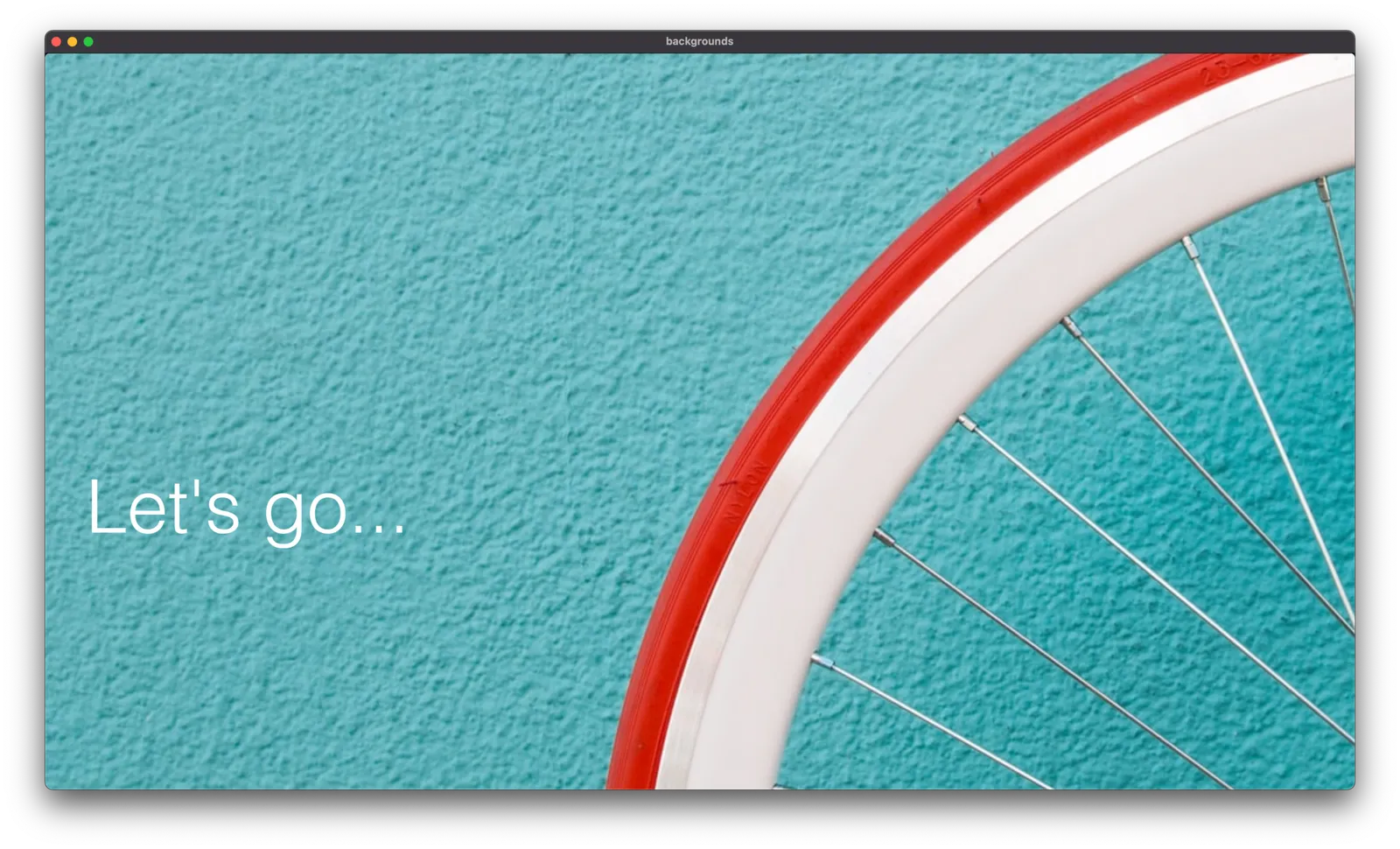
Some of the best images you can use in a presentation are those with lots and lots of white space. Photographers tend to crop images to make their subject stand out. Great for the image, but often less ideal for the layout of your slide.

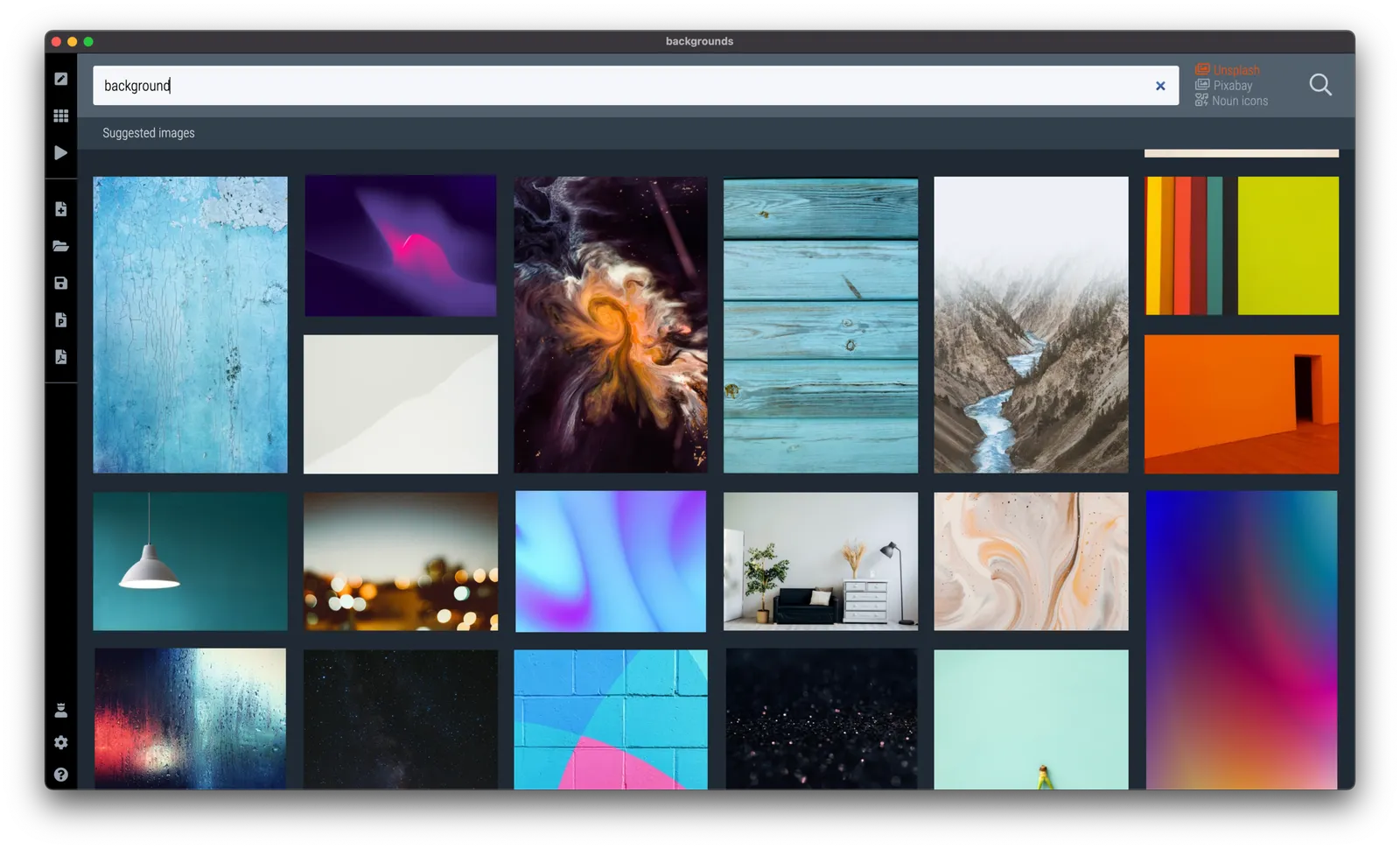
Instead of searching for functional or descriptive words such as “car” or “bucket”, search for “background” or “wallpaper” in SlideMagic and something unexpectedly useful might show up.

These examples are pretty straightforward to recreate in SlideMagic, with your own background images and text. Still, I added them to the library so you can use the min your slide designs

·Images

Extreme wide angle effects

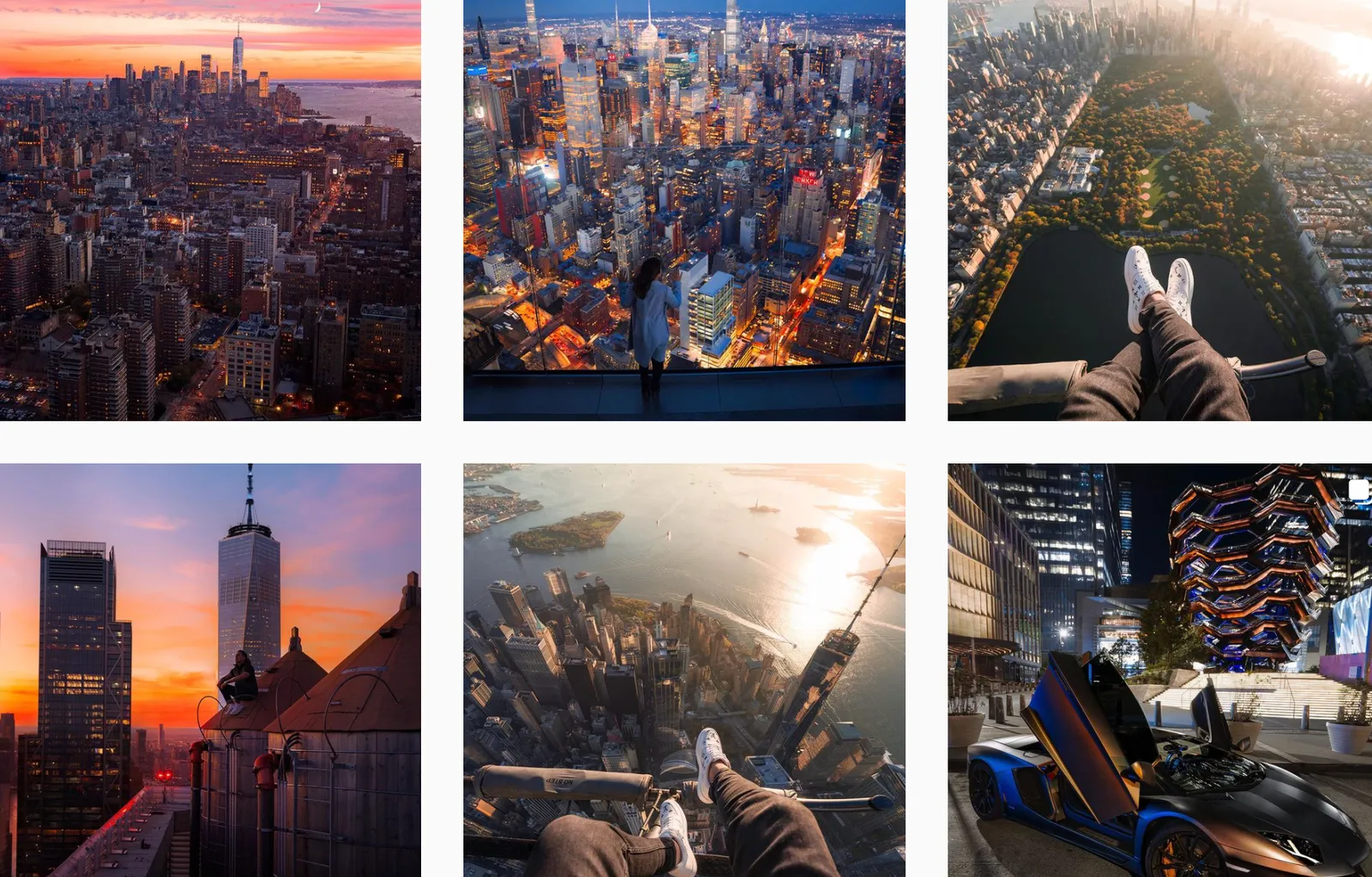
Online, I currently get bombarded with “ads” that contain city landscapes for some reason. What they have in common are unusual perspectives: the pictures draw your attention. (At least mine).

What is going on? You are seeing familiar compositions and/or places you recognize, but the camera angle seems different. Most shots use an extreme wide lens effect, might have been taken by a drone rather than from a standing position on a building, add a very strong zoom, only using a very small crop of the center of the original image and put an object in the front (either photoshopped or real).

All interesting techniques to learn from, I think soon we will see these types of images more on open source image collection sites, so you can use them in your presentations as well.

I discussed this effect earlier in this post about the “Corona crop”, with extreme zooming, you can make almost any public space looked packed with people.

·Images

Smile with your eyes

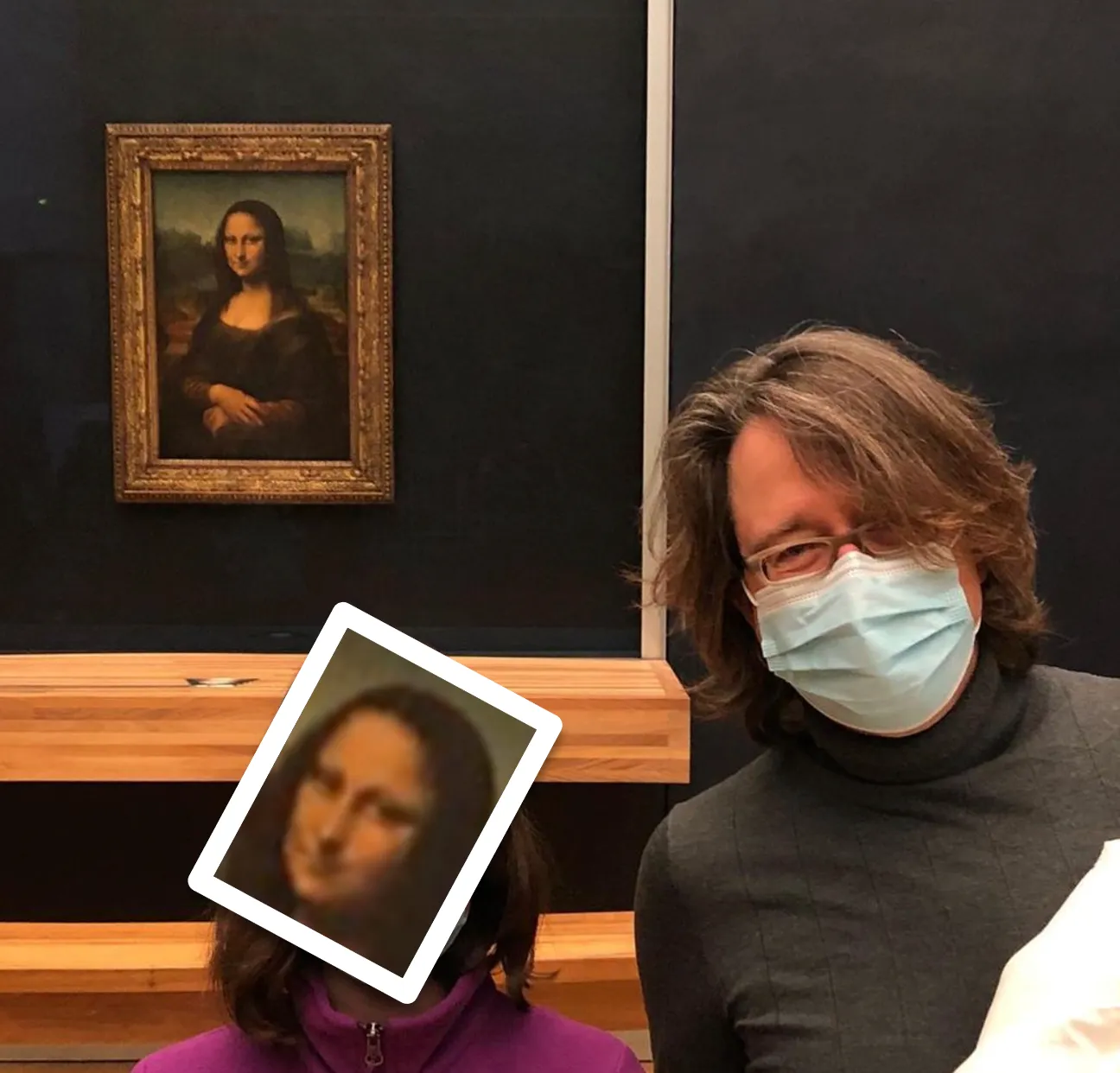
The current requirements to wear masks in public places shows that you can still smile without revealing your mouth. Do it when posing for a picture with a mask, and without one!

 Me and my (disguised) daughter in Paris

Me and my (disguised) daughter in Paris

In art, smiling with your eyes is taken to another level entirely though…