

SlideMagic Blog

Frequent updates about all things presentations since 2008. Subscribe to never miss a post.

RSS
all posts

Search results for “wacom”

·Gadgets

First sketches with the Wacom Inkling

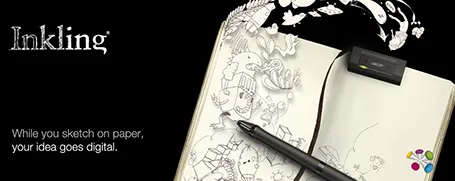
The Wacom Inkling Digital Sketch Pen (affiliate link) is a tool that lets you draw with a regular pen after which a sketch can be transferred to Photoshop or Illustrator for further editing. No, it does more than a regular scanner. First of all, it allows you to draw in layers and preserve them in the editing software. Secondly, the hardware is so small that you can take it any where you want.

My box arrived yesterday in the mail and the experience confirms what I have seen so far in the promotion video (my sketching skills have some way to go though). The product comes in a box the size of a regular pencil case. The pen and the receiver fit in nicely. Clip the receiver at the top of the page, and start sketching. It is as simple as that. One button opens a new file/page, another button adds another layer. The software is easy to install and works great.
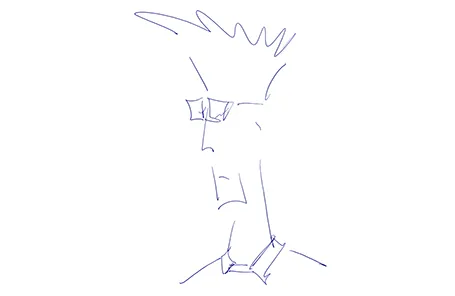
The only drawback for me is that sketching has to happen with a ball point. I prefer a soft tip pen, or best of all a thick pencil to draw. There might be technical reasons why Wacom stuck to a ballpoint for sketching, but hopefully they will release a pencil-based scanner in the near future.
·Gadgets

Wacom Inkling

I still have not found the perfect device to transfer sketches to a computer. Drawing with the mouse does not work. I do not like using drawing pads that do not allow you to see what you just drew on the same surface, and the very large touch screens are very expense and so heavy that they are impossible to carry around. And carrying around is crucial for creative sketching. Ideas always come up when you are not at your desk.

So, that is why I am excited about the Wacom Inkling that was announced today. A sensor tracks the movements of a regular pen on normal paper and stores them. Once you connect the sensor to a computer, sketches are transferred.

I see 2 benefits for presentation design:

  1. Enabling me to include cartoon-type drawings in my presentations. The key here is the option to use layers. Sketch a character roughly on a piece of paper. Press a button to open a new layer, and trace a more precise drawing over the rough one. Repeat the process of necessary. The top layer can now be of decent quality, and transfered as a vector to your computer. Great.
  2. An archive for sketches that can be filed and searched on a computer.

The big question: does it actually work? I took the risk and ordered one and will report back.

·Hardware

Apple pencil, finally there

I have been trying electronic pencils for years and years: different 3rd party iPad styli (is that the correct plural?), the previous Apple pencil itself and previous solutions by Wacom. None of these worked good enough for me to get rid of my note book.

I think has changed with the latest Apple pencil that works on a 2018 iPad Pro. The updated pencil solved a few annoyances when compared to the previous one:

  • It snaps to your device (but still falls of in your bag)
  • When snapped, it charges, no more need to stick it in the iPad connected
  • It no longer rolls
  • It has a matt finish and feels nicer to work with

The biggest issue though used to be work flow, with 2 poor options:

  • Log into your sleeping iPad all the time when you want to jot something though in a meeting
  • Keep your notes app running all the time and thereby letting the graphics intensive app drain your iPad battery.

That has been solved by a feature buried in the settings of the Apple Notes app: a simple double tap of the pencil on the screen wakes up the Notes app. The iPad is still locked as a security precaution, you can set the time it takes for the iPad to open a new note instead of displaying the last note you were writing to anyone who taps the screen.

Photo by Kim Gorga on Unsplash

Office cleanup

I went through a big cleanup of my office the other day and encountered many of the gadgets I have reviewed on this blog over the past years. Unfortunately, they did not become regular productivity tools (at least most of them). Wacom tablets, Wacom Inkling, lots of different iPad styli. Now looking back at these. Part of the problem is the hardware, but the other part might just be that free hand drawing is not the most convenient interface to design presentations.

An update on the Apple Pencil. I think the pencil hardware is sorted, but there is still a software issue. My note taking app needs to be open in a meeting all the time, with the screen on, it does not survive a long meeting.

Maybe 2017 will be the solution.

Image by Creative Tools on Flickr.

iPad Pro and presentation design

I have been reading the reviews of the Apple iPad Pro and the Microsoft Surface Pro with great interest. Analyst Benedict Evans and many others claim that iOS/Android powered devices will replace OSX/Windows computers as the main computing tools we use.

Illustrators and designers seem to love the devices. Big surfaces with a precise pencil signal the end of the expensive Cintiq devices.

Writers (bloggers, journalists) complain that they miss the mouse/track pad on these devices. It is hard to go back and forth from keyboard to screen to move quickly through text and cut/paste sentences.

Presentation design might actually be a good fit for a bigger tablet, if you can make things run smoothly without the need for the attached physical keyboard. It would require a redesign of the user interface though, the mouse-based UI is too complicated, and the current mobile UIs are too counter-intuitive, many functions are hidden. SlideMagic might fit the bill, I am going to find out soon.

Still, there is the difference between “it works great” and mass adoption in big enterprises…

·Creativity

Scribling

I keep on looking for a good electronic solution for note taking, doodling, and scribbling. None of them are perfect. A new option has been added recently.

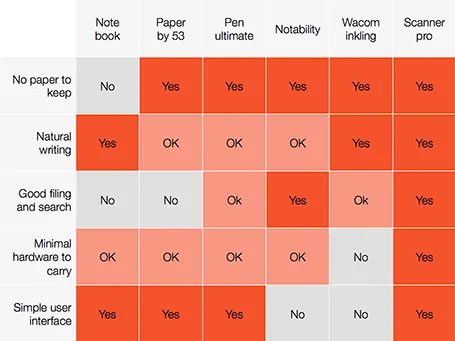
A good note taking solution needs to combine a number of things:

  1. No paper to keep
  2. Natural writing interface
  3. Good filing and search
  4. Minimal hardware to carry
  5. A simple user interface

See my highly sophisticated analysis below.

The new option is a smartphone-based scanner. Scanner Pro is a brilliant app. It takes photos, and lets you easily crop the image. You can keep the image as a photograph or flatten it to bold, fax black and white. Then upload the scan to Dropbox or Google Drive where you can store and search things.

So the best note taking might be scribbling on a piece of paper, scanning it, and throwing away the paper.

PS: earlier review of the Inkling, Penultimate,Paper and styli (?) for iPad.

·PowerPoint

First impressions of Windows 8

Although I have switched to a Mac, I dip into the world of Windows now and then on a virtual machine, for such things as running .EXE CD ROMs with medical images on them, or editing a chart for a client still on PowerPoint 2003. The latter is no longer necessary, and that is a good thing, since Windows 8 is no longer supporting PowerPoint 2003.

So, I took the plunge and installed Windows 8 on my Parallels 8 virtual machine. I ignored all the scary warnings on the Parallels web site and managed to get a perfect install.

As a non-Hebrew speaker in Israel I always have an additional issue when installing new software. Trying to change the system language on a computer without being able to read most of the text on the screen. Gambling, plus comparing English and Hebrew screen shots finally did the job, but my computer science undergraduate degree came in handy. Not something for novice computer users as languages for application screens, keyboards, user accounts and welcome screens all seemed to be controlled in a slightly different way.

OK, back to the software. I will not describe the ins and outs of the new operating system here, but stick to my personal impressions. Detailed descriptions can be found in other reviews.

I really like the new Microsoft graphical look and feel of the new Metro interface. It is calm and clean, with simple clean graphics without shadings, gradients, drop shadows and near-realistic leather or paper effects. Some of the tiles on your home screen update in real time with weather, stock market information and a flow of pictures of your facebook and Twitter friends. I switched these live updates off, too distracting.

Continue reading →
·Gadgets

The best iPad stylus

I now have almost completely eliminated paper from my workflow after I switched to hand writing on the iPad. My meeting notes are better organized and searchable, and I can now make design doodles in multiple colors on which it is much easier to erase part of your sketch. I have tested 3 iPad styli extensively and the best one is the Adonit Jot:

  • The Cosmonaut is a cute, beautifully designed, fat pen that resembles a whiteboard marker. Nice for my kids to draw, but not suitable for writing or precision drawing. The fat tip makes it impossible to see what you are writing. I am also not a big fan of the rubbery material on the outside.
  • The Wacom stylus is built of quality materials, feels nice and light and writes comfortably. A close second. The soft tip wears off quickly.
  • The Adonit Jot is my favorite. A small, flat, transparent disk protects your screen while giving completely visibility what you are doing. A very nice, heavy build quality. The disk makes a clacking sound when you write, some if you might find this inappropriate in meetings with other people. I bought the Flip version that has a pen on the back (which I actually never use).

I did extensive research on the web before buying my own styli, and discovered that there is a huge difference in personal preferences. So you are likely to buy a few before finding the one that fits you best. (The links in this posts are affiliate links).

Continue reading →
·Art

Paper, an iPad drawing app

I would love to use hand drawn graphics in my presentation, but I never got to drawing and sketching on a computer. Any tools without a direct screen feedback loop (the mouse, drawing pads, and even the Wacom Inkling) simply do not work for me, and I think a screen like this are very expensive and generate additional clutter in my workspace.

The iPad could solve this, because it has a touch-sensitive screen. As a result, hundreds of drawing apps have popped up in the app store. Drawing apps are different from note take apps. The latter require wrist protection, a good way to organize notes. Drawing apps require brushes, color, pens. Like with writing apps, most drawing apps come loaded with features that just confuse me.

Hence, I was happy to discover Paper by 53, a minimalist drawing app (one of the readers pointed it out to me in a my recent review of iPad note taking apps). Paper just cut down the drawing tools to the bare essentials, and the result is actually good I think. The app is free, but this version comes with one drawing tool: the ink pencil, if you want to get a pencil, a marker, a pen and a paint brush (water colors) it will set you back $8 in in-app purchases.

The pencil is the tool I actually use most. There is a big drawing problem with the iPad screen: it is not pressure sensitive, and varying stroke width is the key feature what makes writing with an ink pen so great. Paper solved this with adjusting the stroke with depending on your speed as you move the pen over the screen. More confident, fast strokes, will appear bolder. (The pen tool works the other way around, moving it slowly creates heavy ink, moving it fast produces a thin line). I love the simple cartoon style sketches that this app produces, and I am looking out for a first client situation where I can try out a cartoon-style presentation (like the one below) for real.

Continue reading →
·Gadgets

Review: iPad note taking

Handwritten notes are very important in presentation design. I use 2 kinds:

  1. A very small note book with a beautiful leather cover to take meeting notes
  2. The back pages of old print out for slide design (I take more pages out than I add, the pile is shrinking fast)

For writing I use my favorite pencil: the Lamy 2000 (review).

Let’s look at application 1 first: meeting notes

Although I love my luxury micro note book, there is a big problem with analogue note taking: finding stuff. Since you write sequentially, and often use poor handwriting, it is hard to access notes that are part of a specific project (I can have more than 10 things going on at the same time).

Digital note taking on an iPad can solve this: simply create a note book for every project.

The key problem is the iPad-hand interface. Steve Jobs always was against using a styles, he correctly reminded us that we have 10 of them already. That is true for navigation, but not for writing large pieces of text (fast). The biggest problem is seeing what you do. Big fingers are getting in the way of your eyes, leading to illegible scribbles. And after a while you get tired of holding your finger straight. So there is no escaping from a style.

An iPad stylus needs to have a fat tip with a soft surface, mirroring the texture of a human finger. The resulting line can still be highly thin though, getting drawn at the center of impact of the soft tip. To show this effect, see fashion designer Karl Lagerfeld sketch drawings live on stage during the LeWeb 2011 conference in Paris last year (skip to 19:50).

Continue reading →