SlideMagic Blog

Frequent updates about all things presentations since 2008. Subscribe to never miss a post.

RSS
all posts

Search results for “powerpoint mac windows”

·Typography

PowerPoint conversions back to Arial

I changed the font that SlideMagic uses for PowerPoint conversions from Calibri to Arial as of version 2.6.22.

The thought behind Calibri was that when converting slides to PowerPoint, I wanted to stick as close as possible to the box-standard Microsoft format as possible, and Calibri is the standard font for Microsoft Office applications. SlideMagic users “complained” that the PowerPoint conversions did not look very similar to the beautiful originals. So I made the change.

Helvetica (especially thin variants) looks more elegant but gives compatibility issues on Windows machines. Hence Arial it is….

Obviously when you convert your SlideMagic .magic files to PDF, you get the exact same look & feel as in the SlideMagic app. This is the workflow we should aim for. SlideMagic .magic files are the source code of your documents, PDF is how you share the result with external audiences.

Photo by Natalia Y on Unsplash

PowerPoint conversion is working!

I managed to implement the conversion of all SlideMagic features, including the tricky ones (data charts, image cropping and positioning, speaker notes, etc.) into a razor sharp PowerPoint deck with all shapes, data charts, objects completely editable if you created them yourself from scratch.

(This as opposed to the current PPT conversion that makes a rendering that works as you as you do not touch/edit any of the shapes inside the deck)

Now it is on to debugging and making everything super robust in every possible user (ab)use scenario.

The current setup is in a lab environment and not yet kosher enough for public release. If you are curious, are have a SlideMagic deck that you are desperate to convert, email me your SlideMagic presentation ID and I can apply the new technology for you. The conversion software only runs on Windows, but since it is me doing the conversion on my machine (for now), both Windows and Mac users can submit their decks.

Cover image by Rob Bye on Unsplash

Working with Windows full time

I am starting to get my head around building applications for Microsoft Office / PowerPoint, and this can be done easier on a Windows machine, so I am now pretty much all day working in a Microsoft environment on Apple hardware. (Don’t worry, the result of the effort will run on Windows and Mac).

The whole Windows experience is fantastic and completely at par with a Mac. As I said in a post before, I now consider PowerPoint to be a better presentation program than Keynote, and PowerPoint for Windows is better than PowerPoint for Mac.

The only issue for me is to get the Apple keyboard and mouse properly integrated with the workflow (scroll directions, knowing where certain keys are, and getting used to the difference between CMD and CTRL). (And… the Logic Pro X music software does not run on Windows).

Cover image by Timothy Eberly on Unsplash

SlideMagic data charts as a default in your PowerPoint

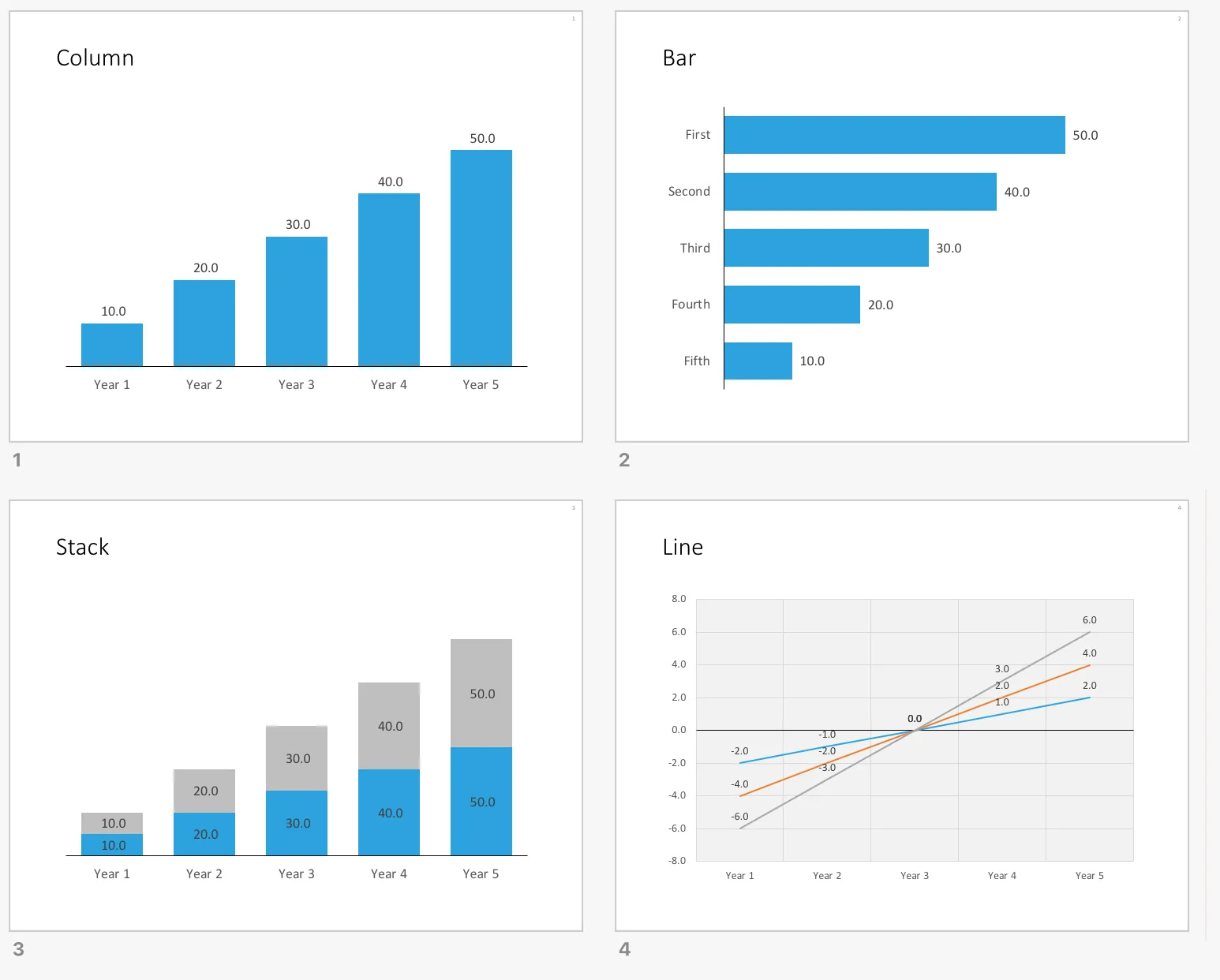
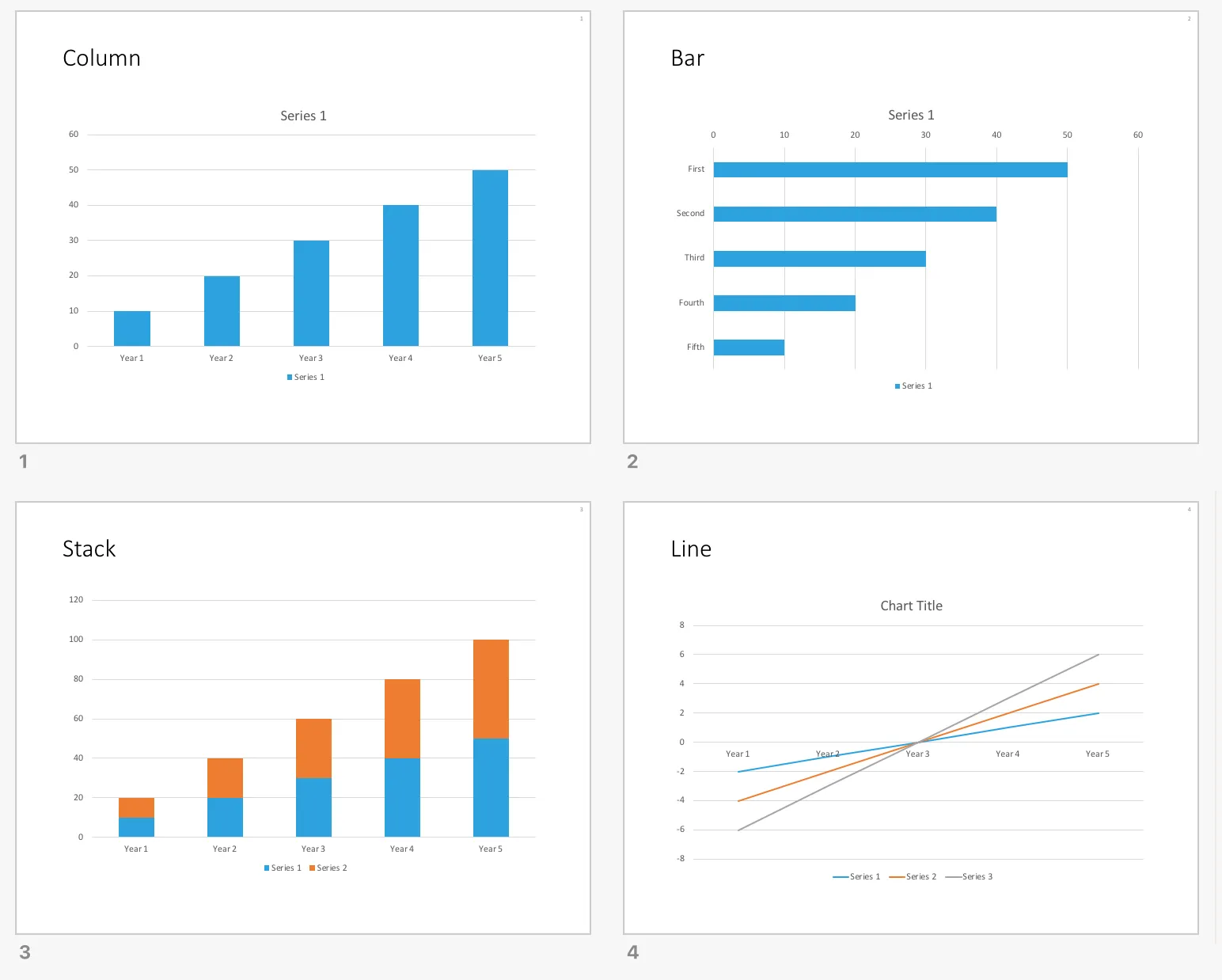
All my data charts have the same simple look and feel, inspired by the format that I started using on my first day as a McKinsey consultant.

They are different from the default PowerPoint data chart templates:

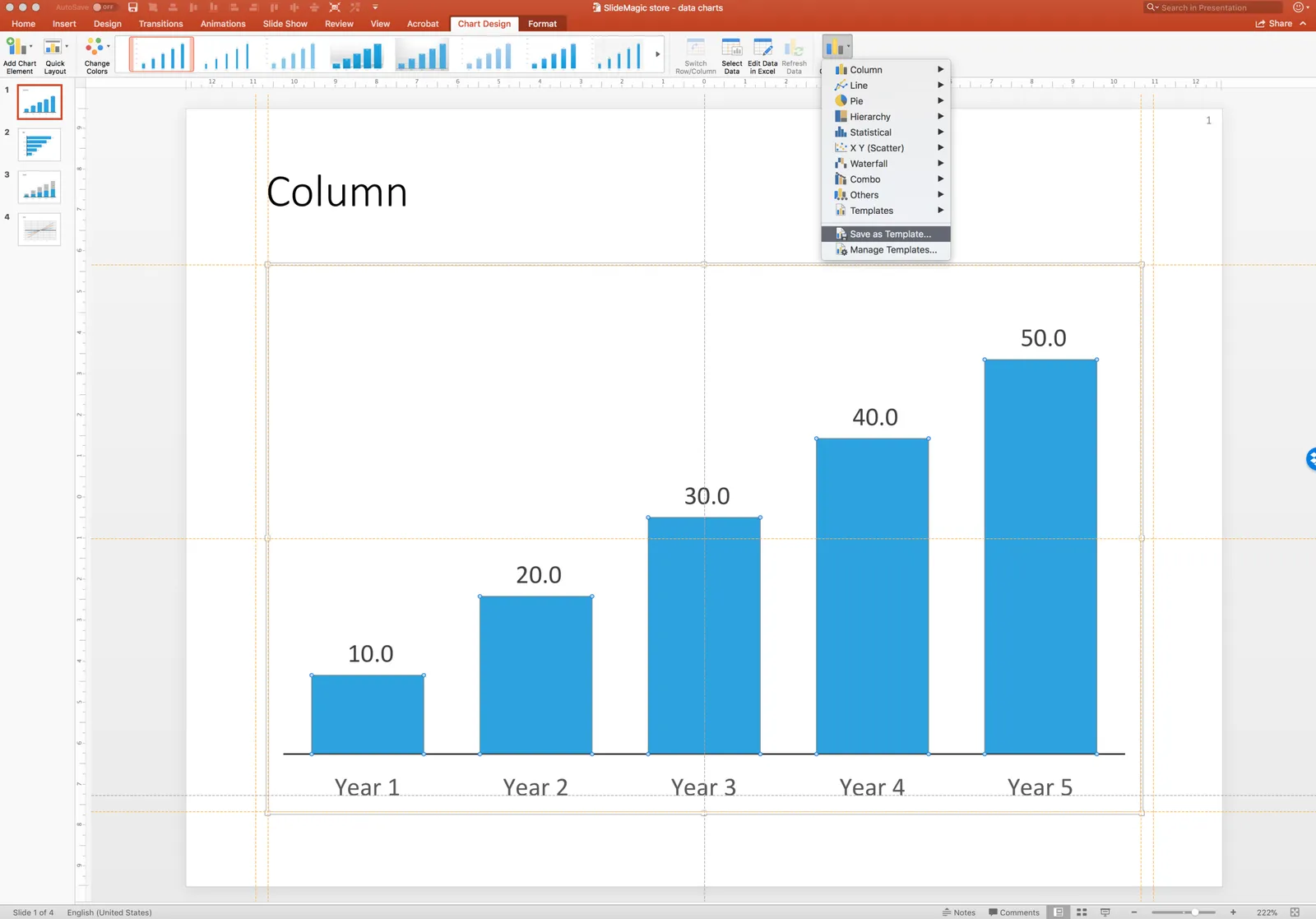
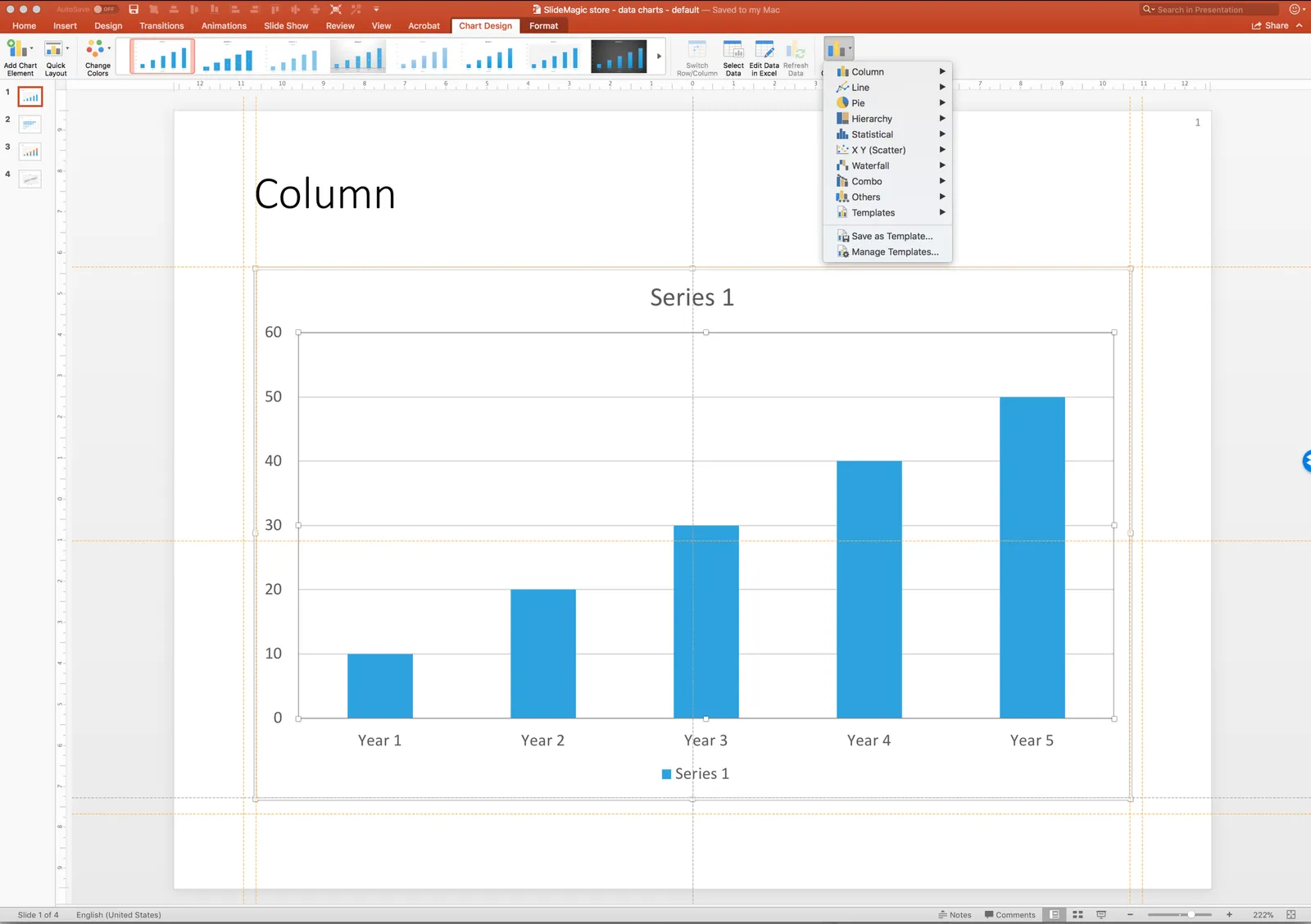
I have added the above 4 simple charts to the SlideMagic template store. You can set them as templates in your own PowerPoint applications (Mac screen shot, but I think Windows is exactly the same). Select the chart, click chart design, click *change chart design,*then go to the bottom of the menu and save the chart as a template. This methods is easier than sending you the actual template files and getting you to store them deep down in the computer’s file directories.

Repeat this process 4x for each of the slide designs in the file.

Now, the next time you insert a standard PowerPoint chart, you can instantly re-format it to look like a SlideMagic chart by selecting it, clicking slide design, then clicking change chart design again, and now you will see a new option, templates, from which you can pick the file you just saved.

You can download the default data chart templates from the store here.

Stale PowerPoint templates

User interface, web design, and presentation are moving quickly. Graphics that looked fresh and new a couple of years ago, now look really stale and old. Look at old version of Windows and Mac OSX operating systems, a mobile phone home screen in 2008, and the PowerPoint template you are still using today.

A large part of this is driven by screen technology. Ten years ago, monitors had lower resolutions and fonts had to be fatter, and rough gradients could still look smooth. Also documents that long reasonable on a 4:3 aspect ratio become harder to read on wider 16:9 monitors as sentences streeeeeetch over the entire screen. Harder to read, and it looks out of balance.

What can you do to your PowerPoint template to make it look less like the 1990s? Here are some steps:

  • Switch to a lighter font. Calibri light looks OK and won’t give you any compatibility problems on Macs and Windows.
  • Stop using drop shadows and gradients
  • Remove the old low resolution JPG graphics from your slide template. If you or your corporate communications department insists on having some branding on the slides, but a tiny high res logo at the bottom right
  • Don’t use bullet points
  • If you have to use bullet points don’t use a hierarchy of bullet points
  • If you have to use a hierarchy of bullet points, keep them all the same font size, and use a dot, dash, smaller dot for the levels (no squares, or other funny characters)
  • On 16:9 screens don’t run long sentences in small fonts across the full width of the screen. If you have a lot of text put boxes next to each other (a horizontal list, versus a vertical list)
  • Restrict the use of colour, use the accent colour in your company’s logo, well, to make an accent. Stop using bright red, pink, green, or yellow
  • Stop using underline and italic
  • Legal disclaimers, footnotes, and page numbers can be really, really small somewhere at the bottom, only readable for people who press their nose against the screen
  • Get someone in IT to program all these changes into a idiot-proof new PowerPoint template with all the right default shapes, fonts and colours
Continue reading →

Windows 10 is great

In an earlier post, I have already declared Microsoft to be cool again, and the release of Windows 10 this week proves the point.

Microsoft products in the past looked like the inside of boring office cubicles that they were most used in. Fuzzy gradients, drop shadows, it all blended perfectly in the surroundings. That started to change with Windows 8. Windows 8 looked great but was hard to use for people that grew up with Windows since the mid 1990s. With Windows 10 Microsoft has got it right. A nice clean look, flat design, no gradients, monochrome app icons, fantastic. It looks better than OSX. (If you switch off the live tiles)

The whole operating system is built around apps and has the feel of a mobile device. The minimalist mail app can easily be set up with my gmail account (it misses some functionality though). Beautiful Twitter and Facebook apps.

Some 1990s features that I miss in OSX are still there. Windows resizing/maximizing/minimizing is more intuitive. I like the bread crumb threats when browsing through file hierarchies. While other 1990s features have gone. The messy control panel is still there, but there is now a more friendly, simpler way to access basic computer settings.

The Edge browser is great, minimalist and beautiful. Browser innovation always starts with a basic, fast browser that then gets loaded with features over time (Firefox, Chrome). Hopefully Edge stays simple.

I installed Windows 10 on top of a Parallels 10 virtual machine. The install was not yet completely smooth. Microsoft complaints that the Parallels display adaptors is not compatible. After a few hacks I managed to bypass this bottleneck, but after installing Windows 10, I see the issue. The screen resolution in some apps is not there yet. I am sure that Parallels is working hard to fix this issue. It is strange that it still pops up, Windows 10 has been released to developers for some time now.


Continue reading →

HTML to PowerPoint?

I am considering adding a one-way PowerPoint conversion to SlideMagic (i.e., you can export SlideMagic slides to PowerPoint, but not the other way around). The big migration from Windows to Mac happened when Apple allowed you to run Windows on it. In the end, few people did, but the thought that you could encouraged more people to make the switch.

My question. Are there any developers reading this post who can point me to useful open source converters to start with, and/or people that have gained experience with HTML to PowerPoint conversion somehow? Feel free to reach out via jan at slidemagic dot com.

Art: Froanna, the artist’s wife: by Wyndham Lewis 1937

·Gadgets

PPT Roomba

SlideProof is a neat PowerPoint plug in that cleans your presentation of common small mistakes - automatically. Misaligned boxes, titles, wrong page numbers, you name it.  A bit like the Roomba vacuum clean robot, a spell checker on steroids. You have complete control over the changes though, so nothing unexpected will happen to your slides, which is crucial since my guess is that most of the vacuum cleaning of presentations will happen just before the live presentation.

Fixing small mistakes might not be crucial to get your message across, but it does make a huge difference in the overall impression you leave behind. A bit like polishing your shoes.

SlideProof only runs Windows so I did not have a chance to test drive it myself (I work on the Mac platform). Please share your experiences in the comments if you managed to check it out.

·Keynote

A hard drive crash in 2013

I had to swap my hard drive a few days ago and the experience was quite a different one from similar accidents that happened to me in the 1990s. What is different?

First of all, the total lack of panic. After I diagnosed the problem, I did not have to think long about hitting the delete hard drive button. All my data is in Dropbox.

A hard drive crash would have been an excuse to splurge on a new machine a decade ago. Then, there were dramatic performance degradations in just a few years as PC software become more powerful, especially because of the improved graphics. No such thing in 2013, software does not get more complicated, often the opposite is true as PC software is replaced by web applications.

I decided to rebuild my computer from scratch rather than recreating it from a Time Capsule backup. The machine got a little slow and cluttered full of applications that I tried once but never used again afterwards.

One decision: I did decide not to re-install my virtual Windows machine that I put on my machine the first day I bought my Mac to calm down my fears that the whole transition just might not work. PowerPoint 2013 for Windows is better than PowerPoint 2011 for Mac, but not enough to justify breaking my Mac file system workflow and colour picker, and to sacrifice disk and CPU performance to a huge virtual machine (Parallels).

Some things to remember with Dropbox. Move the default photo directory of your Mac inside Dropbox so you have your personal pictures backed up. (But then again, 99% of my personal pictures are actually sitting on my cell phone now, and the reason that it is very important to back up your phone, personal photos on your phone are more important than PowerPoint files on your PC). And secondly, move your Mac download folder into your Dropbox. Some software that you bought online do not allow for re-downloading the installation file (stupid).

Continue reading →
·PowerPoint

DIY shapes

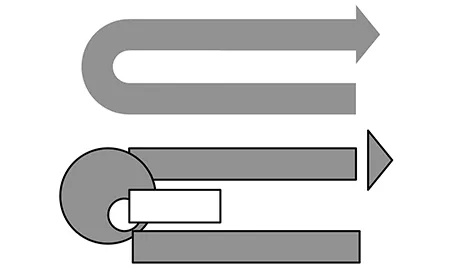
It is hard to get an arrow to point exactly right in PowerPoint. If the standard shapes fail, why not construct your own out of small individual bits. You can group the shape together, or create a new custom shape with one of the shape boolean functions (Windows instructions here, on a Mac: select 2 shapes, right click, go in the grouping menu).