SlideMagic Blog

Frequent updates about all things presentations since 2008. Subscribe to never miss a post.

RSS
all posts

Search results for “windows”

·PowerPoint

Custom font U-turn

After a year of experimenting with custom fonts, I noticed that I am going back to Arial more and more in my presentation design, so my decks can be read on Windows, Mac, iPad, PDF, Dropbox, SlideShark, Keynote, PowerPoint on any device in any place. Well at least it forces me to make more effort to let my slides look good if I cannot rely on a pretty font…

·Colors

PowerPoint for Mac color rendering

If you cannot get excited about color rendering in software, please skip this post.

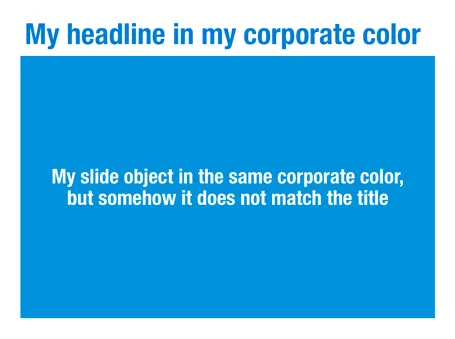
There is something weird in the color rendering of Microsoft PowerPoint 2011 for Mac. First, text and shapes get treated differently. If you make the text and the background the same color, the text will appear different. At first it looks like to be designed on purpose. But the adjusted color is actually a bit off on the hue spectrum, creating color clashes. See the example below.

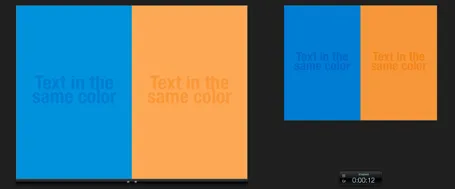
Maybe there is a problem inside the software though. Look at the screen shot below of a presentation in presenter mode. I copied 2 exactly the same slides and you can see that the preview of the second (identical) slide pulls the blue into same purple direction as the text in the previous example. There must be more than one color rendering engine inside PowerPoint.

PowerPoint 2010 for Windows does not suffer from this, and I hope that Microsoft will fix it in a subsequent update (even it was done on purpose). If I want my text to stand out on a background, I want to freedom to decide myself what colors to pick.

·PowerPoint

Hard-to-find Excel 2011 shortcuts

I do not use many Excel keyboard shortcuts. But my switch from Windows to Mac OSX showed that I really was dependent on a few that were hard to find in my new software. Maybe you have the same issue.

  • In Windows, I constantly used the Office 2010 (Windows) CTRL-MINUS and CTRL-PLUS to add/remove columns and rows. For some reason CTRL-PLUS does not work in Office 2011. To insert a row or column on the Mac, select it and hit CMD-I instead.
  • I use the soft line break in an Excel cell a lot, on the PC it is ALT-ENTER, on the Mac it is ALT-CMD-ENTER.
·Gadgets

MacBook with 2 external screens

The new Apple 27" Thunderbolt display enables you to connect 2 giant external displays to a laptop, something that has not been possible until now without additional hardware.

Large screen real estate has its advantages. It is easier to design presentation slides when you have a large workspace in front of you. Extra space also enables you to open multiple windows, for example a PDF file with comments on the previous version of your presentation, or an Excel file with the data that need to go into your pie chart.

Now, 27" is a lot of space (2550x1440 pixels) and for most ordinary people, one screen will do. A presentation designer might actually need two (putting her in the same category as financial traders, air traffic controllers and social media addicts). I like to design on a clean and calm canvas. All the small windows with bits of information distract me. So I use that second screen as my messy desktop, literally pushing bits, pieces, and windows aside when I do not need them, preserving my pristine and uncluttered design environment in front of me.
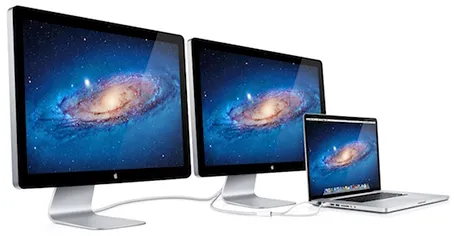
Now some technical details. An Apple Thunderbolt screen can only be connected to a recent MacBook laptop that actually has a Thunderbolt port. But more importantly, the dual screen configuration only works on the most recent 15" and 17" MacBook pros, not on the 13" MacBook Pro, and not on the MacBook Air. (This might actually be an argument for getting a MacBook Pro over a MacBook Air) at the time of writing, October 2011).


Continue reading →
·Delivery

Better webinar software?

I now did a few online webinars and I found it a great way to connect live with an audience without the need to travel, and without the requirement to get a large group of people together in one physical location.

Having said that, the experience from the presenter point of view is far from optimal. You are talking into a microphone, staring at your screen without any feedback. Here are some suggestions to make better webinar software and make the webinar experience a bit closer to that of a live presentation.

  1. Avatars. Encourage people to upload avatars when joining a webinar as an audience member, and more importantly, have these avatars show up on the presenter’s computer. In that way you get a sense of a real audience in front of you. I am sure as technology progresses it would be possible to create a virtual audience shot of live video avatars
  2. Kill presenter distractions. Applications that I use show statistics of people online, people leaving, people joining, people that are active, versus people that are checking their email in another browser window. Some applications require the presenter to let people into the session during the presentation. This information is useful, but there should be a way to switch it off, enabling the presenter to focus on her story. In real life, the presenter on stage does not need to open the back door to let someone back in to the room.
  3. Find a better way to moderate questions. At the moment, questions get punched into a small chart window. There is a constant flow of information, and chart windows are too small to be able to read the text. In a real live presentation setting, people do not shout their questions at the presenter all at the same time. There should be a 2-stage process: 1 audience members need to indicate that they want to ask a question, then the presenter need to give them the floor, and only then can the question be asked. Either through a live voice, or through a text box that has big fonts and can easily be read by everyone.
Continue reading →
·PowerPoint

Adobe Acrobat needs to get presenter view

Last week in New York, I used both Keynote and Adobe Acrobat for the first time on stage in a live presentation. Keynote worked great (it is designed to do just that). Presenting in Adobe Acrobat (PDF) was interesting.

I presented at a large conference (this one) where it is hard to switch hardware (I needed a Mac for Keynote) in the middle of the conference program without disrupting the experience of the audience (engineers walking back and forth, screens going on and off). Hence, I went for a PDF version of the deck. (An earlier post on why I think we are going to use PDF for presentations more and more)

With CMD-L you can put Adobe Acrobat in full screen mode, and it responds perfectly fine to the Logitech remote control I am using. The only adjustment you have to make is to make sure that any animated slide builds are spread out over multiple pages.

The one thing I am missing though is the ability to have presenter view in Adobe Acrobat: having a pre-view of the next slide displayed on the monitor that only the presenter can see. Adobe, are you listening? (An old post about PowerPoint presenter view)

To take this a bit further. The one thing that Apple can do to increase the penetration of Keynote is to develop a Windows application that can run Keynote presentations with animations. Editing is not necessary.

·Gadgets

Using your laptop monitor as a 2nd monitor

Computer screens have gotten bigger and bigger, and I suspect that most users will use the extra screen real estate to keep multiple windows open on their desktop. One for email, one for Twitter, one for PowerPoint, one for Skype. Designers do not have this luxury to spread everything out in front of them, they need a big calm design environment with minimal distraction. My PowerPoint or Keynote screen is always set to the maximum.

I used to work with a laptop in clam shell mode in my office: the laptop is closed, and a big external monitor is used as a display. For copying and pasting, inserting Excel charts in PowerPoint, I was constantly moving windows around. Until yesterday, as I looked at the closed laptop screen.

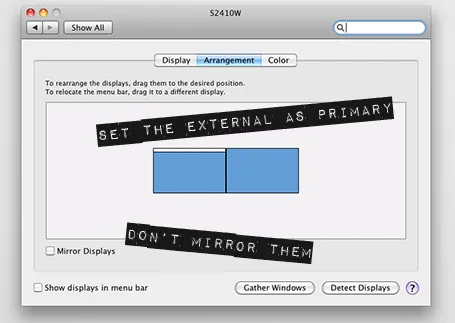
So now I created a dual monitor screen set up. My slide design application is up full screen on the large monitor, and my laptop screen is used as a collection bin for all kind of bits. It has been a liberation. My 17" laptop actually is big enough for the little side apps that I am running in that screen. Great.

If you are on a Mac, here is how to do it:

·Colors

Color management in PowerPoint 2011 for Mac

Slowly I am working around some of the shortcomings that PowerPoint 2011 for Mac has in comparison to PowerPoint 2010 for Windows, and get to enjoy some of the advantages of the Mac platform. One of them is color management.

Built-in to a Mac is a powerful color management picker:

  • With a magnifying glass, you can copy the color of any element on screen and add it as a color to your palette. For example, you can take the colors from your corporate logo to create a matching PowerPoint color scheme. In Windows, I had to rely on other applications (Photoshop, Paint) to do this.
  • Your color palettes are stored across applications, so you set them in PowerPoint, they are available in Photoshop, Keynote, and any other applications you are using.

See this extensive post on robinwood.com on how to use the Mac color picking tool. Thank you Andrew Marritt for pointing me to this.

·Art

Art Authority for Mac

I reviewed Art Authority, this great art catalogue for iPad earlier, and I just bought the same application for the Mac.

The bad news, the user interface is a lot worse than the iPad. You browse art in finder windows, sometimes via HTML pages.

The good news, working with the images is a lot easier. Since a good keyword search mechanism is still missing, a very large monitor makes it easier to browse icons of paintings. You can have multiple thumbnail windows open, and leave them open for a long time.

Ten dollars well spent. Twenty dollars well spent if you buy the iPad app as well.

·PowerPoint

PowerPoint feature wish list for Microsoft

My wish list of features to be included in PowerPoint. Feel free to add your own in the comments.

PowerPoint 2011 for Mac

  • Custom font embed (available in PPT 2010)
  • Ability to set custom theme fonts (available in PPT 2010)
  • Selection pane (available in PPT 2010)
  • Define custom grid spacing (available in PPT 2010)
  • Ability to lock the static grid

PowerPoint 2010 for Windows

  • Better integration with photo browsers (available in PPT 2011)
  • Included weights in font selection menu (available in PPT 2011)