SlideMagic Blog

Frequent updates about all things presentations since 2008. Subscribe to never miss a post.

RSS
all posts

Category Video

·Investor presentation

How to put video inside PDF

More and more of my presentations start to use video, and my preferred format for emailing/Dropboxing decks is PDF, so how do you insert a video in PDF? It is easy with Adobe Acrobat X:

  1. Save your presentation (PowerPoint or Keynote) as a PDF without the video
  2. Open the deck in Acrobat X and select tools at the top right
  3. Select multimedia, select video, and draw where your video should go with the cross hairs
  4. Select the video file, or insert a YouTube link (I went for the first option, the video size was below 10MB)
  5. Select advanced options, and select use poster image from file to pick the right cover
  6. Click done

The investment bankers of a recent client insisted on the traditional Executive Summary to send to potential investors. I used this video and a 3 column dense text layout to turn a boring bullet point list into a nice looking one page document meant for reading and watching.

Unfortunately, the video does not (yet) play on an iPad…

·Keynote

Subterranean Homesick Blues

What a brilliant presentation concept by Bob Dylan in this video of his song Subterranean Homesick Blues.

·PowerPoint

Video in a webinar?

The big problem in webinars and web meetings is the upload bandwidth. If you are running the presentation live from your computer, then the speed at which attendees can download your high-res images, video, or animations is the speed of your upload connection which in most cases will not be much more than 1Mbps. Download speeds are much higher (I have gone up to 50Mbps recently).

 The solution for this would be to upload the bandwidth-heavy content beforehand to a server, and only use your live upload connection for the audiotrack. Some web meeting solutions such as SalesCrunch (disclosure, a client) allow you to upload presentations beforehand. But video does not work (yet). Do any of you know a solution or a workaround that allows me to use video in a live webinar?

P.S. An earlier post about how I use an iPad to log in as a participant to monitor what my audience is seeing during a webinar.

·Keynote

Videos in PowerPoint / Keynote

Here is the easy way to embed a video in PowerPoint or Keynote:

  1. Simply drag the file into your slide, done.
  2. Resize the video so that it fits neatly on the slide.
  3. Play the video until you hit the scene that you want to use as your place holder image. Hit pause.
  4. In PowerPoint: choose format movie, poster frame, current frame.
  5. In Keynote: select the movie, go to the inspector, hit the far right Quicktime icon and slide the poster frame slider to the desired location.

There are more advanced control features available, but these basics should do for most users.

·Gadgets

Liberated from the email attachment

Clients that run conservative IT infrastructures (usually the larger enterprises) still have a cap of around 10MB on the size of an email attachment. As presentations contain more images, file sizes are getting increasingly larger. Over the past years I have been cropping and compressing to keep file sizes in check, but I think we have finally reached the time to get rid of the email attachment as the preferred way to send files across.

Solutions such as Dropbox provide a very convenient alternative to the email attachment, send a download link to a file, or sync a file both on your hard drive and the hard drive of your colleague.

Now that 10MB is no longer an issue, we can go to 100MB and beyond and this introduces incredible design freedom.

  1. Put images in at full HD resolution, keep the areas that you cropped out to change a slide design in the future, and have the option to produce very high-grade print material from your working document. There is no need anymore to do destructive compression to your source file. With new devices such as the new iPad with retina screen resolutions going to more than 2000 pixels this becomes essential. A 700 pixel image will look OK on a crappy VGA overhead projector, but will look fuzzy and unprofessional on a tablet
  2. Embed HD videos right into the presentation file. No more linking, saving files in the same directory and worrying about whether things work. Over the past months I have become convinced of the power of short 30 second videos in presentations. You could even start replacing background stills of a landscape with a looping video that show a gentle breeze going through the tree tops with some birds flying by.
Continue reading →
·PowerPoint

Links to full screen YouTube videos

The most reliable way to include video in your presentation is to include it in your presentation file. Dragging a video file into Keynote for example creates huge file sizes, but you eliminate the hassle of having to save files in the same location.

A less elegant option, but one that saves space, is to rely on live YouTube links for playback. Here is an approach to do this:

  1. Play the video (in the highest resolution possible) and pause it at the moment you want to use for the placeholder image.
  2. Take a screen shot and paste the image into your slide
  3. Draw a big triangle and place it in the middle of your still image as a play button
  4. Insert the hyperlink to the YouTube video inside the triangle and you are done.

In presentation mode, you can click your play button triangle with the mouse and your browser will open to play the video.

By default, the video will play in the standard YouTube view with all the screen clutter around it. Here is a way to get a link that triggers a full screen view of a YouTube video.

The standard format of a YouTube URL is this: http://www.youtube.com/watch?v=R55e-uHQna0. Here is the trick. Replace the watch?v= bit with this v/ to get this result: http://www.youtube.com/v/R55e-uHQna0. Make this the link your play back triangle points to.

·Images

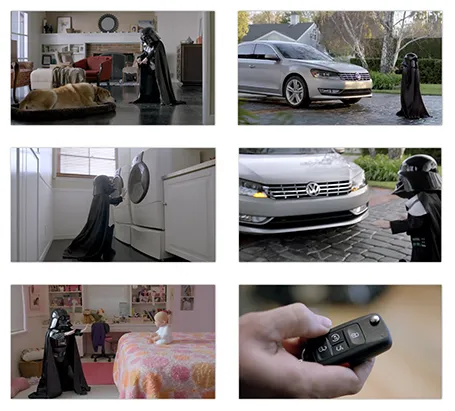
Video summary in stills

Embedding video in presentations has its drawbacks. It adds another technical risk factor when setting up the presentation outside your office environment. File sizes become so big that it is hard to email a document. And a PDF version of the presentation does not show the video.

As a solution, you can put in a video summary in your presentation consisting of a few key still images taken from the video. Our brain is powerful enough to make up most of what happens in between, and might even imagine the Star Wars sound track in the background when looking at last year’s Volkswagen Super Bowl ad (which I think was better than the one shown this year).

Look how showing the video, or showing a consecutive series of page-filling images keeps up the suspense of the audience. Showing all images on one page gets the point across as fast as possible. The first approach might be the most fun, the second one is what works best when trying to communicate an idea to busy people.