SlideMagic Blog

Frequent updates about all things presentations since 2008. Subscribe to never miss a post.

RSS
all posts

Category PowerPoint

·Gadgets

iPad, Prezi, and remotes

The iPad could be the ultimate device for presenting on-stage, solving many problems I have blogged about before:

  • It can create a dual-screen view: the presenter sees a different screen than the audience (timer, next slide coming up etc.). Now only PowerPoint and Keynote support this with dual monitors. The iPad can create it instantly for any application, including Adobe Reader, enabling presenting from PDFs
  • It can create a non-lineair presentation interface (like Prezi). On your iPad are all the slides in thumbnail view, and you can pick them on the spot without disturbing the audience screen.

There is a real jungle out there of iPhone/iPad presentation apps and none of them get it right. None of them have the thumbnail slide mode, and no one has found a good way to work around the iPad’s font limitations (images instead of text?).

This last point is essential if the iPhone/iPad moves from being a remote control directing a computer to becoming the device that powers the project itself.

Has anyone found the ideal iPad presentation app?
·Data visualization

Evidence versus detail

They may sound or look the same, but there is an important difference:

  • Detail is a pile of facts that bores the audience
  • Evidence is that critical (and sometimes detailed) fact that convinces an audience
·PowerPoint

The counter top presentation

I am currently designing a presentation that is supposed to run on an iPad that sales people take into busy, noisy small businesses to sell something to an owner who does not have time to listen to us.

Of course it has to be short. But we are pondering whether to go with lots-of-big-pictures-slides in 4 minutes, or a few condensed slides in 4 minutes. Big images are better to catch the attention of the owner, but constantly swiping through slides on an iPad might be awkward, and standing in the way of creating a human one-on-one interaction.

On balance, I think to go with the first, what do you think? Have you had experience with this?

·Gadgets

Trackpad only

A while ago I wrote this post comparing a Logitech Mouse, the Magic Mouse, and a track pad. Nine months later, I have switched complete to a track pad, which is not only much better for navigating the Mac Lion OSX, but I also find it highly accurate for drawing shapes and general slide design work.

The key thing that I had to learn was to move things around not by using the old PC method: click the track pad and hold it pressed down while moving your finger, but work with 2 fingers: one presses the track pad down, the other one moves the object. Once you get the hang of that, your movements are as precise as with a mouse.

My pile of obsolete hardware is getting bigger.

·Concepts

Rigorous deal selection

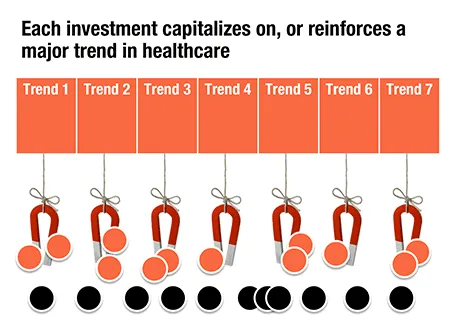
A U.S.-based healthcare-focussed venture capital fund only invests in a company if it pushes forward on of seven trends in healthcare. The page below tries to visualize that.

The point here is only about the rigorous selection, the trends themselves get explained on separate slides, and the portfolio companies get discussed somewhere else in the presentation. After the presentation, institutional investors should remember that the fund is very picky in investing their money, “remember that magnet slide?”

·Concepts

Endless permutations

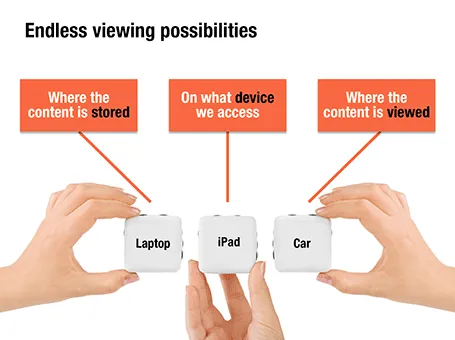
Here is a nice way to visualize an unlimited amount of possible combinations. The sanitized example below was designed for a client with a new digital media technology. You could create a similar concept with a suitcase combination lock, or maybe a slot machine.

·Animations

Uncover versus popup

I am not a big fan of animation, spectacular effects do not support a serious business message and documents with animations do not convert well to PDF for emailing.

Sometimes there is no escaping though, especially when you need to explain components of a complex system. The best way to do this is to add elements one-by-one through a series of clicks.

The usual way to do this is to use pop-up animations. However, these can be cumbersome to edit: you often forget one item in a group, and have to start all over again.

There is an alternative: cover the critical elements in your slide with boxes and remove the boxes one by one. Easier to edit. You can even make it more sophisticated by given the boxes a 10% transparency: the viewer sees sort of what is coming, but not completely. When you want to PDF and email a version of your document, you simply delete all the boxes which leaves the full diagram intact.

·PowerPoint

Links to full screen YouTube videos

The most reliable way to include video in your presentation is to include it in your presentation file. Dragging a video file into Keynote for example creates huge file sizes, but you eliminate the hassle of having to save files in the same location.

A less elegant option, but one that saves space, is to rely on live YouTube links for playback. Here is an approach to do this:

  1. Play the video (in the highest resolution possible) and pause it at the moment you want to use for the placeholder image.
  2. Take a screen shot and paste the image into your slide
  3. Draw a big triangle and place it in the middle of your still image as a play button
  4. Insert the hyperlink to the YouTube video inside the triangle and you are done.

In presentation mode, you can click your play button triangle with the mouse and your browser will open to play the video.

By default, the video will play in the standard YouTube view with all the screen clutter around it. Here is a way to get a link that triggers a full screen view of a YouTube video.

The standard format of a YouTube URL is this: http://www.youtube.com/watch?v=R55e-uHQna0. Here is the trick. Replace the watch?v= bit with this v/ to get this result: http://www.youtube.com/v/R55e-uHQna0. Make this the link your play back triangle points to.

·PowerPoint

Need a simple planning tool

Business is going well and I am in need of a basic time planning tool. My work style has changed from one that is management consulting-like (1 project at a time, from start to finish), to a more erratic (creative?) work schedule. I take on many projects at the same time, ponder about creative approaches in parallel, and have become much, much faster in execution once I have the ideas for the killer slides in my head.

With all of this, it has become hard to get a good grip on my actual work load and give clients a realistic delivery date of a project. Most project planning tools available are designed for large projects executed by multi-person teams doing tasks that are defined in days and not hours. These tools also find it difficult to manage multi-tasking: one person who is working on more than one project at a time.

So, I wonder whether you have come across a tool that allows me to do the following:

  • Quickly add lots of short projects
  • Sync with a calendar to take into account holidays and other commitments
  • Put in hard deadlines for some projects, while leaving others open
  • Allow multi-tasking

I have been playing around with Omniplan and Clarizen, but these do not seem to do what I need.

·PowerPoint

Writing it on every page

Sometimes a senior executive comes in at the end of a presentation design process and starts making some “edits for clarity”. She probably does not have a lot of time to go through the deck in detail, but wants to make sure the key points are said. No better way to do this than adding the words “flexible solutions ” on as many pages as possible. Now the deck says at least what it is supposed to say.

When this happens, it is time to stand up for yourself.