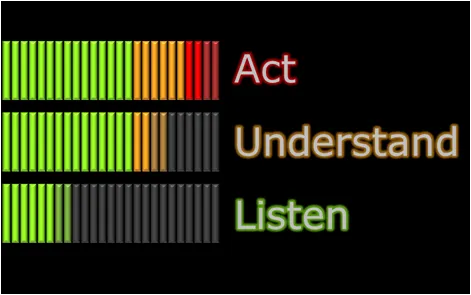
I have put the source file of the happily dancing equalizer in PowerPoint now online. I uploaded it to Slideshare, you can see the animations if you download the presentation (a PPS file), the regular SlideShare embed does not support it.
I needed a chart to visualize 3 quality levels I think a presentation can go through:
Your audience bothers to listen
Your audience understands what you are trying to say
Your audience follows up after leaving the room
Brainstorming some concepts, I ended up with that of a graphic equalizer beating away at higher intensity levels. Stock images failed, so here is the DIY approach in PowerPoint:
Create distributed rows of narrow rectangles
Add green, orange and red colors
Add a “flicker” animation on the last 2 bars of each row (going back and forth between grey and the accent color),
Set animation repeat to “until slide ends”
Set animation speed to “very fast”
The still image does bring out the happily dancing bars very well though…
Rules (animations do not add anything) are there to be broken sometime. Still, this type of chart fits in a more frivolous presentation setting, and not in one where you let’s say have to pitch your company to venture capitalists.
New “in the cloud” presentation development tools seem to be popping up all the time now. Today, I came across Zuiprezi which allows you create a “non-linear” presentation on a large virtual canvas in which you can navigate and zoom your way around. Read a review on CNET, and/or watch the video below.
While I see the advantages of a dynamic presentation flow, I still think that in most presentation situations a tightly controlled story line works best, especially when time is scarce, for example in VC startup pitch presentations (25 minutes, that’s it). When there is more time, non-linear presentations could work. Especially when a group of people needs to discuss, brainstorm and analyze a complex subject (for example a spaghetti-style workplan for a big engineering project).
UPDATE: Another interesting application for this technology might be to visualize complex system dynamics analysis in business. At McKinsey I used to use it (it was called “Business Dynamics” there) to map complex interactions between multiple drivers. This analysis can be very insightful to spot recurring loops (and hence how to accelerate or stop them), but delivers very messy diagrams. See one here.
Related postings on my blog:
PPTplex, a Microsoft tool for zooming inside PowerPoint
TechCrunch writes about Goldmail today: tool that allows you to create Flash animation of a media-rich presentation (including voice-over) that can be embedded easily in an email.
UPDATE: Please read the elaborate clarification by Tom Holownia, VP Marketing of GoldMail, in the comments.
It can become almost impossible to edit complex animated slides that have layers and layers of objects on them. My solution used to be to spread the chart out over multiple pages.
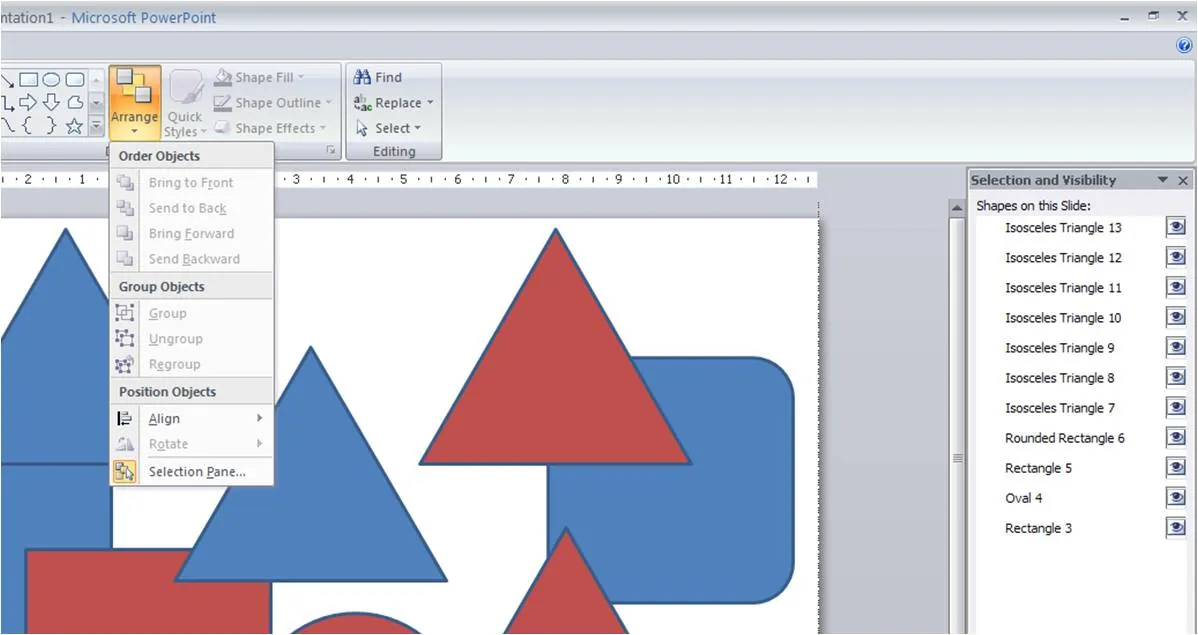
Recently, the selection pane tool in PowerPoint 2007 was pointed out to me. You can find it hidden away under the arrange menu. Click on the image for more detail.
Life has just become easier. Thank you Glen Turpin.
I don’t like animations, but in some cases they cannot be avoided. Sometimes I need to make a relatively complex technical diagram, for example for a technology startup needing to explain the IT architecture of their product (obviously for a conference room presentation, rather than a townhall meeting).
The only animation effects I use are simple “appears” and “disappears”, or the occasional change of color, no flying objects or other spectacular effects here.
The problem with complex animations is that they are impossible to edit. Especially when the layers are starting to pile up. Here is what I do.
Copy the slide over a number of PowerPoint slides, sometimes going into 10 slides are more. In that way you have the complete overview of what’s happening when. The only thing to watch out for is to make sure that objects on each slide are located in the exact same position (control-c on 1 slide, control-v on the other).
Old-fashioned, but it works.
UPDATE. Glen Turpin pointed me to the selection pane in PowerPoint 2007. It actually solves many of the issues I talked about. You can find it at the bottom of the arrange menu in the drawing ribbon. One more reason to upgrade to PowerPoint 2007.
A mini review. Earlier this week TechCrunch reported on a $3.5m fundraising round for Flypaper, a company that enables anyone to create flash-based presentations, and publish them on the web without any technical knowledge. I did install the application and had some time to play around with it.
Contrary to my initital expectations, Flypaper is actually a full blown downloadable desktop application (60MB plus a lot of updates after a first install). The good: it works very fast (exactly like PowerPoint would run). The bad: a slightly tricky installation process (you need the latest Microsoft .NET).
The user interface looks great and is very intuitive. Creating objects, moving them around, planning the time line of the chart, all easy and simple. If the introduction demo is a benchmark of what Flypaper can do, then this is certainly a powerful application.
The big question: powerful graphics processing power often does not give the best results in the hands of the layman (the target segment of Flypaper). The clearest examples of this are the animations in PowerPoint, often used for spectacularly animated transitions between slides that usually annoy the audience or makes the audience laugh at the presenter instead of taking him seriously. Some of the example presentations posted on the Flypaper web site use effects that in my opinion do not necessarily add to the communication impact of the presentation.
A big pro is a much clearer framework to build a structure of clickable links in a presentation. This can be tricky and complicated to do in PowerPoint.
I can see some useful applications:
I don’t like them. Bouncing transitions between slides. Flying bullet points zapping in like a space ship. It annoys the audience and does not help get your message across. More over, they are impossible to edit.
There are exceptions:
Complicated technical diagrams that require a build-up to explain (still, putting them in as a sequence of slides will make your life easier
Perpetual motions such as slowly turning wheels or a high-way of moving arrows to support a concept of a never-ending force