SlideMagic Blog

Frequent updates about all things presentations since 2008. Subscribe to never miss a post.

RSS
all posts

Search results for “windows”

·SlideMagic

SlideMagic 1.0 sunset, long live SlideMagic 2.0

Towards the end of October, we will be pulling the plug on the SlideMagic 1.0 server. If you are a SlideMagic 1.0 user, you need to download your presentations as .magic files to your local hard drive, after which you will continue to be able to edit them in the SlideMagic 2.0 app.

SlideMagic 2.0 is vastly superior when compared to 1.0, with much more intuitive user interface, instant PowerPoint and PDF conversion, integrated Unsplash and Pixabay image search, waterfall charts, and a huge template database (SlideMagic 1.0 probably had 20 templates or so), just to name a few features. SlideMagic 1.0 was a web app, SlideMagic 2.0 is a desktop app that also works when you are not connected to the Internet, and has deeper access to your computer’s operating system for things like managing files and copying things between windows.

SlideMagic 1.0 users will be getting a reminder email over then next few days. I do plan to keep the SlideMagic 1.0 user presentations somewhere backed up, but access will be on request and no longer instant as of November 2020.

SlideMagic 1.0 was a necessary step to start the journey, it enabled me to get my head around what a modern presentation app should look like. But it has served its purpose.

The SlideMagic 1.0 log in is here: http://app.slidemagic.com, you can try the new app here https://www.slidemagic.com/app .
·SlideMagic

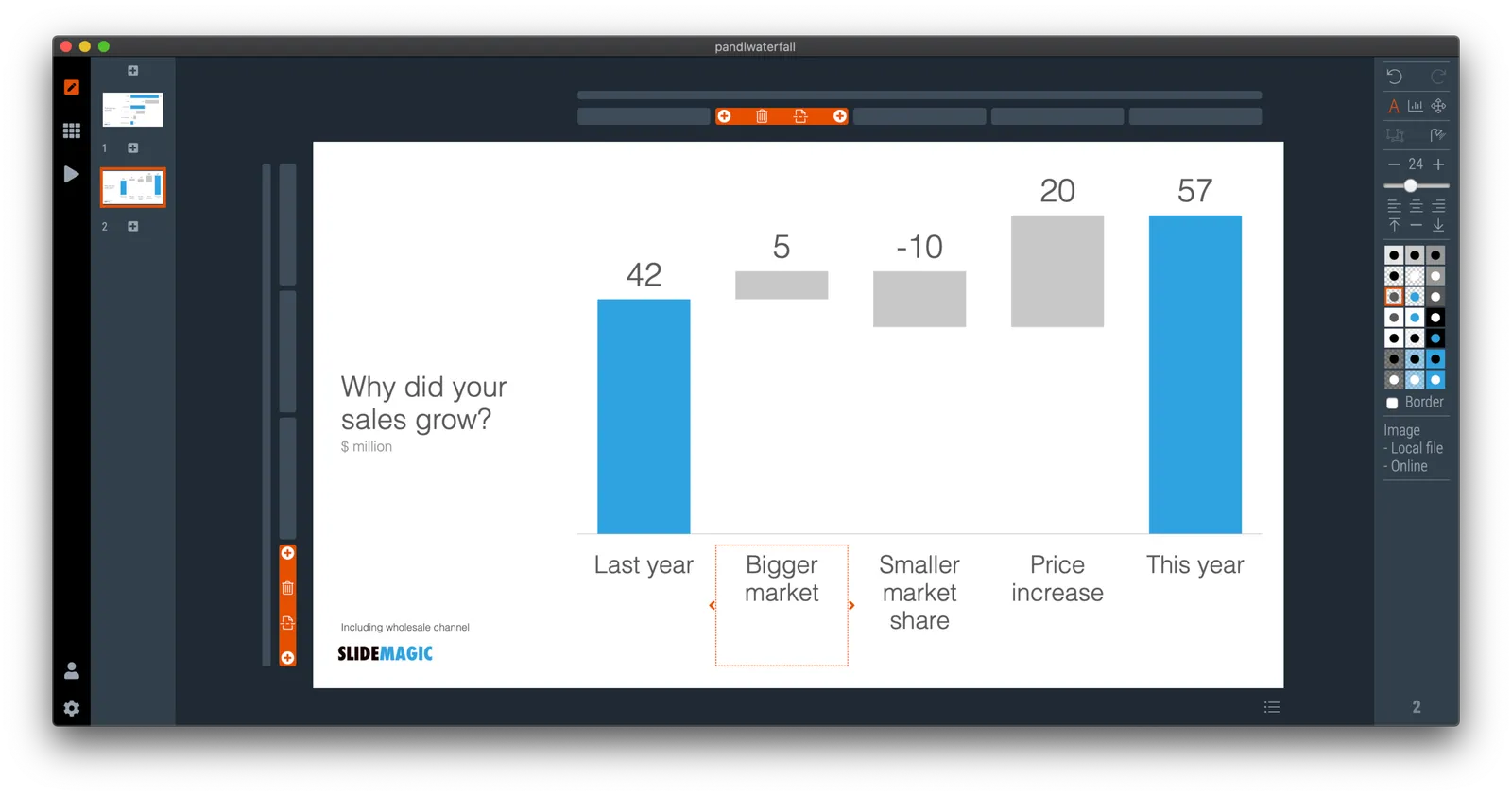
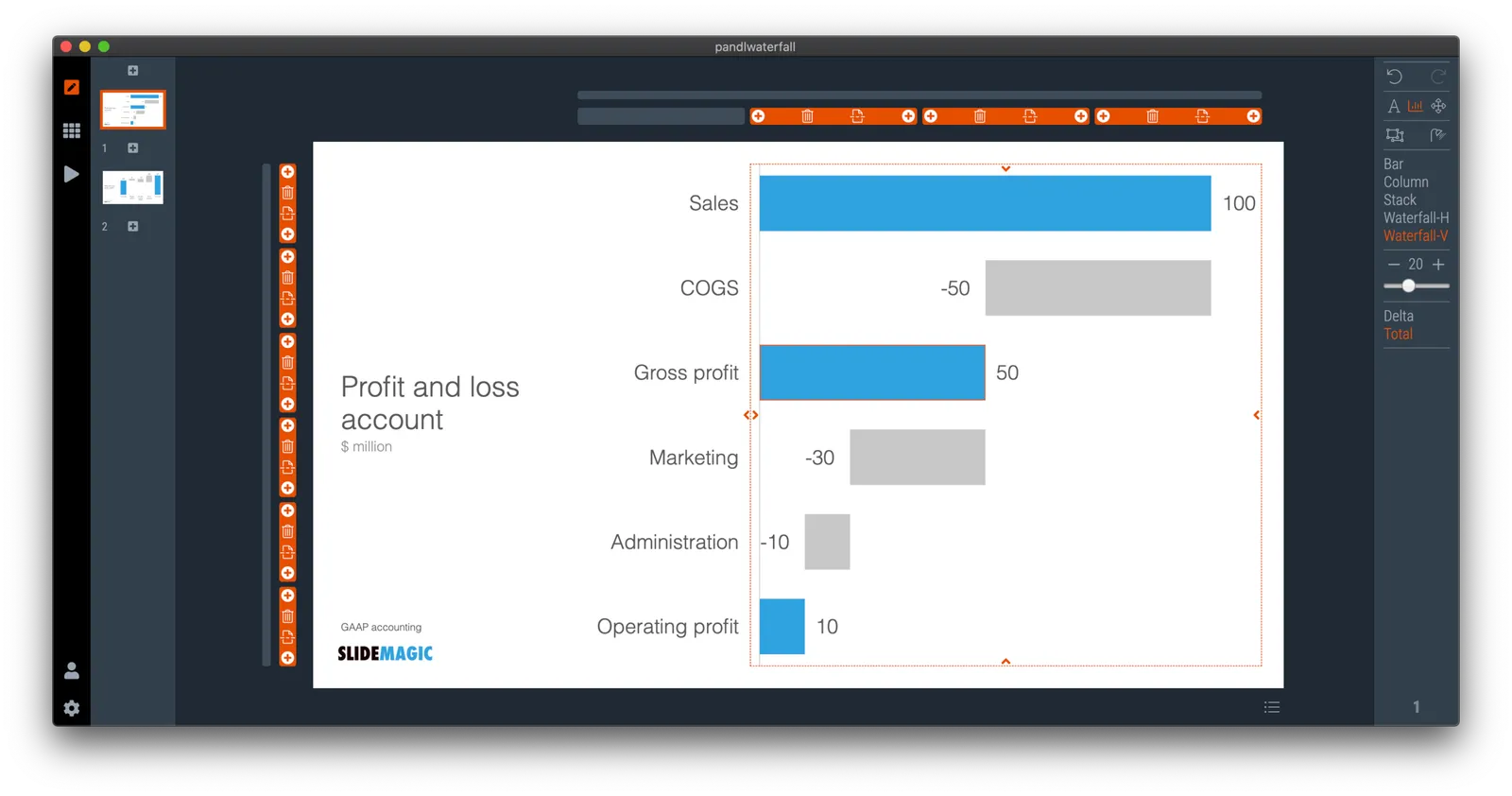
Waterfall charts in SlideMagic!

Finally, they have arrived. Waterfall charts in SlideMagic. Everything lines up with other elements in your slide. Super easy to make and edit, super easy to convert to editable PowerPoint / Excel charts if needed. Download version 2.4.7 of SlideMagic to try it out (both for Windows and Mac). This is a brand new module in the app, please let me know if you experience any issues or have other suggestions.

·Software

Some UI improvements

Version 2.3.18 went up with a few improvements including 2 noticeable ones:

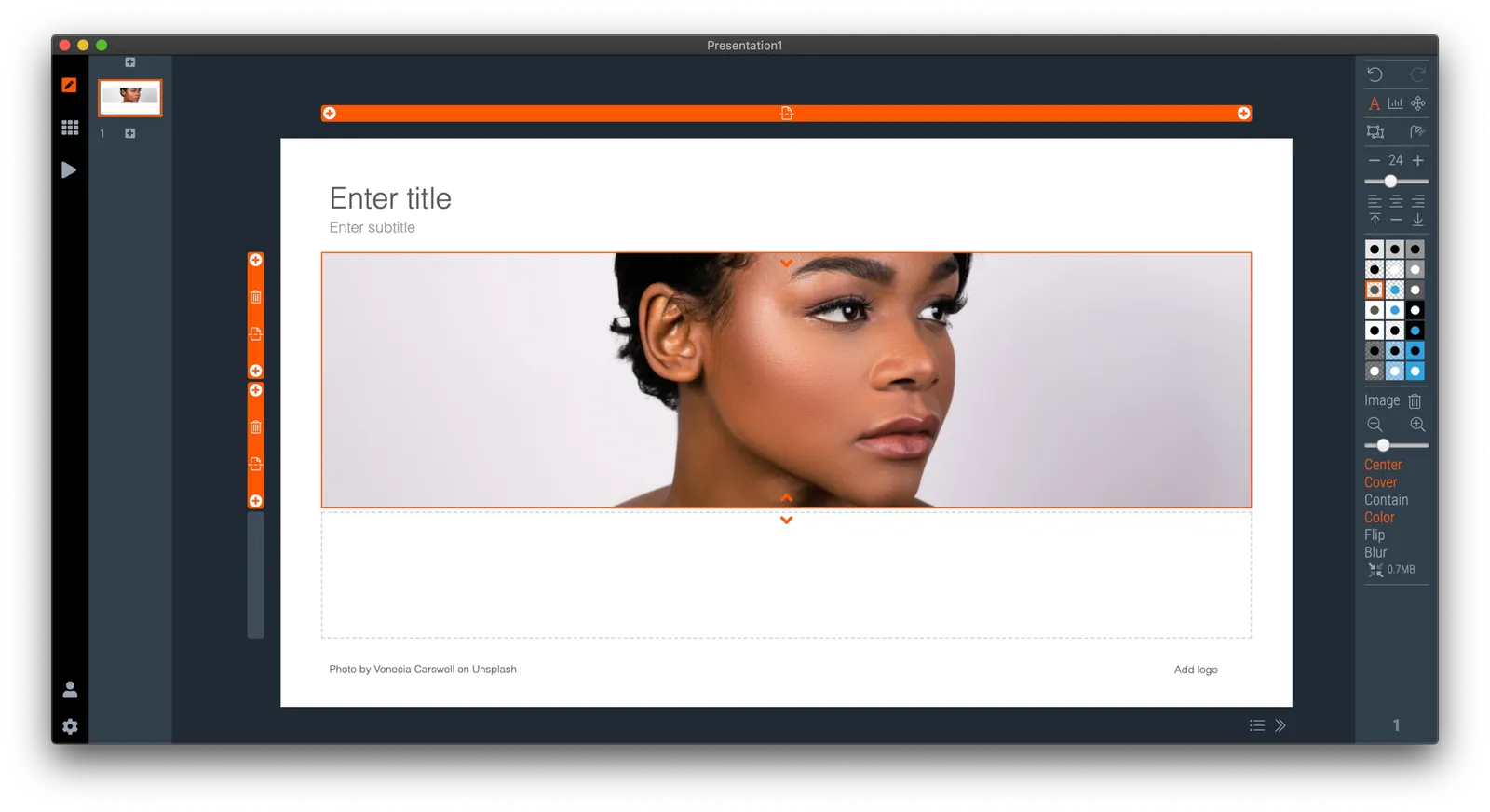
  • A much brighter app user interface colour. As you know, SlideMagic mirrors the colour you use in your presentation: if your presentation uses blue, the SlideMagic app accent colours (to show things you selected for example) will turn to its complement: orange. Up until v2.3.18, this was the exact colour opposite, creating problems for users with muted, very dark accent colours. In the latest version I forced up the brightness and saturation of the app accent colour so that it clearly stands out in all cases. Look how that orange is now popping out for my SlideMagic blue colour.
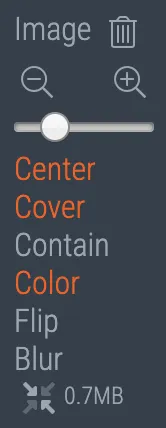
  • An improved image user interface, where the crop modes “center”, “contain”, and “cover” are now clearly highlighted. Also, SlideMagic now shows the mega bytes an image consumes as soon as you select it. Sometimes, a very large image is actually not that big in storage, but the opposite happens as well, that tiny image on your slide takes up 10MB of space and as a result you are compressing down the entire slide deck. Now it is easy to catch these memory eaters quickly and compress the image if needed. Compression no longer “flattens” the image effects (greyscale, blur, flip), so you can re and undo these on the compressed image as well.

Download the latest version of SlideMagic for Windows or Mac to try it out.

·Software

Preserve image positioning when switching between 4x3 and 16x9

SlideMagic swaps instantly between traditional and widescreen aspect ratios. The slide content stays nicely in the slide frame, everything stays aligned and you can revert instantly.

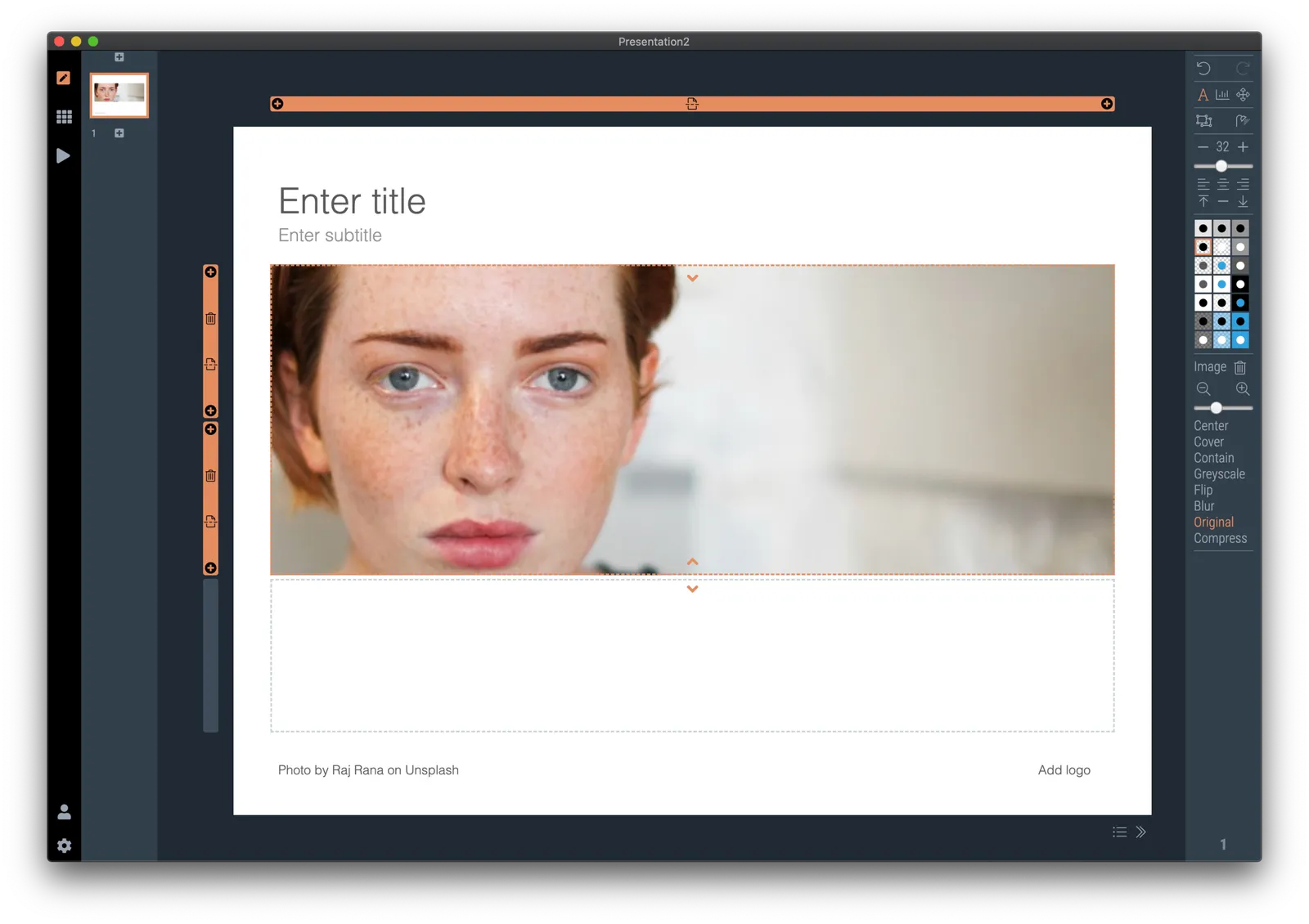
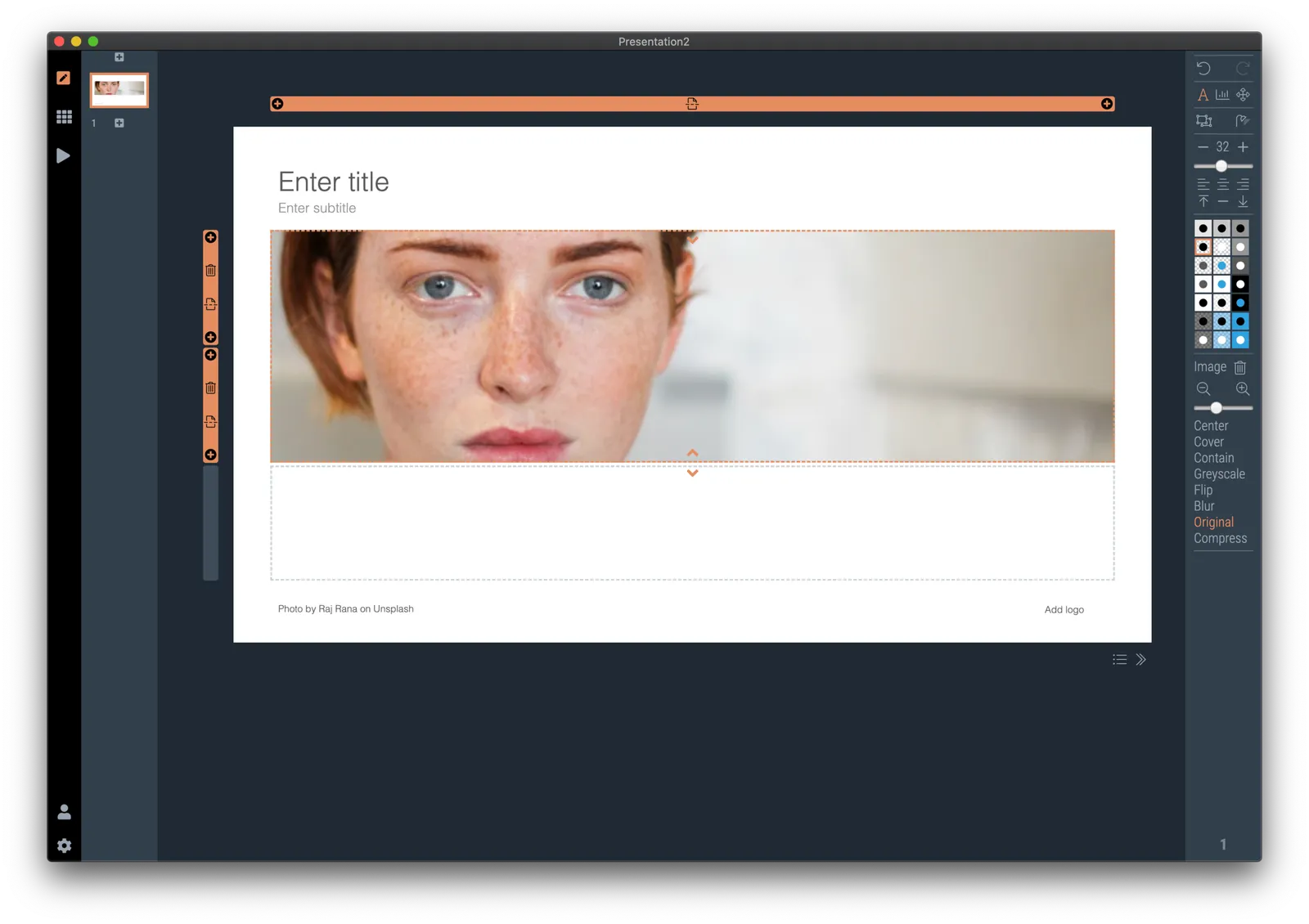
Because SlideMagic does not distort aspect ratios of images (no stretching or squeezing), the positioning of an image changes slightly if you switch between a narrow and a wide screen layout. This can be annoying for images where positioning is a big deal (compare the lined up eye lines of a series of portrait images versus a long-distance shot of a mountain range). If you switch aspects 5 minutes before your meeting, your presentation is misaligned. (This is obviously still a lot better than PowerPoint where everything would stretch and move to unpredictable places when picking a different screen format)

Well, SlideMagic fixed this last hitch as well. I just released V2.3.17 (download SlideMagic here for both Windows and Mac) which now keeps 2 sets of image size and crop frames, one for each slide aspect ratio. You switch back and forth, so will the image positioning. Make sure to double check each image once in both aspect ratios, and the settings will be saved together with the presentation.

For future releases I am studying more advanced image analysis, where I could automatically recognise a face in an image for example, and lock in the position of the eyes (maybe the first true “AI” application in SlideMagic).

·SlideMagic

Dynamic slides generated on the fly

Version 2.3.16 of the SlideMagic presentation app went up last night (download it here for either Mac or Windows). The major new feature in this release is the dynamic generation of slides (at least, the first steps).

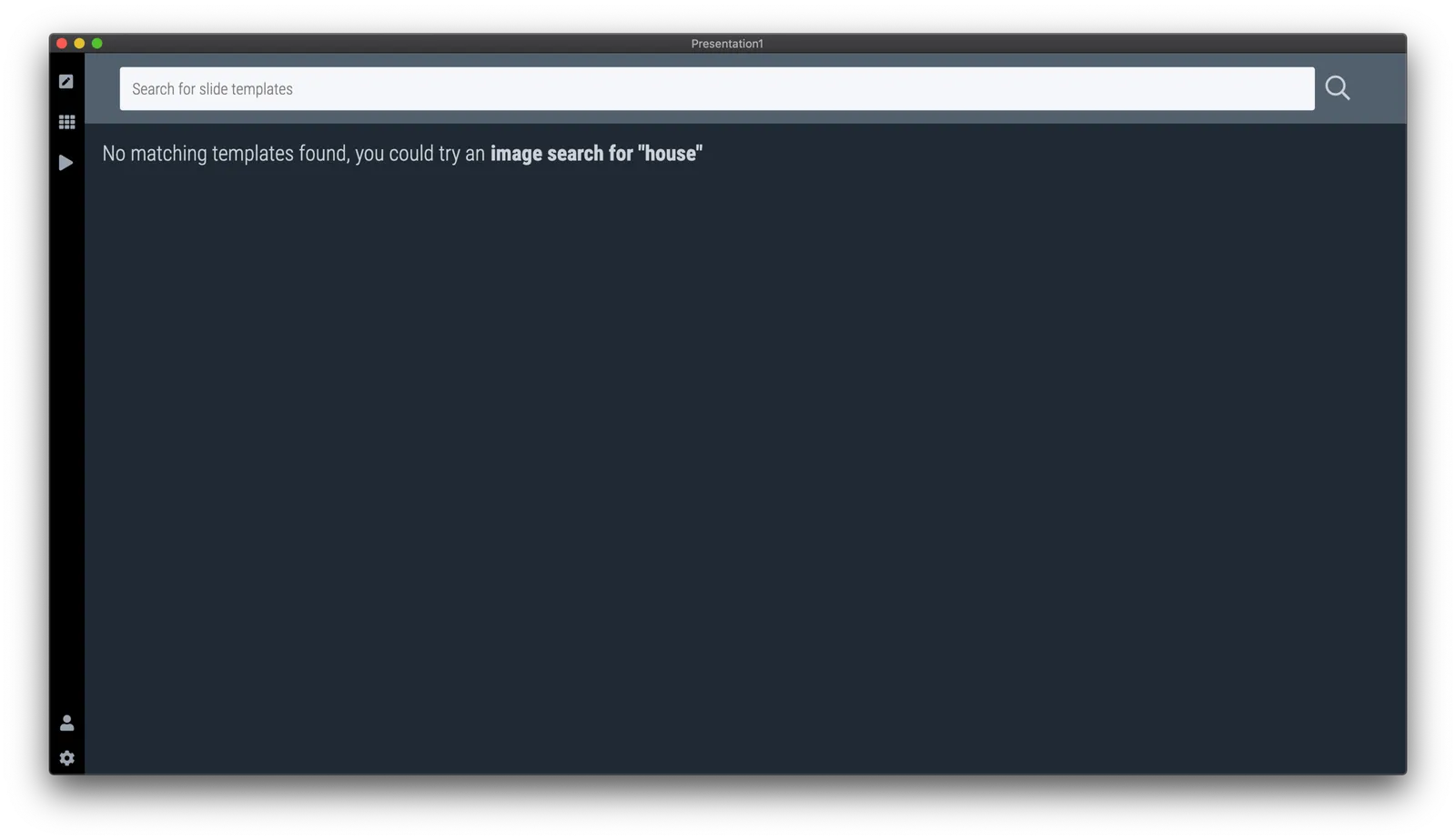
There are different types of template search queries entered on the SlideMagic server. People look for a specific framework (e.g., ‘BCG matrix’), a specific layout (‘3 bullet points’), but then there is a whole lot of more descriptive queries to are a better match for an image search site (‘house’ , ‘diabetes’). While I could populate the database with hand-made slides for each of these terms, it is more efficient to let technology do the work for you.

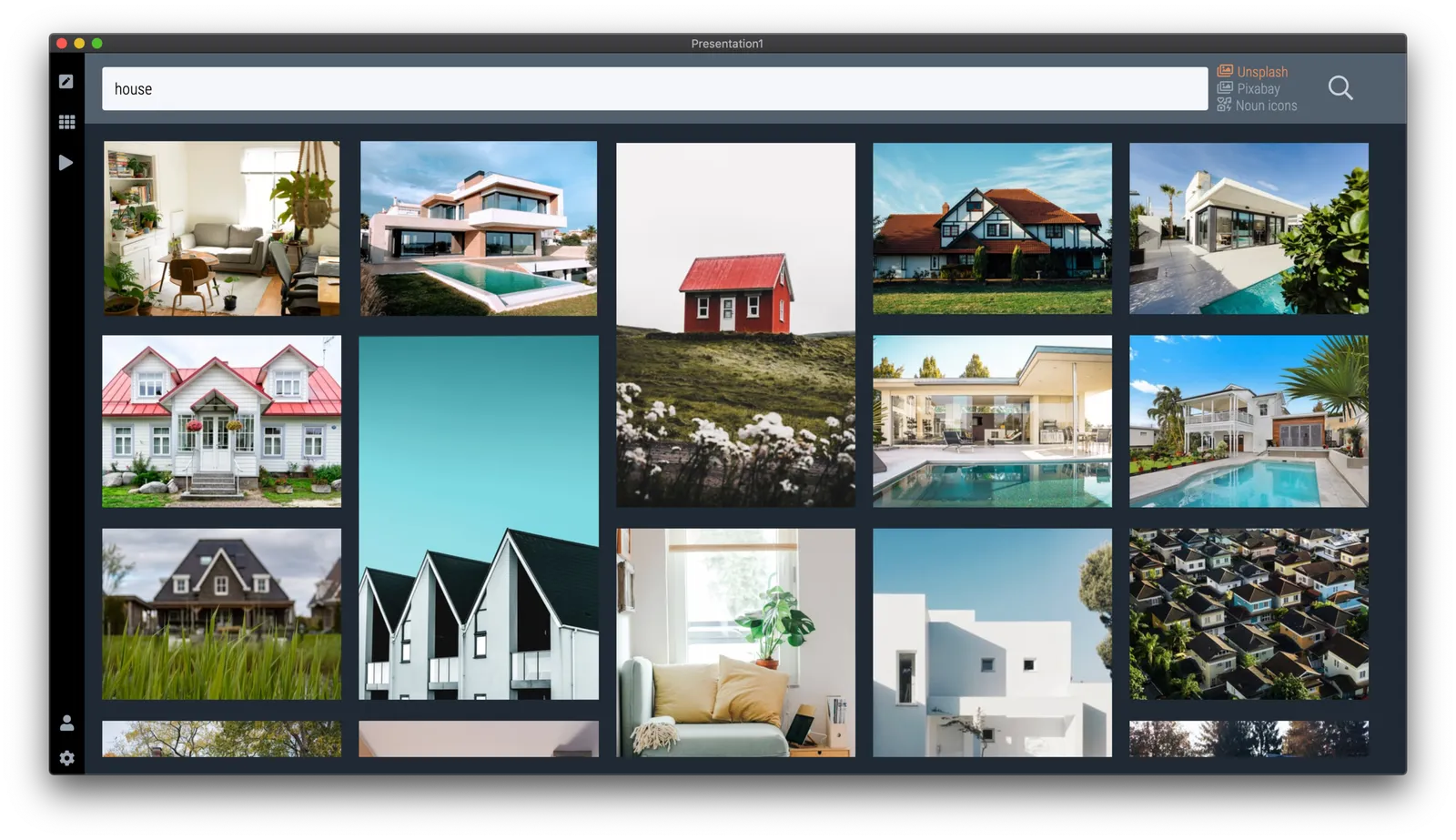
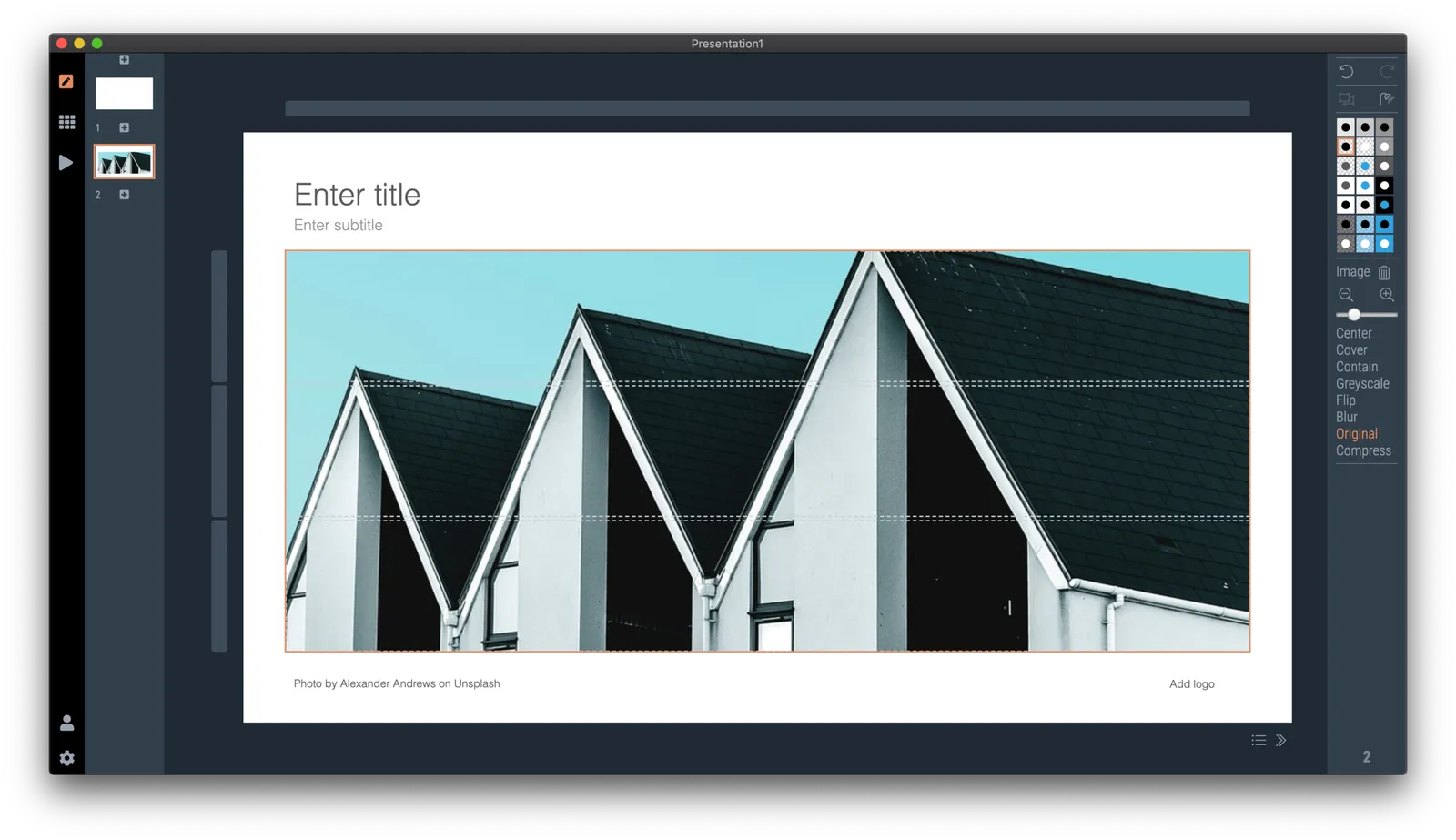
So at the moment, when the server gives up and returns a “no slides found” message, the user gets offered the option to run an image search instead with the same keywords. After picking an image, the SlideMagic app turns it into a framed slide with proper image credits that can form the basis for a new slide design. This slide is created on the fly, without the need to store templates on my server. So the number of slides that SlideMagic can produce now goes into the millions rather than hundreds.

The screen shots below give an overview of the flow as it stands at the moment:

Obviously a slide with a simple image is still pretty basic. I am looking into expanding this approach with colour matches, and more interestingly analysing images for white space, with suggested pre-population of text placeholders on the image.

Continue reading →
·PowerPoint

PowerPoint plug in update

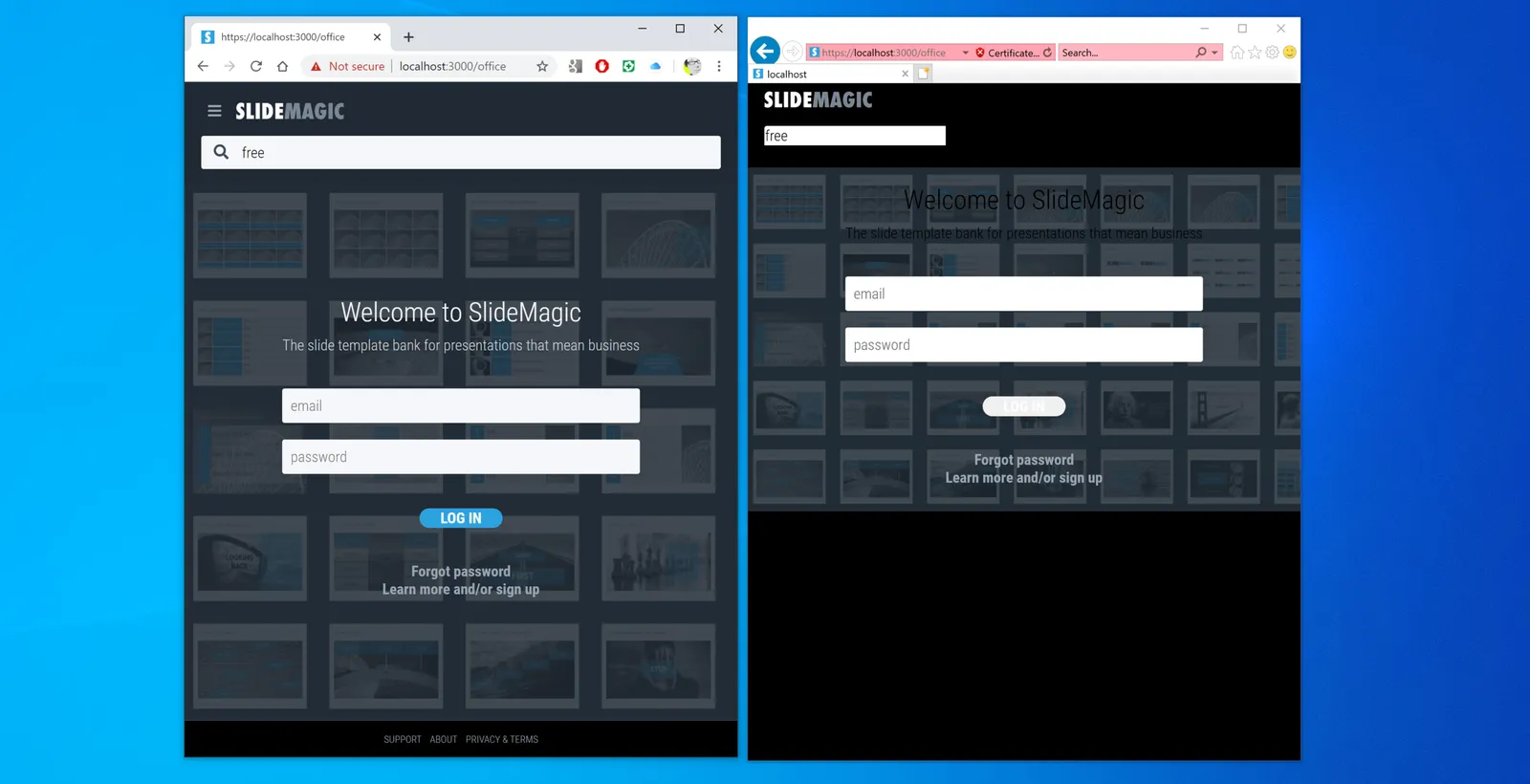
An update on the development of the SlideMagic PowerPoint plugin. One of the main reasons my first submission to Microsoft was rejected is that the current version of the plugin does not run on PowerPoint 2013 and the Windows 7 operating system, largely because I pretty much ignored Internet Explorer as a browser option. Microsoft itself does not really support Windows 7 anymore. The other problem is that it is actually hard to debug a plugin for Office 2013, I tried actually buying a copy, but you cannot get it anymore… On top of that, it turns that you cannot run multiple versions of Office on one computer. The strange situation is now that in order to develop add-ins for the latest versions of Office, you actually need to do that on a super old machine. If there is anyone reading this who can help, please reach out.

But OK, challenge accepted. I will begin to ‘dumb down’ the server response to calls from within Office applications. I can test the rendering of the screens in Internet Explorer 11 (just installed it), and have to hope that rest works in Office 2013 without testing. Hopefully the second submission will get accepted.

The current version still works but requires some level of computers skills and courage to get it to work.

Image by Masaru Kamikura

·SlideMagic

Just push harder

When repositioning images in SlideMagic, there used to be the slightly lag when dragging the mouse. I spent days and days over the past year trying to fix this, but got to a point where I gave up after reading posts of other developer who compromised on a “fudge” approach for the exact same issue (in a different software of course).

Well, no longer. As of version 2.3.1, images follow the mouse button precisely. Deep, deep, down in the world of CSS was a weird way of calculating things, that combined with how I keep track of a slide coordinates made this one particularly tricky to solve, but it is done.

Also in 2.3.1 you icons are no longer “flattened” when you copy paste them, but you can now still change their colour and appearance, just as in the original.

The new version should automatically install in the background, or you can force the upgrade by visiting the SlideMagic app download link and pick your version for either Windows or Mac OSX.

Photo by Alora Griffiths on Unsplash

·Software

Alpha testing: SlideMagic PowerPoint plugin

If you want, you can try out the SlideMagic plugin for PowerPoint. When installed, it opens a task pane on the rights side of your PowerPoint screen, you can log into SlideMagic, search for templates, which when downloaded appear in a new PowerPoint presentation. With a copy-paste or drag, you can add them to your presentation.

I am currently in the process of getting SlideMagic Ltd. approved as a Microsoft Partner to add it to the official Office app store. Microsoft is experiencing some capacity issues at the moment as the working-from-home-world is overloading its cloud servers.

To beta test the add-in in the mean time, you can do the following. This is a slightly advanced process, sorry.

  • Download the slidemagic.xml file here
  • On Mac follow these instructions (original on the Microsoft site). Copy the .xml file in this folder: /Users//Library/Containers/com.microsoft.Powerpoint/Data/Documents/wef (if you cannot see the Library folder in your Finder, select the ‘go’ dropdown in the Finder, then press the OPTION key and it should appear. Restart PowerPoint and a new icon “Start SlideMagic” should appear.
  • On Windows, the process looks a bit more tricky: see here.
  • The easiest is actually the online version of Office (instructions). Open PowerPoint in your browser, select Insert, select Add-ins, click manage my Add-ins, then upload my Add-in to upload the slidemagic.xml file.

This is all still work in progress.

What it took

Building a product is slow, but steady going. I jotted down this list of the various hurdles and went through to get a useable product today:

  • Design the UI: most of this was done for version 1.0 five years ago
  • Understand the basics of Javascript (with 1990s Pascal to start from)
  • Understand post 1990s programming concepts: objects, methods
  • Get an environment up and running so that I actually could run a simple piece of code
  • Find a way to get access to the data (presentations) version 1.0 was producing.
  • Setup an environment that turns a program that says “Hello world” and turns it into a desktop app
  • Figure out a way to scale text in a browser environment, preserving the exact proportions of design elements (resize your web page, this is not what most web pages need).
  • Get github and multiple versions to work
  • Build the first rendering engine that actually displays a chart: text boxes are easy, scaling images a bit trickier, data charts get nastier even
  • Find a way to register clicks and make things editable: shapes, menus, in different context.
  • Copy the rendering engine to a generic format (for thumb nails in story mode for example)
  • Duplicate the app engine to enable multi-screen presenter mode (running 2 processes and a master process that talk to each other)
  • Enabling on-screen editing of text, graphs, image dragging, image cropping, flipping
  • Building the grid editing system (implementing my patent)
  • Build the PowerPoint conversion
  • Build the PDF conversion
  • Build the image export
  • Build the printing functionality
  • Add automatic 16:9 to 4:3 and back conversion
  • Add automatic dark/white background conversion (beyond simply changing the background color)
  • Enable multiple windows (each window is a full copy of the render process) and coordinate settings between them
  • Build user authentication: pro users get features others don’t have access to via a web server, involving password hashing and building a user database
  • Build the first version of the online template database: search slide layouts inside the app, but pull data from the central server
  • Hook up unsplash image search
  • Hook up noun project icon search
  • Create an auto-update mechanism that updates the desktop app in the background when new versions are released
  • Get the mac app to run on windows as well
  • Get certified with Microsoft and Apple so that people don’t receive scary warnings when installing the software
  • Build the full-scale slide template server, integrating the PowerPoint-only content from the old one
  • Get payments working
  • Build the front end of the marketing web site and the template store
  • Get PowerPoint conversion to work on the server as well
  • Build the management console to manage slides, users, and the search algorithms
Continue reading →

Clearer, not prettier

As technology progresses, visual “stuff” is usually the first that gets added, because, well, we can

  • Huge wings on cars in the 1950s
  • Drop shadows and gradients in Windows XP
  • Realistic textures on iPhone screens
  • LED displays and indicators on consumer electronics
  • Animations and effects in PowerPoint
  • Highly sophisticated frameworks dreamed up by management consultants
  • Massive BI management dashboards

But after a while, we start to understand how technology really can make things clearer and more useful, and the initial “because we can” features get eliminated.

The way people communicate in companies is going through a similar transition. Long, formal memos, are replaced by email, informal slack messages with a “Dear Sirs” greeting.

Presentations need to go through a similar transformation. I am working on it.

Photo by NeONBRAND on Unsplash