How to set a non-standard color in PowerPoint - HSL codes
You can fill books about color theory, here I will take things one step at a time. How to set a non-standard color in PowerPoint?
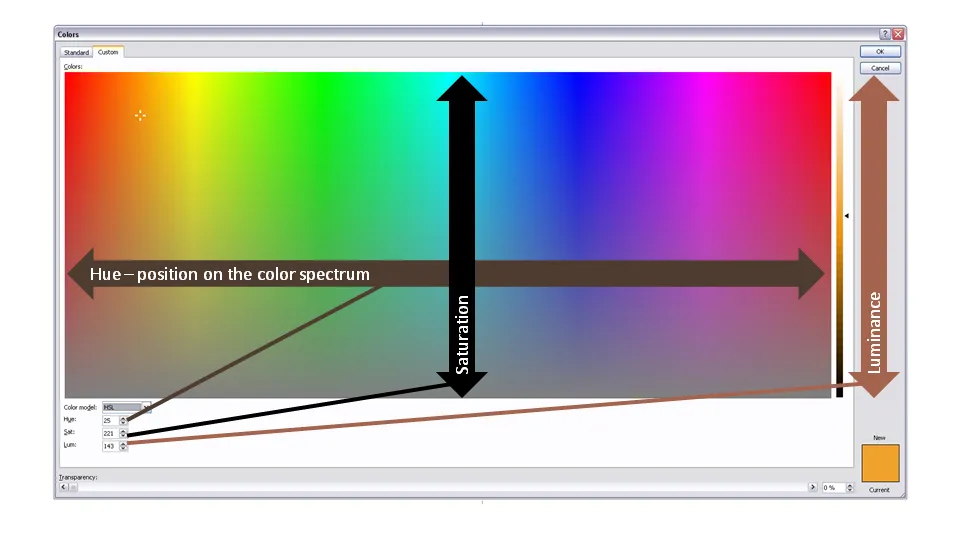
First of all to enter the right menu: hit any fill, outline or font color drop-down and select “more colors”. A big rainbow-like display will open. (Click the image above for a larger picture.) You have 3 options:
- Manually move the mouse in the color grid and click a color: this is never accurate enough. (Tip, you can actually stretch the window to make your selection more precise)
- Use RGB codes: a value of 0-255 for ®ed, (G)reen, and (B)lue: it is impossible to predict what the resulting color of an RGB-combination is
- Use HSL codes, my favorite. Let’s elaborate.
In the “color model” box at the bottom left of the matrix, change “RGB” to “HSL”.
You can define a color exactly by changing the 3 variables, each ranging from 0 to 255:
- (H)ue is the position of the color on the spectrum, going from red all the way to purple
- (S)aturation determines how bold are faded your color will be. Fluorescent colors go for the full 255, pastel colors for a low value, if you make the value really low, all colors turn more or less into grey
- (L)umenance sets the shade of the color, from light to dark
In practice I hardly ever use this technique to set my PowerPoint presentation color scheme (see a previous post on how I do this). There are situations though you might have to use the HSL color model: