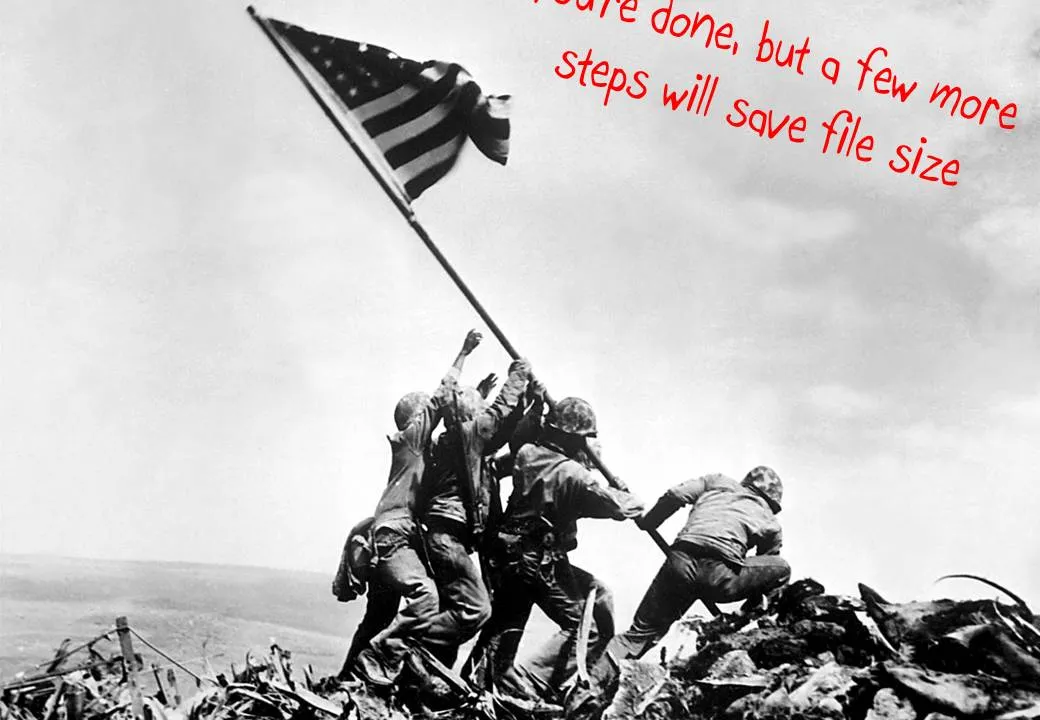
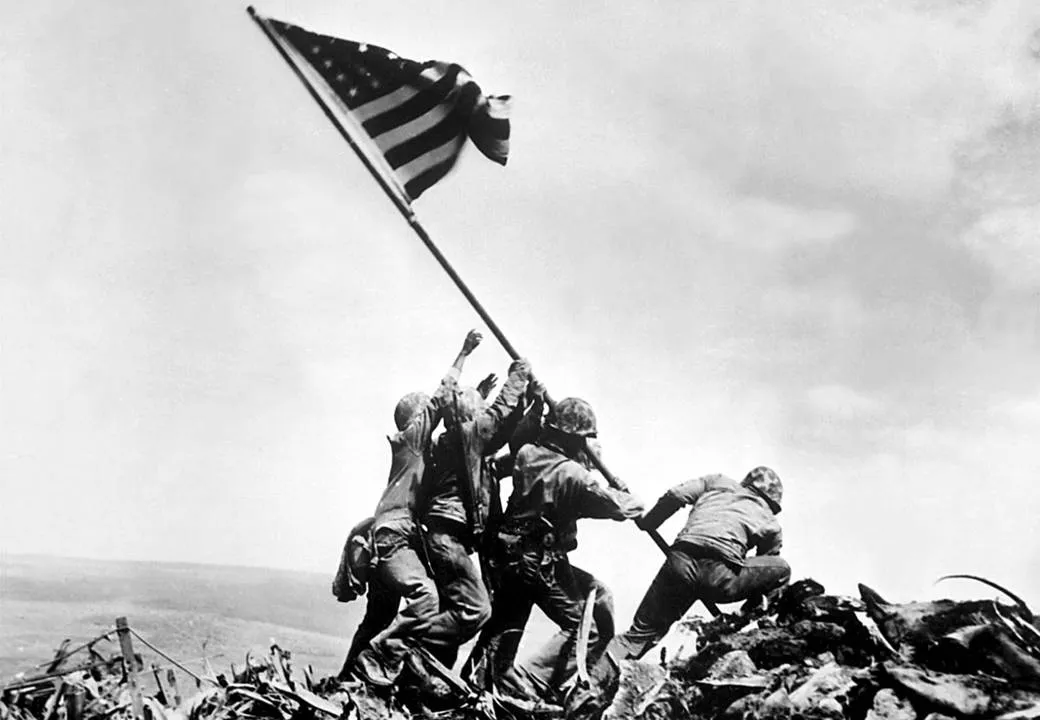
Most people have now caught on to the idea of using large images in presentations. But with a few graphics design tricks you can make things look even better:
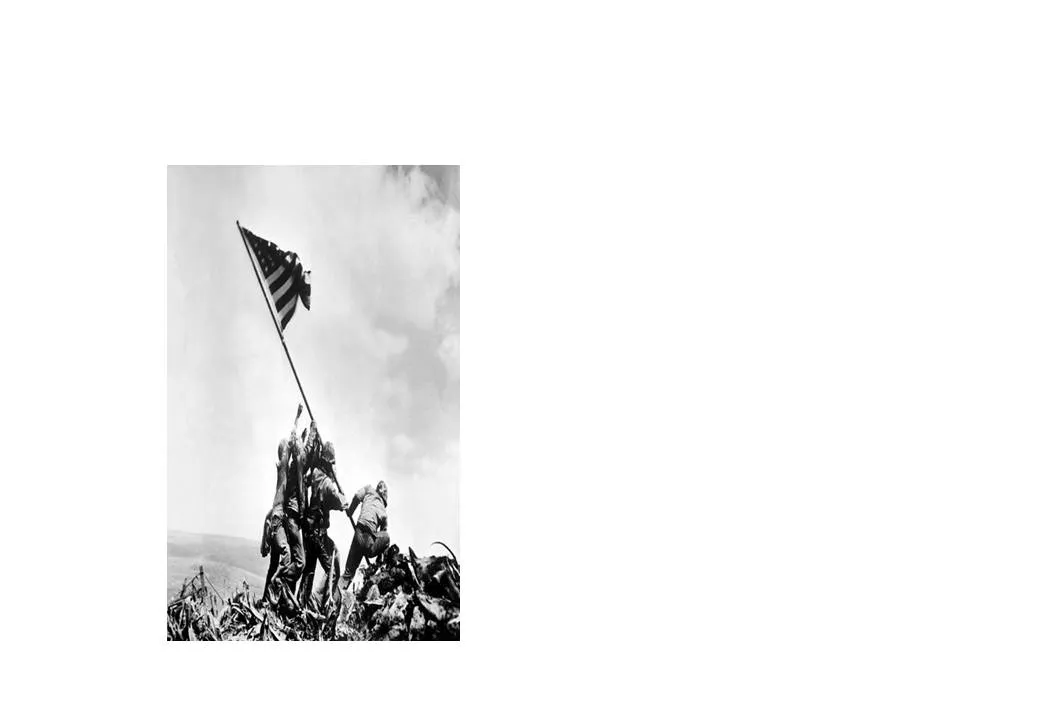
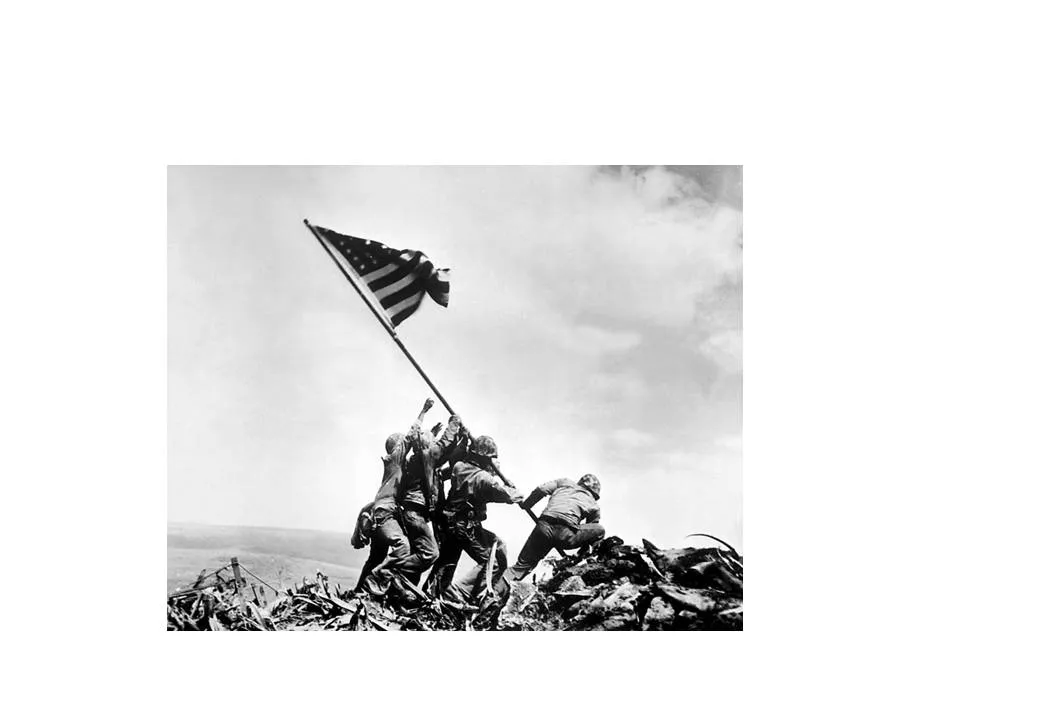
- Make sure that they are not stretched or squeezed: the proportions between height and width are the same as in the original
- If the image is big, go all the way and have it cover your entire slide.
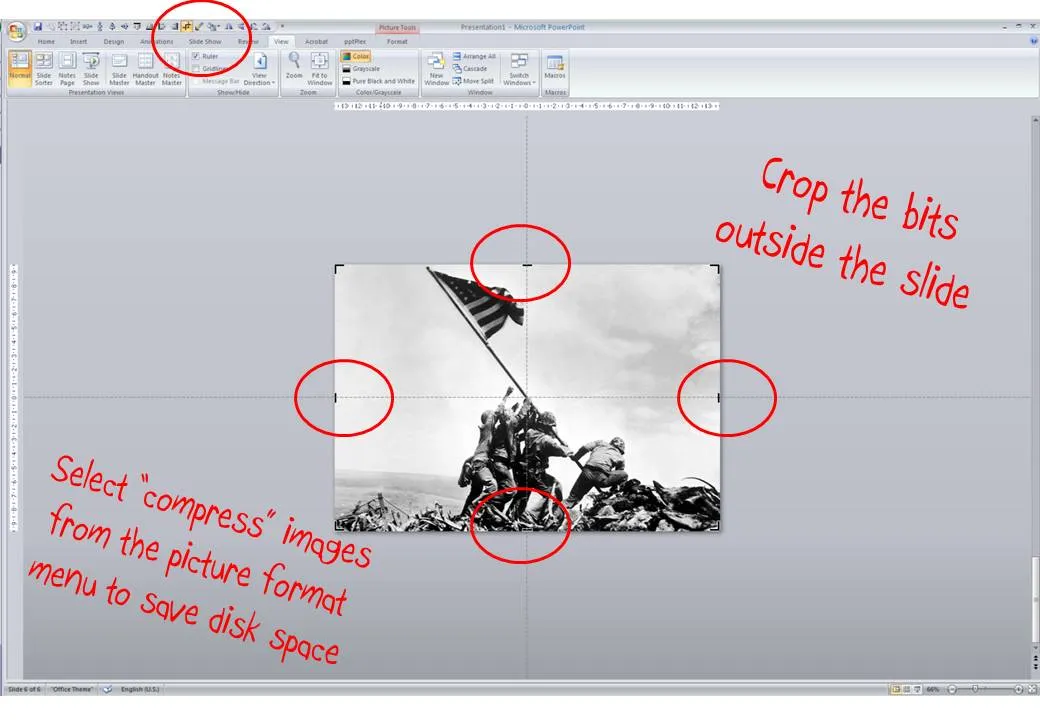
Here is how to do it:
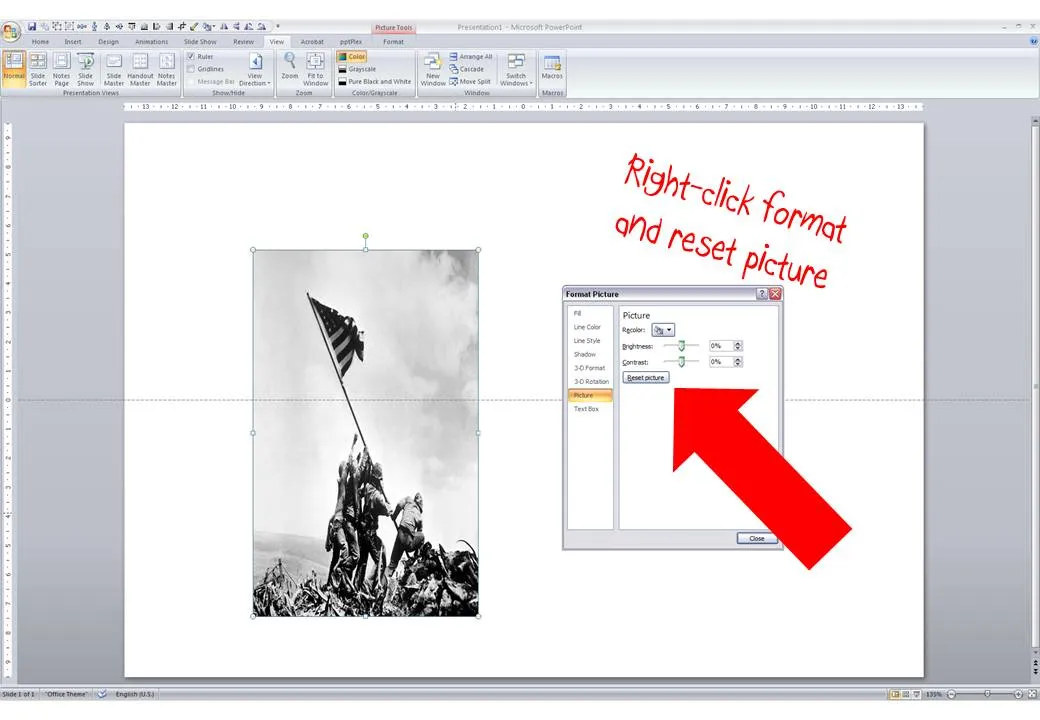
- Right-click the image, select format picture and click “reset picture” to restore the original aspect ratio (between height and width)
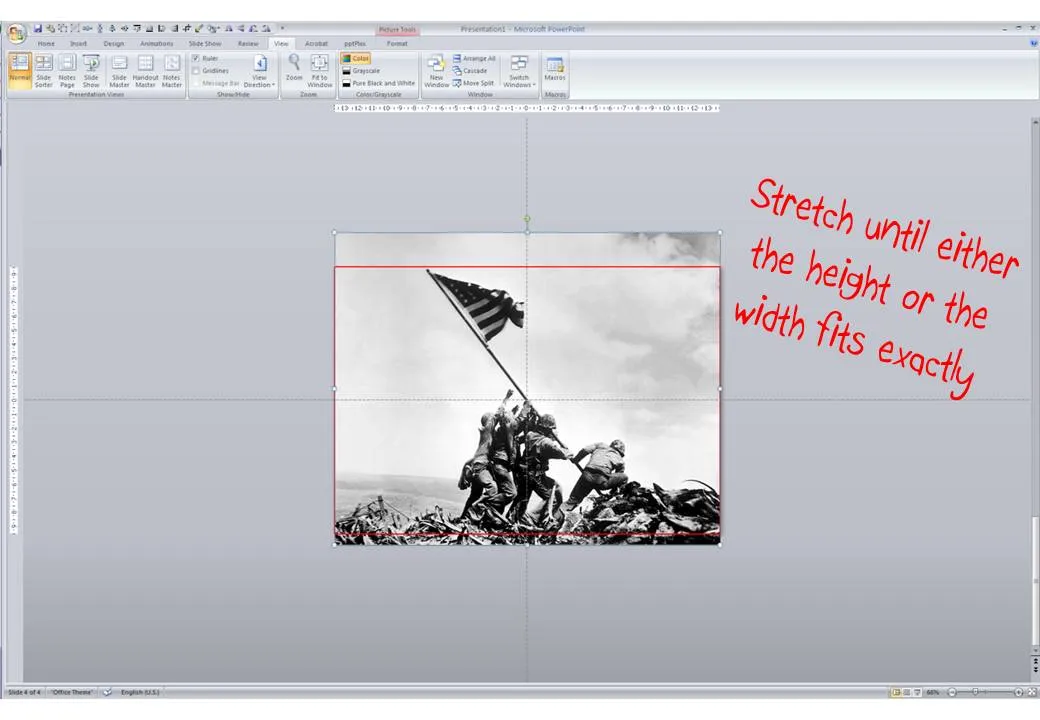
- Re-size by dragging a corner until both the height or the width are at least equal to the full screen
- Reposition the image and crop the bits of the image that are sticking outside the canvas
- Select the image, press format and compress pictures to reduce the file size of your presentation