

Blog post

Semi-transparent text fills in PowerPoint

June 7, 2010 · by Jan Schultink
← all posts

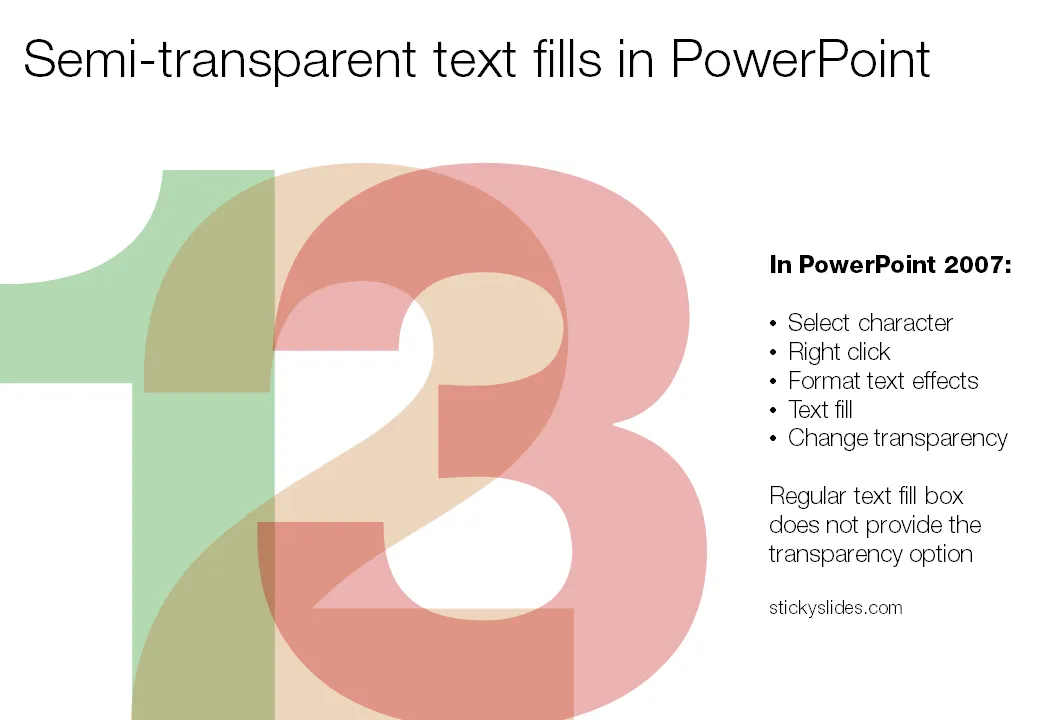
When you pick a color for a shape, PowerPoint gives you the option to set its transparency. However, when you select a color for your font, this dialog box does not appear. How to recreate this effect

in PowerPoint? Here is the work around (PowerPoint 2007).

  1. Select the text
  2. Right click
  3. Format text effects
  4. Text fill
  5. And now you can change the transparency!
DesignPowerPointPresentation designPresentationTypography

About this blog

Notes on all things presentations — design, storytelling, and AI workflows.

Subscribe now to never miss a post.

RSS

About SlideMagic

A platform for business presentations.

A free student plan is available.