SlideMagic Blog

Frequent updates about all things presentations since 2008. Subscribe to never miss a post.

RSS
all posts

Search results for “windows”

·PowerPoint

Presenter view - your screen's different from the audience's

PowerPoint has a smart little-known feature built in: presenter view. The screen on your laptop is different from the full-screen view the audience sees.
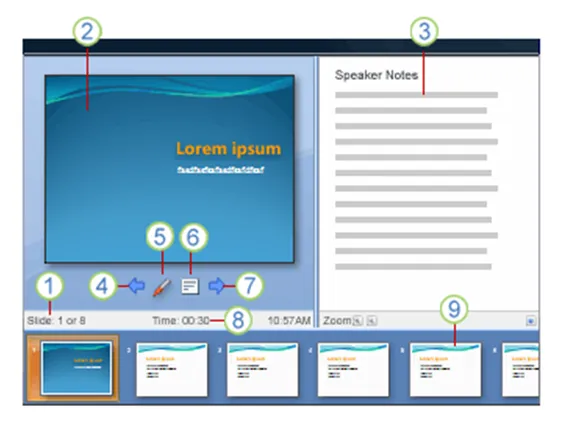
  1. Slide count
  2. Current slide
  3. Notes
  4. One slide back
  5. Marker
  6. Opens a menu (black screen, white screen, other functions)
  7. Next slide
  8. Presentation timer
  9. Slide sequence

In order for it to work, you need to setup your computer for 2 monitors (The primary monitor is your laptop, the second one the big projector) in windows control panel/display properties. After that, in the PowerPoint slideshow menu, set up slide show and go to the multiple monitors section.

UPDATE: From the comments below, John Goalby is pointing to his very detailed, free ebook on the subject of Presenter View.
Application screenshots in PowerPoint

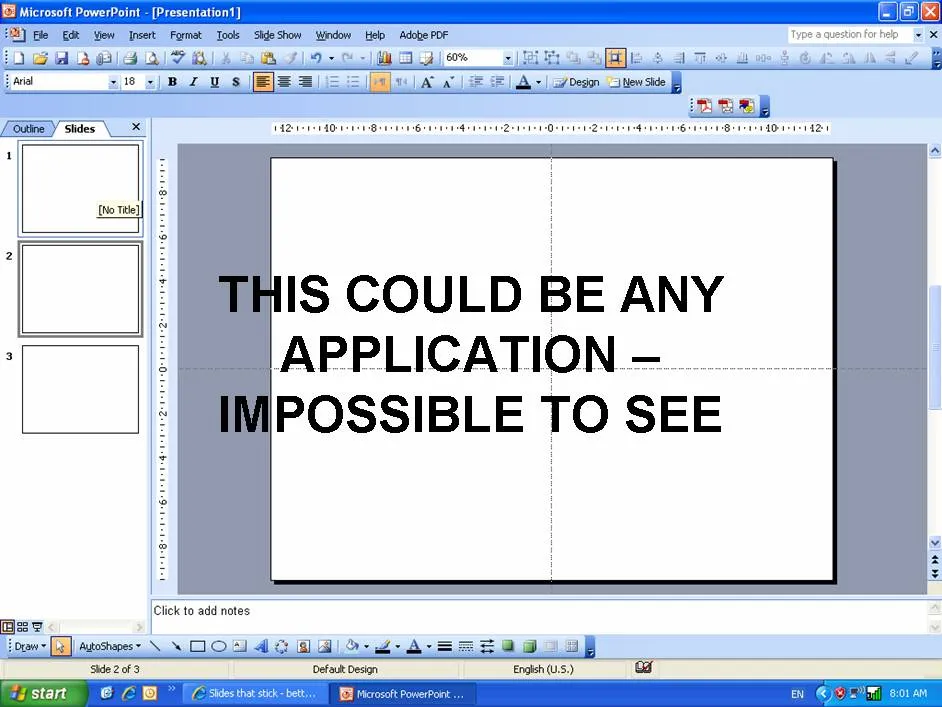
Inevitably, presentations by technology providers will have to include some of them. The usual approach is to make a full screen dump and paste it as an image in PowerPoint that covers arond 75% of the screen to leave room for title etc. The problem is that for the audience, this slide looks like any PC application open on the screen.

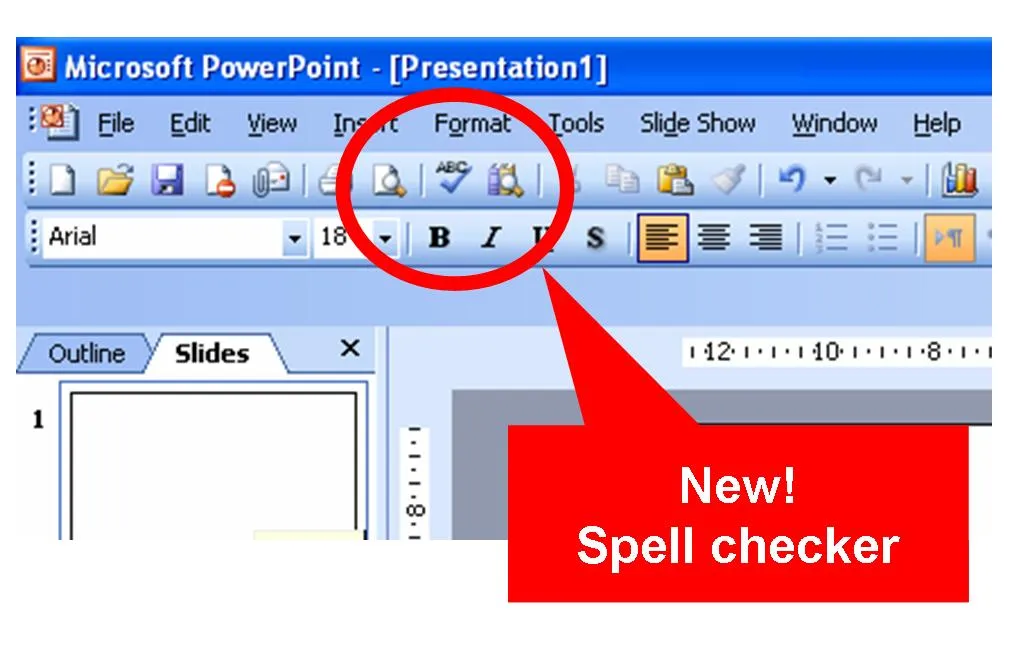
Different approach 1. Think about what feature you would like to highlight. Crop the image to just show that. Expand this very small image to full PowerPoint screen size, put a big bright circle around the area you want the audience to focus, together with a big bright arrow with a few words.

Different approach 2. Keep the big bland screen shot but fade it out by selecting the image, clicking format, clicking re-color and picking a soft grey overlay. Now put a number of bright arrows with 3-4 words to highlight a number of features. It doesn’t really matter that the audience can’t see the screen detail, what matter is that they understand the 3 messages you want them to understand (which are written in the boxes)

Making these screendumps is easy, press ctrl-shift-prtsc in the application, then press paste in the PowerPoint slide you want to put them in. In case of different approach 2, make sure to crop out your other personal applications from the Windows bar at the bottom of the screen. It is always fun to read private instant message windows in professional presentations.