

SlideMagic Blog

Frequent updates about all things presentations since 2008. Subscribe to never miss a post.

RSS
all posts

Category 3D

·3D

More 3D: positioning text with a reflection in PowerPoint

On today’s SlideShare front page is a nice presentation by Martin Pure:

Marketers See Think Wonder

Following on yesterday’s post on 3D objects, you can see that “something is wrong” with the alignment of the objects. The use of a reflection (a “Web 2.0” effect that I only use very rarely) implies a 3D setting.

You can apply the same guide lines thought to correct things. In addition, you can change the size of the font to emphasize the feel of a 3D environment.
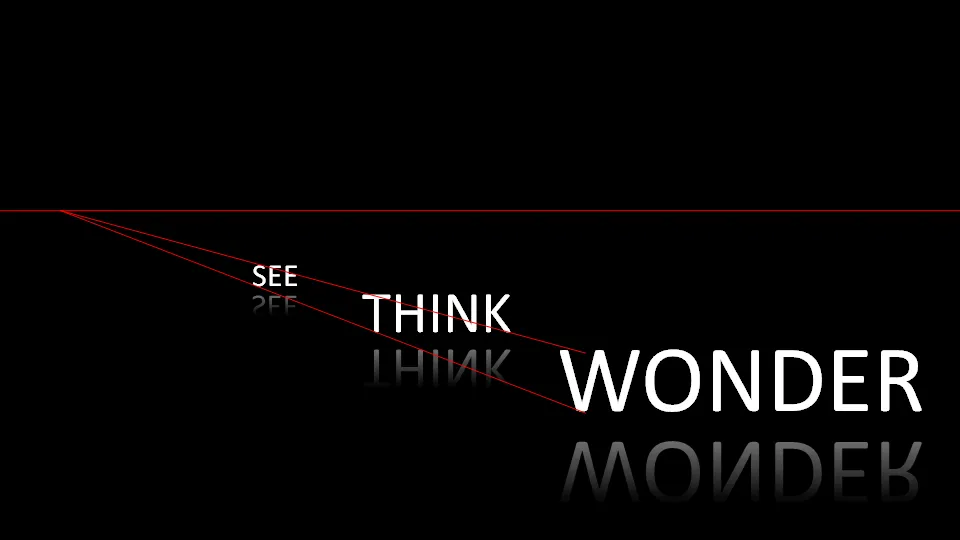
My comments were all about positioning of text. Do not misunderstand me, I like this presentation.
·3D

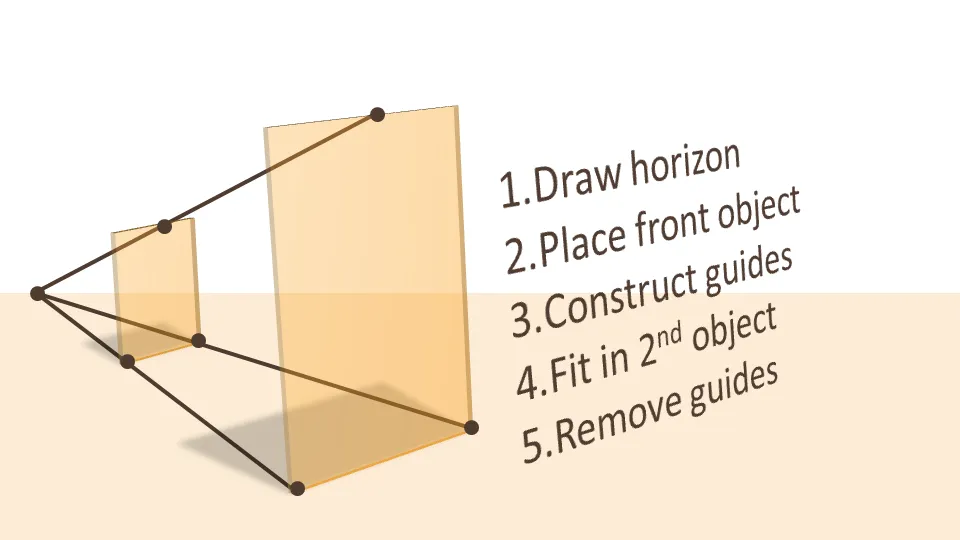
How to position 3D objects in PowerPoint slides

I am not a big fan of heavy 3D graphics in PowerPoint. Similar to animations, or 3D bar/column charts: the fact that PowerPoint enables you to do it, does not mean you have to use it.

  • It is tricky to get things to look realistic: PowerPoint is not a 3D design tool. A failed 3D chart looks very amateurish
  • 3D charts make it almost impossible to work with images. If given a choice, I would use an image rather than 3D objects. You can’t have them both.
  • 3D is hardly ever required to make a point: less is more in good PowerPoint design. Exceptions to this rule could be things emerging at the horizon, long-term outlooks, etc.
  • Text becomes harder to read

If you do want to use a 3D composition, use guide lines and an imaginative vanishing point to make sure your objects are aligned properly.

UPDATE: more on positioning text (with reflection) in 3D in PowerPoint in a folow up post to this one.