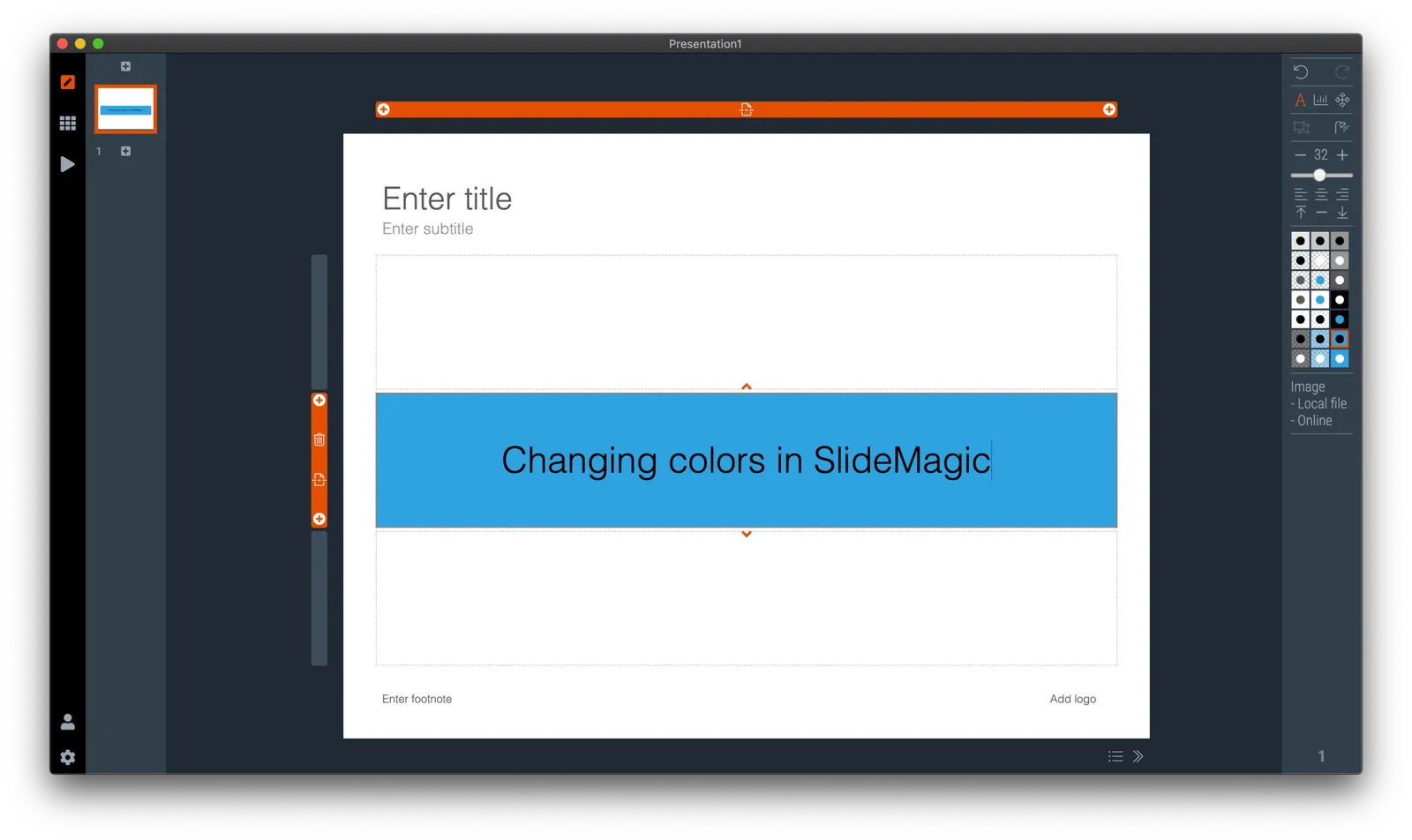
SlideMagic has a simple colour scheme: lots of variations of white, black, and grey, and one strong accent colour. Why?
SlideMagic is all about making presentation design efficient. This simple colour layout almost always looks great, and is very recognisable when you set the accent colour to the dominant colour in your logo.
How do you customise SlideMagic to your own preferred colour instead of SlideMagic blue?
-
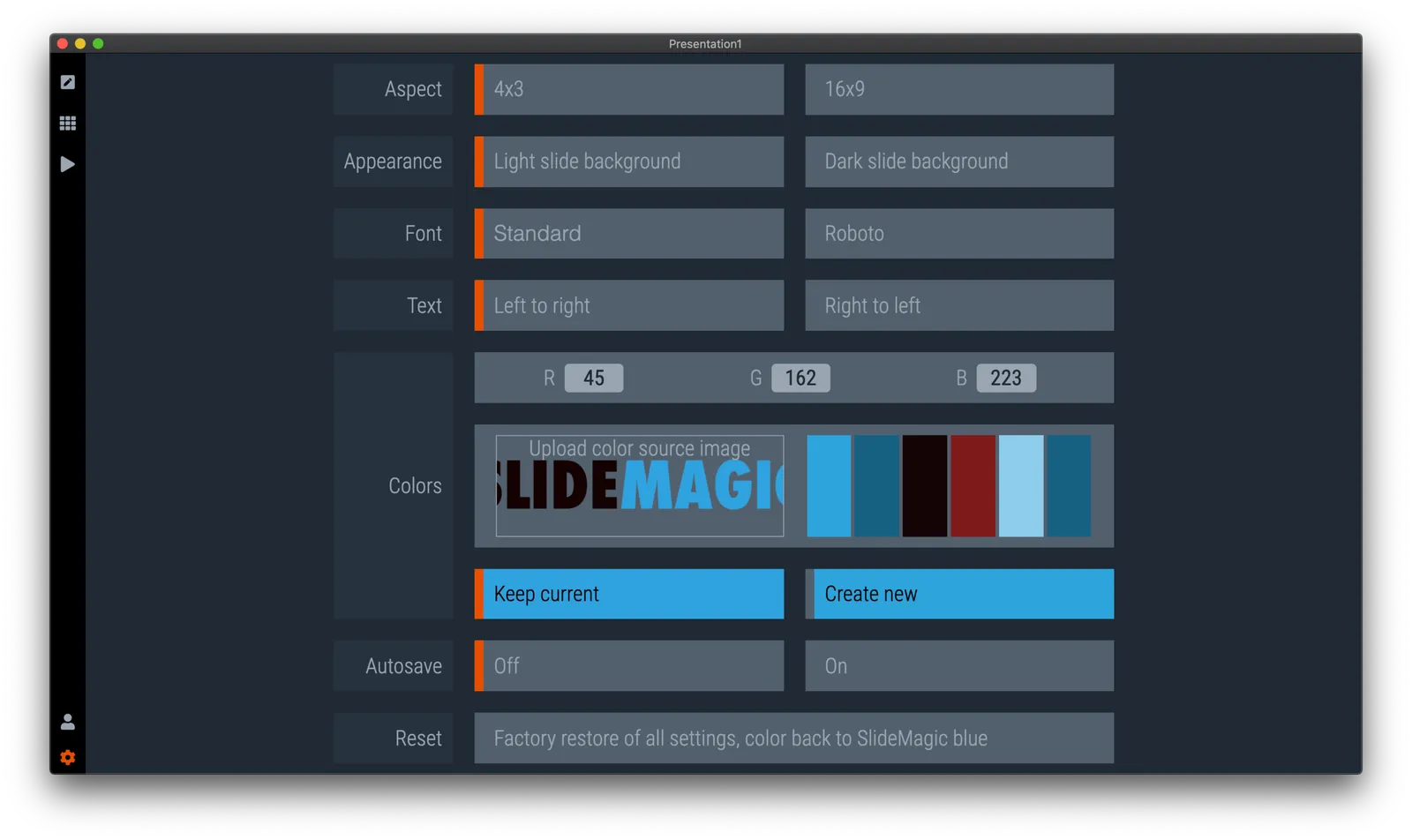
Go to the settings menu by clicking the cog wheel in the bottom left of the screen
-
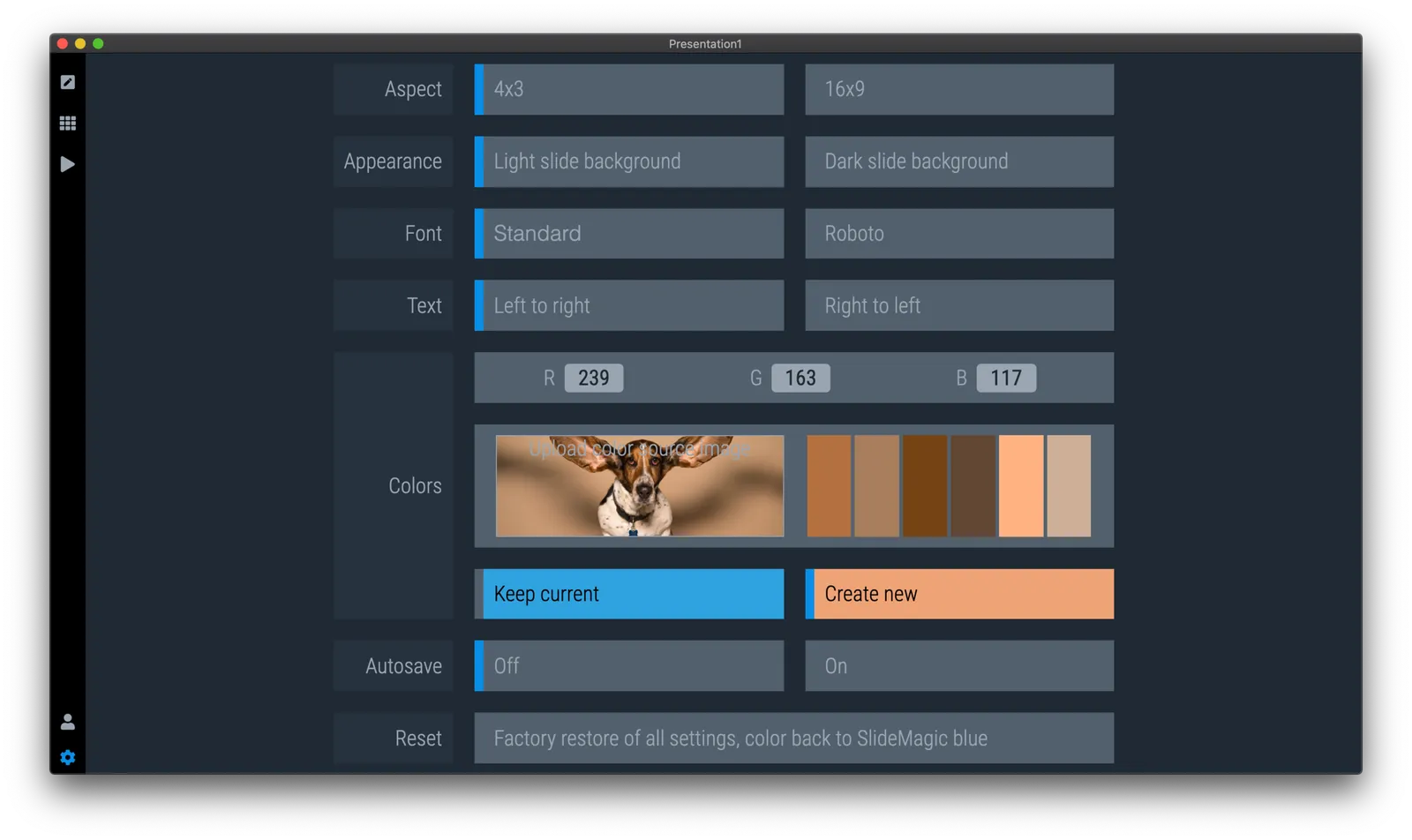
You have 2 options to set the new accent colour:
- Upload an image, after which the app will extract suggested colours from the photo (pro-tip: upload your logo)
- Enter an RGB code directly
-
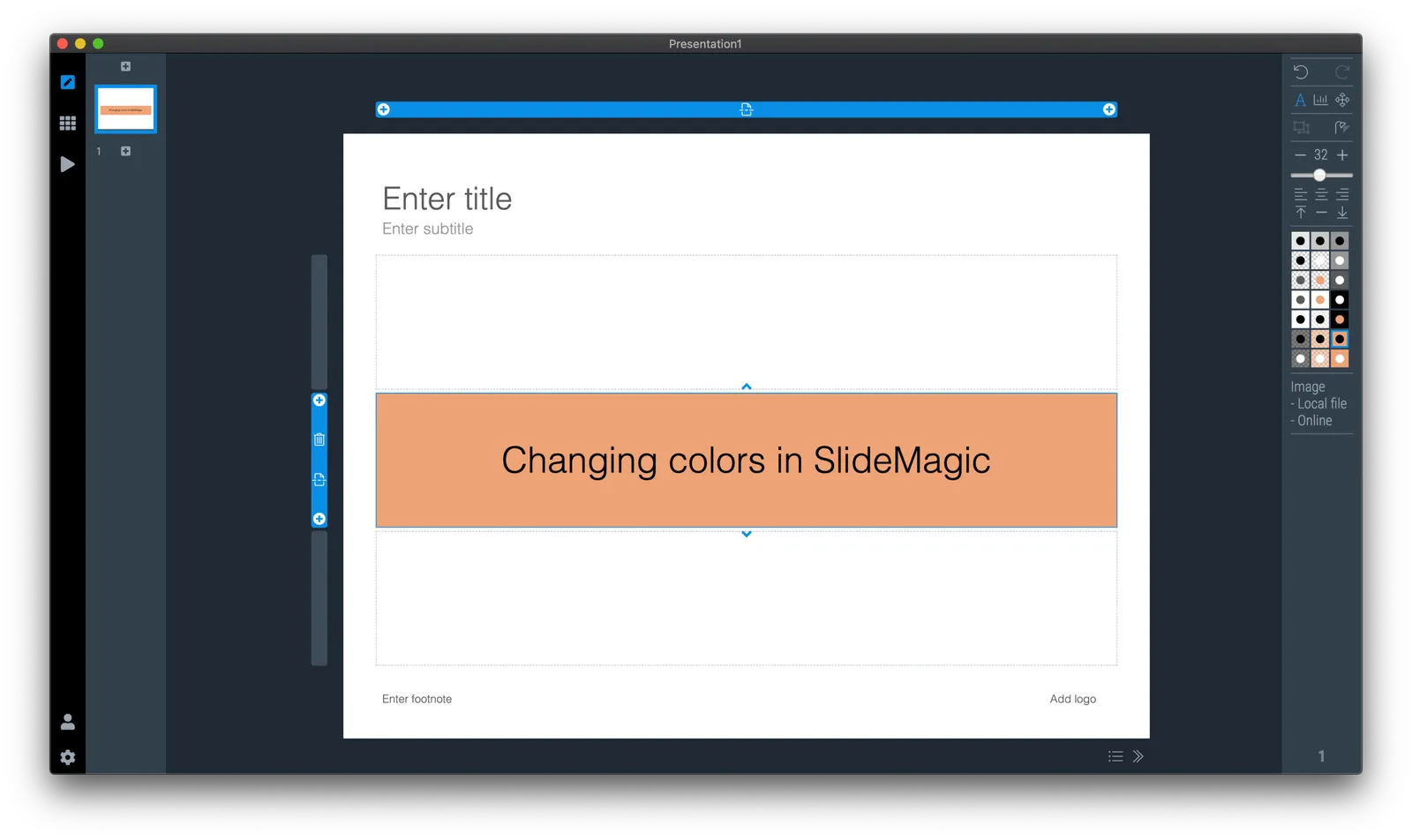
Go back to your slides and the whole deck will be set in the new colour scheme. Also notice that the app itself changes its user interface colour to the complement of the presentation colour you picked.