

If you are not a Photoshop master, here is a crude way to cut out an object out of an image in PowerPoint:
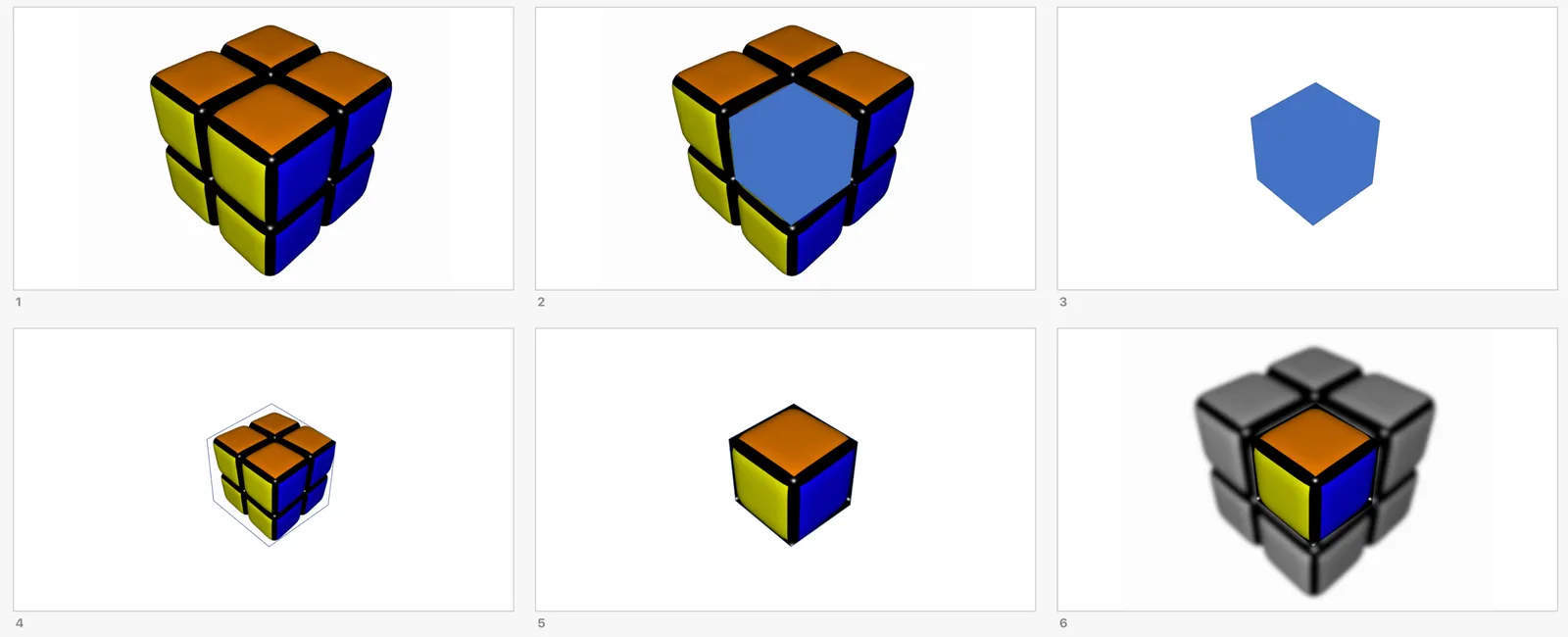
- Take an image
- Draw a freeform shape over it
- Remove the image
- Fill the shape with the original image
- Select crop, and then “fill”, then scale up the cropped image until the shape is filled with just the bit that you intended
- I added the original image back in the background